
■ FCC Declaration ………………………………………. i
■ Liability Note ………………………………………….. ii
■ Safety Precautions ………………………………… iii
Chapter1 PREPARING THE SCANNER ………………1
1.1 Checking the Contents of
the Scanner Package…………………………… 1
1.2 Names of Parts……………………………………. 1
1.3 Operator
Panel ……………………………………. 2
Chapter2 INSTALLATION OF THE SCANNER …….3
2.1 Installing
the
Scanner …………………………. 3
2.2 Connecting the Scanner to Your PC…….. 4
2.3 Installing
the
Scanner
Software …………… 4
2.4 Checking Scanner Driver Operation …….. 9
2.5 Uninstalling
Supplied Programs ………… 11
Appendix1 TROUBLESHOOTING…………….. AP-1
Appendix2 DAILY
CARE …………………………. AP-2
Appendix3 REPLACING
CONSUMABLES… AP-3
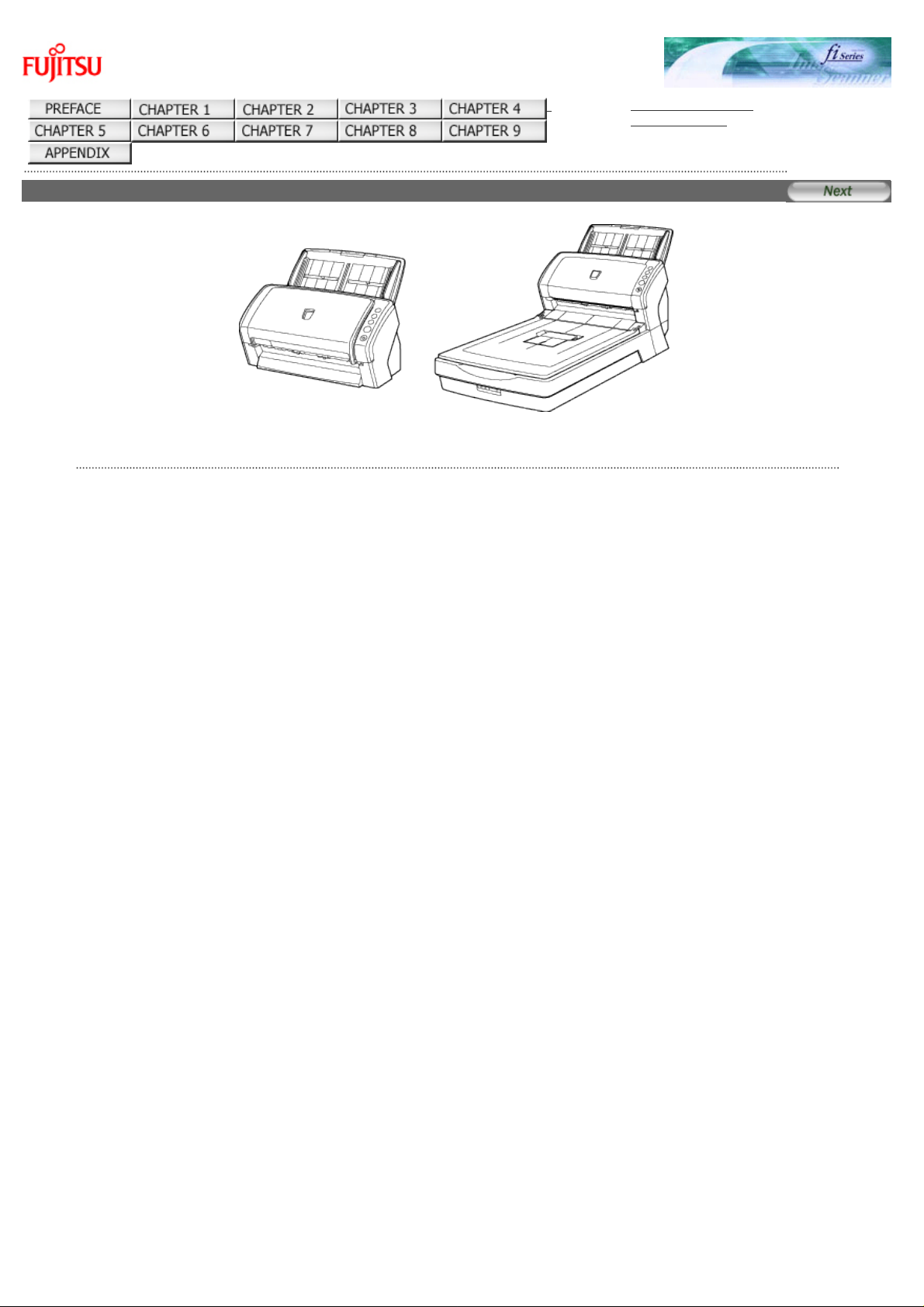
fi-6130 / fi-6230 Image Scanner Operator’s Guide
fi-6130 / fi-6230 Image Scanner Operator’s Guide
TROUBLESHOOTING
CONTENTS MAP
fi-6130 / fi-6230 Image Scanner Operator’s Guide P3PC-2162-02ENZ2
All Rights Reserved. Copyright 2007-2008 © PFU LIMITED
file:////10.232.227.50/Manual/fi-6130_6230_Lynx3L/OG/R02/02_081030/contents/EN/index.htm [2008/10/30 15:13:02]
CONTENTS MAP
fi-6130 / fi-6230 Image Scanner Operator’s Guide
TROUBLESHOOTING
CONTENTS MAP
TOP
CONTENTS MAP
Back
INTRODUCTION
Regulatory Information
Trademarks
Liability
Conventions
Safety Precautions
Chapter 1 NAMES AND FUNCTIONS OF PARTS
1.1 Checking the Contents of the Scanner Package
1.2 Names and Functions of Parts
1.3 Functions of the Operator Panel
Chapter 2 BASIC SCANNER OPERATIONS
2.1 Turning the Scanner ON
2.2 Loading Documents on the ADF for Scanning
2.3 Loading Documents on the Flatbed for Scanning [fi-6230
only]
2.4 Scanning Documents
2.5 How to Use the Scanner Drivers
2.6 How to Use ScandAll PRO
Chapter 3 SCANNING VARIOUS TYPES OF
DOCUMENTS
3.1 Scanning Both Sides of Documents
3.2 Scanning Books [fi-6230 only]
3.3 Scanning Large Documents with Flatbed [fi-6230 only]
3.4 Scanning Documents of Different Widths
3.5 Scanning Documents Longer Than A4/Letter Size
3.6 Saving Scanned Images in PDF Format
3.7 Excluding a Color from Images (Dropout Color)
3.8 Skipping Blank Pages
3.9 Detecting Multifeeds
3.10 Correcting Skewed Documents
3.11 Outputting Multi-Images
3.12 Color/Monochrome Auto Detection
3.13 Splitting a Page in Two Pages
3.14 Removing Punch Holes from Images
3.15 Scanning by Pressing the Scan Button on the Scanner
3.16 Splitting Documents by Patch Code
3.17 Scanning Using Barcodes
3.18 Not Detecting Multifeed for Fixed Format
Chapter 6 TROUBLESHOOTING
6.1 Removing Jammed Documents
6.2 Error Indications on the Operator Panel
6.3 Remedying Typical Troubles
6.4 Items to Check Before Contacting the Dealer Where You
Bought the Scanner
6.5 Checking Labels on the Scanner
Chapter 7 ADF AND PAPER SPECIFICATION
7.1 Document Size
7.2 Document Quality
7.3 Maximum Document Loading Capacity
7.4 Area Not to be Perforated
7.5 Multifeed Detection Conditions
Chapter 8 SCANNER SETTINGS
8.1 Scanner Settings
8.2 Power Saving Setting
8.3 Offset/Scan Scale
8.4 Multifeed Detection
8.5 Page Edge Filler
8.6 Dropout Color
8.7 Pre-Pick
8.8 Intelligent Multifeed Setting
8.9 Paper Feeding Retry Times
8.10 Life Counter Setting
8.11 Setting for Timeout for Manual Feeding
8.12 Power ON/OFF Control Setting
Chapter 9 SCANNER SPECIFICATION
9.1 Basic Specifications
9.2 Installation Specifications
9.3 External Dimensions
APPENDIX
APPENDIX1 Before Using the [Scan] or [Send to] Button
APPENDIX2 Glossary
file:////10.232.227.50/Manual/fi-6130_6230_Lynx…/R02/02_081030/contents/EN/cReg/contentsmap.htm (1/2) [2008/10/30 15:13:06]

CONTENTS MAP
Chapter 4 DAILY CARE
4.1 Cleaning Materials and Locations Requiring Cleaning
4.2 Cleaning the Flatbed [fi-6230 only]
4.3 Cleaning the ADF
Chapter 5 REPLACING CONSUMABLES
5.1 Consumables and Replacement Cycles
5.2 How to Check and Reset the Comsumables Counters
5.3 Replacing the Brake Roller
5.4 Replacing the Pick Roller
All Rights Reserved. Copyright 2007-2008 © PFU LIMITED
file:////10.232.227.50/Manual/fi-6130_6230_Lynx…/R02/02_081030/contents/EN/cReg/contentsmap.htm (2/2) [2008/10/30 15:13:06]
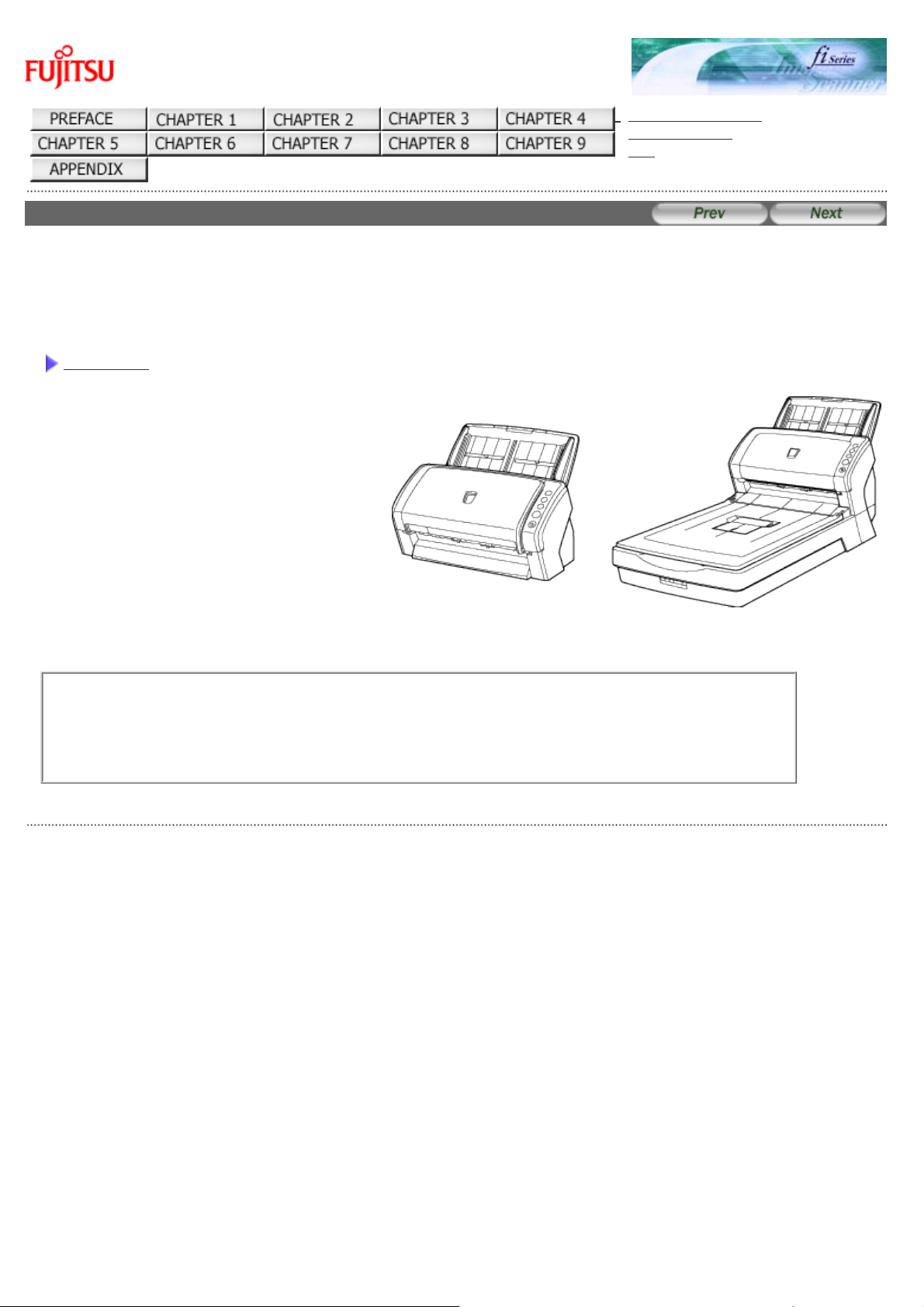
INTRODUCTION
fi-6130 / fi-6230 Image Scanner Operator’s Guide
TROUBLESHOOTING
CONTENTS MAP
TOP
INTRODUCTION
Thank you for purchasing the fi-6130 / fi-6230 Duplex Color Image Scanner.
This document describes how to handle the fi-6130 / fi-6230 Duplex Color Image Scanner and basic operation
methods. Before you start using the fi-6130 / fi-6230 Duplex Color Image Scanner be sure to thoroughly read this manual to
ensure correct use.
CONTENTS
● Copying of the contents of this manual in whole or in part and copying of the scanner application is
prohibited under the copyright law.
● The contents of this manual are subject to change without notice.
● PFU LIMITED is not liable whatsoever for any damages resulting from use of this scanner and procedures
described in this manual, profit due to defects, and any claims by a third party.
All Rights Reserved. Copyright 2007-2008 © PFU LIMITED
file:////10.232.227.50/Manual/fi-6130_6230_Lynx3L/OG/R02/02_081030/contents/EN/cReg/cReg.htm [2008/10/30 15:13:07]
Regulatory Information (1)
fi-6130 / fi-6230 Image Scanner Operator’s Guide
TROUBLESHOOTING
CONTENTS MAP
TOP
Regulatory Information (1)
1
2
FCC Declaration
This equipment has been tested and found to comply with the limits for a Class B digital device, pursuant to Part 15 of the
FCC Rules. These limits are designed to provide reasonable protection against harmful interference in a residential
installation. This equipment generates, uses, and can radiate radio frequency energy and, if not installed and used in
accordance with the instruction manual, may cause harmful interference to radio communications. However, there is no
guarantee that interference will not occur in a particular installation. If this equipment does cause harmful interference to
radio or television reception, which can be determined by turning the equipment off and on, the user is encouraged to try
to correct the interference by one or more of the following measures:
● Reorient or relocate the receiving antenna.
● Increase the separation between the equipment and receiver.
● Connect the equipment into an outlet on a circuit different from that to which the receiver is located.
● Consult your dealer or an experienced radio/TV technician.
FCC warning:
Changes or modifications not expressly approved by the party responsible for compliance could void the user’s authority to
operate the equipment.
ATTENTION
The use of a shielded interface cable is required to comply with the Class B limits of Part 15 of
FCC rules. The length of the AC cable must be 2 meters (6.6 feet) or less.
Canadian DOC Regulations
This digital apparatus does not exceed the Class B limit for radio noise emissions from digital apparatus set out in the
Radio interference Regulations of the Canadian Department of Communications.
This Class B digital apparatus complies with Canadian ICES-003.
Le présent appareil numérique n’émet pas de parasites radioélectriques dépassant les limites applicables aux appareils
numériques de la classe B et prescrites dans le Règlement sur le brouillage radioélectrique dictées par le Ministère des
Communications du Canada.
Cet appareil numérique de la classe B est conforme à la norme NMB-003 du Canada.
Bescheinigung des Herstellers / Importeurs
Für den fi-6130/fi-6230 wird folgendes bescheinigt:
● In Übereinsstimmung mit den Bestimmungen der EN45014(CE) funkentstört
● Maschinenlärminformationsverordnung 3. GPSGV: Der höchste Schalldruckpegel beträgt
70 dB (A) oder weniger, gemäß EN ISO 7779.
Dieses Gerät wurde nicht für die Benutzung in unmittelbarer Umgebung starker Lichtquellen (z. B. Projektoren) konzipiert.
1
2
All Rights Reserved. Copyright 2007-2008 © PFU LIMITED
file:////10.232.227.50/Manual/fi-6130_6230_Lynx3L/OG/R02/02_081030/contents/EN/cReg/cReg01_01.htm [2008/10/30 15:13:29]
Regulatory Information (2)
fi-6130 / fi-6230 Image Scanner Operator’s Guide
TROUBLESHOOTING
CONTENTS MAP
TOP
Regulatory Information (2)
1
2
International ENERGY STAR® Program
As an ENERGY STAR® Partner, PFU LIMITED has determined that this product meets the ENERGY STAR® guidelines for
energy efficiency.
The International ENERGY STAR® Office Equipment Program is an international program that promotes energy saving
through the penetration of energy efficient computers and other office equipment. The program backs the development
and dissemination of products with functions that effectively reduce energy consumption. It is an open system in which
business proprietors can participate voluntarily. The targeted products are office equipment such as computers, monitors,
printers, facsimiles, copiers, scanners, and multifunction devices.Their standards and logos are uniform among
participating nations.
Use in High-Safety Applications
This product has been designed and manufactured on the assumption that it will be used in office, personal, domestic,
regular industrial, and general-purpose applications. It has not been designed and manufactured for use in applications
(simply called «high-safety applications» from here on) that directly involve danger to life and health when a high degree of
safety is required, for example, in the control of nuclear reactions at nuclear power facilities, automatic flight control of
aircraft, air traffic control, operation control in mass-transport systems, medical equipment for sustaining life, and missile
firing control in weapons systems, and when provisionally the safety in question is not ensured. The user should use this
product with adopting measures for ensuring safety in such high-safety applications. PFU LIMITED assumes no liability
whatsoever for damages arising from use of this product by the user in high-safety applications, and for any claims or
compensation for damages by the user or a third party.
About the Use of Mercury
Lamp(s) inside this product contain mercury and must be recycled or disposed of according to
local, state, or federal laws.
To avoid unexpected injury, read the following carefully.
Doing the following actions may result in serious personal injuries:
● Do not put the substance contained in the lamp in your mouth as it has mercury.
● Do not incinerate, crush, or shred the lamps or scanner parts.
● Do not breathe the chemical liquid contained in the scanner lamps.
1
2
All Rights Reserved. Copyright 2007-2008 © PFU LIMITED
file:////10.232.227.50/Manual/fi-6130_6230_Lynx3L/OG/R02/02_081030/contents/EN/cReg/cReg01_02.htm [2008/10/30 15:15:40]
Trademarks
fi-6130 / fi-6230 Image Scanner Operator’s Guide
TROUBLESHOOTING
CONTENTS MAP
TOP
Trademarks
Trademarks
Microsoft, Windows, Windows Server and Windows Vista are registered trademarks of Microsoft Corporation in the United
States and/or other countries.
ISIS and QuickScan are trademarks or registered trademarks of EMC Corporation in the United States.
Adobe, the Adobe logo, and Acrobat are either registered trademarks of Adobe Systems Incorporated in the United States
and/or other countries.
Other product names are the trademarks or registered trademarks of the respective companies.
How Trademarks Are Indicated In This Manual
References to operating systems (OS) and applications are indicated as follows:
Windows 2000
Microsoft
®
Windows® 2000 Professional operating system
Windows XP
Microsoft
®
Windows® XP Professional operating system (32-bit/64-bit)
Microsoft
®
Windows® XP Home Edition operating system
Windows Server 2003
Microsoft
®
Windows Server® 2003 Standard Edition operating system (32-
bit/64-bit)
Windows Vista
Microsoft
®
Windows Vista® Home Basic operating system (32-bit/64-bit)
Microsoft
®
Windows Vista® Home Premium operating system (32-bit/64-bit)
Microsoft
®
Windows Vista® Business operating system (32-bit/64-bit)
Microsoft
®
Windows Vista® Enterprise operating system (32-bit/64-bit)
Microsoft
®
Windows Vista® Ultimate operating system (32-bit/64-bit)
Where there is no distinction between the different versions of the above operating system, the general term «Windows» is
used.
Adobe Acrobat
Adobe
®
Acrobat
®
Where there is no distinction between the different versions of the above application, the general term «Adobe Acrobat» is
used.
The version of Adobe Acrobat provided with this product may change without notice. If the instructions described in this
manual differ from the actual displayed screen, refer to Acrobat’s Help.
Manufacturer
PFU LIMITED
International Sales Dept., Imaging Bussines Division, Products Group
Solid Square East Tower, 580 Horikawa-cho, Saiwai-ku, Kawasaki-shi Kanagawa 212-8563, Japan
Phone: (81-44) 540-4538
All Rights Reserved. Copyright© PFU LIMITED 2007-2008
All Rights Reserved. Copyright 2007-2008 © PFU LIMITED
file:////10.232.227.50/Manual/fi-6130_6230_Lynx3L/OG/R02/02_081030/contents/EN/cReg/cReg02_01.htm [2008/10/30 15:13:30]
Liability
fi-6130 / fi-6230 Image Scanner Operator’s Guide
TROUBLESHOOTING
CONTENTS MAP
TOP
Liability
BEFORE USING THIS PRODUCT, PLEASE READ THIS MANUAL CAREFULLY. IF THIS PRODUCT IS NOT USED CORRECTLY,
UNEXPECTED INJURY CAN OCCUR TO USERS OR BYSTANDERS.
Keep this manual in a safe place so that it can be easily referred to during use of this product.
While all efforts have been made to ensure the accuracy of all information in this manual, PFU assumes no liability to any
party for any damage caused by errors or omissions or by statements of any kind in this manual, its updates or supplements,
whether such errors are omissions or statements resulting from negligence, accidents, or any other cause. PFU further
assumes no liability arising from the application or use of any product or system described herein; nor any liability for
incidental or consequential damages arising from the use of this manual. PFU disclaims all warranties regarding the
information contained herein, whether expressed, implied, or statutory.
All Rights Reserved. Copyright 2007-2008 © PFU LIMITED
file:////10.232.227.50/Manual/fi-6130_6230_Lynx3L/OG/R02/02_081030/contents/EN/cReg/cReg03_01.htm [2008/10/30 15:13:31]
Conventions (1)
fi-6130 / fi-6230 Image Scanner Operator’s Guide
TROUBLESHOOTING
CONTENTS MAP
TOP
Conventions (1)
1
2
Safety Precautions
This manual describes important details for ensuring the safe and correct use of this product. Thoroughly read this manual
before you start to use this product. In particular, be sure to read and fully understand the Safety Precautions described in
this manual before you use this product.
Also, store this manual in a safe place so that it can be easily referred to during use of this product.
Warning Indications Used In This Manual
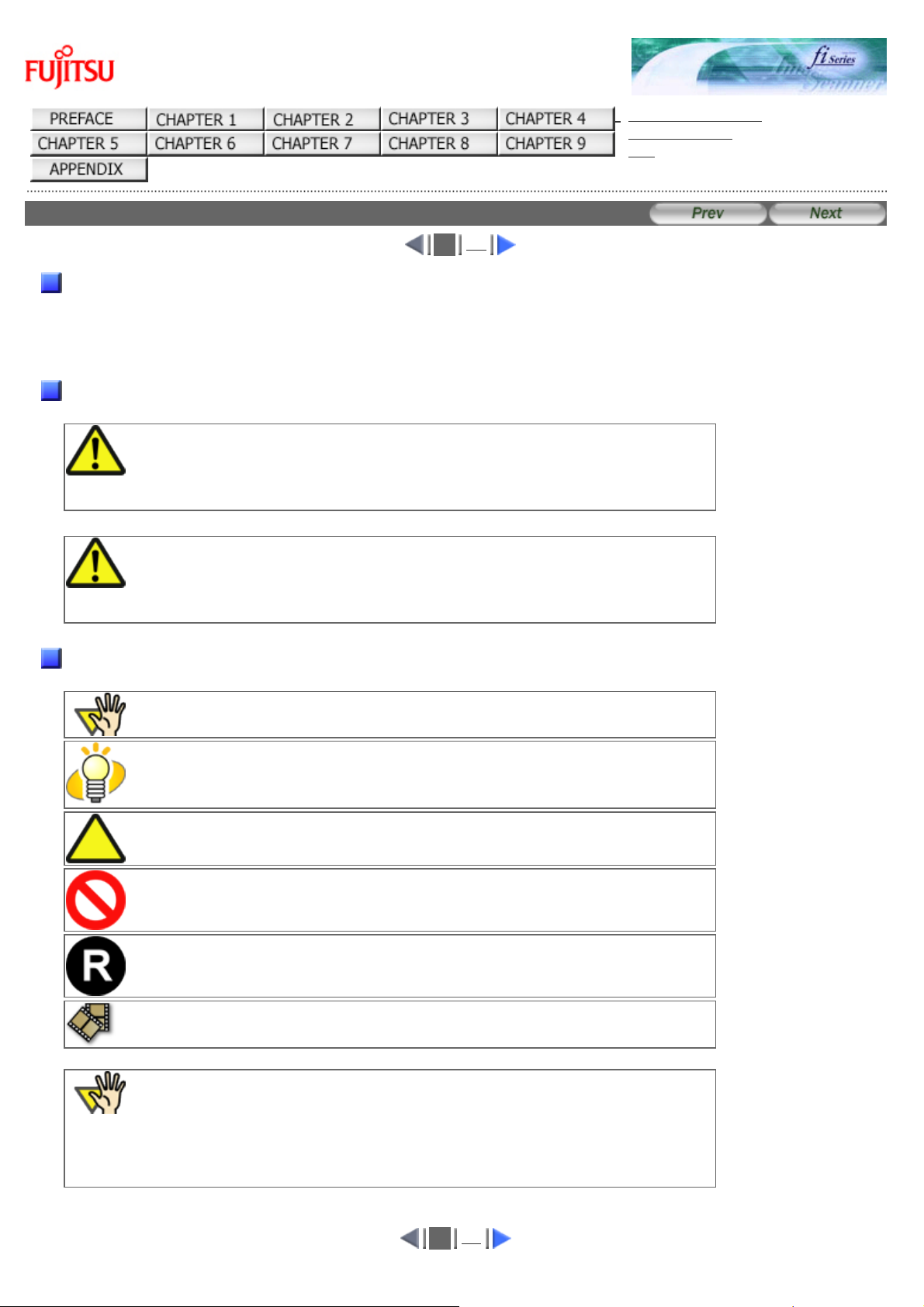
WARNING
This indication alerts operators to an operation that, if not strictly observed, may result
in severe injury or death.
CAUTION
This indication alerts operators to an operation that, if not strictly observed, may result
in safety hazards to personnel or damage to equipment.
Symbols Used In This Manual
This manual uses the following symbols in the explanations in addition to the warning indications.
This symbol alerts operators to particularly important information. Be sure to read this
information.
This symbol alerts operators to helpful advice regarding operation.
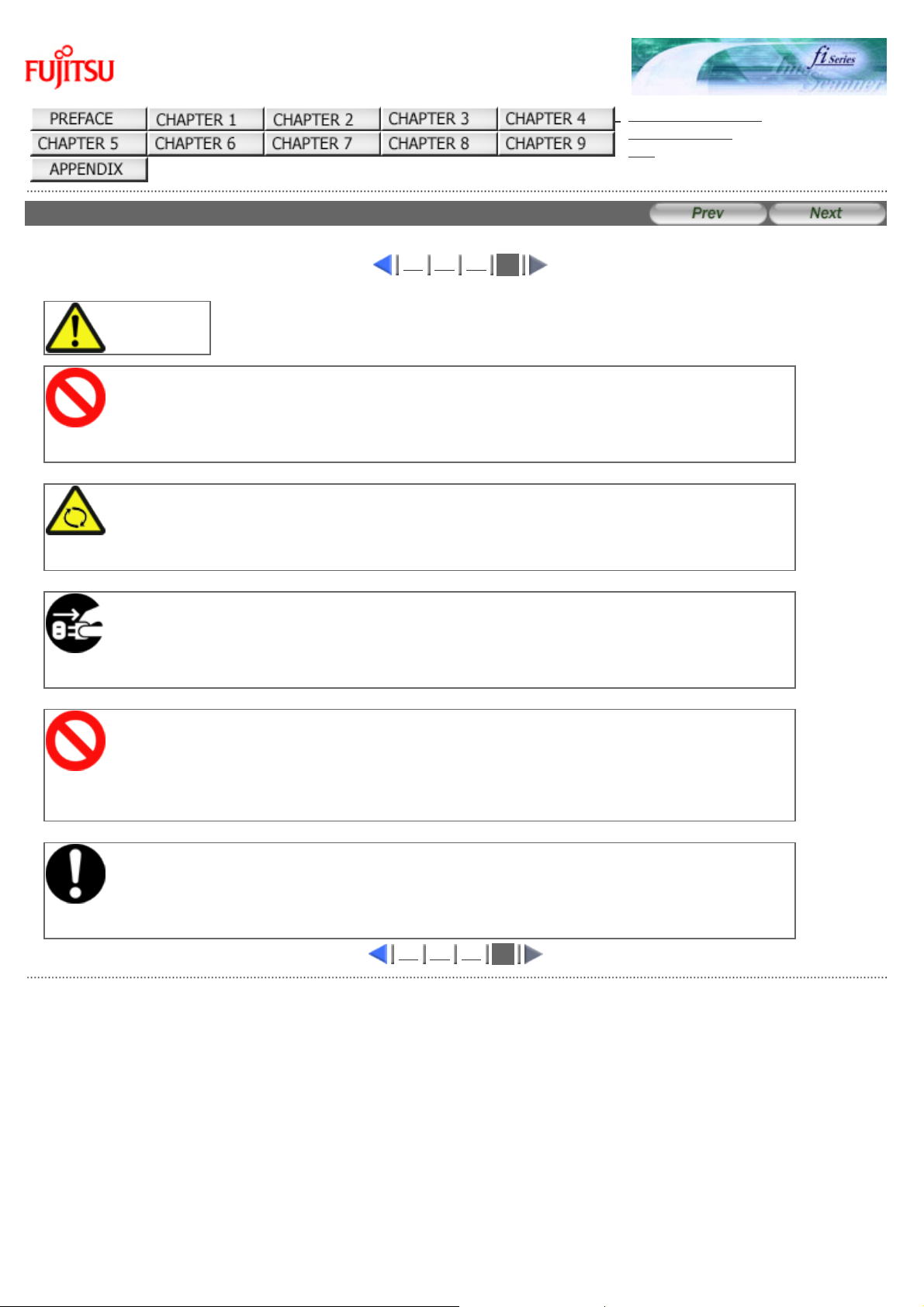
A TRIANGLE symbol indicates that special care and attention is required.
The drawing inside the triangle shows the specific caution.
A CIRCLE with a diagonal line inside shows action which users may not perform.
The drawing inside or under the circle shows the specific action that is not allowed.
Outline characters on a colored background show instructions users should follow.
It may also include the drawing that shows the specific instruction.
Clicking this icon plays movies.
ATTENTION
NOTE for using Windows XP Service Pack 2
The Internet’s security function may restrict displaying movies. In order to display the
movies, allow to run the blocked active content.
1
2
file:////10.232.227.50/Manual/fi-6130_6230_Lynx…OG/R02/02_081030/contents/EN/cReg/cReg03_02.htm (1/2) [2008/10/30 15:13:33]
Conventions (2)
fi-6130 / fi-6230 Image Scanner Operator’s Guide
TROUBLESHOOTING
CONTENTS MAP
TOP
Conventions (2)
1
2
Screen Examples In This Manual
The screen examples in this manual are subject to change without notice in the interest of product improvement. If the
actual displayed screen differs from the screen examples in this manual, operate by following the actual displayed screen
while referring to the User’s Manual of the scanner application you are using. The screenshots in this manual were
captured from the FUJITSU TWAIN32 scanner driver, ScandAll PRO Image Capturing Utility Software, FUJITSU ISIS
scanner driver, QuickScan™ image capturing software and Adobe® Acrobat®.
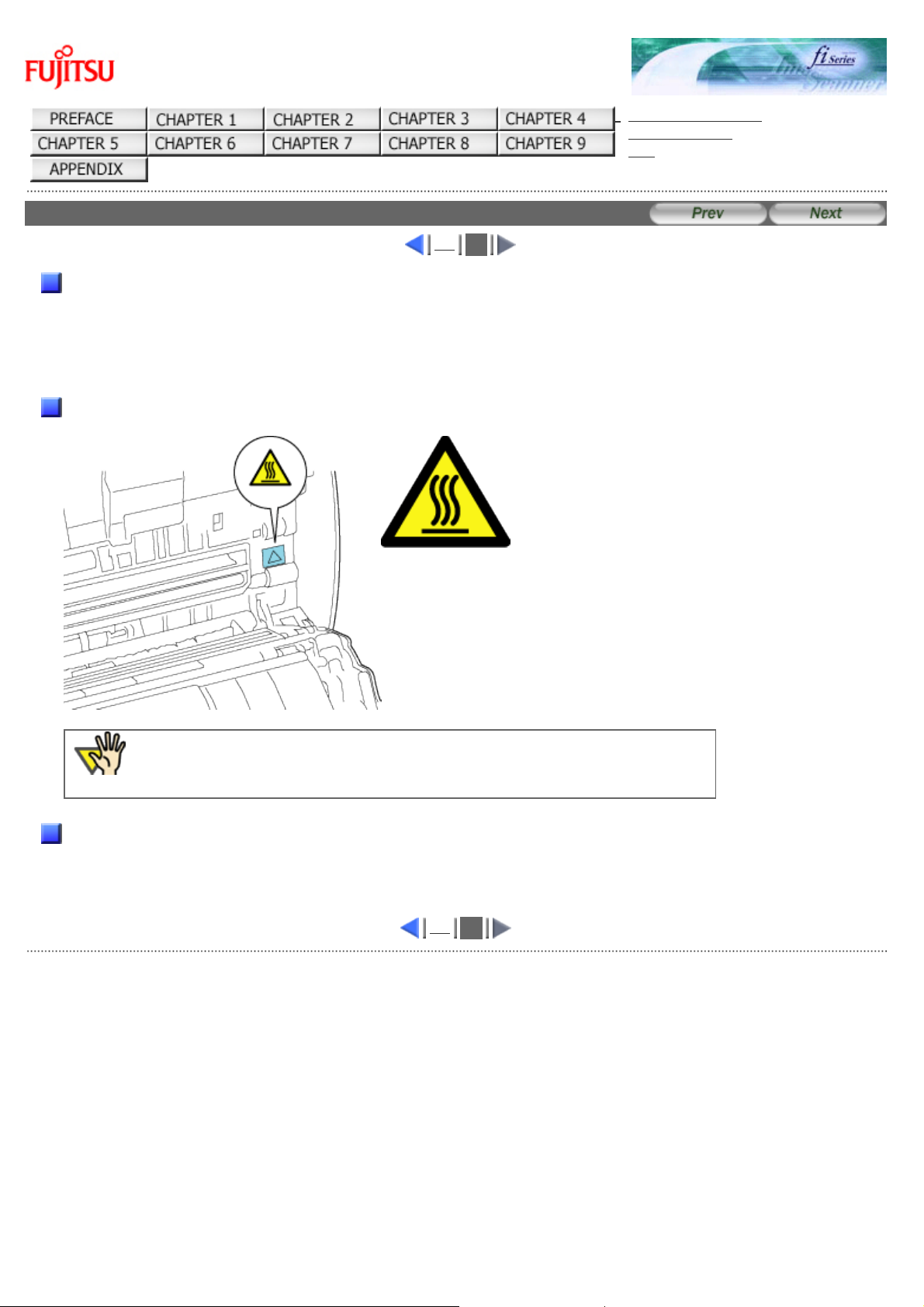
Warning Label
The following picture shows the warning label used in this scanner.
High Temperature
The part around this label (includes the
glass surface inside the ADF) becomes hot
during the operation. Be careful not to
touch the glass surface inside the ADF.
ATTENTION
Do NOT remove from the scanner, stain or scratch the warning labels.
About Maintenance
The user must not perform repairs on this scanner.
Contact the store where you purchased the scanner or an authorized FUJITSU Image Scanner service provider to have
repairs done on this product.
1
2
All Rights Reserved. Copyright 2007-2008 © PFU LIMITED
file:////10.232.227.50/Manual/fi-6130_6230_Lynx3L/OG/R02/02_081030/contents/EN/cReg/cReg03_02_1.htm [2008/10/30 15:15:42]
Safety Precautions (1)
fi-6130 / fi-6230 Image Scanner Operator’s Guide
TROUBLESHOOTING
CONTENTS MAP
TOP
Safety Precautions (1)
1
2 3 4
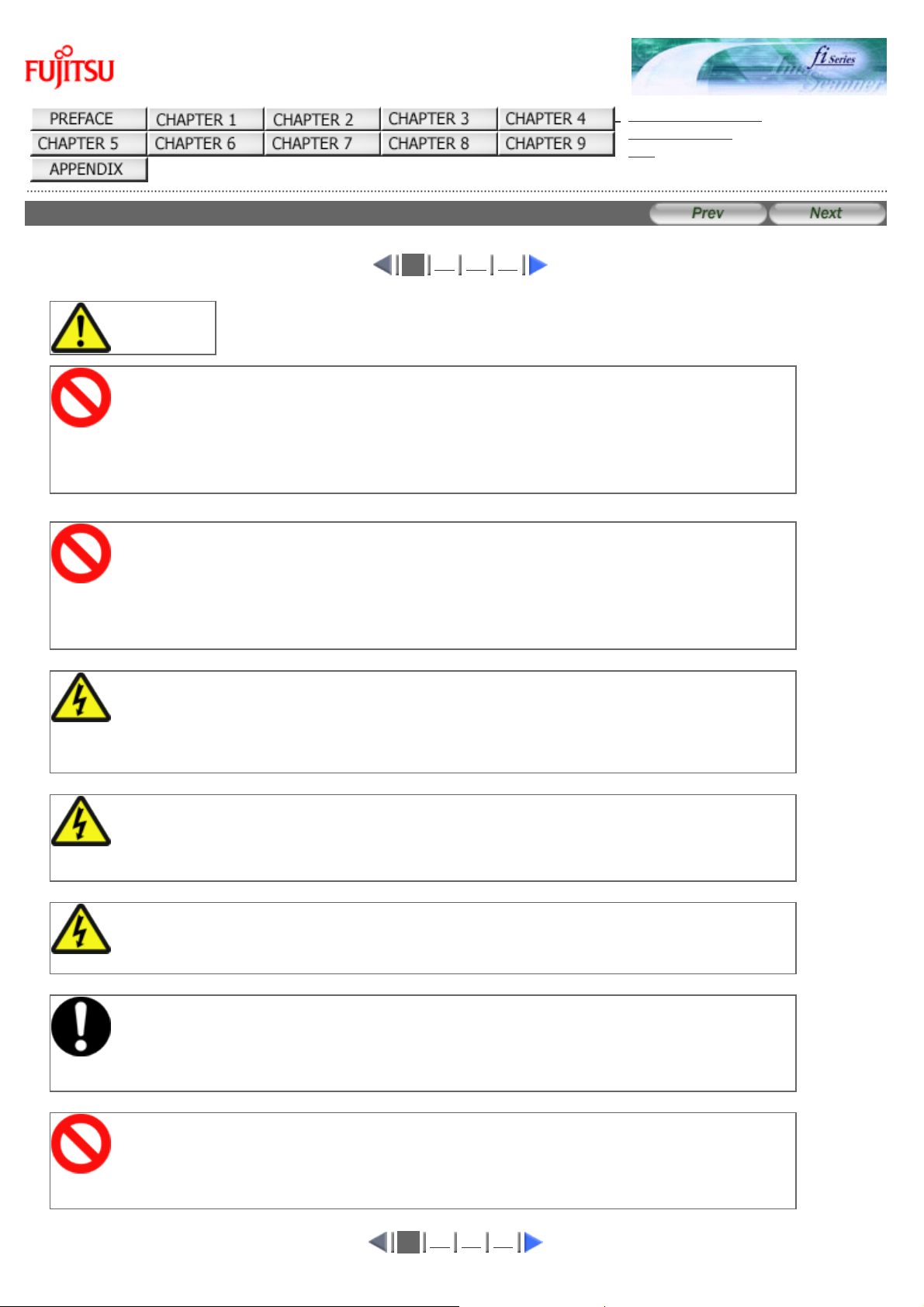
WARNING
Do not damage the AC cable.
A damaged AC cable may cause fire or electric shock. Do not place heavy objects on AC cables, or
pull, bend, twist, heat, damage or modify AC cables.
Do not use damaged AC cables or power plugs, or install any cables or power plugs to loose wall
sockets.
Use only specified AC cables and interface cables.
Use only specified AC cables and interface cables. Failure to use the correct cables might cause
electric shock and/or equipment failure.
Please do not use the AC cable provided with this scanner for other devices, since this might cause
equipment failure and other troubles or an electric shock.
Make sure to ground the scanner.
Make sure to ground to avoid electric shock.
Be sure to ground before plugging into a power outlet.
Unplug from the outlet before removing the ground connection.
Use this scanner only at the indicated power voltage. Do not connect
to multiple-power strips.
Use this scanner only at the indicated power voltage and current. Improper power voltage and
current might cause fire or electric shock. Do not connect to multiple-power strips.
Do not touch the AC cable with wet hands.
Do not touch the power plug with wet hands. Doing so can cause electric shock.
Wipe any dust from the power plug.
Wipe off any dust from metal parts on the power plug or metal fittings with a soft, dry cloth.
Accumulated dust can cause fire or electric shock.
Do not install the device in locations that has oil smoke, steam,
humidity, and dust.
Do not install the scanner in locations subject to oil smoke, steam, humidity, and dust. Doing so
might cause a fire or electric shock.
1
2 3 4
file:////10.232.227.50/Manual/fi-6130_6230_Lynx…OG/R02/02_081030/contents/EN/cReg/cReg04_01.htm (1/2) [2008/10/30 15:13:34]
Safety Precautions (2)
fi-6130 / fi-6230 Image Scanner Operator’s Guide
TROUBLESHOOTING
CONTENTS MAP
TOP
Safety Precautions (2)
1
2
3 4
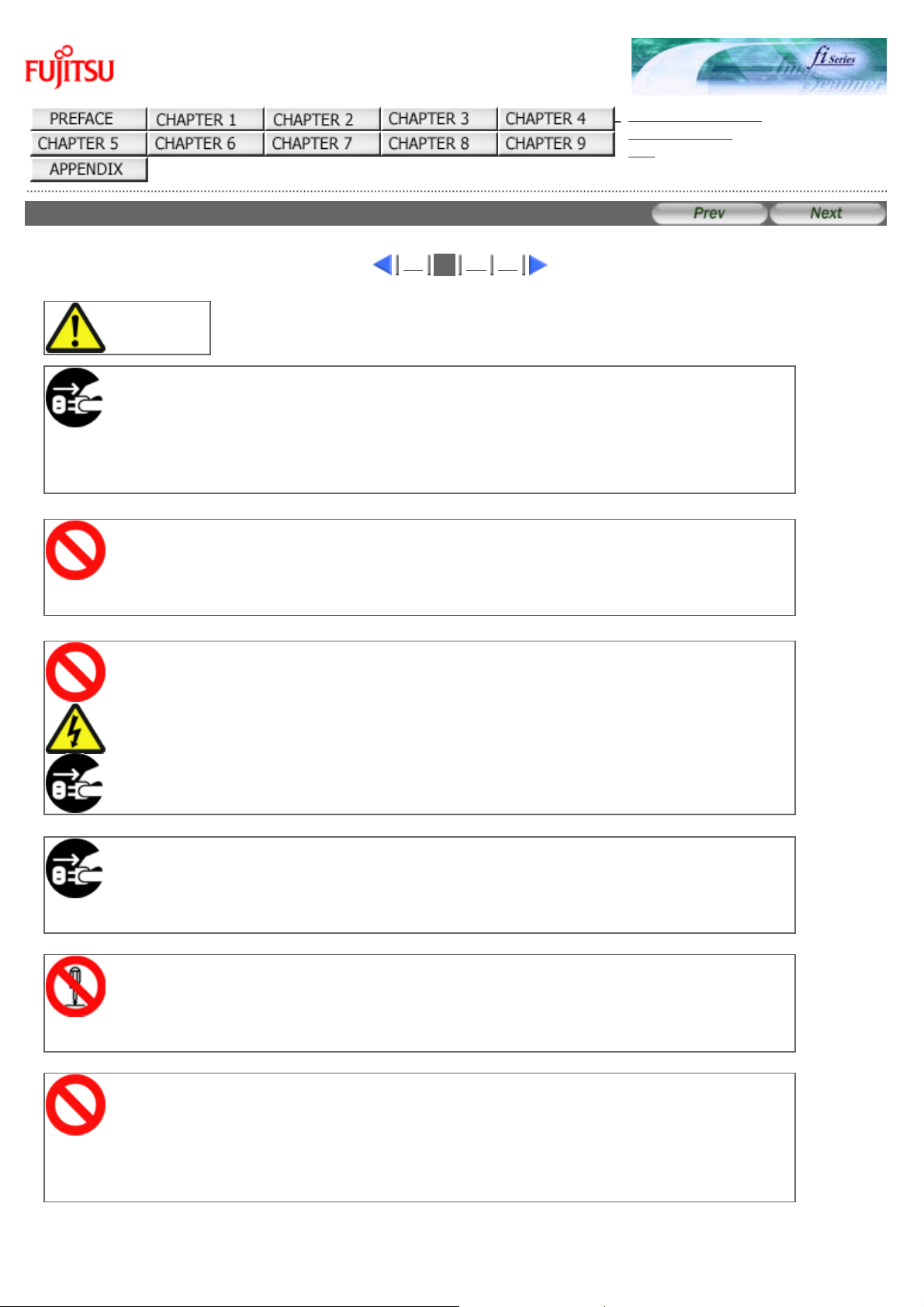
WARNING
Do not use the scanner if there is a strange odor.
If you detect heat coming from the device or detect other problems such as smoke, strange smells or
noises, immediately turn off the scanner and disconnect its power plug. Make sure that any smoke
coming from it has stopped, before contacting the store where you bought the scanner or an
authorized FUJITSU scanner service provider.
Turn the scanner OFF if it is damaged.
If the scanner is damaged for any reason, turn the scanner off and unplug the power cable. Contact
the store where you purchased the scanner or an authorized scanner service provider.
Do not put liquids inside the scanner.
Do not insert or drop metal objects in to the scanner. Do not scan wet documents or documents with
paper clips or staples. Do not splash or allow the scanner to get wet.
If foreign objects (water, small metal objects, liquids, etc.) get inside the scanner, immediately turn
off the scanner and disconnect the power plug from the power outlet. Then, contact the store where
you bought the scanner or an authorized FUJITSU scanner service provider. Pay particular attention
to this warning in households where there are small children.
Unplug the scanner when a trouble occurs.
Immediately unplug the scanner when a trouble occurs.
Never cut the ground connection until the scanner is unplugged from the power outlet.
Do not touch the inside of the scanner unless necessary.
Do not take apart or modify the scanner. The inside of the scanner contains high-voltage
components. Touching these components might cause electric shock or fire.
Do not use aerosol sprays near the scanner.
Do not use any aerosol sprays or alcohol based sprays to clean the scanner. Dust blown up by strong
air from the spray may enter the inside of the scanner. This may cause the scanner to fail or
malfunction. Sparks, caused by static electricity, generated when blowing off dust and dirt from the
outside of the scanner may cause a fire.
file:////10.232.227.50/Manual/fi-6130_6230_Lynx…OG/R02/02_081030/contents/EN/cReg/cReg04_02.htm (1/2) [2008/10/30 15:15:43]
Safety Precautions (3)
fi-6130 / fi-6230 Image Scanner Operator’s Guide
TROUBLESHOOTING
CONTENTS MAP
TOP
Safety Precautions (3)
1 2
3
4
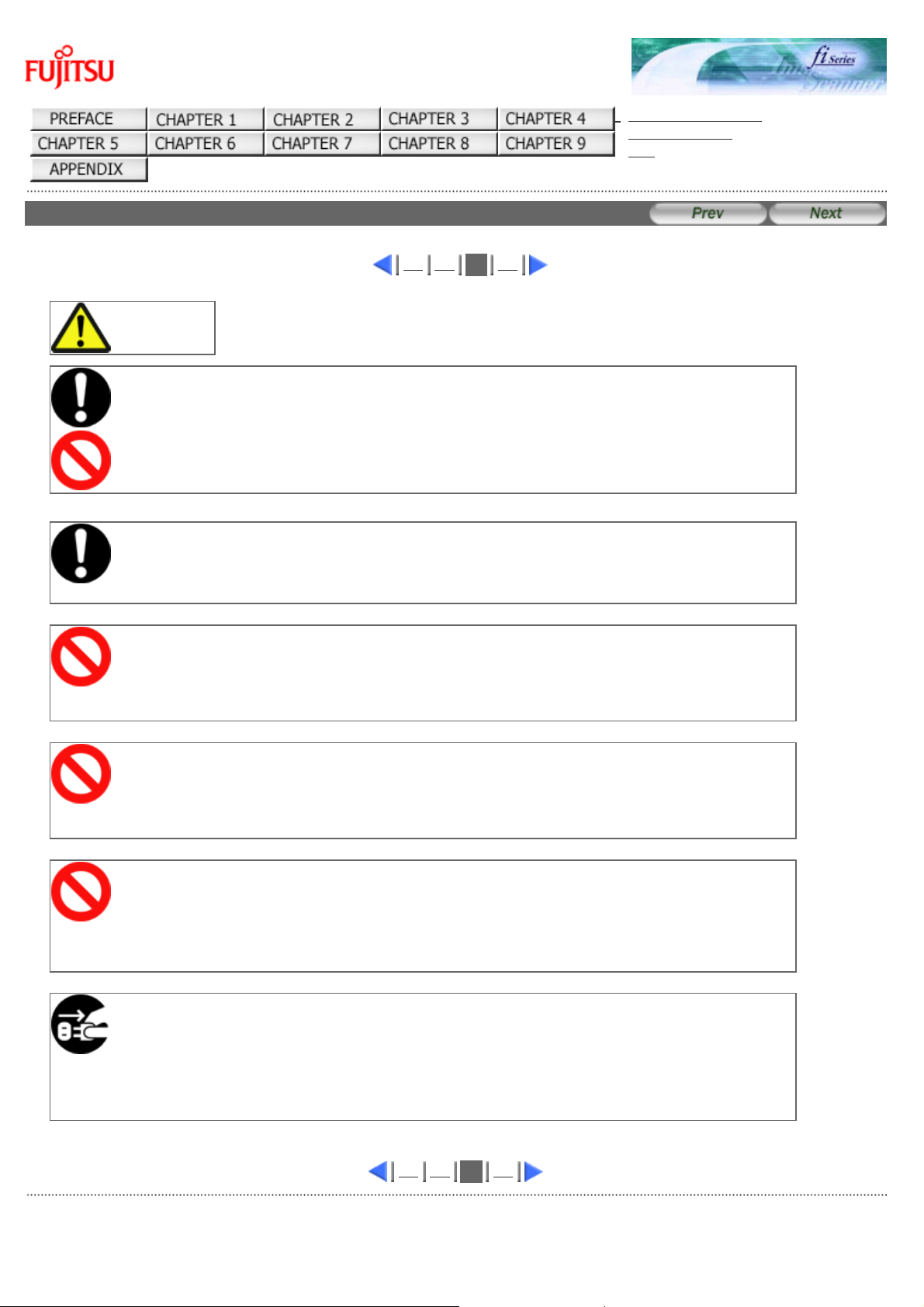
CAUTION
Do not install the scanner on unstable surfaces.
Make sure that the scanner is installed on a flat, level surface and that none of its parts extend
beyond the surface top, such as a desk or table. Do not install the scanner on unstable surfaces.
Install the scanner on a level surface that is free of vibration to prevent it from falling.
Install the scanner on a strong surface that will support the weight of the scanner and other devices.
Firmly insert the power plug.
Firmly insert the power plug as far it can go into the power outlet.
Do not block the ventilation ports.
Do not block the ventilation ports. Blocking the ventilation ports generates heat inside of scanner,
which may result in fire or scanner failure.
Do not place heavy objects or stand on top of the scanner.
Do not place heavy objects on the scanner or use the scanner’s surface top to perform other work.
Improper installation might cause injuries and equipment failure.
Do not use the scanner immediately after moving it from a cold place
into a warm room.
Do not use the device immediately after moving it from a cold place into a warm room.
Condensation may occur, which might lead to scanning errors. Let the device dry about one or two
hours before you use it.
Before moving the scanner, disconnect the power plug from the power
outlet.
Do not move the scanner with the power and interface cables connected as this can damage the
cables, which can later cause fire, electric shock as well as injury.
Before moving the scanner, be sure to disconnect the power plug from the power outlet, and all
other interface cables. Make sure that the floor is free of any obstructions.
1 2
3
4
All Rights Reserved. Copyright 2007-2008 © PFU LIMITED
file:////10.232.227.50/Manual/fi-6130_6230_Lynx3L/OG/R02/02_081030/contents/EN/cReg/cReg04_03.htm [2008/10/30 15:15:44]
Safety Precautions (4)
fi-6130 / fi-6230 Image Scanner Operator’s Guide
TROUBLESHOOTING
CONTENTS MAP
TOP
Safety Precautions (4)
1 2 3
4
CAUTION
Protect the scanner from static electricity.
Install the scanner away from strong magnetic fields and other sources of electronic noise. Also,
protect the scanner against any static electricity, which can cause the scanner to malfunction.
Avoid any contact when scanner is in use.
Avoid getting a sleeve, necktie, or hair caught up in any scanner mechanism during scanning since
this may cause injuries.
Disconnect the power plug from the power outlet when the scanner is
not used for a long period of time.
When the scanner is not going to be used for a long period of time, be sure to disconnect the power
plug from the power outlet.
Do not install the scanner in direct sunlight.
Do not install the scanner under direct sunlight or near heating apparatus. Doing so might cause
excessive heat to build up inside the scanner, which can cause scanner trouble or even fire. Install
the scanner in a well-ventilated location.
Before moving the scanner, make sure the transport lock is locked. (fi6230 only)
When moving the scanner, be sure to lock the transport lock in order to prevent damage to the
scanner.
1 2 3
4
All Rights Reserved. Copyright 2007-2008 © PFU LIMITED
file:////10.232.227.50/Manual/fi-6130_6230_Lynx3L/OG/R02/02_081030/contents/EN/cReg/cReg04_04.htm [2008/10/30 15:15:46]
Chapter 1 NAMES AND FUNCTIONS OF PARTS
fi-6130 / fi-6230 Image Scanner Operator’s Guide
TROUBLESHOOTING
CONTENTS MAP
TOP
Chapter 1 NAMES AND FUNCTIONS OF PARTS
This chapter describes the scanner parts and their functions.
All Rights Reserved. Copyright 2007-2008 © PFU LIMITED
file:////10.232.227.50/Manual/fi-6130_6230_Lynx3L/OG/R02/02_081030/contents/EN/01/c01.htm [2008/10/30 15:13:35]
1.1 Checking the Contents of the Scanner Package
fi-6130 / fi-6230 Image Scanner Operator’s Guide
TROUBLESHOOTING
CONTENTS MAP
TOP
1.1 Checking the Contents of the Scanner Package
When you open the scanner package, please handle the main unit and its attachments carefully.
Make sure it contains all the parts listed in the package contents list that is included in the package box.
If any parts are missing or defective, contact the dealer where you purchased the scanner or an authorized FUJITSU
scanner service provider.
All Rights Reserved. Copyright 2007-2008 © PFU LIMITED
file:////10.232.227.50/Manual/fi-6130_6230_Lynx3L/OG/R02/02_081030/contents/EN/01/c01_01_01.htm [2008/10/30 15:13:36]
1.2 Names and Functions of Parts
fi-6130 / fi-6230 Image Scanner Operator’s Guide
TROUBLESHOOTING
CONTENTS MAP
TOP
1.2 Names and Functions of Parts
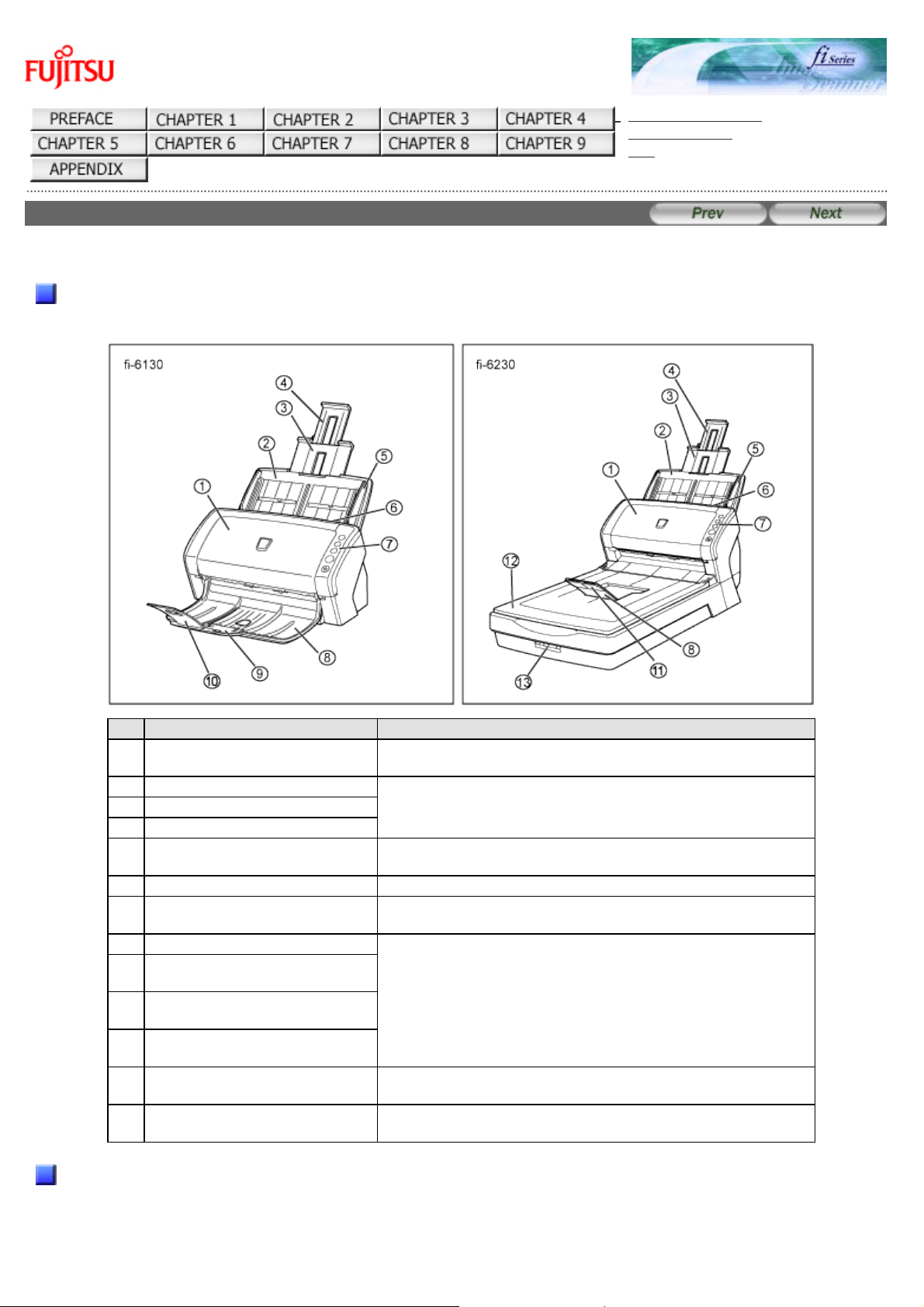
This section describes the scanner parts and their functions.
Front
No. Name Function
1
ADF
(Automatic Document Feeder)
Transports the document to the reading position
automatically.
2
ADF paper chute Holds in place the document pages / sheets that are fed
into the ADF.
3
Paper chute extension 1
4
Paper chute extension 2
5
Side Guide Adjusted to the width of the paper in order not to scan
skewed pages.
6
ADF open lever Pull this lever toward you to open the ADF.
7
Operator panel This panel consists of a Function No. Display, four
operating push buttons, and a LED.
8
Stacker Scanned documents are ejected from the ADF onto this
stacker.
9
Stacker extension 1
[fi-6130 only]
10
Stacker extension 2
[fi-6130 only]
11
Stacker extension
[fi-6230 only]
12
Flatbed (FB)
[fi-6230 only]
Place documents on the glass sheet by sheet for singlesheet scanning.
13
Transport lock switch
[fi-6230 only]
Used to lock the carrier unit inside the flatbed during
transportation.
Inside
file:////10.232.227.50/Manual/fi-6130_6230_Lynx3L/OG/R02/02_081030/contents/EN/01/c01_02_01.htm (1/3) [2008/10/30 15:13:38]
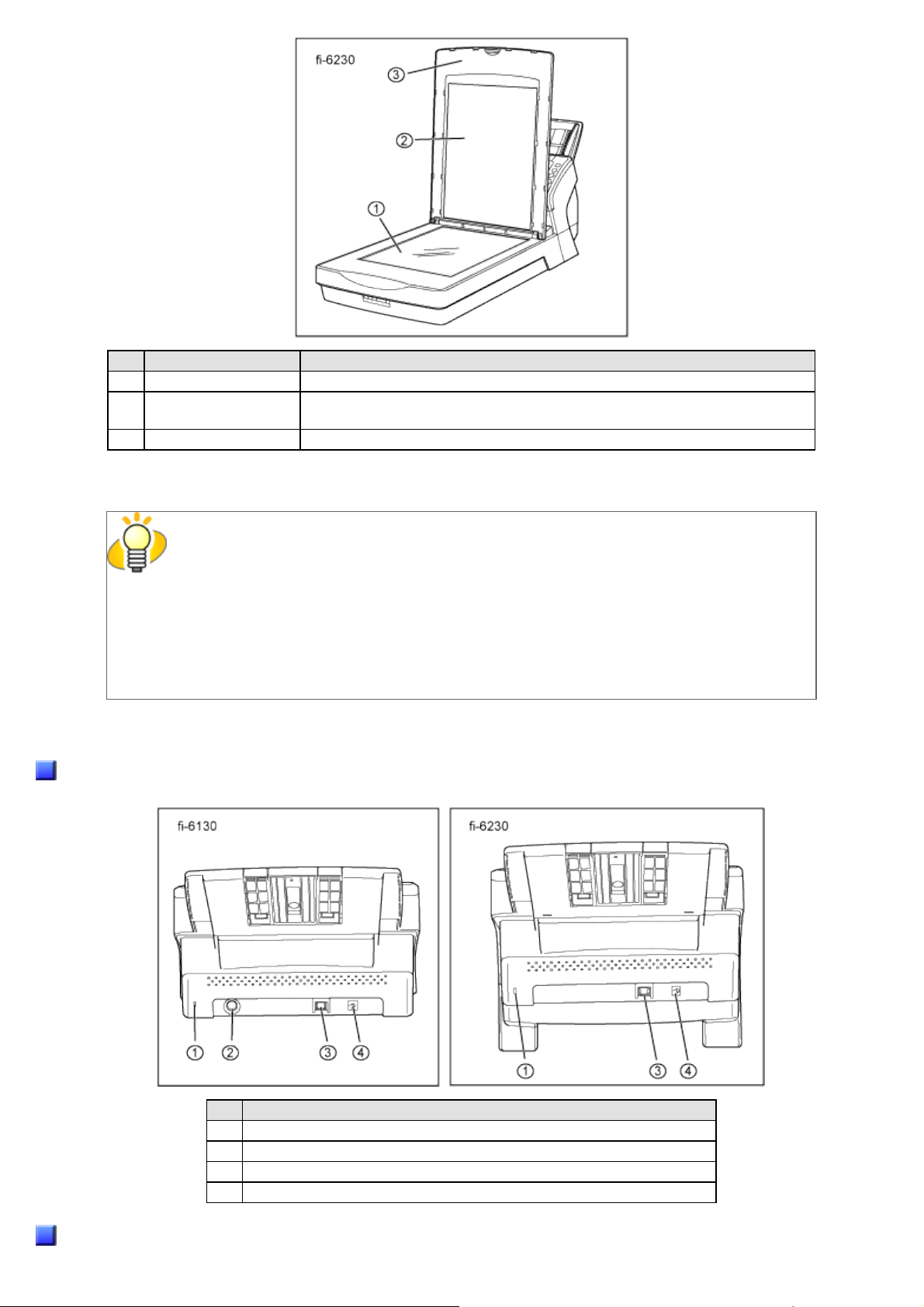
1.2 Names and Functions of Parts
No. Name Function
1
Document bed Place documents on the glass when scanning through the flatbed.
2
Document holding
pad
Holds documents down on the document bed.
3
Document cover Holds the documents loaded at the reading position when closed.
HINT
The document cover with a black document holding pad is optionally available.
This type is convenient for scanning documents in black background when loading them from
the flat bed.
● Name: Black Document Pad (fi-624BK)
● Parts No.: PA03540-D801
Rear
No. Name
1
Security Slot
2
EXT connector (for imprinter connection) [fi-6130 only]
3
USB connector
4
DC inlet
Removable Parts
file:////10.232.227.50/Manual/fi-6130_6230_Lynx3L/OG/R02/02_081030/contents/EN/01/c01_02_01.htm (2/3) [2008/10/30 15:13:38]
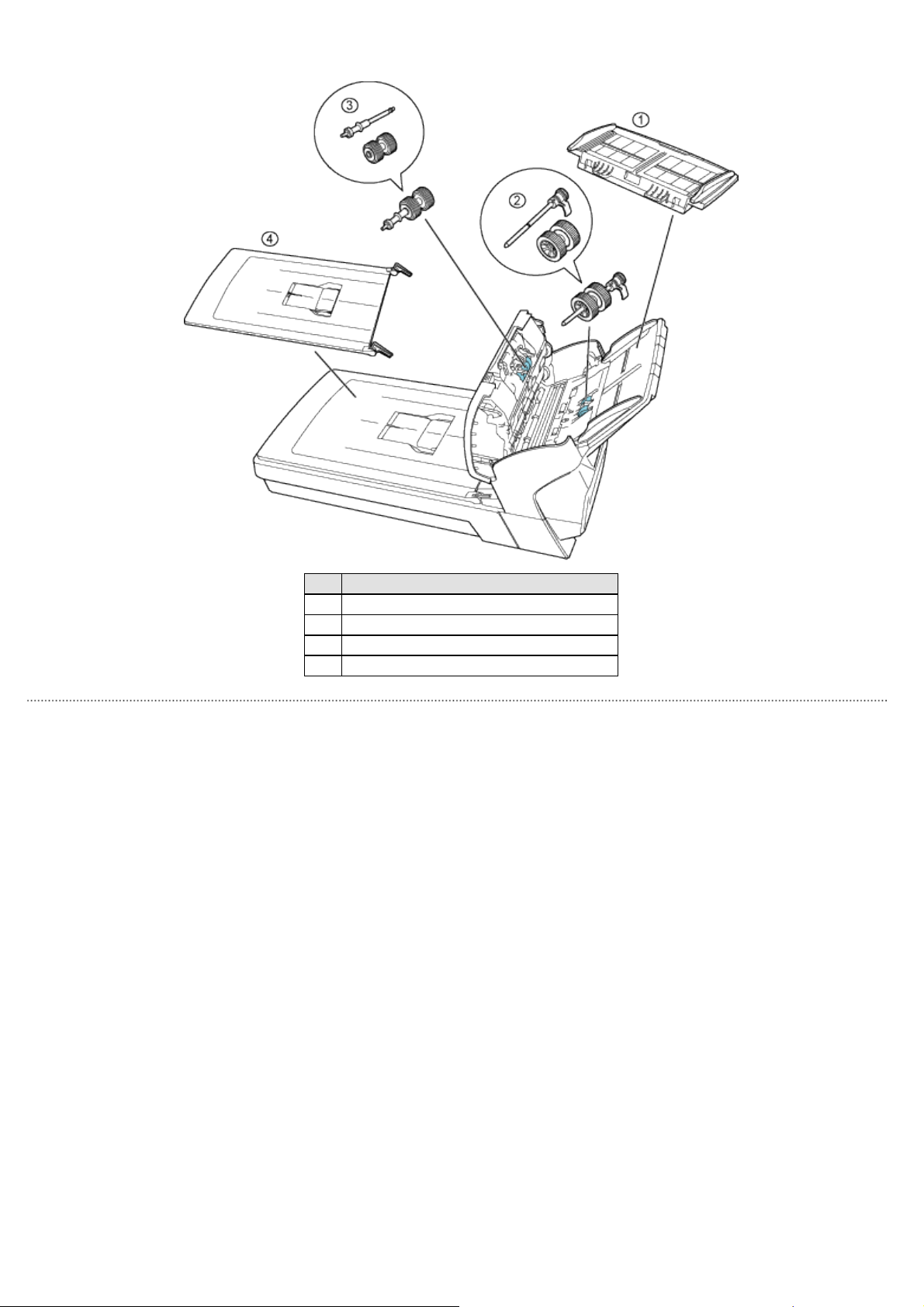
1.2 Names and Functions of Parts
Parts that can be removed from the scanner are displayed below.
No. Name
1
ADF paper chute
2
Pick roller
3
Brake roller
4
Document cover [fi-6230 only]
All Rights Reserved. Copyright 2007-2008 © PFU LIMITED
file:////10.232.227.50/Manual/fi-6130_6230_Lynx3L/OG/R02/02_081030/contents/EN/01/c01_02_01.htm (3/3) [2008/10/30 15:13:38]
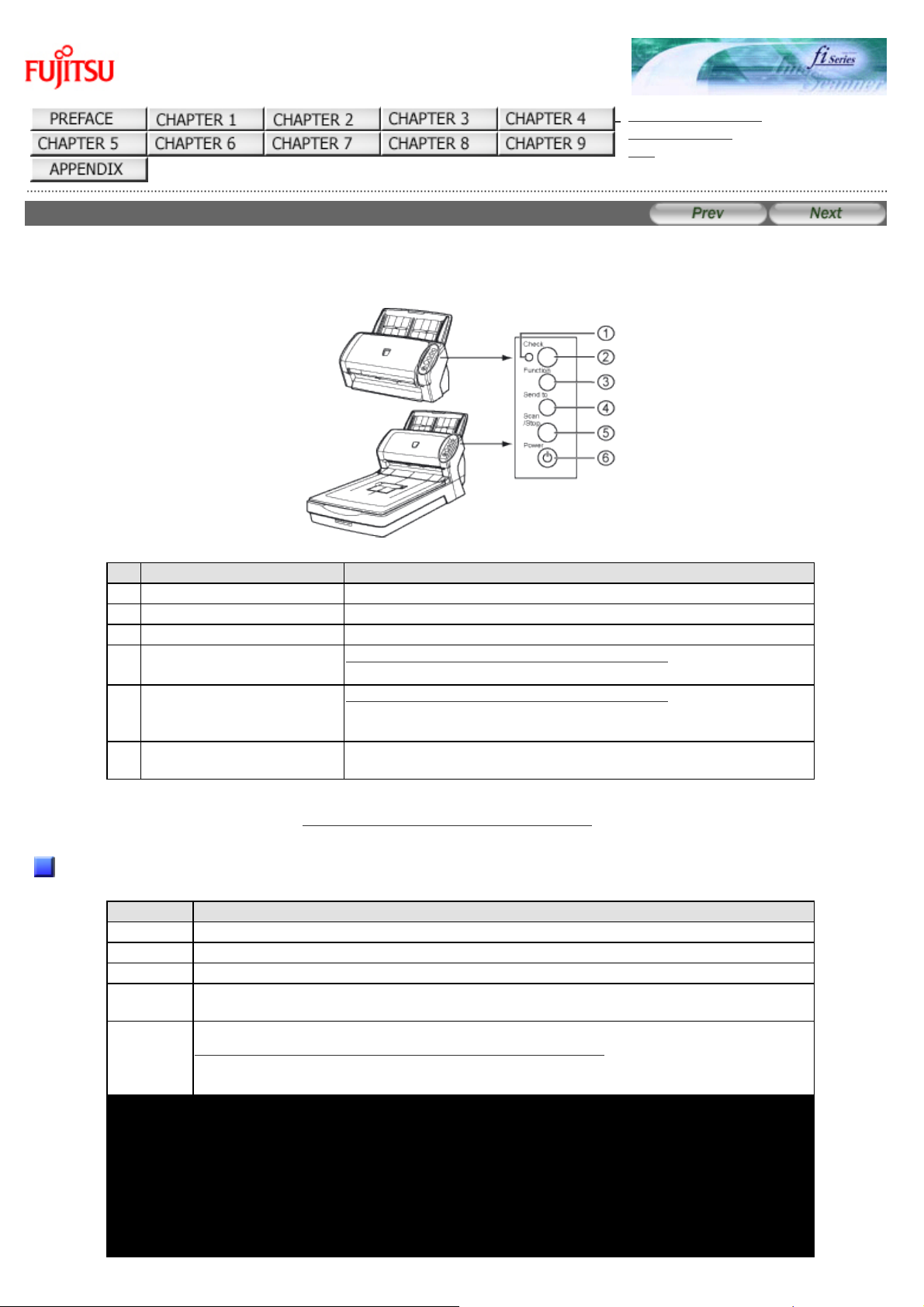
1.3 Functions of the Operator Panel
fi-6130 / fi-6230 Image Scanner Operator’s Guide
TROUBLESHOOTING
CONTENTS MAP
TOP
1.3 Functions of the Operator Panel
The operator panel is located on the right side of the scanner. This panel is comprised of a Function Number display,
four buttons, and a LED.
No. Name Function
1
Check LED Lights when an error occurs.
2
Function Number Display Indicates the function number and error status.
3
Function Button Changes the Function activated by the Send to button (*).
4
Send to Button
Launches the linked application software (*).
Resets an error.
5
Scan/Stop Button
Launches the linked application software (*).
Resets an error.
Cancels ongoing scanning.
6
Power Button/LED Turns the scanner ON and OFF.
Lights when the scanner is turned ON.
*) About the settings on the launcher, refer to FUJITSU TWAIN32 scanner driver help, which is included in the
«Setup CD-ROM,» and Appendix 1 «
Before Using the [Scan] or [Send to] Button.»
Indications on the Function Number Display
Indication Function
8 Blinks only one time upon turning on the scanner.
P Indicates that the scanner has been turned ON and is being initialized.
0 Indicates that initialization will soon end.
1 Indicates that initialization has ended successfully. This status is called «Ready
Status.»
J
U
Indicates that a recoverable error occurred during scanning with the image scanner.
«J» or «U» and an «error number» is displayed alternately.
When an error is indicated, press the [Scan] button or [Send to] button to return to
the Ready Status («1»).
file:////10.232.227.50/Manual/fi-6130_6230_Lynx3L/OG/R02/02_081030/contents/EN/01/c01_03_01.htm (1/2) [2008/10/30 15:13:40]

1.3 Functions of the Operator Panel
E
F
C
H
A
L
Indicates that an abnormality (alarm) occurred in the image scanner during its
initialization or during scanning documents.
«E», «F», «C», «H», «A», or «L» and an «alarm number» are displayed alternately. When
the alarm number is displayed, press the [Scan] button or [Send to] button to return
to the Ready Status («1»).
If this alarm occurs, turn the power off and on again. If the alarm continues after
turning the power on again, contact the dealer where you bought the scanner or an
authorized FUJITSU scanner service provider.
All Rights Reserved. Copyright 2007-2008 © PFU LIMITED
file:////10.232.227.50/Manual/fi-6130_6230_Lynx3L/OG/R02/02_081030/contents/EN/01/c01_03_01.htm (2/2) [2008/10/30 15:13:40]
Chapter 2 BASIC SCANNER OPERATIONS
fi-6130 / fi-6230 Image Scanner Operator’s Guide
TROUBLESHOOTING
CONTENTS MAP
TOP
Chapter 2 BASIC SCANNER OPERATIONS
This chapter describes basic scanner operations.
In this chapter Windows XP screenshots are illustrated. The screens and operations may differ slightly if the OS that you
are using is other than Windows XP.
Also, when the FUJITSU TWAIN32 or FUJITSU ISIS scanner driver is updated the screens and operations noted in this
chapter will differ slightly. In such case, refer to the relevant manuals or materials, which are to be supplied when
updating the driver.
All Rights Reserved. Copyright 2007-2008 © PFU LIMITED
file:////10.232.227.50/Manual/fi-6130_6230_Lynx3L/OG/R02/02_081030/contents/EN/02/c02.htm [2008/10/30 15:13:41]
2.1 Turning the Scanner ON
fi-6130 / fi-6230 Image Scanner Operator’s Guide
TROUBLESHOOTING
CONTENTS MAP
TOP
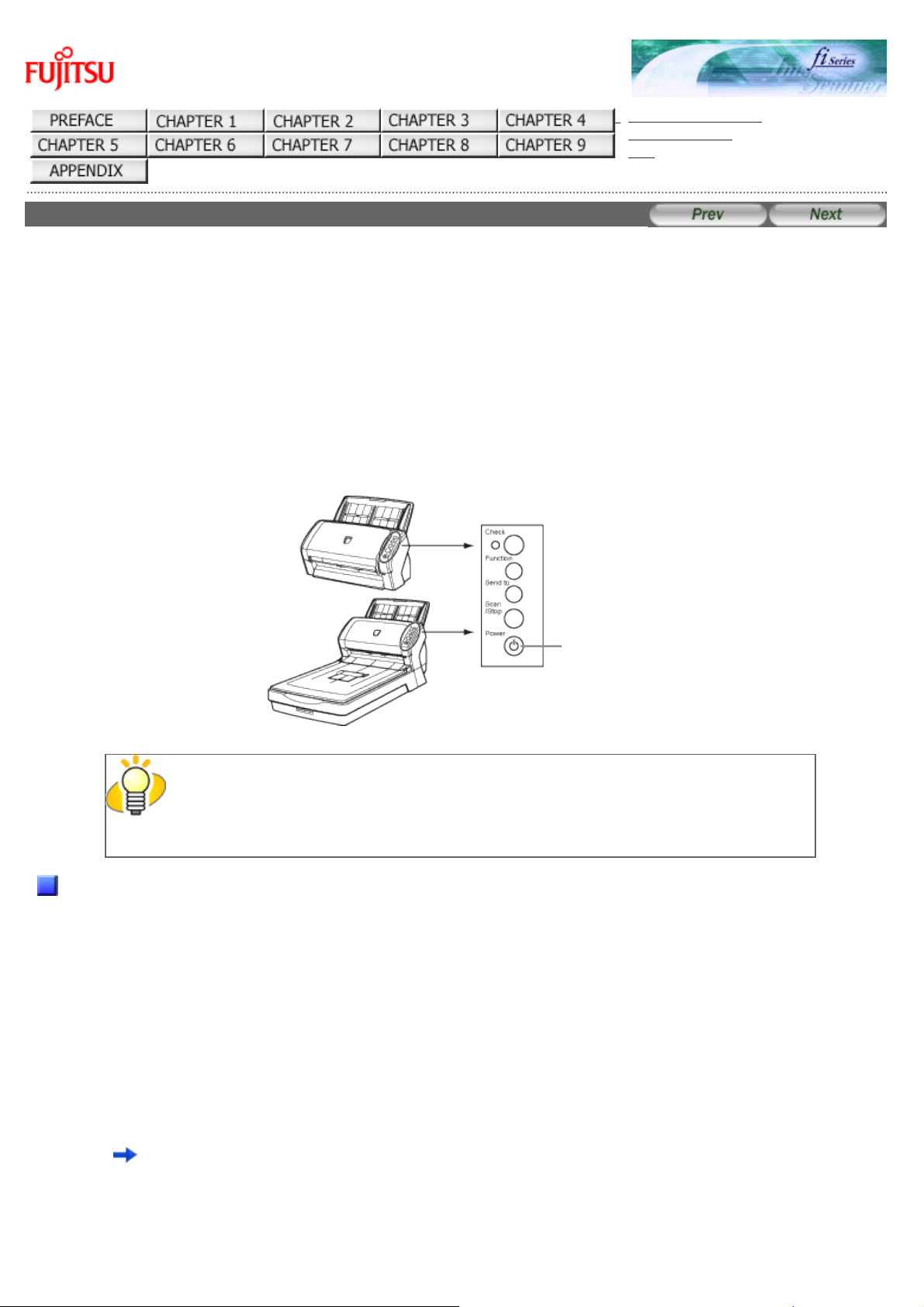
2.1 Turning the Scanner ON
This section describes how to turn the scanner ON.
The following shows the procedure for turning the scanner ON.
1. Press the Power button on the Operator Panel.
The scanner is turned ON, and the Power LED on the Operator Panel lights in green.
Also, while the scanner is being initialized, the indication of the Function Number Display changes as follows:
«8» -> «P» -> «0» -> «1»
The indication «1» means that the Operator Panel is in the Ready Status.
Power
button
HINT
To turn the scanner OFF, hold the Power button down for at least two seconds.
About Power ON/OFF Control
You can select to power the scanner on/off either by pressing the Power button, or by connecting / disconnecting the AC
cable.
The procedure is as follows.
1. Confirm if the scanner is connected correctly to the PC, then power on the scanner.
For details on how to connect the scanner to a personal computer, refer to section «2.2 Connecting the Scanner to
Your PC» of «fi-6130/fi-6230 Getting Started.»
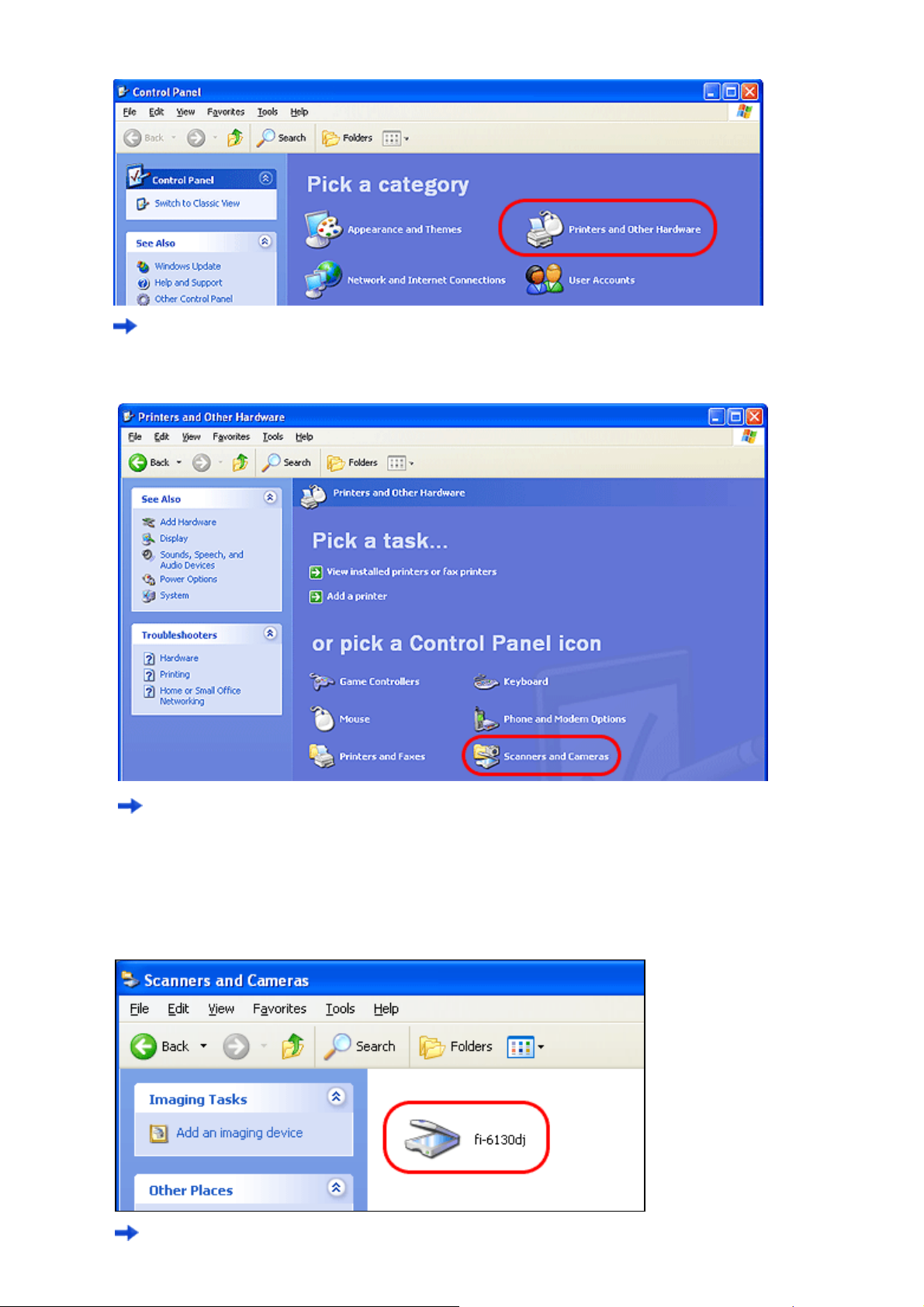
2. From the [start] menu, select [Control Panel].
The [Control Panel] window appears.
file:////10.232.227.50/Manual/fi-6130_6230_Lynx3L/OG/R02/02_081030/contents/EN/02/c02_01_01.htm (1/5) [2008/10/30 15:13:43]
2.1 Turning the Scanner ON
3. Double-click the [Printer and Other Hardware] icon.
The [Printer and Other Hardware] window appears.
4. Double-click the [Scanners and Cameras] icon.
The [Scanners and Cameras] window appears.
5. Select [fi-6130dj] or [fi-6230dj], and then select [Properties] from the menu.
For Windows XP or Windows Server 2003; right-click [fi-6130dj] or [fi-6230dj], and then select [Properties].
For Windows 2000 or Windows Vista; double-click the [fi-6130dj] or [fi-6230dj] icon.
The properties dialogbox of fi-6130dj or fi-6230dj appears.
file:////10.232.227.50/Manual/fi-6130_6230_Lynx3L/OG/R02/02_081030/contents/EN/02/c02_01_01.htm (2/5) [2008/10/30 15:13:43]
2.1 Turning the Scanner ON
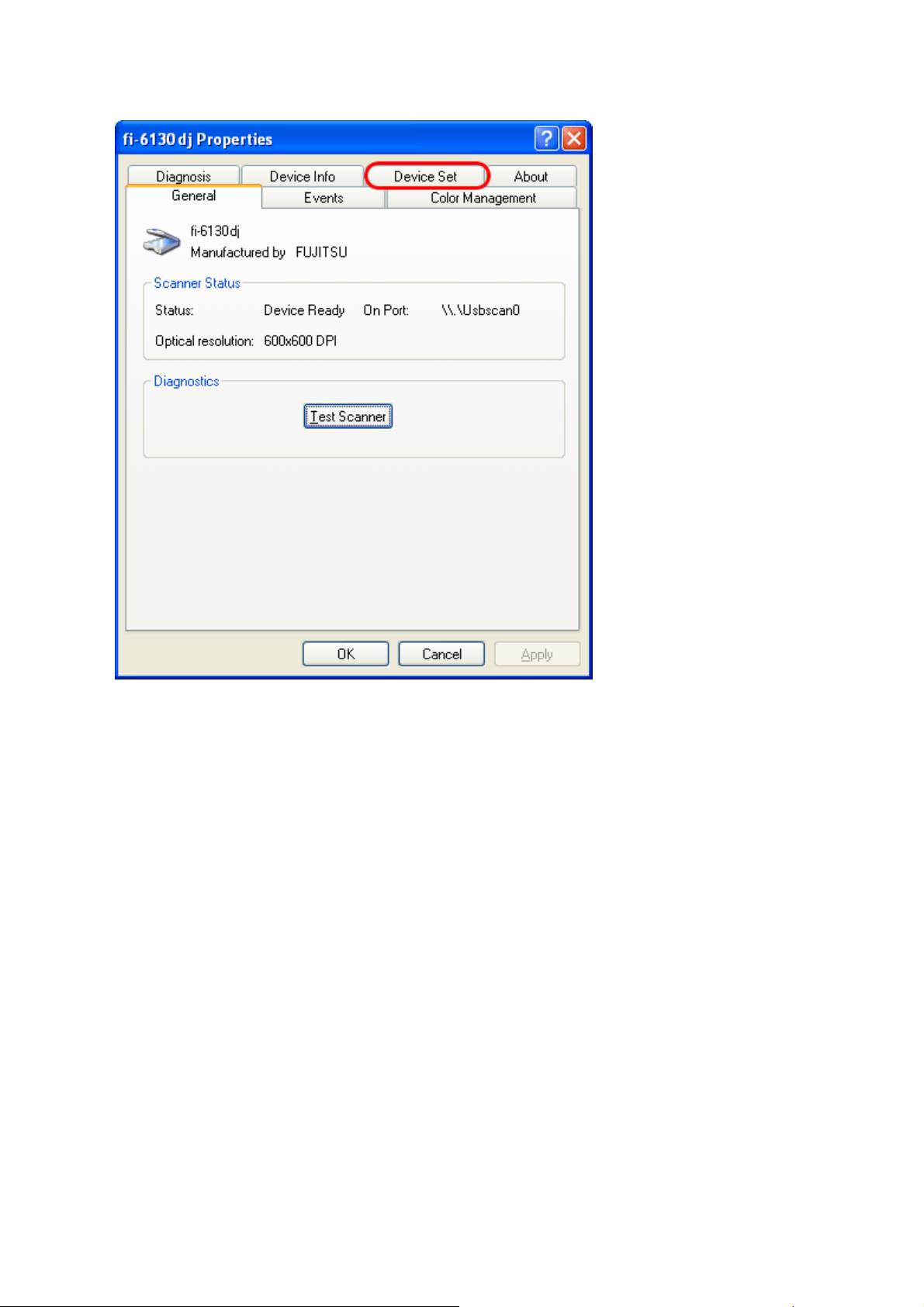
6. Click the [Device Set] tab.
7. Click the [Power Control] button.
file:////10.232.227.50/Manual/fi-6130_6230_Lynx3L/OG/R02/02_081030/contents/EN/02/c02_01_01.htm (3/5) [2008/10/30 15:13:43]
2.1 Turning the Scanner ON
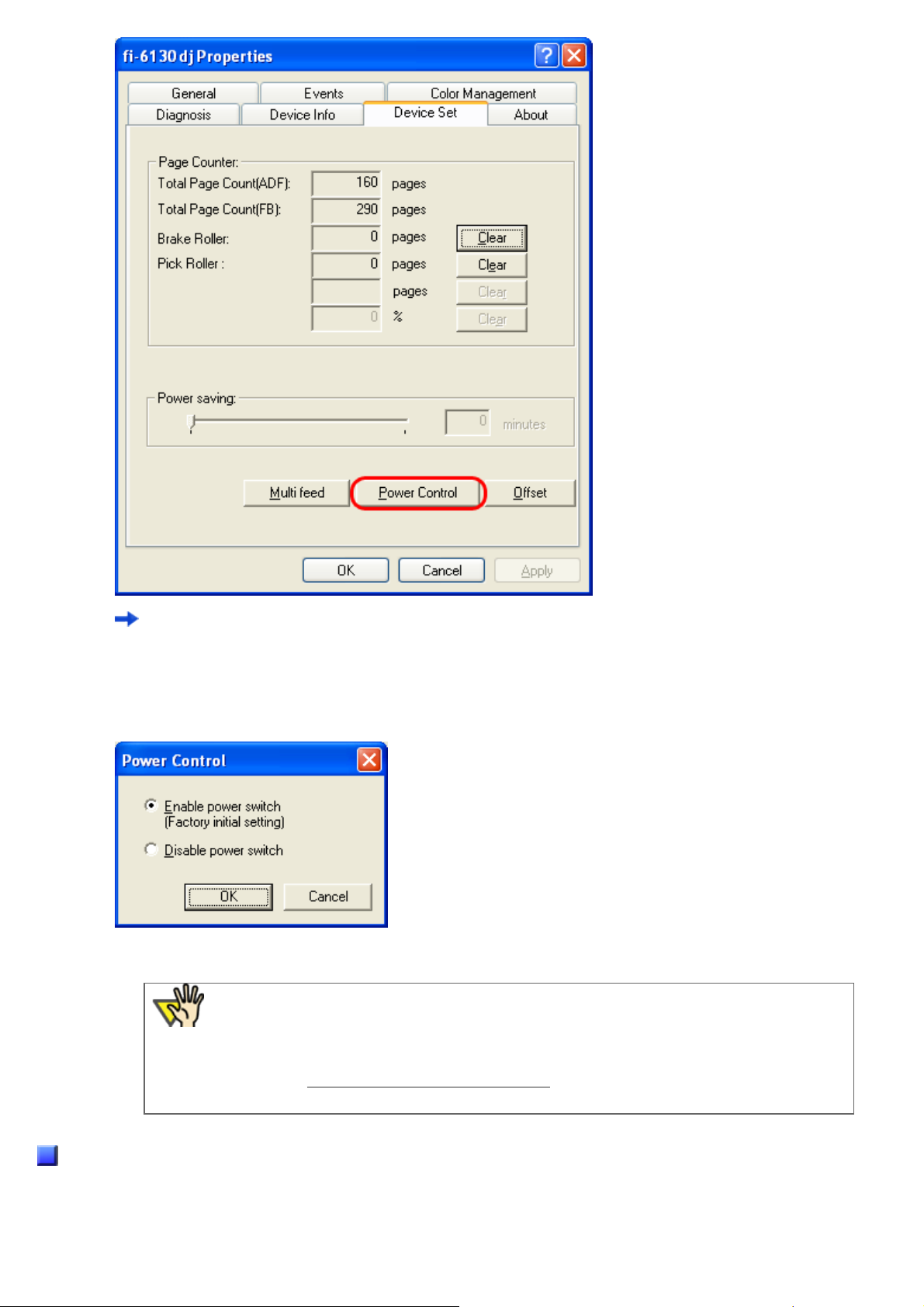
The [Power Control] window appears.
8. Enable [Power Control].
Select [Enable power switch] to power on/off the scanner by pressing the Power button.
Select [Disable power switch] to power on/off the scanner by connecting/disconnecting the AC cable.
9. Click the [OK] button.
ATTENTION
Do not specify the above setting when [Enable USB power feeding] is selected for
[Power SW Control] on Software Operation Panel.
To clear the USB power feeding setting, always use Software Operation Panel.
(Refer to
«Chapter 8 SCANNER SETTINGS.»)
Power Save Mode
file:////10.232.227.50/Manual/fi-6130_6230_Lynx3L/OG/R02/02_081030/contents/EN/02/c02_01_01.htm (4/5) [2008/10/30 15:13:43]

2.1 Turning the Scanner ON
The Power Save mode keeps the scanner in a low-powered state after it has been turned ON.
If no operation is performed on the scanner for 15 minutes, the scanner automatically switches to the Power Save mode.
In the Power Save mode, the indication of the Function Number Display on the operator panel goes out, but the Power LED
stays lit in green.
To return from the Power Save mode, perform one of the following:
● Load the document on the ADF paper chute.
● Press any button on the operator panel.
The scanner will be turned OFF when pressing down the Power button for at least two seconds.
● Execute a command from the scanner driver.
All Rights Reserved. Copyright 2007-2008 © PFU LIMITED
file:////10.232.227.50/Manual/fi-6130_6230_Lynx3L/OG/R02/02_081030/contents/EN/02/c02_01_01.htm (5/5) [2008/10/30 15:13:43]
2.2 Loading Documents on the ADF for Scanning
fi-6130 / fi-6230 Image Scanner Operator’s Guide
TROUBLESHOOTING
CONTENTS MAP
TOP
2.2 Loading Documents on the ADF for Scanning
HINT
Refer to Chapter «7 ADF AND PAPER SPECIFICATION» for information about the
required document sizes and paper quality for ensuring correct operation when
scanning documents from the ADF.
1. Align the edges of the documents.
1) Confirm that all the documents have the same width.
2) Check the number of sheets in the document stack.
(For details, see Section «
7.3 Maximum Document Loading Capacity.«)
— A4/letter-size paper or smaller that makes a document stack of 5 mm or less
— Maximum 50 sheets at A4/letter, 20 lb, or 80 g/m
2
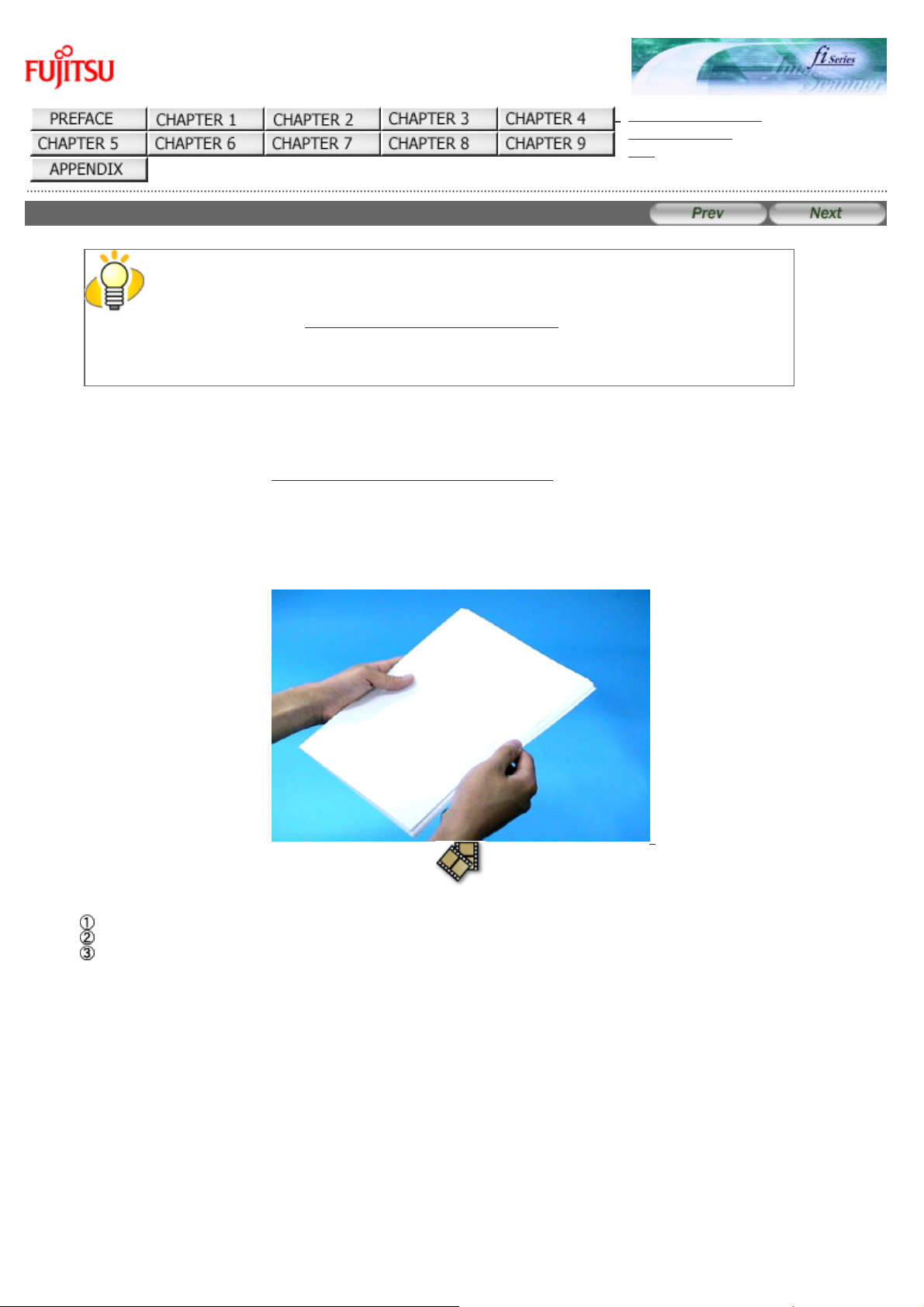
2. Fan the documents as follows:
Select a stack of documents 5 mm or less high.
Hold the document with both hands and fan it out several times.
Turn the document by 90 degrees, and then fan it in the different orientation again.
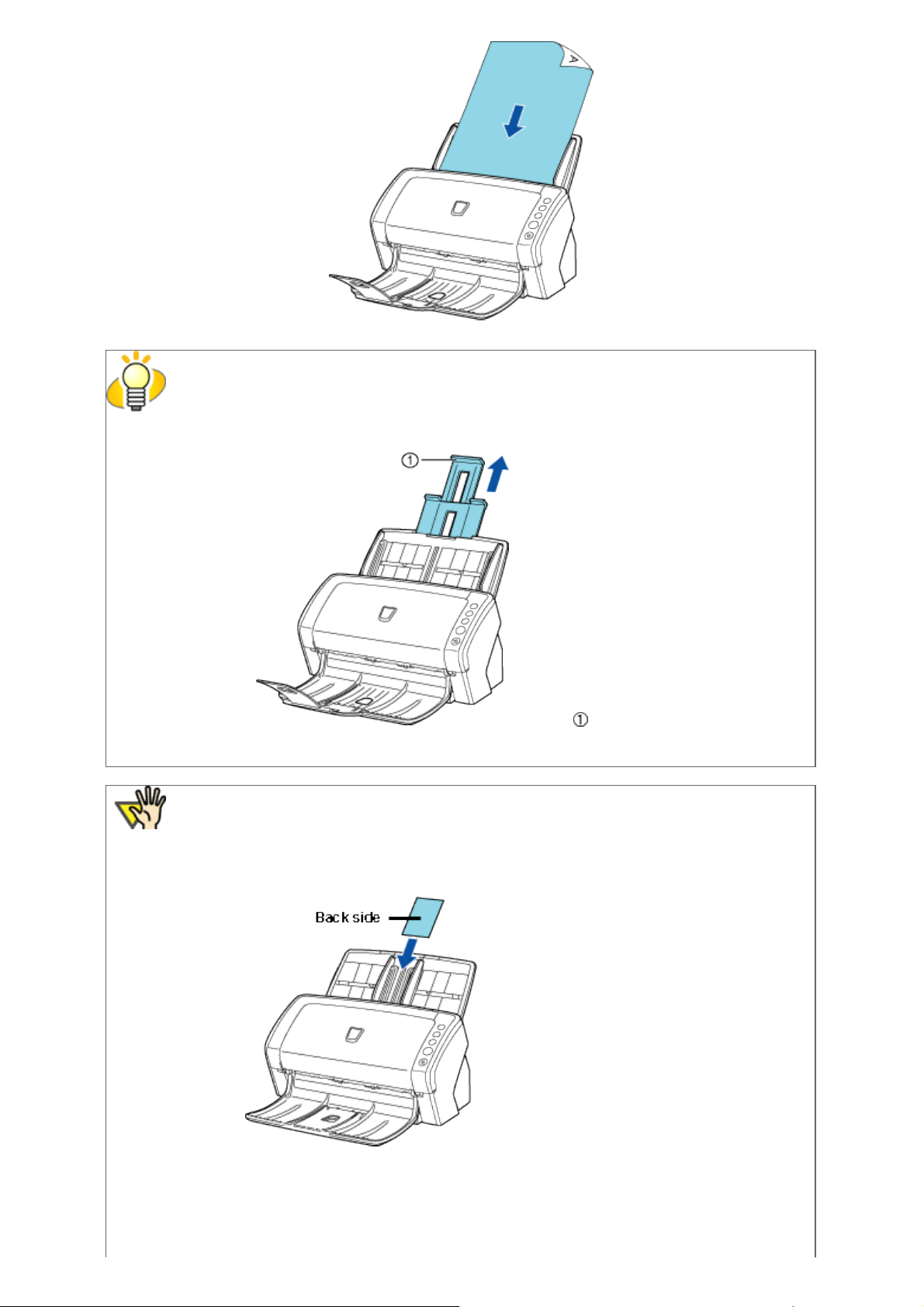
3. Load the document on the ADF paper chute.
Set the documents face-down in the ADF paper chute (so that the side to be scanned faces towards the ADF paper
chute).
file:////10.232.227.50/Manual/fi-6130_6230_Lynx3L/OG/R02/02_081030/contents/EN/02/c02_02_01.htm (1/4) [2008/10/30 15:13:46]
2.2 Loading Documents on the ADF for Scanning
HINT
● Pull out the paper chute extensions to support the document when necessary.
Paper chute extensions
● ID cards can be loaded either in vertical or holizontal orientation.
ATTENTION
This scanner can scan ID cards through the Automatic Document Feeder with the following
precautions.
● You can place up to three cards at a time into the Automatic Document Feeder.
If the card is embossed (i.e., a card with raised lettering), place one card at a time.
● It is recommended that the front side of the card be placed face down in the
Automatic Document Feeder.
● The card to be scanned should be within the ISO7810 compliance, type ID-1.
Dimensions: 3.4 inch (height) x 2.1 inch (width)/ 86 mm x 54 mm
Thickness: 0.056 inches / 1.4 mm or less
file:////10.232.227.50/Manual/fi-6130_6230_Lynx3L/OG/R02/02_081030/contents/EN/02/c02_02_01.htm (2/4) [2008/10/30 15:13:46]
2.2 Loading Documents on the ADF for Scanning
Material: PVC (Poly vinyl chloride) or PVCA (Polyvinyl chloride acetate)
Note: Before scanning your card, test with a dummy card of the same material to see
if it can be fed into the ADF properly.
● Cards that are excessively rigid or less flexible may not feed smoothly and excessive
noise may occur.
Note: If the cards do not feed smoothly, try:
— Scanning one card at a time.
— Enabling [Automatic Paper Size Detection]. For how to configure this setting, see
Section «
3.10 Correcting Skewed Documents.»
— Raising the resolution.
● Cards should be clean from oil and without labels.
● Cards cannot be scanned when the imprinter is installed.
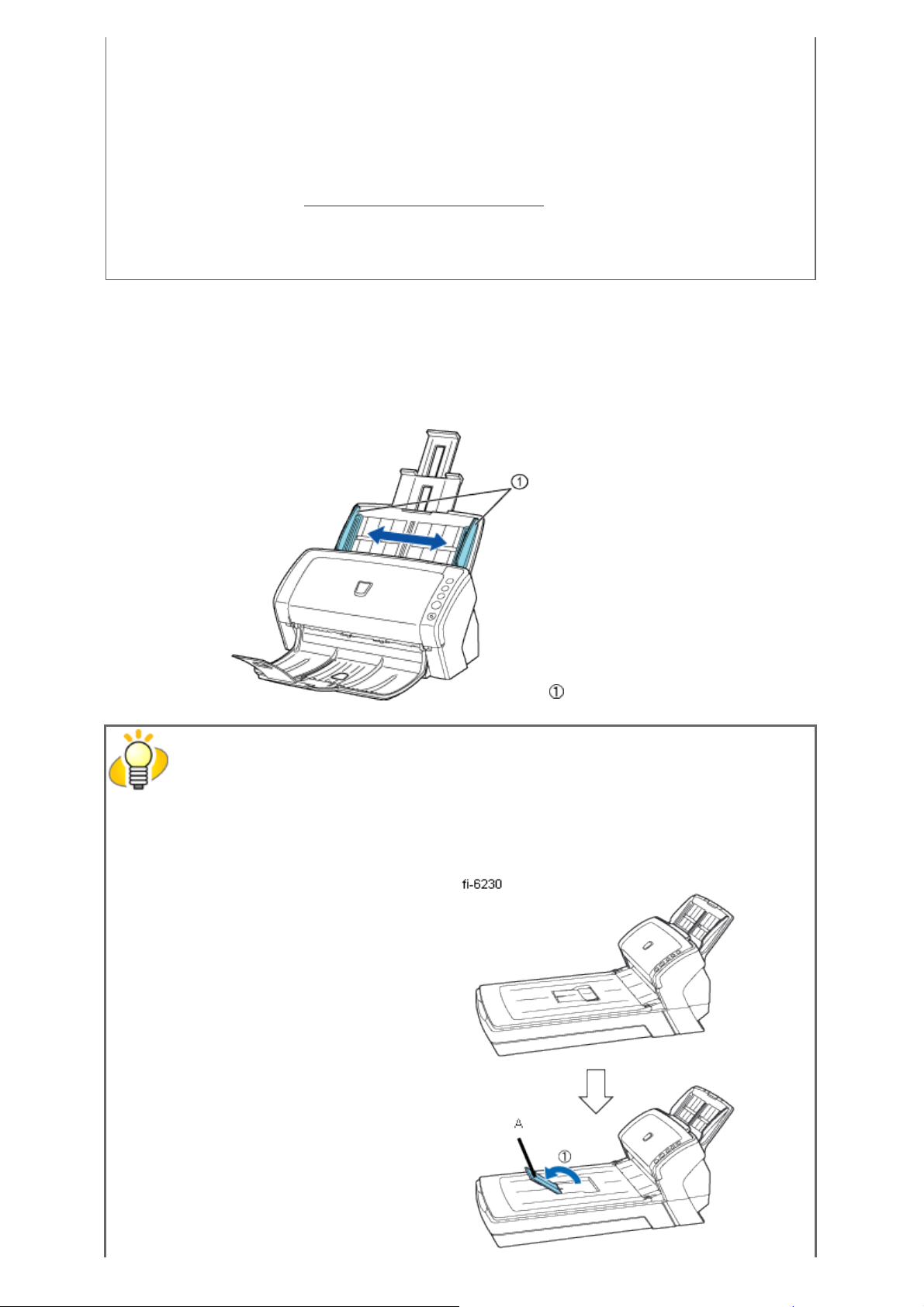
4. Adjust the side guides to the width of the documents.
Move the side guides so that they touch both sides of the documents. If there is any space between the side guides and
the edges of documents, the scanned image may be skewed.
Side guides
HINT
Use of the stacker or stacker extension prevents document sheets from dropping after they are
scanned.
Use the stacker and stacker extension as shown in the figure below.
file:////10.232.227.50/Manual/fi-6130_6230_Lynx3L/OG/R02/02_081030/contents/EN/02/c02_02_01.htm (3/4) [2008/10/30 15:13:46]
Loading…

fi-6130 / fi-6230 Image Scanner Operator’s Guide
fi-6130 / fi-6230 Image Scanner Operator’s Guide
TROUBLESHOOTING
CONTENTS MAP
fi-6130 / fi-6230 Image Scanner Operator’s Guide P3PC-2162-02ENZ2
All Rights Reserved. Copyright 2007-2008 © PFU LIMITED
file:////10.232.227.50/Manual/fi-6130_6230_Lynx3L/OG/R02/02_081030/contents/EN/index.htm [2008/10/30 15:13:02]
Хорошее руководство по эксплуатации
Законодательство обязывает продавца передать покупателю, вместе с товаром, руководство по эксплуатации Fujitsu-siemens fi 6130 sheet fed scanner. Отсутствие инструкции либо неправильная информация, переданная потребителю, составляют основание для рекламации в связи с несоответствием устройства с договором. В законодательстве допускается предоставлении руководства в другой, чем бумажная форме, что, в последнее время, часто используется, предоставляя графическую или электронную форму инструкции Fujitsu-siemens fi 6130 sheet fed scanner или обучающее видео для пользователей. Условием остается четкая и понятная форма.
Что такое руководство?
Слово происходит от латинского «instructio», тоесть привести в порядок. Следовательно в инструкции Fujitsu-siemens fi 6130 sheet fed scanner можно найти описание этапов поведения. Цель инструкции заключается в облегчении запуска, использования оборудования либо выполнения определенной деятельности. Инструкция является набором информации о предмете/услуге, подсказкой.
К сожалению немного пользователей находит время для чтения инструкций Fujitsu-siemens fi 6130 sheet fed scanner, и хорошая инструкция позволяет не только узнать ряд дополнительных функций приобретенного устройства, но и позволяет избежать возникновения большинства поломок.
Из чего должно состоять идеальное руководство по эксплуатации?
Прежде всего в инструкции Fujitsu-siemens fi 6130 sheet fed scanner должна находится:
— информация относительно технических данных устройства Fujitsu-siemens fi 6130 sheet fed scanner
— название производителя и год производства оборудования Fujitsu-siemens fi 6130 sheet fed scanner
— правила обслуживания, настройки и ухода за оборудованием Fujitsu-siemens fi 6130 sheet fed scanner
— знаки безопасности и сертификаты, подтверждающие соответствие стандартам
Почему мы не читаем инструкций?
Как правило из-за нехватки времени и уверенности в отдельных функциональностях приобретенных устройств. К сожалению само подсоединение и запуск Fujitsu-siemens fi 6130 sheet fed scanner это слишком мало. Инструкция заключает ряд отдельных указаний, касающихся функциональности, принципов безопасности, способов ухода (даже то, какие средства стоит использовать), возможных поломок Fujitsu-siemens fi 6130 sheet fed scanner и способов решения проблем, возникающих во время использования. И наконец то, в инструкции можно найти адресные данные сайта Fujitsu-siemens, в случае отсутствия эффективности предлагаемых решений. Сейчас очень большой популярностью пользуются инструкции в форме интересных анимаций или видео материалов, которое лучше, чем брошюра воспринимаются пользователем. Такой вид инструкции позволяет пользователю просмотреть весь фильм, не пропуская спецификацию и сложные технические описания Fujitsu-siemens fi 6130 sheet fed scanner, как это часто бывает в случае бумажной версии.
Почему стоит читать инструкции?
Прежде всего здесь мы найдем ответы касательно конструкции, возможностей устройства Fujitsu-siemens fi 6130 sheet fed scanner, использования отдельных аксессуаров и ряд информации, позволяющей вполне использовать все функции и упрощения.
После удачной покупки оборудования/устройства стоит посвятить несколько минут для ознакомления с каждой частью инструкции Fujitsu-siemens fi 6130 sheet fed scanner. Сейчас их старательно готовят или переводят, чтобы они были не только понятными для пользователя, но и чтобы выполняли свою основную информационно-поддерживающую функцию.
-
Page 1: Fujitsu fi-6130
fi-6130 / fi-6230 Image Scanner Operator’s Guide TROUBLESHOOTING CONTENTS MAP fi-6130 / fi-6230 Image Scanner Operator’s Guide P3PC-2162-01ENZ2 All Rights Reserved. Copyright 2007 © PFU LIMITED[…]
-
Page 2: Fujitsu fi-6130
fi-6130 / fi-6230 Image Scanner Operator’s Guide TROUBLESHOOTING CONTENTS MAP TOP INTRODUCTION Thank you for purchasing the fi-6130 / fi-6230 Duplex Color Image Scanner. This document describes how to handle the fi-6130 / fi-6230 Duplex Color Image Scanner and basic operation methods. Before you start using the fi-6130 / fi-6230 Duplex Color I[…]
-
Page 3: Fujitsu fi-6130
fi-6130 / fi-6230 Image Scanner Operator’s Guide TROUBLESHOOTING CONTENTS MAP TOP Regulatory Information (1) 1 2 FCC Declaration This equipment has been tested and found to comply with the limits for a Class B digital device, pursuant to Part 15 of the FCC Rules. These limits are designed to provide reasonable protection against harmful interf[…]
-
Page 4: Fujitsu fi-6130
fi-6130 / fi-6230 Image Scanner Operator’s Guide TROUBLESHOOTING CONTENTS MAP TOP Regulatory Information (2) 1 2 International ENERGY STAR® Program As an ENERGY STAR® Partner, PFU LIMITED has determined that this product meets the ENERGY STAR® guidelines for energy efficiency. The International ENERGY STAR® Office Equipment Program is an i[…]
-
Page 5: Fujitsu fi-6130
fi-6130 / fi-6230 Image Scanner Operator’s Guide TROUBLESHOOTING CONTENTS MAP TOP Trademarks Trademarks Microsoft, Windows, Windows Server and Windows Vista are registered trademarks of Microsoft Corporation in the United States and/or other countries. ISIS and QuickScan are trademarks or registered trademarks of EMC Corporation in the United […]
-
Page 6: Fujitsu fi-6130
fi-6130 / fi-6230 Image Scanner Operator’s Guide TROUBLESHOOTING CONTENTS MAP TOP Liability BEFORE USING THIS PRODUCT, PLEASE READ THIS MANUAL CAREFULLY. IF THIS PRODUCT IS NOT USED CORRECTLY, UNEXPECTED INJURY CAN OCCUR TO USERS OR BYSTANDERS. Keep this manual in a safe place so that it can be easily referred to during use of this product. Wh[…]
-
Page 7: Fujitsu fi-6130
fi-6130 / fi-6230 Image Scanner Operator’s Guide TROUBLESHOOTING CONTENTS MAP TOP Conventions (1) 1 2 Safety Precautions This manual describes important details for ensuring the safe and correct use of this product. Thoroughly read this manual before you start to use this product. In particular, be sure to read and fully understand the Safety […]
-
Page 8: Fujitsu fi-6130
fi-6130 / fi-6230 Image Scanner Operator’s Guide TROUBLESHOOTING CONTENTS MAP TOP Conventions (2) 1 2 Screen Examples In This Manual The screen examples in this manual are subject to change without notice in the interest of product improvement. If the actual displayed screen differs from the screen examples in this manual, operate by following[…]
-
Page 9: Fujitsu fi-6130
fi-6130 / fi-6230 Image Scanner Operator’s Guide TROUBLESHOOTING CONTENTS MAP TOP Safety Precautions (1) 1 2 3 4 WARNING Do not damage the AC cable. A damaged AC cable may cause fire or electric shock. Do not place heavy objects on AC cables, or pull, bend, twist, heat, damage or modify AC cables. Do not use damaged AC cables or power plugs, o[…]
-
Page 10: Fujitsu fi-6130
fi-6130 / fi-6230 Image Scanner Operator’s Guide TROUBLESHOOTING CONTENTS MAP TOP Safety Precautions (2) 1 2 3 4 WARNING Do not use the scanner if there is a strange odor. If you detect heat coming from the device or detect other problems such as smoke, strange smells or noises, immediately turn off the scanner and disconnect its power plug. M[…]
-
Page 11: Fujitsu fi-6130
fi-6130 / fi-6230 Image Scanner Operator’s Guide TROUBLESHOOTING CONTENTS MAP TOP Safety Precautions (3) 1 2 3 4 CAUTION Do not install the scanner on unstable surfaces. Make sure that the scanner is installed on a flat, level surface and that none of its parts extend beyond the surface top, such as a desk or table. Do not install the scanner […]
-
Page 12: Fujitsu fi-6130
fi-6130 / fi-6230 Image Scanner Operator’s Guide TROUBLESHOOTING CONTENTS MAP TOP Safety Precautions (4) 1 2 3 4 CAUTION Protect the scanner from static electricity. Install the scanner away from strong magnetic fields and other sources of electronic noise. Also, protect the scanner against any static electricity, which can cause the scanner t[…]
-
Page 13: Fujitsu fi-6130
fi-6130 / fi-6230 Image Scanner Operator’s Guide TROUBLESHOOTING CONTENTS MAP TOP Chapter 1 NAMES AND FUNCTIONS OF PARTS This chapter describes the scanner parts and their functions. All Rights Reserved. Copyright 2007 © PFU LIMITED[…]
-
Page 14: Fujitsu fi-6130
fi-6130 / fi-6230 Image Scanner Operator’s Guide TROUBLESHOOTING CONTENTS MAP TOP 1.1 Checking the Contents of the Scanner Package When you open the scanner package, please handle the main unit and its attachments carefully. Make sure it contains all the parts listed in the package contents list that is included in the package box. If any part[…]
-
Page 15: Fujitsu fi-6130
fi-6130 / fi-6230 Image Scanner Operator’s Guide TROUBLESHOOTING CONTENTS MAP TOP 1.2 Names and Functions of Parts This section describes the scanner parts and their functions. Front No. Name Function 1 ADF (Automatic Document Feeder) Transports the document to the reading position automatically. 2 ADF paper chute Holds in place the document p[…]
-
Page 16: Fujitsu fi-6130
No. Name Function 1 Document bed Place documents on the glass when scanning through the flatbed. 2 Document holding pad Holds documents down on the document bed. 3 Document cover Holds the documents loaded at the reading position when closed. HINT The document cover with a black document holding pad is optionally available. This type is convenient […]
-
Page 17: Fujitsu fi-6130
Parts that can be removed from the scanner are displayed below. No. Name 1 ADF paper chute 2 Pick roller 3 Brake roller 4 Document cover [fi-6230 only] All Rights Reserved. Copyright 2007 © PFU LIMITED[…]
-
Page 18: Fujitsu fi-6130
fi-6130 / fi-6230 Image Scanner Operator’s Guide TROUBLESHOOTING CONTENTS MAP TOP 1.3 Functions of the Operator Panel The operator panel is located on the right side of the scanner. This panel is comprised of a Function Number display, four buttons, and a LED. No. Name Function 1 Check LED Lights when an error occurs. 2 Function Number Display[…]
-
Page 19: Fujitsu fi-6130
fi-6130 / fi-6230 Image Scanner Operator’s Guide TROUBLESHOOTING CONTENTS MAP TOP Chapter 2 BASIC SCANNER OPERATIONS This chapter describes basic scanner operations. In this chapter Windows XP screenshots are illustrated. The screens and operations may differ slightly if the OS that you are using is other than Windows XP. Also, when the FUJITS[…]
-
Page 20: Fujitsu fi-6130
fi-6130 / fi-6230 Image Scanner Operator’s Guide TROUBLESHOOTING CONTENTS MAP TOP 2.1 Turning the Scanner ON This section describes how to turn the scanner ON. The following shows the procedure for turning the scanner ON. 1. Press the Power button on the Operator Panel. The scanner is turned ON, and the Power LED on the Operator Panel lights i[…]
-
Page 21: Fujitsu fi-6130
3. Double-click the [Printer and Other Hardware] icon. The [Printer and Other Hardware] window appears. 4. Double-click the [Scanners and Cameras] icon. The [Scanners and Cameras] window appears. 5. Select [fi-6130dj] or [fi-6230dj], and then select [Properties] from the menu. For Windows XP or Windows Server 2003; right-click [fi-6130dj] or [fi-62[…]
-
Page 22: Fujitsu fi-6130
6. Click the [Device Set] tab. 7. Click the [Power Control] button.[…]
-
Page 23: Fujitsu fi-6130
The [Power Control] window appears. 8. Enable [Power Control]. Select [Enable power switch] to power on/off the scanner by pressing the Power button. Select [Disable power switch] to power on/off the scanner by connecting/disconnecting the AC cable. 9. Click the [OK] button. Power Save Mode The Power Save mode keeps the scanner in a low-powered sta[…]
-
Page 24: Fujitsu fi-6130
fi-6130 / fi-6230 Image Scanner Operator’s Guide TROUBLESHOOTING CONTENTS MAP TOP 2.2 Loading Documents on the ADF for Scanning HINT Refer to Chapter » 7 ADF AND PAPER SPECIFICATION » for information about the required document sizes and paper quality for ensuring correct operation when scanning documents from the ADF. 1. Align the e[…]
-
Page 25: Fujitsu fi-6130
HINT ● Pull out the paper chute extensions to support the document when necessary. Paper chute extensions ● ID cards can be loaded either in vertical or holizontal orientation. ATTENTION This scanner can scan ID cards through the Automatic Document Feeder with the following precautions. ● You can place up to three cards at a time into the Aut[…]
-
Page 26: Fujitsu fi-6130
Note: Before scanning your card, test with a dummy card of the same material to see if it can be fed into the ADF properly. ● Cards that are excessively rigid or less flexible may not feed smoothly and excessive noise may occur. Note: If the cards do not feed smoothly, try: — Scanning one card at a time. — Enabling [Automatic Paper Size Detection[…]
-
Page 27: Fujitsu fi-6130
When the document size to scan is A6 or longer in length and A5 or narrower in width (Do not force to open the stacker extension wider than the right angle. Otherwise, it may be damaged.) A. Stacker B. Stacker extension 5. Start up the scanner application, and scan the document. For details on how to scan documents using the ScandAll PRO applicatio[…]
-
Page 28: Fujitsu fi-6130
fi-6130 / fi-6230 Image Scanner Operator’s Guide TROUBLESHOOTING CONTENTS MAP TOP 2.3 Loading Documents on the Flatbed for Scanning [fi-6230 only] 1. Lift up the document cover. 2. Load the document on the document bed with the scanning face down and the top left corner aligned with the reference point ( ). Reference point 3. Gently close […]
-
Page 29: Fujitsu fi-6130
fi-6130 / fi-6230 Image Scanner Operator’s Guide TROUBLESHOOTING CONTENTS MAP TOP 2.4 Scanning Documents This section describes how to scan documents using this scanner. The basic steps for scanning documents are as follows: 1. Load the document on the scanner’s ADF paper chute or Flatbed. For details on how to load documents, see Section[…]
-
Page 30: Fujitsu fi-6130
4. In the application, invoke a scanner driver.[…]
-
Page 31: Fujitsu fi-6130
5. In the driver setup dialog box, configure settings for scanning. 6. Scan the document. 7. Save the scanned document image files. HINT ● In this section, screenshots taken in ScandAll PRO are used as examples. Depending on the application you use, procedures and operations may differ from those examples herein. ● For more information about ho[…]
-
Page 32: Fujitsu fi-6130
fi-6130 / fi-6230 Image Scanner Operator’s Guide TROUBLESHOOTING CONTENTS MAP TOP 2.5 How to Use the Scanner Drivers To scan documents with the scanner, a scanner driver and application supported by the driver are prerequisites. This scanner is accompanied with two drivers; one is a TWAIN-compliant driver, FUJITSU TWAIN 32 Scanner Driver, and […]
-
Page 33: Fujitsu fi-6130
Configure the FUJITSU TWAIN 32 Scanner Driver settings in the dialog box above. Major setting items are listed below. * For details on each function, refer to «FUJITSU TWAIN 32 Scanner Driver Help.» Resolution You can specify the resolution for scanning images. Default values are selectable from the drop-down list, and a [custom] value (c[…]
-
Page 34: Fujitsu fi-6130
Black & White Documents are scanned in binary (black and white) mode. Halftone Documents are scanned through halftone processing in binary (black and white) mode. Grayscale Documents are scanned in gradations from black to white. In this mode, you can select 256 gradations or 4 bits (16 gradations). Color Documents are scanned in color mode. In[…]
-
Page 35: Fujitsu fi-6130
[Rotation] Tab Select this tab when configuring settings for the image rotation, document size and skew detection, overscan, hole punch removal, and split image. [Job/Cache] Tab Select this tab when setting cache mode, multifeed detection, blank page skipping, etc. [Generic] Tab Select this tab to change the unit displayed in the Setting Window for[…]
-
Page 36: Fujitsu fi-6130
[Config] Button Click this button for configuring the Setting Files. You can save the changes made to a Setting File. From the next scanning, a set of settings are quickly switched by using these Setting Files. For details of each function, refer to the «FUJITSU TWAIN 32 Scanner Driver Help.» FUJITSU ISIS Scanner Driver The FUJITSU ISIS S[…]
-
Page 37: Fujitsu fi-6130
You can selects a side or sides to scan. The marked checkbox side is targeted for scanning. When you mark only the Front Image checkbox, simplex scanning is performed. When you mark both the Front Image and Back Image checkboxes, duplex scanning is performed. You can also specify two settings (#1/#2), Color/Grayscale and Binary (black-and-white), f[…]
-
Page 38: Fujitsu fi-6130
Halftone You can select a halftone pattern. This setting is available when [Black and White] is selected under [Mode]. Dither Pattern 0 This setting is suitable for scanning highly-colored photographs. Dither Pattern 1 This setting is suitable for scanning highly-colored documents containing both text and photographs. Dither Pattern 2 This setting […]
-
Page 39: Fujitsu fi-6130
Page Orientation You can select the page orientation (Portrait or Landscape). Page Size You can specify the paper size of documents to be scanned. Select a size from the drop-down list. You can also specify the width and length of the documents directly by selecting «Custom» in the drop-down list. Split Image You can split a scanned image[…]
-
Page 40: Fujitsu fi-6130
[Image Processing] Tab Quick Set[…]
-
Page 41: Fujitsu fi-6130
Some image-processing-related settings, which are commonly used, are readily available. Select a setting pattern, and you do not have to configure settings one by one. The following setting patterns are available (Selectable only when [Black and White] is selected under [Mode]): Normal documents (default) This setting pattern is suitable for scanni[…]
-
Page 42: Fujitsu fi-6130
Pre-pick Pre-picking is a function that prepares the next document for scanning, feeding it to the position at which the scanning starts beforehand. You can specify whether you want to enable Pre-picking or not from this drop-down list. Backing You can specify the background color, white or black. Multifeed Detection Multifeed refers to an error th[…]
-
Page 43: Fujitsu fi-6130
Pattern You can configure gamma corrections. The gamma patterns include: Binary (black and white) specified Normal, Soft, Sharp, Custom, Download Grayscale/24-bit color specified Custom, Download Custom Properties You can specify custom properties (Gamma, Brightness, Contrast, Shadow, and Highlight) only when you select [Custom] as a Gamma pattern.[…]
-
Page 44: Fujitsu fi-6130
Color Dropout Any of three primary colors (red-green-blue) can be dropped out from document images. For example, when scanning text in black with the red frame, selecting red color scans only text in black. This setting is available only when Black and White or Grayscale setting is selected. [Compression] Tab[…]
-
Page 45: Fujitsu fi-6130
JPEG Quality You can specify compression levels and image quality for scanning in Color or Grayscale mode. Sample Ratio You can specify one of the sample ratios, by which images are compressed, listed in the order of precedence from highest (listed first) to lowest as follows: YUV 4:4:4 < YUV 4:2:2 < YUV 4:1:1. The higher the compression rate[…]
-
Page 46: Fujitsu fi-6130
[On] Checkbox Marking this checkbox enables the Imprinter function. Format Template Characters typed in this box are printed on documents. You can enter the following characters (up to 43 characters): Alphabet A to Z, a to z (single-width) Numerics 0, 1 to 9 (single-width) Symbols ! » $ # % & ‘ ( ) * + , — . / : ; < = > ? @ [ ][…]
-
Page 47: Fujitsu fi-6130
You can specify the rule to display the counter. Initial Value Set the initial value of the counter. Field Width Select the number of digits from 3 to 8. Number Control Select the increment of the counter value. Top Margin You can set the distance between the top of the page and the top of the first line printed on the page with a numeric. Range 0.[…]
-
Page 48: Fujitsu fi-6130
fi-6130 / fi-6230 Image Scanner Operator’s Guide TROUBLESHOOTING CONTENTS MAP TOP 2.6 How to Use ScandAll PRO ScandAll PRO is software for scanning images, which is in conformity with both TWAN/ISIS standards. Using the FUJITSU TWAIN 32 or FUJITSU ISIS scanner driver together with ScandAll PRO allows you to create document images. The followin[…]
-
Page 49: Fujitsu fi-6130
HINT ● In ScandAll PRO, the default [Device Driver] is [TWAIN]. ● There is no functional difference between the FUJITSU TWAIN 32 and FUJITSU ISIS scanner drivers. You can use one of them according to your preferences. 1. From the [Tool] menu, select [Preferences]. The [Setup] dialog box appears. 2. On the [Scan] tab, under [Device Driver], sele[…]
-
Page 50: Fujitsu fi-6130
1. From the [Scan] menu, select [Select Scanner]. The [Select Scanner] dialog box appears. 2. Select a scanner you want to use. When the driver is FUJITSU TWAIN 32, select [FUJITSU fi-6130dj] or [FUJITSU fi-6230dj], and then click the [Select] button. When the driver is FUJITSU ISIS, select [Fujitsu fi-6130] or [Fujitsu fi-6230], and then click[…]
-
Page 51: Fujitsu fi-6130
For information about setting items you can configure, see Section » 2.5 How to Use the Scanner Drivers. » How to Scan Documents With ScandAll PRO, you can scan documents with a scanner, in either of two ways: Scan You have to configure settings, such as the file format, destination, and scanning parameters, every time you scan a document[…]
-
Page 52: Fujitsu fi-6130
Or, select the [Scan Settings] button ( ) on the toolbar. The [Scan Settings] dialog box appears. 3. In the [Scan Settings] dialog box, configure various settings for saving scanned document images. [Save to file] Checkbox[…]
-
Page 53: Fujitsu fi-6130
To save scanned document images immediately after scanning, mark this checkbox. If you want to verify scans before saving them to file, clear this checkbox. Folder Name You can specify a folder to save scanned document images. Type in a full path in the box or click the [Browse] button to select a desired folder File Name A file name used to save s[…]
-
Page 54: Fujitsu fi-6130
FUJITSU TWAIN 32 FUJITSU ISIS 6. When you finished setting, click the [OK] button in the dialog box (FUJITSU TWAIN 32 Scanner Driver/ FUJITSU ISIS Scanner Driver). You are returned to the [Scan Settings] dialog box. 7. Click the [Scan] button. HINT When you use the FUJITSU TWAIN 32 Scanner Driver, clicking the [Scan] button may display the scan[…]
-
Page 55: Fujitsu fi-6130
HINT ● If you do not mark the [Save to file] checkbox in the [Scan Settings] dialog box, scanned document images are not saved. To save the files, from the [File] menu, select [Save As]. ● To scan the next document with the same settings, from the [Scan] menu, select [Scan]. Or, click the [Scan] button ( ) on the toolbar. For inform[…]
-
Page 56: Fujitsu fi-6130
The [Batch Scan Setting] dialog box appears. 2. Do the following as necessary: — To create a new profile: Click the [Add] button. A new profile appears in the [Profile Editor] dialog box. (Go to step 3.) — To create a new profile based on an existing profile: Select a profile you want to use as the basis from the profile list, and then click the [C[…]
-
Page 57: Fujitsu fi-6130
[General] Tab You can type in a profile name and description, and select a profile type. [Scan] Tab You can configure settings for a scanner to use. Clicking the [Detail Scanner Settings] button displays the setup dialog box of the scanner driver. [File format and Name scheme] Tab You can specify various parameters for saving scanned document image[…]
-
Page 58: Fujitsu fi-6130
You are returned to the [Batch Scan Settings] dialog box. Added or copied profiles by using the [Add] or [Copy] button appear in the profile list. <Scanning Documents> A: From the menu (Method 1) 1. Place the document on the scanner. For information about how to place documents, see Section » 2.2 Loading Documents on the ADF for Scanning[…]
-
Page 59: Fujitsu fi-6130
B: From the menu (Method 2) 1. Place the document on the scanner. For information about how to place documents, see Section » 2.2 Loading Documents on the ADF for Scanning. » 2. From the [Scan] menu, select [Batch Scan], and then select [a profile name you want to use]. A document is scanned with the scanner, and the scanned document imag[…]
-
Page 60: Fujitsu fi-6130
C: From the toolbar 1. Place the document on the scanner. For information about how to place documents, see Section » 2.2 Loading Documents on the ADF for Scanning. » 2. From the [Select the Batch Profile] drop-down list on the toolbar, select a profile to use. 3. Click the [Start Batch Scan] button ( ) on the toolbar. A document is scann[…]
-
Page 61: Fujitsu fi-6130
All Rights Reserved. Copyright 2007 © PFU LIMITED[…]
-
Page 62: Fujitsu fi-6130
fi-6130 / fi-6230 Image Scanner Operator’s Guide TROUBLESHOOTING CONTENTS MAP TOP Chapter 3 SCANNING VARIOUS TYPES OF DOCUMENTS This chapter describes how to scan various types of documents, using the combination of ScandAll PRO and FUJITSU TWAIN 32 Scanner Driver as an example. In this chapter, Windows XP screenshots are used as examples. The[…]
-
Page 63: Fujitsu fi-6130
fi-6130 / fi-6230 Image Scanner Operator’s Guide TROUBLESHOOTING CONTENTS MAP TOP 3.1 Scanning Both Sides of Documents 1. Place the document on the ADF paper chute. For details on how to place documents, see Section » 2.2 Loading Documents on the ADF for Scanning. » 2. Launch ScandAll PRO. From the [Start] menu, select [All Programs][…]
-
Page 64: Fujitsu fi-6130
Scanned document images are displayed in the ScandAll PRO window. All Rights Reserved. Copyright 2007 © PFU LIMITED[…]
-
Page 65: Fujitsu fi-6130
fi-6130 / fi-6230 Image Scanner Operator’s Guide TROUBLESHOOTING CONTENTS MAP TOP 3.2 Scanning Books [fi-6230 only] CAUTION Never look into the light source directly during scanning. 1. Open the document cover. 2. Remove the document cover as shown in the figure below. 3. Read the document on the document bed face down. 4. Launch ScandAll PRO.[…]
-
Page 66: Fujitsu fi-6130
For information about how to display the scanner driver’s setup dialog box, see Section » 2.6 How to Use ScandAll PRO. » 6. Select [Flat Bed] under [Scan Type]. 7. Click the [OK] button. Changes made on this dialog box are saved and the setup dialog box of FUJITSU TWAIN 32 closes. 8. From the ScandAll PRO window, perform a scan. For inf[…]
-
Page 67: Fujitsu fi-6130
fi-6130 / fi-6230 Image Scanner Operator’s Guide TROUBLESHOOTING CONTENTS MAP TOP 3.3 Scanning Large Documents with Flatbed [fi-6230 only] 1. Open the document cover. 2. Remove the document cover as shown in the figure below. 3. Load the document on the document bed face down. 4. Launch ScandAll PRO. From the [Start] menu, select [All Programs[…]
-
Page 68: Fujitsu fi-6130
6. Select [Flat Bed] under [Scan Type]. 7. Click the [OK] button. Changes made on this dialog box are saved and the setup dialog box of FUJITSU TWAIN 32 closes. 8. From the ScandAll PRO window, perform a scan. For information about how to scan documents, see Section » 2.6 How to Use ScandAll PRO. » ATTENTION Do not move the document durin[…]
-
Page 69: Fujitsu fi-6130
fi-6130 / fi-6230 Image Scanner Operator’s Guide TROUBLESHOOTING CONTENTS MAP TOP 3.4 Scanning Documents of Different Widths When you scan documents of different widths at one time from the ADF, some documents that are small in paper size may be skewed or may not be fed into the scanner. It is recommended that only documents of the same width […]
-
Page 70: Fujitsu fi-6130
fi-6130 / fi-6230 Image Scanner Operator’s Guide TROUBLESHOOTING CONTENTS MAP TOP 3.5 Scanning Documents Longer Than A4/Letter Size 1. Load the documents on the ADF paper chute. For details on loading documents, see Section » 2.2 Loading Documents on the ADF for Scanning. » 2. Launch ScandAll PRO. From the [Start] menu, select [All P[…]
-
Page 71: Fujitsu fi-6130
6. Click the [OK] button. Changes made on this dialog box are saved and the setup dialog box of FUJITSU TWAIN 32 closes. 7. From the ScandAll PRO window, perform a scan. For information about how to scan documents, see Section » 2.6 How to Use ScandAll PRO. » Scanned document images are displayed in the ScandAll PRO window. ATTENTION ● […]
-
Page 72: Fujitsu fi-6130
fi-6130 / fi-6230 Image Scanner Operator’s Guide TROUBLESHOOTING CONTENTS MAP TOP 3.6 Saving Scanned Images in PDF Format You can create PDF files from the scanned document images by either of the following two ways: ● From ScandAll PRO Recommended for scanning in color or grayscale mode. You can: ❍ Reduce the size of PDF files. ❍ Create[…]
-
Page 73: Fujitsu fi-6130
1. Place the document on the scanner. For how to load documents on the ADF paper chute, see Section » 2.2 Loading Documents on the ADF for Scanning. » For how to load documents on the Flatbed, see Section » 2.3 Loading Documents on the Flatbed for Scanning [fi-6230 only]. » 2. Launch ScandAll PRO. From the [Start] menu, select [[…]
-
Page 74: Fujitsu fi-6130
HINT [PDF file] and [SinglePage PDF file] are saved in format compatible with Adobe Acrobat 4.0 (PDF 1.3); [PDF/A file] and [SinglePage PDF/A file] are saved in PDF/A-lb format (format for an archive of digital documents based on PDF 1.4). [SinglePage PDF file] and [SinglePage PDF/A file] create one file per image; [PDF file] and [PDF/A file] creat[…]
-
Page 75: Fujitsu fi-6130
Compression Rate Move the slider bar to change the compression rate. The compression rate can be changed in five levels from 1 to 5. (By default, the compression rate is set to 3.) Moving the slider bar to right increases the compression rate. The higher the compression rate, the smaller the file size, but the image quality is degraded. This settin[…]
-
Page 76: Fujitsu fi-6130
[Add a Document Open Password to created PDF files] Checkbox You can set a «Document Open» password to PDF files. Up to 16 characters (single-width) can be used for a password. This checkbox is available only for Adobe PDF files. (For PDF/A files, passwords cannot be set.) If this checkbox is marked, the [Password] dialog box appears imme[…]
-
Page 77: Fujitsu fi-6130
The [Acrobat Scan] dialog box appears. 4. Select [FUJITSU fi-6130dj] or [FUJITSU fi-6230dj] from the [Scanner] drop-down list, and then click the [Scan] button.[…]
-
Page 78: Fujitsu fi-6130
ATTENTION If scanned by using the default settings, images outputted may not be satisfactory. It is recommended the settings be changed, following the procedure below: 1. Clear the [Recognize Text Using OCR] checkbox. 2. Click the [Image Settings] button. The [Image Settings] dialog box appears. 3. Change settings as follows: — Color/Grayscale: — M[…]
-
Page 79: Fujitsu fi-6130
7. From the [File] menu, select [Save As] or [Save] to save the scanned images. For details on the operation of Adobe Acrobat, refer to Adobe Acrobat Help. HINT If you save scanned document images as described above, the file size may increase greatly. To reduce the file size, save images following the procedure below. (It may take more time than y[…]
-
Page 80: Fujitsu fi-6130
3. Click the [Properties] button. 4. Select the [Adobe PDF Settings] tab. 5. Select a desired setting from the [Default Settings] drop-down list. The following shows an example when [Smallest File Size] is selected.[…]
-
Page 81: Fujitsu fi-6130
6. Click the [OK] button. 7. Click the [OK] button in the [Print] dialog box. 8. Enter a file name, and then click the [Save] button in the [Save PDF File As] dialog box. All Rights Reserved. Copyright 2007 © PFU LIMITED[…]
-
Page 82: Fujitsu fi-6130
fi-6130 / fi-6230 Image Scanner Operator’s Guide TROUBLESHOOTING CONTENTS MAP TOP 3.7 Excluding a Color from Images (Dropout Color) You can select a color from primary colors (red, green, and blue) to remove (drop out) from a scanned document image. (Note the dropout color can be specified only in binary (black & white) mode.) For example,[…]
-
Page 83: Fujitsu fi-6130
The [Advance] dialog box appears. 5. Select a color you want to remove, from the [Dropout Color] drop-down list under [More]. For example, when you want to obtain only black text image from a document containing black text outlined in green, select [Green] from the list. If you want no color to be dropped out, select [None].[…]
-
Page 84: Fujitsu fi-6130
6. Click the [OK] button. You are returned to the [TWAIN Driver] dialog box. 7. In the [TWAIN Driver] dialog box, click the [OK] button. Changes made are saved and the [TWAIN Driver] dialog box closes. 8. From the ScandAll PRO window, perform a scan. For information about how to scan documents, see Section » 2.6 How to Use ScandAll PRO. «[…]
-
Page 85: Fujitsu fi-6130
fi-6130 / fi-6230 Image Scanner Operator’s Guide TROUBLESHOOTING CONTENTS MAP TOP 3.8 Skipping Blank Pages Blank pages in a document are detected and removed automatically. For example, when scanning both double-sided and single- sided documents together in duplex mode, you can obtain the scanned document images without blank pages. Configure […]
-
Page 86: Fujitsu fi-6130
5. Select the [Job/Cache] tab. 6. Mark the [Blank Page Skip] checkbox. If this checkbox is marked, cache mode is automatically changed to [Ram cache]. 7. With the slider control under [Blank Page Skip], specify the Blank Page Skip degree. <In Binary/Halftone mode> For white pages, use the [Black Dots Ratio] slider bar to specify a degree of a[…]
-
Page 87: Fujitsu fi-6130
You are returned to the [TWAIN Driver] dialog box. 9. In the [TWAIN Driver] dialog box, click the [OK] button. Changes made are saved and the [TWAIN Driver] dialog box closes. 10. From the ScandAll PRO window, perform a scan. For information about how to scan documents, see Section » 2.6 How to Use ScandAll PRO. » Scanned document images […]
-
Page 88: Fujitsu fi-6130
fi-6130 / fi-6230 Image Scanner Operator’s Guide TROUBLESHOOTING CONTENTS MAP TOP 3.9 Detecting Multifeeds «Multifeed» is a feeding error that occurs when two or more sheets in the ADF paper chute are fed simultaneously into the scanner. You can set the scanner to detect multifeed, stop scanner operation, and display an error message[…]
-
Page 89: Fujitsu fi-6130
6. Select how to detect multifeeds from the [Multifeed Detection] drop-down list under [ADF Option]. The following are how to detect multifeeds: None Multifeed detection is not performed. Check overlapping The scanner monitors the thickness of fed documents. The scanner detects a multifeed based on an increased thickness when multiple sheets are fe[…]
-
Page 90: Fujitsu fi-6130
fi-6130 / fi-6230 Image Scanner Operator’s Guide TROUBLESHOOTING CONTENTS MAP TOP 3.10 Correcting Skewed Documents The skew of documents can be detected and corrected automatically by enabling the Automatic Deskew function. Change the setting in the setup dialog box of the scanner driver. The following shows the procedure to change settings in[…]
-
Page 91: Fujitsu fi-6130
6. Select [Automatic Page Size Detection] from the [Automatic Size and Skew detection] drop-down list. HINT With the [Priority] slider control, you can change the accuracy of Automatic Page Size Detection. Move the slider to right to improve the detection accuracy. Note that the higher the accuracy, the longer the processing time, and the scanning […]
-
Page 92: Fujitsu fi-6130
ATTENTION If one of the following conditions is met, the Automatic Page Size Detection may not work properly. ● Paper is 52g/m 2 or less in weight ● Documents are not rectangular ● The margin of pages is filled with dark color 7. Click the [OK] button. You are returned to the [TWAIN Driver] dialog box. 8. In the [TWAIN Driver] dialog box, cli[…]
-
Page 93: Fujitsu fi-6130
fi-6130 / fi-6230 Image Scanner Operator’s Guide TROUBLESHOOTING CONTENTS MAP TOP 3.11 Outputting Multi-Images You can obtain both color/grayscale and black-and-white images at a scan (Multi Image Output). * Depending on the application to use, this function may not work properly. Configure Multi Image settings using the scanner driver. Origin[…]
-
Page 94: Fujitsu fi-6130
The [Multi Image] dialog box appears. 5. Select [Multi Image Output] under [Output mode].[…]
-
Page 95: Fujitsu fi-6130
6. Select the order to output multi-images under [Order (for Multi Image Output)]. Primary: Color/Grayscale — Secondary: Binary First, a Color or Grayscale image is output, and then a Black-and-White image. Primary: Binary — Secondary: Color/Grayscale First, a Black-and-White image is output, and then a Color or Grayscale image. 7. Under [Select Cu[…]
-
Page 96: Fujitsu fi-6130
fi-6130 / fi-6230 Image Scanner Operator’s Guide TROUBLESHOOTING CONTENTS MAP TOP 3.12 Color/Monochrome Auto Detection This scanner features automatic detection of color or black-and-white document scans (the term «scan,» in this case, refers to a produced image by scanning). Scanning color documents produces color (or grayscale) ima[…]
-
Page 97: Fujitsu fi-6130
The [Multi Image] dialog box appears. 5. Select [Auto Color Detection] under [Output mode].[…]
-
Page 98: Fujitsu fi-6130
6. Under [Select Current Image Setting], select a side, and then configure settings for each side in the [TWAIN Driver] dialog box. You need to configure both of the settings for [Color/Grayscale] detection and for [Binary] detection in advance. 7. In the [TWAIN Driver] dialog box, click the [OK] button. Changes made are saved and the [TWAIN Driver[…]
-
Page 99: Fujitsu fi-6130
fi-6130 / fi-6230 Image Scanner Operator’s Guide TROUBLESHOOTING CONTENTS MAP TOP 3.13 Splitting a Page in Two Pages You can obtain two images by horizontally splitting a scanned page image. * Depending on the application to use, this function may not work properly. Enable the Split Image function in the setup dialog box of the scanner driver.[…]
-
Page 100: Fujitsu fi-6130
The [Option] dialog box appears. 5. Select the [Rotation] tab. 6. Mark the [Split Image] checkbox.[…]
-
Page 101: Fujitsu fi-6130
HINT When a double-sided document is scanned in Duplex mode, the scanned document image is output according to the [Flip Side Rotation] setting in the order presented below: ● Book: Upper half → Lower half ● Fanfold: Lower half → Upper half ATTENTION If one of the following settings is set, this function is not available. ● Multi Image Ou[…]
-
Page 102: Fujitsu fi-6130
fi-6130 / fi-6230 Image Scanner Operator’s Guide TROUBLESHOOTING CONTENTS MAP TOP 3.14 Removing Punch Holes from Images You can remove (obscure) punch holes (black dots) from scanned document images when scanning punched documents. Configure the Hole Punch Removal settings using the scanner driver. Original Created […]
-
Page 103: Fujitsu fi-6130
The [Option] dialog box appears. 5. Select the [Rotation] tab. 6. Select [Automatic Page Size Detection] or [Black Background] from the [Automatic Size and Skew detection] drop-down list. If you select a setting other than [Automatic Page Size Detection] or [Black Background], [Hole punch removal] is not available.[…]
-
Page 104: Fujitsu fi-6130
7. Select [Fill with white] or [Background color] from the [Hole punch removal] drop-down list. Fill with white : Punch hole marks are filled with white Background color : Punch hole marks are filled with a color most used around the holes. When scanning a color document, select [Background color]. If you select [Fill with white], punch holes will […]
-
Page 105: Fujitsu fi-6130
fi-6130 / fi-6230 Image Scanner Operator’s Guide TROUBLESHOOTING CONTENTS MAP TOP 3.15 Scanning by Pressing the Scan Button on the Scanner With ScandAll PRO, you can perform batch scan at a press of the button, by assigning a Batch Scan profile to the [Scan] or [Send to] button. For details of assigning applications to the [Scan] and [Send to][…]
-
Page 106: Fujitsu fi-6130
The following events can be selected: ● Scan Button (Press the [Scan] button) ● Send to 1 to 9 (With a number from 1 to 9 displayed on the Function Number Display, press the [Send to] button) 6. Select [ScandAll PRO] as the application to launch when an event occurs. In Windows XP, select [Start this program] under [Actions], and select an appl[…]
-
Page 107: Fujitsu fi-6130
The [Setup] dialog box appears. 10. Select the [Event] tab. 11. Click the action of the Event you selected in step 5, and then select a profile from the list you want to use for scanning. HINT You have to create profiles beforehand. For information about how to create profiles, refer to » Batch Scan » in Section » 2.6 How to Use Scan[…]
-
Page 108: Fujitsu fi-6130
HINT Use the [Send to] button, following the procedure below: 1. Press the [Function] button, and change a number displayed on the Function Number Display. 2. When the displayed number and the event number you have selected in step 5 (Send to 1 — 9) matches, stop pressing the [Function] button. 3. Press the [Send to] button. Function Number Display[…]
-
Page 109: Fujitsu fi-6130
fi-6130 / fi-6230 Image Scanner Operator’s Guide TROUBLESHOOTING CONTENTS MAP TOP 3.16 Splitting Documents by Patch Code ScandAll PRO supports a job separation function with patch code sheets. The patchcode-based job separation function can divide multiple pages of scanned images into pre-determined unit and save them to different folder separ[…]
-
Page 110: Fujitsu fi-6130
HINT ● To suppress scanning the patch code sheet images, check the [Remove separation sheet] checkbox. ● In duplex scan mode, you can disable scanning of the rear side of the patch code sheet by selecting the [Remove the next page of a separation sheet] checkbox. 5. Insert patch code sheets to wherever you want the file/folder to separate. 6. S[…]
-
Page 111: Fujitsu fi-6130
HINT When storing each of the scanned documents, which are separated with patch-code sheets, in separate folders, change the settings in the [Name Rule] dialog box opened by clicking the [Name Rule] button on the [File format and Name scheme] tab in the [Profile Editor] dialog box. Mark the [Create Directories Separately] checkbox in the [Name Rule[…]
-
Page 112: Fujitsu fi-6130
All Rights Reserved. Copyright 2007 © PFU LIMITED[…]
-
Page 113: Fujitsu fi-6130
fi-6130 / fi-6230 Image Scanner Operator’s Guide TROUBLESHOOTING CONTENTS MAP TOP 3.17 Splitting Documents by Barcodes ScandAll PRO supports a job separation function with barcode-printed sheets (hereinafter reffered to as the «barcode»). The barcode-based job separation function can divide multiple pages of scanned images into pre-d[…]
-
Page 114: Fujitsu fi-6130
For how to create a profile, see » Batch Scan » in Section » 2.6 How to Use ScandAll PRO. » 2. Click on the [Document separator] tab. 3. Mark the [Use Barcode-Based Job Separation Sheet] checkbox. HINT ● To suppress scanning the image of the sheet on which barcodes are printed, check the [Remove separation sheet] checkbox. ●[…]
-
Page 115: Fujitsu fi-6130
ATTENTION ● If scanning performance deteriorates when barcode is used, reduce the detected barcode types or narrow the barcode area to improve the scanning performance. ● If there are multiple barcodes in the barcode detecting area, the one recognized first will be enabled. 5. Insert the barcode-printed sheets to wherever you want the file/fold[…]
-
Page 116: Fujitsu fi-6130
HINT When storing each of the scanned documents separated with barcode-printed sheets in separate folders, and naming the folders with barcode recognition result strings, change the settings in the [Name Rule] dialog box opened by clicking the [Name Rule] button on the [File format and Name scheme] tab. Select the [Use Barcode Characters] radio but[…]
-
Page 117: Fujitsu fi-6130
All Rights Reserved. Copyright 2007 © PFU LIMITED[…]
-
Page 118: Fujitsu fi-6130
fi-6130 / fi-6230 Image Scanner Operator’s Guide TROUBLESHOOTING CONTENTS MAP TOP 3.18 Not Detecting Multifeed for Fixed Format When sheets with glued photographs or sticky notes are scanned, the scanner can accidentally detect a multifeed error, and scanning is interrupted. This section explains «Intelligent Multifeed Function», or […]
-
Page 119: Fujitsu fi-6130
[ISIS driver] Mark the [On] checkbox under [Multifeed Recovery] and set [Auto-cancel Timer] to 0 or any value (minutes) on the [Paper Handling] tab of the [Properties for Fujitsu fi-6130…] dialog box.[…]
-
Page 120: Fujitsu fi-6130
Auto-cancel Timer: Scanning is not restarted for the set period of time (minutes) after a multifeed error. If scanning is not started after the set minutes, the application is notified of the error by the driver. Note that if the Auto-cancel Timer is set to 0, the application will never be notified of the error. 2. In the Software Operation Panel o[…]
-
Page 121: Fujitsu fi-6130
fi-6130 / fi-6230 Image Scanner Operator’s Guide TROUBLESHOOTING CONTENTS MAP TOP Chapter 4 DAILY CARE This chapter describes how to clean the scanner. CAUTION When operating the scanner, the ADF’s glass becomes very hot. Before you clean inside the scanner, turn off its power and unplug the AC adapter from the outlet. Wait for at least 1[…]
-
Page 122: Fujitsu fi-6130
fi-6130 / fi-6230 Image Scanner Operator’s Guide TROUBLESHOOTING CONTENTS MAP TOP 4.1 Cleaning Materials and Locations Requiring Cleaning Cleaning Materials The table below shows the cleaning materials that are used on this scanner. Cleaning Materials Part No. Remarks Cleaner F1 PA03950-0352 1 bottle (100 ml) Moisten cloth with this fluid and […]
-
Page 123: Fujitsu fi-6130
ATTENTION The scanner must be cleaned more frequently when the following documents are used: ● Documents of coated paper ● Documents with printed text or graphics almost covering the entire surface ● Chemically treated documents such as carbonless paper ● Documents containing a large amount of calcium carbonate ● Documents written by penc[…]
-
Page 124: Fujitsu fi-6130
fi-6130 / fi-6230 Image Scanner Operator’s Guide TROUBLESHOOTING CONTENTS MAP TOP 4.2 Cleaning the Flatbed [fi-6230 only] 1. Open the document cover. 2. Clean the following locations using a soft cloth moistened with Cleaner F1. Plastic cover Document bed ATTENTION Do not allow moisture to get inside the device during cleaning. 3. Wait for cle[…]
-
Page 125: Fujitsu fi-6130
fi-6130 / fi-6230 Image Scanner Operator’s Guide TROUBLESHOOTING CONTENTS MAP TOP 4.3 Cleaning the ADF As a Guideline, clean the ADF every 5,000 scanned sheets. Note that this guideline varies according to the type of documents you scan. For example, it may be necessary to clean the ADF more frequently if documents are scanned when the toner i[…]
-
Page 126: Fujitsu fi-6130
No. Item 1 Brake rollers (x 2) 2 Feed rollers (x 2) 3 Eject rollers (x 2) 4 Glasses (x 2) 5 Pick rollers (x 2) 6 Plastic rollers (x 4) 7 Ultrasonic sensors (x 2) ATTENTION To avoid damaging the document sensors, take care that the cloth does not get hooked into them when cleaning the inside of the ADF. Document sensor Brake roller Lightly clean the[…]
-
Page 127: Fujitsu fi-6130
Plastic roller Lightly clean the Plastic roller taking care not to damage the roller surface. Take particular care when cleaning this roller as black debris on it affects document pick performance. Be careful not to damage the sponges attached around the middle of the roller. Glass Clean lightly. HINT If the glass is dirty, vertical streaks may app[…]
-
Page 128: Fujitsu fi-6130
[Send to] Button [Scan] Button CAUTION In step 2, all the Feed rollers/Eject rollers turn at the same time. When cleaning the Feed rollers or Eject rollers, be careful not to touch the other rotating Feed rollers/Eject rollers. With the movie below, review the procedure to clean the Feed rollers/Eject rollers: 3. Press down on the center of the ADF[…]
-
Page 129: Fujitsu fi-6130
fi-6130 / fi-6230 Image Scanner Operator’s Guide TROUBLESHOOTING CONTENTS MAP TOP Chapter 5 REPLACING CONSUMABLES This chapter describes how to replace scanner consumables. In this chapter Windows XP screenshots are illustrated. The screens and operations may differ slightly if the OS that you are using is other than Windows XP. Also, when the[…]
-
Page 130: Fujitsu fi-6130
fi-6130 / fi-6230 Image Scanner Operator’s Guide TROUBLESHOOTING CONTENTS MAP TOP 5.1 Consumables and Replacement Cycles The following table shows the specifications of consumables and their standard replacement cycle. It is recommended that you stock extra consumables before the ones in the scanner reach the end of their service life. The con[…]
-
Page 131: Fujitsu fi-6130
fi-6130 / fi-6230 Image Scanner Operator’s Guide TROUBLESHOOTING CONTENTS MAP TOP 5.2 How to Check and Reset the Consumables Counters For confirming the abrasion of consumables and resetting the counters, use [Software Operation Panel] on your computer as shown below. Checking the Consumables Counters 1. Turn on the scanner, and confirm if it […]
-
Page 132: Fujitsu fi-6130
You can confirm the following information in this panel: Total Page Count (ADF) Total scanned sheets Brake Roller Number of sheets scanned since last replacement of the Brake roller Pick Roller Number of sheets scanned since last replacement of the Pick roller Remaining Ink Remaining ink in the imprinter’s (sold separately) ink cartridge. (Dis[…]
-
Page 133: Fujitsu fi-6130
2. Click the [OK] button on the displayed confirmation message. The counter is reset to 0. (The remaining ink indication (percentage) is reset to 100.) 3. If you want to close the [Software Operation Panel] dialog box, click the [OK] button. Consumables Replacement Message The following message may appear while using the scanner: Replace consumable[…]
-
Page 134: Fujitsu fi-6130
When you click the [Ignore] button, this message disappears and scanning continues. You may be able to continue scanning for a while, however, it is recommended that you replace the consumable as soon as possible. To stop the scanning and replace the consumable right away, click the [Cancel] button. For the replacement of consumables, refer to the […]
-
Page 135: Fujitsu fi-6130
fi-6130 / fi-6230 Image Scanner Operator’s Guide TROUBLESHOOTING CONTENTS MAP TOP 5.3 Replacing the Brake Roller 1. Remove any documents from the ADF paper chute. 2. Open the ADF by pulling the ADF open lever and turning the ADF to the front. ADF open lever CAUTION Be careful, the ADF may close and pinch your finger. 3. Remove the Brake roller[…]
-
Page 136: Fujitsu fi-6130
4. Remove the Brake roller from the shaft. 5. Attach a new Brake roller. Insert the shaft to the Brake roller aligning the shaft tab with the slot of the Brake roller. Brake roller’s slot Shaft tab 6. Attach the Brake roller to the scanner. Attach the Brake roller to the scanner in reverse order of removing. 1) Set the left side of the shaft i[…]
-
Page 137: Fujitsu fi-6130
With the movie below, review the procedure to replace the Brake roller. 8. Reset the Brake roller counter. For how to reset the Brake roller counter, see Section » 5.2 How to Check and Reset the Consumables Counters. » All Rights Reserved. Copyright 2007 © PFU LIMITED[…]
-
Page 138: Fujitsu fi-6130
fi-6130 / fi-6230 Image Scanner Operator’s Guide TROUBLESHOOTING CONTENTS MAP TOP 5.4 Replacing the Pick Roller 1. Remove any documents from the ADF paper chute. 2. Remove the ADF paper chute from the scanner. ADF paper chute 3. Open the ADF by pulling the ADF open lever and turning the ADF to the front. ADF open lever CAUTION Be careful, the […]
-
Page 139: Fujitsu fi-6130
Sheet guide 2) Rotate the Pick roller lever in the direction of the arrow. Lever 3) Slide the Pick roller in the direction of teh arrow, and then lift it up to remove the shaft from the hole. CAUTION Be careful not to touch the gear beside the lever of the Pick Roller as grease is applied to it. 5. Remove the Pick roller from the shaft. Remove the […]
-
Page 140: Fujitsu fi-6130
Tab Pick roller Shaft CAUTION If you lift the pick roller tab with your fingernail, it may hurt your fingernail. Use a paper clip to lift the pick roller tab if you cannot do it with your finger. 6. Attach a new Pick roller. Insert the new Pick roller aligning the screw on the shaft with the slot in the Pick roller. Pick roller shaft Screw Slot Pic[…]
-
Page 141: Fujitsu fi-6130
2) Rotate the Pick roller lever in the direction of the arrow. Lever 3) Close the sheet guide. Make sure that both sides of the side guide are firmly locked. 8. Close the ADF. Press down on the center of the ADF to return it to its original position until the ADF open leverlocks. 9. Attach the ADF paper chute to the scanner. With the movie belo[…]
-
Page 142: Fujitsu fi-6130
10. Reset the Pick roller counter. For how to reset the Pick roller counter, see Section » 5.2 How to Check and Reset the Consumables Counters. » All Rights Reserved. Copyright 2007 © PFU LIMITED[…]
-
Page 143: Fujitsu fi-6130
fi-6130 / fi-6230 Image Scanner Operator’s Guide TROUBLESHOOTING CONTENTS MAP TOP Chapter 6 TROUBLESHOOTING This chapter describes how to remedy document jams, other troubles, items to check before contacting the agent where you bought the scanner, and how to check device labels. ATTENTION For information about troubles that are not described […]
-
Page 144: Fujitsu fi-6130
fi-6130 / fi-6230 Image Scanner Operator’s Guide TROUBLESHOOTING CONTENTS MAP TOP 6.1 Removing Jammed Documents If a document jam occurred, follow the procedure below to remove the jammed documents. ATTENTION ● Take care not to get injured when removing jammed documents. ● Be careful not to get neckties, necklaces, etc. entangled in the sc[…]
-
Page 145: Fujitsu fi-6130
Press center of ADF ATTENTION ● Make sure that the ADF is completely closed. When it is not completely closed, feeding errors may occur. ● When the scanning is completed or canceled, the documents might remain inside the ADF even though any error message is not displayed. Follow the procedure below to remove the documetns remaining in the ADF. […]
-
Page 146: Fujitsu fi-6130
fi-6130 / fi-6230 Image Scanner Operator’s Guide TROUBLESHOOTING CONTENTS MAP TOP 6.2 Error Indications on the Operator Panel When any error occurs, the operator panel indicates [J] or [U] and a number alternately for temporary errors, or [E], [F], [C], [H], [A], or [L] and a number alternately for device alarms (permanent error). Temporary er[…]
-
Page 147: Fujitsu fi-6130
Indication Meaning Remedy J1 Paper jam 1. Remove the halted or jammed document remaining inside. For how to remove such documents, see Section » 6.1 Removing Jammed Documents. » 2. Confirm that the documents meet the paper conditions for scanning from the ADF. For details see Chapter » 7 ADF AND SPECIFICATIONS. » J2 Multifeed er[…]
-
Page 148: Fujitsu fi-6130
Indication Meaning Remedy F4 Background switching mechanism error When you encounter this alarm on the display, turn the scanner off and on. If the alarm is still displayed on the Function Number Display, record the indicated error code, and contact the store where you purchased the scanner or an authorized FUJITSU scanner service provider. ● Chi[…]
-
Page 149: Fujitsu fi-6130
Indication Meaning Remedy L6 Ultrasonic sensor error When a device alarm is indicated, turn the scanner off and on. If the alarm is still displayed on the Function Number Display, record the indicated error code, and contact the store where you purchased the scanner or an authorized FUJITSU scanner service provider. All Rights Reserved. Copyright 2[…]
-
Page 150: Fujitsu fi-6130
fi-6130 / fi-6230 Image Scanner Operator’s Guide TROUBLESHOOTING CONTENTS MAP TOP 6.3 Remedying Typical Troubles This section describes troubles that may occur during scanning and how to remedy those troubles. Before you ask for repair, check the following flowcharts. If the remedies in these flowcharts do not solve the problem, check the item[…]
-
Page 151: Fujitsu fi-6130
fi-6130 / fi-6230 Image Scanner Operator’s Guide TROUBLESHOOTING CONTENTS MAP TOP 6.3 Remedying Typical Troubles Symptom: Scanner cannot be turned ON. Back Are the power cable and AC adapter correctly connected? NO Connect the power cable and AC adapter correctly. YES Did you press the Power button? NO Press the Power button. YES If you cannot[…]
-
Page 152: Fujitsu fi-6130
fi-6130 / fi-6230 Image Scanner Operator’s Guide TROUBLESHOOTING CONTENTS MAP TOP 6.3 Remedying Typical Troubles Symptom: Indication on Function No. display goes out. Back Does the display remain blank even after you have pressed any button on the Operator Panel? NO The scanner operation is normal. YES Does the display remain blank again even […]
-
Page 153: Fujitsu fi-6130
fi-6130 / fi-6230 Image Scanner Operator’s Guide TROUBLESHOOTING CONTENTS MAP TOP 6.3 Remedying Typical Troubles Symptom: The scanning does not start. Back Did you unlock the transport lock of the Flatbed? (fi-6230 only) NO Turn OFF the scanner and unlock the transport lock. (Refer to «2.1 Installing the Scanner in «fi- 6130/fi-6230 […]
-
Page 154: Fujitsu fi-6130
If you cannot solve the problem after taking measures, check the items in Section » 6.4 Items to Check Before Contacting the Dealer Where You Bought the Scanner» and contact the dealer or an authorized FUJITSU scanner service provider. All Rights Reserved. Copyright 2007 © PFU LIMITED[…]
-
Page 155: Fujitsu fi-6130
fi-6130 / fi-6230 Image Scanner Operator’s Guide TROUBLESHOOTING CONTENTS MAP TOP 6.3 Remedying Typical Troubles Symptom: Quality of scanned pictures or photos is not satisfactory when scanning in black and white. Back Did you select halftoning or dithering? NO On the scanner driver, select «halftoning» or «dithering» befor[…]
-
Page 156: Fujitsu fi-6130
fi-6130 / fi-6230 Image Scanner Operator’s Guide TROUBLESHOOTING CONTENTS MAP TOP 6.3 Remedying Typical Troubles Symptom: Quality of scanned text or lines is unsatisfactory. Back Are the upper/lower glasses and rollers inside the ADF or the document bed and document holding pad of the Flatbed (fi-6230 only) clean? NO Clean the dirty locations.[…]
-
Page 157: Fujitsu fi-6130
fi-6130 / fi-6230 Image Scanner Operator’s Guide TROUBLESHOOTING CONTENTS MAP TOP 6.3 Remedying Typical Troubles Symptom: Images are distorted or blurred. Back Are the upper/lower glasses and rollers inside the ADF or the document bed and document holding pad of the Flatbed (fi-6230 only) clean? NO Clean the dirty locations. (For details on ho[…]
-
Page 158: Fujitsu fi-6130
fi-6130 / fi-6230 Image Scanner Operator’s Guide TROUBLESHOOTING CONTENTS MAP TOP 6.3 Remedying Typical Troubles Symptom: Vertical lines appear in the scanned image. Back Did you scan the document with the Flatbed? (fi-6230 only) YES Clean the document bed of the Flatbed. (For details on how to clean the document bed of the Flatbed, see Sectio[…]
-
Page 159: Fujitsu fi-6130
fi-6130 / fi-6230 Image Scanner Operator’s Guide TROUBLESHOOTING CONTENTS MAP TOP 6.3 Remedying Typical Troubles Symptom: The Function Number Display indicates alarm (with [E] or other alphabetical letter plus a number) after the scanner is turned ON. Back Did you unlock the transport lock of the Flatbed? (fi-6230 only) NO Turn OFF the sca[…]
-
Page 160: Fujitsu fi-6130
fi-6130 / fi-6230 Image Scanner Operator’s Guide TROUBLESHOOTING CONTENTS MAP TOP 6.3 Remedying Typical Troubles Symptom: Multifeed errors occur frequently. Back Do the documents satisfy the conditions described in Precautions in Section » 7.2 Document Quality «? NO Use documents that satisfy the requirements. (For details of the req[…]
-
Page 161: Fujitsu fi-6130
YES Are all the consumables (Pick rollers and Brake rollers) installed correctly? NO Correctly install the consumables. (For how to install them, see Chapter » 5 REPLACING CONSUMABLES .») YES Is any of consumables (Pick rollers and Brake rollers) dirty? YES Clean the dirty consumables. (For how to clean them, see Section » 4.3 Cleani[…]
-
Page 162: Fujitsu fi-6130
fi-6130 / fi-6230 Image Scanner Operator’s Guide TROUBLESHOOTING CONTENTS MAP TOP 6.3 Remedying Typical Troubles Symptom: Pickup errors occur frequently. Back Do the documents satisfy the conditions described in Precautions in Section » 7.2 Document Quality «? NO Use documents that satisfy the requirements. (For details of the requir[…]
-
Page 163: Fujitsu fi-6130
fi-6130 / fi-6230 Image Scanner Operator’s Guide TROUBLESHOOTING CONTENTS MAP TOP 6.3 Remedying Typical Troubles Symptom: Paper jams occur frequently. Back Do the documents satisfy the conditions described in Precautions in Section » 7.2 Document Quality «? NO Use documents that satisfy the requirements. (For details of the requireme[…]
-
Page 164: Fujitsu fi-6130
fi-6130 / fi-6230 Image Scanner Operator’s Guide TROUBLESHOOTING CONTENTS MAP TOP 6.3 Remedying Typical Troubles Symptom: The scanned images are elongated when scanned from the ADF. Back Are the rollers dirty? YES Clean the dirty rollers. (For how to clean the rollers, see Section » 4.3 Cleaning the ADF. «) NO Is any of consumables ([…]
-
Page 165: Fujitsu fi-6130
fi-6130 / fi-6230 Image Scanner Operator’s Guide TROUBLESHOOTING CONTENTS MAP TOP 6.3 Remedying Typical Troubles Symptom: There is a shadow on the leading edge of the scanned images. Back Did you adjust the offset (starting position for scanning the document)? NO Display the properties of the scanner that you are using on «Scanners and Ca[…]
-
Page 166: Fujitsu fi-6130
fi-6130 / fi-6230 Image Scanner Operator’s Guide TROUBLESHOOTING CONTENTS MAP TOP 6.4 Items to Check Before Contacting the Dealer Where You Bought the Scanner Check the following items before you contact the dealer where you bought the scanner. General Details Item Findings Model (Example) fi-6130 For details on model, see » 6.5 Checking […]
-
Page 167: Fujitsu fi-6130
Installation or PC connection issues Problem at the time of personal computer connection Item Findings OS (Windows) Displayed error message Type of interface (Example) USB interface Interface controllers Feed system trouble Item Findings Document type Main purpose of use Last cleaning date Month Day Year Last consumables replacement date Month Day […]
-
Page 168: Fujitsu fi-6130
Imaging system trouble Item Findings Type and version of scanner driver Type of interface controller OS (Windows) Application software (Example) ScandAll PRO, Acrobat Scan type (Example) Front Side, Back Side, Duplex Resolution (Example) 600 dpi, 75 dpi Image mode (Example) Color, Grey, Black and white Other Item Findings Can both the photograph sh[…]
-
Page 169: Fujitsu fi-6130
fi-6130 / fi-6230 Image Scanner Operator’s Guide TROUBLESHOOTING CONTENTS MAP TOP 6.5 Checking Labels on the Scanner This section describes how to check the labels on the scanner. Positions of Labels on the Scanner The following shows where the two labels are located on the scanner. Label A (example): Indicates scanner information. Label B (ex[…]
-
Page 170: Fujitsu fi-6130
fi-6130 / fi-6230 Image Scanner Operator’s Guide TROUBLESHOOTING CONTENTS MAP TOP Chapter 7 ADF AND PAPER SPECIFICATION This chapter describes the required document size and paper quality for ensuring correct operation when scanning documents on the ADF. All Rights Reserved. Copyright 2007 © PFU LIMITED[…]
-
Page 171: Fujitsu fi-6130
fi-6130 / fi-6230 Image Scanner Operator’s Guide TROUBLESHOOTING CONTENTS MAP TOP 7.1 Document Size The following shows the size of documents that can be scanned on the ADF. Maximum Minimum A B A B 216 (8.5 in) 356 (14 in) 53 (2.1 in) 74 (2.9 in) (Unit: mm) All Rights Reserved. Copyright 2007 © PFU LIMITED[…]
-
Page 172: Fujitsu fi-6130
fi-6130 / fi-6230 Image Scanner Operator’s Guide TROUBLESHOOTING CONTENTS MAP TOP 7.2 Document Quality Document Type The following paper types are recommended for document use: ● Woodfree paper ● Wood containing paper When using documents of paper type other than the above, check whether or not the document can be scanned by test- scanning[…]
-
Page 173: Fujitsu fi-6130
ATTENTION ● Carbonless paper contains chemical substances that may harm the Brake roller or paper-feeding rollers (e.g. Pick roller) when documents are fed. Pay attention to the following: Cleaning: If document jams occur frequently, clean the Brake roller and the Pick roller. For details on cleaning the Brake roller and the Pick roller, see Chap[…]
-
Page 174: Fujitsu fi-6130
Thickness: 0.056 inches / 1.4 mm or less Material: PVC (Poly vinyl chloride) or PVCA (Polyvinyl chloride acetate) Note: Before scanning your card, test with a dummy card of the same material to see if it can be fed into the ADF properly. ● Cards that are excessively rigid or less flexible may not feed smoothly and excessive noise may occur. Note:[…]
-
Page 175: Fujitsu fi-6130
fi-6130 / fi-6230 Image Scanner Operator’s Guide TROUBLESHOOTING CONTENTS MAP TOP 7.3 Maximum Document Loading Capacity The maximum number of sheets that can be loaded on the ADF paper chute is determined by the size and weight of the document. The following graph shows the maximum document loading capacity of ADF according to paper weight. Un[…]
-
Page 176: Fujitsu fi-6130
fi-6130 / fi-6230 Image Scanner Operator’s Guide TROUBLESHOOTING CONTENTS MAP TOP 7.4 Area Not to be Perforated When using the ADF, document trouble might occur if there are punched holes in the shaded area in the following figure. If hole-punched documents must be scanned, use the Flatbed (fi-6230 only). All Rights Reserved. Copyright 2007 ©[…]
-
Page 177: Fujitsu fi-6130
fi-6130 / fi-6230 Image Scanner Operator’s Guide TROUBLESHOOTING CONTENTS MAP TOP 7.5 Multifeed Detection Conditions There are three multifeed detection modes: document overlapping, document length, and both document thickness and length. The following conditions must be satisfied in each of these detection modes. Detection by Document Overlap[…]
-
Page 178: Fujitsu fi-6130
All Rights Reserved. Copyright 2007 © PFU LIMITED[…]
-
Page 179: Fujitsu fi-6130
fi-6130 / fi-6230 Image Scanner Operator’s Guide TROUBLESHOOTING CONTENTS MAP TOP Chapter 8 SCANNER SETTINGS This chapter explains the how settings can be done for the scanner using the Software Operation Panel. All Rights Reserved. Copyright 2007 © PFU LIMITED[…]
-
Page 180: Fujitsu fi-6130
fi-6130 / fi-6230 Image Scanner Operator’s Guide TROUBLESHOOTING CONTENTS MAP TOP 8.1 Scanner Settings The Software Operation Panel (SOP) will be installed together with the scanner driver (TWAIN/ISIS). With this application, you can configure settings and functions for the fi-6130 and the fi-6230. Start up the Software Operation Panel 1. Conf[…]
-
Page 181: Fujitsu fi-6130
[Device Setting] Item Explanation Selectable parameter Default Page counter (Consumables counter) For evaluating the consumable replacement cycle. Use this function to reset the counters after replacing consumables. Pick roller/Brake roller/remaining ink level (only for the imprinter option) — Power saving Select the waiting time before entering […]
-
Page 182: Fujitsu fi-6130
Selecting each item displays detailed settings (parameters) in the right part of the dialog box. Item Explanation Selectable parameter Default Multifeed Select the method to detect Multifeed. (Check either of overlapping or document length, or both of document length and overlapping) None/Check Overlapping [Ultrasonic]/ Check Length/Check Overlappi[…]
-
Page 183: Fujitsu fi-6130
Start: The start point of the check area in length (mm) from top edge of the document is specified. 0 to 510 mm (with 2 mm increment) 0 mm End: The end point of the check area in length (mm) from top edge of the document is specified. 0 to 510 mm (with 2 mm increment) 0 mm Number of paper feeding retries Specify the picking retry times when picking[…]
-
Page 184: Fujitsu fi-6130
fi-6130 / fi-6230 Image Scanner Operator’s Guide TROUBLESHOOTING CONTENTS MAP TOP 8.2 Power Saving Setting This scanner switches to Power saving mode automatically to save power consumption when it remains unused for a certain time. To configure the Power saving mode, do the following: 1. Start up the Software Operation Panel. See Section &quo[…]
-
Page 185: Fujitsu fi-6130
fi-6130 / fi-6230 Image Scanner Operator’s Guide TROUBLESHOOTING CONTENTS MAP TOP 8.3 Offset/Scan Scale When the position of the scanned image is not correct or the image is elongated, use the following procedure to adjust the Offset and the Scan scale for correction. ATTENTION The factory default settings are appropriate, so normally there is[…]
-
Page 186: Fujitsu fi-6130
Offset Setting Target Select ADF front, ADF back, or FB as target. Horizontal Adjusts the horizontal Offset. Setting range -2 mm to +2 mm, in steps of 0.5 mm. Vertical Adjusts the vertical Offset. Setting range -2 mm to +2 mm, in steps of 0.5 mm. Scan scale setting Target Select ADF or FB as target. Vertical Adjusts the vertical (document length) S[…]
-
Page 187: Fujitsu fi-6130
fi-6130 / fi-6230 Image Scanner Operator’s Guide TROUBLESHOOTING CONTENTS MAP TOP 8.4 Multifeed Detection «Multifeed» is a feeding error that occurs when two or more sheets in the ADF paper chute are fed simultaneously into the scanner. If you continue scanning document without knowing this multifeed error, you could skip some of imp[…]
-
Page 188: Fujitsu fi-6130
Does not detect multifeeds. Check Overlapping(Ultrasonic) Detects multifeeds by checking for document overlapping. When this option is selected, the following two more detection options can be set: ● You can specify the multifeed detection range by the length from the leading edge of document. To specify this, go to Step 4. ● If two or more she[…]
-
Page 189: Fujitsu fi-6130
5. Speficy the detection range. Selected range To specify the following detection range, you need to mark this checkbox first. Unit: mm Mark this checkbox to enable the settings configured in this dialog box. Otherwise, let the checkbox unmarked. Clearing this checkbox sets both the starting and ending positions to «0», making the whole r[…]
-
Page 190: Fujitsu fi-6130
Start Specify the starting position of the detection range from the leading edge of the document. The configurable area is from 0 to 510 mm in 2 mm increments, where the starting position is less than the ending position. End Specify the ending position of the detection range from the leading edge of the document. The configurable area is from 0 to[…]
-
Page 191: Fujitsu fi-6130
Unit: mm HINT When [Check Overrapping(Ultrasonic)] is selected, the multifeed detection ratio may drop if the document sheet(s) are glued or electrostatically adhered to each other. Setting Example 3 (Bad Example) Selected range=Enable, Start=100mm, End=102mm Unit: mm * Since the detection range (length) is less than the minimum value (5 mm), the M[…]
-
Page 192: Fujitsu fi-6130
fi-6130 / fi-6230 Image Scanner Operator’s Guide TROUBLESHOOTING CONTENTS MAP TOP 8.5 Page Edge Filler Depending on the state of the documents, the shadow of the scanned document appears in the end portion of the output image and black thin lines may be generated. If this is the case, you can improve the output image by using the “Page Edge […]
-
Page 193: Fujitsu fi-6130
ADF FB T: Top edge=0 to 15 mm Top edge=0 to 15 mm D: Bottom edge=–7 to 7 mm Bottom edge=0 to 15 mm R: Right edge=0 to 15 mm Right edge=0 to 15 mm L: Left edge=0 to 15 mm Left edge=0 to 15 mm (can be set in increments of 1 mm) (can be set in increments of 1 mm) The specified areas are filled with white when the backing (background) is white, and w[…]
-
Page 194: Fujitsu fi-6130
fi-6130 / fi-6230 Image Scanner Operator’s Guide TROUBLESHOOTING CONTENTS MAP TOP 8.6 Dropout Color By using the “Dropout Color” function, you can scan documents with the specified color removed from the light’s three primary colors, or red, green, blue. (This function is available for the binary black and white setting as well as the gr[…]
-
Page 195: Fujitsu fi-6130
ATTENTION ● The Dropout Color setting can also be configured using the scanner driver setting window. (The scanner driver setting window is given a priority over Software Operation Panel.) ● When configuring the setting through Software Operation Panel, you cannot select other colors than red, green, and blue. If you want to drop out any other […]
-
Page 196: Fujitsu fi-6130
fi-6130 / fi-6230 Image Scanner Operator’s Guide TROUBLESHOOTING CONTENTS MAP TOP 8.7 Pre-Pick To scan documents consecutively, you can previously pick the document to be scanned next. This operation is called Pre-Pick. By enabling Pre-Pick, the time interval between the scanning of two separate documents can be shortened. Configure the settin[…]
-
Page 197: Fujitsu fi-6130
HINT ● By enabling Pre-Pick, faster scanning can be achieved. ● While Pre-Pick is valid, if you cancel scanning in process, you have to reload the document after ejecting all the pre-picked document. ● This setting is also available by scanner driver setting. (In this case scanner driver setting has a priority.) All Rights Reserved. Copyright[…]
-
Page 198: Fujitsu fi-6130
fi-6130 / fi-6230 Image Scanner Operator’s Guide TROUBLESHOOTING CONTENTS MAP TOP 8.8 Paper Feeding Retry Times You can specify this feature to reduce the number of times paper feeding (picking) is to be retried. Configure the number of paper feeding retry times as follows. 1. Start up the Software Operation Panel. See Section » 8.1 Scann[…]
-
Page 199: Fujitsu fi-6130
fi-6130 / fi-6230 Image Scanner Operator’s Guide TROUBLESHOOTING CONTENTS MAP TOP 8.9 Life Counter Setting This counter specifies the page count to ask the operator to replace the consumables. When the page count exceeds the value specified here, the background color of the counter becomes yellow (see Section » 5.2 How to Check and Reset […]
-
Page 200: Fujitsu fi-6130
fi-6130 / fi-6230 Image Scanner Operator’s Guide TROUBLESHOOTING CONTENTS MAP TOP 8.10 Setting for Timeout for Manual Feeding In Manual Feeding where you manually load documents sheet by sheet, you can scan multiple batches of documents continuously as a single file when you load the second stack of document before the timeout time after loadi[…]
-
Page 201: Fujitsu fi-6130
HINT When the Timeout for Manual Feeding is enabled, the scanner waits for the document to be loaded within the specified timeout period, even if scanning starts with no document loaded in the ADF paper chute. All Rights Reserved. Copyright 2007 © PFU LIMITED[…]
-
Page 202: Fujitsu fi-6130
fi-6130 / fi-6230 Image Scanner Operator’s Guide TROUBLESHOOTING CONTENTS MAP TOP 8.11 Power ON/OFF Control Setting You can select how to power the scanner on/off; by pressing the Power button, or by connecting/disconnecting the AC cable. Configure the settings for power on/off control as follows. 1. Start up the Software Operation Panel. See […]
-
Page 203: Fujitsu fi-6130
fi-6130 / fi-6230 Image Scanner Operator’s Guide TROUBLESHOOTING CONTENTS MAP TOP Chapter 9 SCANNER SPECIFICATION This chapter lists the scanner specifications. All Rights Reserved. Copyright 2007 © PFU LIMITED[…]
-
Page 204: Fujitsu fi-6130
fi-6130 / fi-6230 Image Scanner Operator’s Guide TROUBLESHOOTING CONTENTS MAP TOP 9.1 Basic Specifications Item Specification Notice Scanner type fi-6130 fi-6230 ADF (Automatic Document Feeder) ADF + Flatbed Image sensor fi-6130 fi-6230 Color CCD x 2 (Front, Back) Color CCD x 3 (Front, Back, Flatbed) Light source fi-6130 fi-6230 White cold cat[…]
-
Page 205: Fujitsu fi-6130
Option Name: Black document pad [fi-6230 only] Parts No.: PA03540-D801 (Note (*9)) — Name: IMPRINTER [fi-6130 only] Parts No.: PA03540-D201 *1 The minimum size for scanning is A8 when using the ADF. When using the Flatbed (fi-6230 only) to scan the minimum scanning range is virtually unlimited. *2 If you specify a «long page» which is 864[…]
-
Page 206: Fujitsu fi-6130
fi-6130 / fi-6230 Image Scanner Operator’s Guide TROUBLESHOOTING CONTENTS MAP TOP 9.2 Installation Specifications Item Specification Dimensions (fi-6130: Without ADF paper chute and stacker) Depth Width Height fi-6130: 160 mm (6.4 in) fi-6230: 567 mm (22.9 in) fi-6130: 301 mm (11.8 in) fi-6230: 301 mm (11.8 in) fi-6130: 158 mm (6.2 in) fi-6230[…]
-
Page 207: Fujitsu fi-6130
fi-6130 / fi-6230 Image Scanner Operator’s Guide TROUBLESHOOTING CONTENTS MAP TOP 9.3 External Dimensions The following shows the external dimensions: fi-6130 fi-6230 (Unit:mm) All Rights Reserved. Copyright 2007 © PFU LIMITED[…]
-
Page 208: Fujitsu fi-6130
fi-6130 / fi-6230 Image Scanner Operator’s Guide TROUBLESHOOTING CONTENTS MAP TOP APPENDIX 1 Before Using the [Scan] or [Send to] Button By setting the link of the application software to the [Scan] or [Send to] button, you can launch the linked application by simply pushing the button. (To use ScandAll PRO, read Section » 3.15 Scanning b[…]
-
Page 209: Fujitsu fi-6130
The events available for this function are: ● Scan Button (Press the [Scan] button) ● Send to 1 to 9 (With a number from 1 to 9 displayed on the Function Number Display, press the [Send to] button) 8. Select the application with its process, excuted by the event. For Windows XP, click [Start this program] under [Actions] and select the applicat[…]
-
Page 210: Fujitsu fi-6130
9. Click the [OK] button. HINT The window and operations may vary depending on your OS. Settings to Configure on the Scanner Function Number Display [Function] button [Send to] button [Scan] button ● When using the [Scan] button No setting is needed. Pressing the [Scan] button starts up the application configured.[…]
-
Page 211: Fujitsu fi-6130
● When using the [Send to] button Press the [Function] button to switch the number displayed on the Function Number Display. Use the same number assigned to the event configured on the computer (by selecting a number from 1 to 9 then pressing the [Send to] button). Pressing the [Send to] button starts up the application configured. HINT ● To pe[…]