
Скачать
Preparations
Shooting
Playback/Erasing
Menus and Settings
Printing
The Components Guide
Downloading Images to
a Computer
CDI-E268-010
Camera User Guide
Please Read This First
This guide explains how to prepare the camera and use its basic features.
© 2007 CANON INC.
PRINTED IN CHINA
ENGLISH
Basic
Photo of PowerShot A460
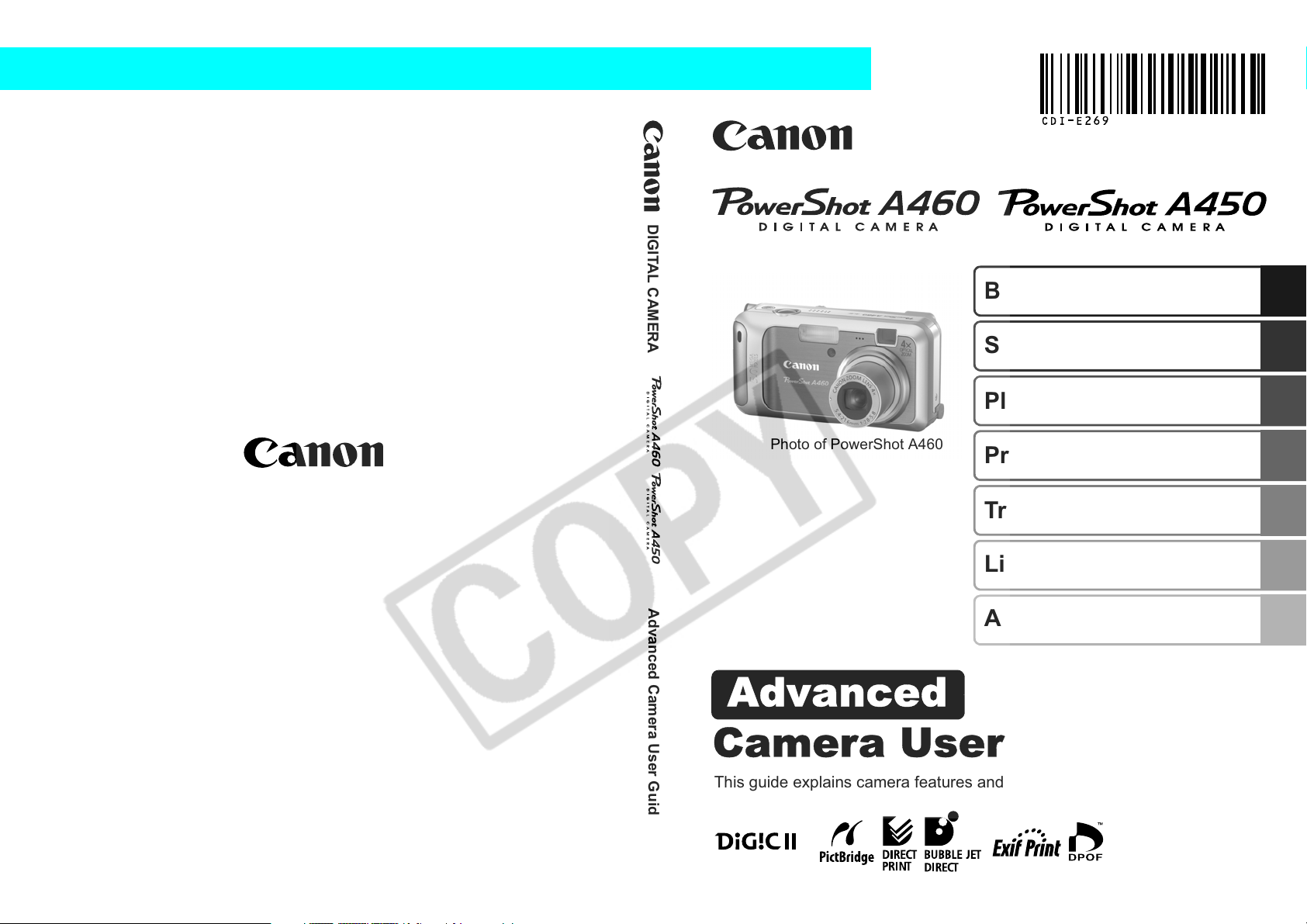
Camera User Guide
Advanced
DIGITAL CAMERA
ENGLISH
Before Using the Camera
Shooting
Playback/Erasing
CDI-E269-010 © 2007 CANON INC. PRINTED IN CHINA
Photo of PowerShot A460
Print/Transfer Settings
Troubleshooting
List of Messages
Advanced Camera User Guide
Appendix
This guide explains camera features and procedures in detail.
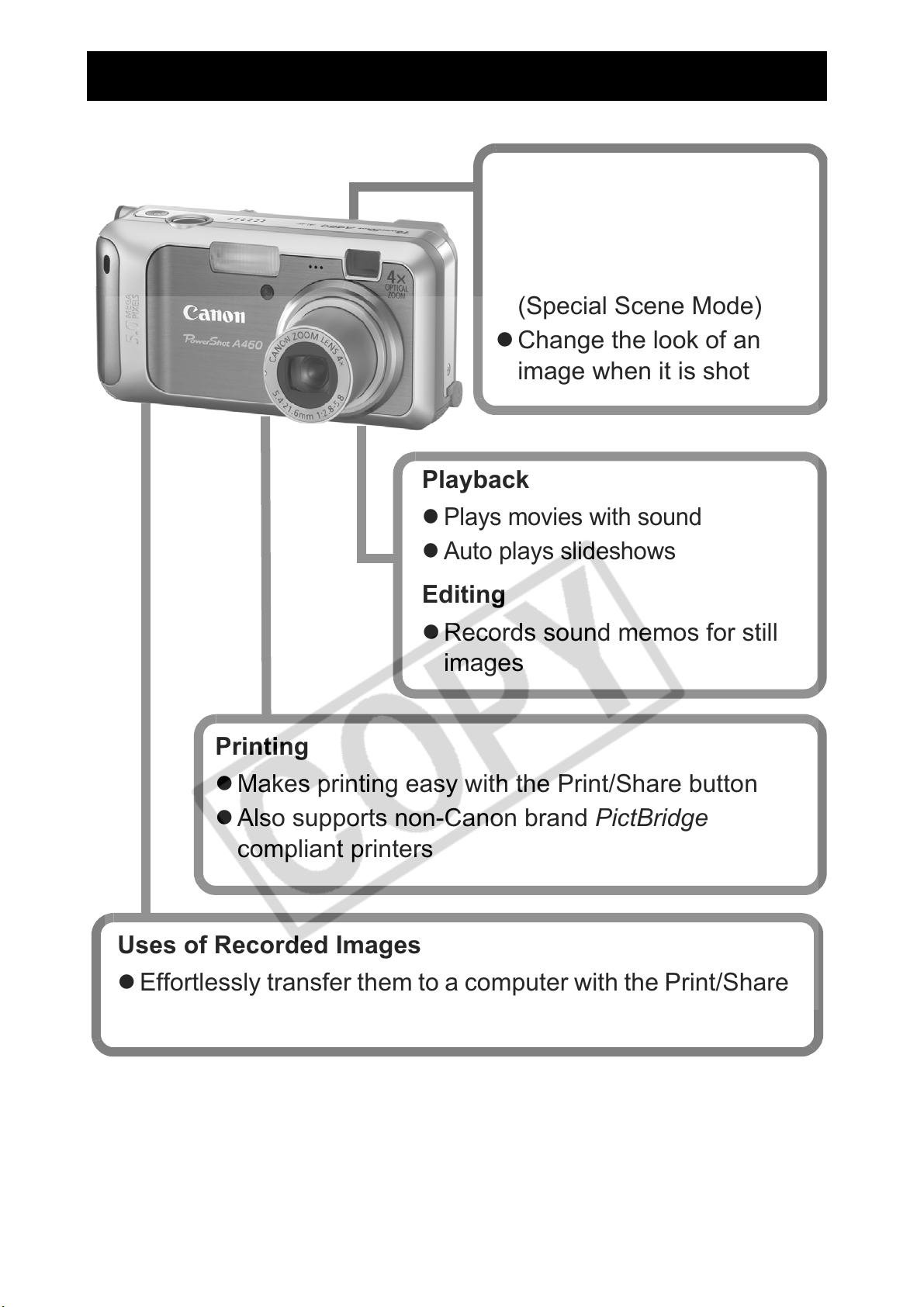
Main Features
Shooting
z Automatically adjusts
shooting settings to match
particular conditions
(Special Scene Mode)
z Change the look of an
image when it is shot
Playback
z
Plays movies with sound
z
Auto plays slideshows
Editing
z Records sound memos for still
images
Printing
z Makes printing easy with the Print/Share button
z Also supports non-Canon brand PictBridge
compliant printers
Uses of Recorded Images
z Effortlessly transfer them to a computer with the Print/Share
0
button
Photo of PowerShot A460
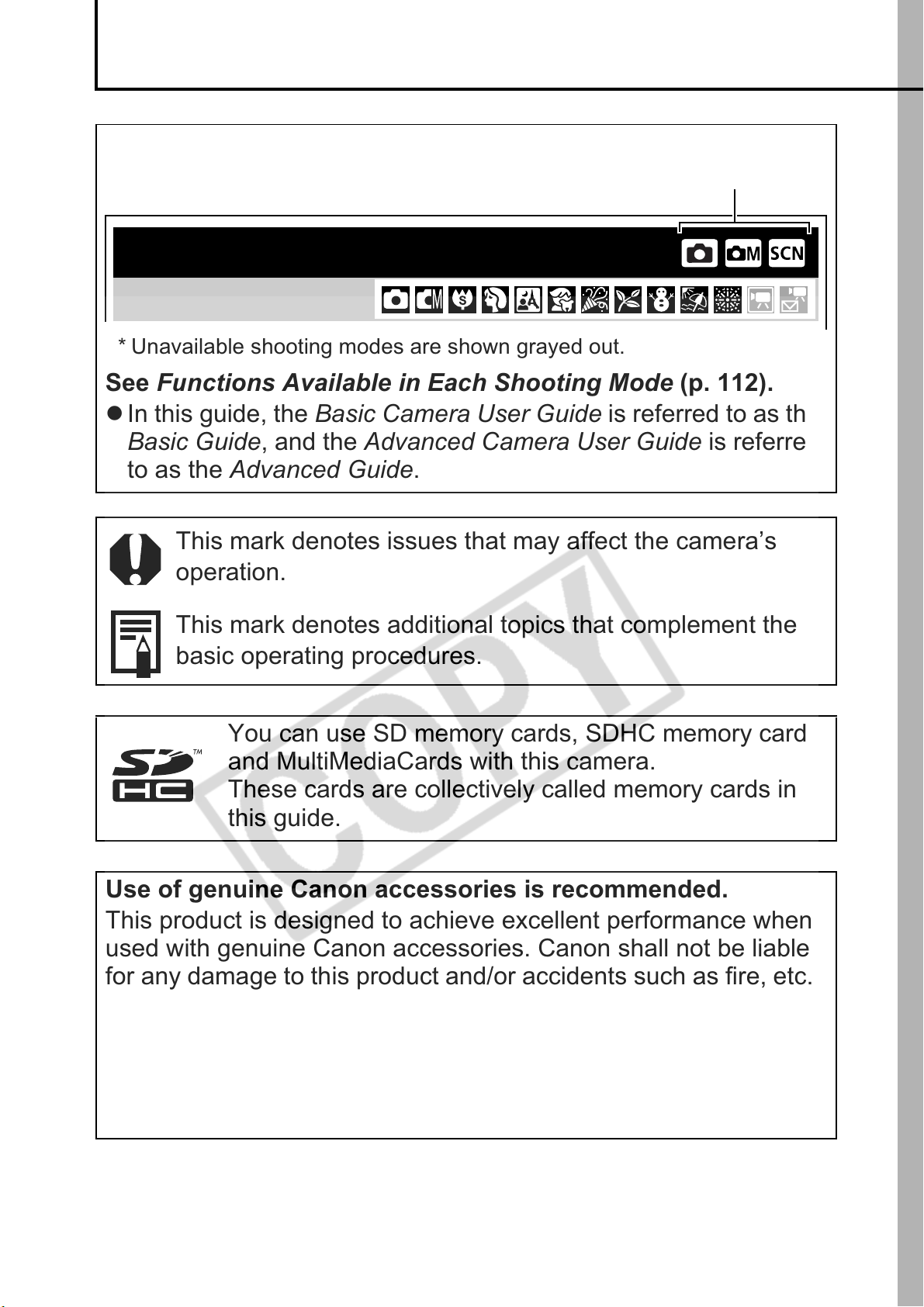
Conventions Used in this Guide
Icons appearing next to or below titles indicate the shooting
modes in which the procedure can be used.
Mode dial
Postcard Mode
Shooting Mode
* Unavailable shooting modes are shown grayed out.
See Functions Available in Each Shooting Mode (p. 112).
z In this guide, the Basic Camera User Guide is referred to as the
Basic Guide, and the Advanced Camera User Guide is referred
to as the Advanced Guide.
This mark denotes issues that may affect the camera’s
operation.
This mark denotes additional topics that complement the
basic operating procedures.
You can use SD memory cards, SDHC memory cards
and MultiMediaCards with this camera.
These cards are collectively called memory cards in
this guide.
Use of genuine Canon accessories is recommended.
This product is designed to achieve excellent performance when
used with genuine Canon accessories. Canon shall not be liable
for any damage to this product and/or accidents such as fire, etc.,
caused by the malfunction of non-genuine Canon accessories
(e.g., a leakage and/or explosion of a battery pack). Please note
that this warranty does not apply to repairs arising out of the
malfunction of non-genuine Canon accessories, although you
may request such repairs on a chargeable basis.
1
Table of Contents
Items marked with a are lists or charts that summarize camera
functions or procedures.
Handling Precautions . . . . . . . . . . . . . . . . . . . . . . . . . . . . . 5
Please Read. . . . . . . . . . . . . . . . . . . . . . . . . . . . . . . . . . . . . . . 5
Safety Precautions . . . . . . . . . . . . . . . . . . . . . . . . . . . . . . . . . . 6
Preventing Malfunctions . . . . . . . . . . . . . . . . . . . . . . . . . . . . . 11
Before Using the Camera—Basic Operations . . . . . . . . 12
Using the LCD Monitor . . . . . . . . . . . . . . . . . . . . . . . . . . . . . . 12
Information Displayed on the LCD Monitor . . . . . . . . . . . . . . 14
Using the Viewfinder . . . . . . . . . . . . . . . . . . . . . . . . . . . . . . . 17
Power Saving Function . . . . . . . . . . . . . . . . . . . . . . . . . . . . . 17
Menus and Settings . . . . . . . . . . . . . . . . . . . . . . . . . . . . . . . . 18
Menu List . . . . . . . . . . . . . . . . . . . . . . . . . . . . . . . . . . . . . . . . 20
Resetting Settings to Their Default Values. . . . . . . . . . . . . . . 24
Formatting Memory Cards . . . . . . . . . . . . . . . . . . . . . . . . . . . 25
Shooting . . . . . . . . . . . . . . . . . . . . . . . . . . . . . . . . . . . . . . 26
Changing the Recording Pixels and Compression
(Still Images) . . . . . . . . . . . . . . . . . . . . . . . . . . . . . . . . . . . . . 26
Using the Digital Zoom . . . . . . . . . . . . . . . . . . . . . . . . . . . . . . 27
Shooting Magnified Close-Ups (Super Macro). . . . . . . . . . . . 28
Continuous Shooting . . . . . . . . . . . . . . . . . . . . . . . . . . . . . . . 29
Postcard Mode . . . . . . . . . . . . . . . . . . . . . . . . . . . . . . . . . . . . 30
Embedding the Date in the Image Data . . . . . . . . . . . . . . . 30
Setting the Display Overlays . . . . . . . . . . . . . . . . . . . . . . . . . 31
Movie Shooting. . . . . . . . . . . . . . . . . . . . . . . . . . . . . . . . . 32
2
Switching between Focusing Modes . . . . . . . . . . . . . . . . . . . 35
Shooting Hard-to-Focus Subjects (Focus Lock). . . . . . . . . . . 36
Switching between Metering Modes. . . . . . . . . . . . . . . . . . . . 37
Adjusting the Exposure Compensation . . . . . . . . . . . . . . . . . 38
Shooting in Long Shutter Mode . . . . . . . . . . . . . . . . . . . . . . . 38
Adjusting the Tone (White Balance). . . . . . . . . . . . . . . . . . . . 40
Shooting in a My Colors Mode . . . . . . . . . . . . . . . . . . . . . . . . 43
Adjusting the ISO Speed. . . . . . . . . . . . . . . . . . . . . . . . . . . . .45
Creating an Image Destination (Folder) . . . . . . . . . . . . . . . . .46
Resetting the File Number . . . . . . . . . . . . . . . . . . . . . . . . . . .48
Playback/Erasing . . . . . . . . . . . . . . . . . . . . . . . . . . . . . . . . 50
Magnifying Images . . . . . . . . . . . . . . . . . . . . . . . . . . . . . .50
Viewing Images in Sets of Nine (Index Playback). . . . . . . . . .51
Viewing Movies . . . . . . . . . . . . . . . . . . . . . . . . . . . . . . . . . . . .52
Rotating Images in the Display . . . . . . . . . . . . . . . . . . . . . . . .53
Attaching Sound Memos to Images . . . . . . . . . . . . . . . . . . . .54
Automated Playback (Slide Shows) . . . . . . . . . . . . . . . . . . . .56
Protecting Images . . . . . . . . . . . . . . . . . . . . . . . . . . . . . . . . . .61
Viewing Images on a TV set . . . . . . . . . . . . . . . . . . . . . . . . . .62
Erasing All Images . . . . . . . . . . . . . . . . . . . . . . . . . . . . . . . . .63
Print Settings/Transfer Settings . . . . . . . . . . . . . . . . . . . . 64
Setting the DPOF Print Settings . . . . . . . . . . . . . . . . . . . . . . .64
Setting the DPOF Transfer Settings . . . . . . . . . . . . . . . . . . . .67
Troubleshooting . . . . . . . . . . . . . . . . . . . . . . . . . . . . . . . . 69
Camera . . . . . . . . . . . . . . . . . . . . . . . . . . . . . . . . . . . . . . . . . .69
When the power is turned on . . . . . . . . . . . . . . . . . . . . . . . . .69
LCD monitor . . . . . . . . . . . . . . . . . . . . . . . . . . . . . . . . . . . . . .70
Shooting . . . . . . . . . . . . . . . . . . . . . . . . . . . . . . . . . . . . . . . . .71
Shooting movies . . . . . . . . . . . . . . . . . . . . . . . . . . . . . . . . . . .75
Playback . . . . . . . . . . . . . . . . . . . . . . . . . . . . . . . . . . . . . . . . .76
Battery. . . . . . . . . . . . . . . . . . . . . . . . . . . . . . . . . . . . . . . . . . .77
TV monitor output . . . . . . . . . . . . . . . . . . . . . . . . . . . . . . . . . .77
Printing with a direct print compatible printer . . . . . . . . . . . . .78
List of Messages . . . . . . . . . . . . . . . . . . . . . . . . . . . . . . . . 79
Appendix . . . . . . . . . . . . . . . . . . . . . . . . . . . . . . . . . . . . . . 83
Battery Handling . . . . . . . . . . . . . . . . . . . . . . . . . . . . . . . . . . .83
Handling the Memory Card . . . . . . . . . . . . . . . . . . . . . . . . . . .85
Using the Power Kits (Sold Separately) . . . . . . . . . . . . . . . . .87
Using an Externally Mounted Flash (Sold Separately) . . . . . .90
Replacing the Date Battery . . . . . . . . . . . . . . . . . . . . . . . . . . .92
3

Camera Care and Maintenance . . . . . . . . . . . . . . . . . . . . . . . 94
Specifications . . . . . . . . . . . . . . . . . . . . . . . . . . . . . . . . . . . . . 95
Index. . . . . . . . . . . . . . . . . . . . . . . . . . . . . . . . . . . . . . . . . 104
Functions Available in Each Shooting Mode . . . . . . 112
4
Handling Precautions
Please Read
Test Shots
Before you try to photograph important subjects, we highly
recommend that you shoot several trial images to confirm that the
camera is operating and being operated correctly.
Please note that Canon Inc., its subsidiaries and affiliates, and its
distributors are not liable for any consequential damages arising
from any malfunction of a camera or accessory, including memory
cards, that results in the failure of an image to be recorded or to be
recorded in a way that is machine readable.
Warning Against Copyright Infringement
Please note that Canon digital cameras are intended for personal
use and should never be used in a manner that infringes upon or
contravenes international or domestic copyright laws and
regulations. Please be advised that in certain cases the copying of
images from performances, exhibitions, or commercial properties
by means of a camera or other device may contravene copyright or
other legal rights even if the image was shot for personal use.
Warranty Limitations
This camera’s warranty is only effective in the country of sale. If a
problem arises while the camera is in use abroad, please convey it
back to the country of sale before proceeding with a warranty claim
to a Canon Customer Support Help Desk.
For Canon Customer Support contacts, please see the
customer support list supplied with your camera.
5
Camera Body Temperature
If your camera is used for prolonged periods, the camera body
may become warm. Please be aware of this and take care when
operating the camera for an extended period.
About the LCD Monitor
The LCD monitor is produced with extremely high-precision
manufacturing techniques. More than 99.99% of the pixels
operate to specification. Less than 0.01% of the pixels may
occasionally misfire or appear as red or black dots. This has no
effect on the recorded image and does not constitute a
malfunction.
Video Format
Please set the camera’s video signal format to the one used in your
region before using it with a TV monitor (p. 62).
Language Setting
Please see the Basic Guide (p. 7) to change the language setting.
Safety Precautions
z Before using the camera, please ensure that you read the safety
precautions described below and in the “Safety Precautions”
section of the Basic Camera User Guide. Always ensure that the
camera is operated correctly.
z The safety precautions noted on the following pages are intended
to instruct you in the safe and correct operation of the camera and
its accessories to prevent injuries or damage to yourself, other
persons and equipment.
z Equipment refers to the camera, battery, battery charger (sold
separately) and compact power adapter (sold separately).
6
Warnings
Equipment
Do not point the camera directly at the sun or bright light
sources.
Doing so could damage the camera’s CCD or your eyesight.
Store this equipment out of the reach of children and infants.
• Wrist strap: Placement of the strap around the child’s neck could
result in asphyxiation.
• Memory card: It may be swallowed accidentally. If this occurs,
contact a doctor immediately.
Do not attempt to disassemble or alter any part of the
equipment that is not expressly described in this guide.
To avoid the risk of high-voltage electrical shock, do not touch
the flash portion of the camera if it has been damaged.
Stop operating the equipment immediately if it emits smoke
or noxious fumes.
Do not allow the equipment to come into contact with, or
become immersed in, water or other liquids. If the exterior
comes into contact with liquids or salt air, wipe it dry with a
soft, absorbent cloth.
Continued use of the equipment may result in fire or electrical
shock. Immediately turn the camera power off and remove the
camera batteries or unplug the battery charger or compact power
adapter from the power outlet. Please consult your camera
distributor or the closest Canon Customer Support Help Desk.
Do not use substances containing alcohol, benzine,
thinners or other flammable substances to clean or
maintain the equipment.
Do not cut, damage, alter or place heavy items on the power
cord.
Use only recommended power accessories.
Remove the power cord on a regular periodic basis and
wipe away the dust and dirt that collects on the plug, the
exterior of the power outlet and the surrounding area.
Do not handle the power cord if your hands are wet.
Continued use of the equipment may result in fire or electrical shock.
7
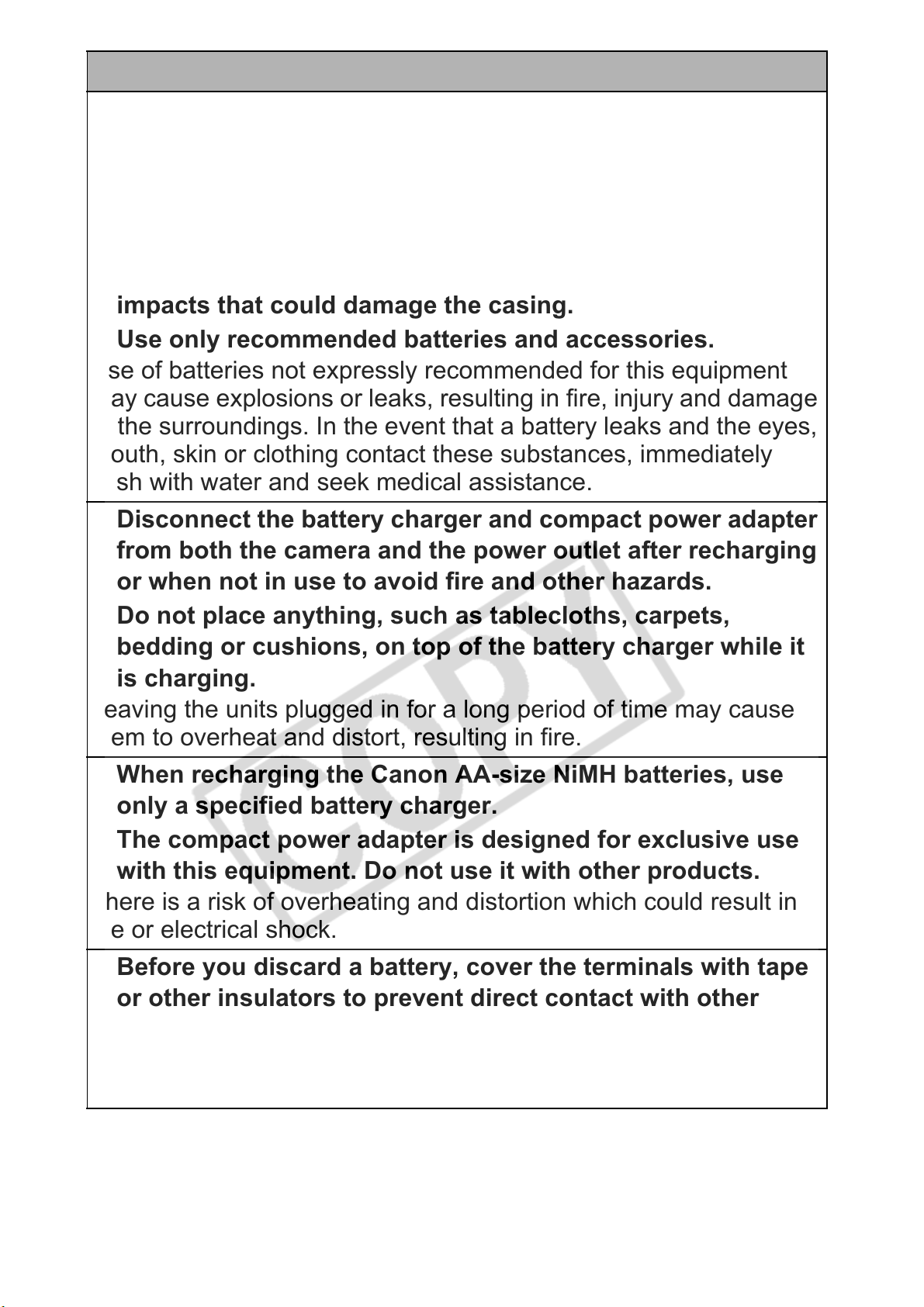
Battery
Do not place the batteries near a heat source or expose
them to direct flame or heat.
The batteries should not be immersed in water or sea water.
Do not attempt to disassemble, alter or apply heat to the
batteries.
Avoid dropping or subjecting the batteries to severe
impacts that could damage the casing.
Use only recommended batteries and accessories.
Use of batteries not expressly recommended for this equipment
may cause explosions or leaks, resulting in fire, injury and damage
to the surroundings. In the event that a battery leaks and the eyes,
mouth, skin or clothing contact these substances, immediately
flush with water and seek medical assistance.
Disconnect the battery charger and compact power adapter
from both the camera and the power outlet after recharging
or when not in use to avoid fire and other hazards.
Do not place anything, such as tablecloths, carpets,
bedding or cushions, on top of the battery charger while it
is charging.
Leaving the units plugged in for a long period of time may cause
them to overheat and distort, resulting in fire.
When recharging the Canon AA-size NiMH batteries, use
only a specified battery charger.
The compact power adapter is designed for exclusive use
with this equipment. Do not use it with other products.
There is a risk of overheating and distortion which could result in
fire or electrical shock.
Before you discard a battery, cover the terminals with tape
or other insulators to prevent direct contact with other
objects.
Contact with the metallic components of other materials in waste
containers may lead to fire or explosions.
8
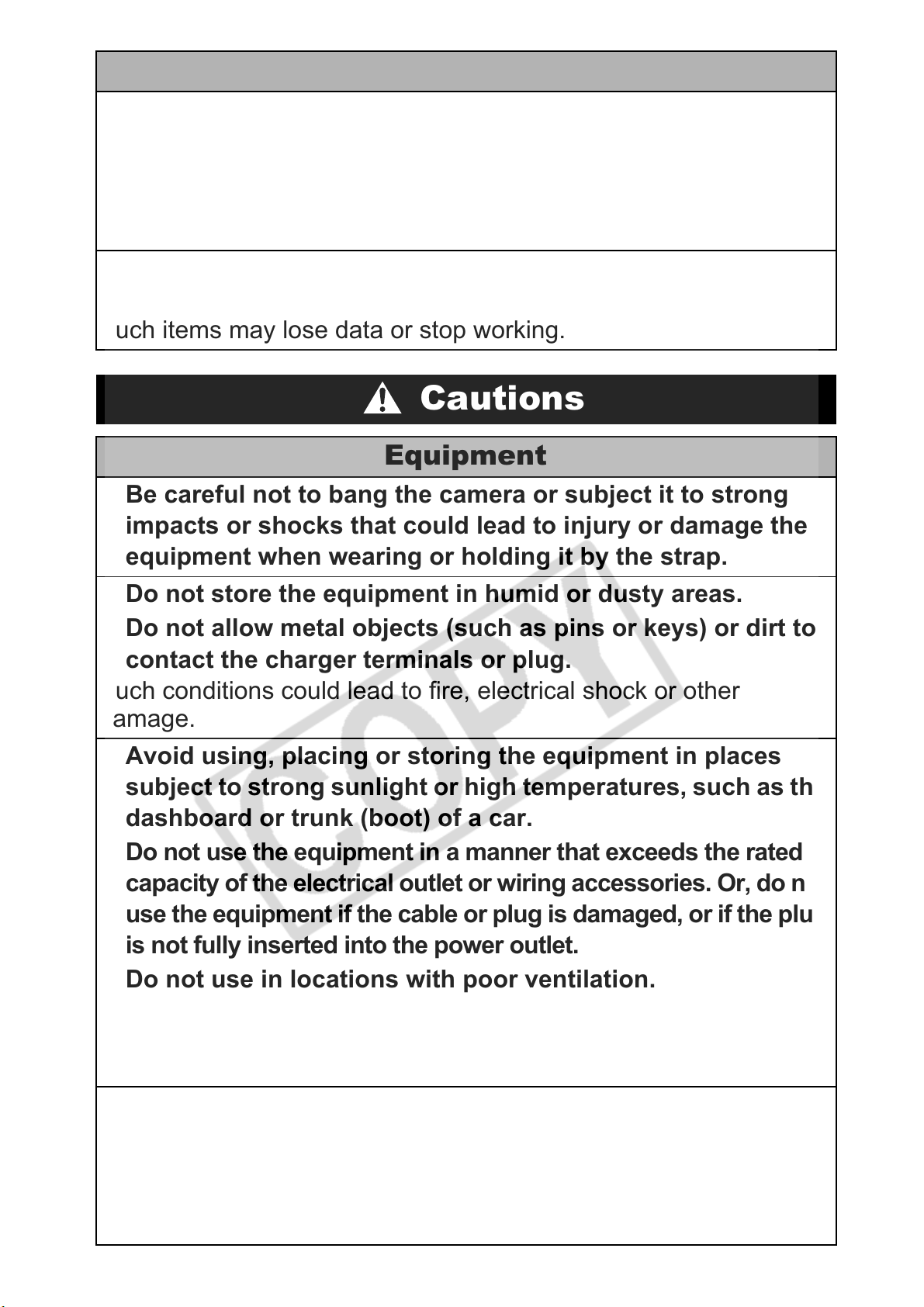
Others
Do not trigger the flash in close proximity to human or
animal eyes. Exposure to the intense light produced by the
flash may damage eyesight.
In particular, remain at least one meter (39 inches) away from
infants when using the flash.
Keep objects that are sensitive to magnetic fields (such as
credit cards) away from the speaker of the camera.
Such items may lose data or stop working.
Cautions
Equipment
Be careful not to bang the camera or subject it to strong
impacts or shocks that could lead to injury or damage the
equipment when wearing or holding it by the strap.
Do not store the equipment in humid or dusty areas.
Do not allow metal objects (such as pins or keys) or dirt to
contact the charger terminals or plug.
Such conditions could lead to fire, electrical shock or other
damage.
Avoid using, placing or storing the equipment in places
subject to strong sunlight or high temperatures, such as the
dashboard or trunk (boot) of a car.
Do not use the equipment in a manner that exceeds the rated
capacity of the electrical outlet or wiring accessories. Or, do not
use the equipment if the cable or plug is damaged, or if the plug
is not fully inserted into the power outlet.
Do not use in locations with poor ventilation.
The above-mentioned can cause leakage, overheating or
explosion, resulting in fire, burns or other injuries. High
temperatures may also cause deformation of the casing.
When not using the camera for extended periods of time,
remove the batteries from the camera or battery charger
and store the equipment in a safe place.
If the batteries are left inside the camera, damage caused by
leakage may occur.
9
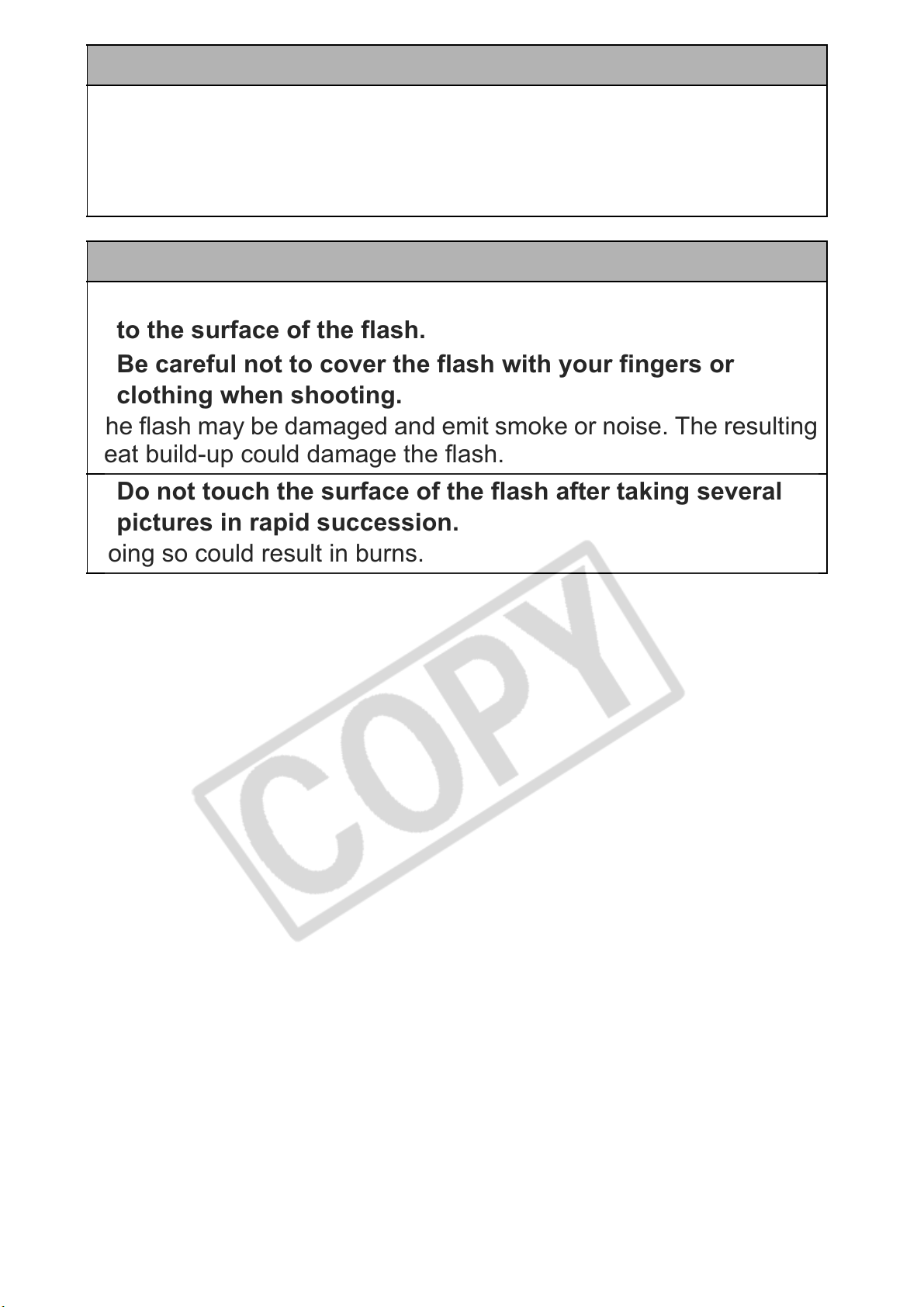
Equipment
Do not connect compact power adapters or battery
chargers to devices such as electrical transformers for
foreign travel because it may lead to malfunctions,
excessive heat generation, fire, electric shock or injury.
Flash
Do not operate the flash with dirt, dust or other items stuck
to the surface of the flash.
Be careful not to cover the flash with your fingers or
clothing when shooting.
The flash may be damaged and emit smoke or noise. The resulting
heat build-up could damage the flash.
Do not touch the surface of the flash after taking several
pictures in rapid succession.
Doing so could result in burns.
10
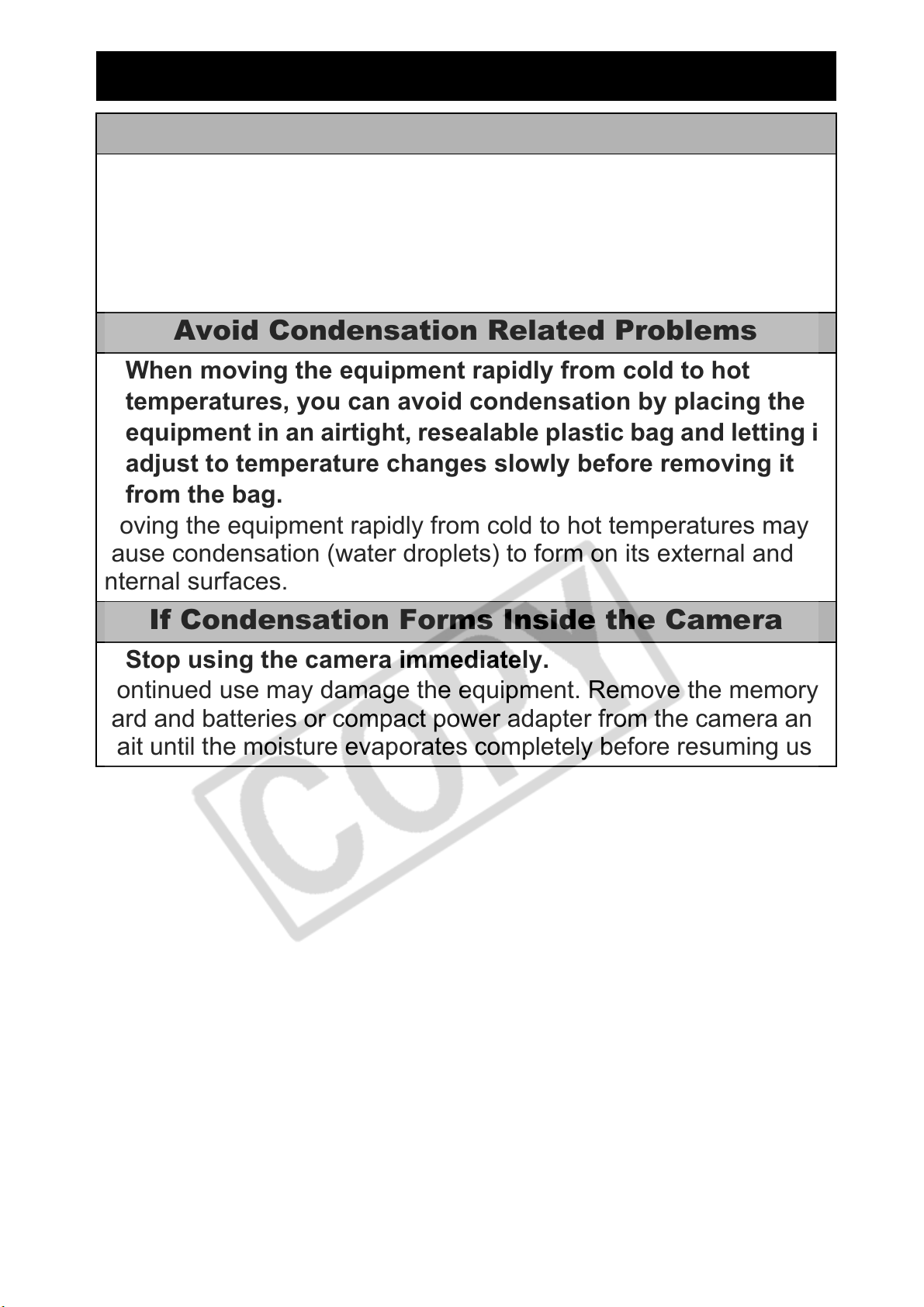
Preventing Malfunctions
Avoid Strong Magnetic Fields
Never place the camera in close proximity to electric motors
or other equipment generating strong electromagnetic
fields.
Exposure to strong magnetic fields may cause malfunctions or
corrupt image data.
Avoid Condensation Related Problems
When moving the equipment rapidly from cold to hot
temperatures, you can avoid condensation by placing the
equipment in an airtight, resealable plastic bag and letting it
adjust to temperature changes slowly before removing it
from the bag.
Moving the equipment rapidly from cold to hot temperatures may
cause condensation (water droplets) to form on its external and
internal surfaces.
If Condensation Forms Inside the Camera
Stop using the camera immediately.
Continued use may damage the equipment. Remove the memory
card and batteries or compact power adapter from the camera and
wait until the moisture evaporates completely before resuming use.
11
Before Using the Camera—Basic Operations
Using the LCD Monitor
1
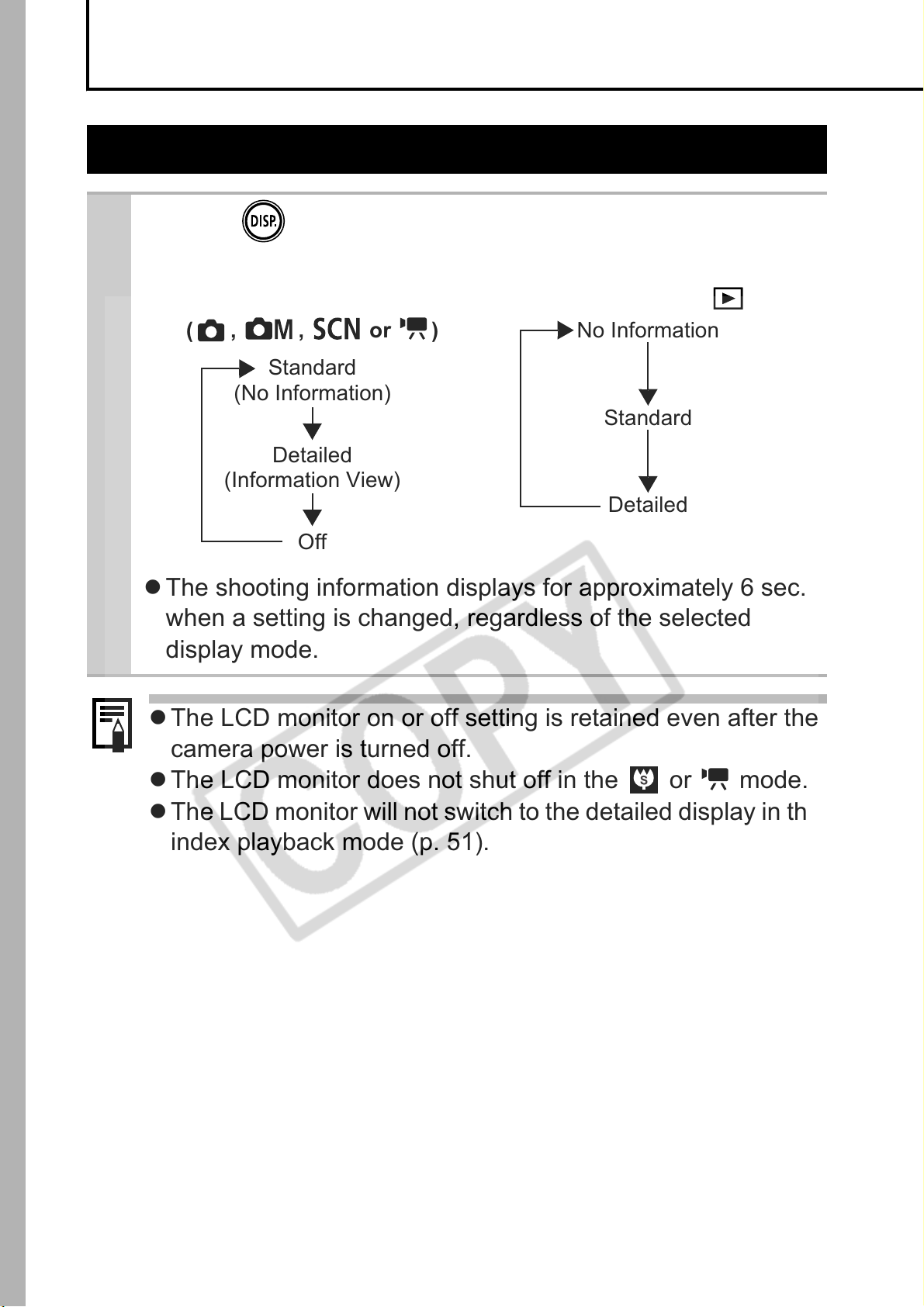
Press .
z The display mode changes as follows with each press.
Shooting Mode
( , , or )
Standard
(No Information)
Detailed
(Information View)
Off
z The shooting information displays for approximately 6 sec.
when a setting is changed, regardless of the selected
display mode.
Playback Mode ( )
No Information
Standard
Detailed
z The LCD monitor on or off setting is retained even after the
camera power is turned off.
z The LCD monitor does not shut off in the or mode.
z The LCD monitor will not switch to the detailed display in the
index playback mode (p. 51).
12

Night Display
When shooting in dark conditions, the camera automatically
brightens the LCD monitor to suit the brightness of the subject*,
making it easier to frame the subject.
* Although noise may appear and the movement of the subject shown on the
LCD monitor may appear somewhat jagged, there is no effect on the
recorded image.
The brightness of the image displayed in the monitor, and the brightness of
the actual image recorded will be different.
Before Using the Camera—Basic Operations
13
Information Displayed on the LCD Monitor
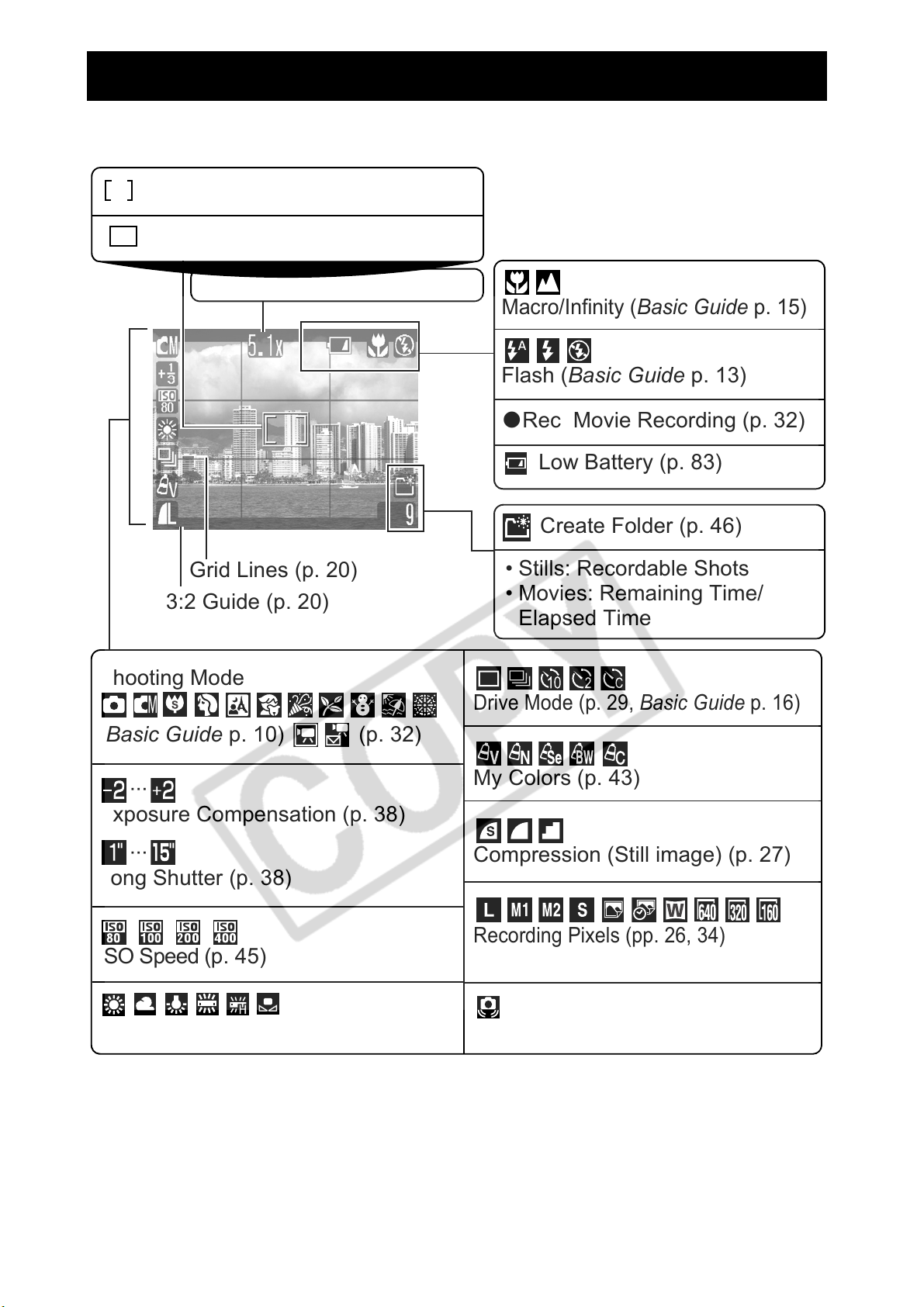
Shooting Information (Shooting Mode)
Spot AE Point Frame (p. 37)
AF Frame (p. 35)
Zoom Magnification (p. 27)
Macro/Infinity (Basic Guide p. 15)
Flash (Basic Guide p. 13)
Rec Movie Recording (p. 32)
z
Low Battery (p. 83)
Create Folder (p. 46)
Grid Lines (p. 20)
3:2 Guide (p. 20)
Shooting Mode
(Basic Guide p. 10) (p. 32)
···
Exposure Compensation (p. 38)
···
Long Shutter (p. 38)
ISO Speed (p. 45)
White Balance (p. 40)
• Stills: Recordable Shots
• Movies: Remaining Time/
Elapsed Time
Drive Mode (p. 29, Basic Guide p. 16)
My Colors (p. 43)
Compression (Still image) (p. 27)
Recording Pixels (pp. 26, 34)
(Red)
Camera Shake Warning (p. 15)
14
If the indicator blinks orange and the camera shake warning
icon ( ) displays, this indicates that a slow shutter speed
may have been selected due to insufficient illumination. Use
the following methods to shoot:
— Raise the ISO speed (p. 45)
— Select a setting other than (flash off) (Basic Guide p. 13)
— Attach the camera to a tripod or other device
Playback Information (Playback Mode)
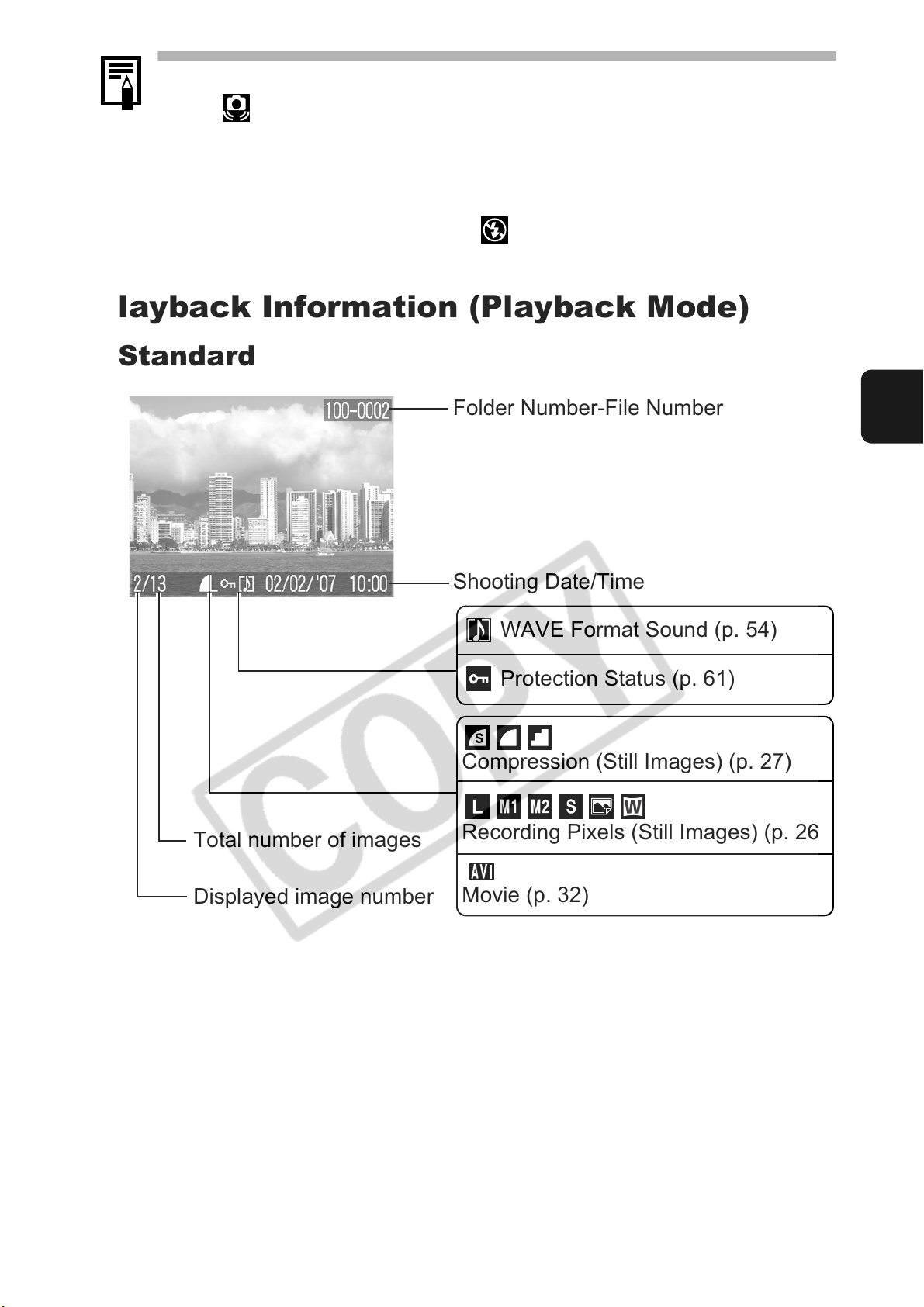
Standard
Folder Number-File Number
Before Using the Camera—Basic Operations
Total number of images
Displayed image number
Shooting Date/Time
WAVE Format Sound (p. 54)
Protection Status (p. 61)
Compression (Still Images) (p. 27)
Recording Pixels (Still Images) (p. 26)
Movie (p. 32)
15
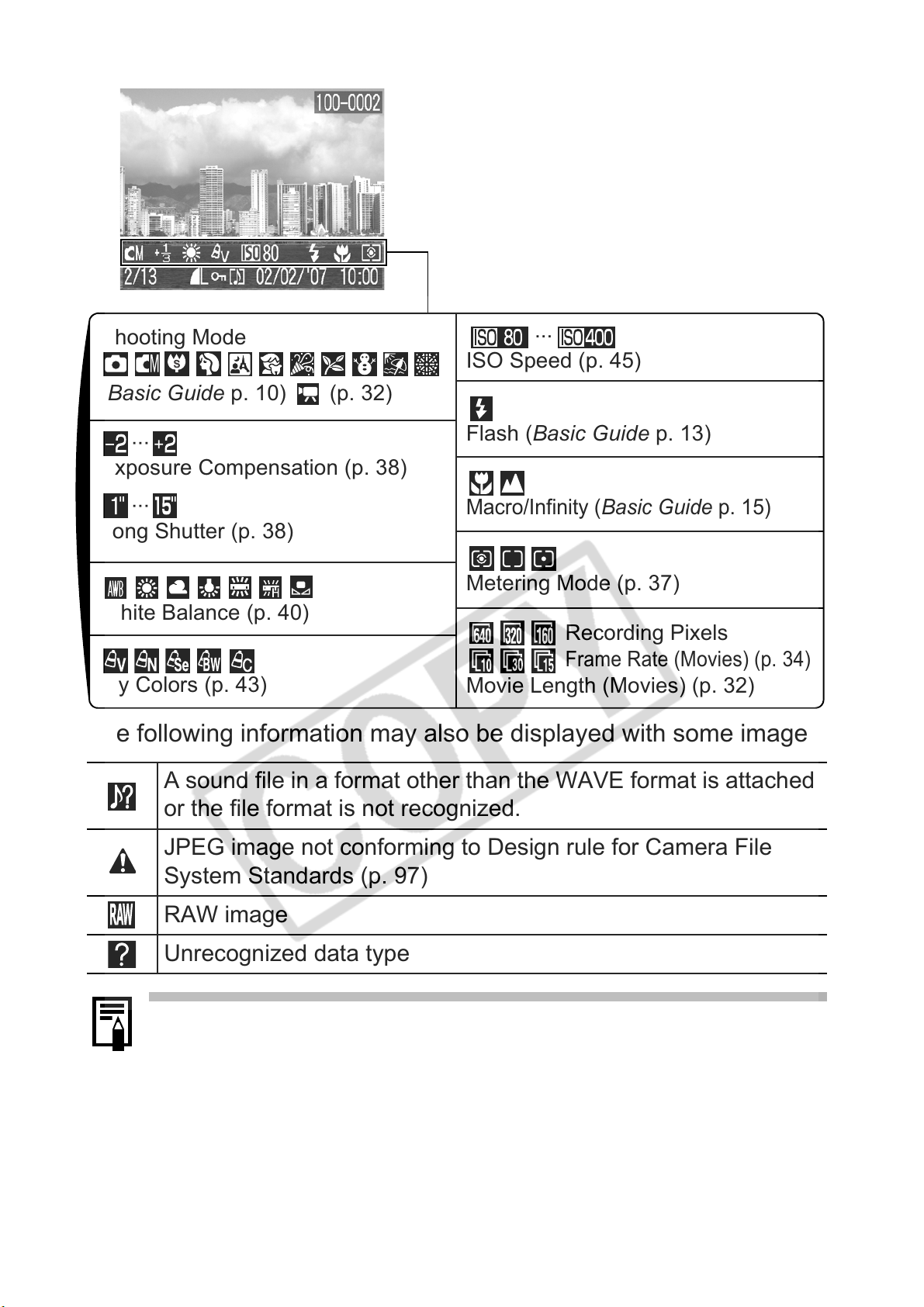
Detailed
Shooting Mode
(Basic Guide p. 10) (p. 32)
···
Exposure Compensation (p. 38)
···
Long Shutter (p. 38)
White Balance (p. 40)
My Colors (p. 43)
ISO Speed (p. 45)
Flash (Basic Guide p. 13)
Macro/Infinity (Basic Guide p. 15)
Metering Mode (p. 37)
Movie Length (Movies) (p. 32)
...
Recording Pixels
Frame Rate (Movies) (p. 34)
The following information may also be displayed with some images.
A sound file in a format other than the WAVE format is attached
or the file format is not recognized.
JPEG image not conforming to Design rule for Camera File
System Standards (p. 97)
RAW image
Unrecognized data type
Information for images shot on other cameras may not display
correctly.
16
Using the Viewfinder
The viewfinder (Basic Guide p. 2) can be used to conserve power
by turning the LCD monitor off (p. 12) while shooting.
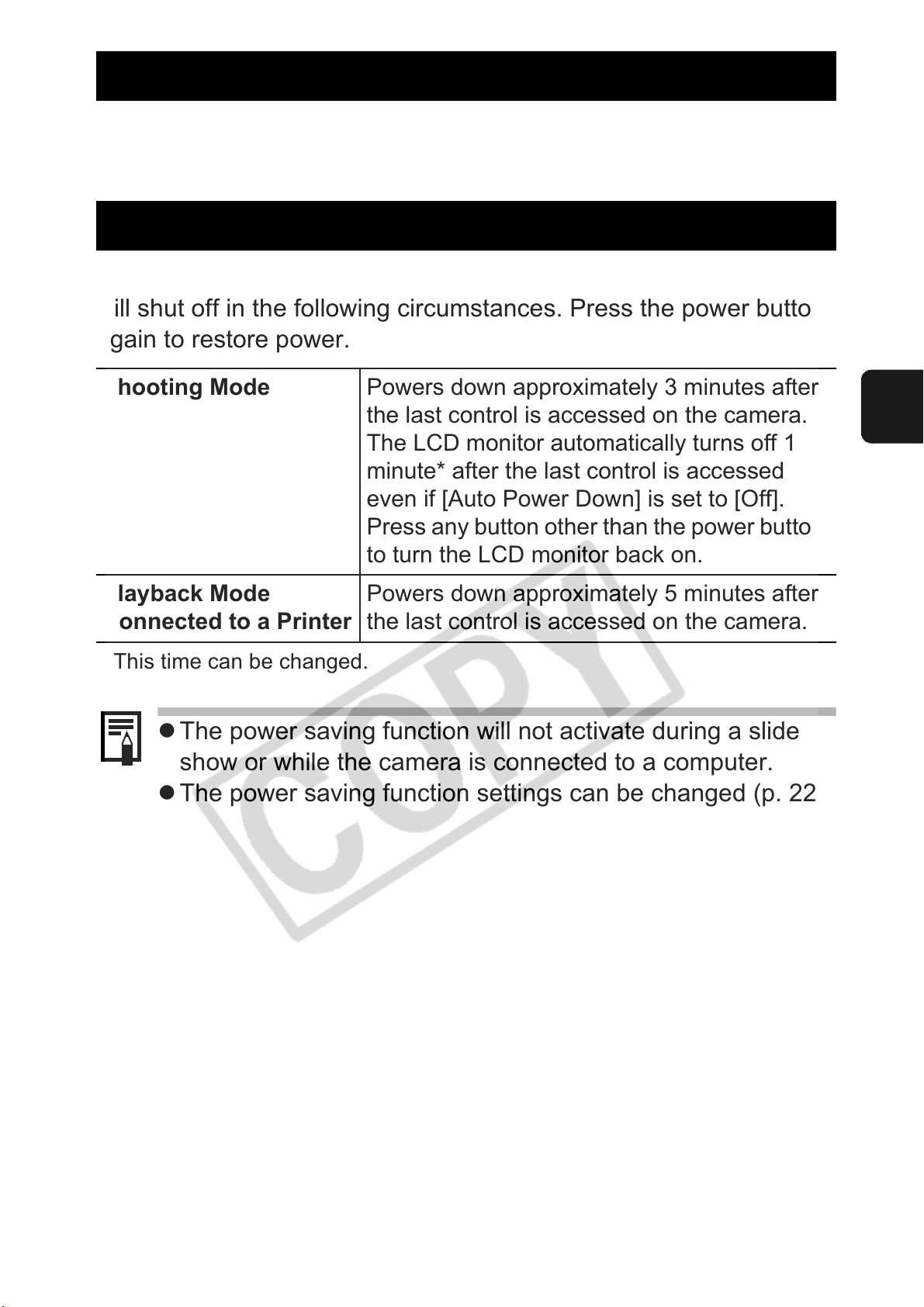
Power Saving Function
This camera is equipped with a power saving function. The power
will shut off in the following circumstances. Press the power button
again to restore power.
Shooting Mode Powers down approximately 3 minutes after
the last control is accessed on the camera.
Playback Mode
Connected to a Printer
* This time can be changed.
z The power saving function will not activate during a slide
show or while the camera is connected to a computer.
z The power saving function settings can be changed (p. 22).
The LCD monitor automatically turns off 1
minute* after the last control is accessed
even if [Auto Power Down] is set to [Off].
Press any button other than the power button
to turn the LCD monitor back on.
Powers down approximately 5 minutes after
the last control is accessed on the camera.
Before Using the Camera—Basic Operations
17
Menus and Settings
Menus are used to set the shooting, playback and print settings as
well as such camera settings as the date/time and electronic beep.
The following menus are available.
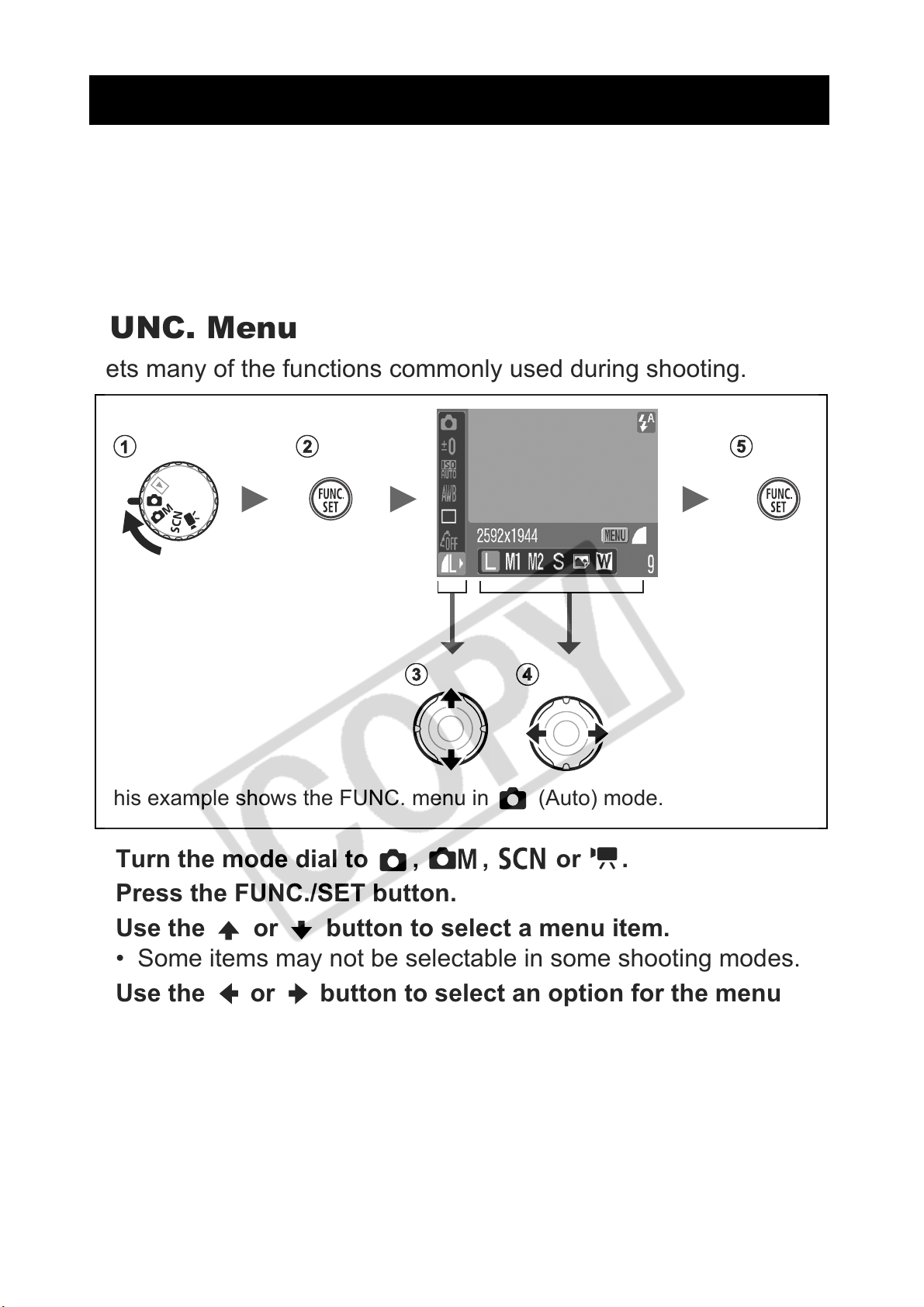
FUNC. Menu
Rec., Play, Print and Set up Menus
FUNC. Menu
Sets many of the functions commonly used during shooting.
This example shows the FUNC. menu in (Auto) mode.
Turn the mode dial to , , or .
Press the FUNC./SET button.
Use the or button to select a menu item.
• Some items may not be selectable in some shooting modes.
Use the or button to select an option for the menu
item.
• You can select further options with the MENU button for some
options.
• After selecting an option, you can press the shutter button to
18
shoot immediately. After shooting, this menu will appear again,
allowing you to adjust the settings easily.
Press the FUNC./SET button.
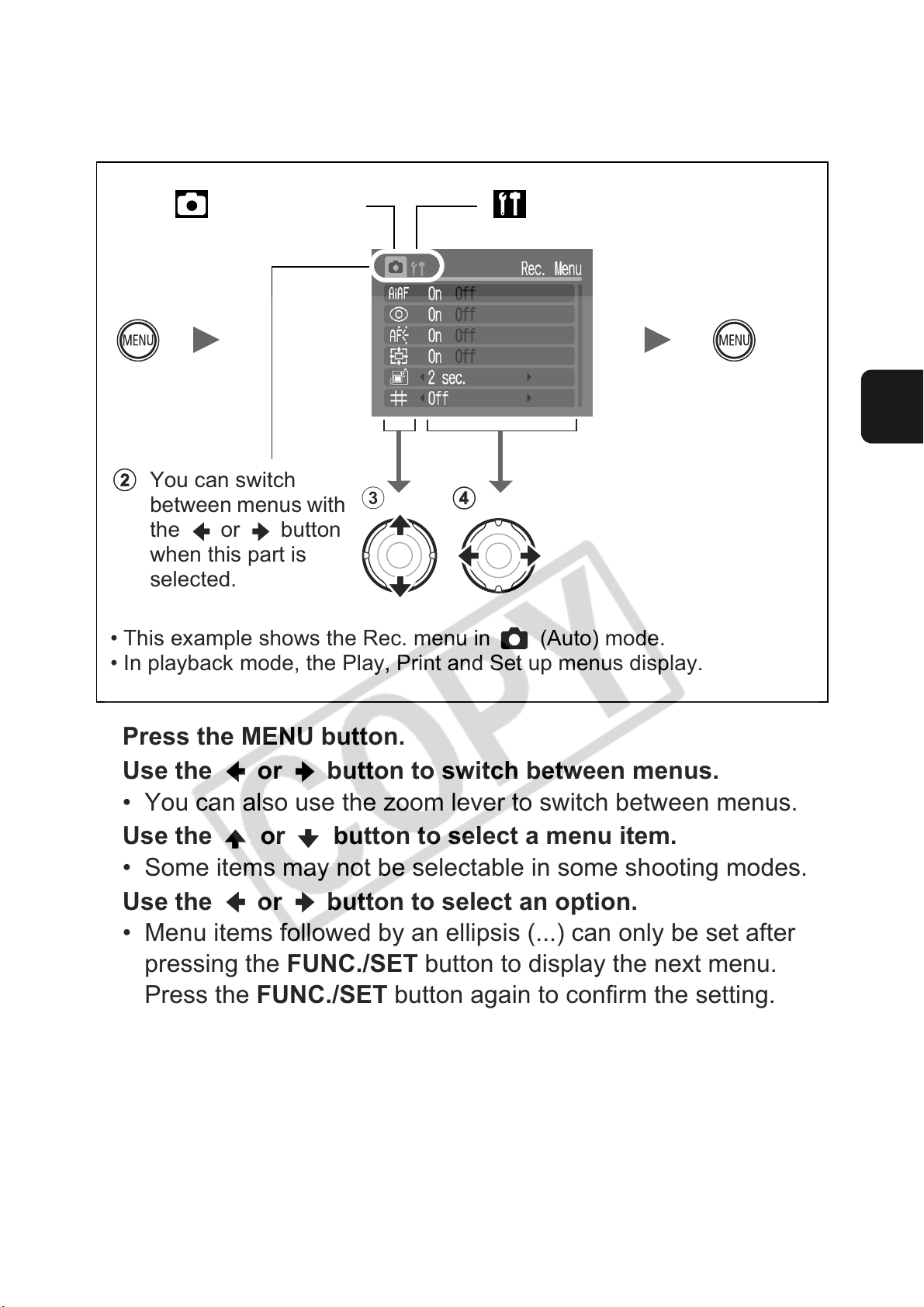
Rec., Play, Print and Set up Menus
Convenient settings for shooting, playback or printing can be set
with these menus.
(Rec.) Menu (Set up) Menu
You can switch
between menus with
the or button
when this part is
selected.
• This example shows the Rec. menu in (Auto) mode.
• In playback mode, the Play, Print and Set up menus display.
Press the MENU button.
cd
Before Using the Camera—Basic Operations
Use the or button to switch between menus.
• You can also use the zoom lever to switch between menus.
Use the or button to select a menu item.
• Some items may not be selectable in some shooting modes.
Use the or button to select an option.
• Menu items followed by an ellipsis (…) can only be set after
pressing the FUNC./SET button to display the next menu.
Press the FUNC./SET button again to confirm the setting.
Press the MENU button.
19
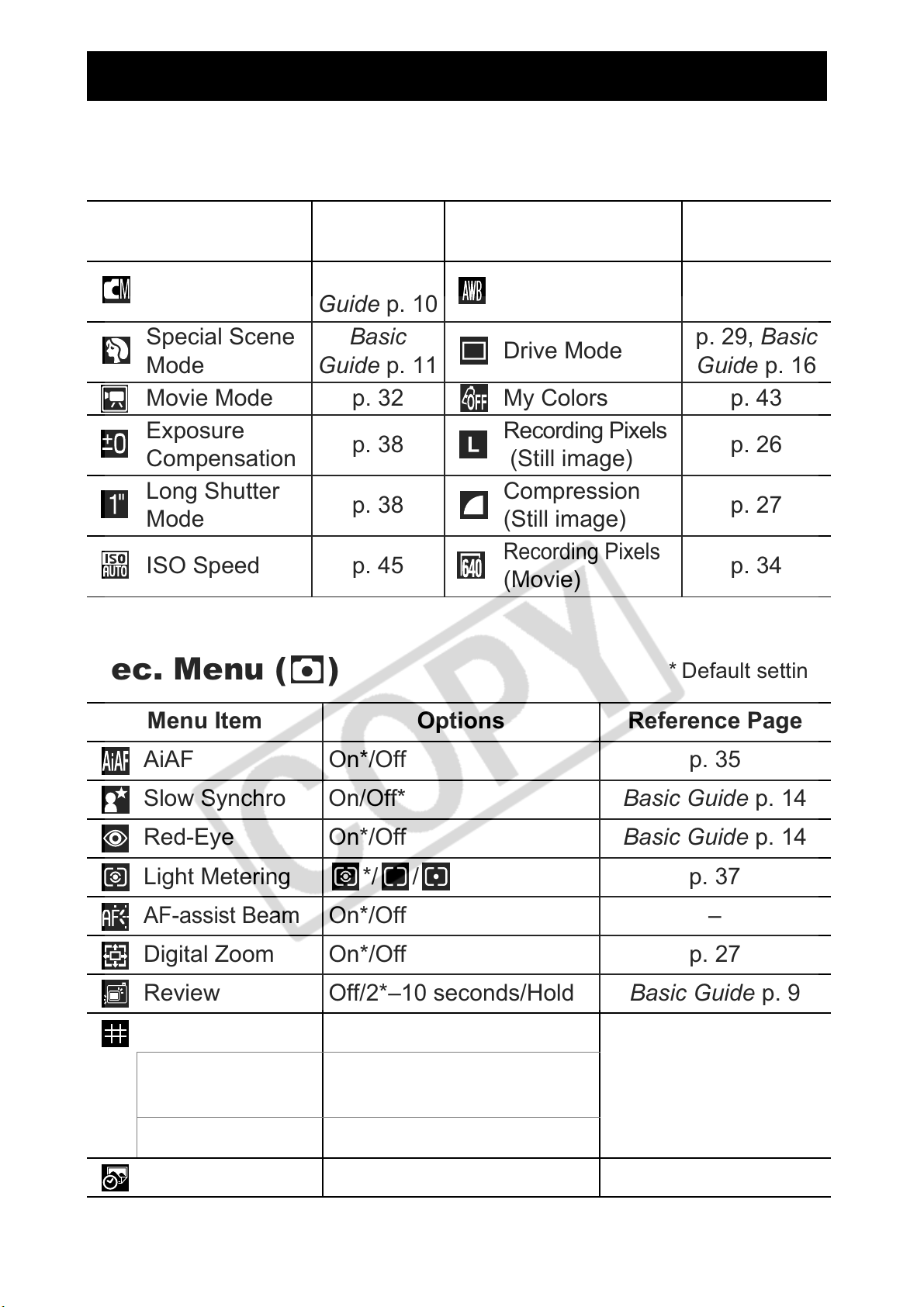
Menu List
FUNC. Menu
The icons shown below are the default settings.
Menu Item
Manual Mode
Special Scene
Mode
Movie Mode p. 32 My Colors p. 43
Exposure
Compensation
Long Shutter
Mode
ISO Speed p. 45
Reference
Menu Item
Page
Basic
White Balance p. 40
Guide p. 10
Basic
Drive Mode
Guide p. 11
Recording Pixels
p. 38
(Still image)
Compression
p. 38
(Still image)
Recording Pixels
(Movie)
Reference
Page
p. 29, Basic
Guide p. 16
p. 26
p. 27
p. 34
Rec. Menu ( )
Menu Item Options Reference Page
AiAF On*/Off p. 35
Slow Synchro On/Off* Basic Guide p. 14
Red-Eye On*/Off Basic Guide p. 14
Light Metering */ / p. 37
AF-assist Beam
Digital Zoom On*/Off p. 27
Review Off/2*–10 seconds/Hold Basic Guide p. 9
Disp. Overlay
(Still Images)
On*/Off –
Off*/Grid Lines/3:2 Guide/
Both
* Default setting
p. 31
20
(Movies)
Date Stamp Off*/Date/Date & Time p. 30
Off*/Grid Lines
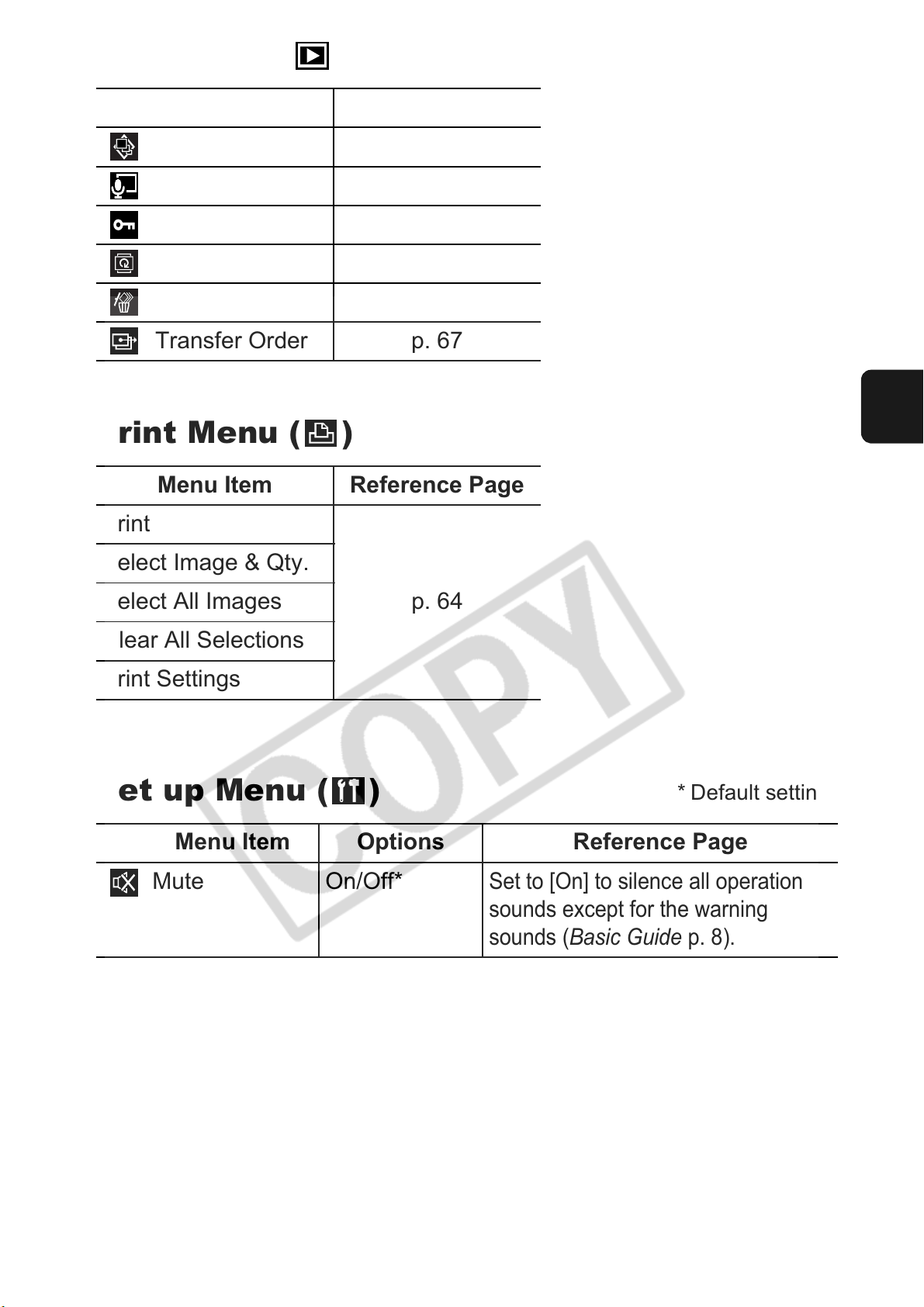
Play Menu ( )
Menu Item Reference Page
Slide Show p. 56
Sound Memo p. 54
Protect p. 61
Rotate p. 53
Erase all p. 63
Transfer Order p. 67
Print Menu ( )
Menu Item Reference Page
Select Image & Qty.
Select All Images
Clear All Selections
Print Settings
Set up Menu ( )
Menu Item Options Reference Page
Mute On/Off*
Before Using the Camera—Basic Operations
p. 64
* Default setting
Set to [On] to silence all operation
sounds except for the warning
sounds (Basic Guide p.  .
.
21
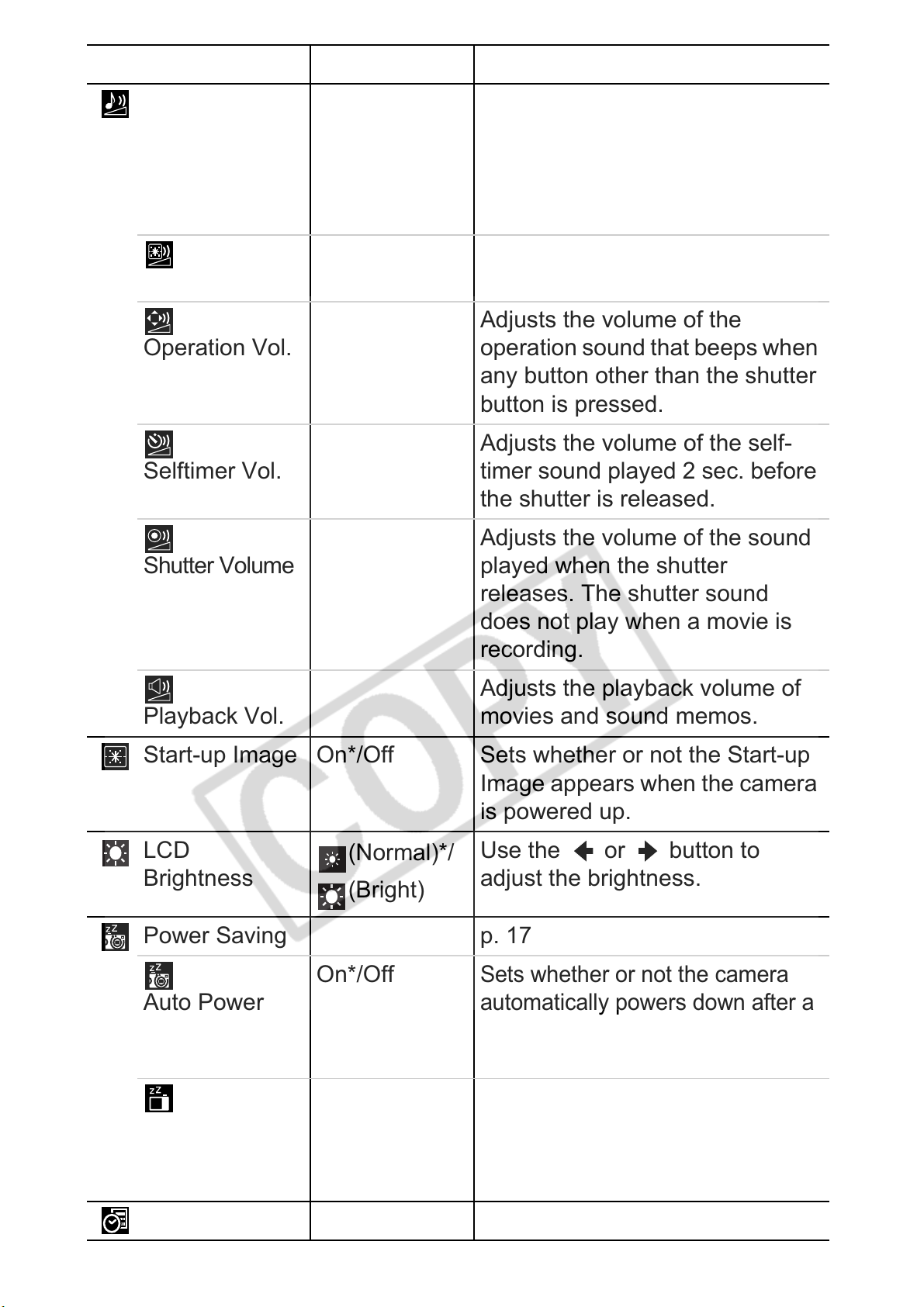
Menu Item Options Reference Page
Volume Off/1/2*/3/4/5
Start-up Vol.
Operation Vol.
Selftimer Vol.
Adjusts the volume of the start-up
sound, operation sound, self-timer
sound, shutter sound and playback
sound. The volume cannot be
adjusted if [Mute] is set to [On].
Adjusts the volume of the start-up
sound when the camera is turned on.
Adjusts the volume of the
operation sound that beeps when
any button other than the shutter
button is pressed.
Adjusts the volume of the self-
timer sound played 2 sec. before
the shutter is released.
Adjusts the volume of the sound
Shutter Volume
Playback Vol.
Start—up Image On*/Off Sets whether or not the Start—up
LCD
Brightness
Power Saving p. 17
Auto Power
(Normal)*/
(Bright)
On*/Off
played when the shutter
releases. The shutter sound
does not play when a movie is
recording.
Adjusts the playback volume of
movies and sound memos.
Image appears when the camera
is powered up.
Use the or button to
adjust the brightness.
Sets whether or not the camera
automatically powers down after a
22
Down
10 sec./20
Display Off
Date/Time Basic Guide p. 7
sec./30 sec./1
min.*/2 min./3
min.
set period of time elapses without
the camera being operated.
Sets the length of time before the
LCD monitor turns off when no
camera operation is performed.
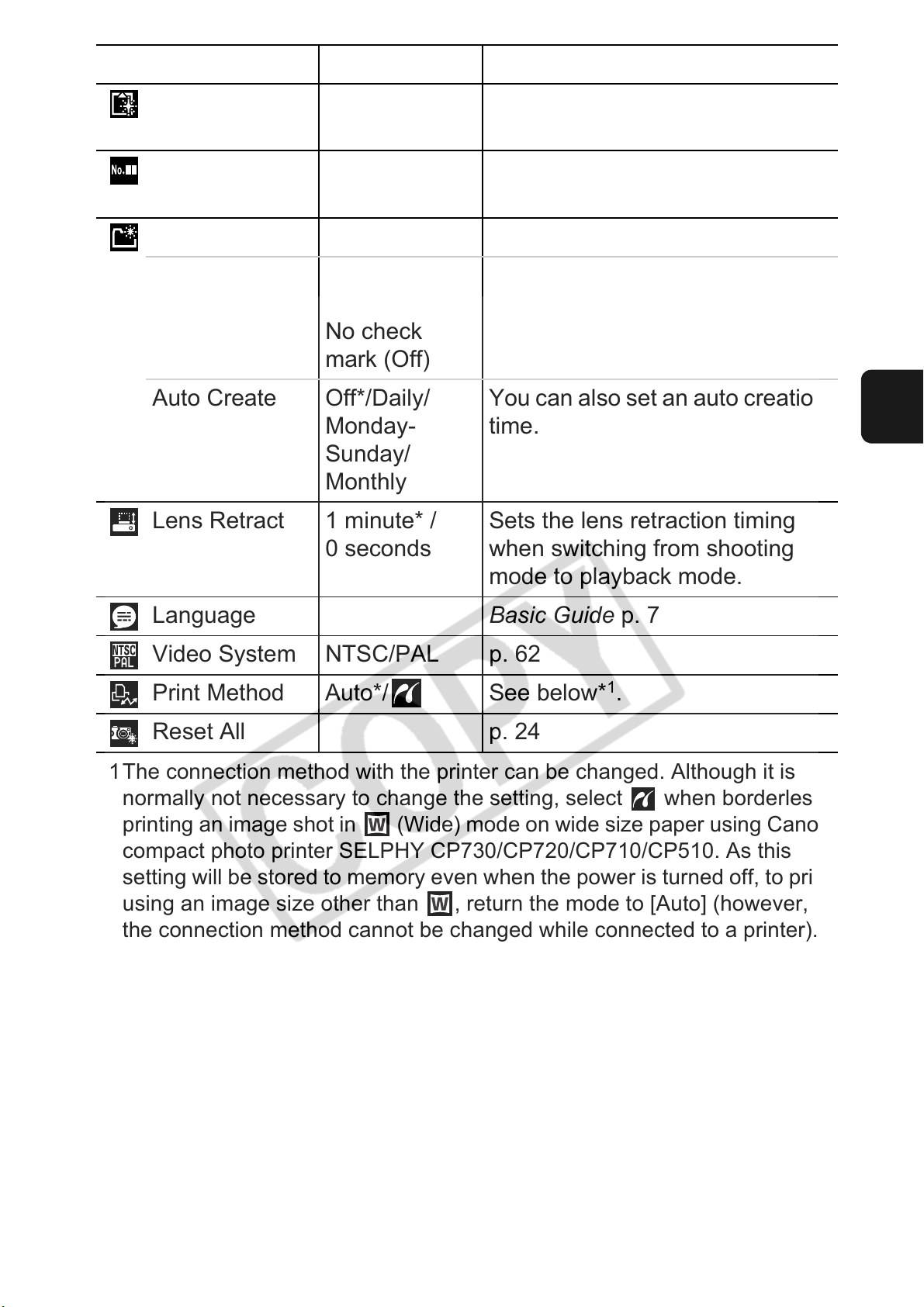
Menu Item Options Reference Page
Format You can also select a low level
format (p. 25).
File Numbering
Continuous*/
p. 48
Auto Reset
Create Folder p. 46
Create New
Folder
Check mark
(On)/
Creates a folder during the next
shooting session.
No check
mark (Off)
Auto Create Off*/Daily/
Monday—
You can also set an auto creation
time.
Sunday/
Monthly
Lens Retract 1 minute* /
0 seconds
Sets the lens retraction timing
when switching from shooting
mode to playback mode.
Language Basic Guide p. 7
Before Using the Camera—Basic Operations
Video System NTSC/PAL p. 62
1
Print Method Auto*/ See below*
.
Reset All p. 24
*1The connection method with the printer can be changed. Although it is
normally not necessary to change the setting, select when borderless
printing an image shot in (Wide) mode on wide size paper using Canon
compact photo printer SELPHY CP730/CP720/CP710/CP510. As this
setting will be stored to memory even when the power is turned off, to print
using an image size other than , return the mode to [Auto] (however,
the connection method cannot be changed while connected to a printer).
23
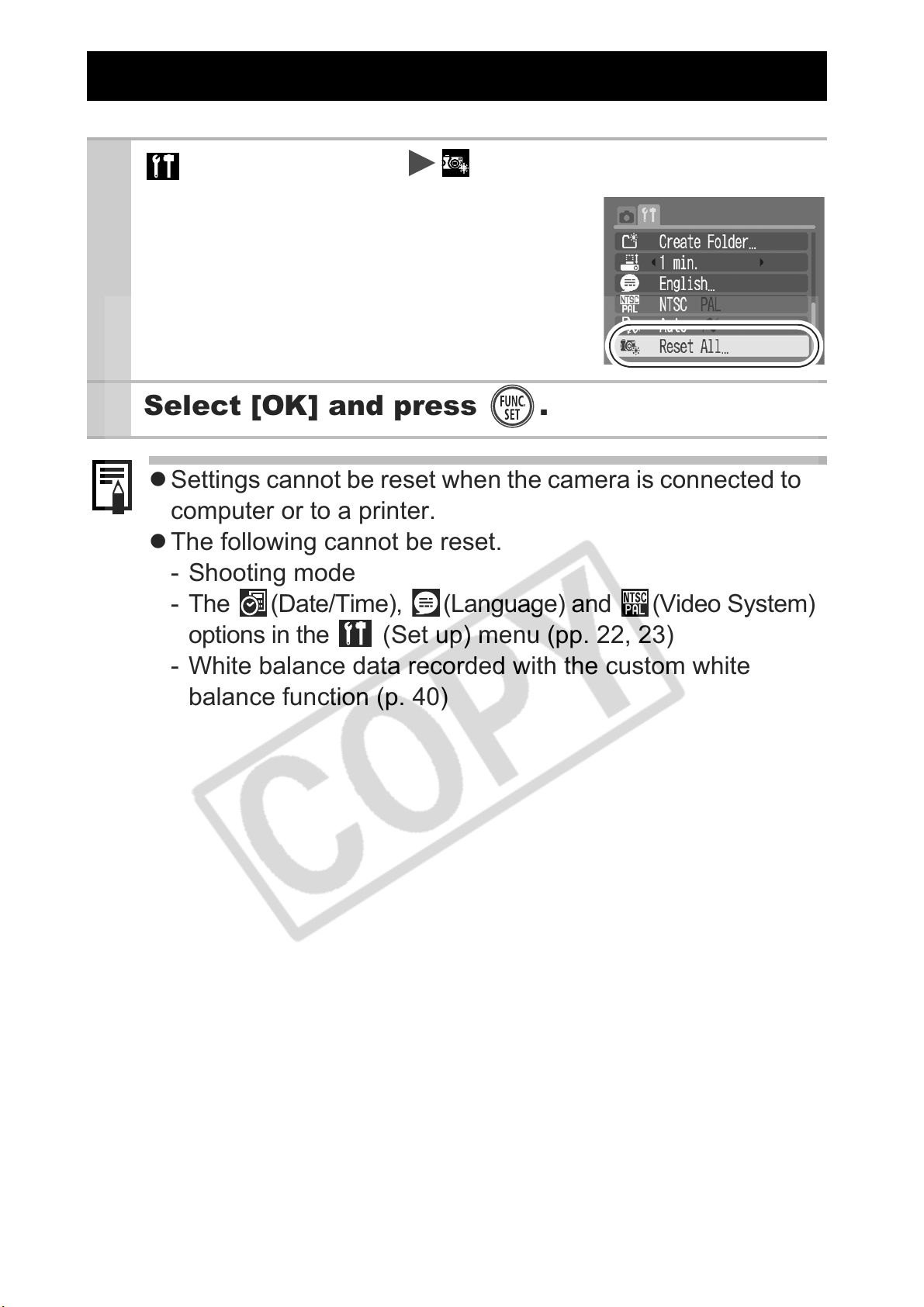
Resetting Settings to Their Default Values
1
2
(Set up) Menu (Reset All).
See Menus and Settings (p. 19).
Select [OK] and press .
z Settings cannot be reset when the camera is connected to a
computer or to a printer.
z The following cannot be reset.
— Shooting mode
— The (Date/Time), (Language) and (Video System)
options in the (Set up) menu (pp. 22, 23)
— White balance data recorded with the custom white
balance function (p. 40)
24
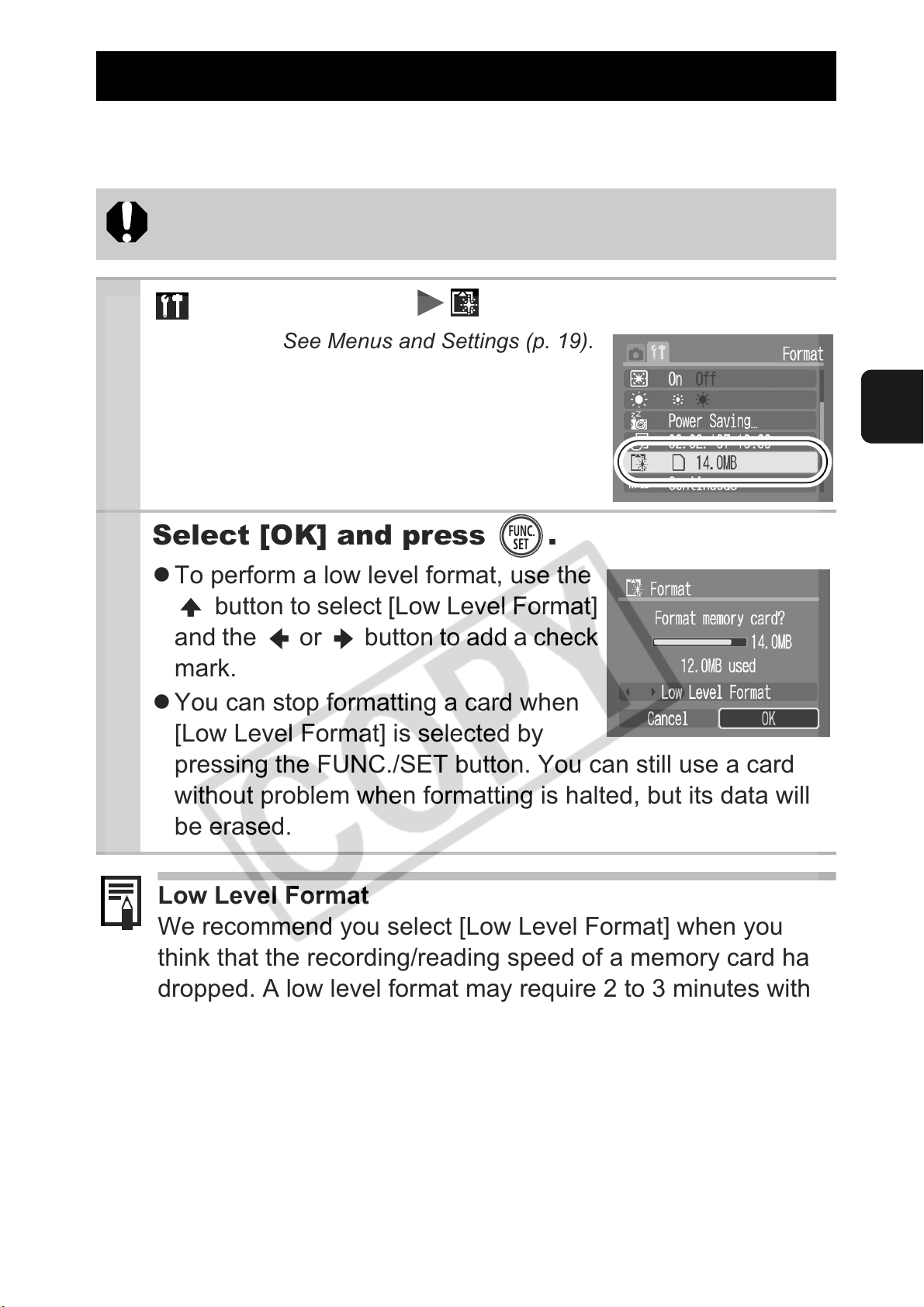
Formatting Memory Cards
You should always format a new memory card or one from which
you wish to erase all images and other data.
Please note that formatting (initializing) a memory card erases
all data, including protected images and other file types.
1
2
(Set up) Menu (Format).
See Menus and Settings (p. 19).
Before Using the Camera—Basic Operations
Select [OK] and press .
z To perform a low level format, use the
button to select [Low Level Format]
and the or button to add a check
mark.
z You can stop formatting a card when
[Low Level Format] is selected by
pressing the FUNC./SET button. You can still use a card
without problem when formatting is halted, but its data will
be erased.
Low Level Format
We recommend you select [Low Level Format] when you
think that the recording/reading speed of a memory card has
dropped. A low level format may require 2 to 3 minutes with
some memory cards.
25
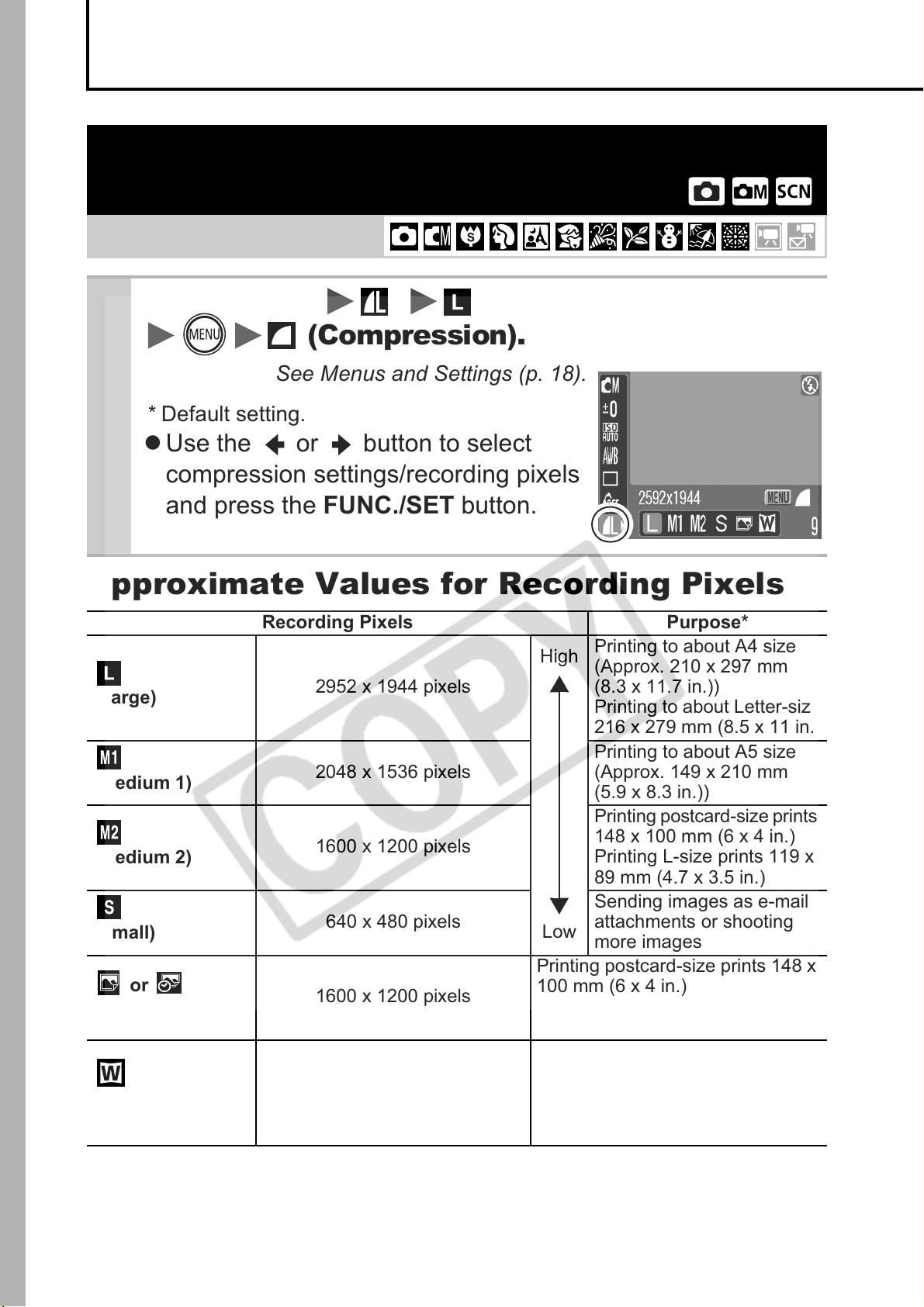
Shooting
Changing the Recording Pixels and
Compression (Still Images)
Shooting Mode
1
FUNC. Menu * (Recording Pixels)
(Compression).
See Menus and Settings (p. 18).
* Default setting.
z Use the or button to select
compression settings/recording pixels
and press the FUNC./SET button.
Approximate Values for Recording Pixels
Recording Pixels Purpose*
Printing to about A4 size
(Approx. 210 x 297 mm
(8.3 x 11.7 in.))
Printing to about Letter-size
216 x 279 mm (8.5 x 11 in.)
Printing to about A5 size
(Approx. 149 x 210 mm
(5.9 x 8.3 in.))
Printing postcard-size prints
148 x 100 mm (6 x 4 in.)
Printing L-size prints 119 x
89 mm (4.7 x 3.5 in.)
Sending images as e-mail
attachments or shooting
more images
(Large)
(Medium 1)
(Medium 2)
(Small)
or
(Postcard)
(Wide)
2952 x 1944 pixels
2048 x 1536 pixels
1600 x 1200 pixels
640 x 480 pixels
1600 x 1200 pixels
2592 x 1456 pixels
High
Low
Printing postcard-size prints 148 x
100 mm (6 x 4 in.)
Printing L-size prints 119 x 89 mm
(4.7 x 3.5 in.)
Printing on wide paper (Records at
a 16:9 width-to-height aspect ratio.
Areas that will not be recorded
appear on the LCD monitor as a
black border.).
26
* Paper sizes vary according to region.
Approximate Values for Compression Settings
Compression Purpose
Superfine
Fine Shoot normal quality images
Normal Shoot more images
z See Image Data Sizes (Estimated) (p. 101).
z See Memory Cards and Estimated Capacities (p. 100).
High Quality
Normal
Shoot higher quality images
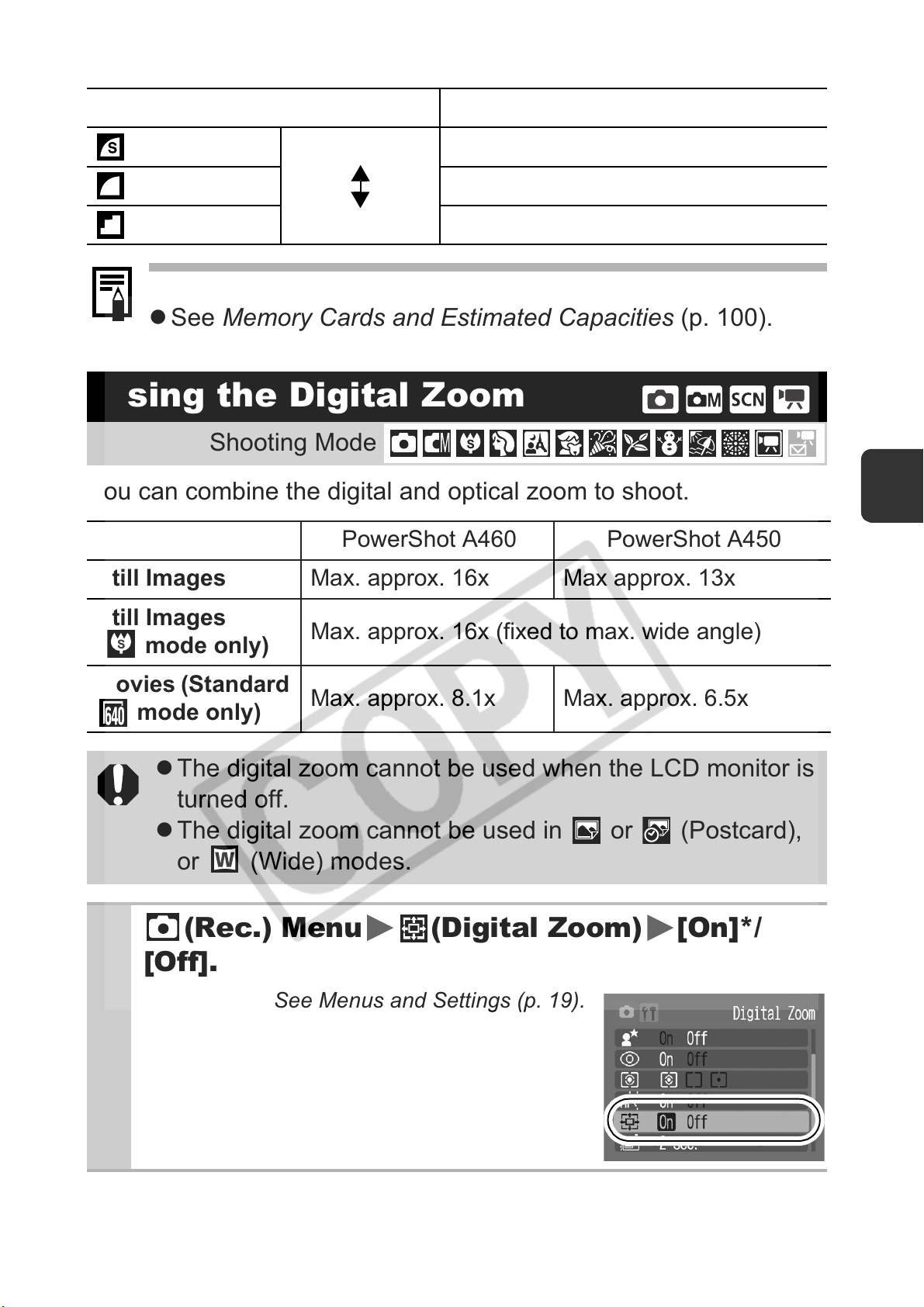
Using the Digital Zoom
Shooting Mode
You can combine the digital and optical zoom to shoot.
PowerShot A460 PowerShot A450
Still Images Max. approx. 16x Max approx. 13x
Shooting
Still Images
( mode only)
Movies (Standard
mode only)
z The digital zoom cannot be used when the LCD monitor is
turned off.
z The digital zoom cannot be used in or (Postcard),
or (Wide) modes.
1
(Rec.) Menu (Digital Zoom) [On]*/
[Off].
Max. approx. 16x (fixed to max. wide angle)
Max. approx. 8.1x Max. approx. 6.5x
See Menus and Settings (p. 19).
* Default setting.
27
2
Press the button and shoot.
z The combined digital and optical zoom
setting will display in the LCD monitor.
z Based on the number of recording
pixels set, the Safety Zoom feature
calculates the maximum zoom factor
beyond which image quality will begin to
deteriorate. The digital zoom pauses at this zoom factor for
a moment, and appears on the LCD monitor.
If you press the button again, you can zoom in even
closer. The zoom factor display color changes from white to
blue to indicate that the image quality will deteriorate.
z Press the button to zoom out.
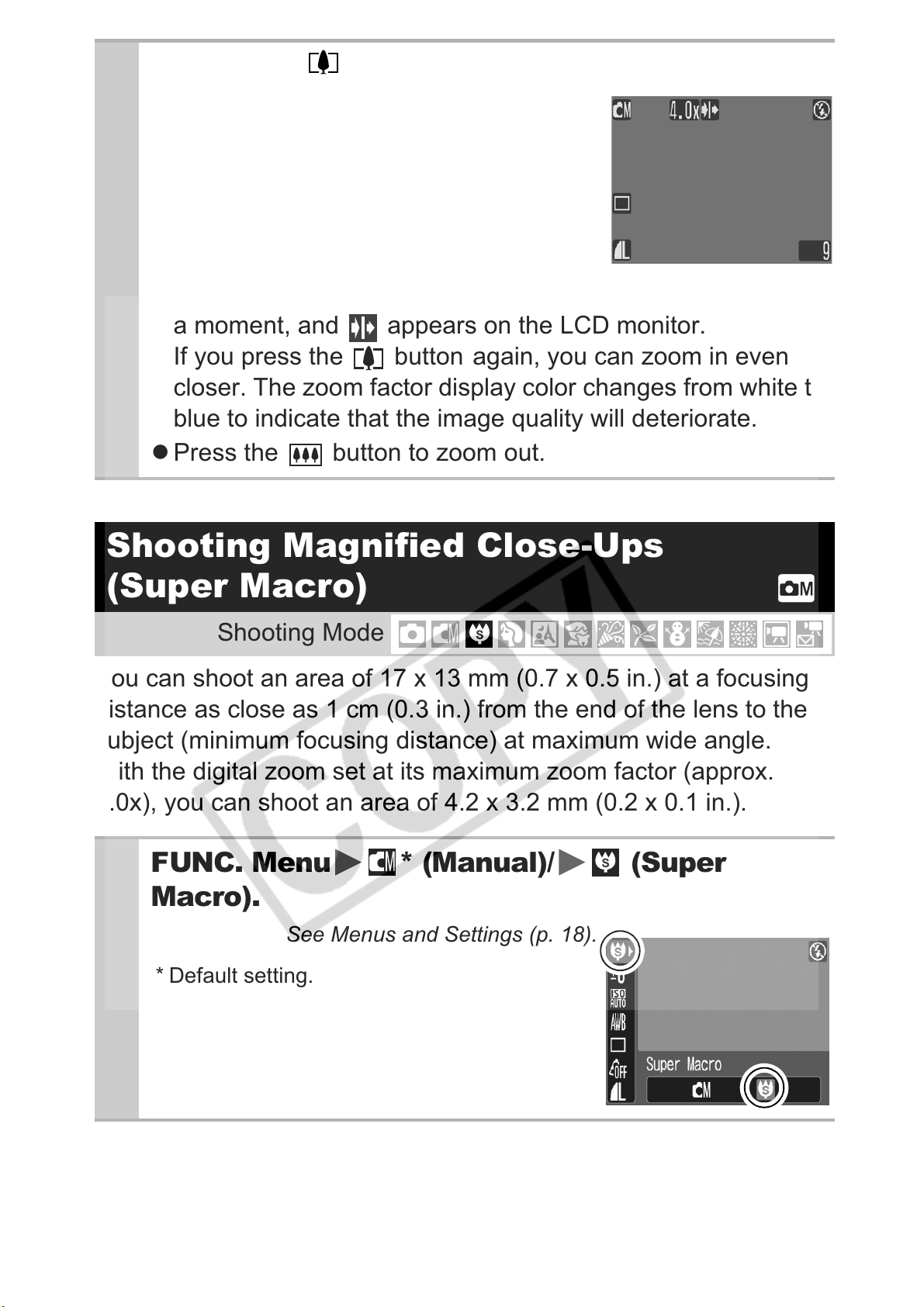
Shooting Magnified Close-Ups
(Super Macro)
Shooting Mode
You can shoot an area of 17 x 13 mm (0.7 x 0.5 in.) at a focusing
distance as close as 1 cm (0.3 in.) from the end of the lens to the
subject (minimum focusing distance) at maximum wide angle.
With the digital zoom set at its maximum zoom factor (approx.
4.0x), you can shoot an area of 4.2 x 3.2 mm (0.2 x 0.1 in.).
1
FUNC. Menu * (Manual)/ (Super
Macro).
See Menus and Settings (p. 18).
* Default setting.
28
Loading…
View the manual for the Canon PowerShot A460 here, for free. This user manual comes under the category photo cameras and has been rated by 8 people with an average of a 8.3. This manual is available in the following languages: English. Do you have a question about the Canon PowerShot A460?
Ask your question here
Frequently asked questions
Can’t find the answer to your question in the manual? You may find the answer to your question in the FAQs about the Canon PowerShot A460 below.
What is the weight of the Canon PowerShot A460?
The Canon PowerShot A460 has a weight of 165 g.
What is the height of the Canon PowerShot A460?
The Canon PowerShot A460 has a height of 51.8 mm.
What is the width of the Canon PowerShot A460?
The Canon PowerShot A460 has a width of 106 mm.
What is the depth of the Canon PowerShot A460?
The Canon PowerShot A460 has a depth of 40.2 mm.
What is the screen size of the Canon PowerShot A460?
The screen size of the Canon PowerShot A460 is 2 «.
Is the manual of the Canon PowerShot A460 available in English?
Yes, the manual of the Canon PowerShot A460 is available in English .
Is your question not listed? Ask your question here
Canon PowerShot A460 Manuals come in various types, each serving a specific purpose to help users effectively operate and maintain their devices. Here are the common types of Canon PowerShot A460 User Guides and the information they typically include:
- User Manuals: Provide comprehensive instructions on how to use the device, including setup, features, and operation. They often include troubleshooting tips, safety information, and maintenance guidelines.
- Service Instructions: Designed for technicians and repair professionals, these manuals offer detailed information on diagnosing and repairing issues with the device. They include schematics, parts lists, and step-by-step repair procedures.
- Installation Guides: Focus on the installation process of the device, providing detailed instructions and diagrams for proper setup. They are essential for ensuring the device is installed correctly and safely.
- Maintenance Manuals: Provide guidance on routine maintenance tasks to keep the device in optimal condition. They cover cleaning procedures, part replacements, and regular servicing tips.
- Quick Start Guides: Offer a concise overview of the essential steps needed to get the device up and running quickly. They are ideal for users who need immediate assistance with basic setup and operation.
Each type of Canon PowerShot A460 instruction is designed to address specific needs, ensuring users have the necessary information to use, maintain, and repair their devices effectively.