
GT-S55/S85
Start Here • Point de départ
Read these instructions before using your product. • Lisez ces instructions avant d’utiliser votre produit.
1
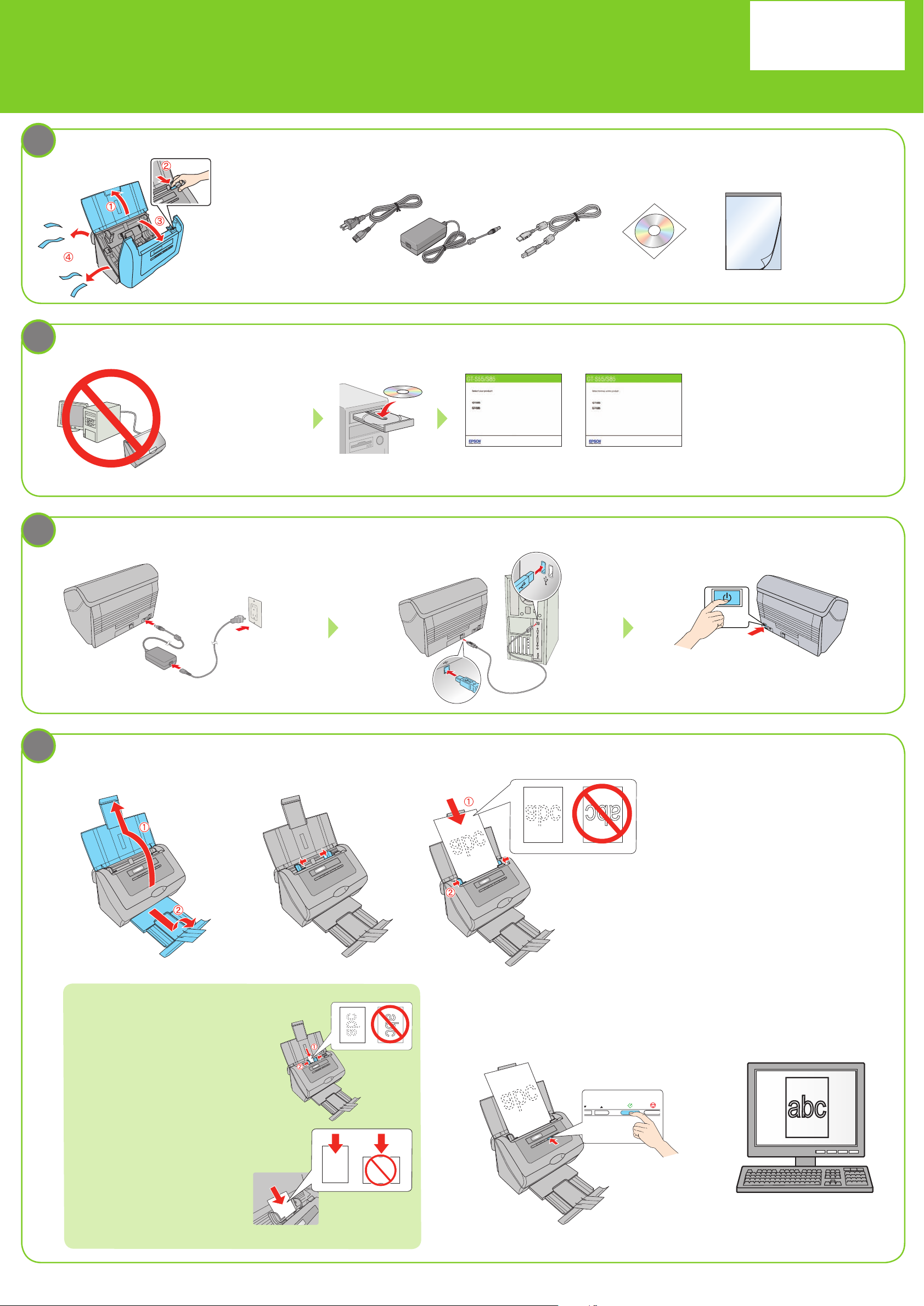
Unpack • Déballez le scanner
Remove all packing
materials.
Retirez tout le matériel
d’emballage.
Install Software • Installez les logiciels
2
*412330100*
*412330100*
Carrier sheet
Feuille de support
Do not connect the
USB cable yet.
Ne branchez pas le câble USB
tout de suite.
3
Turn on scanner • Mettez le scanner sous tension
English
Select English, then select your product and
follow the on-screen instructions. Then connect
the USB cable.
Sélectionnez Français, sélectionnez votre
produit et suivez les instructions qui s’affichent
à l’écran. Ensuite, branchez le câble USB.
Français
4
Scan a document • Numérisez un document
1
Note: If you are scanning a business or
plastic card (such as an ID card), load it
facedown and left edge first. See your
online User’s Guide for instructions.
Remarque : Si vous numérisez une
carte professionnelle ou une carte de
plastique (telle qu’une pièce d’identité),
chargez-la face vers le bas et le bord
gauche en premier. Consultez votre
Guide de l’utilisateur en ligne pour
obtenir les instructions.
2 3
Load your document facedown and top edge first. Then,
slide in the edge guides. (If your document is larger than
letter- or A4-size, fold the document and place it into
the carrier sheet with the printed side facing outwards
before loading it into the scanner. See your online User’s
Guide for instructions.)
Chargez votre document face vers le bas et bord
supérieur en premier. Glissez les guide-papier contre
le document. (Si le format de votre document est plus
grand que le format lettre ou A4, pliez le document et
placez-le dans la feuille de support avec le côté imprimé
orienté l’extérieur avant de le charger dans le scanner.
Consultez votre Guide de l’utilisateur en ligne pour
obtenir les instructions.)
4 5
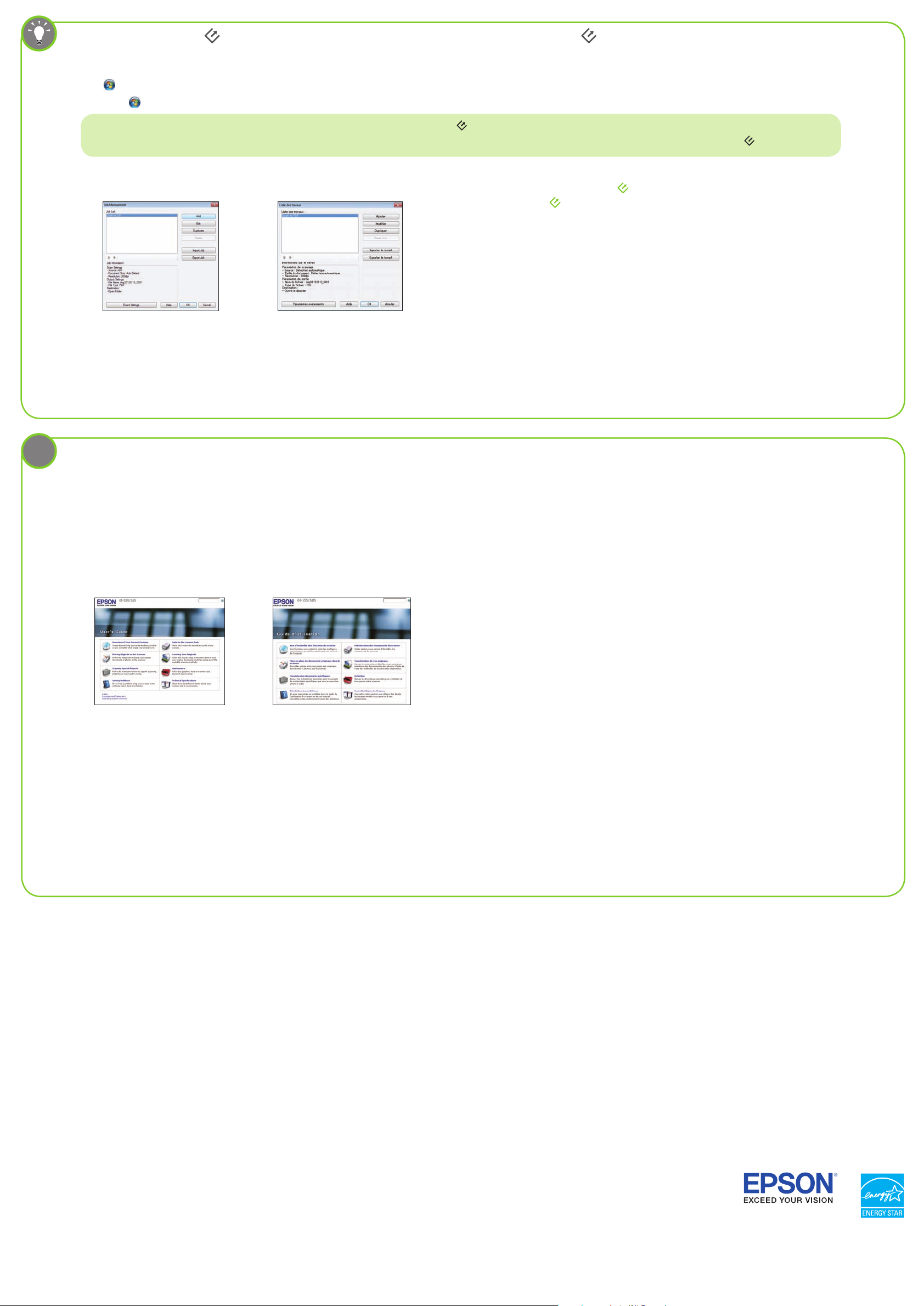
Customizing the scan button • Personnalisation du bouton de numérisation
1 Start Document Capture Pro (Windows
Click or Start > All Programs or Programs > EPSON Software > Document Capture Pro.
Cliquez sur ou sur Démarrer > Tous les Programmes ou Programmes > EPSON Software > Document Capture Pro.
Note: Mac users see the online User’s Guide for more information about customizing the scan button.
Remarque : Les utilisateurs de Mac doivent consulter le Guide de l’utilisateur en ligne pour obtenir plus d’information concernant la personnalisation du bouton
2 Create a new job • Créez un nouveau travail
English Français
Click Settings from the toolbar, then click Add in the Job Management window. Specify
desired Job Settings such as image quality and destination, then click OK.
Cliquez sur Paramètres à partir de la barre d’outils et ensuite, cliquez sur Ajouter dans
la fenêtre Liste des travaux. Spécifiez les Paramètres des travaux souhaités tels que la
qualité de l’image et la destination et ensuite, cliquez sur OK.
®
) • Lancez Document Capture Pro (Windows®)
3 Assign a job to the scan button • Attribuez un travail au
bouton
Click Event Settings in the Job Management window. Click the arrow next to the job you
want to assign, then click OK. Close the Job Management window.
Cliquez sur Paramètres événements dans la fenêtre Liste des travaux. Cliquez sur la
flèche à côté du travail que vous souhaitez attribuer et ensuite, cliquez sur OK. Fermez la
fenêtre Liste des travaux.
de numérisation
de numérisation.
?
Help • Aide
Scanner software help • Aide pour le logiciel du scanner
Click the Help button on your scanner software screen.
Cliquez sur le bouton
Aide sur l’écran du logiciel de numérisation.
User’s Guide • Guide de l’utilisateur
Double-click the GT-S55_S85 User’s Guide icon on your desktop.
Double-cliquez sur l’icône Guide GT-S55_S85 sur le bureau de l’ordinateur.
English Français
Epson technical support • Soutien technique Epson
Technical support for users in the United States and Canada
Internet support
Visit epson.com/support (US) or epson.ca/support (Canada) where you can download
drivers, view manuals, get FAQs, or e-mail Epson.
Speak to a support representative
(562) 276-4382 (US) or (905) 709-3839 (Canada), 6
Friday, and 7
Days and hours of support are subject to change without prior notice. Toll or long distance
charges may apply.
AM to 4 PM Saturday.
AM to 8 PM, Pacific Time, Monday through
Soutien technique pour les utilisateurs du Canada
Soutien Internet
Visitez le site Web www.epson.ca et cliquez sur Français. Pour télécharger les pilotes, cliquez
sur Pilotes et soutien. Pour contacter Epson par courriel, veuillez cliquer sur Soutien par courriel.
Ensuite, suivez les instructions à l’écran.
Parler à un représentant du soutien technique
Composez le (905) 709-3839, de 6 h à 20 h, heure du Pacifique, du lundi au vendredi, et de 7 h à 16
h, heure du Pacifique, le samedi.
Les heures et les jours de soutien peuvent être sujets à changement sans préavis. Des frais
d’interurbain sont éventuellement à prévoir.
Software technical support • Soutien technique pour le logiciel
ABBYY® FineReader®: www.abbyy.com, support@abbyyusa.com
EPSON is a registered trademark and EPSON Exceed Your Vision is a registered logomark of Seiko Epson Corporation.
General Notice: Other product names used herein are for identification purposes only and may be trademarks of their respective owners. Epson disclaims any and all rights in those marks.
This information is subject to change without notice.
EPSON est une marque déposée et EPSON Exceed Your Vision est un logotype déposé de Seiko Epson Corporation.
Avis général : Les autres noms de produit figurant dans le présent document ne sont cités qu’à titre d’identification et peuvent être des marques de commerce de leurs propriétaires respectifs. Epson renonce à tous
les droits associés à ces marques.
L’information contenue dans le présent document peut être modifiée sans préavis.
© 2012 Epson America, Inc. 5/12 Printed in: XXXXXX
CPD-37184 Pays d’impression : XXXXXX
-
Page 1: Epson GT-S85
User’s Guide Overview of Your Scanner Features These features help you create the best possible scans, no matter what shape your original is in. Guide to the Scanner Parts Check this section to identify the parts of your scanner. Placing Originals on the Scanner Follow the steps here to place your original documents or photos on the scanner. Scan[…]
-
Page 2: Epson GT-S85
Home > Overview of Your Scanner Features Overview of Your Scanner Features These features help you create the best possible scans, no matter what shape your original is in. Scanning Documents with Carrier Sheet Text Enhancement[…]
-
Page 3: Epson GT-S85
Home > Guide to the Scanner Parts Guide to the Scanner Parts Check these sections to identify the parts of your scanner. Scanner Parts Control Panel[…]
-
Page 4: Epson GT-S85
Home > Placing Originals on the Scanner Placing Originals on the Scanner Follow the steps here to place your original documents or photos on the scanner. Loading Documents[…]
-
Page 5: Epson GT-S85
Home > Scanning Your Originals Scanning Your Originals Follow the step-by-step instructions here to scan your original documents or photos using any of the available scanning methods. Starting Scan Using the Control Panel Scanning Using Document Capture Pro (for Windows) Starting Scan Using the Epson Scan Scanning Documents Selecting File Save S[…]
-
Page 6: Epson GT-S85
Home > Scanning Special Projects Scanning Special Projects Follow these instructions for specific scanning projects you may need to create. Scanning Documents with Carrier Sheet Text Enhancement Scanning to a PDF File Using the Scanner as a Copier Scanning Directly to an E-mail Converting Scanned Documents Into Editable Text Assigning a Program […]
-
Page 7: Epson GT-S85
Home > Maintenance Maintenance Follow the guidelines here to maintain and transport your scanner. Cleaning the Scanner Cleaning Inside the Scanner Replacing the Scanner Light Source Transporting the Scanner Replacing the Roller Assembly Kit Using Security Slot[…]
-
Page 8: Epson GT-S85
Home > Solving Problems Solving Problems Troubleshooting If you have a problem using your scanner or its software, check here for solutions. Scanner Problems Paper Feeding Problems Scanning Problems Scan Quality Problems Uninstalling Your Scanning Software Where To Get Help EPSON Technical Support ABBYY FineReader[…]
-
Page 9: Epson GT-S85
Home > Technical Specifications Technical Specifications Check here for technical details about your scanner and its accessories. System Requirements Scanner Specifications[…]
-
Page 10: Epson GT-S85
Home > Safety Important Safety Instructions Restrictions on Copying Read all these instructions, and follow all warnings and instructions marked on the scanner. In this document, warnings, cautions, and notes indicate the following: Warnings must be followed carefully to avoid bodily injury. Cautions must be observed to avoid damage to your equi[…]
-
Page 11: Epson GT-S85
Never disassemble, modify, or attempt to repair the AC adapter, scanner, or scanner option by yourself except as specifically explained in the scanner’s guides. Do not insert objects into any opening as they may touch dangerous voltage points or short out parts. Beware of electrical shock hazards. If damage occurs to the plug, replace the cord se[…]
-
Page 12: Epson GT-S85
Home > Copyright and Trademarks Copyright and Trademarks No part of this publication may be reproduced, stored in a retrieval system, or transmitted in any form or by any means, electronic, mechanical, photocopying, recording, or otherwise, without the prior written permission of Seiko Epson Corporation. No patent liability is assumed with respe[…]
-
Page 13: Epson GT-S85
Copyright © 2012 Epson America, Inc. CPD-37188R1[…]
-
Page 14: Epson GT-S85
Home > Operating System Versions Operating System Versions In this manual, the following abbreviations are used. Windows refers to Windows 7, Vista, XP, and XP x64. Windows 7 refers to Windows 7 Home Basic, Windows 7 Home Premium, Windows 7 Professional, and Windows 7 Ultimate. Windows Vista refers to Windows Vista Home Basic Edition, Windows Vi[…]
-
Page 15: Epson GT-S85
Home > Overview of Your Scanner Features Scanning Documents with Carrier Sheet The carrier sheet enables you to scan documents larger than A4 size (A3, B4, and US B), and documents having irregular shapes or documents with folds or wrinkles. For instructions on using this feature, see Scanning Documents with Carrier Sheet .[…]
-
Page 16: Epson GT-S85
Home > Overview of Your Scanner Features Text Enhancement When you scan documents, you can sharpen the text and increase accuracy by using the Text Enhancement feature in Epson Scan. For instructions on using this feature, see Text Enhancement .[…]
-
Page 17: Epson GT-S85
Home > Guide to the Scanner Parts Scanner Parts Removal Parts a. input tray extension b. input tray c. edge guides d. cover open lever e. scanner cover f. output tray g. output tray extension[…]
-
Page 18: Epson GT-S85
a. power switch b. DC inlet c. USB interface connector d. security slot Removal Parts a. paper feed roller b. separation pad Top[…]
-
Page 19: Epson GT-S85
Home > Guide to the Scanner Parts Control Panel Lights Buttons LCD Screen The scanner has one LCD screen, two indicator lights, and four buttons. Lights The status lights are on the right side of the LCD screen. a. LCD screen b. Error light c. Power light Color Indicator Status Meaning Green On Ready to scan images. Flashing Initializing or scan[…]
-
Page 20: Epson GT-S85
Top Buttons The buttons are at the bottom of the LCD screen. Button Function a. Down arrow Scrolls through the LCD screen menu list in forward order. b. Up arrow Scrolls through the LCD screen menu list in reverse order. c. Start Starts scanning. d. Cancel Cancels scanning. Top LCD Screen You can select the scan action from the LCD screen menu list[…]
-
Page 21: Epson GT-S85
Home > Placing Originals on the Scanner Loading Documents Document Specifications Loading Documents Directly Loading Document with Carrier Sheet Loading Cards You can load your original documents into the input tray to scan multiple pages quickly. Before loading documents into the input tray, see Document Specifications to make sure your origina[…]
-
Page 22: Epson GT-S85
The ink is wet. The document is ripped or wrinkled. * The document has staples, paper clips, or other objects attached to it; these may damage the feeder mechanism. The document has folds. * The document has cut-out areas. * The document is a multi-part form or bound. * The document has rear carbon coating. * A document with one of these conditions[…]
-
Page 23: Epson GT-S85
Load only the first page of your documents into the input tray with the printed side facing down and the top edge facing into the feeder. Slide the paper into the feeder until it meets resistance. Note:[…]
-
Page 24: Epson GT-S85
You will load only the first page of your documents, preview it in your scanner software, and load it again with the rest of your pages. Align the edges of the document; otherwise a paper jam may occur. Slide the edge guides over to fit the edge of the paper. To start scanning, see Starting Scan Using the Epson Scan for instructions. Top Loading Do[…]
-
Page 25: Epson GT-S85
You can scan documents with the following condition using the carrier sheet. The document has an irregular shape. The document has folds or wrinkles. Make sure that the carrier sheet is not loaded mixed in with other documents that are not using the Carrier Sheet. Open the carrier sheet and place the document inside on the top-center of the carrier[…]
-
Page 26: Epson GT-S85
Note: For scanning of plastic cards with shiny surfaces, the results are not guaranteed. Open and extend the input tray. Then, slide out and extend the output tray. Slide the edge guides on the input tray all the way outward. Load the card into the input tray with the printed side facing down and the left edge facing into the feeder. Slide the card[…]
-
Page 27: Epson GT-S85
Caution: Do not load plastic cards in landscape orientation. Note: When you scan cards or business cards, preview function is not available. To start scanning using the Epson Scan, see Scanning Documents for instructions.[…]
-
Page 28: Epson GT-S85
Home > Scanning Your Originals Starting Scan Using the Control Panel a. LCD screen b. Down arrow button c. Up arrow button d. Start button e. Cancel button You can start scanning by selecting one of the following functions from the LCD screen menu list. The scan starts with the scan action you assigned in advance. To assign a program to the LCD […]
-
Page 29: Epson GT-S85
an E-mail message. See Scanning Directly to an E-mail for instructions. Scan to PDF (Gray) (Windows) lets you scan grayscale images. The scanner scans the documents and saves them as one PDF file on your computer. See Scanning to a PDF File for instructions. Scan to PDF (Auto) (Windows) detects the document source automatically, scans both sides of[…]
-
Page 30: Epson GT-S85
Home > How to Scan Scanning Using Document Capture Pro (for Windows) This section explains basic scanning procedures using Document Capture Pro. See help for details on Document Capture Pro. Place your original(s). Start Document Capture Pro. Select the start button icon or Start > All Programs or Programs > EPSON Software > Document Ca[…]
-
Page 31: Epson GT-S85
Adjust settings in the Save As window or the Print Settings window as necessary, and then click OK . Note: Selecting Apply job separation on the Save As window activates the function to sort the documents into separate files by detecting blank pages or barcodes in your scanned images. The scanned image is saved or uploaded to the location you speci[…]
-
Page 32: Epson GT-S85
Home > Scanning Your Originals Starting Scan Using the Epson Scan Using the EPSON Scan Icon Using Another Scanning Program Using the EPSON Scan Icon You can start Epson Scan by double-clicking the EPSON Scan icon. Windows: Double-click the EPSON Scan icon on the desktop. Or, select the start button icon or Start > All Programs or Programs >[…]
-
Page 33: Epson GT-S85
Do not select a WIA option for your scanner from the Import or Acquire list; you will not be able to use all the features of your scanner. The Epson Scan window automatically opens. See Scanning Documents for instructions on scanning with Epson Scan. Top[…]
-
Page 34: Epson GT-S85
Home > Scanning Your Originals Scanning Documents When you start Epson Scan, the following window appears. To scan documents, follow the steps below. Note for Mac OS X users: The Dual Image Output feature is not available.[…]
-
Page 35: Epson GT-S85
Load only the first page of your documents into the input tray. See Loading Documents Directly for instructions. Start Epson Scan. See Starting Scan Using the Epson Scan for instructions. Select one of these settings as the Document Source setting. Single-Sided : Select this setting when you scan only one side of your document page. Double-Sided : […]
-
Page 36: Epson GT-S85
You can save all of the selected settings as a group of custom settings with a Name, and later apply these custom settings to scanning. The custom settings are also available for Epson Event Manager. See Epson Scan Help for details. Place the first page of your documents on top of the rest of the pages, then load the entire document (up to 75 pages[…]
-
Page 37: Epson GT-S85
Home > Scanning Your Originals Selecting File Save Settings When you see the File Save Settings window, you can select the location, name, and format of the scanned image file. Click the File Save Settings icon on the right of the Scan button. The File Save Settings window appears. Note: If you start Epson Scan from a TWAIN-compliant program, th[…]
-
Page 38: Epson GT-S85
In the File Save Settings window, specify the file folder in which you want to save your scanned image. Click the Documents or Pictures radio button, or the My Documents or My Pictures radio button. If you want to select another folder, click the Other radio button, then click Browse (Windows) or Choose (Mac OS X) and select the folder. If you want[…]
-
Page 39: Epson GT-S85
button. Open image folder after scanning Select this option if you want Windows Explorer or the Macintosh Finder to automatically open the folder where your scanned image file is saved when Epson Scan finishes scanning. Show Add Page dialog after scanning Select this option if you want the Add Page Confirmation window to appear automatically after […]
-
Page 40: Epson GT-S85
Home > Scanning Your Originals Detailed Setting Instructions Selecting the Scan Resolution Previewing and Adjusting the Scan Area Adjusting the Color and Other Image Settings Selecting the Scan Resolution You can select a specific Resolution setting for your images. Keep in mind that higher resolution settings increase scanning time, so do not s[…]
-
Page 41: Epson GT-S85
Click the arrow next to the Resolution list and select the number of dpi (dots per inch) at which you want to scan. Top Previewing and Adjusting the Scan Area Once you have selected your basic settings and resolution, you can preview your image and select or adjust the image area of the image(s) in a separate Preview window on your screen. Preview […]
-
Page 42: Epson GT-S85
To adjust the image quality, click the scan area(s) you want to modify and make the adjustments. See Adjusting the Color and Other Image Settings for instructions. Creating a Marquee on a Preview Image A marquee is a moving dotted line that appears on the edges of your preview image to indicate the scan area. Note: Once you set the scan area using […]
-
Page 43: Epson GT-S85
You can move the marquee and adjust its size. You can create only one marquee. To draw a marquee, move your cursor over a preview image. The pointer becomes a set of cross-hairs. Position the pointer in the area where you want to place the corner of your marquee and click. Hold down the mouse button and drag the cross-hairs over the image to the op[…]
-
Page 44: Epson GT-S85
Do one of the following to adjust the marquee. To move the marquee, position your cursor inside the marquee. The pointer becomes a hand. Click and drag the marquee to desired location. To resize the marquee, position your cursor over the edge or corner of the marquee. The pointer becomes a straight or angled double-arrow. Click and drag the edge or[…]
-
Page 45: Epson GT-S85
Image Type: Color or Grayscale Image Type: Black & White The table below describes the settings available. For details on adjusting these settings, see Epson Scan Help. Setting Description Brightness Adjusts the overall image lightness and darkness. This setting is available only when the Image Type is set to Color or Grayscale. Contrast Adjust[…]
-
Page 46: Epson GT-S85
Edge Fill Corrects shadowing around the borders (the edges of the scanned document) by filling them with the selected color. Note: Certain settings may not be available, or may be automatically selected, depending on the type of image you are previewing and other settings you have selected. You can customize how certain Epson Scan settings behave b[…]
-
Page 47: Epson GT-S85
Home > Scanning Your Originals Finishing the Scan What happens after you scan depends on how you started your scan. If you started your scan by running Epson Scan from the EPSON Scan icon, you see the File Save Settings window. This lets you select the name and location of your saved scan files. See Selecting File Save Settings for details. Afte[…]
-
Page 48: Epson GT-S85
Home > Scanning Special Projects Scanning Documents with Carrier Sheet When your document has an irregular shape, with folds or wrinkles, or larger than A4 size (A3, B4, and US B), you can scan them using the carrier sheet. Option name Part number Carrier Sheet (5 sheets) B12B813431 Follow the steps below for instructions on scanning with the ca[…]
-
Page 49: Epson GT-S85
[…]
-
Page 50: Epson GT-S85
Home > Scanning Special Projects Text Enhancement When you scan documents, you can sharpen the text and increase accuracy by using the Text Enhancement feature in Epson Scan. Follow the steps below for instructions on text enhancement. Note: The instructions in this section are for scanning to a PDF file, but the text enhancement feature is avai[…]
-
Page 51: Epson GT-S85
Click Preview to preview your image(s). The scanner loads the first page of your documents, then Epson Scan prescans it and displays it in the Preview window. The scanner then ejects your first page. If necessary, you can draw a marquee (a line marking the scan area) around the portion of your document page that you want to scan in the Preview wind[…]
-
Page 52: Epson GT-S85
Home > Scanning Special Projects Scanning to a PDF File Scanning Using Epson Scan The easiest way to scan multiple document pages to a PDF file is to select the B&W PDF-Simplex, Color PDF-Simplex, or B&W PDF-Duplex function on the LCD screen, then press the Start button on the scanner. Using Epson Scan, you can create a PDF file with the[…]
-
Page 53: Epson GT-S85
Place the first page of your documents on top of the rest of the pages, then load the entire document (up to 75 pages) into the scanner with the printed side facing down and the top edge facing into the feeder. Click Scan . The File Save Settings window appears. Select PDF as the Type setting. The current Paper Size, Orientation, Margin, and other […]
-
Page 54: Epson GT-S85
Note: The searchable PDF function is available for Windows only. The Text tab is available only when ABBYY FineReader Sprint Plus is installed. If ABBYY FineReader Sprint Plus is not available in your country, you will not see the Text tab. To assign password settings to the PDF file, click the Security tab and select the password settings.[…]
-
Page 55: Epson GT-S85
To specify the maximum number of pages that can be included in one PDF file, click the General tab and adjust the Select number to make file setting.[…]
-
Page 56: Epson GT-S85
For other settings in the EPSON PDF Plug-in Settings window, see Epson Scan Help for details. Select the settings that match your document and click OK . You return to the File Save Settings window. Make any other file save settings, and click OK . Epson Scan scans your document and displays the window below. Note:[…]
-
Page 57: Epson GT-S85
If you deselect the Show Add Page dialog after scanning check box in the File Save Settings window, this window does not appear and Epson Scan automatically saves your document. Select one of the following options. Add page: Click this button to scan the next page of your document. Replace the first page with the next page, and click Scan . Repeat […]
-
Page 58: Epson GT-S85
When you have finished editing your pages, click OK . The pages are saved in one PDF file in Pictures, My Pictures, or the location you selected in the File Save Settings window, and you return to the Epson Scan window. Click Close to exit Epson Scan. Top[…]
-
Page 59: Epson GT-S85
Home > Scanning Special Projects Using the Scanner as a Copier You can use your scanner along with a printer connected to your computer just like you would use a copy machine. You can even enlarge and reduce, enhance text, and adjust image brightness as you copy. Load only the first page of your documents into the input tray. See Loading Documen[…]
-
Page 60: Epson GT-S85
Black & White Document (Single Page) One-page black and white documents containing text or text and graphics, such as a letter. Color Document (Multiple Pages) Multiple page color documents containing text or text and graphics, such as a brochure. Black & White Document (Multiple Pages) Multiple page black and white documents containing tex[…]
-
Page 61: Epson GT-S85
Home > Scanning Special Projects Scanning Directly to an E-mail You can scan and automatically attach scanned image file(s) to an e-mail message by selecting Color Jpeg to E- mail function on the LCD screen (Mac OS X only). Load only the first page of your documents into the input tray. See Loading Documents for instructions. Select the Color Jp[…]
-
Page 62: Epson GT-S85
Home > Scanning Special Projects Converting Scanned Documents Into Editable Text You can scan a document and convert the text into a format data that you can edit with a word processing program. This process is called OCR (Optical Character Recognition). To scan and use OCR, you need to use an OCR program, such as the ABBYY FineReader program. N[…]
-
Page 63: Epson GT-S85
Select the size of your original document as the Size setting. Click the arrow to open the Orientation list and select the orientation of your document. Select 400 as the Resolution setting. Select Auto , Color , Grayscale , or Black & White as the Image Type setting. Click Preview to preview your image(s). The scanner loads the first page of y[…]
-
Page 64: Epson GT-S85
Home > Scanning Special Projects Assigning a Program to LCD Screen Menu List Assigning a Project Program in Epson Event Manager to a LCD Screen Menu List Each action on the LCD screen opens a pre-selected program when you select and press the Start button. The default programs they open and the default actions they perform are described in the t[…]
-
Page 65: Epson GT-S85
If you want to add the action, click Make Job Settings . Enter the Job Description and make the necessary Scan Settings, and then click OK . Note: After you finish the job settings, go back to step 3 and select the action you set. Click Close to close the Epson Event Manager window. Now whenever you select the item from the LCD screen menu list you[…]
-
Page 66: Epson GT-S85
Home > Maintenance Cleaning the Scanner To keep your scanner operating at its best, clean it periodically using the following procedure. Caution: Do not press the glass surface inside the scanner with any force. Be careful not to scratch or damage the glass surface inside the scanner, and do not use a hard or abrasive brush to clean it. A damage[…]
-
Page 67: Epson GT-S85
Home > Maintenance Cleaning Inside the Scanner Opening the Scanner Cover Cleaning the Glass Surface Cleaning the Paper Path Rollers Cleaning the Separation Pad Cleaning the Paper Feed Roller When scanned images have streaks or when scanned documents become dirty, clean inside the scanner. Caution: Do not press the glass surface inside the scanne[…]
-
Page 68: Epson GT-S85
After opening the scanner cover, see the following sections. Cleaning the Glass Surface Cleaning the Paper Path Rollers Cleaning the Separation Pad Cleaning the Paper Feed Roller After cleaning finishes, close the input tray and output tray. Top[…]
-
Page 69: Epson GT-S85
Cleaning the Glass Surface Open the scanner cover. See Opening the Scanner Cover for instructions. If the glass surface inside the scanner gets dirty, clean it with a soft dry lint-free cloth. If the glass surface is stained with grease or some other hard-to-remove material, use a small amount of glass cleaner with a soft cloth to remove it. Wipe o[…]
-
Page 70: Epson GT-S85
Wipe off all remaining liquid with a soft dry cloth. Make sure that the rollers are completely dry before using the scanner. Top Cleaning the Separation Pad Open the scanner cover. See Opening the Scanner Cover for instructions. Wipe the separation pad downwards with a cloth dampened with water and thoroughly wrung out.[…]
-
Page 71: Epson GT-S85
Caution: Avoid catching the cloth on the spring. Wipe off all remaining liquid with a soft dry cloth. Make sure that the separation pad is completely dry before using the scanner. Top Cleaning the Paper Feed Roller Open the scanner cover. See Opening the Scanner Cover for instructions. Wipe the roller lightly with a cloth dampened with water and th[…]
-
Page 72: Epson GT-S85
Home > Maintenance Replacing the Scanner Light Source The luminosity of the scanner light source declines over time. If the light source breaks or becomes too dim to operate normally, the scanner stops working and both the Power and Error lights rapidly flash. When this happens, the light source assembly must be replaced by a professional. For d[…]
-
Page 73: Epson GT-S85
Home > Maintenance Transporting the Scanner If you need to transport your scanner some distance, carefully prepare and repack it as described below. Turn off the scanner, then unplug the AC adapter cord. Disconnect all the cables from the scanner. Remove all paper from the input tray. Close the input tray and output tray. Attach the packing mate[…]
-
Page 74: Epson GT-S85
Home > Maintenance Replacing the Roller Assembly Kit You need to replace the parts on the roller assembly kit after scanning every 100,000 times. Removal part Part number Number of scanning Roller Assembly Kit B12B813421 100,000 To replace the roller assembly kit, follow the steps below. Turn off the scanner. Remove all paper from the input tray[…]
-
Page 75: Epson GT-S85
Caution: Do not touch the spring. Hold the separation pad holder as shown below. Insert the bottom side of the new separation pad first, then press the hook on the separation pad to attach to the correct position. Press the hook on both sides of the paper feed roller cover, then open the cover.[…]
-
Page 76: Epson GT-S85
Slide and remove the installed paper feed roller. Caution: Do not touch the surface of the paper feed roller. Hold the paper feed roller as shown below. Attach the new paper feed roller to the correct position.[…]
-
Page 77: Epson GT-S85
Caution: Do not install the paper feed roller in reverse direction. Close the cover of the paper feed roller, then close the scanner cover. Turn on the scanner. Start EPSON Scan Settings. Then, click Maintenance (Windows) or open Applications > Utilities (Mac OS X). Click Reset on the right of the Number of Scans. Click OK .[…]
-
Page 78: Epson GT-S85
Home > Maintenance Using Security Slot A standard security lock is available with the security slot. To lock the scanner, insert the lock into the back of the scanner and turn the key to lock the scanner. Then, secure the cable and the scanner to a stationary place. See the User’s Guide that came with the security lock for detailed information[…]
-
Page 79: Epson GT-S85
Home > Solving Problems Scanner Problems The Lights Are Flashing The Scanner Does Not Turn On You Cannot Start Epson Scan Pressing the Start Button Does Not Start the Correct Program The Lights Are Flashing When an error occurs, the scanner Cancels operating and the Error and Power lights indicate the error type. Error light (Orange) Power light[…]
-
Page 80: Epson GT-S85
Use the USB cable that came with your scanner or that is indicated in USB Interface . Connect the scanner directly to the computer’s USB port or through one USB hub only. The scanner may not work properly when connected to the computer through more than one USB hub. Make sure your computer supports USB. If you are using any TWAIN-compliant progra[…]
-
Page 81: Epson GT-S85
Home > Solving Problems Paper Feeding Problems Paper Jams in the scanner Double feed error is detected Paper Jams in the scanner If paper jams inside the scanner, follow the steps below to remove jammed paper. Turn off the scanner. Remove all paper from the input tray. Pull the cover open lever and open the scanner cover. Remove the jammed paper[…]
-
Page 82: Epson GT-S85
Note: Remove any pages remaining inside the scanner. If more of the paper extends into the output tray, gently pull the paper out in the direction shown. Close the scanner cover.[…]
-
Page 83: Epson GT-S85
Top Double feed error is detected When the double feed error is detected even when the error does not occur, try the following solution. Click Configuration in the Epson Scan window, select Detect Double Feed check box, then select Standard as the Paper Thickness. (The Detect Double Feed setting is turned off by default. When turned on, the default[…]
-
Page 84: Epson GT-S85
Home > Solving Problems Scanning Problems Preview is not available Scanning Takes a Long Time ISIS Driver is not Installed The terms on the LCD screen are not displayed in your language Preview is not available Preview function is not available when you select Auto or Auto (Card/Business Card) as the Size setting. Top Scanning Takes a Long Time […]
-
Page 85: Epson GT-S85
If the language displayed on the LCD screen is not your language, follow the steps below to select the language. Press and hold both the Up arrow and Down arrow button for three seconds. Press the Up arrow or Down arrow button to select the language. Press the Start button to set the language. Top[…]
-
Page 86: Epson GT-S85
Home > Solving Problems Scan Quality Problems You See Only a Few Dots in Your Scanned Image A Line or Line of Dots Always Appears in Your Scanned Images Straight Lines in Your Image Come Out Crooked Your Image Is Distorted or Blurred Colors Are Patchy or Distorted at the Edges of Your Image Your Scanned Image Is Too Dark Ripple Patterns Appear i[…]
-
Page 87: Epson GT-S85
Make sure you do not move the document, or your scanner while scanning. Make sure the scanner is placed on a flat, stable surface. Select Unsharp Mask check box. See Adjusting the Color and Other Image Settings for instructions. Top Colors Are Patchy or Distorted at the Edges of Your Image If your document is very thick or curled at the edges, cove[…]
-
Page 88: Epson GT-S85
Check your OCR software manual to see if there are any settings you can adjust in your OCR software. Top Scanned Colors Differ From the Original Colors Make sure the Image Type setting is correct. See Scanning Documents for instructions. Make sure to enable the Embed ICC Profile setting. In the File Save Settings window, select JPEG or TIFF as the […]
-
Page 89: Epson GT-S85
Home > Solving Problems Uninstalling Your Scanning Software For Windows For Mac OS X You may need to uninstall and then reinstall your scanner software to solve certain problems or if you upgrade your operating system. For Windows Note: For Windows 7 and Vista, you need an administrator account and password if you log on as a standard user. For […]
-
Page 90: Epson GT-S85
In some cases, a message may appear to prompt you to restart your computer. If so, make sure I want to restart my computer now is selected and click Finish . Top For Mac OS X Note: To uninstall applications you must log on to a Computer Administrator account. You cannot uninstall programs if you log on as a Limited account user. To remove Epson Sca[…]
-
Page 91: Epson GT-S85
Home > Solving Problems EPSON Technical Support Internet Support Visit Epson’s support website at www.epson.com/support (U.S.) or www.epson.ca/support (Canada) and select your product for solutions to common problems. You can download drivers and documentation, get FAQs and troubleshooting advice, or e-mail Epson with your questions. Speak to […]
-
Page 92: Epson GT-S85
Home > Solving Problems ABBYY FineReader (408) 457-9777 www.abbyy.com support@abbyyusa.com Top[…]
-
Page 93: Epson GT-S85
Home > Technical Specifications System Requirements Windows System Requirements Macintosh System Requirements Make sure your system meets the requirements in these sections before using it with your scanner. Windows System Requirements System Windows 7, Vista, XP Professional x64 Edition, or XP (Operating systems upgraded from Windows Millennium[…]
-
Page 94: Epson GT-S85
Home > Technical Specifications Scanner Specifications General Mechanical Electrical Environmental Interfaces Standards and Approvals Note: Specifications are subject to change without notice. General Scanner type Sheet Feed, one pass duplex A4 color scanner Photoelectric device Color CCD line sensor Effective pixels 5,100 × 21,600 pixels at 60[…]
-
Page 95: Epson GT-S85
Mechanical Dimensions Width: 303.0 mm (11.9 inches) Depth: 202.0 mm (8.0 inches) Height: 213.0 mm (8.4 inches) Weight Approx. 5.0 kg (11.0 lb) Top Electrical Note: Check the label on the AC adapter or on the back of the scanner for voltage information. Scanner GT-S85 GT-S55 Rated voltage DC 24.0 V Rated input current 2.0 A Power consumption Operati[…]
-
Page 96: Epson GT-S85
Temperature Operating 10 to 35 ˚ C (50 to 95 ˚ F) Storage –25 to 60 ˚ C (–13 to 140 ˚ F) Humidity Operating 10 to 80%, without condensation Storage 10 to 85%, without condensation Operating conditions Ordinary office or home conditions. Avoid operating the scanner in direct sunlight, near a strong light source, or in extremely dusty conditi[…]
-
Page 97: Epson GT-S85
Safety UL60950-1 CAN/CSA-C22.2 No. 60950-1 EMC FCC Part 15 Subpart B Class B CAN/CSA-CEI/IEC CISPR22 Class B European model: Low Voltage Directive 2006/95/EC EMC Directive 2004/108/EC EN 60950-1 EN 55022 Class B EN 55024 EN 61000-3-2 EN 61000-3-3 Australian model: Safety AS/NZS 60950.1 EMC AS/NZS CISPR22 Class B Top[…]
Manuals.eu
- Manuals.eu
- Epson
- Computers & Peripherals
- Scanners
- WorkForce Series
- WorkForce Pro GT-S85
- User’s Guide
×
1
2
3
4
5
6
7
8
9
10
11
12
13
14
15
16
17
18
19
20
21
22
23
24
25
26
27
28
29
30
31
32
33
34
35
36
37
38
39
40
41
42
43
44
45
46
47
48
49
50
51
52
53
54
55
56
57
58
59
60
61
62
63
64
65
66
67
68
69
70
71
72
73
74
75
76
77
78
79
80
81
82
83
84
85
86
87
88
89
90
91
92
93
94
95
96
97
⟨
⟩
Copyright © Manuals.eu
Agreement
Privacy Policy
Contact us
Epson WorkForce Pro GT-S85
Document Capture Pro 2.0 for Windows
Quick Reference
View the manual for the Epson WorkForce Pro GT-S85 here, for free. This user manual comes under the category scanners and has been rated by 1 people with an average of a 6.5. This manual is available in the following languages: English. Do you have a question about the Epson WorkForce Pro GT-S85?
Ask your question here
Index
- Contents
- Adding and Assigning Scan Jobs with Document Capture Pro — Windows
- Scanning with Document Capture Pro in Simple View — Windows
- Scanning with Document Capture Pro in Standard View — Windows
- Scanning Two Originals onto One Sheet (Stitching Images) — Windows
- Scanning Multi-Page Originals as Separate Files — Windows
- Saving a Scan as an Office Format File — Windows
- Scanning to a SharePoint Server or Cloud Service — Windows
- Copyright Attribution
Product Images (4)

Epson WorkForce Pro GT-S85 specifications
Below you will find the product specifications and the manual specifications of the Epson WorkForce Pro GT-S85.
Maximum scan size
216 x 914.4 mm
Scanner type
Sheet-fed scanner
Standard input capacity
75 sheets
Scanning media types supported
Business Card
Standard interfaces
USB 2.0
General
| Brand | Epson |
| Model | WorkForce Pro GT-S85 | B11B203201 |
| Product | scanner |
| EAN | 0086000224837, 0103439029922, 1034390299224 |
| Language | English |
| Filetype | User manual (PDF), Installation Guide (PDF), Datasheet (PDF) |
Scanning
| Maximum scan size | 216 x 914.4 mm |
| Optical scanning resolution | 600 x 600 DPI |
| Colour scanning | Yes |
| Duplex scanning | Yes |
| Input colour depth | 48 bit |
| Film scanning | No |
| ADF scan speed (b/w, A4) | 40 ppm |
| ADF scan speed (colour, A4) | 40 ppm |
| Duplex ADF scan speed (b/w, A4) | 80 ipm |
| Duplex ADF scan speed (colour, A4) | 80 ipm |
Design
| Scanner type | Sheet-fed scanner |
| Display | LCD |
| Product colour | Black |
Performance
| Sensor type | CCD |
| Scan file formats | |
| Daily duty cycle (max) | 3000 pages |
| Scan to | E-mail, FTP |
| Scan drivers | ISIS, TWAIN |
Input capacity
| Standard input capacity | 75 sheets |
Paper handling
| Scanning media types supported | Business Card |
| Maximum scan area (ADF) | 216 x 914.4 mm |
| Minimum scan area (ADF) | 53.5 x 73.7 mm |
| Auto Document Feeder (ADF) media weight | 45 — 200 g/m² |
| ISO A-series sizes (A0…A9) | A4 |
| Maximum ISO A-series paper size | A4 |
Ports & interfaces
| Standard interfaces | USB 2.0 |
| USB port | Yes |
| USB version | 2.0 |
System requirements
| Windows operating systems supported | Windows 7 Home Basic, Windows 7 Home Premium, Windows 7 Professional, Windows 7 Starter, Windows 7 Ultimate, Windows 8, Windows 8 Enterprise, Windows 8 Pro, Windows Vista Business, Windows Vista Business x64, Windows Vista Enterprise, Windows Vista Enterprise x64, Windows Vista Home Basic, Windows Vista Home Basic x64, Windows Vista Home Premium, Windows Vista Home Premium x64, Windows Vista Ultimate, Windows Vista Ultimate x64, Windows XP Home, Windows XP Professional, Windows XP Professional x64 |
| Mac operating systems supported | Mac OS X 10.5 Leopard, Mac OS X 10.6 Snow Leopard, Mac OS X 10.7 Lion |
| Mac compatibility | Yes |
| Minimum storage drive space | 215 MB |
| Minimum RAM | 128 MB |
| Minimum processor | Intel Pentium II 450 MHz, PowerPC G4 / G5 |
| USB required | Yes |
Weight & dimensions
| Width | 302 mm |
| Depth | 203 mm |
| Height | 213 mm |
| Weight | 4989 g |
Power
| Power consumption (typical) | 45 W |
| Power consumption (standby) | 1 W |
| AC input frequency | 50 — 60 Hz |
| Input voltage | 100-240 V |
| Power supply type | AC |
Operational conditions
| Operating temperature (T-T) | 10 — 35 °C |
| Operating relative humidity (H-H) | 10 — 80 % |
Sustainability
| Sustainability certificates | ENERGY STAR |
show more
Frequently asked questions
Can’t find the answer to your question in the manual? You may find the answer to your question in the FAQs about the Epson WorkForce Pro GT-S85 below.
What is the weight of the Epson WorkForce Pro GT-S85?
The Epson WorkForce Pro GT-S85 has a weight of 4989 g.
What is the height of the Epson WorkForce Pro GT-S85?
The Epson WorkForce Pro GT-S85 has a height of 213 mm.
What is the width of the Epson WorkForce Pro GT-S85?
The Epson WorkForce Pro GT-S85 has a width of 302 mm.
What is the depth of the Epson WorkForce Pro GT-S85?
The Epson WorkForce Pro GT-S85 has a depth of 203 mm.
Is the manual of the Epson WorkForce Pro GT-S85 available in English?
Yes, the manual of the Epson WorkForce Pro GT-S85 is available in English .
Is your question not listed? Ask your question here
- Topics
- manualsbase, manuals,
- Collection
- printer-manuals-epson; printer-manuals; manuals; additional_collections
- Language
- English
- Item Size
- 47.4M
- Addeddate
- 2020-08-20 18:51:54
- Identifier
- manualsbase-id-612383
- Identifier-ark
- ark:/13960/t42s38129
- Ocr
- ABBYY FineReader 11.0 (Extended OCR)
- Ppi
- 600
- Scanner
- Internet Archive Python library 1.9.4
plus-circle Add Review
plus-circle Add Review
comment
Reviews
There are no reviews yet. Be the first one to
write a review.
37
Views
DOWNLOAD OPTIONS
download 1 file
ABBYY GZ download
Temporarily Unavailable
DAISY
For users with print-disabilities
Temporarily Unavailable
EPUB
download 1 file
FULL TEXT download
download 1 file
ITEM TILE download
download 1 file
PAGE NUMBERS JSON download
download 1 file
PDF download
download 1 file
SINGLE PAGE PROCESSED JP2 ZIP download
download 1 file
TORRENT download
download 12 Files
download 6 Original
SHOW ALL
IN COLLECTIONS
Manuals: Epson
Printer Manuals
The Manual Library
Additional Collections
Uploaded by
chris85
on