

2D-Link DAP-2590 User Manual
Table of Contents
Table of Contents
Product Overview ………………………………………………… 4
Package Contents ……………………………………………… 4
System Requirements………………………………………… 4
Introduction …………………………………………………………. 5
Features and Benefits ………………………………………….. 6
Wireless Basics …………………………………………………… 7
Four Operational Modes …………………………………….. 10
Getting Started ………………………………………………….. 11
Using the Configuration Menu ……………………………. 13
Home > Basic Settings > Wireless ……………………… 15
Access Point mode ………………………………………. 15
WDS with AP mode …………………………………….. 17
WDS mode …………………………………………………. 19
Wireless Client mode …………………………………… 21
Open System or Shared Key authentication …… 23
WPA-Personal authentication ………………………… 24
WPA-Enterprise authentication ……………………… 25
802.1X authentication ………………………………….. 26
LAN ………………………………………………………….. 27
Home > Advanced Settings ………………………………. 28
Performance ……………………………………………….. 28
Multi-SSID ………………………………………………….. 31
VLAN > VLAN List ……………………………………….. 33
VLAN > Port List ………………………………………….. 34
VLAN > Add/Edit VLAN ………………………………… 35
VLAN > PVID Setting …………………………………… 36
Intrusion …………………………………………………….. 37
Schedule ……………………………………………………. 38
AP Array …………………………………………………….. 39
Internal RADIUS Server ………………………………. 40
DHCP Server > Dynamic Pool Settings ………….. 41
DHCP Server > Static Pool Setting ………………… 43
DHCP Server > Current IP Mapping List …………. 45
Filters > Wireless MAC ACL ………………………….. 46
Filters > WLAN Partition ……………………………….. 47
Traffic Control > Uplink/Downlink Setting ………… 48
Traffic Control > QoS ……………………………………. 49
Traffic Control > Traffic Manager…………………….. 50
Home > Status ………………………………………………… 51
Device Information ………………………………………. 51
Client Information ………………………………………… 52
WDS Information …………………………………………. 53
Home > Status ……………………………………………….. 54
Stats > Ethernet ………………………………………….. 54
Stats > WLAN ……………………………………………… 55
Log > View Log ……………………………………………. 56
Log > Log Settings ………………………………………. 57
Maintenance > Administrator Settings ………………… 58
Limit Administrator ……………………………………….. 59
System Name Settings …………………………………. 60
Login Settings …………………………………………….. 61

3D-Link DAP-2590 User Manual
Table of Contents
Console Settings …………………………………………. 62
SNMP Settings ……………………………………………. 63
Ping Control Setting …………………………………….. 64
Firmware and SSL Certification Upload ………………. 65
Maintenance > Configuration File ………………………. 66
Maintenance > Time and Date …………………………… 67
Configuration > Save and Activate ……………………… 68
Configuration > Discard Changes ………………………. 68
System > System Settings ………………………………… 69
Help……………………………………………………………….. 70
Using the AP Array …………………………………………….. 71
Simple WLAN Management ………………………………. 71
WLAN Management Tool ………………………………….. 71
Easy Deployment and Management …………………… 72
Different AP Roles in an Array …………………………… 75
Easy Configuration of D-Link AP Array ……………….. 75
Supported in all D-Link 11n Business APs ………….. 77
Reliable WLAN Management Tool ……………………… 77
Troubleshooting …………………………………………………. 78
Technical Specifications …………………………………….. 81
Contacting Technical Support …………………………….. 83
Warranty ……………………………………………………………. 84
Registration ……………………………………………………….. 90

4D-Link DAP-2590 User Manual
Section 1 — Product Overview
• D-Link DAP-2590 AirPremier N Dual Band PoE Access Point
• Power Adapter
• Manual on CD
• Ethernet Cable
• Mounting PlateMounting Plate
• Install GuideInstall Guide
Warning: Using a power adapter with different specifications than the one included with the DAP-2590 will cause damage and void the
warranty for this product.
If any of the above items are missing, please contact your reseller.
• Computers with Windows®, Macintosh®, or Linux-based operating systems with an installed Ethernet adapter
• Internet Explorer version 7.0 and above or Firefox version 3.0 and above.
System Requirements
Product Overview
Package Contents

5D-Link DAP-2590 User Manual
Section 1 — Product Overview
Introduction
D-Link, an industry pioneer in wireless networking, introduces a solution for businesses seeking to deploy next generation
draft 802.11n LANs. D-Link unveils its new AirPremier N Dual Band PoE Access Point (DAP-2590), designed specifically
for business-class environments such as large or enterprise corporations to provide secure and manageable dual band
wireless LAN options for network administrators.
Versatile Access Point
The AirPremier N Dual Band PoE Access Point allows network administrators to deploy a highly manageable and
extremely robust dual band wireless network. All three dual band antennas are detachable and can provide optimal
wireless coverage in either 2.4GHz (802.11g and draft 2.0 802.11n) or 5GHz (802.11a and draft 2.0 802.11n) bands.
Enclosed in a plenum-rated metal chassis, the AirPremier N Dual Band PoE Access Point adheres to strict fire codes
for placement in air passageways. For advanced installations, this new high-speed Access Point has integrated 802.3af
Power over Ethernet (PoE) support, allowing installation of this device in areas where power outlets are not readily
available.
Enhanced Performance
The AirPremier N Dual Band PoE Access Point delivers reliable wireless performance with maximum wireless signal
rates of up to 300Mbps in either the 2.4GHz or 5GHz wireless band. This, coupled with support for Wi-Fi Multimedia™
(WMM) Quality of Service features, makes it an ideal access point for audio, video, and voice applications. Additionally,
the DAP-2590 supports load balance features to ensure maximum performance.
Security
To help maintain a secure wireless network, the AirPremier N Dual Band PoE Access Point provides the latest in
wireless security technologies by supporting both Personal and Enterprise versions of WPA and WPA2 (802.11i) with
support for RADIUS server backend. To further protect your wireless network, MAC Address Filtering, Wireless LAN
segmentation, Disable SSID Broadcast, Rogue AP Detection, and Wireless Broadcast Scheduling are also included.
The AirPremier N Dual Band Poe Access Point includes support for up to 8 VLANs for implementing multiple SSIDs to
further help segment users on the network. The DAP-2590 also includes a wireless client isolation mechanism, which
limits direct client-to-client communication.

6D-Link DAP-2590 User Manual
Section 1 — Product Overview
• Four different operation modes — Capable of operating in one of four different operation modes to meet your wireless networking
needs: Access Point, WDS with AP, WDS, or Wireless Client.
• Faster wireless networking with the 802.11n (draft) standard to provide a maximum wireless signal rate of up to 300 Mbps*.Faster wireless networking with the 802.11n (draft) standard to provide a maximum wireless signal rate of up to 300 Mbps*.
• Compatible with the 802.11b standard to provide a wireless data rate of up to 11 Mbps, allowing you to migrate your system to the
802.11n (draft) and 802.11g standards on your own schedule without sacrificing connectivity.
• Compatible with the 802.11g standard to provide a wireless data rate of up to 54 Mbps in the 2.4 GHz frequency range.Compatible with the 802.11g standard to provide a wireless data rate of up to 54 Mbps in the 2.4 GHz frequency range.
• Compatible with the 802.11a standardCompatible with the 802.11a standard to provide a wireless data rate of up to 54 Mbps in the 5 GHz frequency range.
• Better security with WPA — The DAP-2590 can securely connect wireless clients on the network using WPA (Wi-Fi Protected Access)
to provide a much higher level of security for your data and communications than its previous versions.
• AP Manager II management software — The real-time display of the network’s topology and AP’s information makes network
configuration and management quick and simple.
• SNMP for management — The DAP-2590 is not just fast, but also supports SNMP v.3 for better network management. Superior wireless
AP manager software is bundled with the DAP-2590 for network configuration and firmware upgrade. Systems administrators can
also set up the DAP-2590 easily with the Web-based configuration. A D-Link D-View 6.0 module will be downloadable for network
administration and real-time network traffic monitoring with D-Link D-View 6.0 software.
• Utilizes OFDM technology (Orthogonal Frequency Division Multiplexing).
• Supports 802.3af Power over Ethernet.Supports 802.3af Power over Ethernet.
• Supports one 10/100/1000M Ethernet port.Supports one 10/100/1000M Ethernet port.
• Operates in the 2.4~2.5 GHz or 5.15~5.85 GHz** frequency ranges.
• Web-based interface for managing and configuring.
Features and Benefits
*Maximum wireless signal rate derived from IEEE Standard 802.11g, 802.11a and Draft 802.11n specifications. Actual data throughput will vary. Network conditions and
environmental factors, including volume of network traffic, building materials and construction, and network overhead, lower actual data throughput rate. Environmental
conditions will adversely affect wireless signal range.
**Please note that operating frequency ranges vary depending on the regulations of individual countries and jurisdictions. The DAP-2590 isn’t supported in the
5.25~5.35 GHz and 5.47 ~ 5.725 GHz frequency ranges in some regions.

7D-Link DAP-2590 User Manual
Section 2 — Installation
Wireless Basics
D-Link wireless products are based on industry standards to provide high-speed wireless connectivity that is easy to use within your
home, business or public access wireless networks. D-Link wireless products provides you with access to the data you want, whenever
and wherever you want it. Enjoy the freedom that wireless networking can bring to you.
WLAN use is not only increasing in both home and office environments, but in public areas as well, such as airports, coffee shops and
universities. Innovative ways to utilize WLAN technology are allowing people to work and communicate more efficiently. Increased mobility
and the absence of cabling and other types of fixed infrastructure have proven to be beneficial to many users.
Wireless adapter cards used on laptop and desktop systems support the same protocols as Ethernet adapter cards, allowing wireless
users to use the same applications as those used on a wired network.
People use WLAN technology for many different purposes:
Mobility — Productivity increases when people can have access to data in any location within the operating range of their WLAN. Management
decisions based on real-time information can significantly improve the efficiency of a worker.
Low implementation costs — WLANs are easy to set up, manage, change and relocate. Networks that frequently change can benefit from
WLAN’s ease of implementation. WLANs can operate in locations where installation of wiring may be impractical.
Installation and network expansion — By avoiding the complications of troublesome cables, a WLAN system can be fast and easy during
installation, especially since it can eliminate the need to pull cable through walls and ceilings. Wireless technology provides more versatility
by extending the network beyond the home or office.
Inexpensive solution — Wireless network devices are as competitively priced as conventional Ethernet network devices. The DAP-2590
saves money by providing users with multi-functionality configurable in four different modes.
Scalability — Configurations can be easily changed and range from Peer-to-Peer networks, suitable for a small number of users to larger
Infrastructure networks to accommodate hundreds or thousands of users, depending on the number of wireless devices deployed.

8D-Link DAP-2590 User Manual
Section 2 — Installation
Standards-Based Technology
The DAP-2590 Wireless Access Point utilizes the 802.11a, 802.11b, 802.11g, and 802.11n (draft) standards.
The IEEE 802.11n (draft) standard is an extension of the 802.11a, 802.11b, and 802.1g standards that came before it. It increases the
maximum wireless signal rate up to 300 Mbps* within both the 2.4 GHz and the 5 GHz bands, utilizing OFDM technology.* within both the 2.4 GHz and the 5 GHz bands, utilizing OFDM technology.
This means that in most environments — within the specified range of this device — you will be able to transfer large files quickly, or even
watch a movie in MPEG format over your network without noticeable delays. This technology works by transmitting high-speed digital data
over a radio wave utilizing OFDM (Orthogonal Frequency Division Multiplexing) technology. OFDM works by splitting the radio signal into
multiple smaller sub-signals that are then simultaneously transmitted at different frequencies to the receiver. OFDM reduces the amount
of crosstalk (interference) in signal transmissions.
The D-Link DAP-2590 will automatically sense the best possible connection speed to ensure the greatest possible speed and range.
Note: 802.11n offers the most advanced network security features available today, including WPA.
*Maximum wireless signal rate derived from IEEE Standard 802.11g, 802.11a and Draft 802.11n specifications. Actual data throughput will vary. Network conditions and
environmental factors, including volume of network traffic, building materials and construction, and network overhead, lower actual data throughput rate. Environmental
conditions will adversely affect wireless signal range.

9D-Link DAP-2590 User Manual
Section 2 — Installation
The D-Link DAP-2590 lets you access your network, using a wireless connection, from virtually anywhere within its operating range. Keep
in mind, however, that the number, thickness and location of walls, ceilings, or other objects that the wireless signals must pass through,
may limit the range. Typical ranges vary depending on the types of materials and background RF (radio frequency) noise in your home or
business. The key to maximizing wireless range is to follow these basic guidelines:
Keep your product away — at least 3-6 feet or 1-2 meters — from electrical devices or appliances that generate RF noise.
4
Keep the number of walls and ceilings between the DAP-2590 and other network devices to a minimum — each wall or ceiling
can reduce your DAP-2590’s range by 3-90 feet (1-30 meters). Position your devices so that the number of walls or ceilings is
minimized.
1
Be aware of the direct line between network devices. A wall that is 1.5 feet thick (0.5 meters), at a 45-degree angle appears to be
almost 3 feet (1 meter) thick. At a 2-degree angle, the wall appears to be over 42 feet (14 meters) thick! Position your devices so
that the signal will travel straight through a wall or ceiling — instead of at an angle — for better reception.
2
Building materials can impede the wireless signal — a solid metal door or aluminum studs can have a negative effect on range. Try
to position wireless devices and computers with wireless adapters so that the signal passes through drywall or open doorways,
and not through other materials.
3
Installation Considerations
If you are using 2.4 GHz cordless phones or X-10 (wireless products such as ceiling fans, lights, and home security systems), your
wireless connection may degrade dramatically or drop completely. Make sure your 2.4 GHz phone base is as far away from your
wireless devices as possible. The base transmits a signal even when the phone is not in use.
5
10D-Link DAP-2590 User Manual
Section 2 — Installation
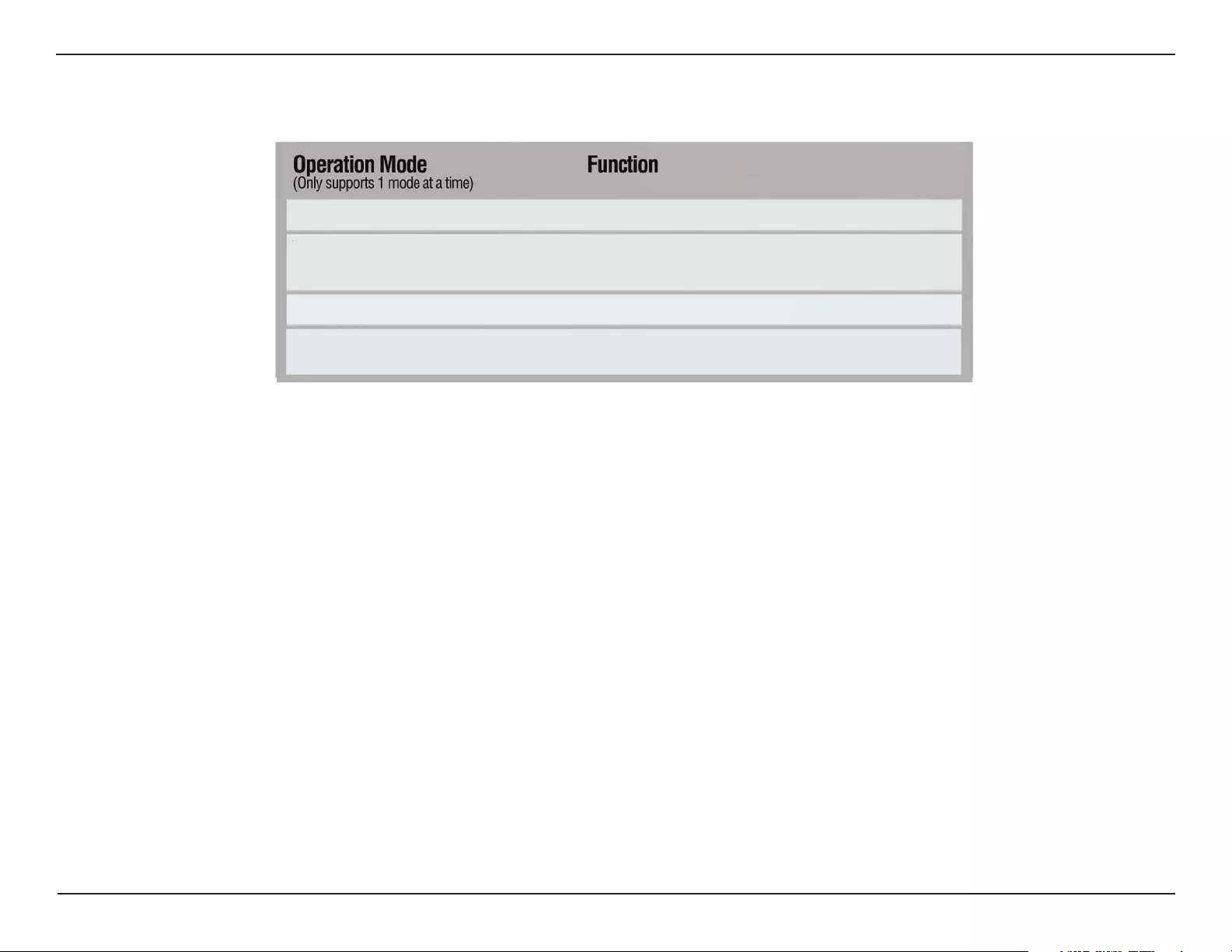
Four Operational Modes
Wireless Client AP acts as a wireless network adapter for your Ethernet
enabled device
Access Point (AP) Create a wireless LAN
WDS with AP Wirelessly connect multiple networks while still functioning
as a wireless AP
WDS Wirelessly connect multiple networks
11D-Link DAP-2590 User Manual
Section 2 — Installation
Getting Started
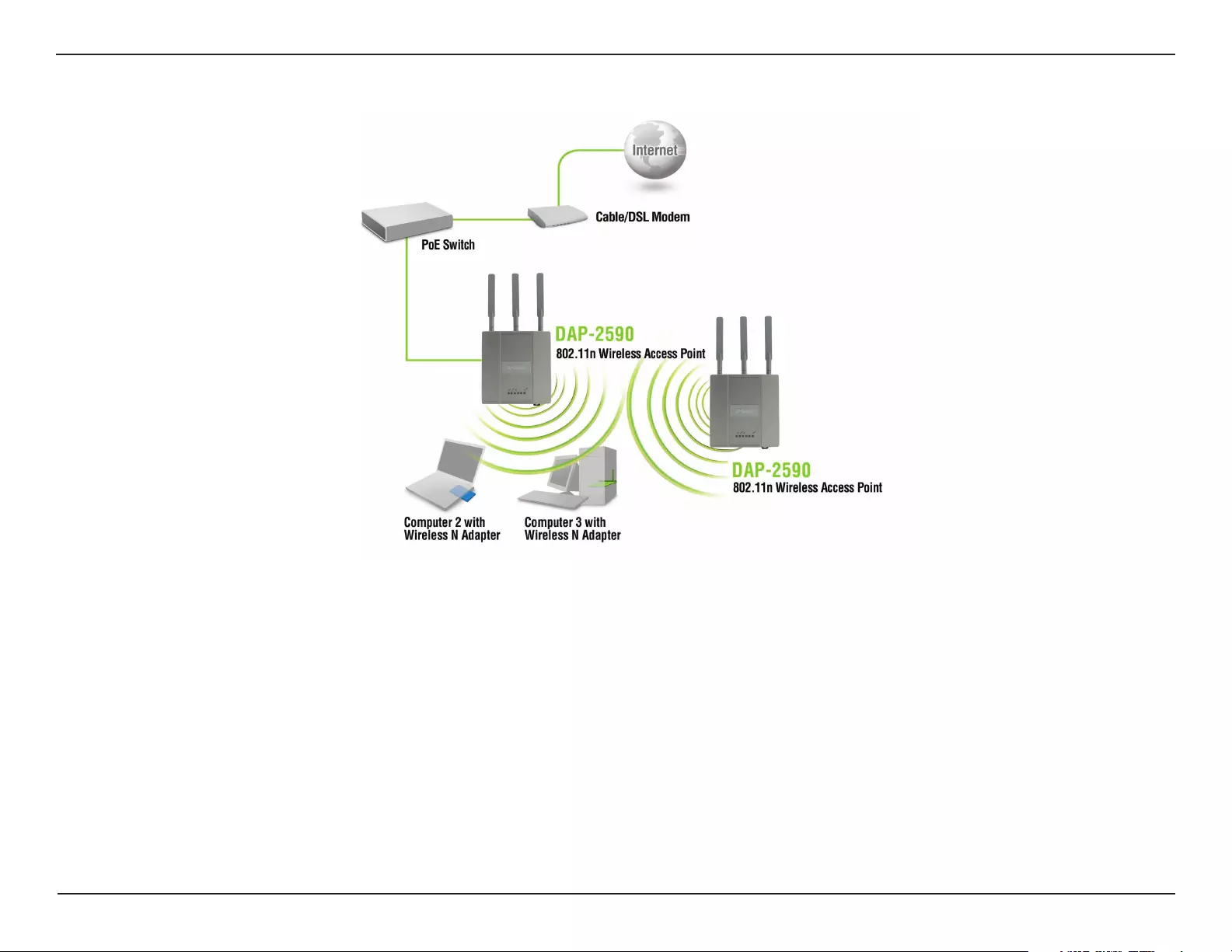
Consult with your cable or DSL provider for proper installation of the modem.
Connect the cable or DSL modem to a router. See the printed Install Guide included with your router
.
If you are connecting a desktop computer to your network, install a wireless PCI adapter into an available PCI slot on your desktop
computer.
Install the drivers for your wireless CardBus adapter into a laptop computer.
See the printed Install Guide included with the DAP-2590
.
2
3
4
5
6
You will need broadband Internet access.
1
12D-Link DAP-2590 User Manual
Section 2 — Installation
Connecting PoE (Power over Ethernet)
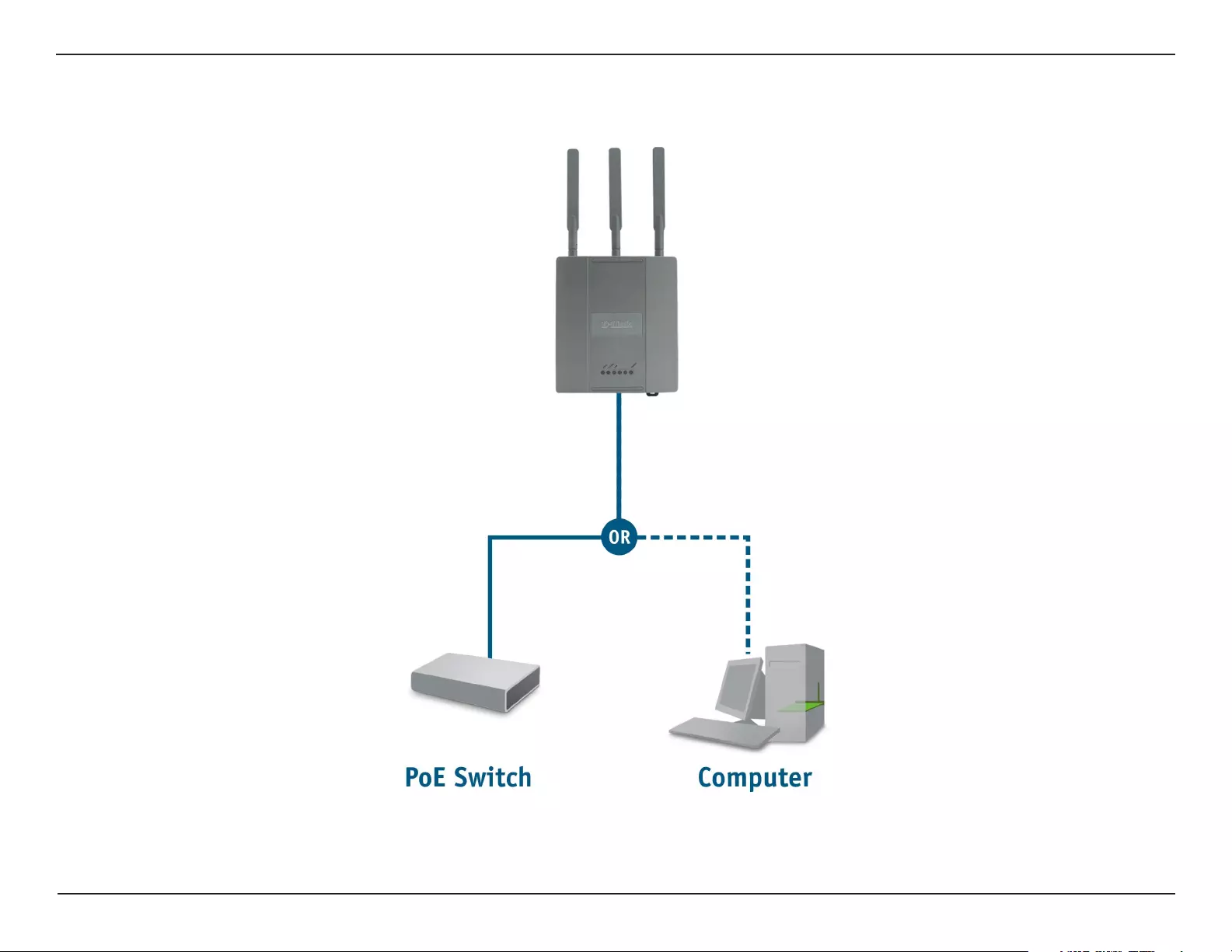
Connect one end of an Ethernet cable (included with your package) to the LAN port on the DAP-2590 and the other end of the Ethernet cable
to either your computer or to your PoE switch. The AP can be powered on by a PoE switch or by the power adapter shipped with the AP.
13D-Link DAP-2590 User Manual
Section 3 — Configuration
Using the Configuration Menu
To configure the DAP-2590, use a computer that is connected to the DAP-2590 with an Ethernet cable (see the
Network Layout
diagram
).
First, disable the “Access the Internet using a proxy server” function. To disable this function, go to Control Panel > Internet Options >
Connections > LAN Settings and uncheck the enable box.
Start your web browser program (Internet Explorer, Mozilla Firefox).
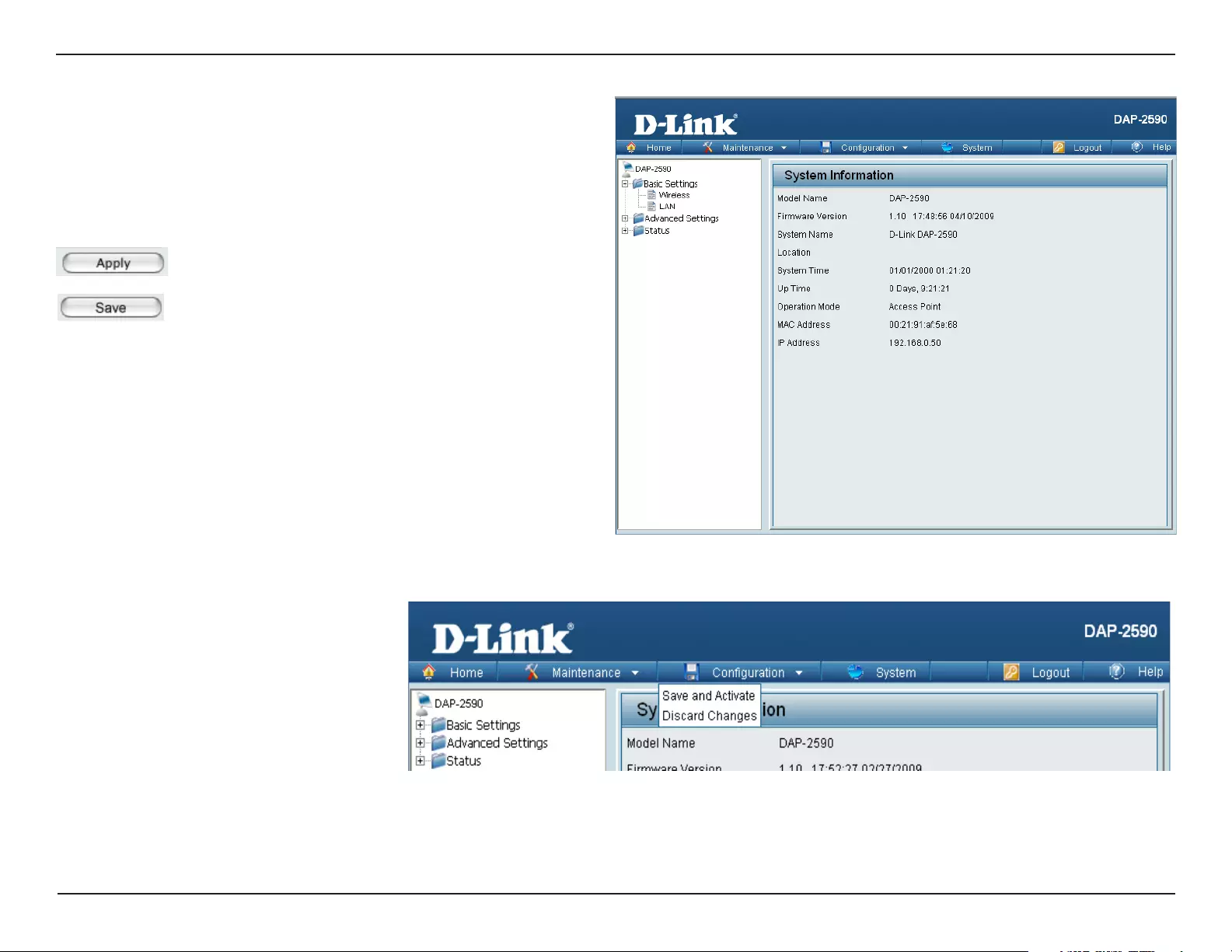
Type the IP address and http port of the DAP-2590 in the address field (http://192.168.0.50) and press Enter. Make sure that the IP
addresses of the DAP-2590 and your computer are in the same subnet.
After the connection is established, you will see the user identification window as shown.
Note: If you have changed the default IP address assigned to the DAP-2590, make sure to
enter the correct IP address.
Note: If you have changed the password, make sure to enter the correct password.
• Type “admin” in the User Name field.
• Leave the Password field blank.
• Click the Login button.
14D-Link DAP-2590 User Manual
Section 3 — Configuration
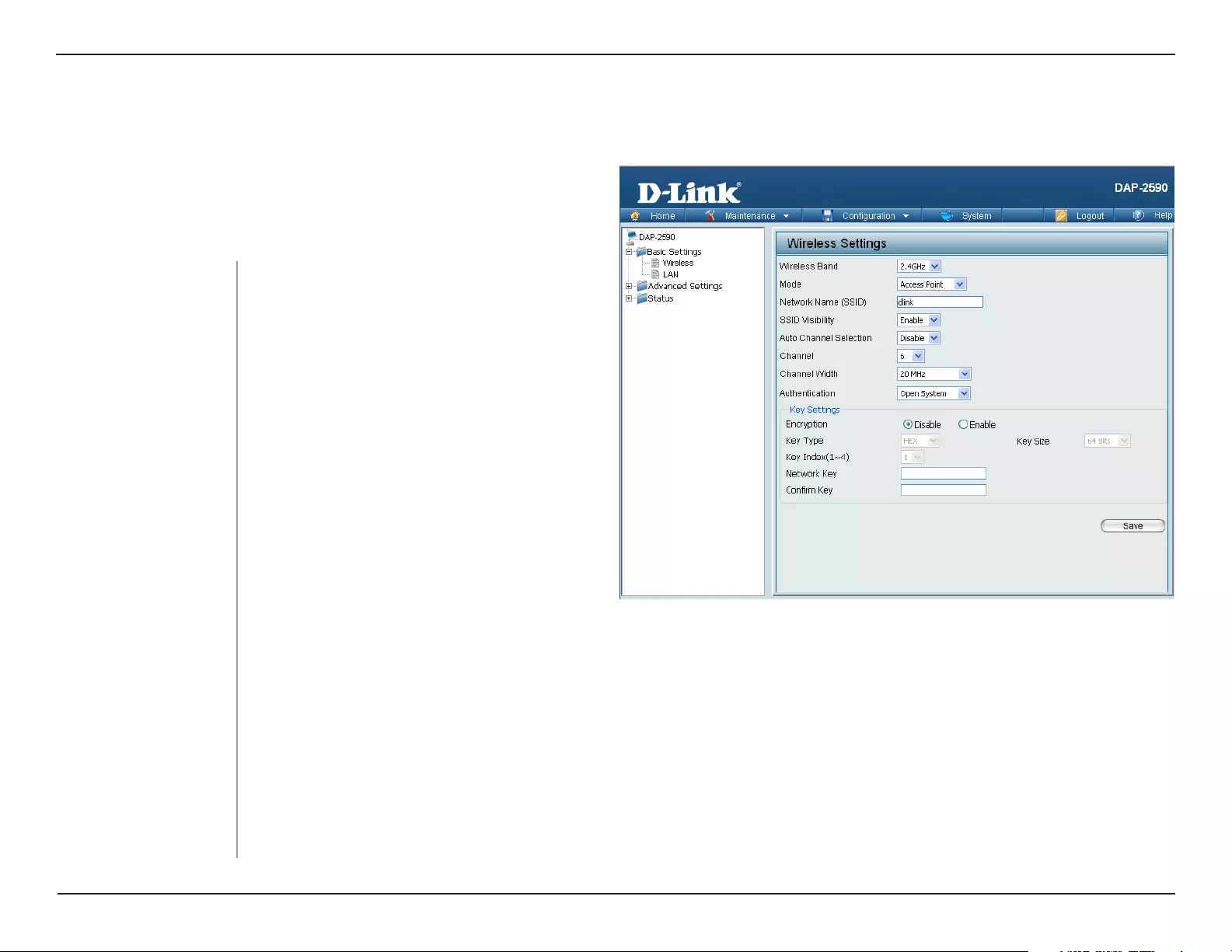
After successfully logging into the DAP-2590 the following window will appear:
When making changes on most of the configuration windows in
this section, use either the Apply button or the Save button to save
your configuration changes.
Click the Apply button to configure changes.
Alternatively, click the “Save and Activate” option on the Configuration drop-down menu at the top of each DAP-2590 window. This will
cause the DAP-2590 to save and reboot.
Click the Save button to configure changes.
15D-Link DAP-2590 User Manual
Section 3 — Configuration
Home > Basic Settings > Wireless
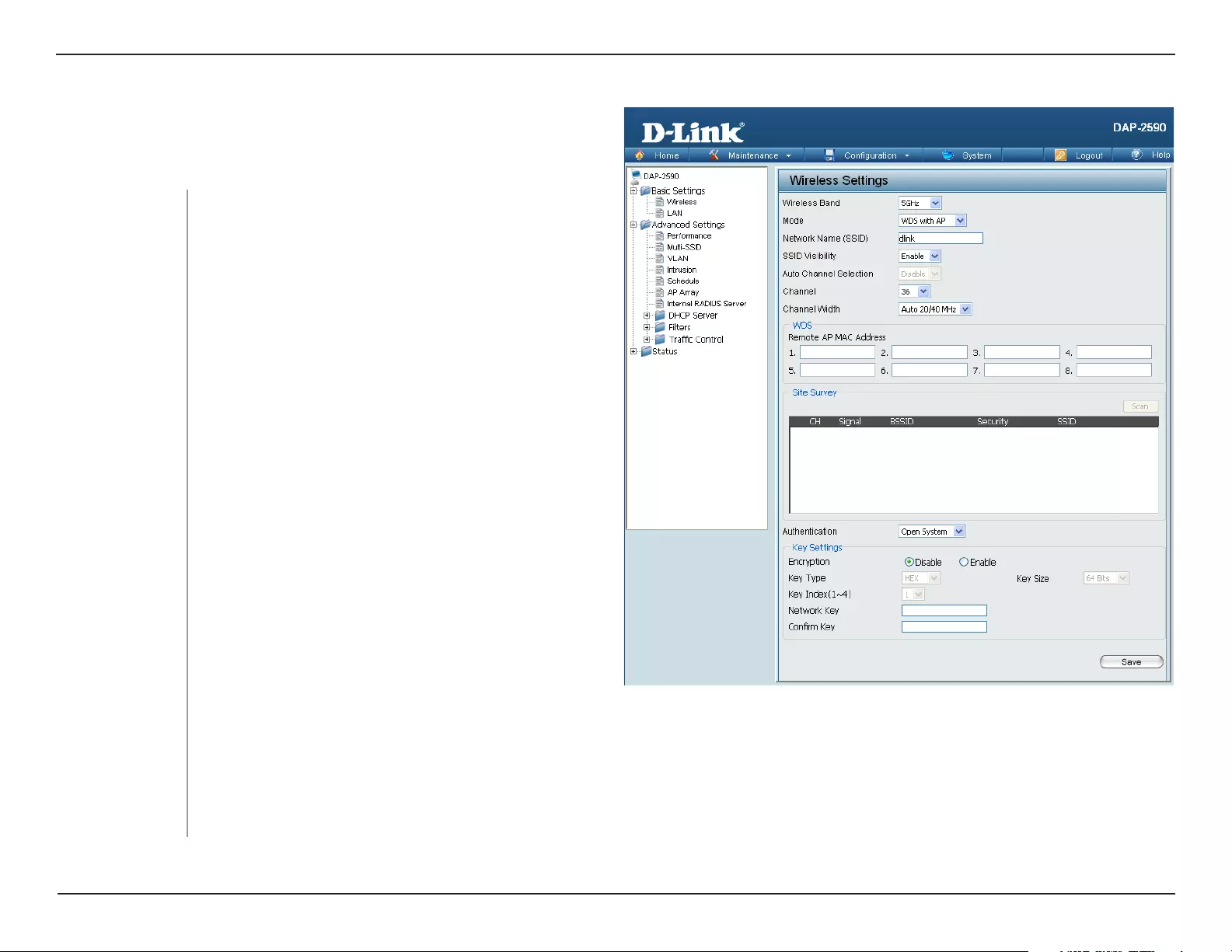
Select Access Point from the pull-down
menu. The other three choices are WDS with
AP, WDS, and Wireless Client.
Service Set Identifier (SSID) is the name
designated for a specific wireless local
area network (WLAN). The SSID’s factory
default setting is dlink. The SSID can
easily be changed to connect to an existing
wireless network or to establish a new
wireless network. The SSID can be up to 32
characters and is case-sensitive.
Enable or Disable SSID visibility. Enabling this feature broadcasts the SSID across the network, thus making it
visible to all network users.
Mode:
Network Name (SSID):
SSID Visibility:
Wireless Band: Select either 2.4 GHz or 5 GHz from the
pull-down menu.
In Access Point mode, the DAP-2590 functions as a wireless AP.
After completing the desired settings, click the Save button to let
your changes take effect.
Access Point mode
Enabling this feature automatically selects the channel that provides the best wireless performance. Enable is set
by default. The channel selection process only occurs when the AP is booting up.
All devices on the network must share the same channel. To change the channel, first toggle the Auto Channel
Selection setting to Disable, and then use the pull-down menu to make the desired selection. (Note: The wireless
adapters will automatically scan and match the wireless settings.)
Auto Channel
Selection:
Channel:

16D-Link DAP-2590 User Manual
Section 3 — Configuration
Select Open System to communicate the key across the network.
Select Shared Key to limit communication to only those devices that share the same WEP settings. If multi-SSID is
enabled, this option is not available.
Select WPA-Personal to secure your network using a password and dynamic key changes. No RADIUS server is
required.
Select WPA-Enterprise to secure your network with the inclusion of a RADIUS server.
Select 802.1X if your network is using port-based Network Access Control.
Channel Width:
Authentication:
For more information about the different types of Authentication offered on the DAP-2590 and the respective settings
of each, please go to the first page of the “Authentication” explanations, which begins on page 23.
Allows selection of the channel width you would like to operate in. 20 MHz and Auto 20/40 MHz allow both 802.11n
and non-802.11n wireless devices on your network when the wireless mode is Mixed 802.11 b/g/n in 2.4G and Mixed
802.11 a/n in 5G. When the channel width is set to Auto 20/40 MHz, then 802.11n wireless devices are allowed to
transmit data using 40 MHz.
17D-Link DAP-2590 User Manual
Section 3 — Configuration
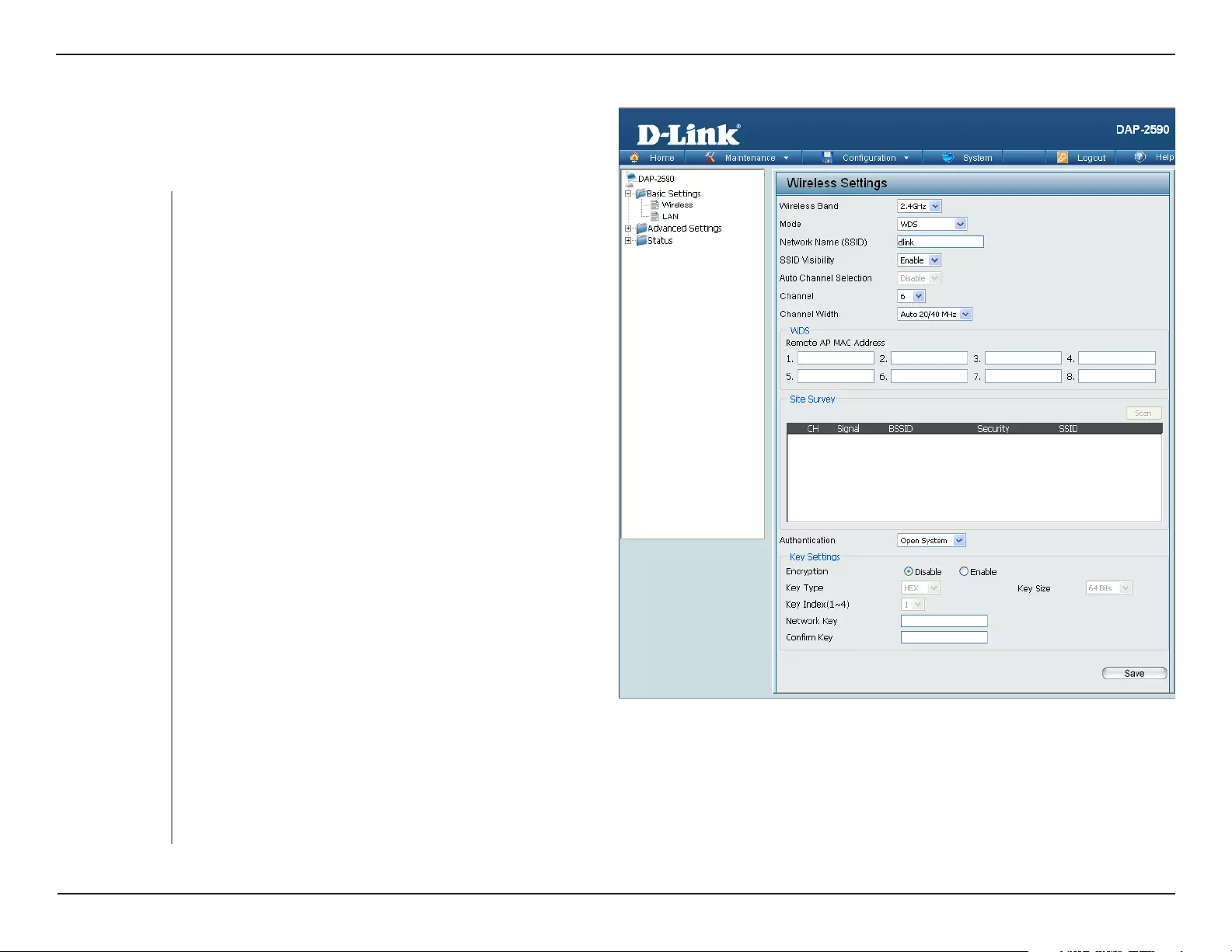
WDS with AP mode
WDS with AP mode is selected from the pull-down
menu.
Service Set Identifier (SSID) is the name designated
for a specific wireless local area network (WLAN).
The SSID’s factory default setting is dlink. The
SSID can be easily changed to connect to an
existing wireless network or to establish a new
wireless network.
Enable or Disable SSID visibility. Enabling this
feature broadcasts the SSID across the network,
thus making it visible to all network users.
Enabling this feature automatically selects
the channel that will provide the best wireless
performance. This feature is not supported in WDS
with AP mode. The channel selection process only
occurs when the AP is booting up.
All devices on the network must share the same channel. To change the channel, use the pull-down menu to make the
desired selection. (Note: The wireless adapters will automatically scan and match the wireless settings.)
Mode:
Network Name
(SSID):
SSID Visibility:
Auto Channel
Selection:
Channel:
Wireless Band:
In WDS with AP mode, the DAP-2590 wirelessly connects multiple
networks while still functioning as a wireless AP. After completing
the desired settings, click the Save button to let your changes take
effect.
Select either 2.4 GHz or 5 GHz from the pull-down
menu.

18D-Link DAP-2590 User Manual
Section 3 — Configuration
Enter the MAC addresses of the APs on your network that will serve as bridges to wirelessly connect multiple
networks.
Site Survey:
Authentication:
Click the Scan button to search for available wireless networks, then click on the available network that you want to
connect with.
Use the pull-down menu to choose Open System, Shared Key, or WPA-Personal.
Select Open System to communicate the key across the network.
Select Shared Key to limit communication to only those devices that share the same WEP settings. If multi-SSID is
enabled, this option is not available.
Select WPA-Personal to secure your network using a password and dynamic key changes. No RADIUS server is
required.
Allows selection of the channel width you would like to operate in. 20 MHz and Auto 20/40 MHz allow both 802.11n and
non-802.11n wireless devices on your network when the wireless mode is Mixed 802.11 b/g/n in 2.4G and Mixed 802.11
a/n in 5G. 802.11n wireless devices are allowed to transmit data using 40 MHz when the channel width is Auto 20/40
MHz.
Channel Width:
Remote AP MAC
Address:
For more information about the different types of Authentication offered on the DAP-2590 and the respective settings of
each, please go to the first page of the “Authentication” explanations, which begins on page 23.
19D-Link DAP-2590 User Manual
Section 3 — Configuration
WDS mode
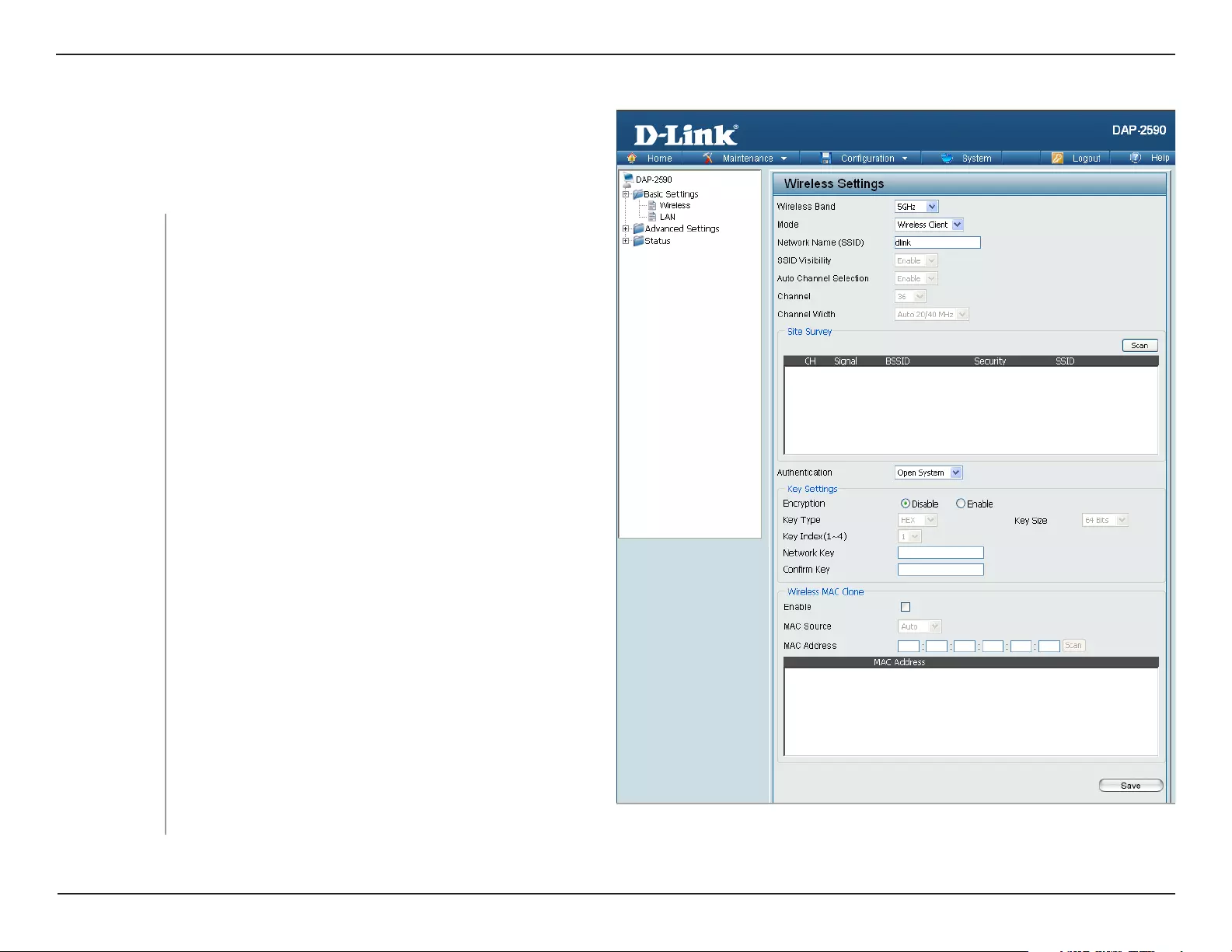
In WDS mode, the DAP-2590 wirelessly connects multiple networks,
without functioning as a wireless AP. After completing the desired
settings, click the Save button to let your changes take effect.
WDS is selected from the pull-down menu.
Service Set Identifier (SSID) is the name designated
for a specific wireless local area network (WLAN). The
SSID’s factory default setting is dlink. The SSID can
be easily changed to connect to an existing wireless
network or to establish a new wireless network.
Enable or Disable SSID visibility. Enabling this
feature broadcasts the SSID across the network,
thus making it visible to all network users.
Mode:
Network Name
(SSID):
SSID Visibility:
Wireless Band: Select either 2.4 GHz or 5 GHz from the pull-down
menu.
Auto Channel
Selection:
All devices on the network must share the same
channel. To change the channel, use the pull-down
menu to make the desired selection.
Enabling this feature automatically selects the channel
that will provide the best wireless performance. This
feature is not supported in WDS mode.
Channel:
Channel Width: Allows selection of the channel width you would like to operate in. 20 MHz and Auto 20/40 MHz allow both 802.11n
and non-802.11n wireless devices on your network when the wireless mode is Mixed 802.11 b/g/n in 2.4G and Mixed
802.11 a/n in 5G. 802.11n wireless devices are allowed to transmit data using 40 MHz when the channel width is Auto
20/40 MHz.

20D-Link DAP-2590 User Manual
Section 3 — Configuration
Enter the MAC addresses of the APs on your network that will serve as bridges to wirelessly connect multiple
networks.
Site Survey:
Remote AP MAC
Address:
Authentication:
Click the Scan button to search for available wireless networks, then click on the available network that you want to
connect with.
Use the pull-down menu to choose Open System, Shared Key, or WPA-Personal.
Select Open System to communicate the key across the network.
Select Shared Key to limit communication to only those devices that share the same WEP settings.
Select WPA-Personal to secure your network using a password and dynamic key changes. No RADIUS server is
required.
For more information about the different types of Authentication offered on the DAP-2590 and the respective settings of
each, please go to the first page of the Authentication explanations which begins on page 23.
21D-Link DAP-2590 User Manual
Section 3 — Configuration
Wireless Client mode
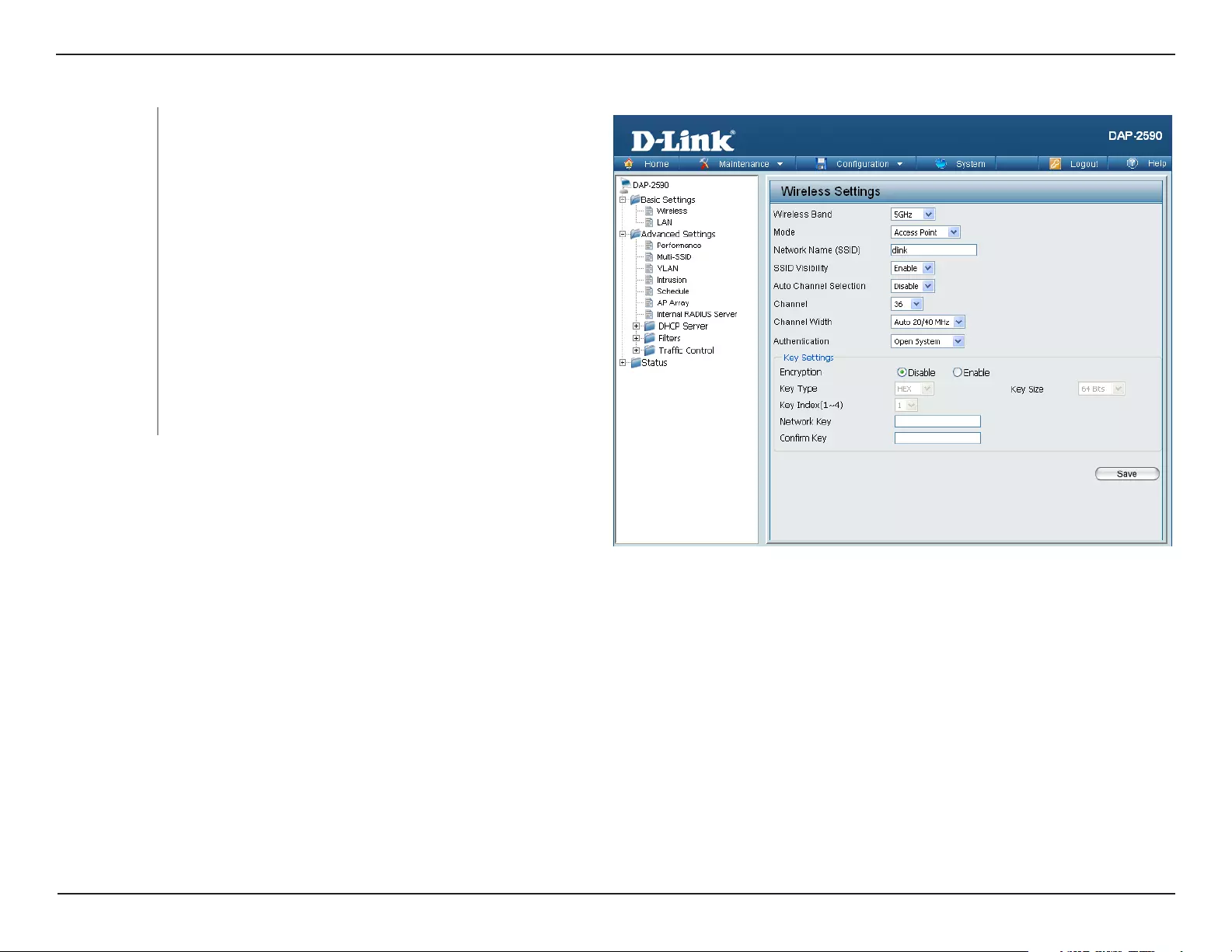
In Wireless Client mode, the DAP-2590 functions as a wireless
client on a wireless network in which an AP already exists. After
completing the desired settings, click the Save button to let your
changes take effect.
Mode:
Network Name
(SSID):
Wireless Band: Select either 2.4 GHz or 5 GHz from the pull-down
menu.
Wireless Client is selected from the pull-down
menu.
Service Set Identifier (SSID) is the name designated
for a specific wireless local area network (WLAN). The
SSID’s factory default setting is dlink. The SSID can
be easily changed to connect to an existing wireless
network.
The channel used will be displayed, and follow the
root AP.
Enabling this feature automatically selects the channel
that will provide the best wireless performance. This
feature is not supported in Wireless Client mode.
This option is unavailable in wireless client mode.
Auto Channel
Selection:
SSID Visibility:
Channel:
Site Survey: Click the Scan button to search for available wireless
networks, then click on the available network that you
want to connect with.
This option is unavailable in wireless client mode.
Channel Width:

22D-Link DAP-2590 User Manual
Section 3 — Configuration
Authentication:
Wireless MAC
Clone
Use the pull-down menu to choose Open System or WPA Personal.
Select Open System to communicate the key across the network.
Select WPA-Personal to secure your network using a password and dynamic key changes. No RADIUS server is
required.
For more information about the different types of Authentication offered on the DAP-2590 and the respective settings of
each, please go to the first page of the Authentication explanations which begins on page 23.
Enable:
MAC Source:
MAC Address:
Click the box to enable the Wireless MAC Clone feature. Enabling this option allows the user to manually assign the
source MAC address to packets forwarded by the DAP-2590. If disabled, the packet’s source MAC address field will be
automatically selected as the DAP-2590’s MAC address.
Use the drop-down menu to select either Auto or Manual.
If you selected Manual for the MAC Source above, you can either click the Scan button to search for all available devices
connected to your DAP-2590’s Ethernet port or manually enter a MAC address in the space provided.
23D-Link DAP-2590 User Manual
Section 3 — Configuration
Open System or Shared Key authentication
Key Index (1~4):
Network Key:
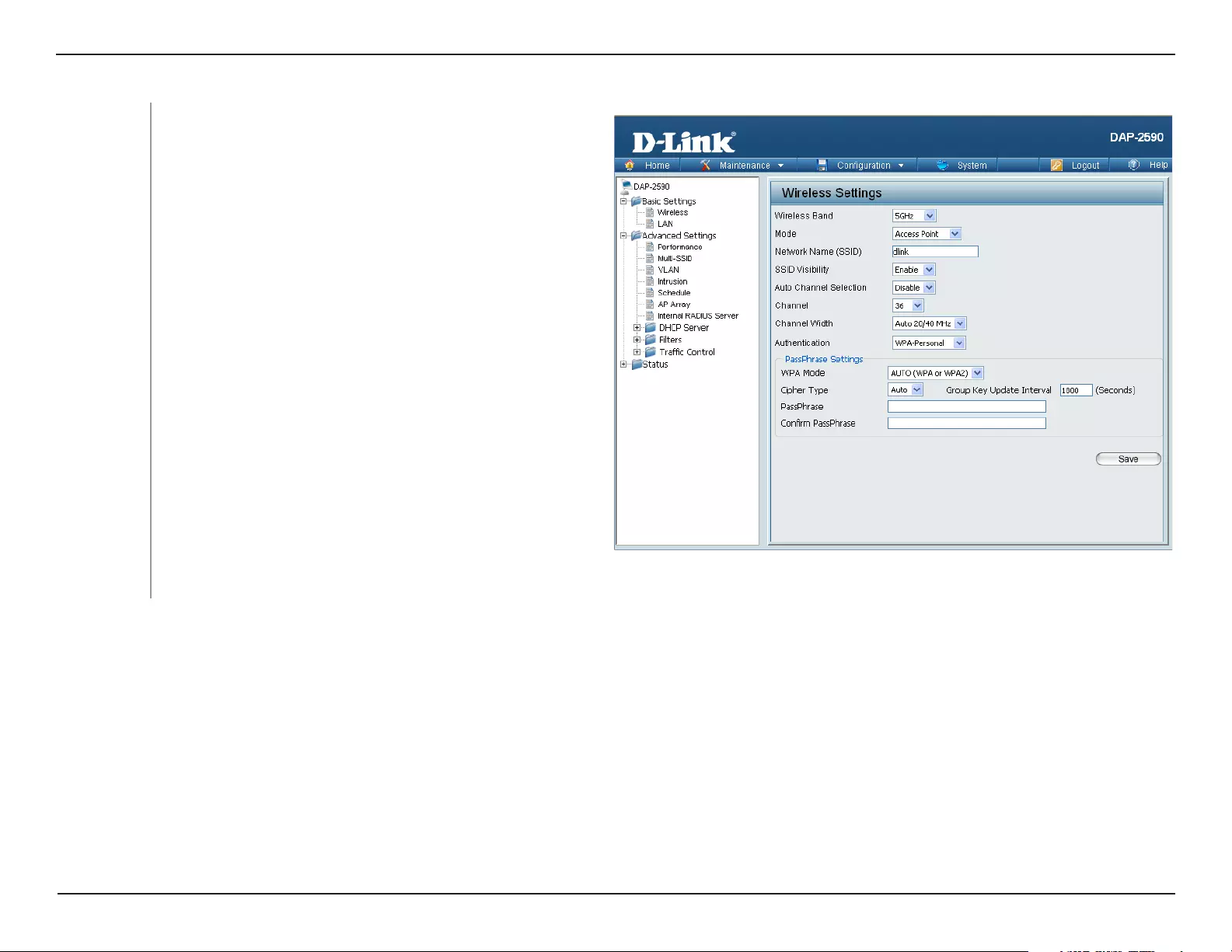
Encryption: Use the radio button to disable or enable encryption.
Key Type:
Key Size:
Input up to four keys for encryption. You will select one
of these keys in the Key Index pull-down menu.
Retype the Network Key entered above in the
corresponding field.
*ASCII (American Standard Code for Information Interchange) is a code that
represents English letters using numbers ranging from 0-127.
**Hexadecimal (HEX) digits consist of the numbers 0-9 and the letters A-F.
Select HEX** or ASCII*.
Select 64 Bits or 128 Bits.
Select the 1st through the 4th key to be the active
key.
Confirm Key:
24D-Link DAP-2590 User Manual
Section 3 — Configuration
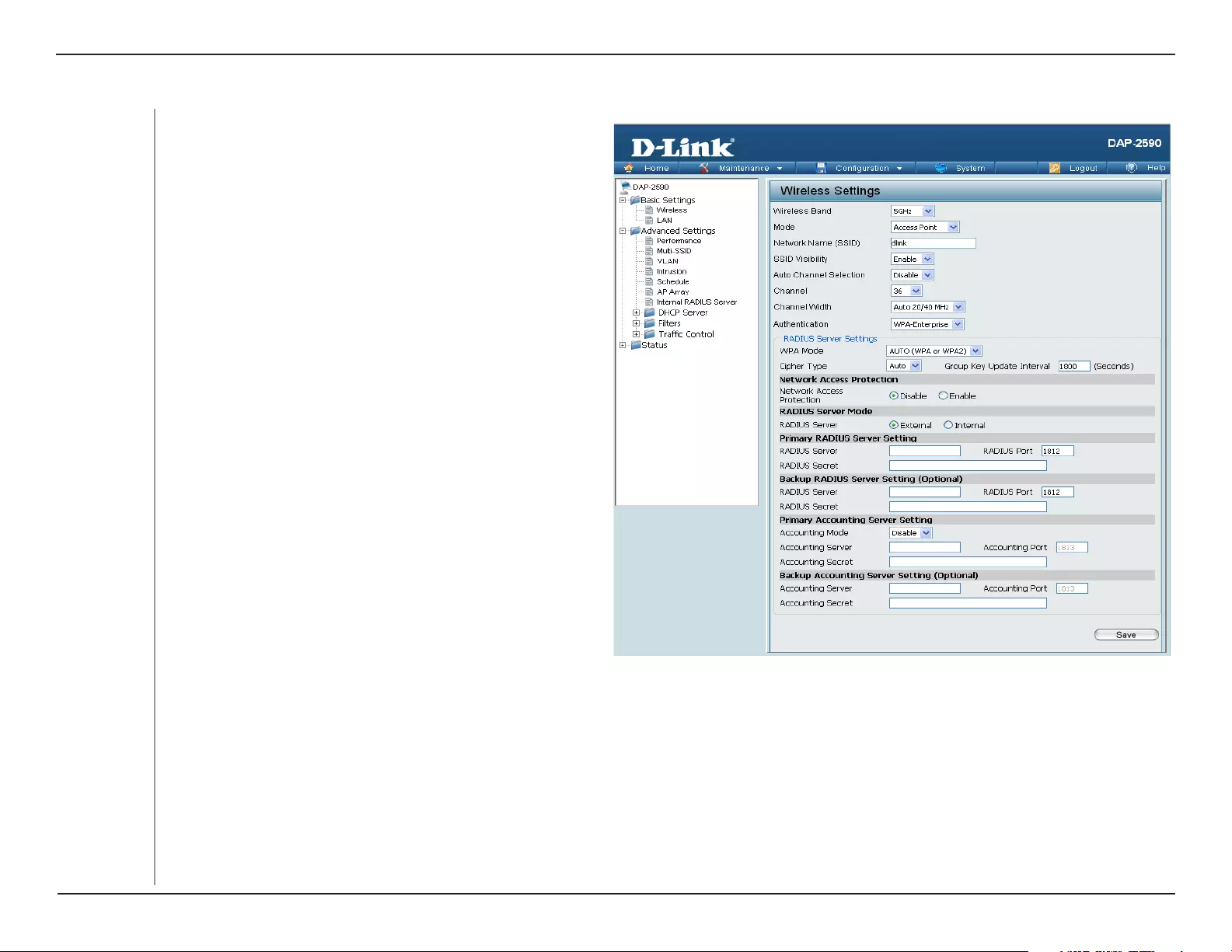
WPA-Personal authentication
Cipher Type:
Group Key
Update Interval:
Select the interval during which the group key will be
valid. The default value of 1800 is recommended.
When you select WPA-Personal, you must also select
AUTO, AES, or TKIP from the pull-down menu.
PassPhrase: When you select WPA-Personal, please enter a
PassPhrase in the corresponding field.
When WPA-Personal is selected for Authentication
type, you must also select a WPA mode from the
pull-down menu: AUTO (WPA or WPA2), WPA2
Only, or WPA Only. WPA and WPA2 use different
algorithms. AUTO (WPA or WPA2) allows you to
use both WPA and WPA2.
WPA Mode:
Retype the PassPhrase entered above in the
corresponding field.
Confirm
PassPhrase:
25D-Link DAP-2590 User Manual
Section 3 — Configuration
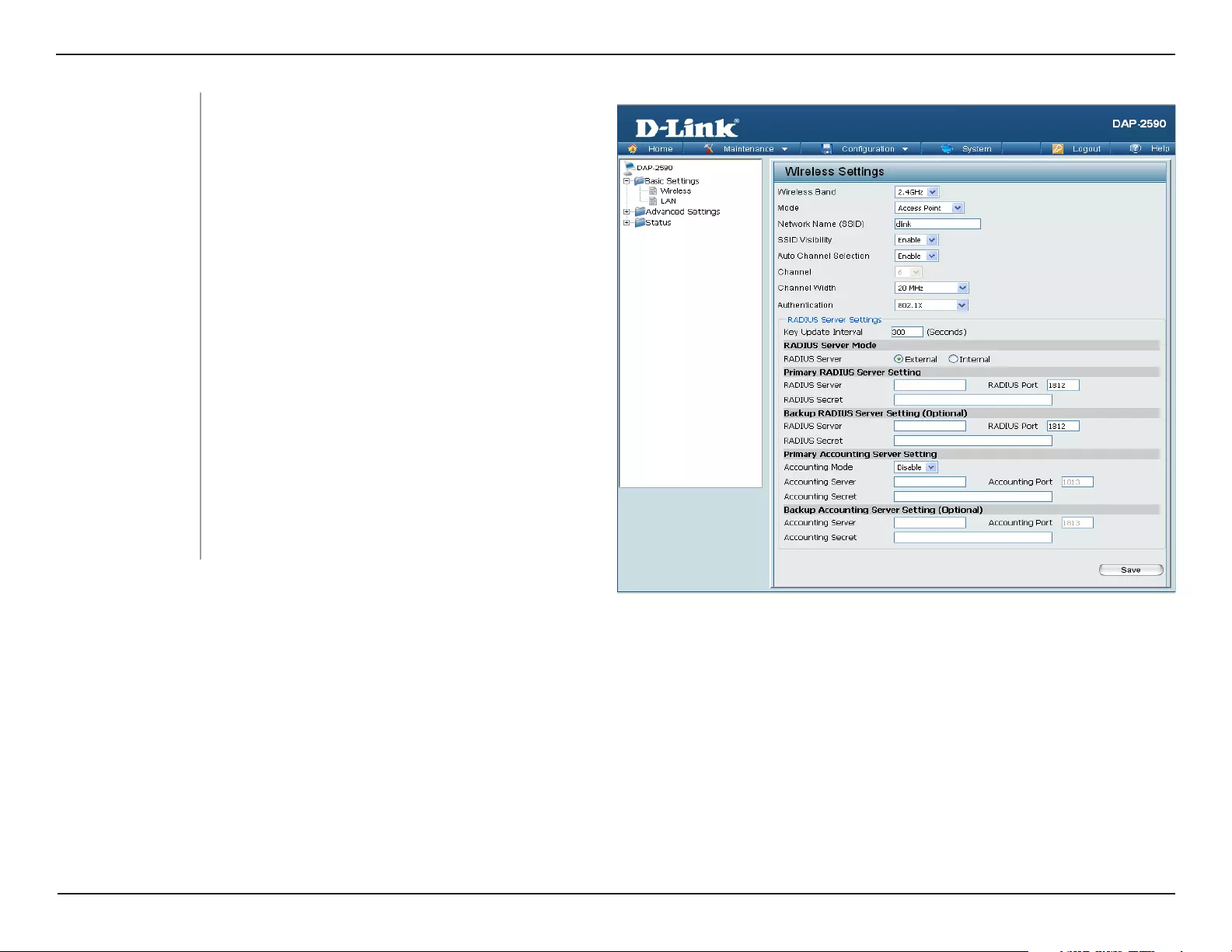
WPA-Enterprise authentication
Cipher Type: When WPA-Enterprise is selected, you must also
select a cipher type from the pull-down menu: Auto,
AES, or TKIP.
When WPA-Enterprise is selected, you must also
select a WPA mode from the pull-down menu: AUTO
(WPA or WPA2), WPA2 Only, or WPA Only. WPA and
WPA2 use different algorithms. AUTO (WPA or WPA2)
allows you to use both WPA and WPA2.
WPA Mode:
Enter the IP address of the RADIUS server. Click
External if the RADIUS server is on your network or
Internal if you are using the RADIUS server on the
DAP-2590.
Enter the RADIUS port (1812 is the default).
Enter the RADIUS secret.
Enable or disable Microsoft Network Access
Protection.
Enter the Accounting port (1813 is the default).
Enter the IP address of the Accounting server.
Select if you want to use a different server for accounting.
Enter the Accounting secret.
Select the interval during which the group key will be
valid. The recommended value is 1800, as a lower
interval may reduce data transfer rates.
RADIUS Server:
RADIUS Port:
RADIUS Secret:
Network Access
Protection:
Accounting
Server:
Accounting
Secret:
Accounting
Mode:
Accounting Port:
Group Key
Update Interval:
Note: You can input the secondary RADIUS server and accounting
server settings if you have a backup RADIUS and accounting server.
26D-Link DAP-2590 User Manual
Section 3 — Configuration
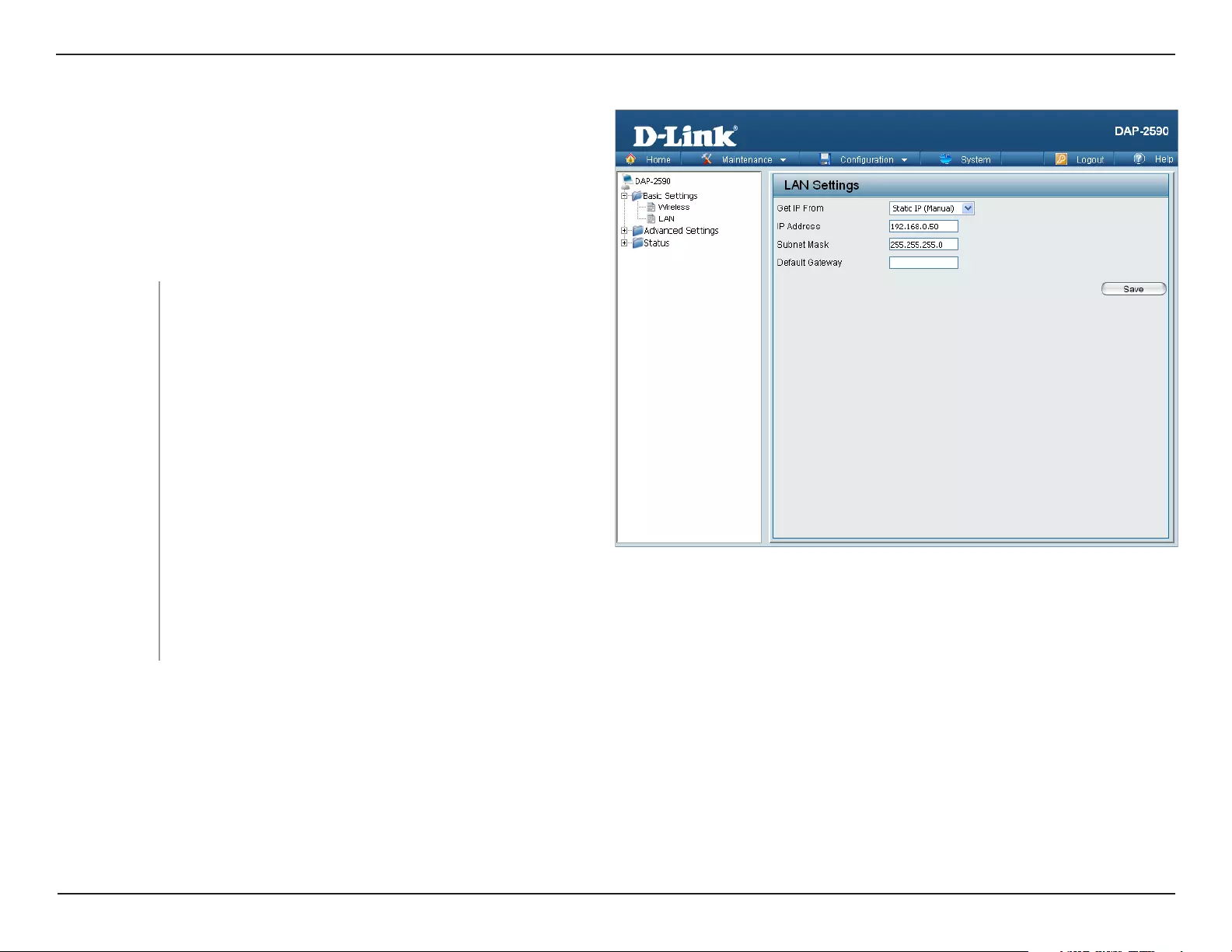
802.1X authentication
Key Update Interval: Select the interval (in seconds) during which the
key will be valid.
RADIUS Server: Enter the IP address of the RADIUS server. Click
External if the RADIUS server is on your network
or Internal if you are using the RADIUS server
on the DAP-2590.
RADIUS Port: Enter the RADIUS port (1812 is the default).
RADIUS Secret: Enter the RADIUS secret.
Accounting Server:
Accounting Secret:
Accounting Mode:
Enter the Accounting port (1813 is the default).
Enter the IP address of the Accounting server.
Select if you want to use a different server for
accounting.
Note: You can input the secondary RADIUS server and accounting server settings if you have a backup RADIUS and accounting server.
Enter the Accounting secret.
Accounting Port:
27D-Link DAP-2590 User Manual
Section 3 — Configuration
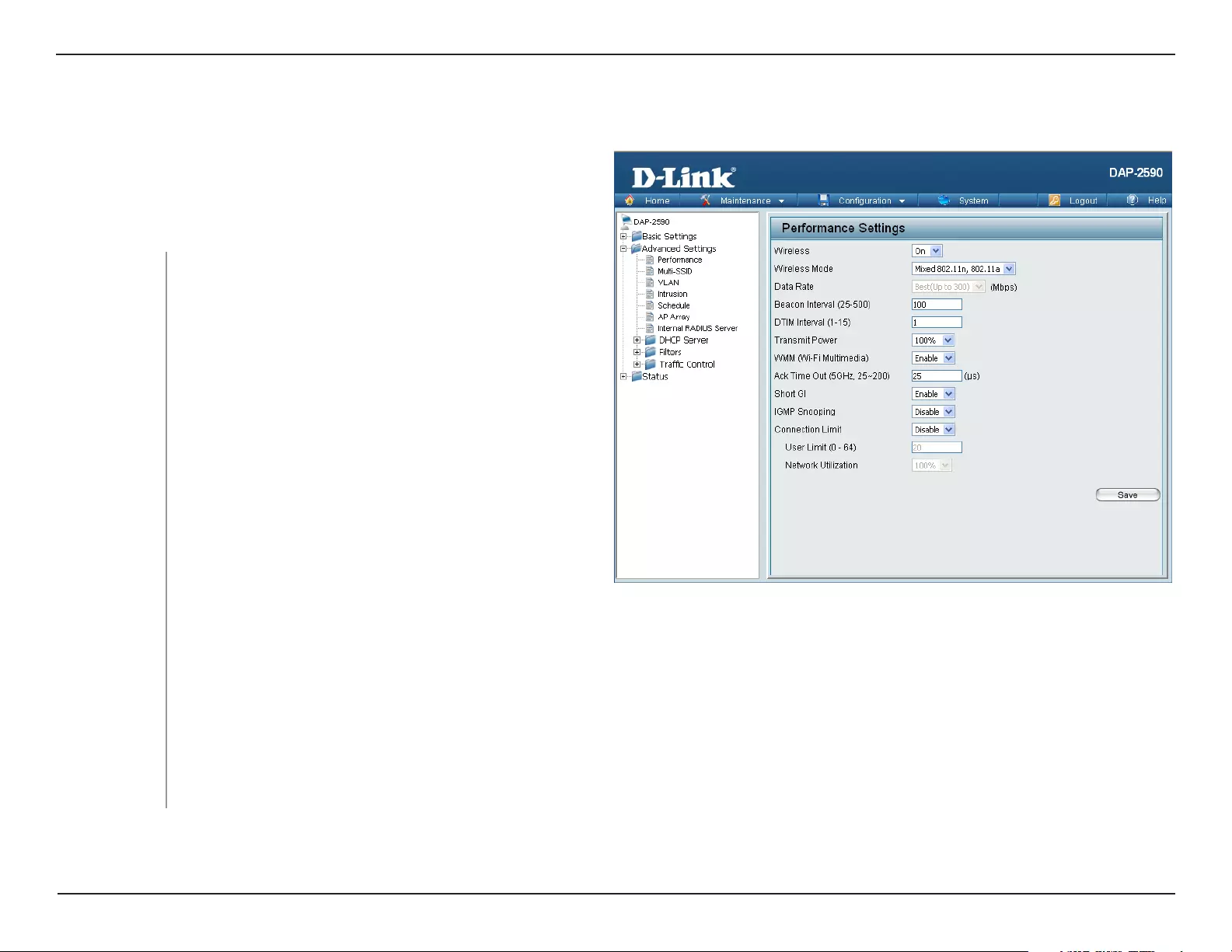
Choose Static IP (Manual) if you do not have a DHCP
server on your network, or if you wish to assign a
static IP address to the DAP-2590. When Dynamic IP
(DHCP) is selected, the other fields here will be grayed
out. Please allow about 2 minutes for the DHCP client
to be functional once this selection is made.
The default IP address is 192.168.0.50. Assign a static
IP address that is within the IP address range of your
network.
Enter the subnet mask. All devices in the network must
share the same subnet mask.
Enter the IP address of the gateway in your network. If there is a gateway in your network, please enter an IP address within
the range of your network.
LAN
Get IP From:
IP Address:
Subnet Mask:
Default
Gateway:
LAN is short for Local Area Network. This is considered your internal
network. These are the IP settings of the LAN interface for the DAP-
2590. These settings may be referred to as private settings. You
may change the LAN IP address if needed. The LAN IP address is
private to your internal network and cannot be seen on the Internet.
After completing the desired LAN settings, click the Save button to
let your changes take effect.
28D-Link DAP-2590 User Manual
Section 3 — Configuration
Home > Advanced Settings
Wireless:
Wireless Mode:
Use the drop-down menu to turn the wireless function
On or Off.
The different combination of clients that can be
supported include Mixed 802.11n, 802.11g and
802.11b, Mixed 802.11g and 802.11b, and 802.11n
Only in the 2.4 GHz band and Mixed 802.11n and
802.11a, 802.11a only, and 802.11n Only in the
5 GHz band. Please note that when backwards
compatibility is enabled for legacy (802.11a/g/b)
clients, degradation of 802.11n (draft) wireless
performance is expected.
The Performance Settings window offers a number of user-controlled
settings designed to optimize the performance of the DAP-2590.
After completing the desired settings, click the Save button to let
your changes take effect.
Beacons are packets sent by an access point to synchronize a wireless network. Specify a value in milliseconds. The default
(100) is recommended. Setting a higher beacon interval can help to save the power of wireless clients, while setting a lower
one can help a wireless client connect to an access point faster.
Indicate the base transfer rate of wireless adapters on the wireless LAN. The AP will adjust the base transfer rate depending
on the base rate of the connected device. If there are obstacles or interference, the AP will step down the rate. This option
is enabled in Mixed 802.11g and 802.11b mode (for 2.4 GHz) and 802.11a only mode (for 5 GHz). The choices available
are Best (Up to 54), 54, 48, 36, 24, 18, 12, 9, and 6 for 5 GHz and Best (Up to 54), 54, 48, 36, 24, 18, 12, 9, 6, 11, 5.5, 2
and 1 for 2.4 GHz.
Data Rate*:
Beacon Interval
(25-500):
*Maximum wireless signal rate derived from IEEE Standard 802.11g, 802.11a and Draft 802.11n specifications. Actual data throughput will vary. Network conditions and
environmental factors, including volume of network traffic, building materials and construction, and network overhead, lower actual data throughput rate. Environmental
conditions will adversely affect wireless signal range.
Performance

29D-Link DAP-2590 User Manual
Section 3 — Configuration
WMM (Wi-Fi
Multimedia):
WMM stands for Wi-Fi Multimedia. Enabling this feature will improve the user experience for audio and video applications
over a Wi-Fi network.
Short GI: Select Enable or Disable. Enabling a short guard interval can increase throughput. However, be aware that it can also
increase the error rate in some installations due to increased sensitivity to radio-frequency installations.
IGMP Snooping: Select Enable or Disable. Internet Group Management Protocol allows the AP to recognize IGMP queries and
reports sent between routers and an IGMP host (wireless STA). When IGMP snooping is enabled, the AP will forward
multicast packets to an IGMP host based on IGMP messages passing through the AP.
This setting determines the power level of the wireless transmission. Transmitting power can be adjusted to eliminate
overlapping of wireless area coverage between two access points where interference is a major concern. For example,
if wireless coverage is intended for half of the area, then select 50% as the option. Use the pull-down menu to select
100%, 50%, 25%, or 12.5%.
Transmit Power:
Ack Time Out (2.4 GHZ,
48~200) or Ack Time
Out (5 GHZ, 25~200):
To effectively optimize throughput over long distance links enter a value for Acknowledgement Time Out between 25
and 200 microseconds for 5 GHz or from 48 to 200 microseconds in the 2.4 GHz in the field provided.
DTIM Interval
(1-15):
Select a Delivery Traffic Indication Message setting between 1 and 15. 1 is the default setting. DTIM is a countdown
informing clients of the next window for listening to broadcast and multicast messages.
Select Enable or Disable. This is an option for load balancing. This determines whether to limit the number of users
accessing this device. The exact number is entered in the User Limit field below. This feature allows the user to share
the wireless network traffic and the client using multiple APs. If this function is enabled and when the number of
users exceeds this value, or the network utilization of this AP exceeds the percentage that has been specified, the
DAP-2590 will not allow clients to associate with the AP.
Connection Limit:

30D-Link DAP-2590 User Manual
Section 3 — Configuration
User Limit (0 — 64):
Network Utilization:
Set the maximum amount of users that are allowed access (zero to 64 users).To use this feature, the Connection Limit
above must be enabled. For most users, a limit of 10 is recommended. The default setting is 20.
Set the maximum utilization of this access point for service. The DAP-2590 will not allow any new clients to associate
with the AP if the utilization exceeds the value the user specifies. Select a utilization percentage between 100%, 80%,
60%, 40%, 20%, or 0%. When this network utilization threshold is reached, the device will pause one minute to allow
network congestion to dissipate.
31D-Link DAP-2590 User Manual
Section 3 — Configuration
Multi-SSID
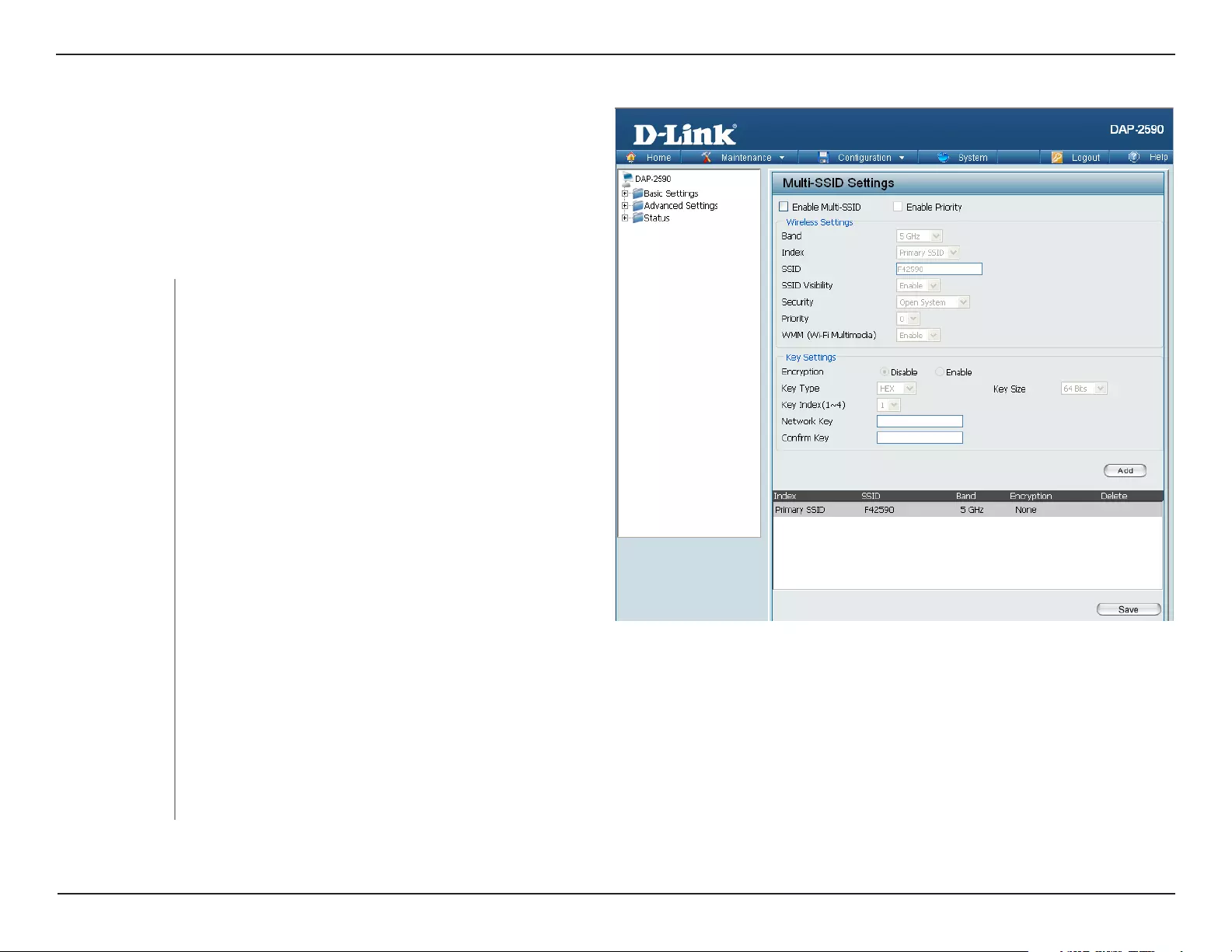
The device supports up to eight multiple Service Set Identifiers. You
can set the Primary SSID in the Basic > Wireless section. The SSID’s
factory default setting is dlink. The SSID can be easily changed toThe SSID can be easily changed to
connect to an existing wireless network or to establish a new wireless
network. When the information for the new SSID is finished, click the
Add button. Click the Save button to let your changes take effect.
Check to enable support for multiple SSIDs.
Check to enable the priority feature.
This read-only value is the current band setting.
You can select up to seven multi-SSIDs. With the
Primary SSID, you have a total of eight multi-SSIDs.
Enable Multi-SSID:
Enable Priority:
Band:
Index:
SSID Visibility: Enable or Disable SSID visibility. Enabling this feature broadcasts the SSID across the network, thus making it visible to all
network users.
SSID: Service Set Identifier (SSID) is the name designated
for a specific wireless local area network (WLAN). The
SSID’s factory default setting is dlink. The SSID can
be easily changed to connect to an existing wireless
network.
The Multi-SSID security can be Open System, WPA-Personal, WPA-Enterprise, or 802.1X. For a detailed description of
the Open System parameters please go to page 23. For a detailed description of the WPA-Personal parameters please go to
page 24. For a detailed description of the WPA-Enterprise parameters please go to page 25. For a detailed description of the
802.1X parameters please go to page 26.
Security:

32D-Link DAP-2590 User Manual
Section 3 — Configuration
WMM (Wi-Fi
Multimedia):
Priority: When the Enable Priority check box is checked at the top of this window, this drop-down menu is used to select a priority
between 0 and 7.
Select Enable to provide basic Quality of Service features.
33D-Link DAP-2590 User Manual
Section 3 — Configuration
VLAN > VLAN List
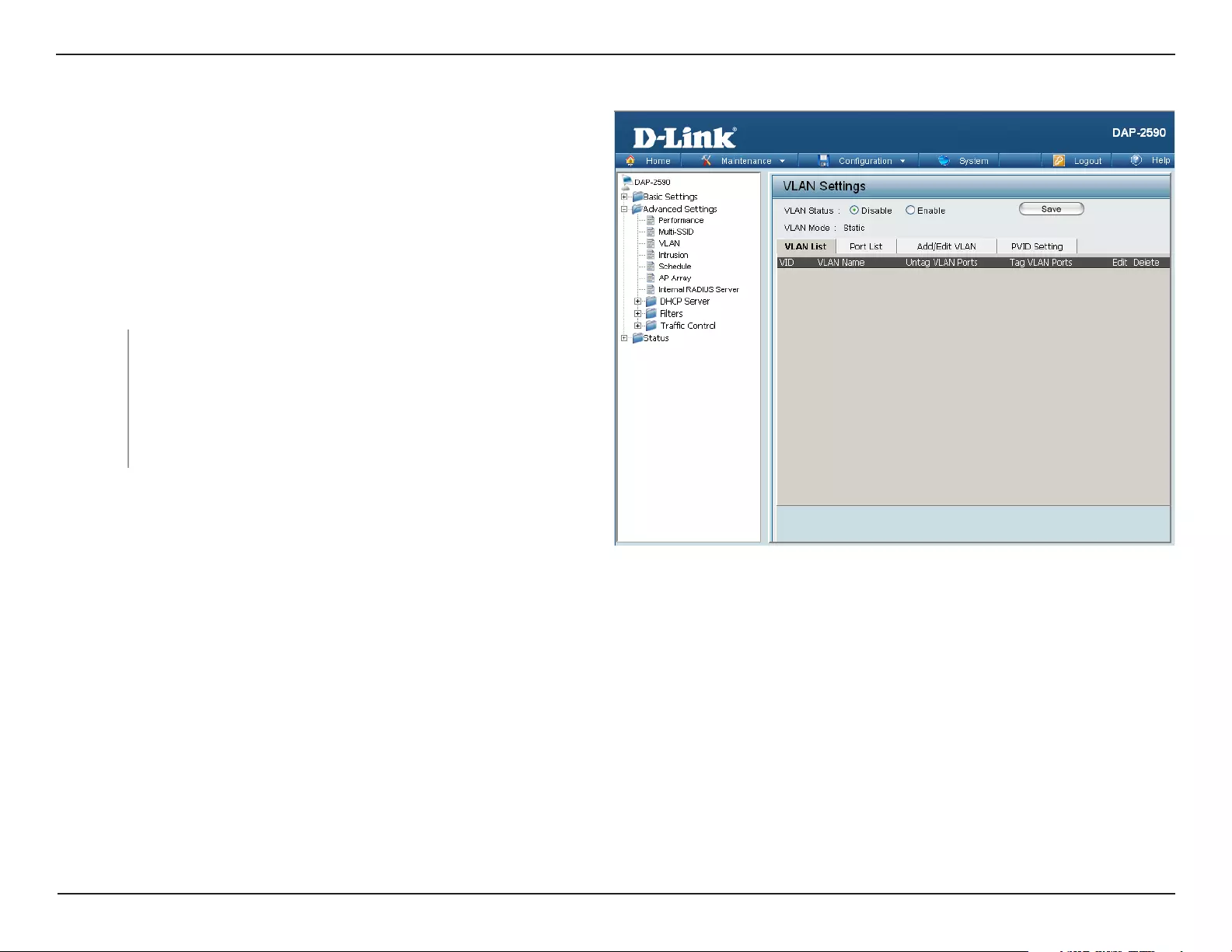
The DAP-2590 supports VLANs. VLANs can be created with a Name
and VID. Mgmt (TCP stack), LAN, Primary/Multiple SSID, and WDS
connection can be assigned to VLANs as they are physical ports.
Any packet which enters the DAP-2590 without a VLAN tag will have
a VLAN tag inserted with a PVID. Once you have made the desired
settings, click the Save button to let your changes take effect.
The VLAN List tab displays the current VLANs.
VLAN Status: Use the radio button to toggle to Enable. Next, go to the
Add/Edit VLAN tab to add or modify an item on the VLAN
List tab.
The current VLAN mode is displayed.
VLAN Mode:
34D-Link DAP-2590 User Manual
Section 3 — Configuration
VLAN > Port List
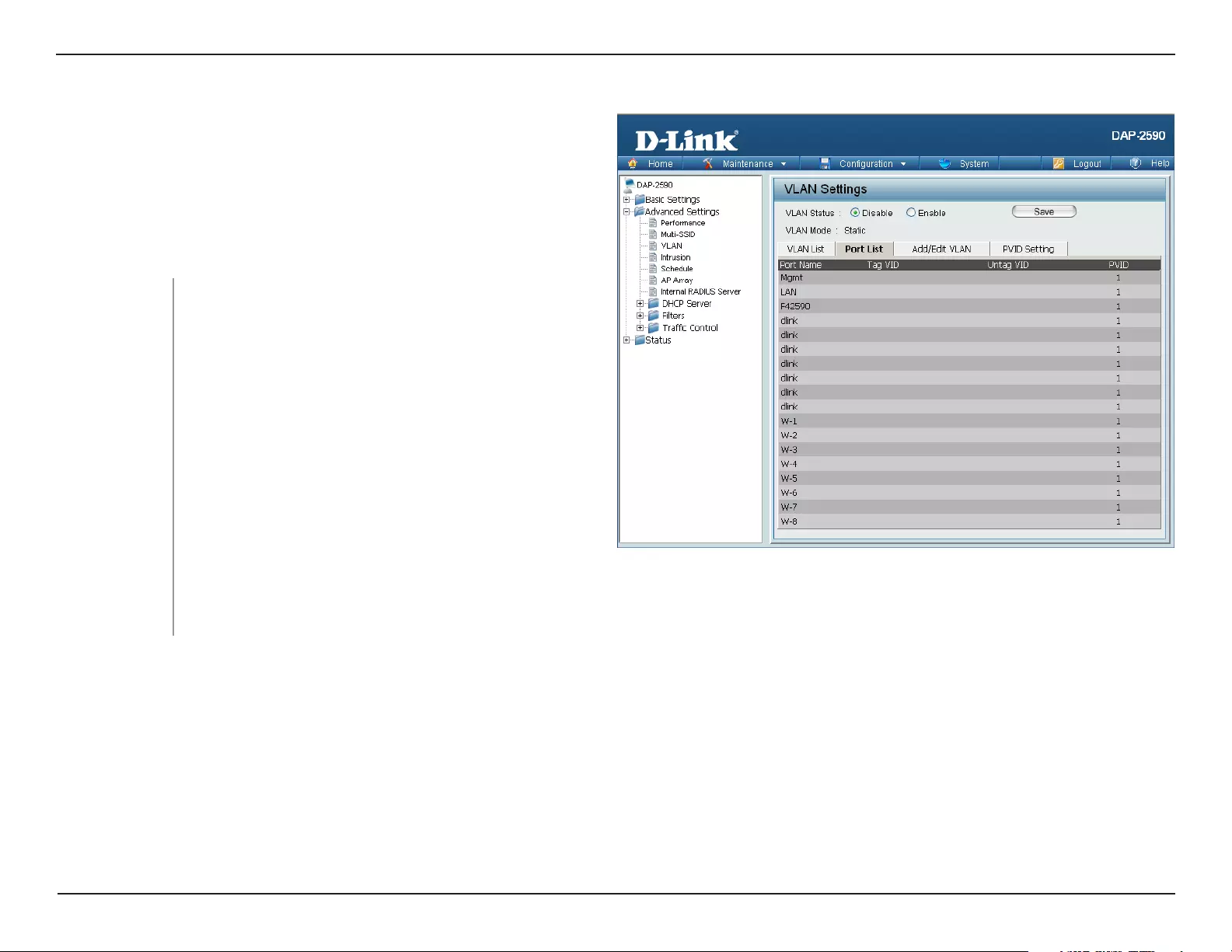
The Port List tab displays the current ports. If you want to configure
the guest and internal networks on a Virtual LAN (VLAN), the switch
and DHCP server you are using must also support VLANs. As a
prerequisite step, configure a port on the switch for handling VLAN
tagged packets as described in the IEEE 802.1Q standard. Once
you have made the desired settings, click the Save button to let your
changes take effect.
VLAN Status: Use the radio button to toggle to Enable. Next, go to
the Add/Edit VLAN tab to add or modify an item on
the VLAN List tab.
The name of the port is displayed in this column.
The Tagged VID is displayed in this column.
The Untagged VID is displayed in this column.
The Port VLAN Identifier is displayed in this
column.
Port Name:
Tag VID:
Untag VID:
PVID:
VLAN Mode: The current VLAN mode is displayed.
35D-Link DAP-2590 User Manual
Section 3 — Configuration
VLAN > Add/Edit VLAN
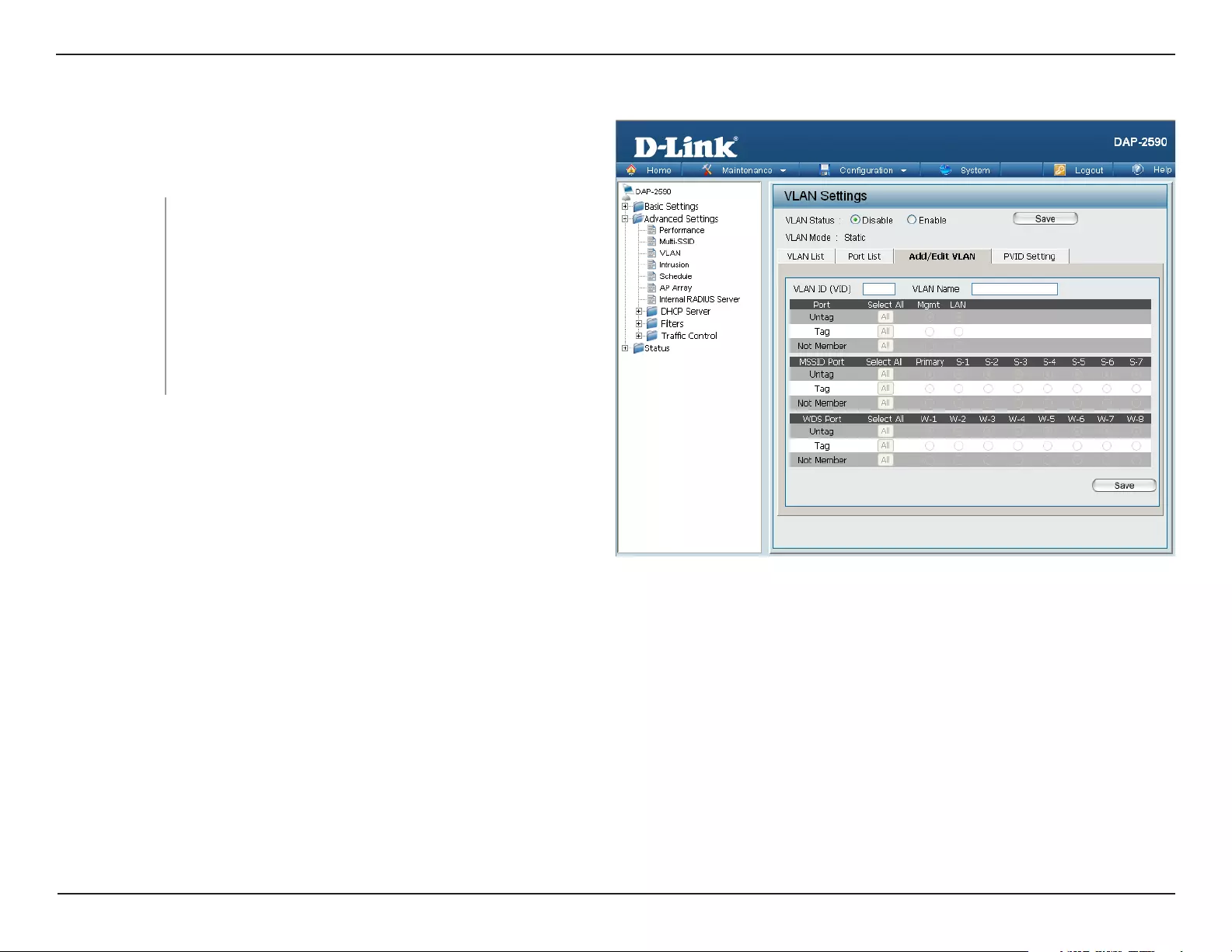
The Add/Edit VLAN tab is used to configure VLANs. Once you have
made the desired settings, click the Save button to let your changes
take effect.
Use the radio button to toggle to Enable.
The current VLAN mode is displayed.
Provide a number between 1 and 4094 for the Internal
VLAN.
Enter the VLAN to add or modify.
VLAN Status:
VLAN Mode:
VLAN ID (VID):
VLAN Name:
36D-Link DAP-2590 User Manual
Section 3 — Configuration
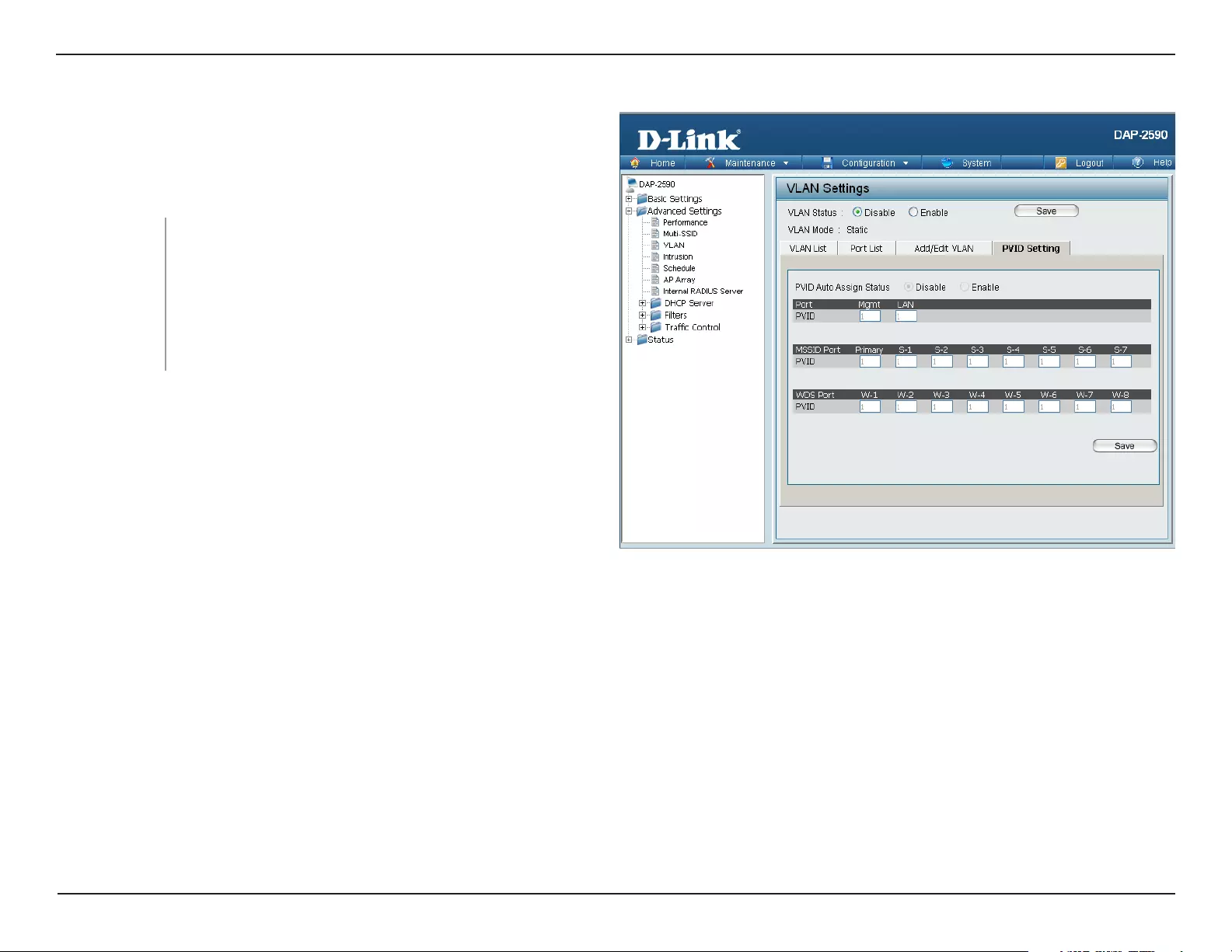
VLAN > PVID Setting
The PVID Setting tab is used to enable/disable the Port VLAN
Identifier Auto Assign Status as well as to configure various types
of PVID settings. Once you have made the desired settings, click
the Save button to let your changes take effect.
Use the radio button to toggle to Enable.
VLAN Status:
Use the radio button to toggle PVID auto assign status
to Enable.
PVID Auto Assign
Status:
VLAN Mode: The current VLAN mode is displayed.
37D-Link DAP-2590 User Manual
Section 3 — Configuration
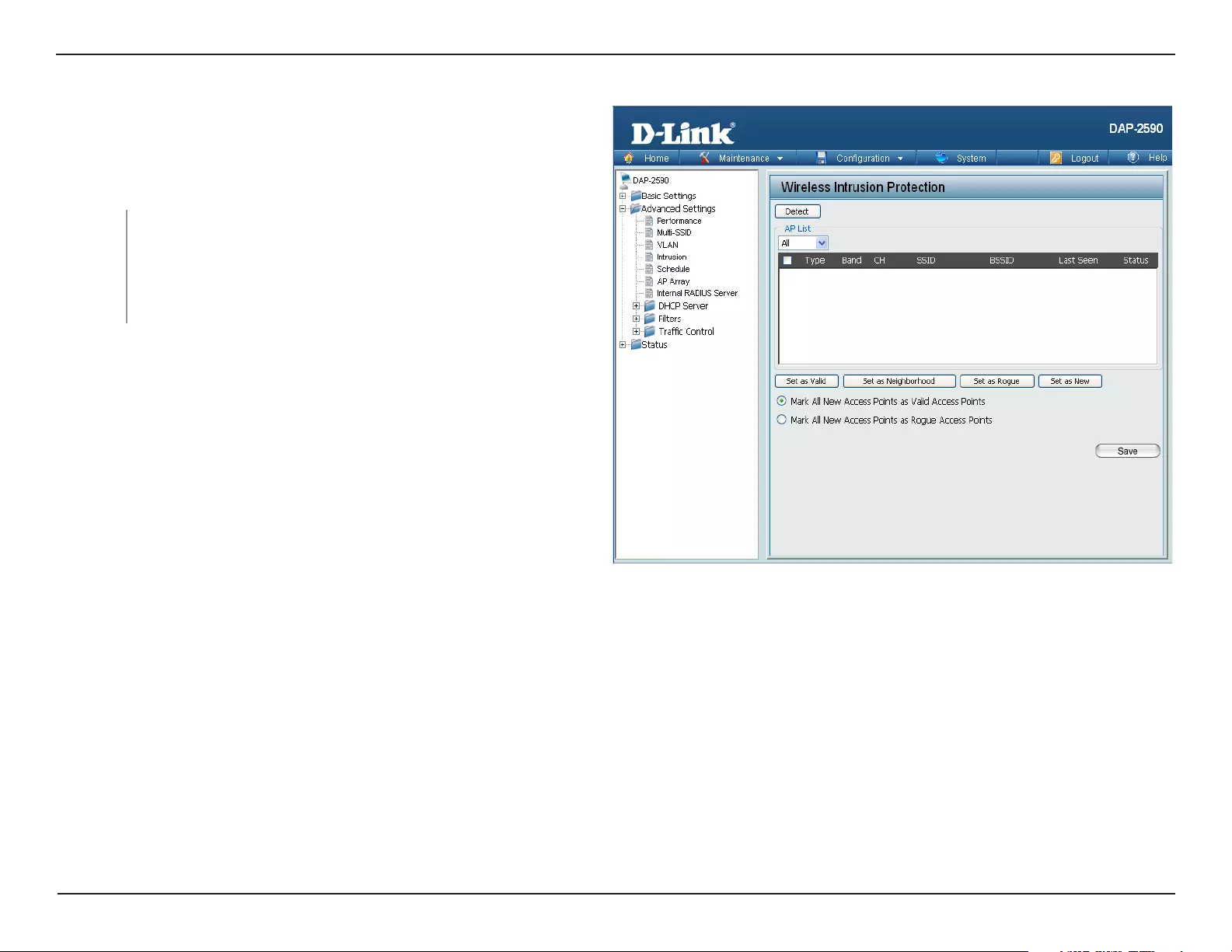
Intrusion
The choices include All, Valid, Neighbor, Rogue, and
New.
Click this button to initiate a scan of the network.
AP List:
Detect
The Wireless Intrusion Protection window is used to set APs as
All, Valid, Neighborhood, Rogue, and New. Once you have made
the desired settings, click the Save button to let your changes take
effect.
38D-Link DAP-2590 User Manual
Section 3 — Configuration
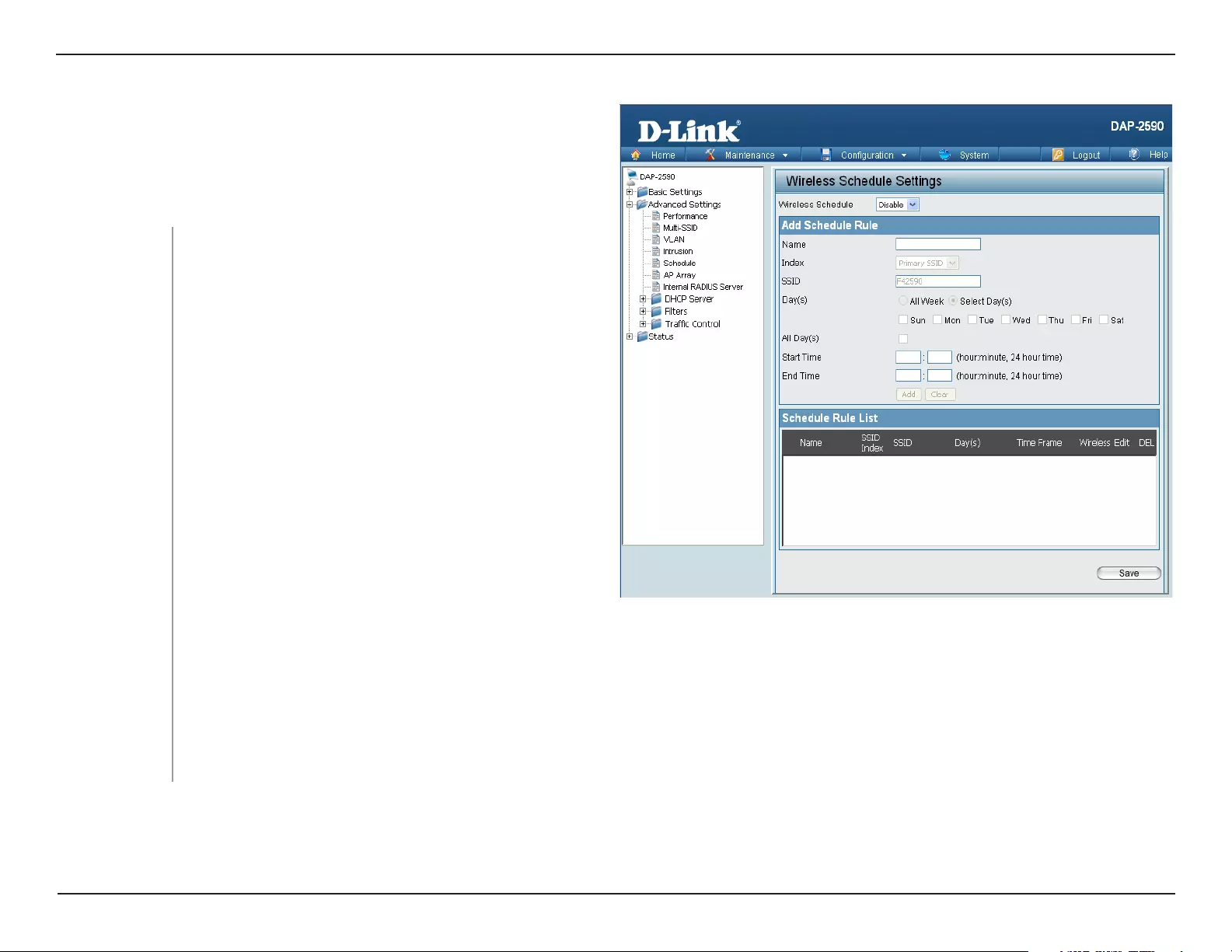
Schedule
Use the drop-down menu to Enable the device’s
scheduling feature.
Wireless
Schedule:
The Wireless Schedule Settings window is used to add and modify
scheduling rules on the device. When the information for the new
schedule rule is finished, click the Add button. To discard the new
schedule rule settings, click the Clear button. Click the Save button
to let your changes take effect.
Enter a name for the new scheduling rule in the field
provided.
Use the drop-down menu to select the desired
SSID.
This read-only field indicates the current SSID in use.
To create a new SSID, go to the Wireless Settings
window (Basic Settings > Wireless).
Name:
Index:
SSID:
Toggle the radio button between All Week and Select
Day(s). If the second option is selected, check the
specific days you want the rule to be effective on.
Check this box to have settings apply 24 hours a day. If the settings are not to apply 24 hours a day, enter the desired starting
and ending times in the next two fields.
Enter the beginning hour and minute, using a 24-hour clock.
Enter the ending hour and minute, using a 24-hour clock.
Day(s):
All Days(s):
Start Time:
End Time:
39D-Link DAP-2590 User Manual
Section 3 — Configuration
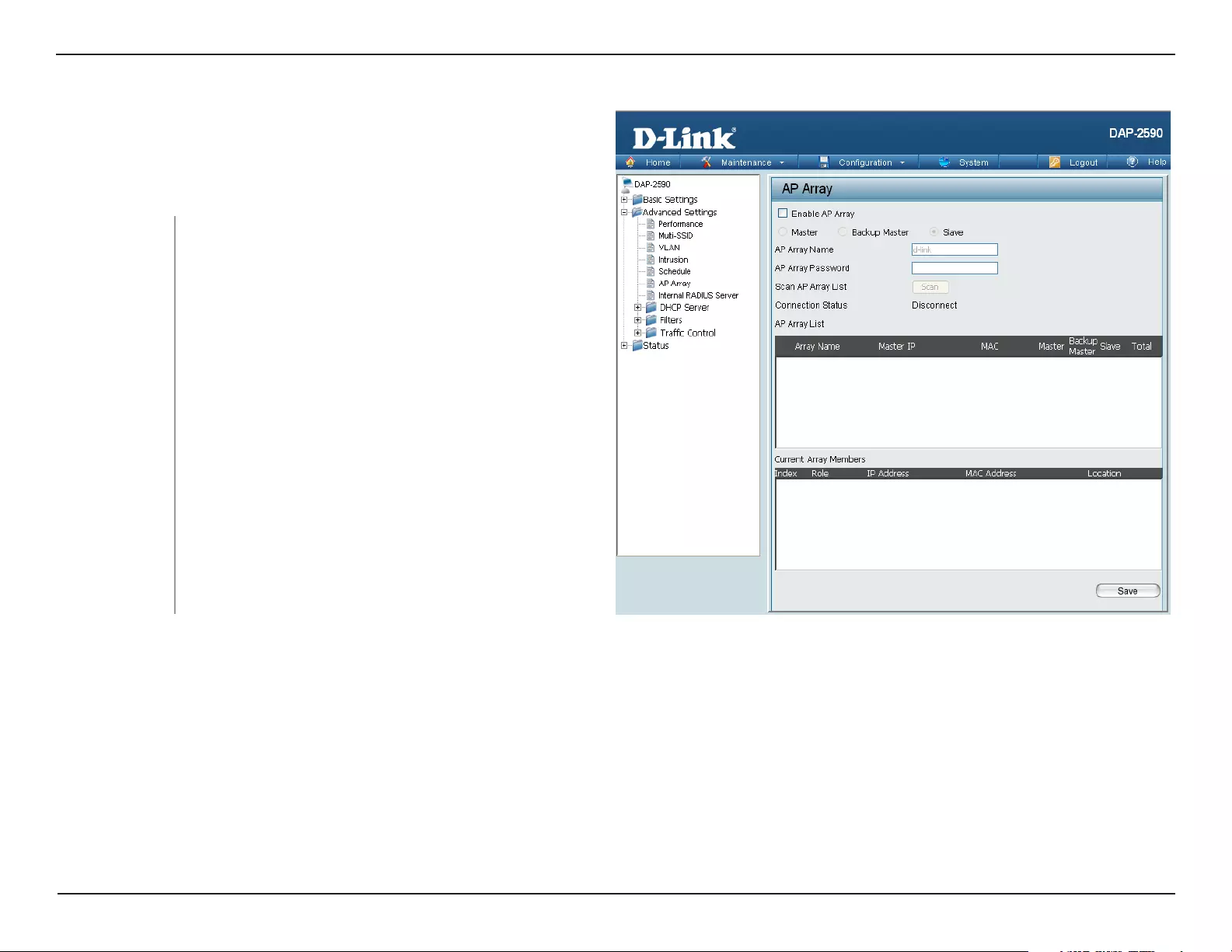
AP Array
Check this box to enable the AP array function. The
three modes that are available are Master, Backup
Master, and Slave. APs in the same array will use the
same configuration. The configuration will sync the
Master AP to the Slave AP and the Backup Master
AP when a Slave AP and a Backup Master AP join
the AP array
Enable AP Array:
The AP Array window allows users to create a set of devices on a
network that are organized into a single group in order to increase
ease of management. Once a user has made the desired settings,
click the Save button to let the changes take effect.
Enter a name for the AP array you have created.
Enter a password that will be used to access the AP
array you have created.
AP Array Name:
AP Array
Password:
Click the button to initiate a scan of all the available
APs on the network.
This displays the status of the current AP array.
Scan AP Array List:
Connection Status:
40D-Link DAP-2590 User Manual
Section 3 — Configuration
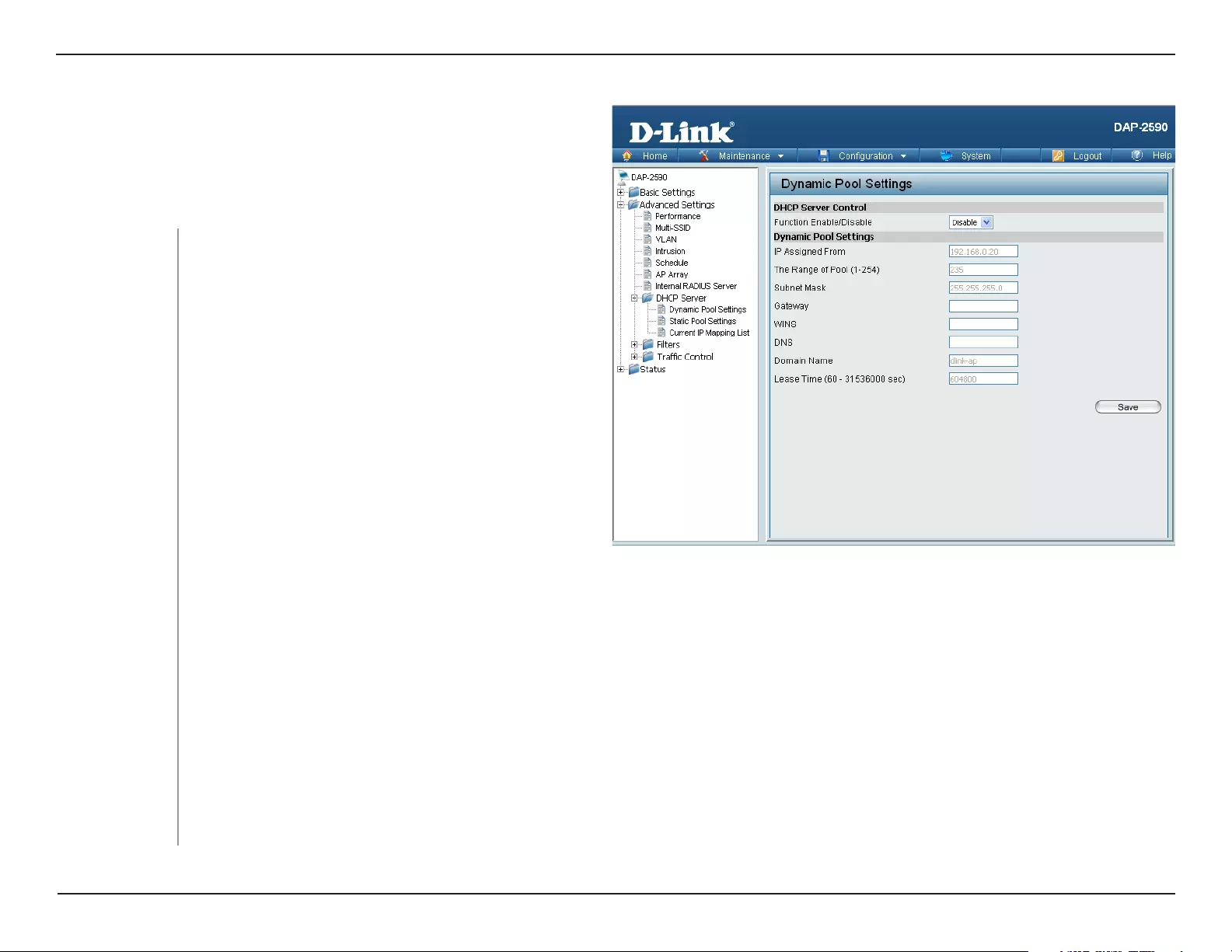
Internal RADIUS Server
Enter a name to authenticate user access to the internal
RADIUS server.
User Name:
The DAP-2590 features a built-in RADIUS server. Once you have
finished adding a RADIUS account, click the Save button to let your
changes take effect. The newly-created account will appear in this
RADIUS Account List. The radio buttons allow the user to enable or
disable the RADIUS account. Click the icon in the delete column to
remove the RADIUS account.
Enter a password to authenticate user access to the
internal RADIUS server.
Toggle the drop-down menu between Enable and
Disable.
Password:
Status:
41D-Link DAP-2590 User Manual
Section 3 — Configuration
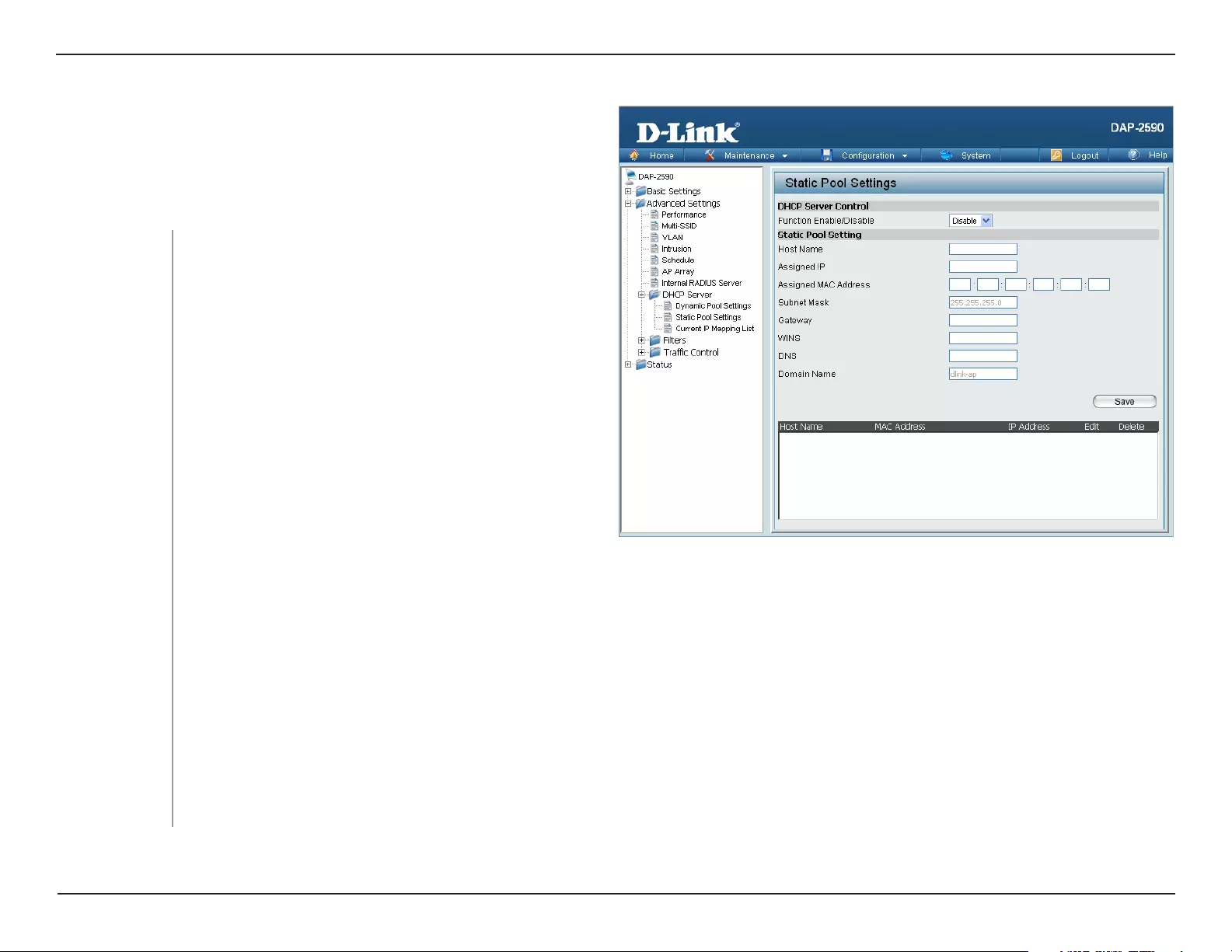
DHCP Server > Dynamic Pool Settings
Function Enable/
Disable:
Dynamic Host Configuration Protocol (DHCP)
assigns dynamic IP addresses to devices on
the network. This protocol simplifies network
management and allows new wireless devices to
receive IP addresses automatically without the
need to manually assign new IP addresses. Select
Enable to allow the DAP-2590 to function as a
DHCP server.
Enter the number of IP addresses available for
assignment. IP addresses are increments of the IP
address specified in the “IP Assigned From” field.
The Range of Pool
(1-254):
Input the first IP address available for assignment
on your network.
SubMask:
Gateway:
WINS:
DNS:
All devices in the network must have the same subnet mask to communicate. Enter the submask for the network here.
The DHCP address pool defines the range of the IP address that
can be assigned to stations in the network. A Dynamic Pool allows
wireless stations to receive an available IP with lease time control.
Once a user is finished, click the Save button to let the changes
take effect.
IP Assigned From:
Specify the Windows Internet Naming Service (WINS) server address for the wireless network. WINS is a system that
determines the IP address of a network computer that has a dynamically assigned IP address.
Enter the IP address of the gateway on the network.
Enter the IP address of the Domain Name System (DNS) server. The DNS server translates domain names such as
www.dlink.com into IP addresses.

42D-Link DAP-2590 User Manual
Section 3 — Configuration
Enter the domain name of the network, if applicable. (An example of a domain name is: www.dlink.com.)
The lease time is the period of time before the DHCP server will assign new IP addresses.
Domain Name:
Lease Time
(60-31536000 sec):
43D-Link DAP-2590 User Manual
Section 3 — Configuration
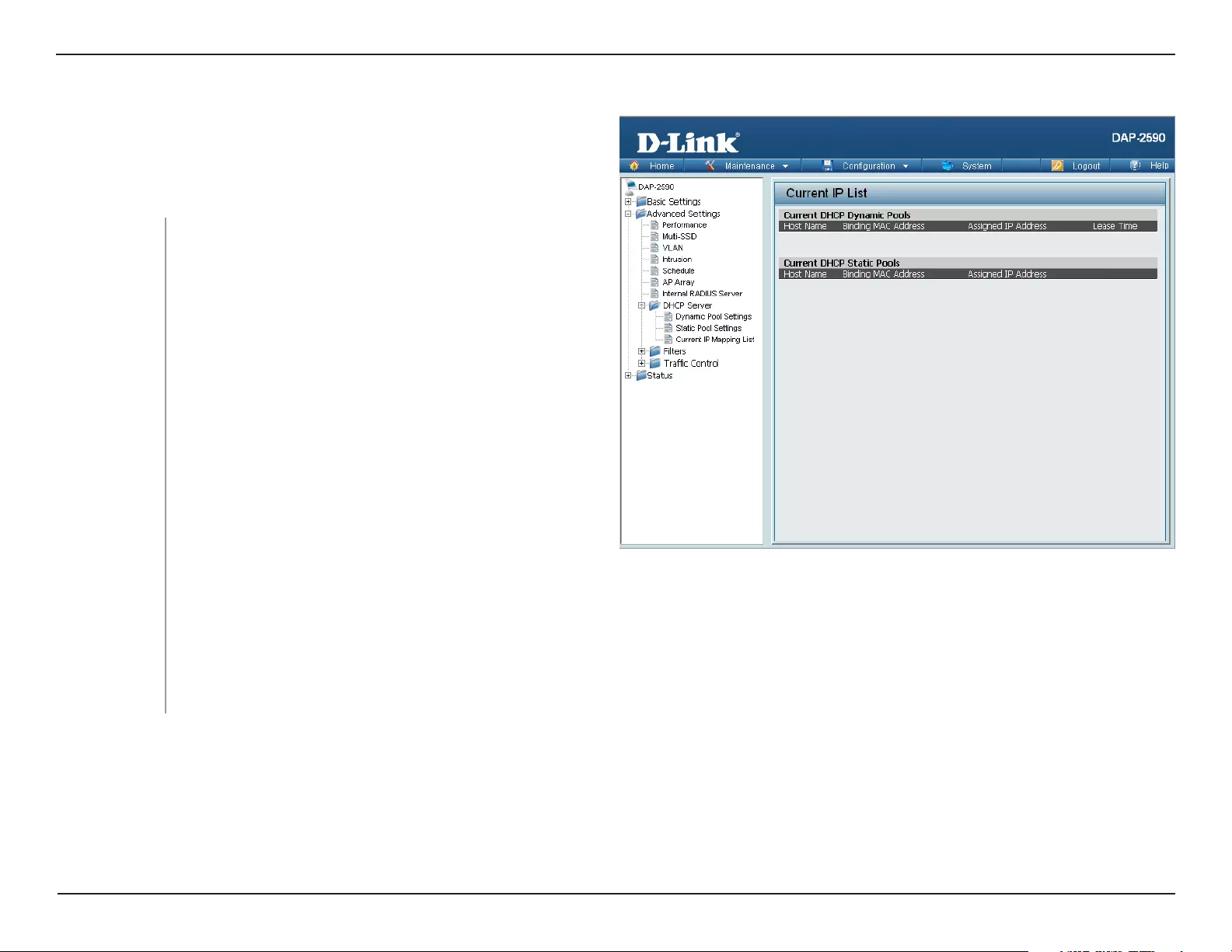
DHCP Server > Static Pool Setting
Function Enable/
Disable:
Dynamic Host Configuration Protocol (DHCP) assigns
IP addresses to wireless devices on the network.
This protocol simplifies network management and
allows new wireless devices to receive IP addresses
automatically without the need to manually assign IP
addresses. Select Enable to allow the DAP-2590 to
function as a DHCP server.
Enter the name of the host computer in this text box.
The DHCP address pool defines the range of IP addresses that can
be assigned to stations on the network. A static pool allows specific
wireless stations to receive a fixed IP without time control.
Once a user is finished, click the Save button to let the changes take
effect.
Host Name:
Use the Static Pool Settings to assign the same IP address to a device every time you start up. The IP addresses assigned
in the Static Pool list must NOT be in the same IP range as the Dynamic Pool. After you have assigned a static IP address
to a device via its MAC address, click Save; the device will appear in the Assigned Static Pool at the bottom of the window.
You can edit or delete the device in this list.
Enter the MAC address of the device requesting association here.
Define the subnet mask of the IP address specified in the “IP Assigned From” field.
Assigned MAC
Address:
Subnet Mask:
Assigned IP:

44D-Link DAP-2590 User Manual
Section 3 — Configuration
WINS:
DNS:
Domain Name:
Specify the domain name for the network.
Gateway: Specify the Gateway address for the wireless network.
Specify the Windows Internet Naming Service (WINS) server address for the wireless network. WINS is a systemINS is a system
that determines the IP address of a network computer with a dynamically assigned IP address, if applicable.
Enter the Domain Name System (DNS) server address for the wireless network. The DNS server translates domain
names such as www.dlink.com into IP addresses.
45D-Link DAP-2590 User Manual
Section 3 — Configuration
DHCP Server > Current IP Mapping List
These are IP address pools the DHCP server has
assigned using the dynamic pool setting.
This window displays information about the current assigned DHCP
dynamic and static IP address pools. This information is available
when you enable DHCP server on the AP and assign dynamic and
static IP address pools.
Current DHCP
Dynamic Pools:
Binding MAC
Address:
Assigned IP
Address:
Lease Time:
Current DHCP
Static Pools:
Binding MAC
Address:
Assigned IP
Address:
The MAC address of a device on the network that
is assigned an IP address from the DHCP dynamic
pool.
The current corresponding DHCP-assigned IP address
of the device.
The length of time that the dynamic IP address will be
valid.
These are the IP address pools of the DHCP server
assigned through the static pool settings.
The MAC address of a device on the network that is within the DHCP static IP address pool.
The current corresponding DHCP-assigned static IP address of the device.
46D-Link DAP-2590 User Manual
Section 3 — Configuration
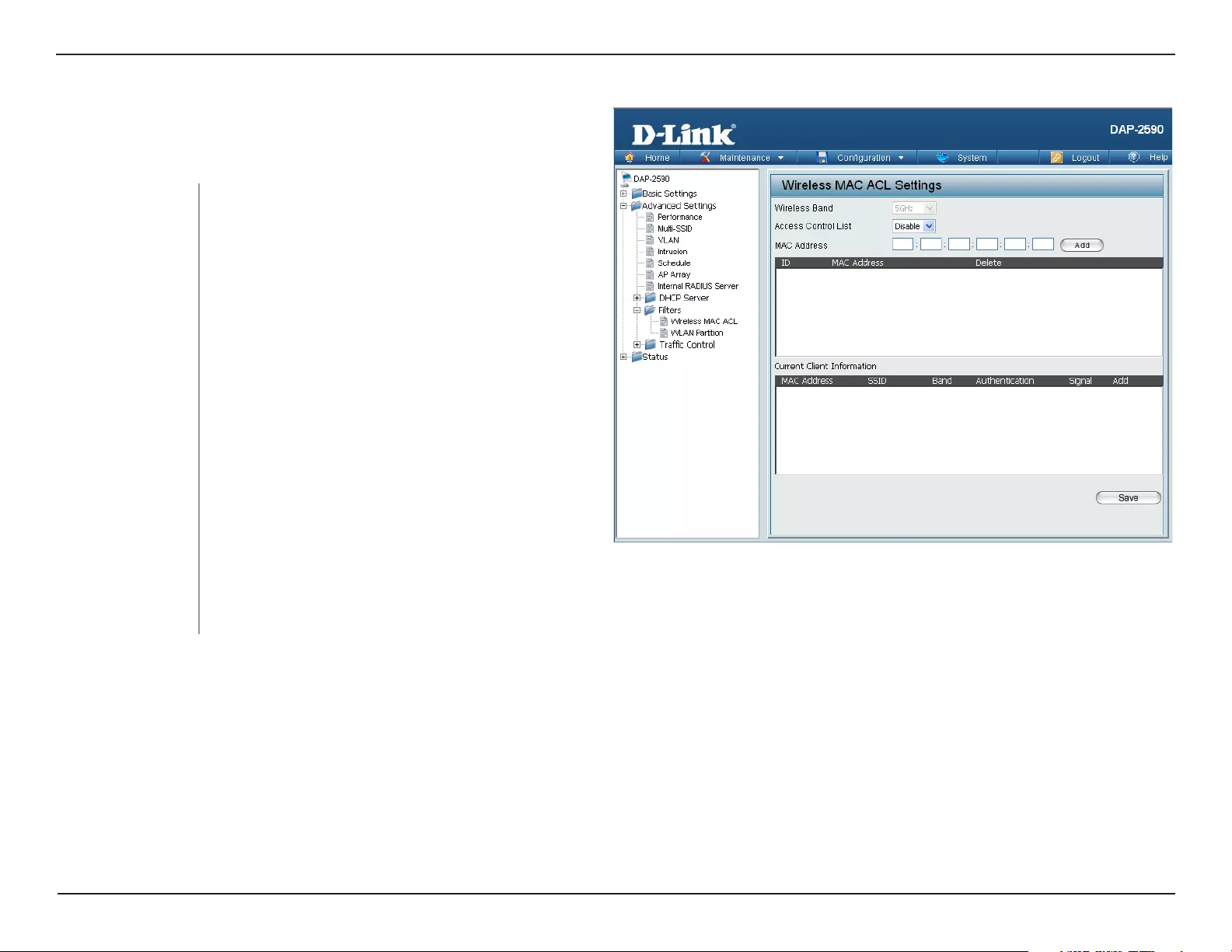
Filters > Wireless MAC ACL
Wireless Band:
Access Control List:
Displays the current wireless band rate.
Enter each MAC address that you wish to include
in your filter list, and click Add.
When a MAC address is entered, it appears in
this list. Highlight a MAC address and click the
Delete icon to remove it from this list.
Select Disable to disable the filters function.
Select Accept to accept only those devices with
MAC addresses in the Access Control List. All
other devices not on the list will be rejected.
Select Reject to reject the devices with MAC
addresses on the Access Control List. All other
devices not on the list will be accepted.
MAC Address List:
MAC Address:
The DAP-2590 features a wireless MAC Access Control List filter.
Once a user is finished with these settings, click the Save button to
let the changes take effect.
Current Client
Information:
This table displays information about all the current connected stations.
47D-Link DAP-2590 User Manual
Section 3 — Configuration
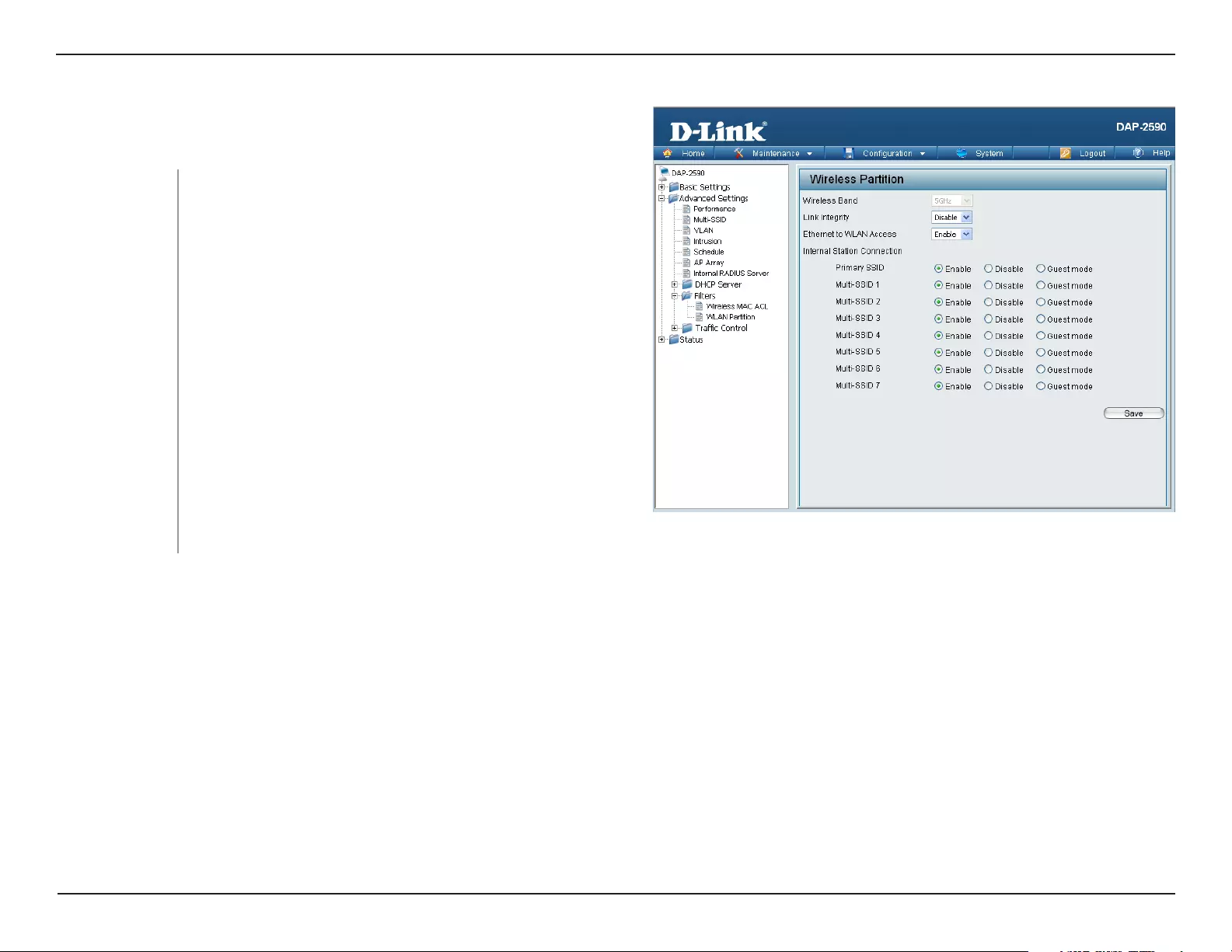
Filters > WLAN Partition
Wireless Band:
Link Integrity:
Ethernet to
WLAN Access:
Internal Station
Connection:
Displays the current wireless band rate.
Select Enable or Disable. If the Ethernet connection
between the LAN and the AP is disconnected, enabling
this feature will cause the wireless segment associated
with the AP to be disassociated from the AP.
The default is Enable. When disabled, all data from the
Ethernet to associated wireless devices will be blocked.
Wireless devices can still send data to the Ethernet.
The default value is Enable, which allows stations to
intercommunicate by connecting to a target AP. When
disabled, wireless stations cannot exchange data on the
same Multi-SSID. In Guest mode, wireless stations cannot
exchange data with any station on your network.
The DAP-2590 features a wireless partition. Once a user is finished with
these settings, click the Save button to let the changes take effect.
48D-Link DAP-2590 User Manual
Section 3 — Configuration
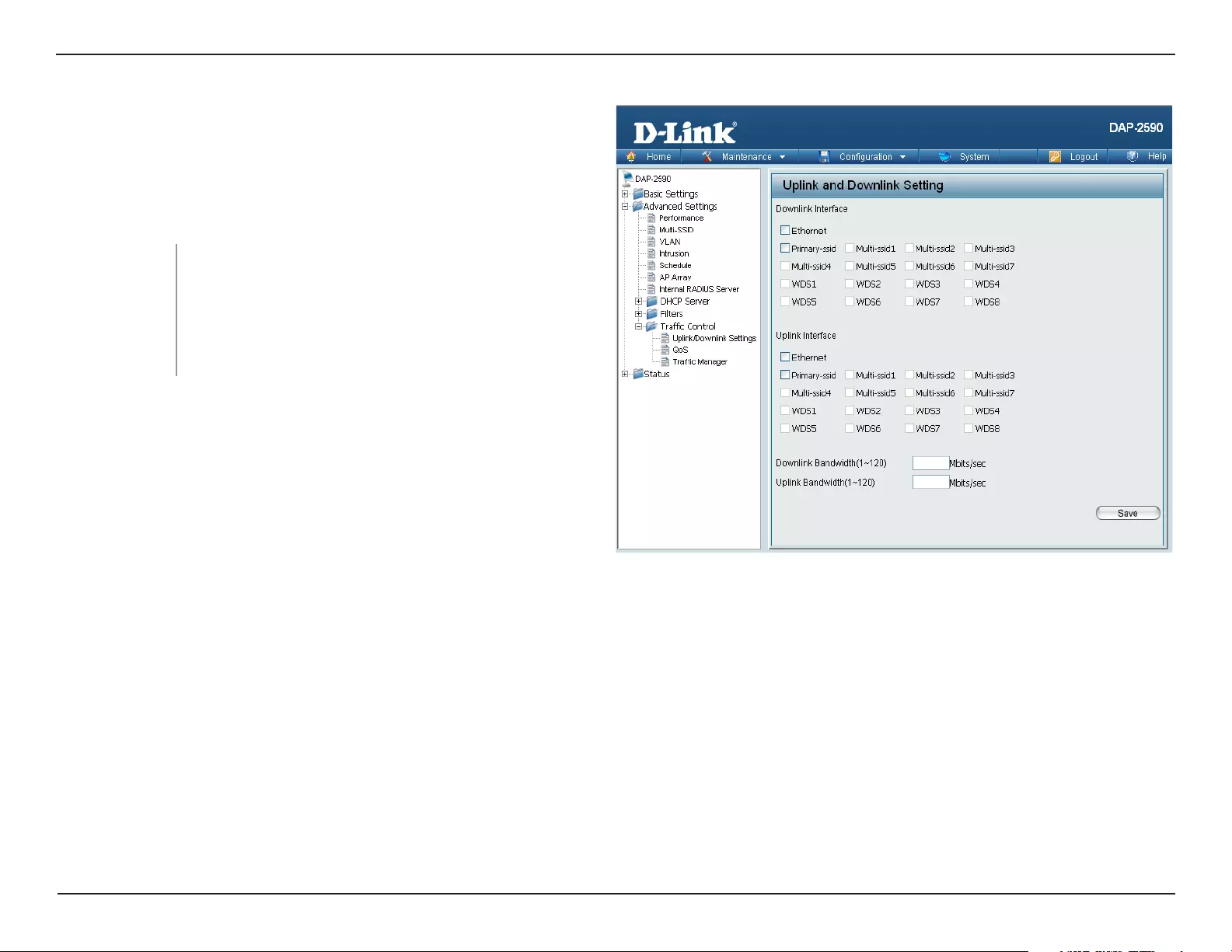
Traffic Control > Uplink/Downlink Setting
The downlink bandwidth in Mbits per second.
The uplink bandwidth in Mbits per second.
Downlink
Bandwidth:
Uplink Bandwidth:
The uplink/downlink setting allows users to customize the downlink
and uplink interfaces including specifying downlink/uplink bandwidth
rates in Mbits per second. These values are also used in the QoS
and Traffic Manager windows. Once the desired uplink and downlink
settings are finished, click the Save button to let your changes take
effect.
49D-Link DAP-2590 User Manual
Section 3 — Configuration
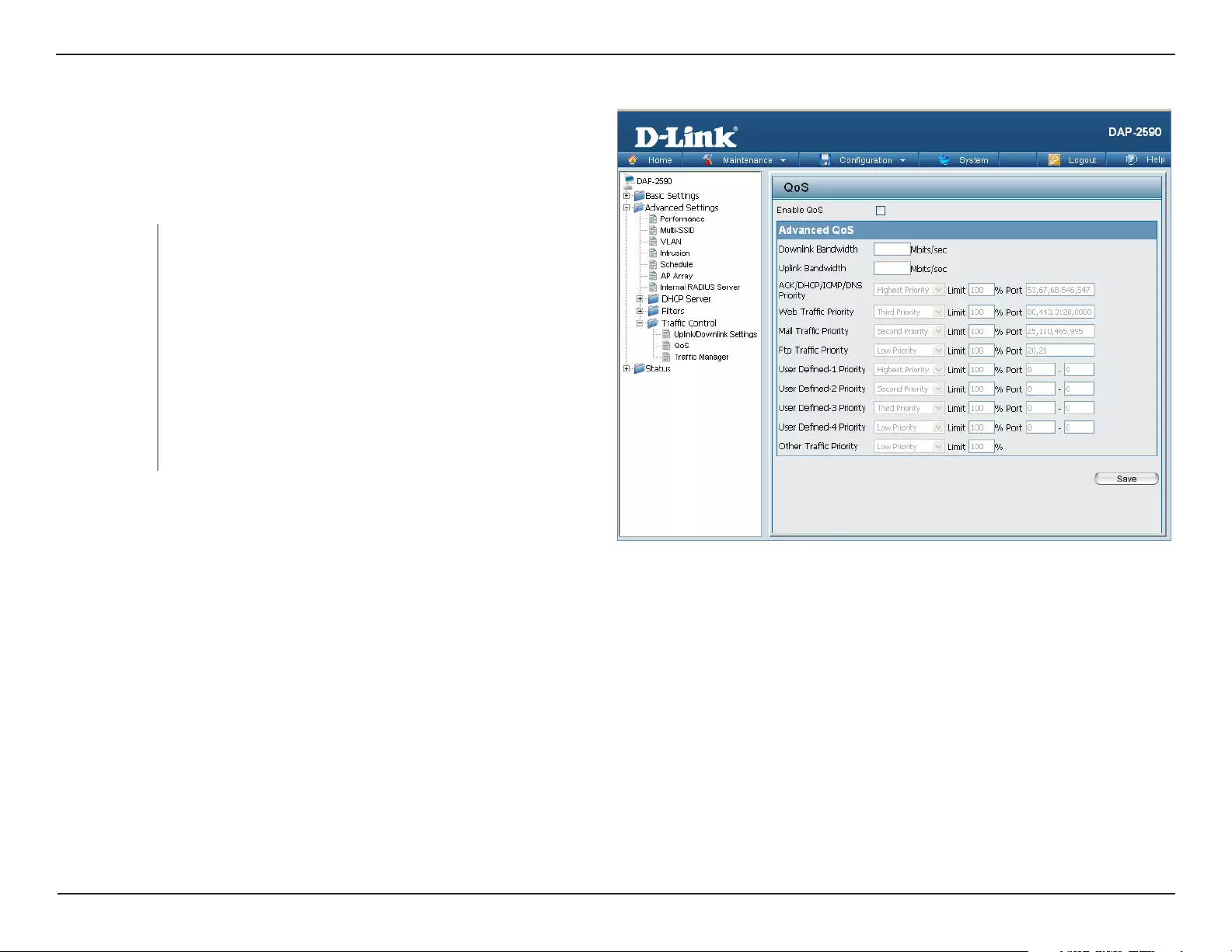
Traffic Control > QoS
Check this box to allow QoS to prioritize traffic. Use the
drop-down menus to select the four levels of priority.
Click the Save button when you are finished.
Enable QoS:
Downlink
Bandwidth:
Uplink
Bandwidth:
Quality of Service (QoS) enhances the experience of using a network
by prioritizing the traffic of different applications. The DAP-2590
supports four priority levels. Once the desired QoS settings are
finished, click the Save button to let your changes take effect.
The downlink bandwidth in Mbits per second. This value
is entered in the Uplink/Downlink Setting window.
The uplink bandwidth in Mbits per second. This value
is entered in the Uplink/Downlink Setting window.
50D-Link DAP-2590 User Manual
Section 3 — Configuration
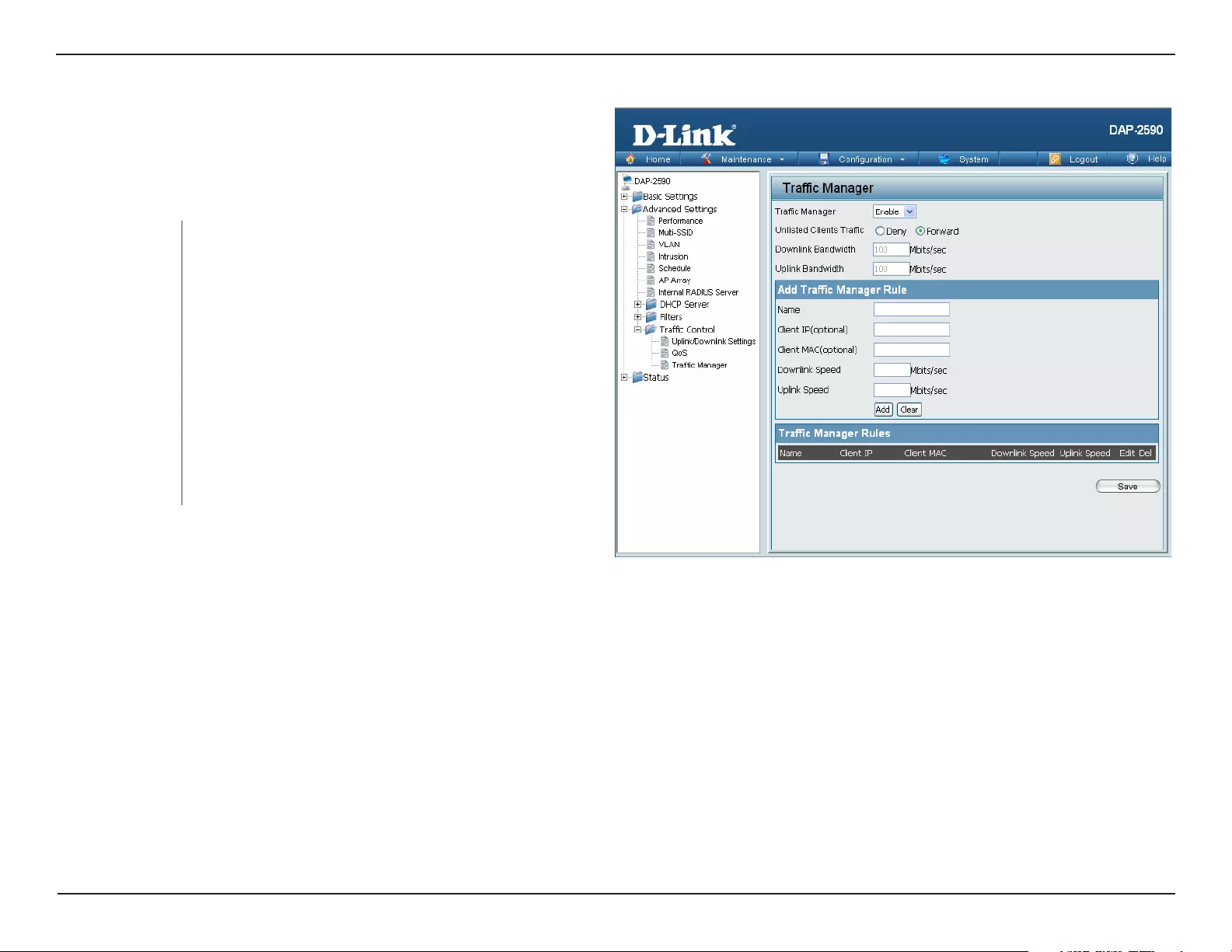
Traffic Control > Traffic Manager
Use the drop-down menu to Enable the traffic
manager feature.
Traffic Manager:
The traffic manager feature allows users to create traffic management
rules that specify how to deal with listed client traffic and specify
downlink/uplink speed for new traffic manager rules. Click the Save
button to let your changes take effect.
Toggle the radio buttons between Deny and Forward
to determine how to deal with unlisted client traffic.
The downlink bandwidth in Mbits per second. This
value is entered in the Uplink/Downlink Setting
window.
The uplink bandwidth in Mbits per second. This value
is entered in the Uplink/Downlink Setting window.
Unlisted Client
Traffic:
Downlink
Bandwidth:
Uplink Bandwidth:
51D-Link DAP-2590 User Manual
Section 3 — Configuration
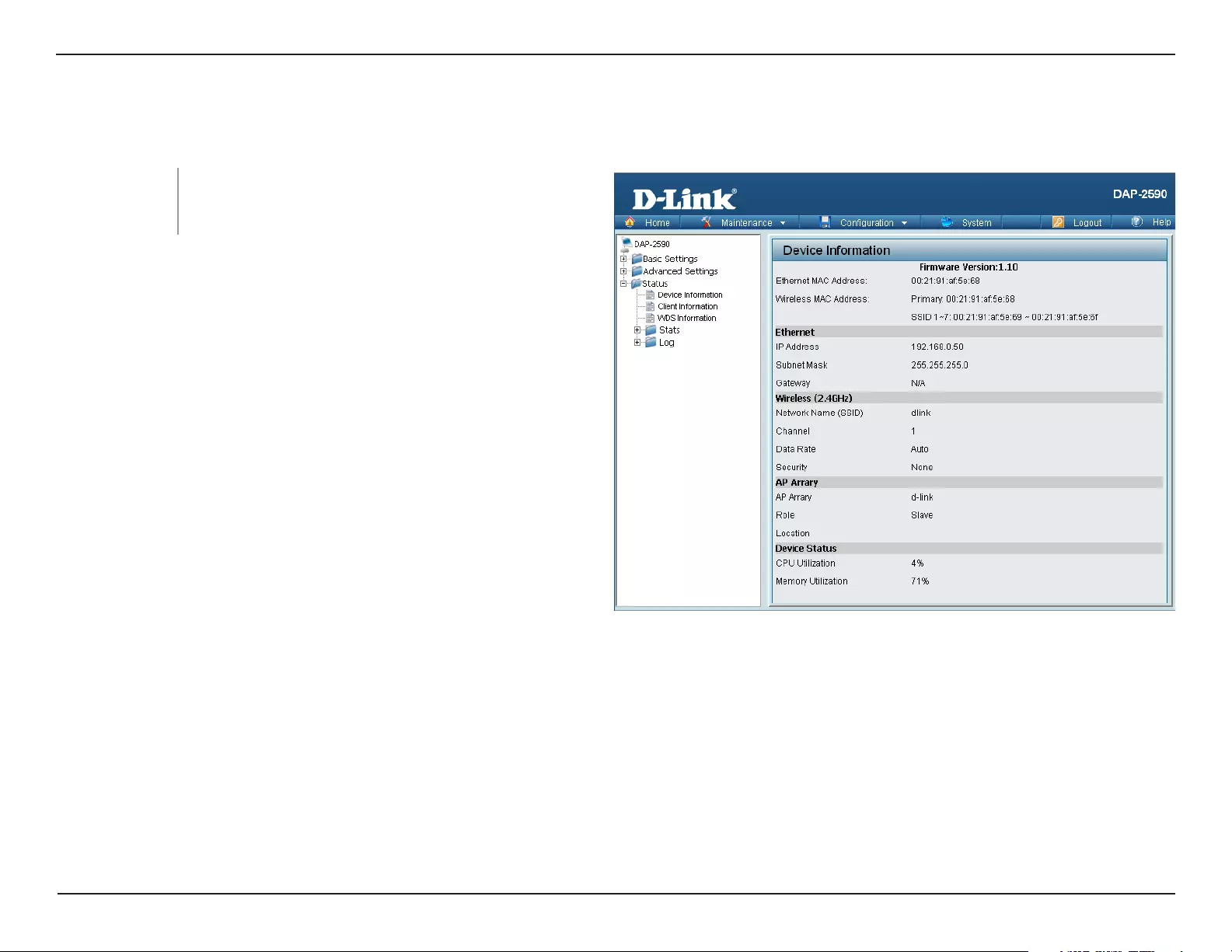
Home > Status
Device Information: This read-only window displays the configuration
settings of the DAP-2590, including the firmware
version and the device’s MAC address.
Device Information
52D-Link DAP-2590 User Manual
Section 3 — Configuration
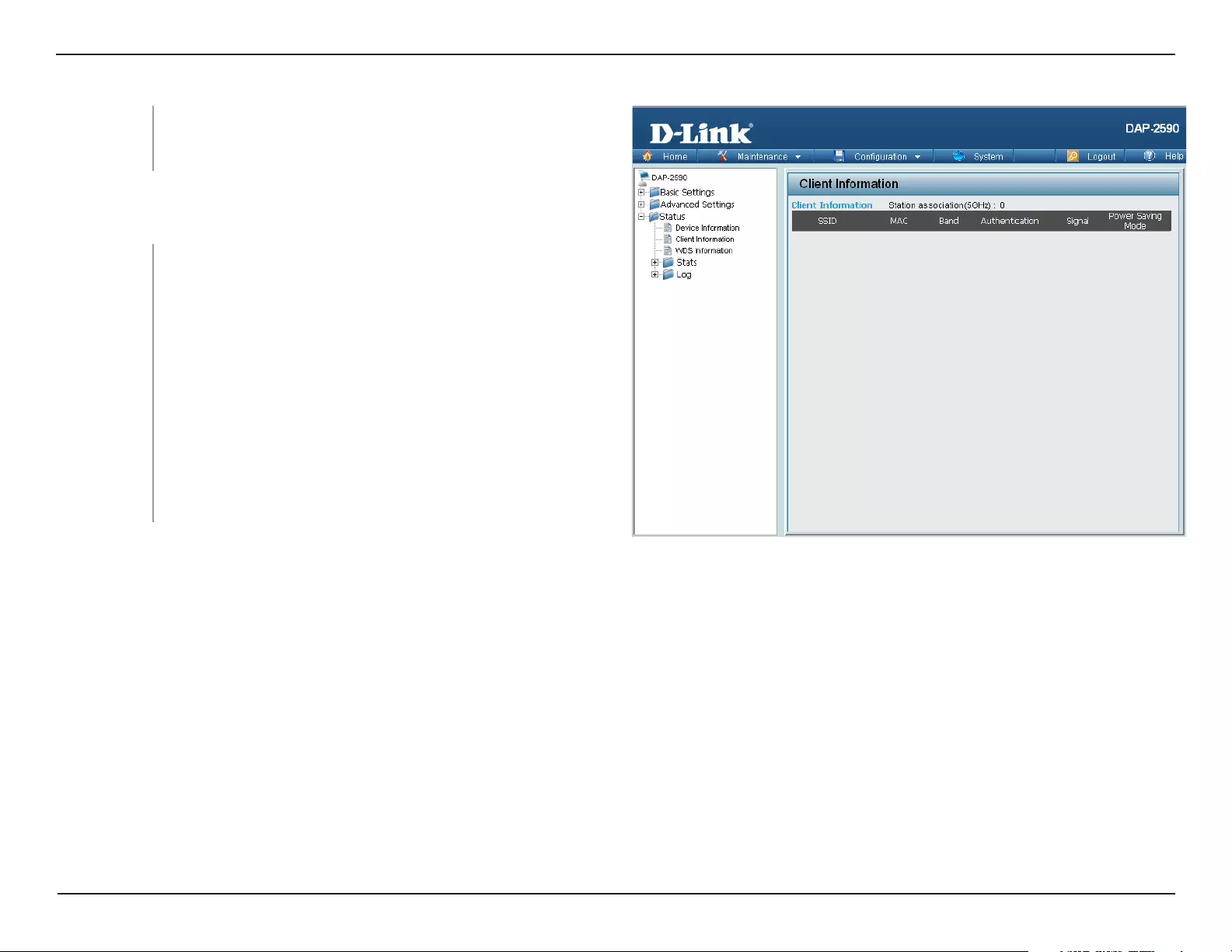
Client Information
Client
Information:
This window displays the wireless client information for
clients currently connected to the DAP-2590.
The following information is available for each client communicating
with the DAP-2590.
MAC:
Band:
Authentication:
Signal:
Power Saving
Mode:
SSID: Displays the SSID of the client.
Displays the MAC address of the client.
Displays the wireless band that the client is connected to.
Displays the type of authentication being used.
Displays the client’s signal strength.
Displays the status of the power saving feature.
53D-Link DAP-2590 User Manual
Section 3 — Configuration
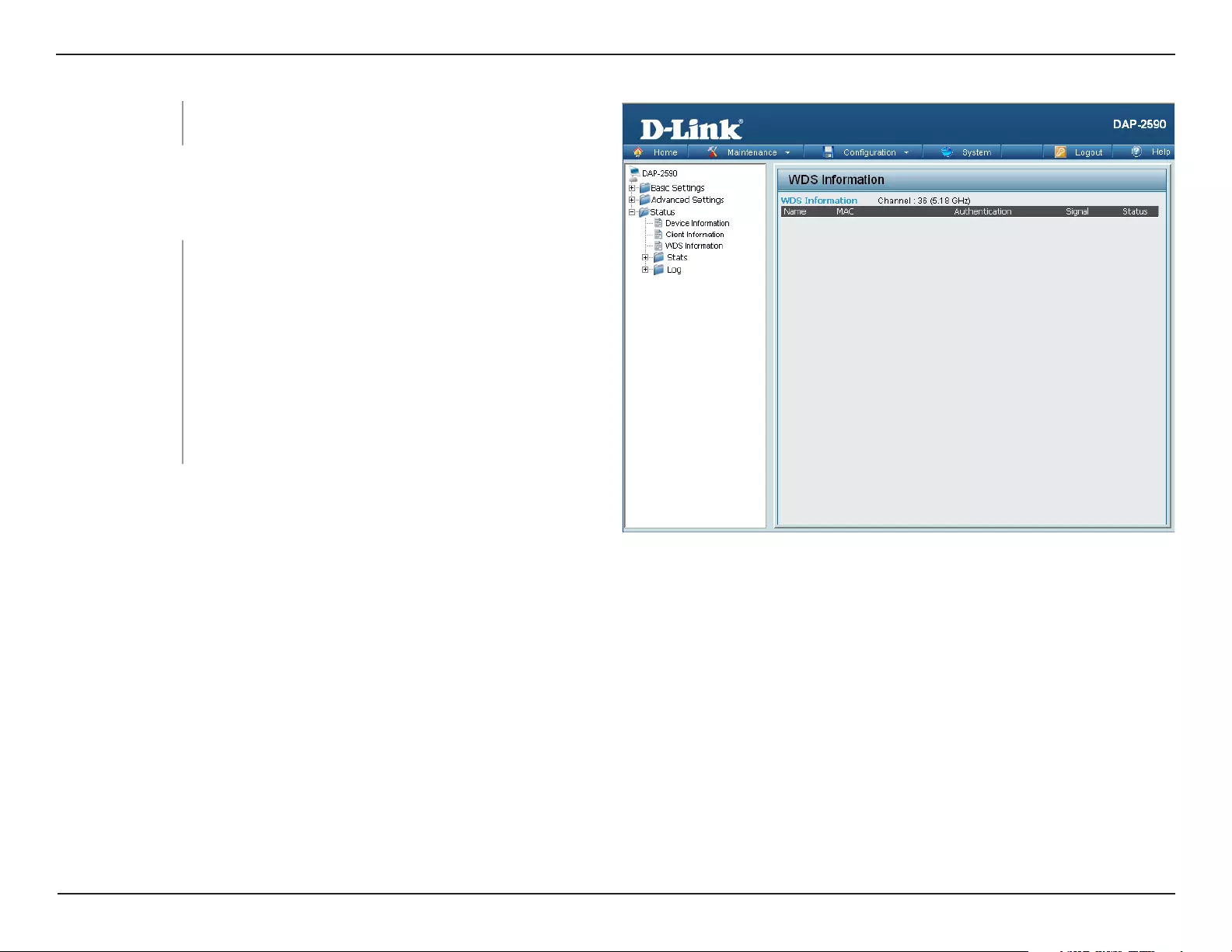
WDS Information
Name:
MAC:
Authentication:
Signal:
Status:
Displays the name of the client.
Displays the MAC address of the client.
Displays the type of authentication being used.
Displays the WDS link signal strength.
Displays the status of the power saving feature.
WDS Information: This window displays the Wireless Distribution
System information for clients currently connected
to the DAP-2590.
The following information is available for each client communicating
with the DAP-2590.
54D-Link DAP-2590 User Manual
Section 3 — Configuration
Home > Status
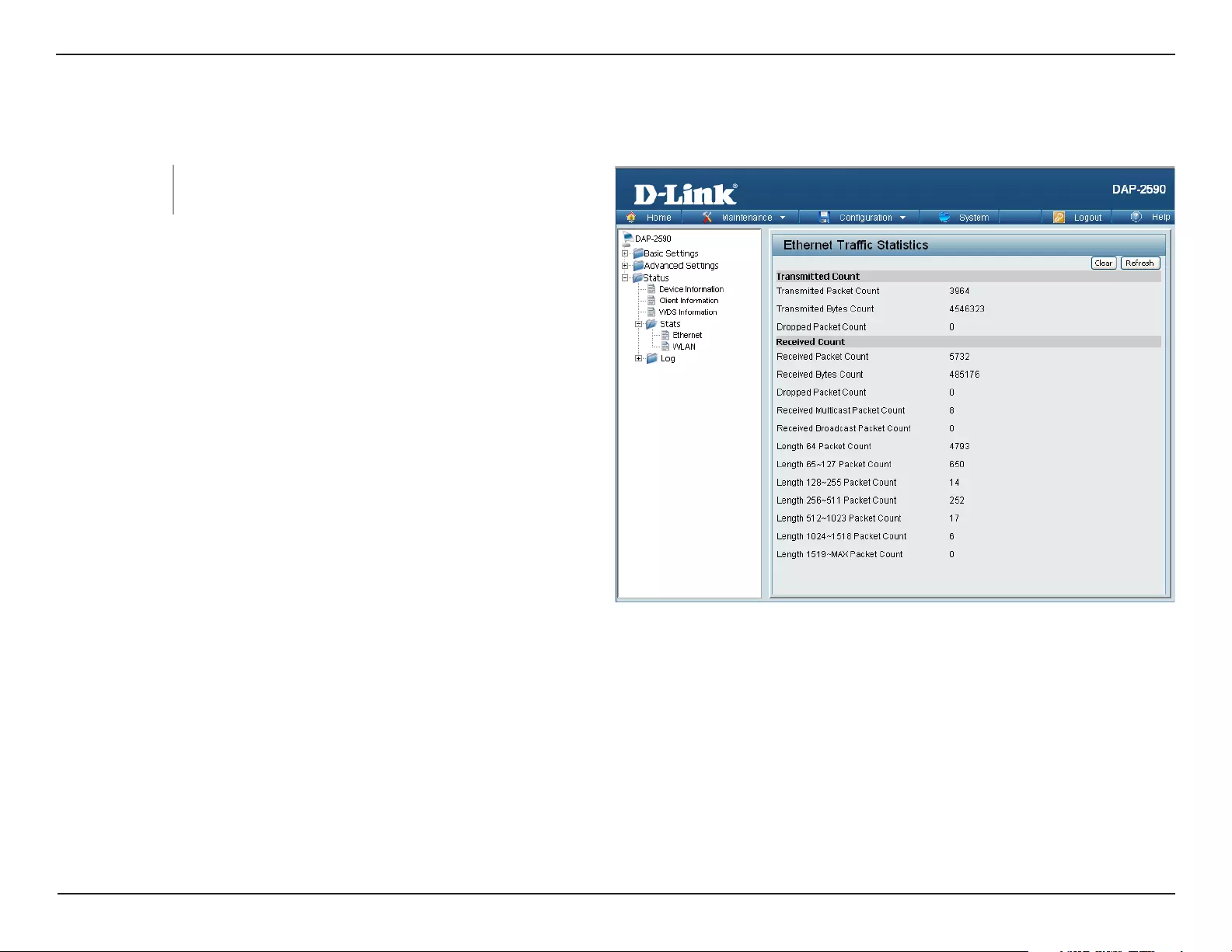
Ethernet Traffic
Statistics:
This window displays transmitted and received count
statistics for packets and bytes.
Stats > Ethernet
55D-Link DAP-2590 User Manual
Section 3 — Configuration
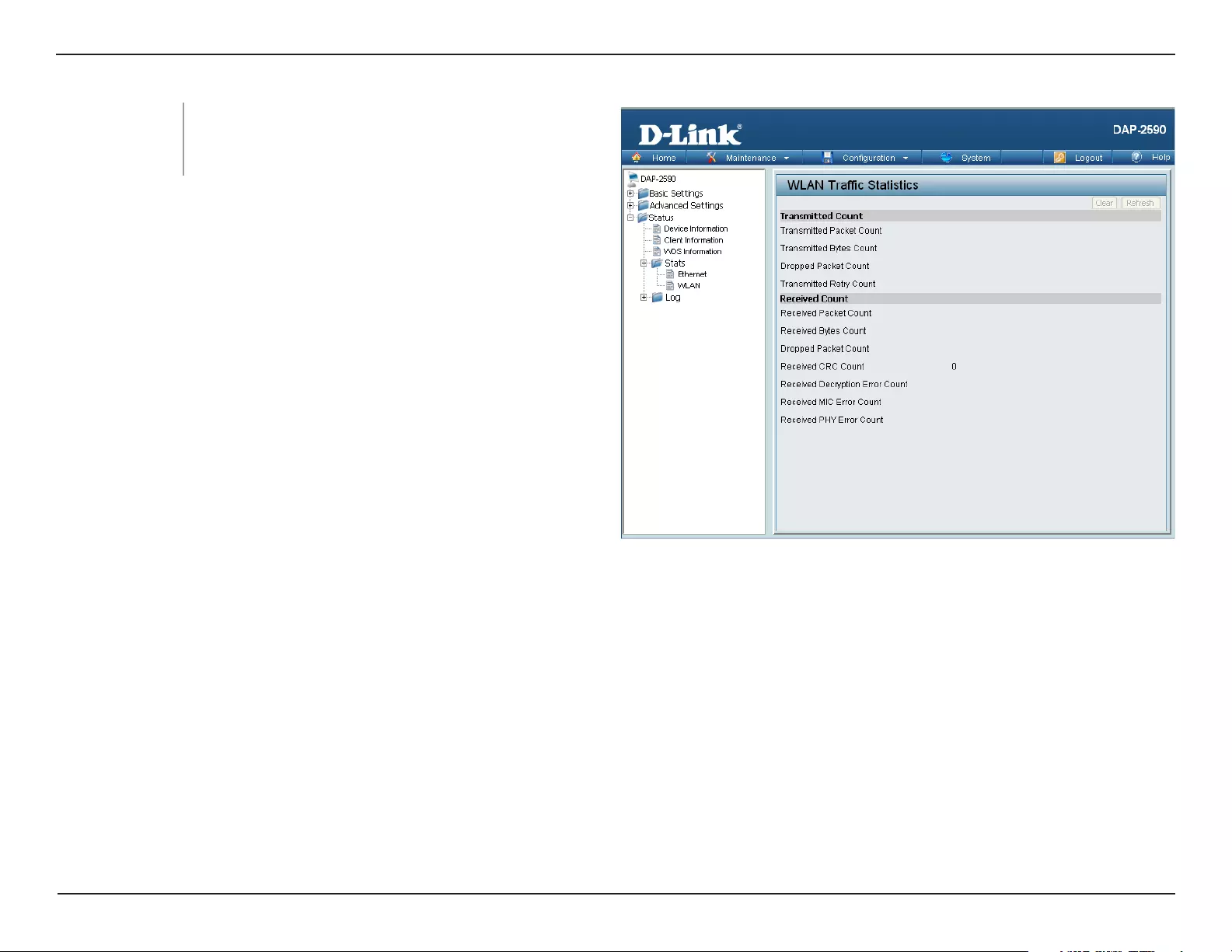
Stats > WLAN
WLAN Traffic
Statistics:
This window displays wireless network statistics for
data throughput, transmitted and received frames,
and frame errors.
56D-Link DAP-2590 User Manual
Section 3 — Configuration
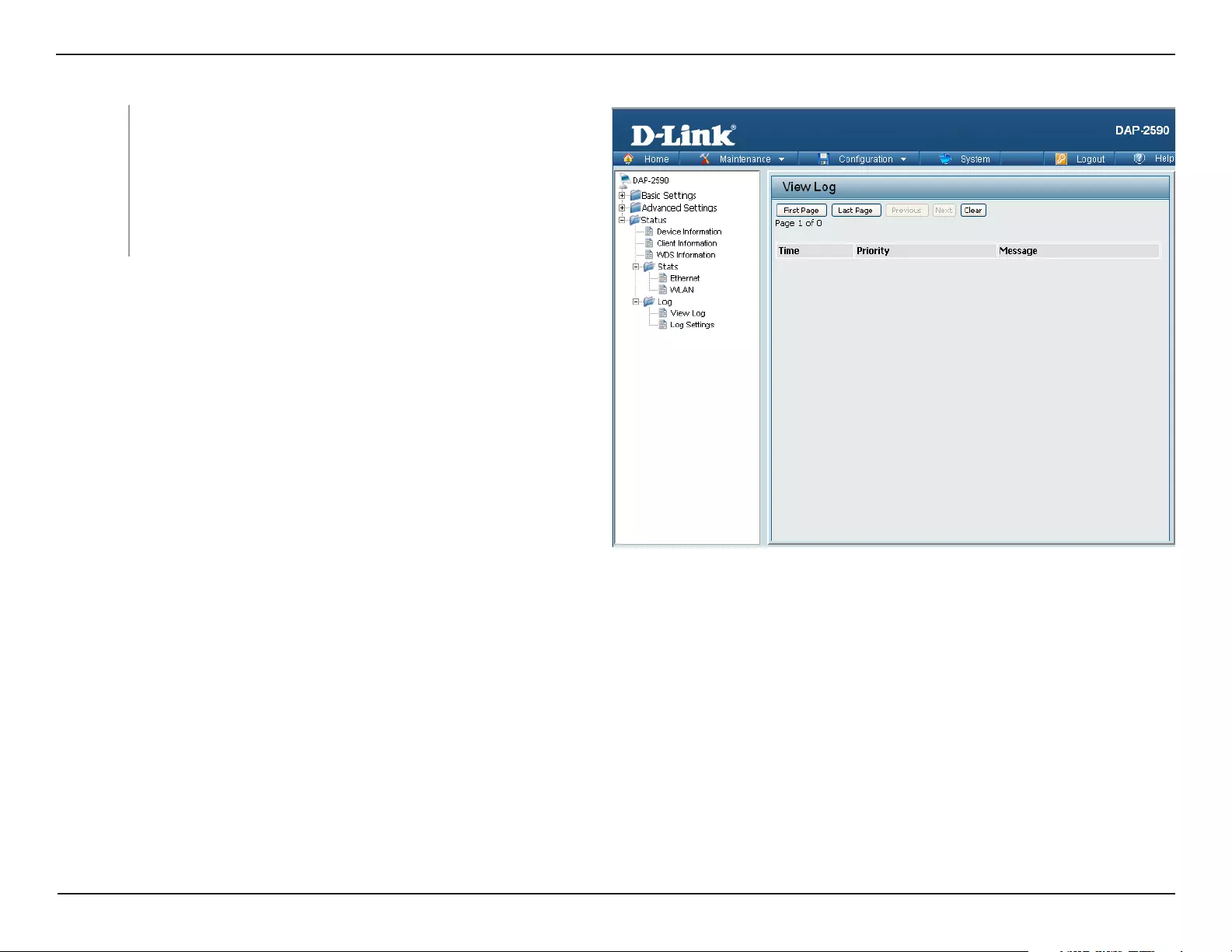
View Log: The AP’s embedded memory displays system and
network messages including a time stamp and message
type. The log information includes but is not limited to the
following items: cold start AP, upgrading firmware, client
associate and disassociate with AP, and web login. The
web page holds up to 500 logs.
Log > View Log
57D-Link DAP-2590 User Manual
Section 3 — Configuration
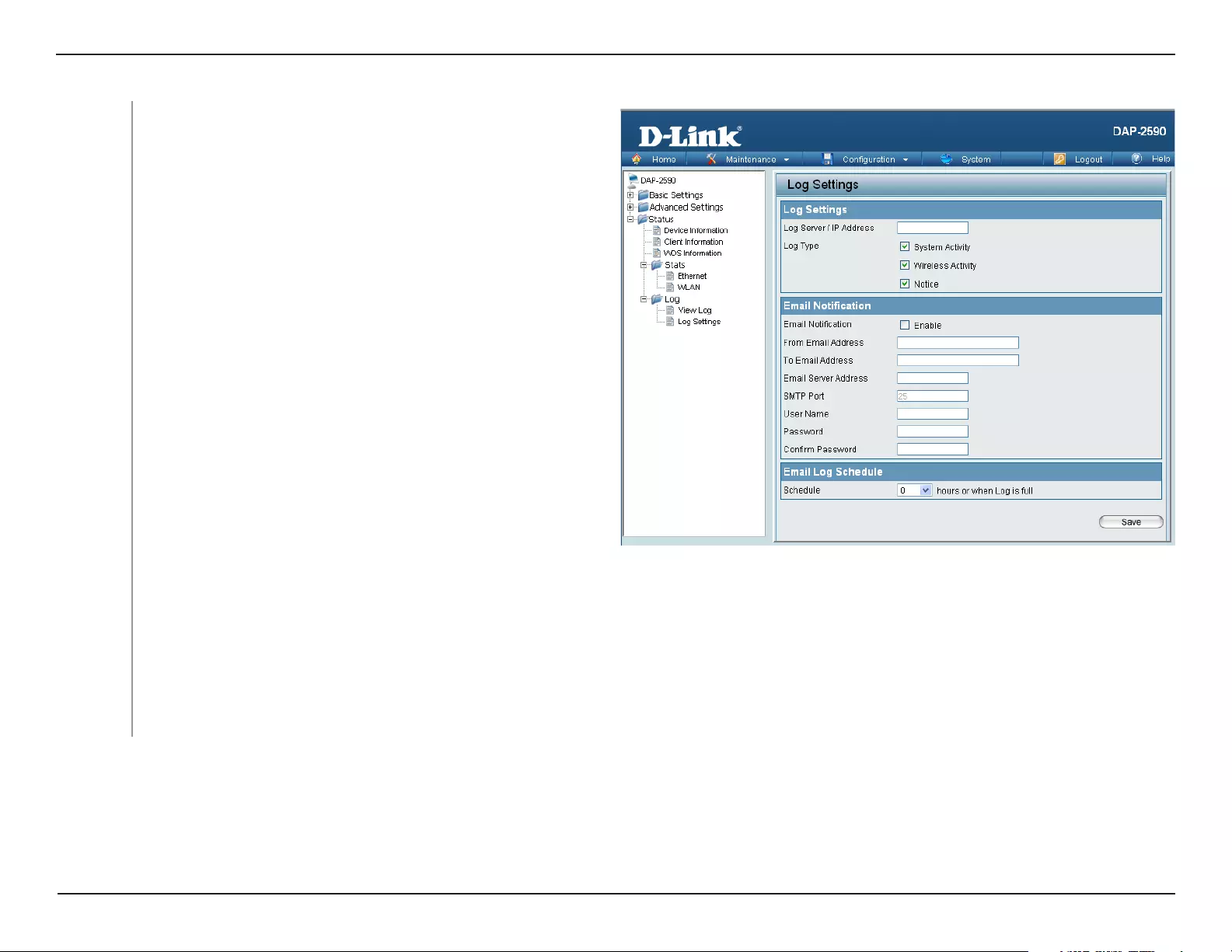
Log > Log Settings
Log Server/IP
Address:
Enter the IP address of the server you would like to send the
DAP-2590 log to.
Log Type: Check the box for the type of activity you want to log.
There are three types: System Activity, Wireless Activity,
and Notice.
Email Server
Address:
Enter the IP address of the e-mail/SMTP server.
Notification:
Check the box to enable Simple Mail Transfer Protocol.
From Email
Address:
Enter the e-mail address of the e-mail/SMTP sender.
To Email
Address:
Enter the e-mail address of the e-mail/SMTP recipient.
Schedule: Use the pull-down menu to set the e-mail log schedule.
User Name:
Password:
Confirm
Password:
Enter a user name for the SMTP server.
Enter a password for the SMTP server.
Confirm the password for the SMTP server by retyping it.
Enter the desired SMTP port number. The default value
is 25.
SMTP Port:
58D-Link DAP-2590 User Manual
Section 3 — Configuration
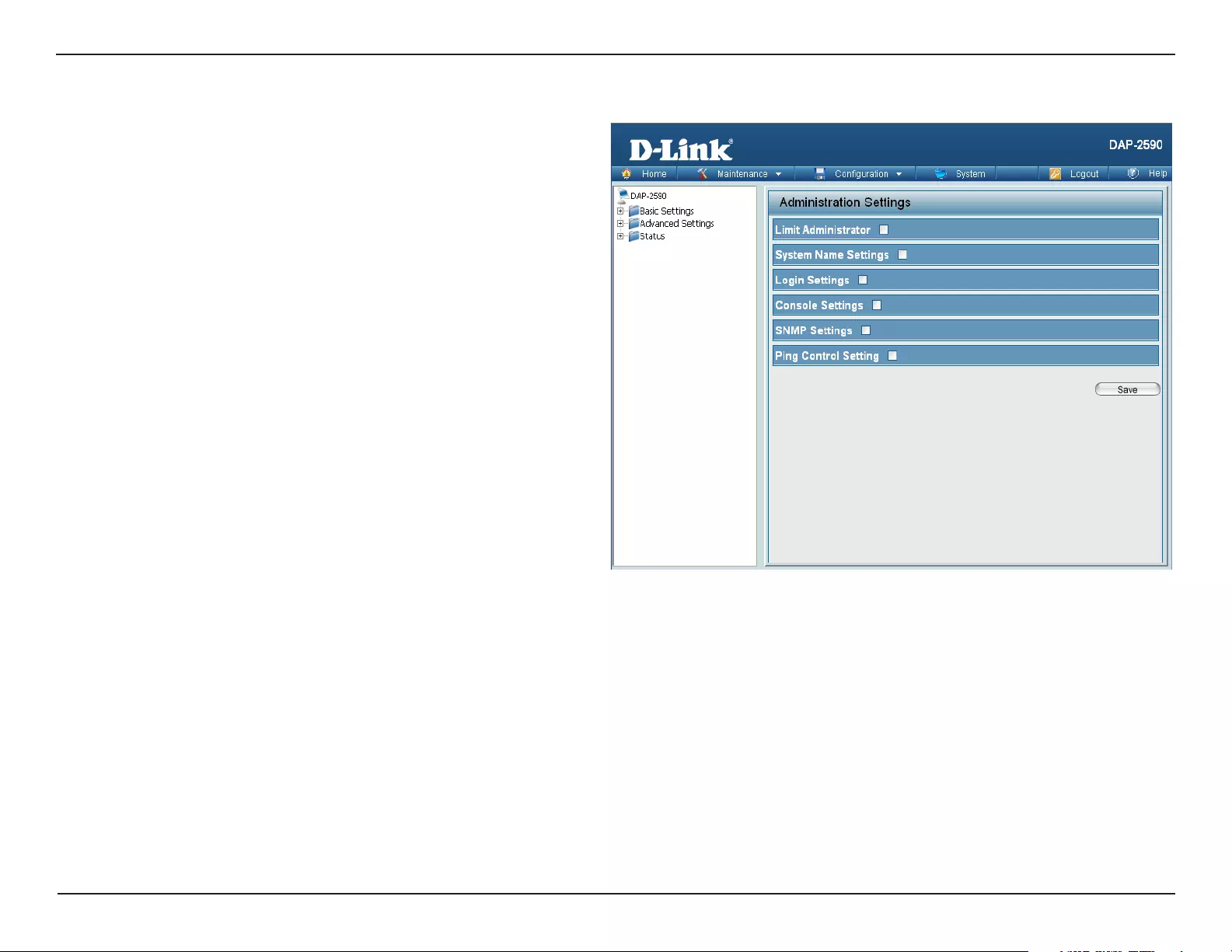
Maintenance > Administrator Settings Administrator Settings
Check one or more of the six main categories to display the
various hidden administrator parameters and settings displayed
on the next six windows.
59D-Link DAP-2590 User Manual
Section 3 — Configuration
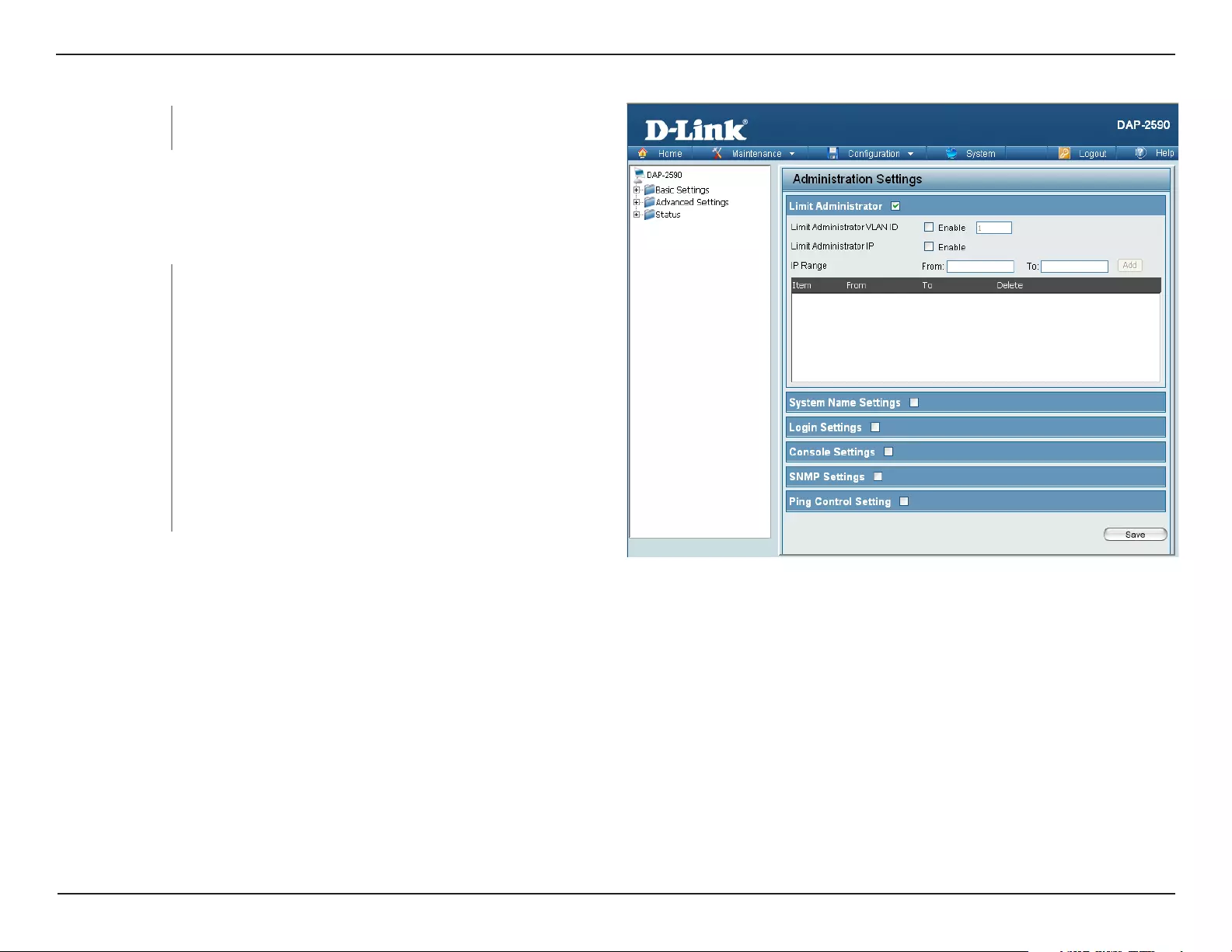
Limit
Administrator
VLAN ID:
Check the box provided and the enter the specific
VLAN ID that the administrator will be allowed to log
Limit
Administrator
Limit
Administrator IP:
Check to enable the Limit Administrator IP address.
Confirm New
Password:
Confirm by re-entering your new password here.
Limit Administrator
Each of the six main categories display various hidden administrator
parameters and settings.
IP Range: Enter the IP address range that the administrator will be
allowed to log in from and then click the Add button.
60D-Link DAP-2590 User Manual
Section 3 — Configuration
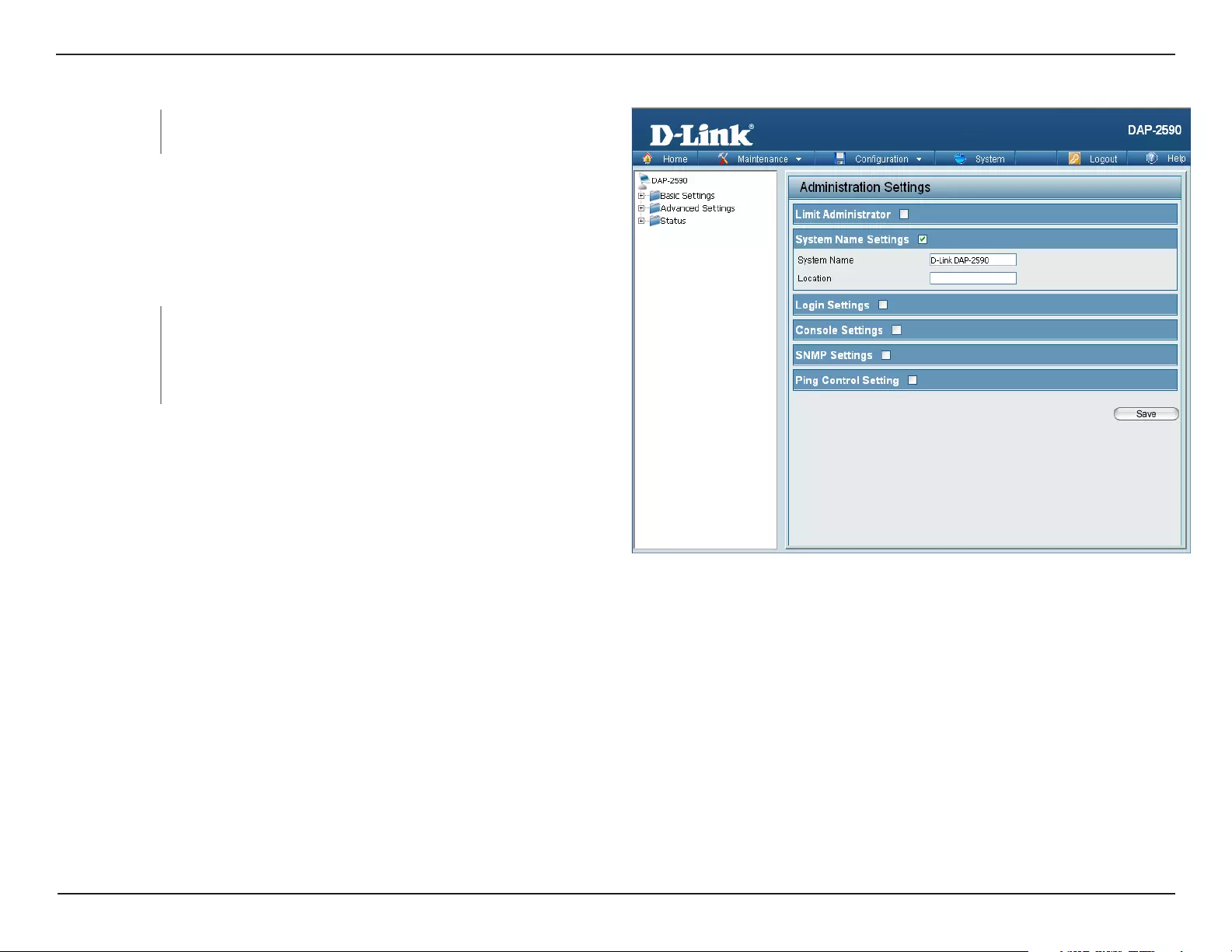
System Name: The name of the device. The default name is D-Link
DAP-2590.
System Name
Settings
Location: The physical location of the device, e.g. “office”.
Confirm New
Password:
Confirm by re-entering your new password here.
System Name Settings
Each of the six main categories display various hidden administrator
parameters and settings.
61D-Link DAP-2590 User Manual
Section 3 — Configuration
Confirm New
Password:
Confirm by re-entering your new password here.
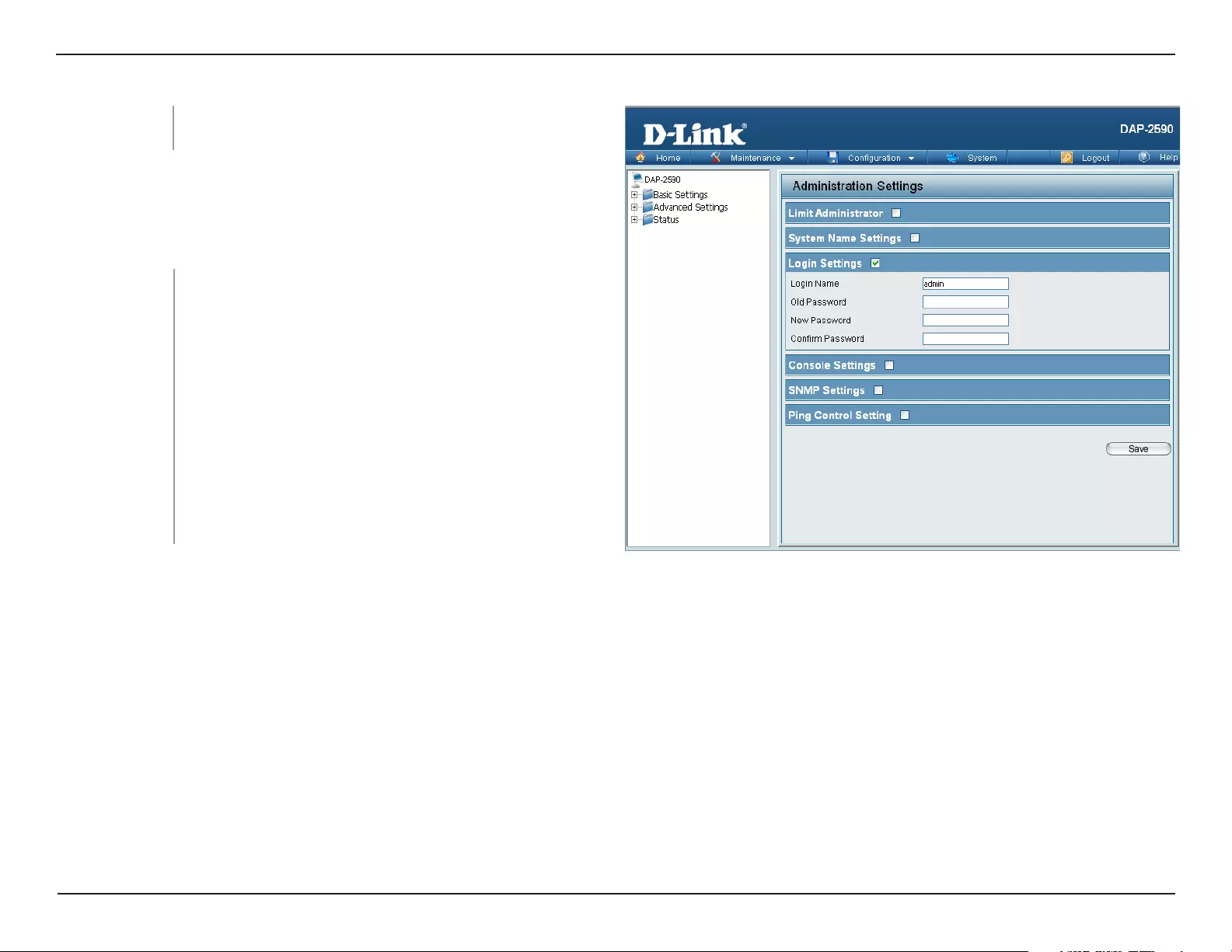
Login Settings
Each of the six main categories display various hidden administrator
parameters and settings.
Login Settings
Old Password: When changing your password, enter the old password
here.
User Name: Enter a user name. The default is admin.
New Password: When changing your password, enter the new
password here. The password is case-sensitive. “A”
is a different character than “a.” The length should be
between 0 and 12 characters.
Confirm Password: Enter the new password a second time for confirmation
purposes.
62D-Link DAP-2590 User Manual
Section 3 — Configuration
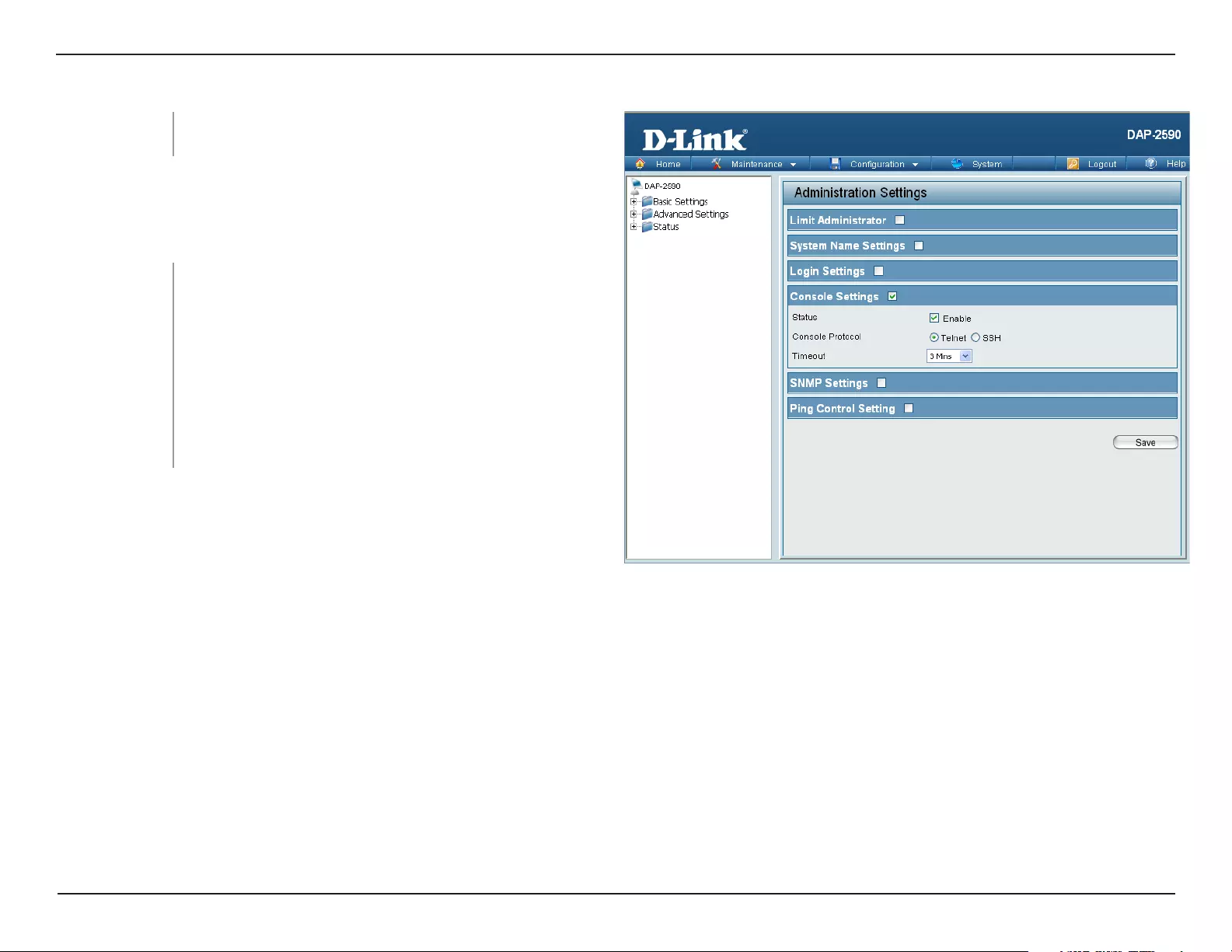
Status: Status is enabled by default. Uncheck the box to
disable the console.
Console Settings
Console Protocol: Select the type of protocol you would like to use, Telnet
or SSH.
Timeout: Set to 1 Min, 3 Mins, 5 Mins, 10 Mins, 15 Mins or
Never.
Confirm New
Password:
Confirm by re-entering your new password here.
Console Settings
Each of the six main categories display various hidden administrator
parameters and settings.
63D-Link DAP-2590 User Manual
Section 3 — Configuration
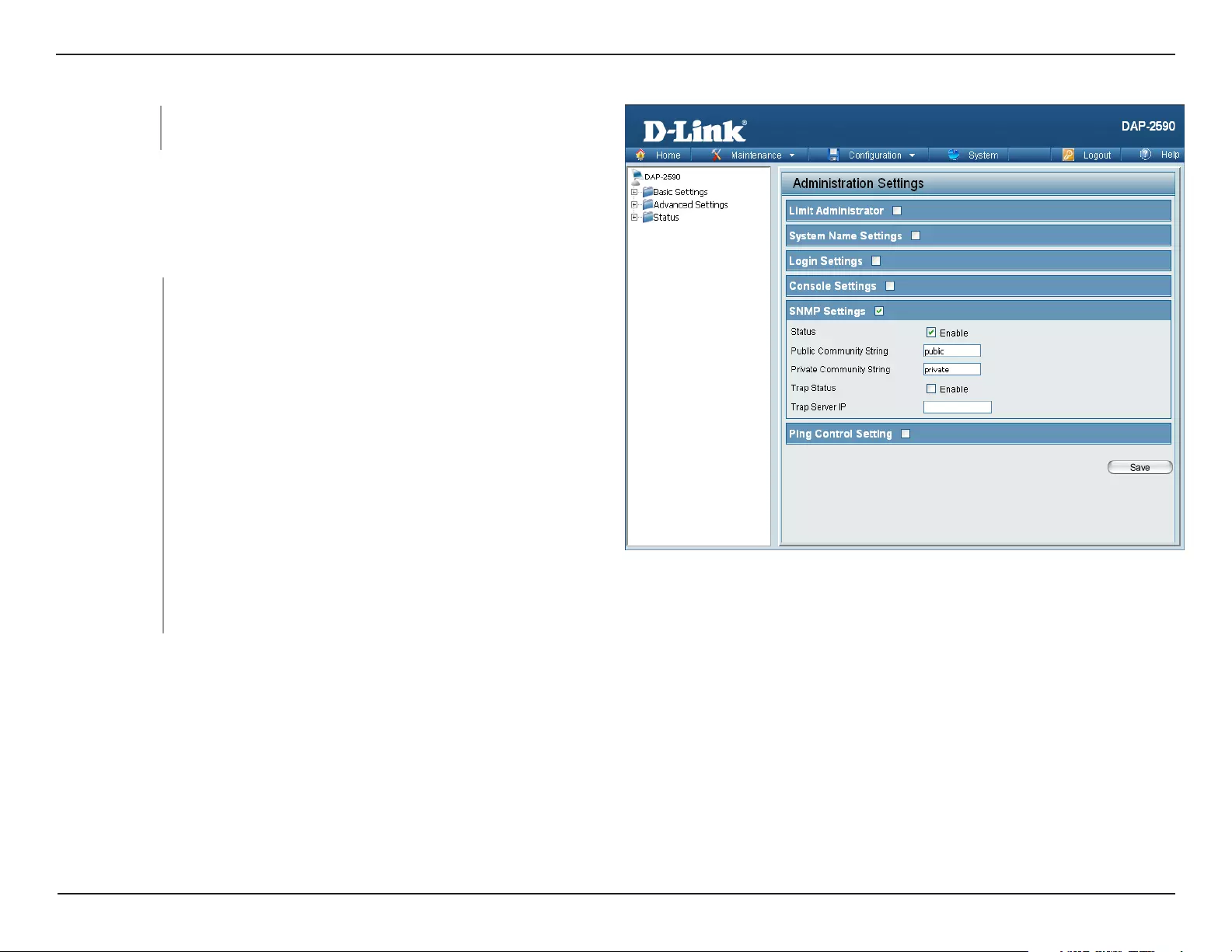
SNMP Settings
Public
Community
String:
Enter the public SNMP community string.
Status: Check the box to enable the SNMP functions. This is
enabled by default.
Private
Community
String:
Enter the private SNMP community string.
Confirm New
Password:
Confirm by re-entering your new password here.
SNMP Settings
Each of the six main categories display various hidden administrator
parameters and settings.
Trap Status: Check the box to enable the trap status.
Trap Server IP: Enter the trap server IP address. This is the IP address of the SNMP manager to receive traps sent from the wireless access
point.
64D-Link DAP-2590 User Manual
Section 3 — Configuration
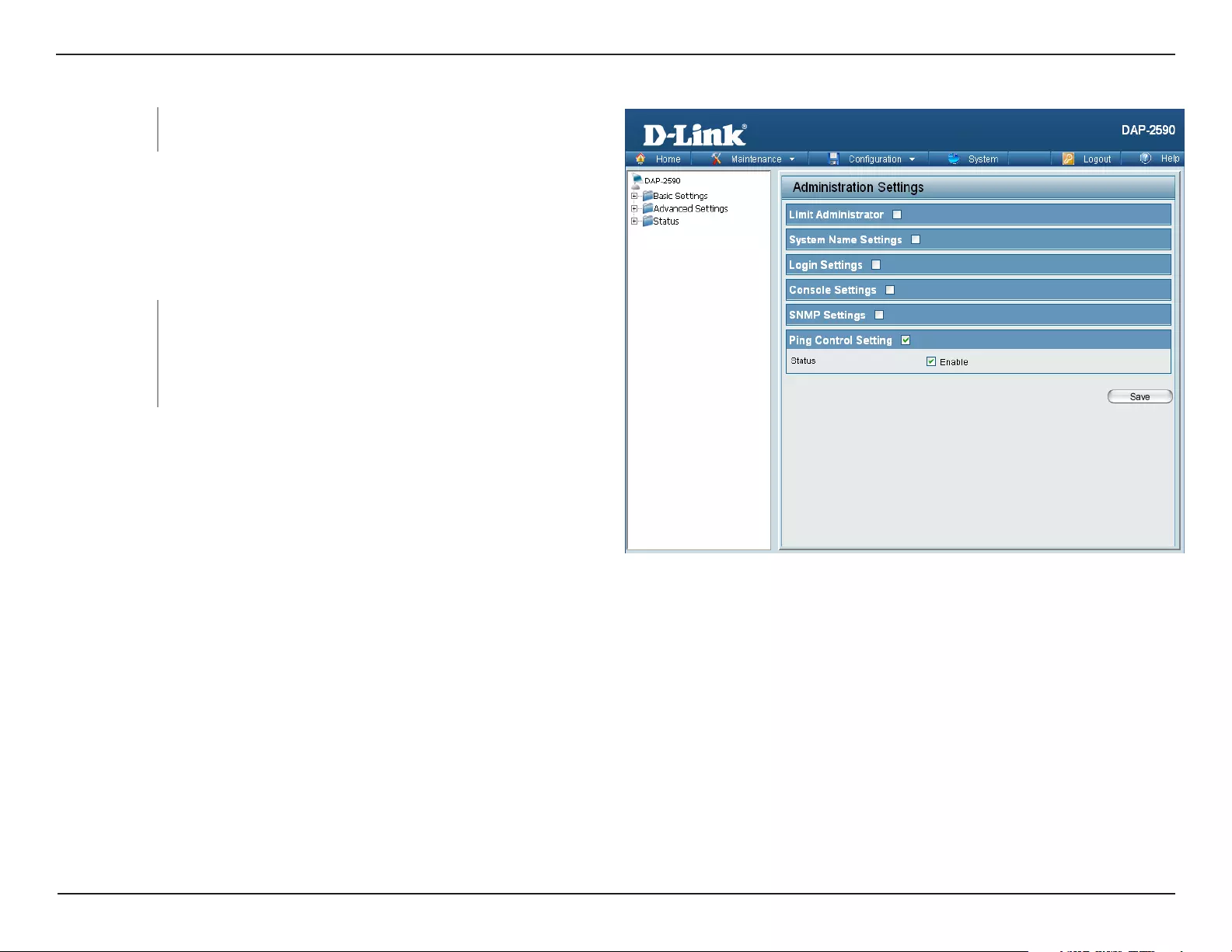
Check the box to enable Ping control. Ping works by
sending ICMP “echo request” packets to the target
host and listening for ICMP echo response replies. The
default is enabled.
Status:
Confirm New
Password:
Confirm by re-entering your new password here.
Ping Control Setting
Each of the six main categories display various hidden administrator
parameters and settings.
Ping Control
Setting
65D-Link DAP-2590 User Manual
Section 3 — Configuration
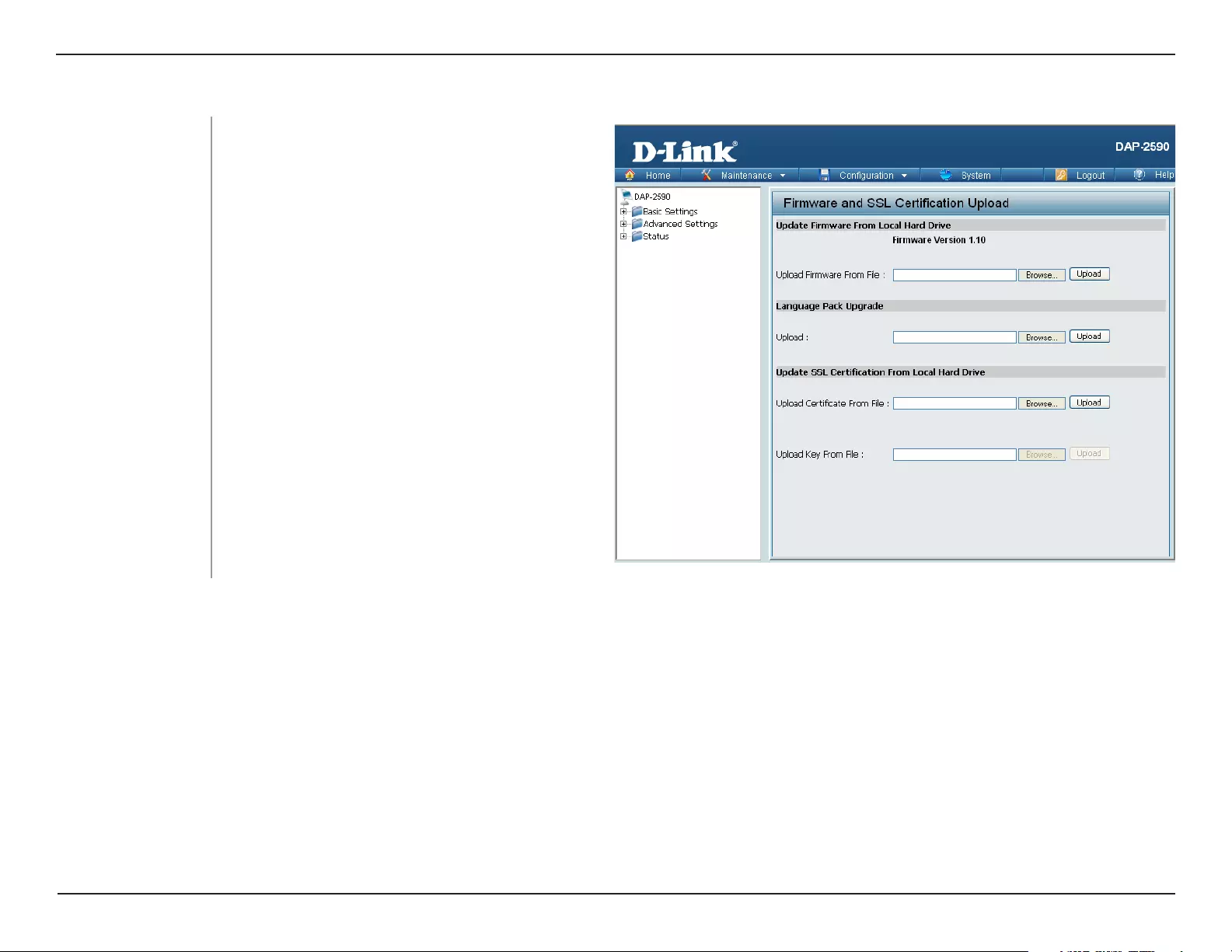
Firmware and SSL Certification Upload
Language Pack
Upgrade:
Click Browse to locate the language pack
upgrade on your local computer. After selecting
and opening the file, click Upload to upload the
file to the DAP-2590.
Upload Firmware From
Local Hard Drive:
The current firmware version is displayed
above the file location field. After downloading
the most recent version of firmware for the
DAP-2590 from http://support.dlink.com to
your local computer, use the Browse button to
locate the firmware file on your computer. Click
Upload to update the firmware version. Please
don’t turn the power off while upgrading.
Click Browse to locate the SSL Certification
file on your local computer. After selecting and
opening the file, click Upload to upload the file
to the DAP-2590.
Upload SSL
Certification From
Local Hard Drive:
66D-Link DAP-2590 User Manual
Section 3 — Configuration
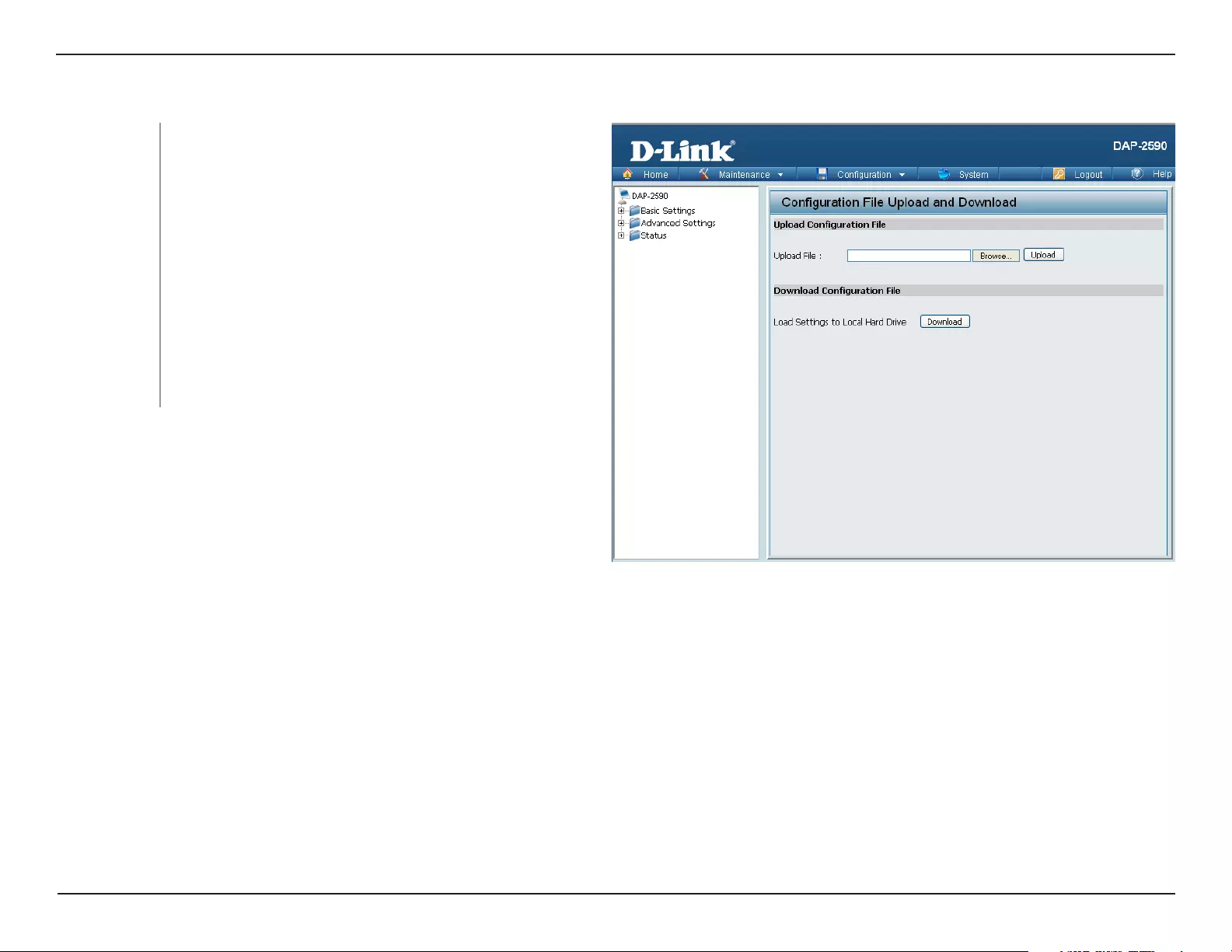
Maintenance > Configuration File Configuration File
Download
Configuration File:
Click Download to save the current DAP-2590
configuration to your local computer. Note that if
you save one configuration with the administrator’s
password now, after resetting your DAP-2590, and
then updating to this saved configuration file, the
password will be gone.
Upload File: Click the Browse button to locate a previously
saved configuration file on your local computer.
After selecting the file, click Upload to apply the
configuration settings to the DAP-2590.
67D-Link DAP-2590 User Manual
Section 3 — Configuration
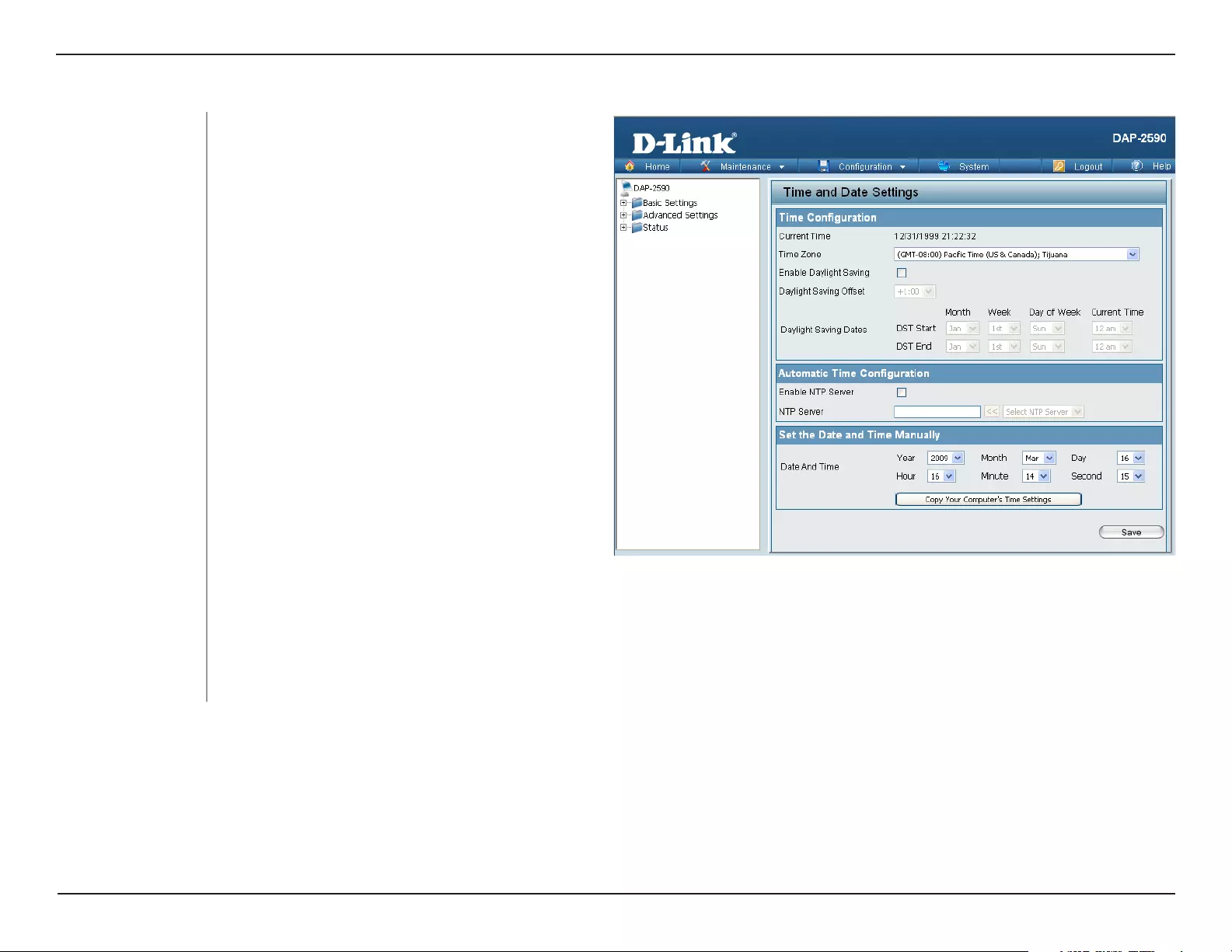
Maintenance > Time and Date
Current Time: Displays the current time and date settings.
NTP Server: Enter the NTP server IP address.
Time Zone: Use the drop-down menu to select your correct
Time Zone.
Enable Daylight Saving: Check the box to Enable Daylight Saving
Time.
Set the Date and
Time Manually::
A user can either manually set the time for the AP here, or click the Copy Your Computer’s Time Settings button to
copy the time from the computer in use (Make sure that the computer’s time is set correctly).
Use the drop-down menu to select the correct
Daylight Saving offset.
Daylight Saving Offset:
Daylight Saving Dates: Use the drop-down menu to select the correct
Daylight Saving offset.
Enable NTP Server: Check to enable the AP to get system time from
an NTP server.
68D-Link DAP-2590 User Manual
Section 3 — Configuration
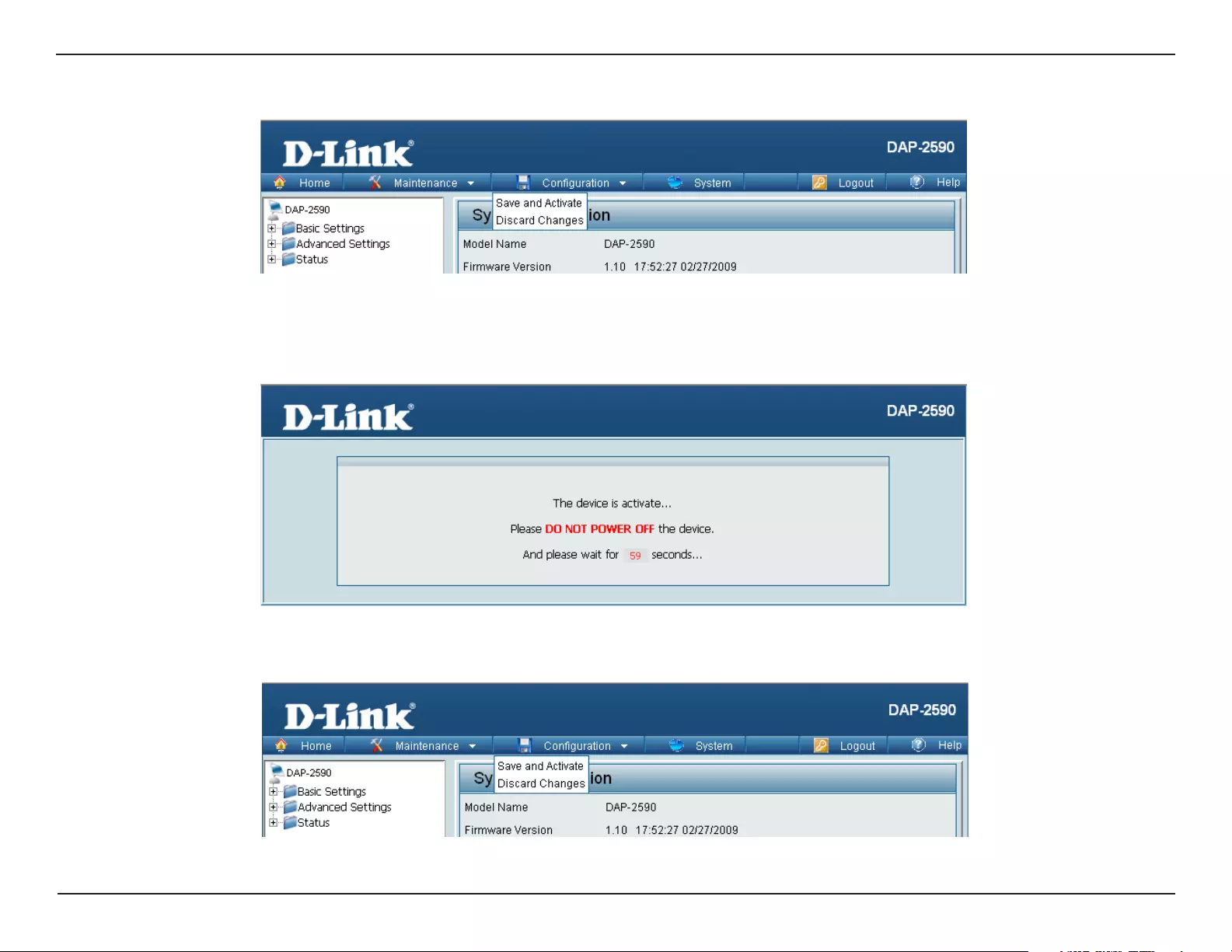
Configuration > Save and Activate
The drop-down Configuration menu allows users to save the current changes and reboot the DAP-2590 by clicking «Save and Activate».
If the «Save and Activate» option is selected, the following window will appear to display how many seconds remain before the save
settings and reboot system action is completed.
Configuration > Discard Changes
The drop-down Configuration menu allows users to drop the latest changes by clicking «Discard Changes.»
69D-Link DAP-2590 User Manual
Section 3 — Configuration
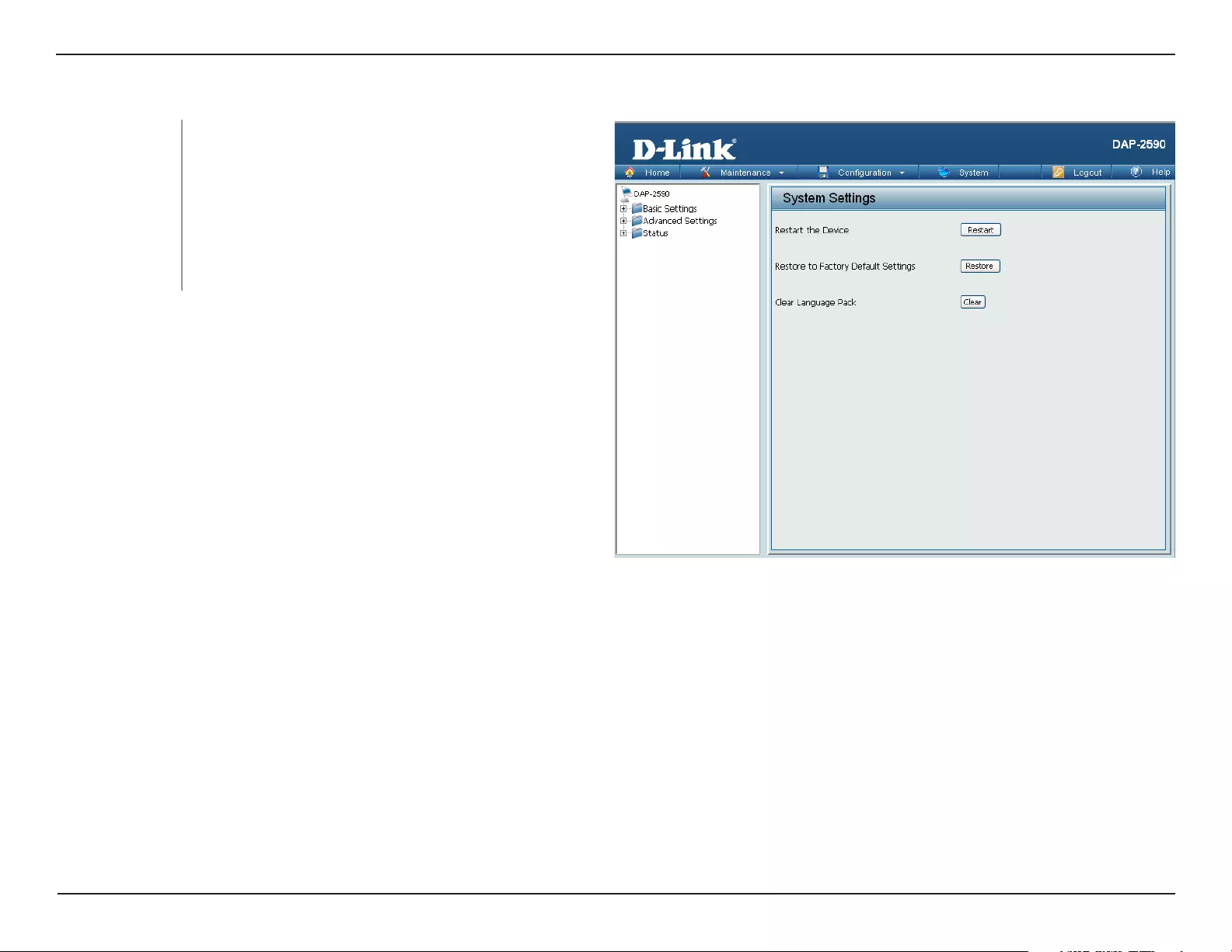
System > System Settings
Restart the
Device:
Click Restart to restart the DAP-2590.
Restore to Factory
Default Settings:
Click Restore to restore the DAP-2590 back to
factory default settings.
Click Clear to remove the DAP-2590 language
pack.
Clear Language
Pack:
70D-Link DAP-2590 User Manual
Section 3 — Configuration
Help
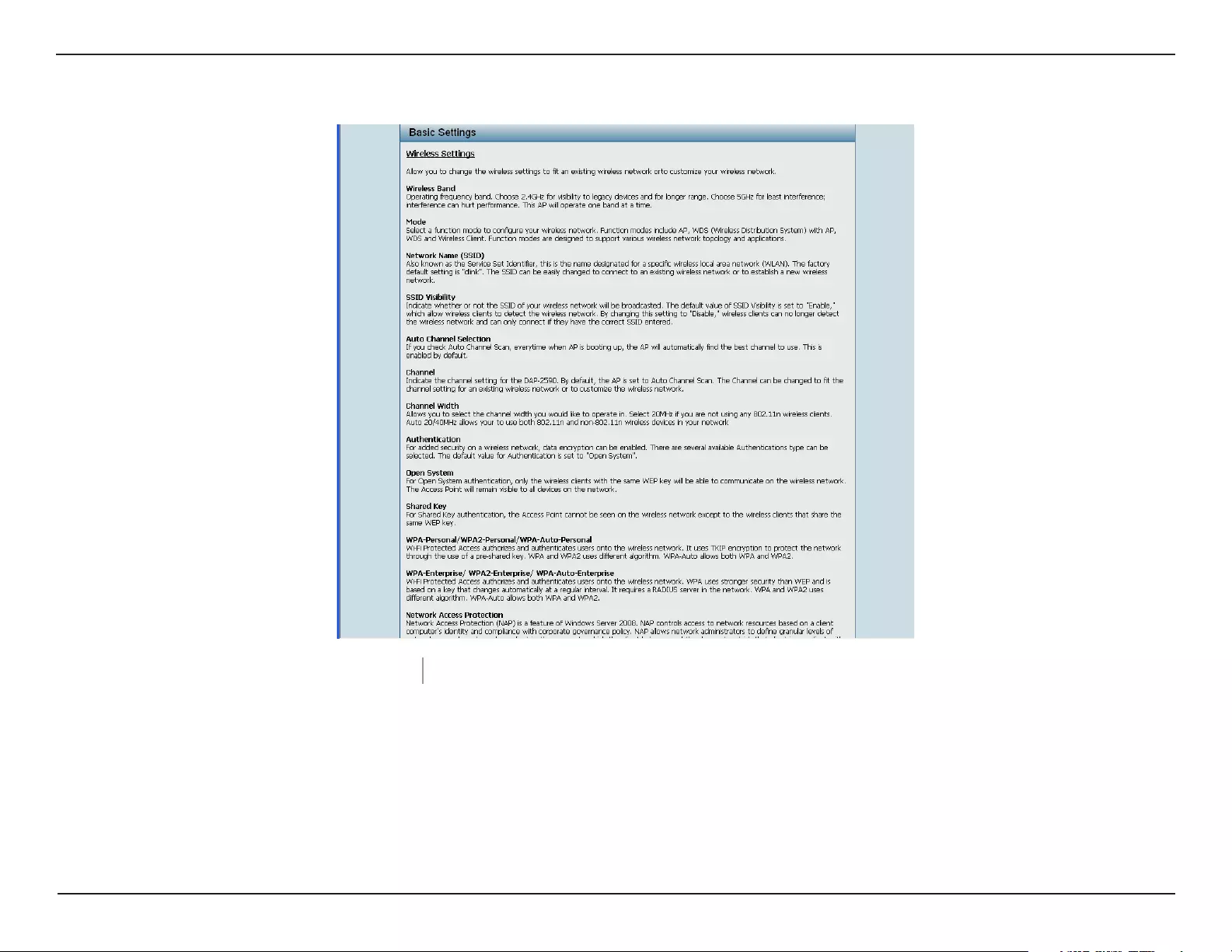
Scroll down the Help page for topics and explanations.
Help:

71D-Link DAP-2590 User Manual
Section 4 — Using the AP Array
Using the AP Array
The deployment of wireless local area network (WLAN) in a small office environment is often hindered by the lack of simplicity, stability
and affordability. Multiple access points (APs) will require more effort in configuration and management, and the complexity of security
settings adds to the burden. With limited resources in a small office, solutions provided for bigger organizations will be too complicated
and not economical.
D-Link’s AP Array is an ideal WLAN management tool for the small office. The WLAN management feature is built within the firmware,
making configuration for multiple APs an effortless process. All AirPremier 11n Business APs support this tool, which can manage up to
eight stand-alone APs. This will make WLAN deployment easier and more affordable.
Simple WLAN Management Tool
When one needs to set up a wireless local area network (WLAN) in a small office with limited IT resources, D-Link’s AP Array is the answer.
It allows the efficient deployment of a secured WLAN and easier administration from a single point; thus, minimizing the effort to maintain
the wireless network.
72D-Link DAP-2590 User Manual
Section 4 — Using the AP Array
Easy Deployment and Management
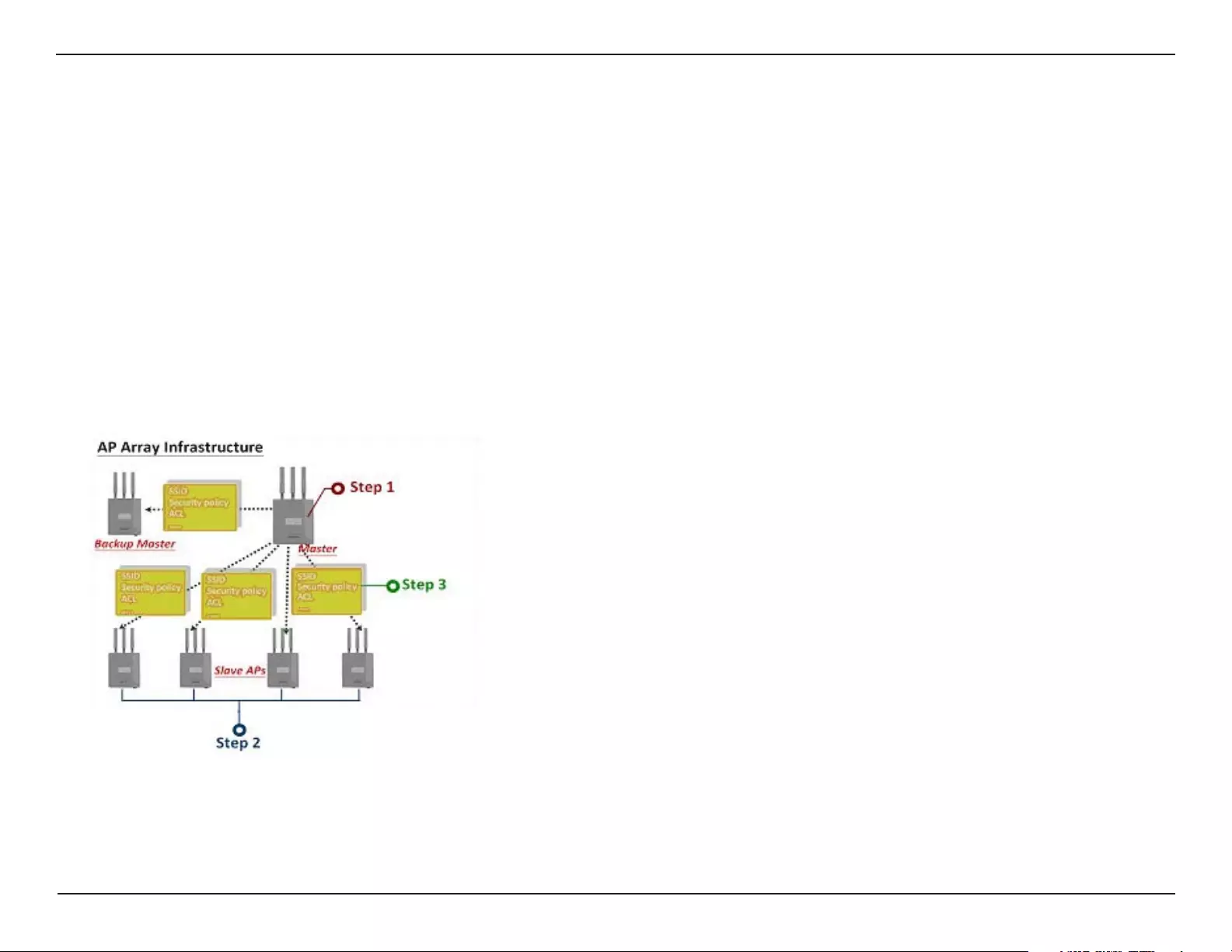
With D-Link’s AP Array, deployment and management of APs are made simple. The following steps show how straightforward it is to deploy
the array of APs:
Step 1 — Deployment of Master AP:
• Designate one AP as Master
• Set up Array ID & password
• Configure the AP
Step 2 — Deployment of Slave APs:
• Specify Array ID & password of Master in Slave APs.
Step 3 — Settings Are Synchronized:
• Backup Master & all Slave APs will follow configuration from Master automatically.
Up to eight stand-alone APs can be managed in an array. Members in the same AP Array group must be on the same subnet of the same
model, and each AP is assigned with a unique IP address.
73D-Link DAP-2590 User Manual
Section 4 — Using the AP Array
Situations Encountered with the Different Implementations:
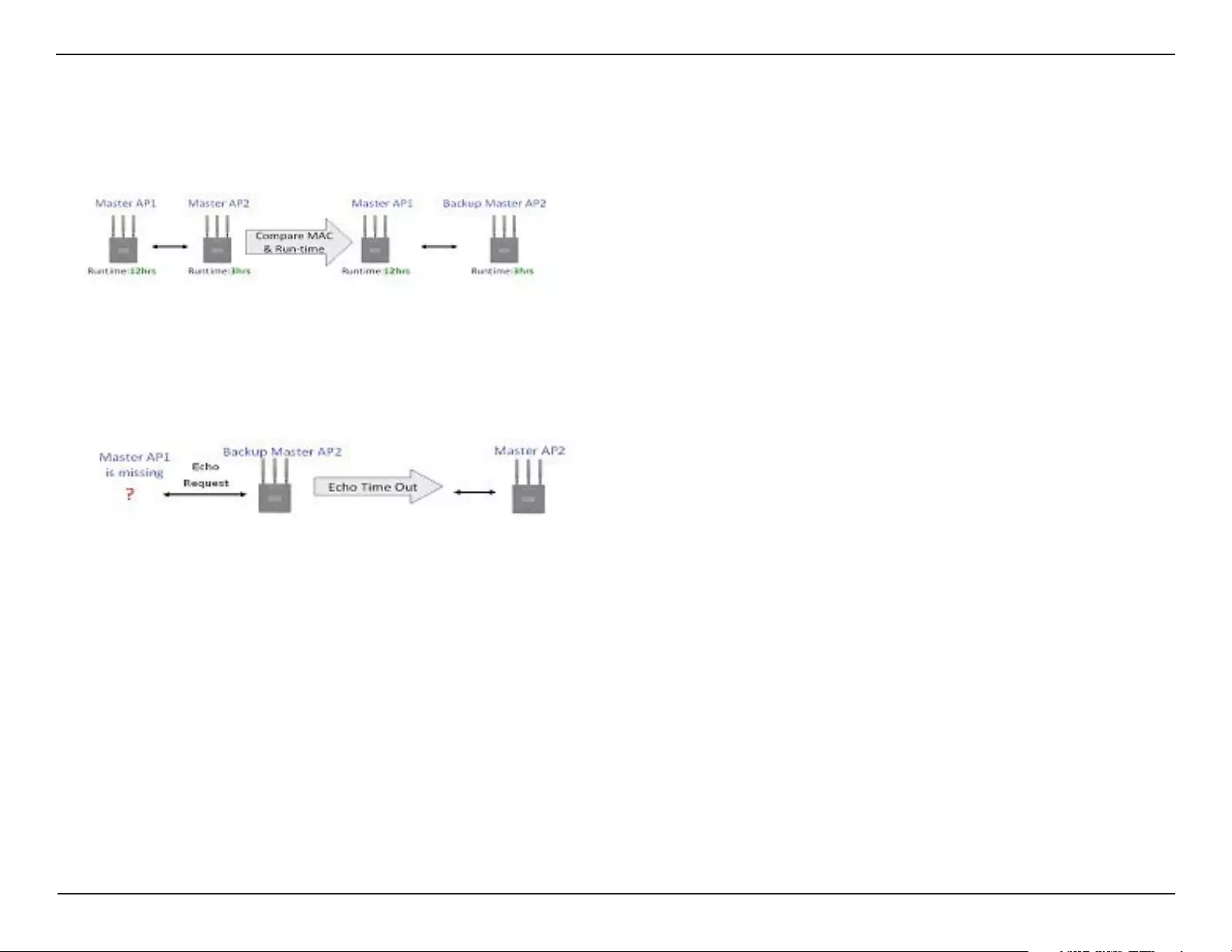
• Multiple Master APs: If there are two or more Master APs assigned in an array, the AP with the longest run-time will become the
Master AP.
Note: The other Master APs will become Backup Master APs.
• Manually Configured Slave AP: At intervals of one minute, the Master AP will send out a beacon to check the status of the Slave APs.
If any changes are done to the slave APs manually, the Master AP will automatically synchronize its configuration to the slave AP and
overwrite it.
• Master AP Crashed: In a situation where the Master AP becomes unavailable to the array, the Backup Master AP will take over the
Master role and synchronize the configuration to the Slave APs.
• No Backup Master AP Available: If the Master AP crashes and there are only Slave APs in the array, the Slave APs will work as
stand-alone APs until a new Master joins the array. The administrator may want to configure two Master APs for the array, so that there
is always a Backup Master AP available.

74D-Link DAP-2590 User Manual
Section 4 — Using the AP Array
Whenever the user makes any changes in the Master AP and selects “Save & Activate”, the Master AP in an array will automatically
synchronize its configuration to all Slave APs.
Settings that can be synchronized are:
• Wireless Settings
• Multiple SSID & VLAN
• WiFi Schedule
• MAC Filter
• WLAN Partition
• DHCP Server
• Log Settings
• Time & Date
• QoS Settings
• Performance Settings
• All Administrator Settings
Settings that are not synchronized are:
• Operation Mode
• Radio Channel
• LAN Settings
If required, settings that are not synchronized will have to be configured individually for each AP.
75D-Link DAP-2590 User Manual
Section 4 — Using the AP Array
Different AP Roles in an Array
There are three modes for the administrator to define the role of each AP.
• Master AP
The Master AP can do all the management settings for members in an array. Each array can only have one Master AP.
• Backup Master AP
In an event when the Master AP crashes, the Backup Master AP will take over the Master AP function. Each array can have up to two
Backup Master APs.
• Slave AP
The Slave AP follows all the settings in the Master AP.
Easy Configuration of D-Link AP Array
The following section shows how simple it is to configure the D-Link AP Array for the different AP roles:
Master AP Role
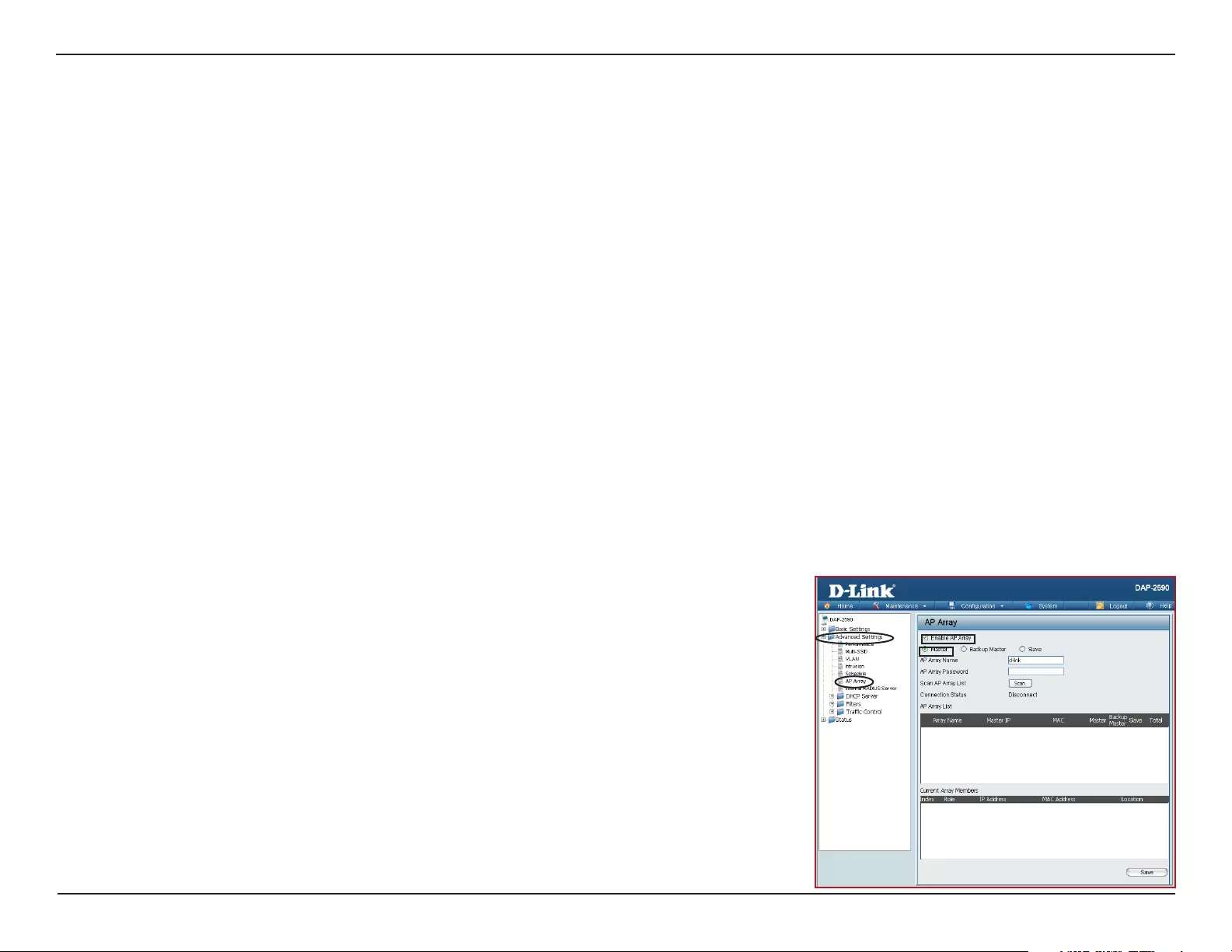
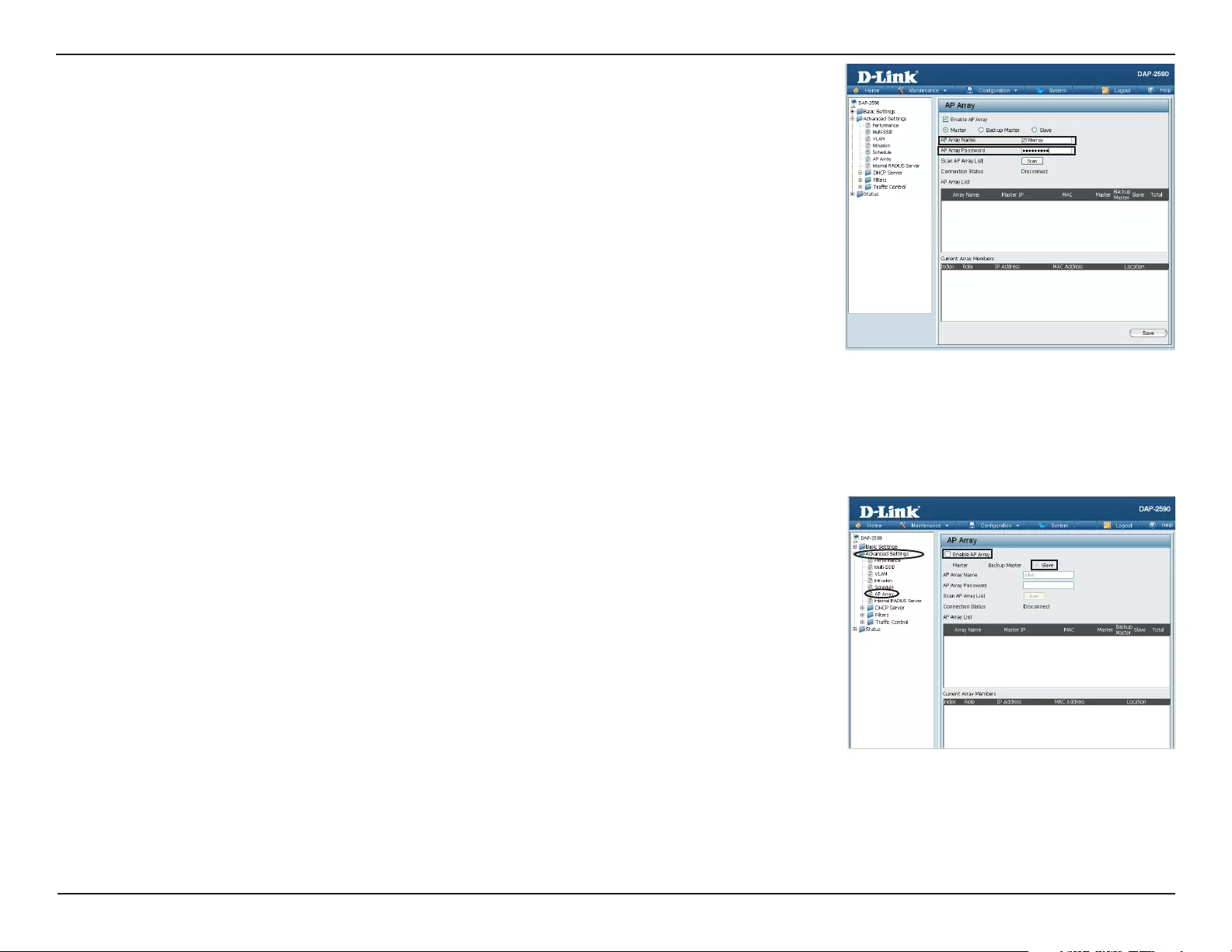
Click Advanced Settings > AP Array to view and edit the information on the AP in an array.
Step 1:
Click Enable AP Array and select the Master role.
76D-Link DAP-2590 User Manual
Section 4 — Using the AP Array
Step 2:
Set up the AP Array name and password. Click the Save button located on the lower right hand
side.
Note: Remember to select “Save & Activate”. The AP will not become master until you select
“Save & Activate”.
Slave AP Role
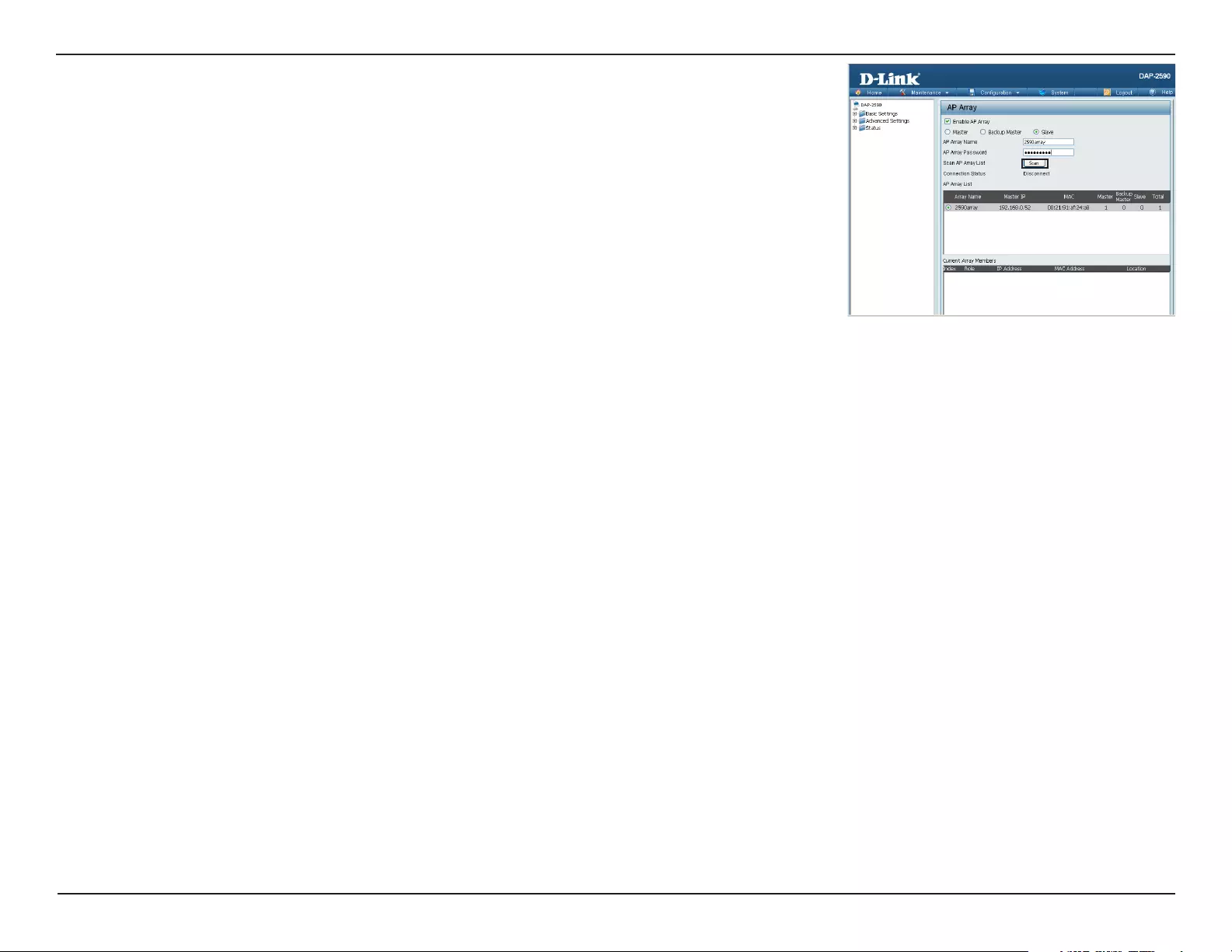
Click Advanced Settings > AP Array to view and edit the information on the AP in an array.
Step 1:
Click Enable AP Array and select the Slave role.
77D-Link DAP-2590 User Manual
Section 4 — Using the AP Array
Step 2:
Click the Scan button to search for an existing array, and enter the array password to join it. Click
the Save button located on the lower right hand side.
Note: Remember to select “Save & Activate”. The AP will not become slave until you select “Save
& Activate”.
Supported in all D-Link 11n Business APs
D-Link AP Array is supported in all D-Link 11n business APs.
Note: Please refer to your local D-Link website for any new models of D-Link 11n business APs. You may also get the latest AP Array
function by doing a firmware update.
Reliable WLAN Management Tool
When you need a reliable WLAN management tool for your small office, the D-Link AP Array will be the ideal choice to provide you with
the simplicity to configure and manage an array of APs. Being a free software module that is built in D-Link 11n business APs, it eliminates
the need for an extra software or PC.
With auto-synchronization, it means that configuration will only need to be done on the Master AP, and it will automatically be synchronized
to the Slave APs.
As AP configuration and management are done within only one Master AP, you will be able to view the deployment of APs as a single
wireless network rather than a series of separate wireless devices.
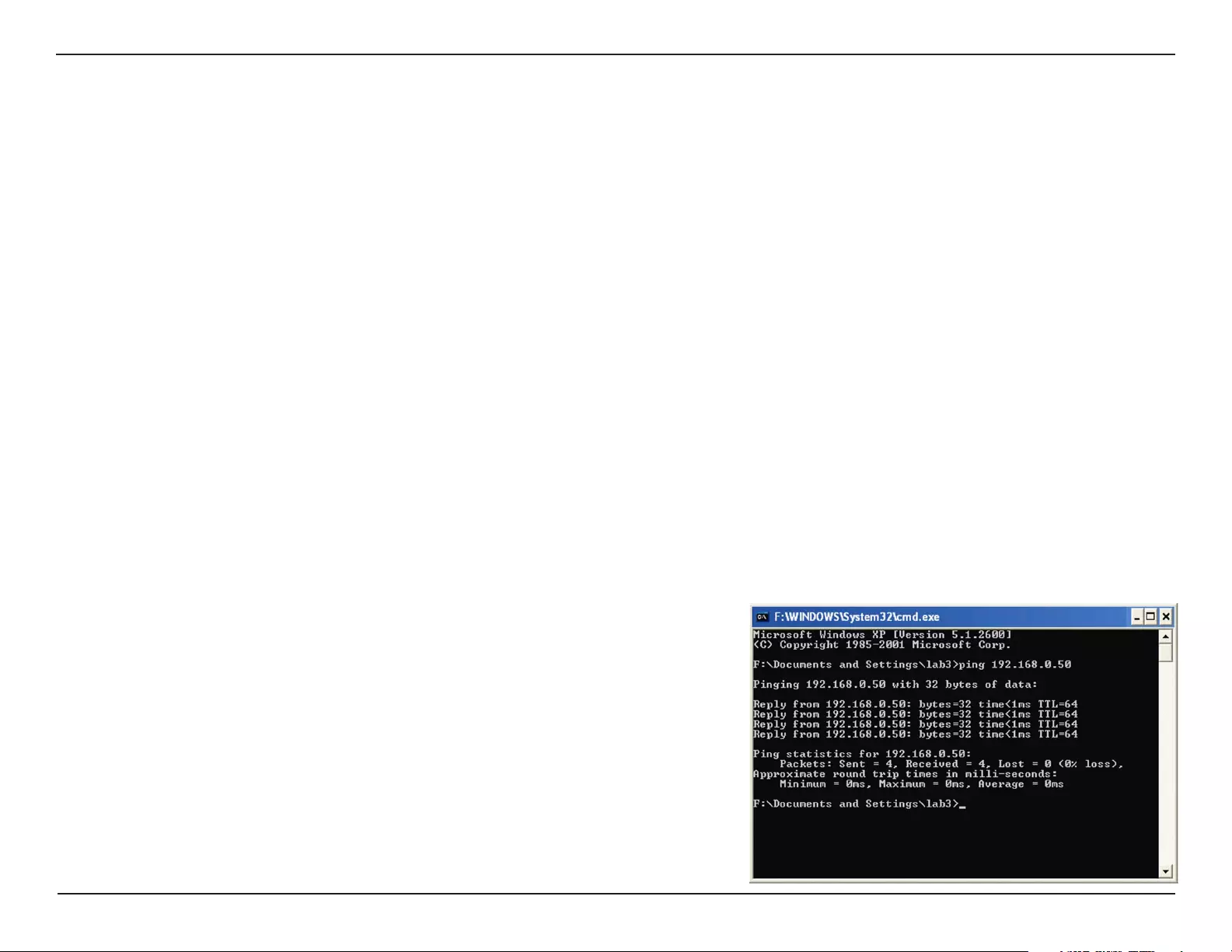
78D-Link DAP-2590 User Manual
Section 5 — Troubleshooting
Troubleshooting
This chapter provides solutions to problems that can occur during the installation and operation of the DAP-2590 Wireless Access Point. We
will cover various aspects of the network setup, especially the network adapters. Please read the following if you are having any technical
difficulties.
Note: It is recommended that you use an Ethernet connection to configure the DAP-2590.
1. The computer used to configure the DAP-2590 cannot access the Configuration menu.
• Check if the LAN LED on the DAP-2590 is ON. If the LED is not ON, check if the cable for the Ethernet connection is securely
inserted.
• Check if the Ethernet adapter is working properly. Please see item 3 of this Troubleshooting section to check that the drivers for the
network adapters are loaded properly.
• Check if the IP address is in the same range and subnet as the DAP-2590.
Note: The default IP address of the DAP-2590 is 192.168.0.50. All the computers on the network must have a unique IP address in the
same range, e.g. 192.168.0.x. Any computers that have identical IP addresses will not be visible on the network. They must all have the
same subnet mask, e.g. 255.255.255.0.
• Do a Ping test to make sure that the DAP-2590 is responding. Go to Start>Run>Type “Command” and at the DOS prompt, type “ping
192.168.0.50”. A successful ping will show four replies.
Note: If you have changed the default IP address, make sure to ping the correct IP address assigned to the DAP-2590.
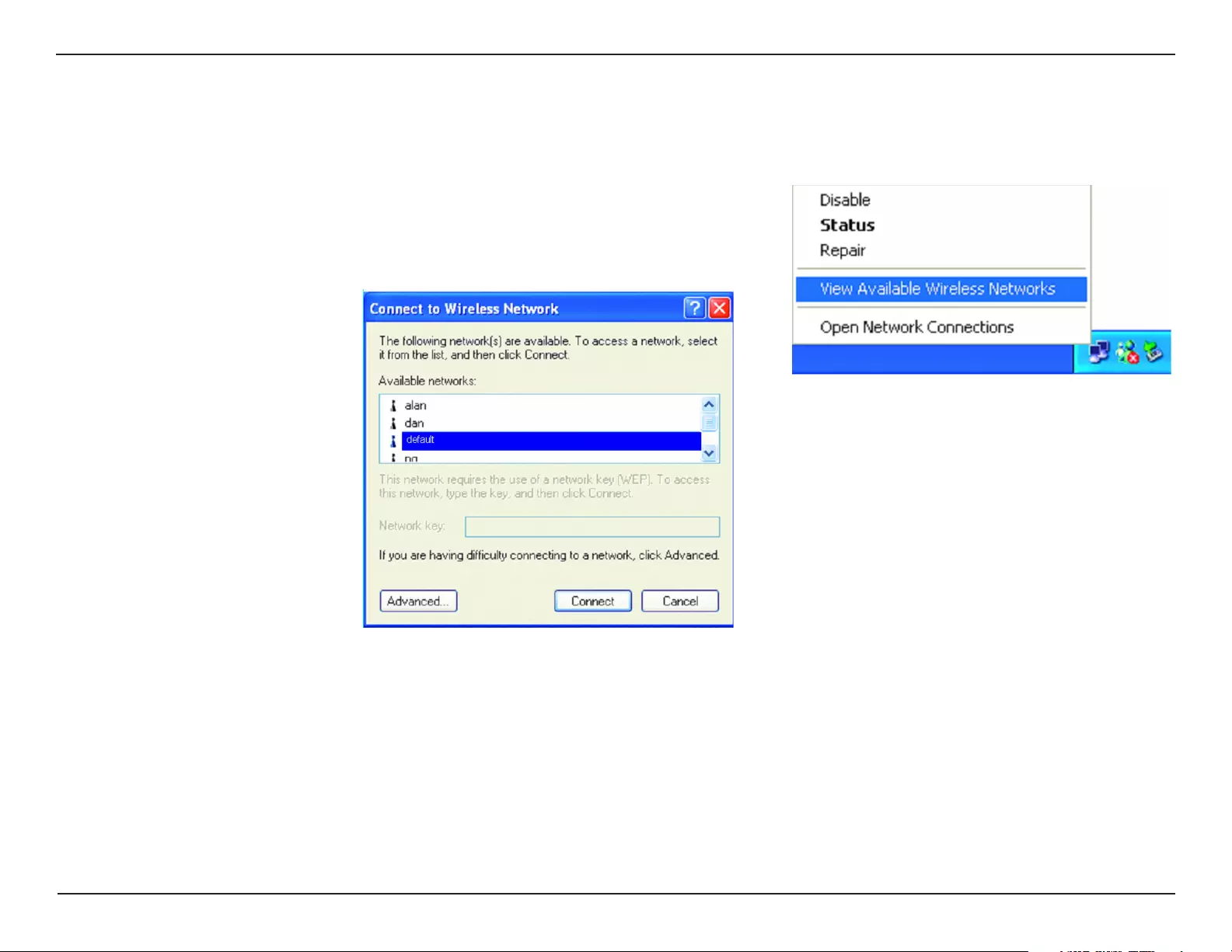
79D-Link DAP-2590 User Manual
Section 5 — Troubleshooting
2. The wireless client cannot access the Internet within Infrastructure mode.
Make sure the wireless client is associated and joined with the correct access point. To check this connection, right-click on the Local Area
Connection icon in the taskbar and select View Available Wireless Networks. The Connect to Wireless Network screen will appear. Please
make sure you have selected the correct available network, as shown in the illustrations below.
• Check that the IP address assigned to the wireless adapter is within the same IP address range as the access point and gateway. Since
the DAP-2590 has an IP address of 192.168.0.50, wireless adapters must have an IP address in the same range, e.g. 192.168.0.x. Each
device must have a unique IP address; there may be no two devices with the same IP address. The subnet mask must be the same for
all the computers on the network. To check the IP address assigned to the wireless adapter, double-click the Local Area Connection
icon in the taskbar, then select the Support tab and the IP address will be displayed.
• If it is necessary to assign a Static IP Address to the wireless adapter. If you are entering a DNS Server address, you must also enter
the Default Gateway Address.
Remember that if you have a DHCP-capable router, you will not need to assign a static IP address.

80D-Link DAP-2590 User Manual
Section 5 — Troubleshooting
3. What variables may cause my wireless products to lose reception?
D-Link products let you access your network from virtually anywhere you want, however, the positioning of the products within your
environment will affect its wireless range.
4. Why does my wireless connection keep dropping?
• Antenna Orientation — try different antenna orientations for the DAP-2590. Try to keep the antenna at least 6 inches away from the wall
or other objects.
• If you are using 2.4 GHz cordless phones, X-10 equipment or other home security systems, ceiling fans, or lights, your wireless
connection will degrade dramatically or even drop. Try changing the channel of your router, access point and wireless adapter to a
different channel to avoid interference.
• Keep your product away — at least 3-6 feet — from electrical devices that generate RF noise like microwaves, monitors, electric motors,
etc.
5. Why can’t I get a wireless connection?
If you have enabled encryption on the DAP-2590, you must also enable encryption on all wireless clients in order to establish a wireless
connection.
• Make sure that the SSID on the AP and the wireless client are exactly the same. If they are not, wireless connection cannot be
established.
• Move the DAP-2590 and the wireless client into the same room and then test the wireless connection.
• Disable all security settings.
• Turn off your DAP-2590 and the client. Turn the DAP-2590 back on again, and then turn on the client.
• Make sure that all devices are set to Infrastructure mode.
• Check that the LED indicators are indicating normal activity. If not, check that the AC power and Ethernet cables are firmly
connected.
• Check that the IP address, subnet mask, gateway, and DNS settings are correctly entered for the network.
• If you are using 2.4 GHz cordless phones, X-10 equipment, or other home security systems, ceiling fans, or lights, your wireless
connection will degrade dramatically or drop altogether. Try changing the channel on your DAP-2590, and on all the devices in your
network to avoid interference.
• Keep your product away — at least 3-6 feet — from electrical devices that generate RF noise like microwaves, monitors, electric motors,
etc.

81D-Link DAP-2590 User Manual
Appendix A — Technical Specifications
Technical Specifications
Standards
• IEEE 802.11a
• IEEE 802.11b
• IEEE 802.11g
• IEEE 802.11n (draft)
• IEEE 802.3
• IEEE 802.3u
• IEEE 802.3ab
• IEEE 802.3af
Network Management
• Web Browser interface
HTTP
Secure HTTP (HTTPS)
• AP Array
• AP Manager II
• SNMP Support
D-View Module
Private MIB
• Command Line Interface
Telnet
Secure SSH Telnet
Data Rates*
For 802.11a:
• 54, 48, 36, 24, 18, 12, 9, and 6 Mbps
For 802.11b:
• 11, 5.5, 2, and 1 Mbps
For 802.11g:
• 54, 48, 36, 24, 18, 12, 9, and 6 Mbps
For 802.11n (draft): HT20/HT40
• 144.4/300, 130/270, 117/243, 104/216, 78/162, 66/135, 58.5/121.5, 52/108,
39/81, 26/54, 19.5/40.5, 12/27, and 6.5/13.5 Mbps
Security
• WPA™ Personal/Enterprise
• WPA2™ Personal/Enterprise
• WEP™ 64-/128-bit
• SSID Broadcast Disable
• MAC Address Access Control
*Maximum wireless signal rate derived from IEEE Standard 802.11g, 802.11a and
Draft 802.11n specifications. Actual data throughput will vary. Network conditions
and environmental factors, including volume of network traffic, building materials
and construction, and network overhead, lower actual data throughput rate.
Environmental conditions will adversely affect wireless signal range.
**Please note that operating frequency ranges vary depending on the regulations
of individual countries and jurisdictions. The DAP-2590 isn’t supported in the
5.25~5.35 GHz and 5.47 ~ 5.725 GHz frequency ranges in some regions.
Wireless Frequency Range
• 2.4 to 2.4835 GHz and 5.15 to 5.85 GHz****
Operating Voltage
• 5V/2.5A or PoE
Radio and Modulation Type
For 802.11a/g/n:
BPSK, QPSK, 16QAM, and 64QAM with OFDM
For 802.11b:
DQPSK, DBPSK, DSSS, and CCK
Operating Frequency**
For 802.11a:
5.15 ~ 5.85 GHz
For 802.11b/g:
2400 ~ 2483.5 MHz ISM band
For 802.11n:
2.4 GHz Band: 2.4 ~ 2.4835 GHz
5 GHz Band: 5.15 ~ 5.85 GHz
Dipole Antenna
4dBi Gain @2.4 GHz
6dBi Gain @5 GHz

82D-Link DAP-2590 User Manual
Appendix A — Technical Specifications
LEDs
• Power
• LAN
• 2.4 GHz
• 5 GHz
Temperature
• Operating: 0˚C to 40˚C
• Storing: -20˚C to 65˚C
Humidity
• Operating: 10%~90% (non-condensing)
• Storing: 5%~95% (non-condensing)
Certifications
• FCC
• CE
• IC
• C-Tick
• UL
• WiFi
Dimensions
• L = 184.66 mm
• W = 164.59 mm
• H = 31.75 mm
*Please note that operating frequency ranges vary depending on the regulations of individual countries and jurisdictions. The DAP-2590 isn’t supported in the 5.25~5.35
GHz and 5.47 ~ 5.725 GHz frequency ranges in some regions.
83D-Link DAP-2590 User Manual
Appendix B — Technical Support
Contacting Technical Support
U.S. and Canadian customers can contact D-Link technical support through our web site or by phone.
Before you contact technical support, please have the following ready:
• Model number of the product (e.g. DAP-2590)
• Hardware Revision (located on the label on the bottom of the Access Point (e.g. rev A1))
• Serial Number (s/n number located on the label on the bottom of the Access Point).
You can find software updates and user documentation on the D-Link website as well as frequently asked questions
and answers to technical issues.
For customers within the United States:
Phone Support:
(877) 354-6555
Internet Support:
http://support.dlink.com
For customers within Canada:
Phone Support:
(877) 354-6560
Internet Support:
http://support.dlink.com

84D-Link DAP-2590 User Manual
Appendix C — Warranty
Warranty
Subject to the terms and conditions set forth herein, D-Link Systems, Inc. (“D-Link”) provides this Limited Warranty:
• Only to the person or entity that originally purchased the product from D-Link or its authorized reseller or distributor, and
•
Only for products purchased and delivered within the fifty states of the United States, the District of Columbia, U.S. Possessions or
Protectorates, U.S. Military Installations, or addresses with an APO or FPO.
Limited Warranty:
D-Link warrants that the hardware portion of the D-Link product described below (“Hardware”) will be free from material defects in
workmanship and materials under normal use from the date of original retail purchase of the product, for the period set forth below
(“Warranty Period”), except as otherwise stated herein.
• Hardware (excluding power supplies and fans): One (1) year
• Power supplies and fans: One (1) year
• Spare parts and spare kits: Ninety (90) days
The customer’s sole and exclusive remedy and the entire liability of D-Link and its suppliers under this Limited Warranty will be, at D-
Link’s option, to repair or replace the defective Hardware during the Warranty Period at no charge to the original owner or to refund the
actual purchase price paid. Any repair or replacement will be rendered by D-Link at an Authorized D-Link Service Office. The replacement
hardware need not be new or have an identical make, model or part. D-Link may, at its option, replace the defective Hardware or any part
thereof with any reconditioned product that D-Link reasonably determines is substantially equivalent (or superior) in all material respects
to the defective Hardware. Repaired or replacement hardware will be warranted for the remainder of the original Warranty Period or ninety
(90) days, whichever is longer, and is subject to the same limitations and exclusions. If a material defect is incapable of correction, or if
D-Link determines that it is not practical to repair or replace the defective Hardware, the actual price paid by the original purchaser for the
defective Hardware will be refunded by D-Link upon return to D-Link of the defective Hardware. All Hardware or part thereof that is replaced
by D-Link, or for which the purchase price is refunded, shall become the property of D-Link upon replacement or refund.
Limited Software Warranty:
D-Link warrants that the software portion of the product (“Software”) will substantially conform to D-Link’s then current functional specifications
for the Software, as set forth in the applicable documentation, from the date of original retail purchase of the Software for a period of ninety (90)
days (“Software Warranty Period”), provided that the Software is properly installed on approved hardware and operated as contemplated in its
documentation. D-Link further warrants that, during the Software Warranty Period, the magnetic media on which D-Link delivers the Software
will be free of physical defects. The customer’s sole and exclusive remedy and the entire liability of D-Link and its suppliers under this Limited
Warranty will be, at D-Link’s option, to replace the non-conforming Software (or defective media) with software that substantially conforms to

85D-Link DAP-2590 User Manual
Appendix C — Warranty
D-Link’s functional specifications for the Software or to refund the portion of the actual purchase price paid that is attributable to the Software.
Except as otherwise agreed by DLink in writing, the replacement Software is provided only to the original licensee, and is subject to the
terms and conditions of the license granted by D-Link for the Software. Replacement Software will be warranted for the remainder of the
original Warranty Period and is subject to the same limitations and exclusions. If a material non-conformance is incapable of correction,
or if D-Link determines in its sole discretion that it is not practical to replace the non-conforming Software, the price paid by the original
licensee for the non-conforming Software will be refunded by D-Link; provided that the non-conforming Software (and all copies thereof)
is first returned to D-Link. The license granted respecting any Software for which a refund is given automatically terminates.
Non-Applicability of Warranty:
The Limited Warranty provided hereunder for Hardware and Software portions of D-Link’s products will not be applied to and does not cover
any refurbished product and any product purchased through the inventory clearance or liquidation sale or other sales in which D-Link, the
sellers, or the liquidators expressly disclaim their warranty obligation pertaining to the product and in that case, the product is being sold
“As-Is” without any warranty whatsoever including, without limitation, the Limited Warranty as described herein, notwithstanding anything
stated herein to the contrary.
Submitting A Claim:
The customer shall return the product to the original purchase point based on its return policy. In case the return policy period has expired
and the product is within warranty, the customer shall submit a claim to D-Link as outlined below:
• The customer must submit with the product as part of the claim a written description of the Hardware defect or Software
nonconformance in sufficient detail to allow DLink to confirm the same, along with proof of purchase of the product (such
as a copy of the dated purchase invoice for the product) if the product is not registered.
• The customer must obtain a Case ID Number from D-Link Technical Support at 1-877-354-6555, who will attempt to assist
the customer in resolving any suspected defects with the product. If the product is considered defective, the customer must
obtain a Return Material Authorization (“RMA”) number by completing the RMA form and entering the assigned Case ID
Number at https://rma.dlink.com/.
• After an RMA number is issued, the defective product must be packaged securely in the original or other suitable shipping
package to ensure that it will not be damaged in transit, and the RMA number must be prominently marked on the outside
of the package. Do not include any manuals or accessories in the shipping package. DLink will only replace the defective
portion of the product and will not ship back any accessories.
• The customer is responsible for all in-bound shipping charges to D-Link. No Cash on Delivery (“COD”) is allowed. Products
sent COD will either be rejected by D-Link or become the property of D-Link. Products shall be fully insured by the customer
and shipped to D-Link Systems, Inc., 17595 Mt. Herrmann, Fountain Valley, CA 92708. D-Link will not be held responsible

86D-Link DAP-2590 User Manual
Appendix C — Warranty
for any packages that are lost in transit to D-Link. The repaired or replaced packages will be shipped to the customer via
UPS Ground or any common carrier selected by D-Link. Return shipping charges shall be prepaid by D-Link if you use an
address in the United States, otherwise we will ship the product to you freight collect. Expedited shipping is available upon
request and provided shipping charges are prepaid by the customer. D-Link may reject or return any product that is not
packaged and shipped in strict compliance with the foregoing requirements, or for which an RMA number is not visible from
the outside of the package. The product owner agrees to pay D-Link’s reasonable handling and return shipping charges
for any product that is not packaged and shipped in accordance with the foregoing requirements, or that is determined by
D-Link not to be defective or non-conforming.
What Is Not Covered:
The Limited Warranty provided herein by D-Link does not cover:
Products that, in D-Link’s judgment, have been subjected to abuse, accident, alteration, modification, tampering, negligence, misuse, faulty
installation, lack of reasonable care, repair or service in any way that is not contemplated in the documentation for the product, or if the
model or serial number has been altered, tampered with, defaced or removed; Initial installation, installation and removal of the product for
repair, and shipping costs; Operational adjustments covered in the operating manual for the product, and normal maintenance; Damage
that occurs in shipment, due to act of God, failures due to power surge, and cosmetic damage; Any hardware, software, firmware or other
products or services provided by anyone other than D-Link; and Products that have been purchased from inventory clearance or liquidation
sales or other sales in which D-Link, the sellers, or the liquidators expressly disclaim their warranty obligation pertaining to the product.
While necessary maintenance or repairs on your Product can be performed by any company, we recommend that you use only an Authorized
D-Link Service Office. Improper or incorrectly performed maintenance or repair voids this Limited Warranty.
Disclaimer of Other Warranties:
EXCEPT FOR THE LIMITED WARRANTY SPECIFIED HEREIN, THE PRODUCT IS PROVIDED “AS-IS” WITHOUT ANY WARRANTY
OF ANY KIND WHATSOEVER INCLUDING, WITHOUT LIMITATION, ANY WARRANTY OF MERCHANTABILITY, FITNESS FOR A
PARTICULAR PURPOSE AND NONINFRINGEMENT.
IF ANY IMPLIED WARRANTY CANNOT BE DISCLAIMED IN ANY TERRITORY WHERE A PRODUCT IS SOLD, THE DURATION OF
SUCH IMPLIED WARRANTY SHALL BE LIMITED TO THE DURATION OF THE APPLICABLE WARRANTY PERIOD SET FORTH ABOVE.
EXCEPT AS EXPRESSLY COVERED UNDER THE LIMITED WARRANTY PROVIDED HEREIN, THE ENTIRE RISK AS TO THE QUALITY,
SELECTION AND PERFORMANCE OF THE PRODUCT IS WITH THE PURCHASER OF THE PRODUCT.
Limitation of Liability:
TO THE MAXIMUM EXTENT PERMITTED BY LAW, D-LINK IS NOT LIABLE UNDER ANY CONTRACT, NEGLIGENCE, STRICT LIABILITY
OR OTHER LEGAL OR EQUITABLE THEORY FOR ANY LOSS OF USE OF THE PRODUCT, INCONVENIENCE OR DAMAGES OF ANY
CHARACTER, WHETHER DIRECT, SPECIAL, INCIDENTAL OR CONSEQUENTIAL (INCLUDING, BUT NOT LIMITED TO, DAMAGES FOR

87D-Link DAP-2590 User Manual
Appendix C — Warranty
LOSS OF GOODWILL, LOSS OF REVENUE OR PROFIT, WORK STOPPAGE, COMPUTER FAILURE OR MALFUNCTION, FAILURE OF
OTHER EQUIPMENT OR COMPUTER PROGRAMS TO WHICH D-LINK’S PRODUCT IS CONNECTED WITH, LOSS OF INFORMATION
OR DATA CONTAINED IN, STORED ON, OR INTEGRATED WITH ANY PRODUCT RETURNED TO D-LINK FOR WARRANTY SERVICE)
RESULTING FROM THE USE OF THE PRODUCT, RELATING TO WARRANTY SERVICE, OR ARISING OUT OF ANY BREACH OF
THIS LIMITED WARRANTY, EVEN IF D-LINK HAS BEEN ADVISED OF THE POSSIBILITY OF SUCH DAMAGES. THE SOLE REMEDY
FOR A BREACH OF THE FOREGOING LIMITED WARRANTY IS REPAIR, REPLACEMENT OR REFUND OF THE DEFECTIVE OR
NONCONFORMING PRODUCT. THE MAXIMUM LIABILITY OF D-LINK UNDER THIS WARRANTY IS LIMITED TO THE PURCHASE
PRICE OF THE PRODUCT COVERED BY THE WARRANTY. THE FOREGOING EXPRESS WRITTEN WARRANTIES AND REMEDIES
ARE EXCLUSIVE AND ARE IN LIEU OF ANY OTHER WARRANTIES OR REMEDIES, EXPRESS, IMPLIED OR STATUTORY.
Governing Law:
This Limited Warranty shall be governed by the laws of the State of California. Some states do not allow exclusion or limitation of incidental
or consequential damages, or limitations on how long an implied warranty lasts, so the foregoing limitations and exclusions may not apply.
This Limited Warranty provides specific legal rights and you may also have other rights which vary from state to state.
Trademarks:
D-Link is a registered trademark of D-Link Corporation/D-Link Systems, Inc. Other trademarks or registered trademarks are the property
of their respective owners.
Copyright Statement:
No part of this publication or documentation accompanying this product may be reproduced in any form or by any means or used to make
any derivative such as translation, transformation, or adaptation without permission from D-Link Corporation/D-Link Systems, Inc., as
stipulated by the United States Copyright Act of 1976 and any amendments thereto. Contents are subject to change without prior notice.
Copyright ©2009 by D-Link Corporation/D-Link Systems, Inc. All rights reserved.
CE Mark Warning:
This is a Class B product. In a domestic environment, this product may cause radio interference, in which case the user may be required
to take adequate measures.
FCC Statement:
This equipment has been tested and found to comply with the limits for a Class B digital device, pursuant to part 15 of the FCC Rules.
These limits are designed to provide reasonable protection against harmful interference in a residential installation. This equipment
generates, uses, and can radiate radio frequency energy and, if not installed and used in accordance with the instructions, may cause
harmful interference to radio communication. However, there is no guarantee that interference will not occur in a particular installation. If

88D-Link DAP-2590 User Manual
Appendix C — Warranty
this equipment does cause harmful interference to radio or television reception, which can be determined by turning the equipment off
and on, the user is encouraged to try to correct the interference by one or more of the
following measures:
• Reorient or relocate the receiving antenna.
• Increase the separation between the equipment and receiver.
• Connect the equipment into an outlet on a circuit different from that to which the receiver is connected.
• Consult the dealer or an experienced radio/TV technician for help.
FCC Caution:
Any changes or modifications not expressly approved by the party responsible for compliance could void the user’s authority to operate
this equipment.
This device complies with Part 15 of the FCC Rules. Operation is subject to the following two conditions:
(1) This device may not cause harmful interference, and (2) this device must accept any interference received, including interference that
may cause undesired operation.
If this device is going to be operated in 5.15 ~ 5.25GHz frequency range, then it is restricted in indoor environment only.
IMPORTANT NOTICE:
FCC Radiation Exposure Statement:
This equipment complies with FCC radiation exposure limits set forth for an uncontrolled environment. This equipment should be installed
and operated with minimum distance 20cm between the radiator & your body. This transmitter must not be co-located or operating in
conjunction with any other antenna or transmitter.
The availability of some specific channels and/or operational frequency bands are country dependent and are firmware programmed at
the factory to match the intended destination. The firmware setting is not accessible by the end user.
For detailed warranty information applicable to products purchased outside the United States, please contact the corresponding local
D-Link office.

89D-Link DAP-2590 User Manual
Appendix C — Warranty
Industry Canada Notice:
This device complies with RSS-210 of the Industry Canada Rules. Operation is subject to the following two conditions:
(1) This device may not cause harmful interference, and (2) this device must accept any interference received, including interference that
may cause undesired operation.
IMPORTANT NOTE:
Radiation Exposure Statement:
This equipment complies with IC radiation exposure limits set forth for an uncontrolled environment. This equipment should be installed
and operated with minimum distance 20cm between the radiator & your body.
This device has been designed to operate with an antenna having a maximum gain of 6 dB. Antenna having a higher gain is strictly
prohibited per regulations of Industry Canada. The required antenna impedance is 50 ohms.
90D-Link DAP-2590 User Manual
Appendix D — Registration
Version 1.2
May 15, 2009
Product registration is entirely voluntary and failure to complete or return this form will not diminish your warranty
rights.
Registration
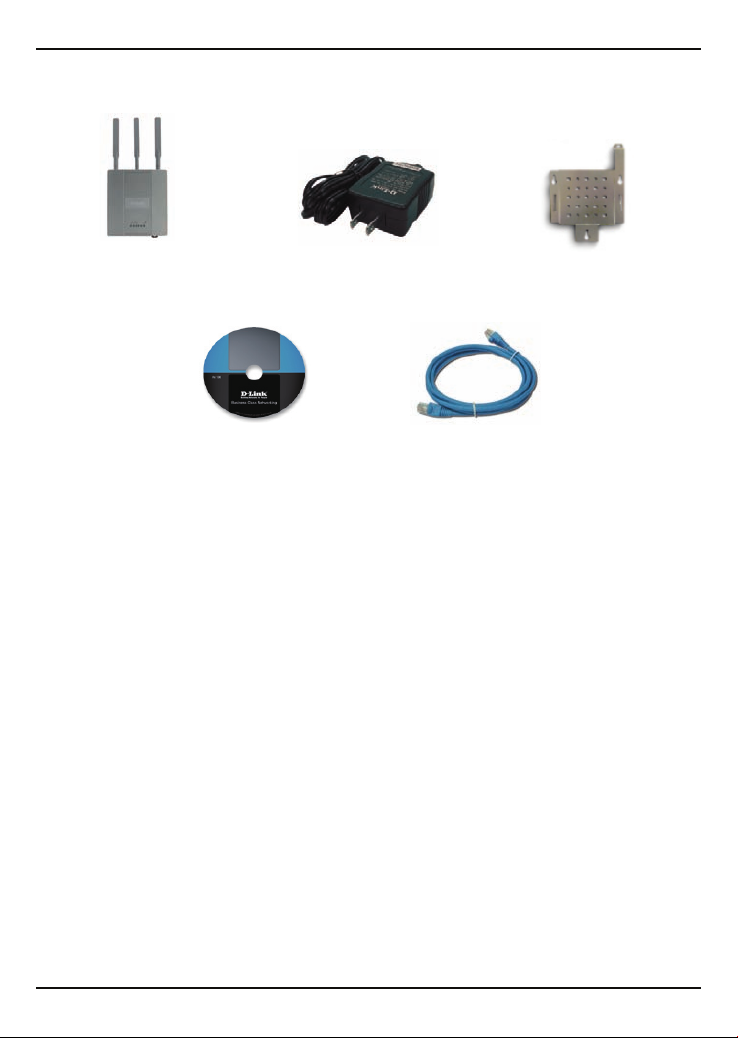
Package Contents
DAP-2590 802.11n
Access Point
Note: Using a power supply with a different voltage than the one included with the
DAP-2590 will cause damage and void the warranty for this product.
If any of the above items are missing, please contact your reseller.
Power Adapter
Ethernet CableCD-ROM
Mounting Plate
System Requirements
Minimum System Requirements:
• CD-ROM Drive
• Computers with Windows®, Macintosh®, or Linux-based operating
systems
• Installed Ethernet Adapter
• Internet Explorer version 7.0 or Firefox 3.0 and above
2 DAP-2590 Install Guide
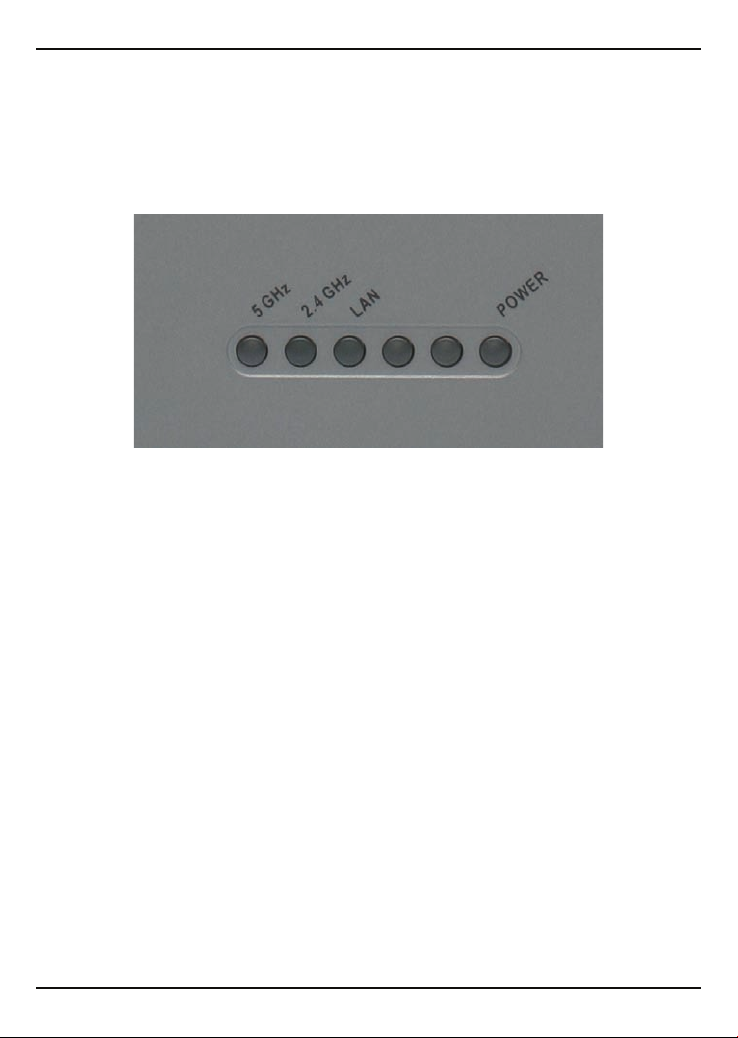
Hardware Overview
LEDs
5 GHz — When lit, the access point is operating at 5GHz.
This light will blink when there is wireless trafc.
2.4 GHz — When lit, the access point is operating at 2.4GHz.
This light will blink when there is wireless trafc.
LAN — Solid light when the Ethernet port is connected to a
working port, such as a router or switch. The light will blink
when there is trafc through LAN port.
POWER — The light will blink during boot up. Once solid, the
access point is ready.
DAP-2590 Install Guide 3
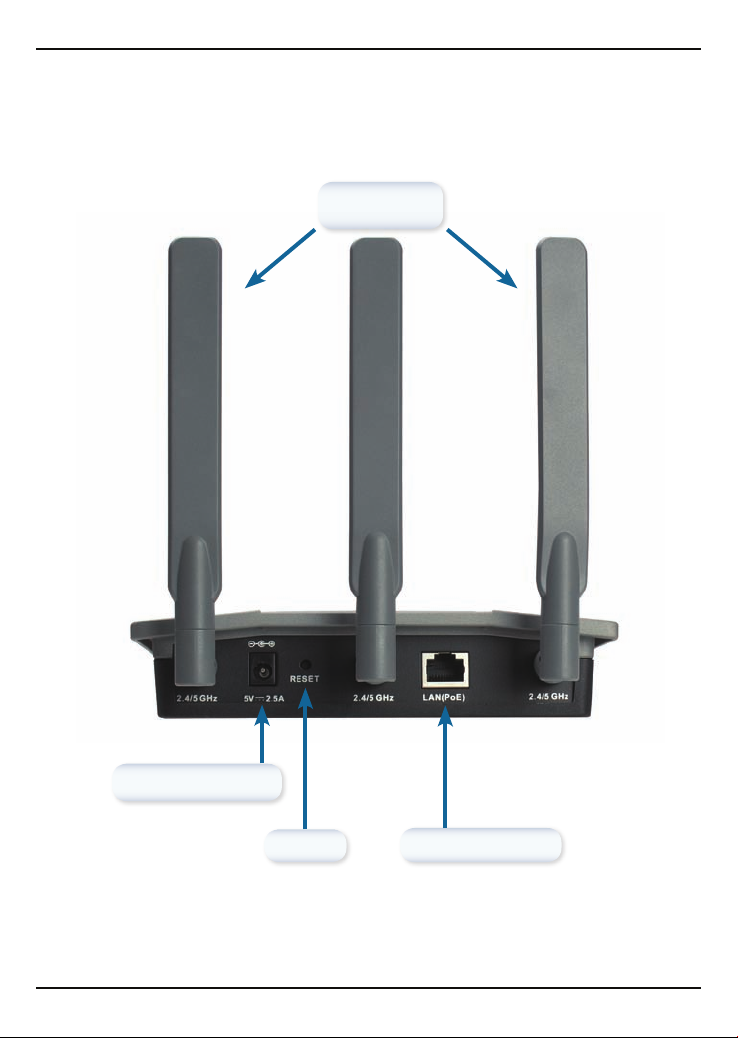
Installing the Hardware
Antennas
Power Receptor
Reset
4 DAP-2590 Install Guide
LAN Port (PoE)
Loading…
Характеристики, спецификации
Стандарт беспроводной связи:
802.11n, частота 2.4 / 5 ГГц
Поддержка технологии MIMO:
есть
Максимальная скорость беспроводного соединения:
300 Мбит/с
Защита информации:
WEP, WPA, WPA2, 802.1x
Функция «Режим моста»:
есть
Количество внешних антенн:
3
Тип внешней антенны:
съемная
Наличие «Web-интерфейса»:
есть
Поддержка технологии «SNMP»:
есть
Power over Ethernet (PoE):
есть
Размеры (ШxВxГ):
165x185x43 мм
AirPremier N
DUAL BAND PoE ACCESS POINT
DAP—2590
Руководство по быстрой установке+
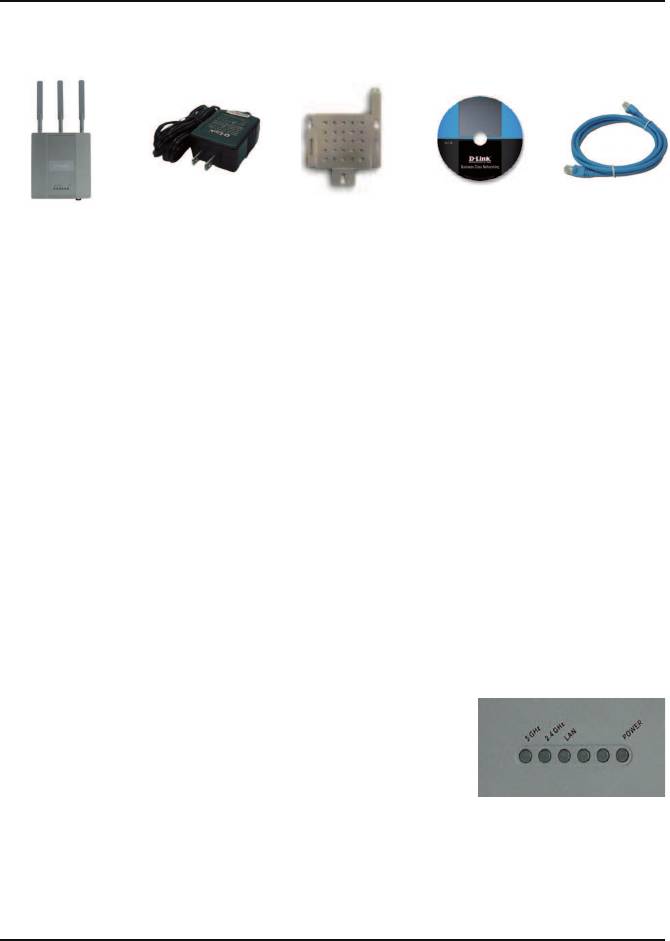
Комплект поставки
Точка доступа
Адаптер
Крепежная
Компакт-
Кабель Eth-
DAP-2590 802.11n
питания
пластина
диск
ernet
(проект)
Примечание: Использование источника питания с другим напряжением питания
может привести к выходу из строя устройства и потере гарантии.
Если что-либо из перечисленного отсутствует, пожалуйста,
обратитесь к поставщику.
Системные требования
Минимальные системные требования:
• Привод CD-ROM
®
®
• Компьютер под управлением Windows
, Macintosh
или Linux
• Установленный адаптер Ethernet
• Internet Explorer версии 7.0 или Firefox 3.0 и выше
Обзор устройства
Индикаторы
5 GHz — индикатор горит при работе точки
доступа на частоте 5 ГГц, мигает – при передаче
беспроводного трафика.
2.4 GHz — индикатор горит при работе точки
доступа на частоте 2,4 ГГц, мигает – при передаче
беспроводного трафика.
LAN — индикатор горит постоянно, если порт Ethernet подключен к
работающему порту маршрутизатора или коммутатора. Мигает при
передаче трафика через порт LAN.
POWER — индикатор мигает во время загрузки и горит постоянным
светом, когда точка доступа готова к работе.
DAP-2590 Install Guide 2
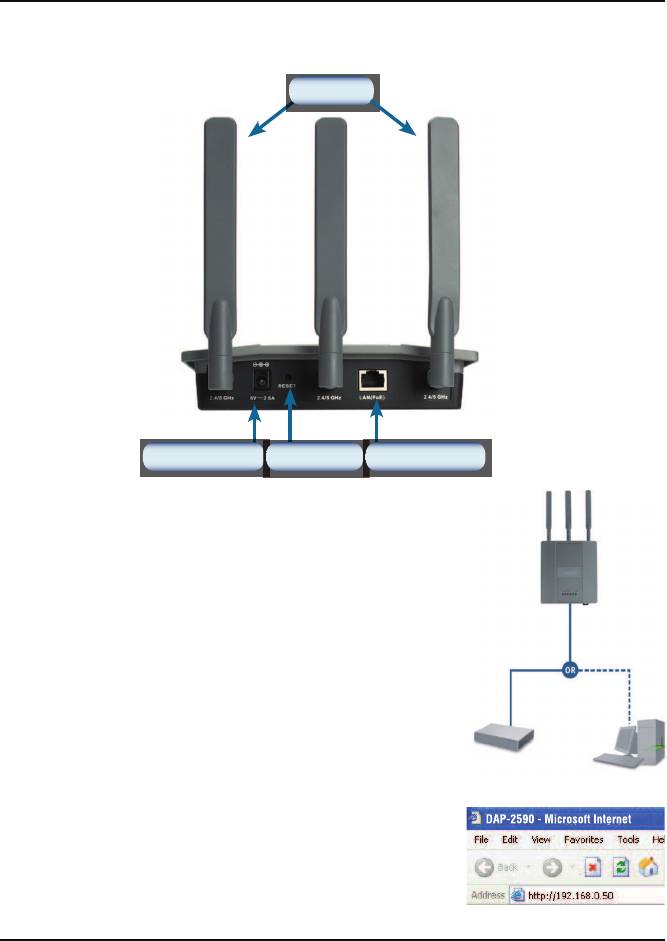
Установка устройства
Антенны
Разъем питания
Кнопка Reset
Порт LAN (PoE)
Для включения точки доступа можно использовать
один из следующих способов:
1. Подключение адаптера питания, входящего в
комплект поставки
2. Подключение одного конца кабеля Ethernet к
порту LAN (PoE) на DAP-2590 и другого конца
кабеля к порту на коммутаторе PoE.
Для установки и управления DAP-2590 из компьютера
используйте один из следующих способов:
1. Подключение прямого кабеля Ethernet к точке
доступа и компьютеру.
2. Подключение точки доступа и компьютера к
коммутатору или маршрутизатору.
3. Пожалуйста, запустите web-браузер,
напечатайте в адресной строке IP-адрес
устройства (http://192.168.0.50) и нажмите
Enter. Убедитесь, что IP-адреса устройства
и компьютера принадлежат одной подсети.
Для последующей настройки обратитесь к
руководству пользователя.
8 DAP-2590 Install Guide
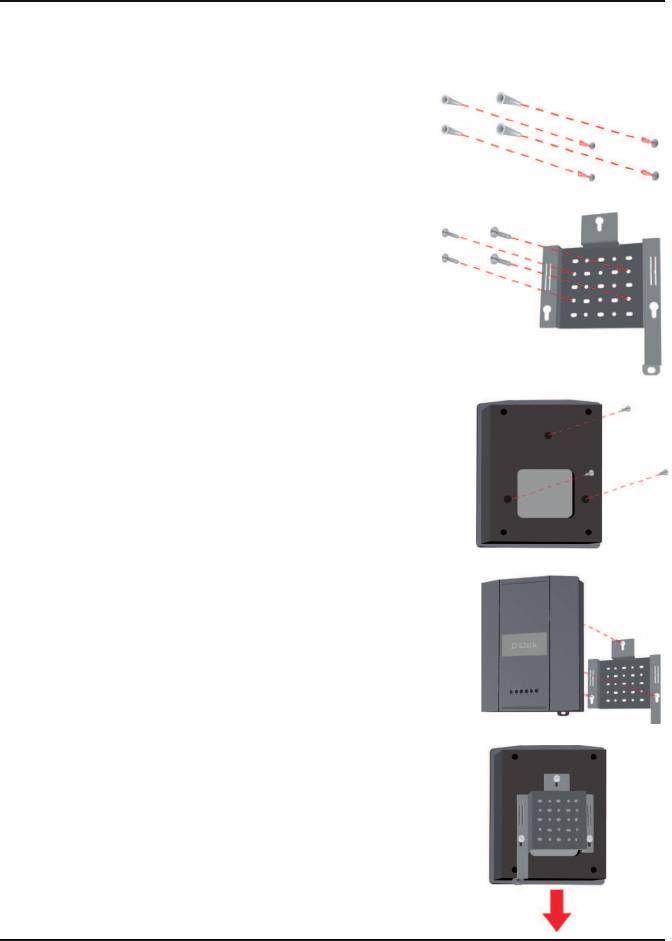
Монтаж крепежной пластины
Шаг 1: Забейте дюбели в стену, где будет
установлена крепежная пластина.
Шаг 2: С помощью болтов, входящих в
поставку, прикрепите крепежную пластину к
стене.
Шаг 3: Оставшиеся болты надежно закрепите
на задней панели DAP—2590.
Шаг 4: Прикрепите DAP-2590 к крепежной
плате.
Шаг 5: Плавно опустите DAP-2590 вниз в пазы
на крепежной плате для надежной фиксации
устройства.
DAP-2590 Install Guide 9
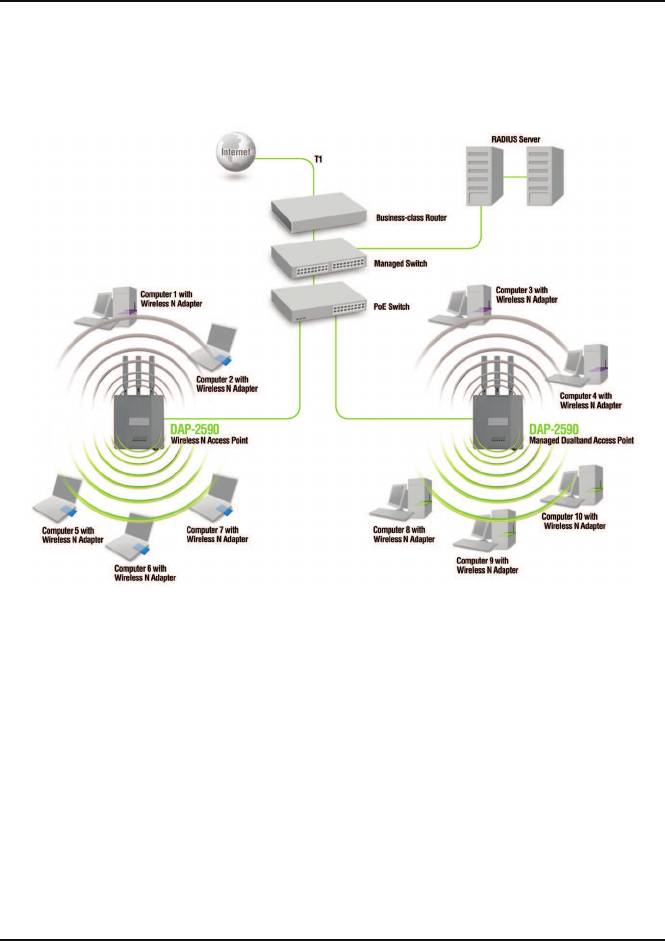
Установка завершена
После выполнения всех шагов данного руководства по установке
и настройке для работы в сети, сеть должна выглядеть подобным
образом:
* Максимальная скорость беспроводной передачи данных определена спецификациями
стандарта IEEE 802.11n (проект 2.0). Реальная пропускная способность будет другой.
Условия, в которых работает сеть, а так же факторы окружающей среды, включая объем
сетевого трафика, строительные материалы и конструкции, и служебные данные сети могут
снизить реальную пропускную способность.
5 DAP-2590 Install Guide
Техническая поддержка
Обновления программного обеспечения и документация
доступны на Интернет-сайте D-Link.
D-Link предоставляет бесплатную поддержку для клиентов
в течение гарантийного срока.
Клиенты могут обратиться в группу технической поддержки
D-Link по телефону или через Интернет.
Техническая поддержка D-Link:
+495-744-00-99
Техническая поддержка через Интернет
http://www.dlink.ru
e-mail: support@dlink.ru
DAP-2590 Install Guide
Как использовать наш сайт инструкций OnlineManuals.ru
Наша цель состоит в том, чтобы предоставить вам быстрый доступ к содержанию инструкции для устройства wi-fi, роутера D-Link DAP -2590.
С помощью онлайн просмотра, Вы можете быстро просмотреть содержимое инструкции и найти решение проблемы с устройства wi-fi, роутера D-Link DAP -2590.
Для Вашего удобства
Если листать руководство пользователя устройства wi-fi, роутера D-Link DAP -2590 прямо на сайте, не очень удобно для Вас, есть два возможных решения:
• Просмотр в полноэкранном режиме — легко просмотреть руководство пользователя (без загрузки его на свой компьютер), Вы можете использовать режим полноэкранного просмотра.
Для просмотра инструкции пользователя устройства wi-fi, роутера D-Link DAP -2590 на полном экране, используйте кнопку «Открыть в Pdf-viewer».
• Загрузка на компьютер — Вы можете также скачать Руководство пользователя устройства wi-fi, роутера D-Link DAP -2590 на свой компьютер и сохранить его в файлах.
Многие люди предпочитают читать документы не на экране, а в печатной версии.
Возможность печати руководства пользователя также была предусмотрена на нашем сайте,
и вы можете использовать ее, нажав на иконку «печать» в Pdf-viewer.
Нет необходимости печатать все руководство устройства wi-fi, роутера D-Link DAP -2590, можно выбрать только нужные страницы инструкции.