
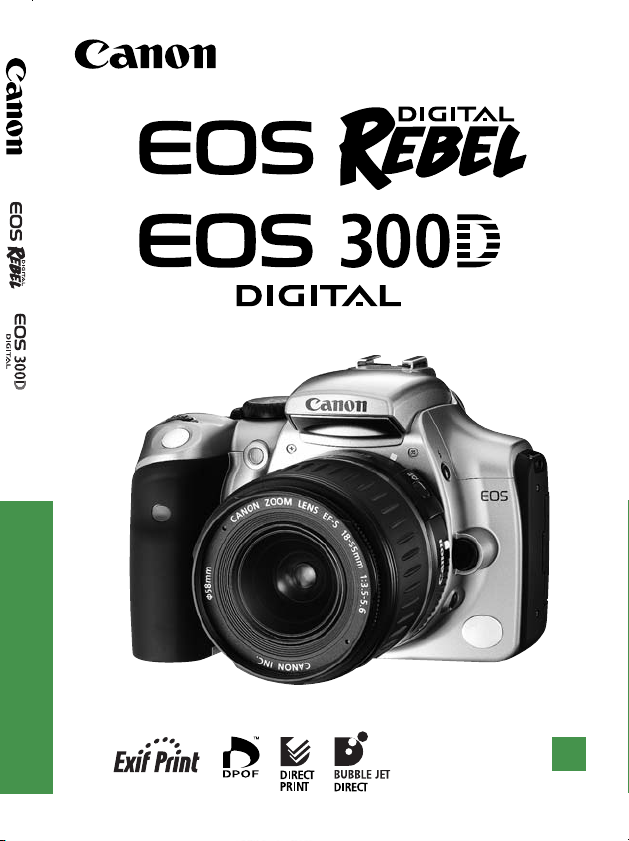
INSTRUCTION MANUAL
E
E
INSTRUCTION MANUAL

Thank you for purchasing a Canon product.
The EOS DIGITAL REBEL/EOS 300D DIGITAL is a high-performance,
digital AF SLR camera with an ultra-fine CMOS sensor with 6.30 million
effective pixels. It is full-featured for all types of shooting, from fully
automatic snapshooting to highly creative work. You can use all Canon
EF and EF-S lenses and start shooting quickly at any time in any
mode. Images can also be printed directly from the camera.
CompactFlash cards serve as the camera’s recording medium.
Be sure to read this Instruction Manual to familiarize yourself with the
features and proper operation of this camera.
Test the Camera Before Shooting
Before using the camera, be sure to test it first. Check that the images are
properly recorded on the CF card. If the camera or CF card is faulty and the
images cannot be recorded or read by a personal computer, Canon cannot be
held liable for any loss or inconvenience caused.
Copyrights
Copyright laws in your country may prohibit the use of images of people and
certain subjects for anything but private enjoyment. Shooting public performances
or exhibitions may also be prohibited.
Canon and EOS are trademarks of Canon Inc.
•
Adobe and Photoshop are trademarks of Adobe Systems Incorporated.
•
CompactFlash is a trademark of SanDisk Corporation.
•
Windows is a trademark or registered trademark of Microsoft Corporation of
•
the United States in the United States and other countries.
Macintosh is a registered trademark of Apple Corporation in the United States
•
and other countries.
* This digital camera supports Exif 2.2 (also called “Exif Print”). Exif Print is a
standard for enhancing the communication between digital cameras and
printers. By connecting to an Exif Print-compliant printer, the camera’s image
data at the time of shooting is used and optimized, yielding extremely high
quality prints.
2

Equipment Check List
Be sure all the following equipment and accessories have been
included with your camera. If anything is missing, contact your dealer.
¢ EOS DIGITAL REBEL/EOS 300D DIGITAL camera body (with Eyecup,
body cap and lithium backup battery for the date and time)
¢ EF-S18-55mm f/3.5-5.6 (with lens cap and dust cap) * In optional lens kit.
¢ Battery Pack BP-511 (includes protective cover)
¢ Battery Charger CB-5L
¢ Power cord for battery charger
¢ Interface Cable IFC-300PCU
¢ Video Cable VC-100
¢ Neck Strap EW-100DB ll (with eyepiece cover)
¢ EOS DIGITAL Solution Disk (CD-ROM)
¢ Adobe Photoshop Elements Disk (CD-ROM)
¢ Pocket Guide
Quick guide to using the camera.
¢ EOS DIGITAL REBEL/EOS 300D DIGITAL Instructions (which you are
reading now)
¢ Installing the Software Correctly
Explains the software installation and features.
¢ EOS DIGITAL REBEL/EOS 300D DIGITAL Software Instructions
Explains the procedure for transferring images to a personal computer
and for RAW image processing.
¢ Battery Pack BP-511 Instructions
¢ Warranty card
∗ Ta ke care not to lose any of the above items.
∗ No CF card is included. Please purchase it separately. CF cards made by
Canon are recommended.
3

Contents
Introduction
Equipment Check List ………….. 3
Handling Precautions ………….. 8
Nomenclature …………………… 10
Conventions Used
in this Manual ……………………. 16
1 Before You Start …………… 17
Recharging the Battery ………. 18
Installing and Removing
the Battery ……………………….. 20
Using a Household
Power Supply ……………………. 22
Mounting and Detaching
a Lens ……………………………… 23
Installing and Removing
the CF Card ……………………… 24
Basic Operation ………………… 26
Menu Operations ………………. 28
Menu Settings ……………….. 30
LCD Monitor ………………….. 31
Reverting to the
Default Settings ……………… 31
MENU
Setting the Date
and Time …………………… 32
Replacing the Date/Time
Battery …………………………….. 33
MENU
Cleaning the Image
Sensor (CMOS) …………. 34
Dioptric Adjustment …………… 36
Holding the Camera …………… 36
4
2
Fully Automatic Shooting …..
37
YFully Automatic Shooting .. 38
Programmed Image
Control Modes ………………….. 40
Reviewing Images ……… 42
Image Review ………………… 42
Changing the Review Time …
43
qSelf-timer Operation ………. 44
KWireless Remote Control ….. 45
Using the Eyepiece Cover ….. 46
3 Settings for Shooting …… 47
Image-Recording
Quality ……………………… 48
DSetting the ISO Speed …. 50
6Selecting the White
Balance ……………………… 51
Custom White Balance .. 52
White Balance Auto
Bracketing …………………. 53
Selecting the Processing
Parameter …………………. 55
Setting Processing
Parameters ……………….. 56
File Numbering ………….. 58
Setting Auto Rotation …. 59
4Checking Camera
Settings …………………… 60
4 Advanced Operations …… 61
3Selecting an AF Point ……. 62
When Autofocus Fails
(Manual Focusing) …………….. 64

Contents
Drive Mode Selection ………… 65
TProgram AE ………………….. 66
RShutter-Priority AE ……….. 68
EAperture-Priority AE …….. 70
Depth-of-field Preview ……….. 71
WManual Exposure ………….. 72
QAutomatic
Depth-of-Field AE …….. 74
Setting Exposure
Compensation ………………….. 75
MENU
Auto Exposure
Bracketing ………………… 76
jAE Lock ……………………….. 78
Bulb Exposures ………………… 79
Using the Built-in Flash ………. 80
Using Red-eye Reduction .. 82
jFE Lock …………………….. 83
Metering Modes ………………… 84
0LCD Panel Illumination ….. 84
5 Image Playback ……………. 85
Image Playback ………………… 86
]Single image …………….. 86
4Image with Shooting
Information ……………. 86
ˆIndex Display …………….. 88
7/ø Magnified View……… 89
5Image Jump ………….. 90
MENU
Automated Playback of
Images (Auto playback) … 91
MENU
Rotating an Image ….. 92
Connecting to a TV ……………. 93
MENU
Image Protection ……….. 94
9Erasing an Image …………… 95
MENU
Formatting
the CF Card ……………… 97
6
Direct Printing from the Camera
… 99
Connect the Camera
to the Printer …………………… 100
Printing ………………………….. 102
7
DPOF: Digital Print Order Format …
MENU
Print Order ………………. 110
109
Direct Printing with DPOF …. 116
8 Reference …………………… 121
Function Availability Table …. 122
AF Modes and
Drive Modes ………………… 123
Troubleshooting Guide ……… 124
Error Codes ……………………. 127
Major Accessories (optional) …
128
System Map ……………………. 130
Specifications …………………. 132
Index ……………………………… 138
5
Safety Warnings
Follow these safeguards and use the equipment properly to prevent injury, death, and
material damage.
Preventing Serious Injury or Death
•To prevent fire, excessive heat, chemical leakage, and explosions, follow the
safeguards below:
— Do not use any batteries, power sources, and accessories not specified in this
booklet. Do not use any home-made or modified batteries.
— Do not short-circuit, disassemble, or modify the battery pack or back-up battery. Do
not apply heat or apply solder to the battery pack or back-up battery. Do not expose
the battery pack or back-up battery to fire or water. And do not subject the battery
pack or back-up battery to strong physical shock.
— Do not install the battery pack or back-up battery in reversed polarity (+
mix new and old or different types of batteries.
— Do not recharge the battery pack outside the allowable ambient temperature range
of 0˚C — 40˚C (32˚F — 104˚F). Also, do not exceed the recharging time.
— Do not insert any foreign metallic objects into the electrical contacts of the camera,
accessories, connecting cables, etc.
•Keep the back-up battery away from children. If a child swallows the battery, consult
a physician immediately. (Battery chemicals may harm the stomach and intestines.)
• When disposing of a battery pack or back-up battery, insulate the electrical contacts
with tape to prevent contact with other metallic objects or batteries. This is to prevent
fire or an explosion.
• If excessive heat, smoke, or fumes are emitted during battery pack recharging,
immediately unplug the battery charger from the power outlet to stop the recharging
and prevent a fire.
• If the battery pack or back-up battery leaks, changes color, deforms, or emits smoke
or fumes, remove it immediately. Be careful not to get burned in the process.
• Prevent any battery leakage from contacting your eyes, skin, and clothing. It can
cause blindness or skin problems. If the battery leakage contacts your eyes, skin, or
clothing, flush the affected area with lots of clean water without rubbing it. See a
physician immediately.
• During the recharging, keep the equipment away from the reach of children. The cord
can accidentally choke the child or give an electrical shock.
• Do not leave any cords near a heat source. It can deform the cord or melt the
insulation and cause a fire or electrical shock.
• Do not fire the flash at someone driving a car. It may cause an accident.
• Do not fire the flash near a person’s eyes. It may impair the person’s vision. When
using flash to photograph an infant, keep at least 1 meter away.
• Before storing the camera or accessory when not in use, remove the battery pack
and disconnect the power plug. This is to prevent electrical shock, heat generation,
and fire.
• Do not use the equipment where there is flammable gas. This is to prevent an
explosion or fire.
6
–
). Do not
• If you drop the equipment and the casing breaks open to expose the internal parts,
do not touch the internal parts due to the possibility of electrical shock.
• Do not disassemble or modify the equipment. High-voltage internal parts can cause
electrical shock.
• Do not look at the sun or an extremely bright light source through the camera or lens.
Doing so may damage your vision.
•Keep the camera from the reach of small children. The neck strap can accidentally
choke the child.
• Do not store the equipment in dusty or humid places. This is to prevent fire and
electrical shock.
• Before using the camera inside an airplane or hospital, check if it is allowed.
Electromagnetic waves emitted by the camera may interfere with the plane’s
instruments or the hospital’s medical equipment.
•To prevent fire and electrical shock, follow the safeguards below:
— Always insert the power plug all the way in.
— Do not handle a power plug with wet hands.
— When unplugging a power plug, grasp and pull the plug instead of the cord.
— Do not scratch, cut, or excessively bend the cord or put a heavy object on the cord.
Also do not twist or tie the cords.
— Do not connect too many power plugs to the same power outlet.
— Do not use a cord whose insulation has been damaged.
•Occasionally unplug the power plug and use a dry cloth to clean off the dust around
the power outlet. If the surrounding is dusty, humid, or oily, the dust on the power
outlet may become moist and short-circuit the outlet to cause a fire.
Preventing Injury or Equipment Damage
• Do not leave equipment inside a car under the hot sun or near a heat source. The
equipment may become hot and cause skin burns.
• Do not carry the camera around while it is attached to a tripod. Doing so may cause
injury. Also make sure the tripod is sturdy enough to support the camera and lens.
• Do not leave a lens or lens-attached camera under the sun without the lens cap
attached. Otherwise, the lens may concentrate the sun’s rays and cause a fire.
• Do not cover or wrap the battery-recharging apparatus with a cloth. Doing so may
trap heat within and cause the casing to deform or catch fire.
• If you drop the camera in water or if water or metal fragments enter inside the
camera, promptly remove the battery pack and back-up battery. This is to prevent fire
and electrical shock.
• Do not use or leave the battery pack or back-up battery in a hot environment. Doing
so may cause battery leakage or a shorter battery life. The battery pack or back-up
battery can also become hot and cause skin burns.
• Do not use paint thinner, benzene, or other organic solvents to clean the equipment.
Doing so may cause fire or a health hazard.
If the product does not work properly or requires repair, contact
your dealer or your nearest Canon Service Center.
7

Handling Precautions
The Camera
This camera is a precision instrument. Do not drop it or expose it to physical shock.
•
The camera is not waterproof and should not be used in wet conditions or underwater.
•
If the camera gets wet, take it to your nearest Canon dealer as soon as possible. If
small amounts of water splash onto the camera, wipe it with a clean dry cloth. If the
camera is exposed to salty air, wipe it thoroughly with a slightly damp cloth.
Never leave the camera close to devices that generate strong magnetic fields, such
•
as magnets or electric motors. Do not operate or leave the camera in areas where
strong electromagnetic signals are generated, such as near electronic transmission
towers. Exposing the camera to strong electromagnetic signals can cause it to
malfunction and destroy recorded image data.
Do not leave the camera in hot locations, such as in a car sitting in direct sunlight.
•
High temperatures can damage the camera.
The camera contains precision circuits. Never attempt to disassemble the camera or
•
service it yourself.
Use a commercially available blower brush to remove any dust that accumulates on
•
the camera lens, viewfinder, mirror, or focusing screen. Do not use cleaners that
contain organic solvents to wipe off the camera body or lens. If the camera is very
soiled, consult your nearest Canon dealer.
Do not touch the camera’s electrical contacts with your hands. Doing so could
•
corrode the contacts and interfere with the camera’s normal operation.
If the camera is suddenly brought in from the cold into a warm room, condensation
•
may form on the camera and internal parts. To prevent condensation, first put the
camera in a sealed plastic bag. Let the camera adjust to the warmer temperature
before taking it out of the bag.
Do not use the camera if condensation forms on it, or you could damage it. If this
•
occurs, remove the lens, CF card and battery from the camera, and wait until the
condensation has evaporated before using the camera.
If the camera will not be used for an extended period, remove its battery and store
•
the camera in a cool, dry, well-ventilated location. While the camera is in storage,
operate its shutter periodically to make sure that it is working.
Avoid storing the camera in locations where potentially corrosive chemicals are
•
used, such as in a laboratory.
If the camera has been in storage for an extended period, check its components
•
before using it. If you have not used the camera for some time or are planning to take
shots you will not want to lose (overseas vacation, etc.), have the camera checked
by your Canon dealer beforehand, or check for yourself that the camera components
are working properly.
LCD Panel and LCD Monitor
The LCD monitor is manufactured with very high precision technology. However,
•
there may be a few dead pixels where a black or red pixel is always displayed. They
number no more than 0.01 percent of all effective pixels. They are not a malfunction
and do not affect the images recorded.
8
Handling Precautions
Do not press hard on an LCD display or subject it to impacts, as this can cause
•
display flaws and damage.
If an LCD display becomes soiled, clean it with a commercially available blower
•
brush, or wipe it with a soft cloth, taking care not to scratch the screen. If an LCD
display becomes extremely soiled, consult your nearest Canon dealer.
By their nature, LCD displays react more slowly at low temperatures, and may
•
appear dark at high temperatures. The display will return to normal at room
temperature.
Lithium Battery for the Date and Time
Store lithium batteries out of reach of small children. The chemicals in these
•
batteries are very dangerous if the battery is accidentally swallowed. If this happens,
seek medical attention at once.
Do not use metal instruments such as pliers to hold the battery, or you could cause a
•
short circuit.
Do not disassemble or heat the battery, or you could rupture it.
•
CF Card
The CF card is a precision device. Do not drop CF cards or expose them to
•
vibrations. Doing so could lose the images recorded on them.
Do not store or use CF cards near objects that generate magnetic fields, such as
•
TVs, speakers, or magnets, or in locations affected by static electricity. Doing so
could lose the images recorded on the CF card.
Do not place CF cards in direct sunlight or close to heating appliances. Doing so can
•
distort the cards and make them unusable.
Do not spill liquids onto CF cards.
•
Always store your CF cards in a case or cabinet to protect the data stored on them.
•
Non-Canon CF cards may not be able to record and playback images. If this
•
happens, use a CF card made by Canon.
Do not bend CF cards, or subject them to strong impacts.
•
Do not store CF cards in hot, dusty, or humid locations, or in locations exposed to
•
static electricity or magnetic fields.
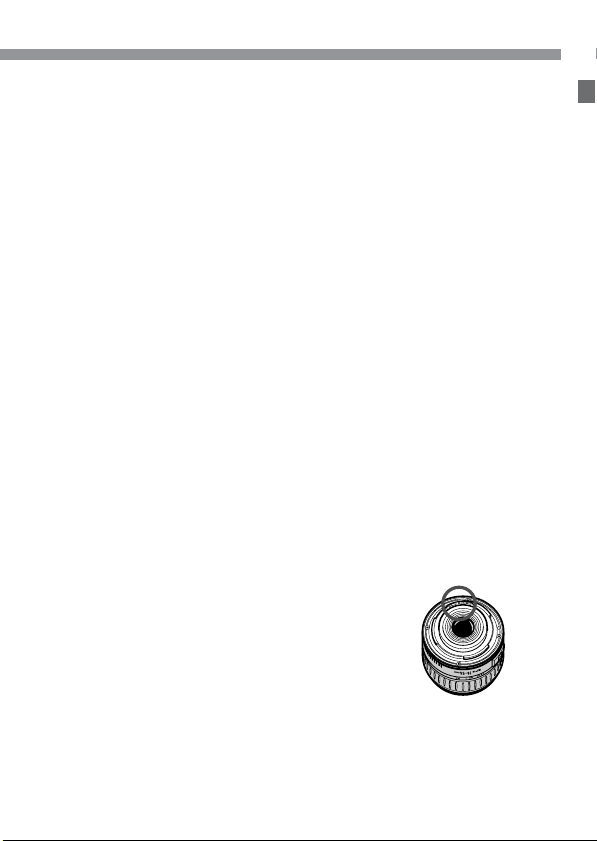
Lens Electrical Contacts
After detaching the lens from the camera, attach the lens
caps or put down the lens with the rear end up to avoid
scratching the lens surface and electrical contacts.
Contacts
9
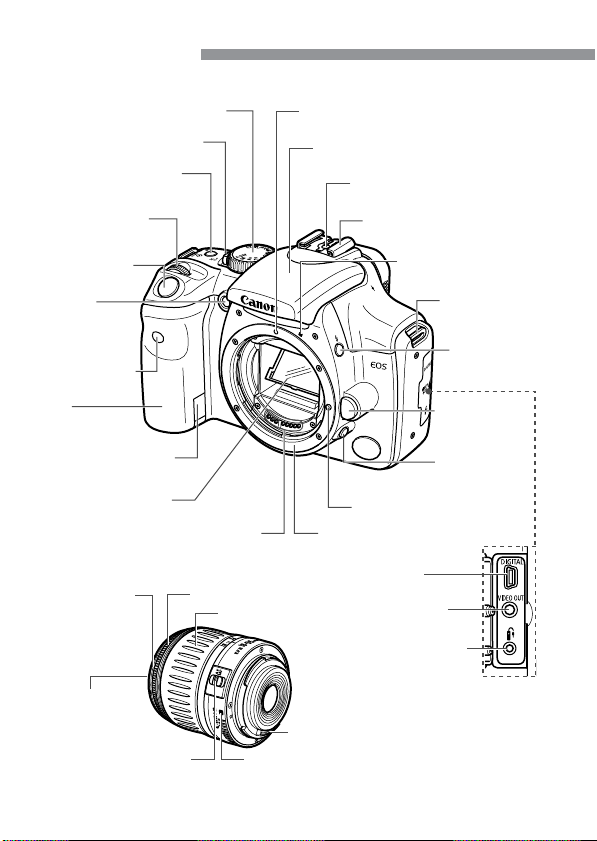
Nomenclature
Reference page numbers are indicated by (p.∗∗).
Mode dial (p.14)
Power switch (p.26)
Drive mode selection
button (p.65)
〈l〉 Main dial
(p.27)
Shutter button
(p.26)
Red-eye
reduction
/Self-timer lamp
(p.82/44)
Remote control
sensor
Grip
(
Battery
compartment
)
DC coupler cord
hole (p.22)
Mirror (p.34)
Contacts (p.9)
EF lens mount index (p.23)
Built-in flash (p.80)
Flash-sync contacts
Lens lock pin
Lens mount
Hot shoe
EF-S lens mount index
(p.23)
Strap mount
(p.17)
〈M〉 Flash
button (p.83)
Lens release
button (p.23)
Depth-of-field
preview button
(p.71)
EF-S18-55mm f/3.5-5.6 lens
Hood EW-60C
(optional) mount
58 mm filter
thread
(front of lens)
Focus mode switch
10
Focusing ring
Zoom ring
Lens mount index
Contacts (p.9)
DIGITAL
terminal (p.100)
VIDEO OUT
terminal (p.93)
Remote control
terminal
(for Remote
Switch RS-60E3)
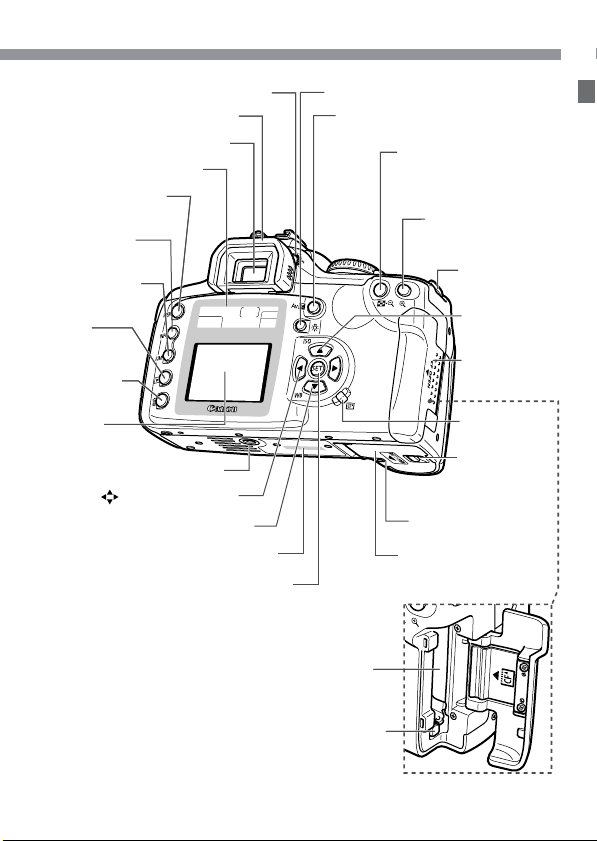
Dioptric adjustment knob (p.36)
Eyecup (p.46)
Viewfinder eyepiece
LCD panel (p.12)
〈m〉 Menu
button (p.28)
〈
4
〉 Info
button (p.60, 86)
〈
5
〉 Jump
button (p.90)
]
〉
〈
Playback
button (p.86)
〈
9
〉 Erase
button (p.95)
LCD
monitor
(p.31)
Tr ipod socket
〈 〉 Cross keys (p.28)
White balance button (p.51)
〈NO.〉 Body number
〈
p
〉 Setting button (p.28)
Nomenclature
0
〉 LCD panel illumination button (p.84)
〈
〈
∑
〉 Aperture value/Exposure
compensation button (p.72)
〈
j/8
〉 AE lock /
FE lock button /
Index / Reduce button
(p.78/83/88/89,106)
〈
3/7
〉 AF point
selector / Enlarge
button (p.62/89,106)
Strap mount
(p.17)
ISO speed set
button (p.50)
CF card slot
cover (p.24)
Access
lamp (p.25)
Battery
compartment
cover release
lever (p.20)
Battery compartment
cover (p.20)
Date/time battery
(in battery compartment)
(p.33)
CF card slot (p.24)
CF card eject button
(p.24)
11
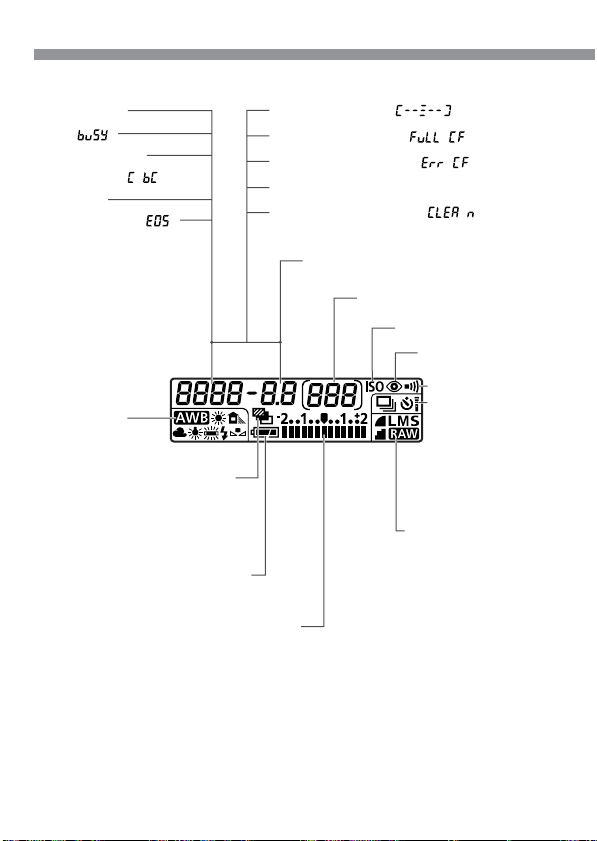
Nomenclature
LCD Panel
Shutter speed
Busy ( )
Date/time battery
level warning ( )
ISO Speed
Camera starting ( )
White balance
Z Auto
C Daylight
X Shade
V Cloudy
B Tungsten bulb
N White fluorescent light
M Flash
, Custom
L AEB
Battery level
w e
Exposure level indicator
Exposure compensation amount
AEB level
CF card writing status
AF point selection ( )
CF card full warning ( )
CF card error warning ( )
Error code
Cleaning image sensor ( )
Aperture value
Shots remaining
D ISO speed
Image-Recording
quality
da
r
ds
fa
fs
ga
gs
h RAW
F Red-eye
reduction
G Beeper
Drive mode
J Single
HContinuous
´ Self-timer/
Remote control
Large/Fine
Large/Normal
Medium/Fine
Medium/Normal
Small/Fine
Small/Normal
The actual display will show only the applicable items.
12
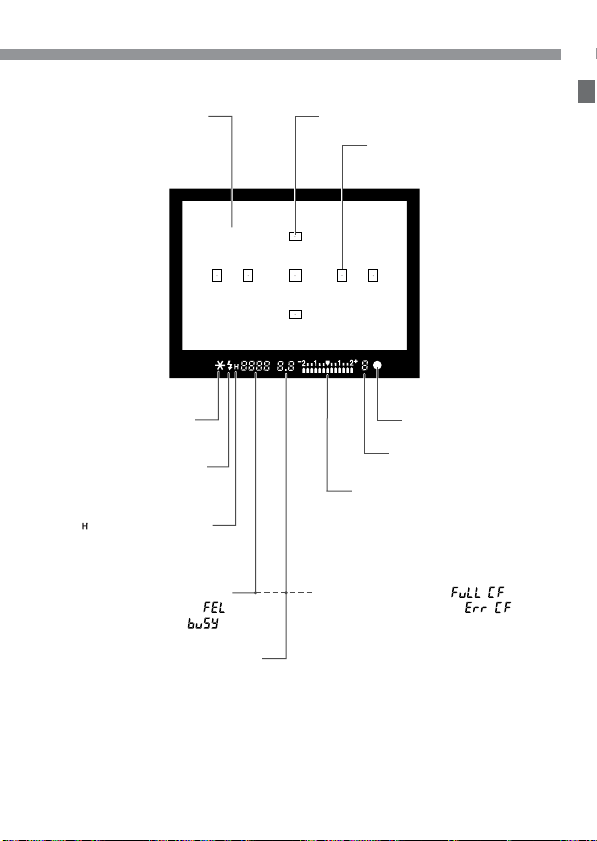
Viewfinder Information
Focusing screen
〈
j
〉 AE lock / FE lock
AEB in progress
〈M〉 Flash-ready
Improper FE lock
warning
〈 〉 High-speed sync
(FP flash)
Shutter speed
FE lock ( )
Busy ( )
Nomenclature
AF point display indicator 〈.〉
AF points
〈n〉 Focus confirmation
light
Maximum burst during
continuous shooting
Exposure level indicator
Exposure compensation
amount
AEB level
Red-eye reduction lamp-on
indicator
CF card full warning ( )
CF card error warning ( )
Aperture value
13
Nomenclature
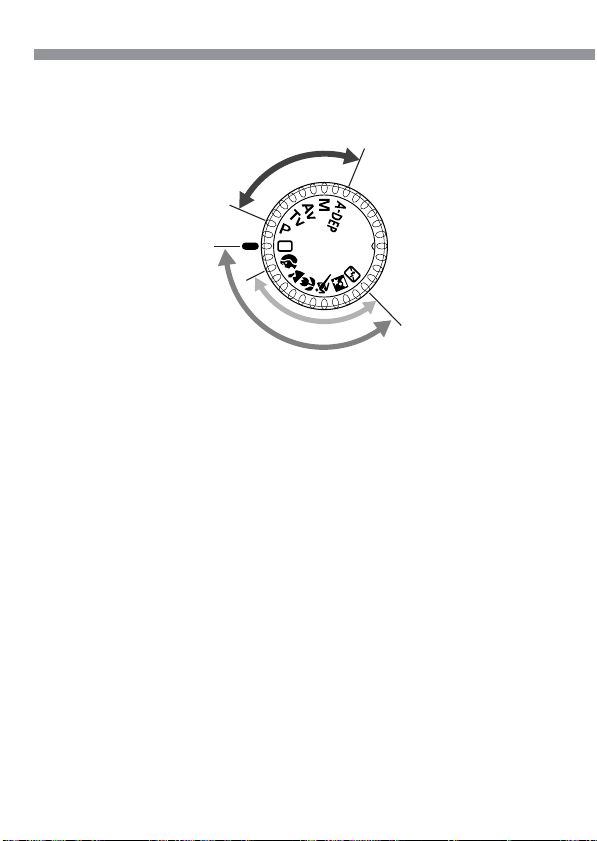
Mode Dial
The Mode Dial is divided into two functional zones.
e
n
o
Z
e
v
i
t
a
e
r
C
Full Auto
I
m
a
g
B
a
s
i
c
Z
e
e
n
Z
o
o
n
e
11
1 Basic Zone
11
All you do is press the
•
shutter button.
Y: Full Auto (p.38)
Allows you fully automatic
shooting—the camera
makes all the settings.
Image Zone
Allows you fully automatic
shooting in specific
situations.
U : Portrait (p.40)
I : Landscape (p.40)
O : Close-up (p.40)
P : Sports (p.41)
A : Night Portrait (p.41)
S : Flash off (p.41)
14
22
2 Creative Zone
22
Lets you make a variety of
settings.
T : Program AE (p.66)
R : Shutter-priority AE
(p.68)
E : Aperture-priority AE
(p.70)
W : Manual exposure
(p.72)
Q: Automatic Depth-of-
field AE
(p.74)
Nomenclature
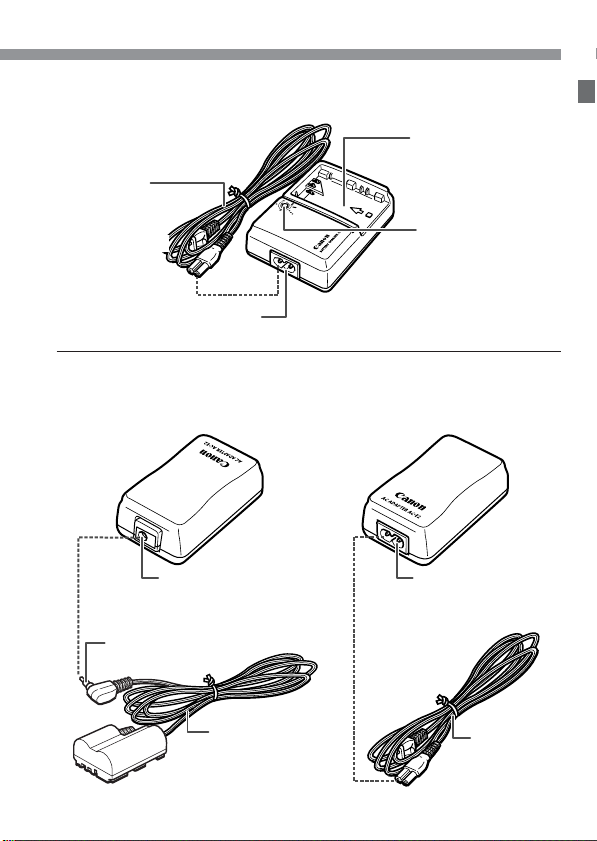
Battery Charger CB-5L
This is a battery pack charger. (p.18)
Battery pack slot
Power cord
Red lamp
Power cord socket
AC Adaptor Kit ACK-E2 (optional)
Supplies power to the camera from a household power outlet. (p.22)
AC Adaptor AC-E2
DC coupler socket
DC coupler plug
DC coupler cord
DC coupler DR-400
DC coupler
side
Power cord
side
Power cord socket
Power cord
15

Conventions Used in this Manual
This icon <l> indicates the main dial.
•
The <å> and <µ> icons indicate the cross
•
keys. The <ß>, <∂>, <ƒ>, and <©> icons
indicate the respective cross key (up, down, left,
and right).
The <p> icon indicates the SET button, used for
•
setting menu options.
The camera control icons and markings in this booklet correspond to
•
the icons and markings on the camera.
For more information, reference page numbers are provided in
•
parentheses (p.00).
For explanatory purposes, the instructions show the camera
•
attached with an EF-S18-55mm f/3.5-5.6 lens.
The menu descriptions assume that the default settings have been
•
set.
MENU
The
•
The icons (˜), (∫), and ( √) indicate that the function
•
operates on a timer, and remains in effect after the button is
released. The icons represent 4, 6, or 16 seconds respectively.
These Instructions use the following alert symbols:
•
label indicates the menu settings that can be changed.
: The Caution symbol indicates a warning to prevent shooting
problems.
: The Note symbol gives supplemental information.
16
1
Before You Start
This chapter explains a few preliminary steps and basic
camera operations.
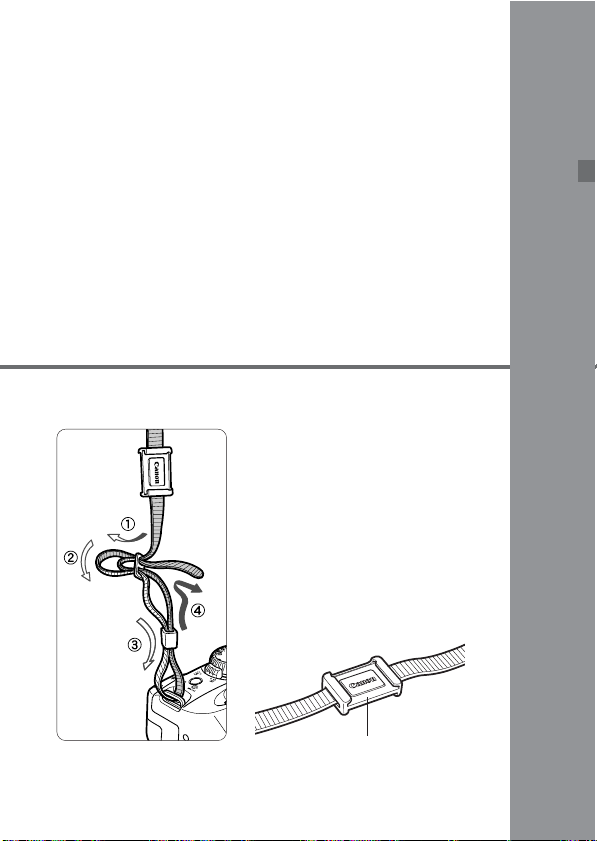
Attaching the Strap
Pass the end of the strap through
the camera’s strap mount from the
bottom. Then pass it through the
strap’s buckle as shown in the
illustration. Pull the strap to make
sure it does not slip out of the
buckle.
The eyepiece cover is also
•
attached to the strap. (p.46)
Eyepiece cover
17
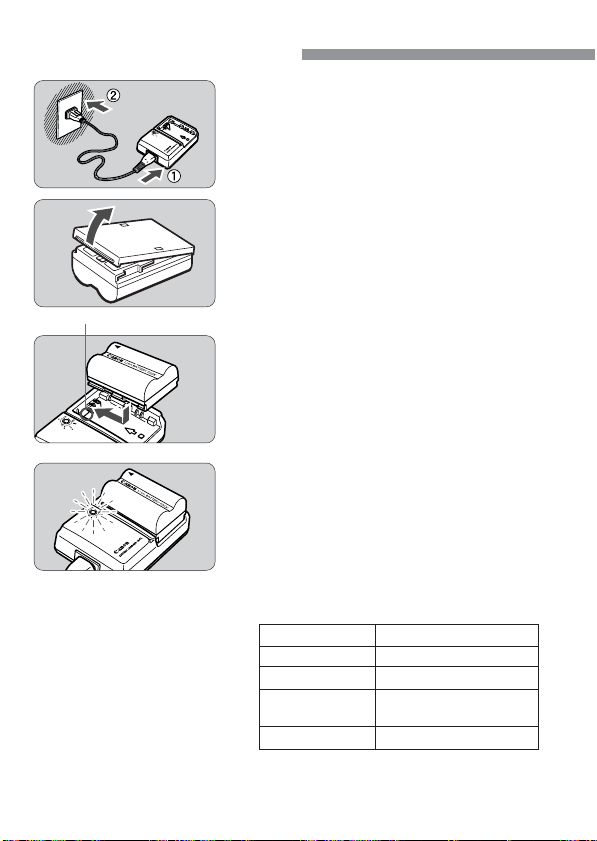
Recharging the Battery
Connect the power cord.
1
Connect the power cord to the charger.
•
Connect the power plug to an AC
•
outlet.
Remove the cover.
2
If you remove the battery from the
•
camera, be sure to reattach the cover
to protect against short circuit.
18
<–> mark
Attach the battery.
3
Align the battery’s top edge with the
•
–
> mark on the charger. While
<
pressing down the battery, slide it in
the direction of the arrow.
To detach the battery, follow the above
•
procedure in reverse.
Recharge the battery.
4
s
When the battery is attached to the
charger, recharging starts
automatically and the red lamp starts
blinking.
s
A completely exhausted battery
takes about 90 minutes to almost
fully recharge.
Recharge Level
0–50%
50–75%
75-90%
90% or higher
* The numbers around red lamp and the
blinking frequency correspond to the table
above.
Red lamp
Blinks once per second
Blinks twice per second
Blinks three times per
second
Stays on
Recharging the Battery
Do not recharge any battery pack other than Battery Pack BP-511 or
•
BP-512.
If the battery is left in the camera for a prolonged period without the
•
camera being used, a low electrical current may be discharged
excessively and the battery’s service life may be affected.
When not using the camera, remove the battery and attach the
protective cover to prevent shorting. Before using the camera again, be
sure to recharge the battery.
After the red lamp lights, continue to recharge the battery for an
•
hour to attain a full charge.
After recharging the battery, detach it and unplug the power cord from
•
the power outlet.
The time required to recharge the battery depends on the ambient
•
temperature and battery’s power level.
The battery pack can operate in temperatures from 0°C to 40°C (32°F to
•
104°F), however for full operating performance, use between 10°C
(50°F) and 30°C (86°F) is recommended. In cold locations such as ski
areas, battery performance is temporarily decreased and operating time
may be reduced.
If operating time is sharply reduced even after charging normally, the
•
battery pack may have exceeded its useful life. Replace it with a new
battery pack.
19
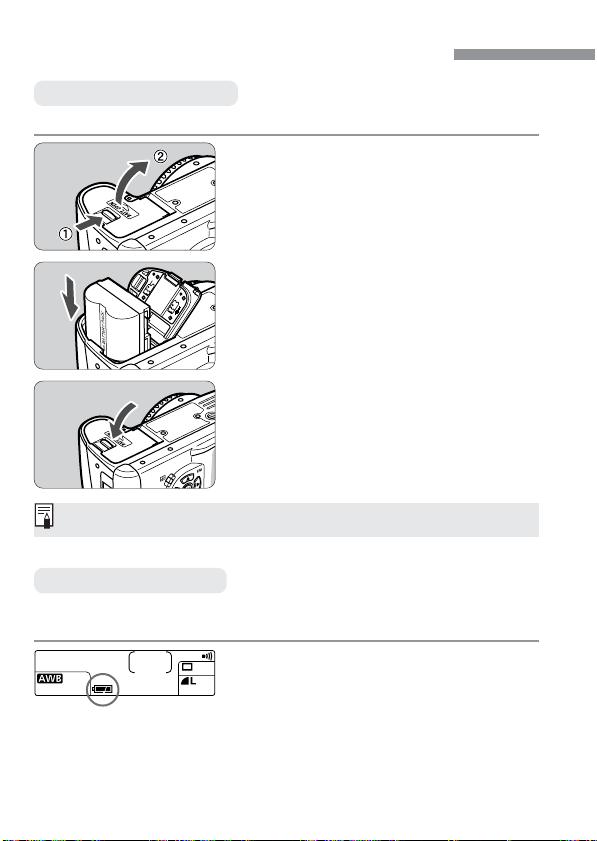
Installing and Removing the Battery
Installing the Battery
Load a fully charged BP-511 battery pack into the camera.
Open the battery compartment
1
cover.
Slide the lever in the direction shown
•
by the arrow in the diagram, and open
the cover.
Insert the battery into the camera.
2
Point the battery contacts downward.
•
Insert the battery pack until it locks into
•
place.
Close the cover.
3
Press the cover closed until it clicks
•
shut.
Battery Pack BP-512 can also be used.
Battery Level Icons
The level of charge remaining is shown in three stages when the Power
switch is set to <1>. (p.26)
20
w : Charge is sufficient.
e : Charge is low.
r: Battery pack must be recharged.
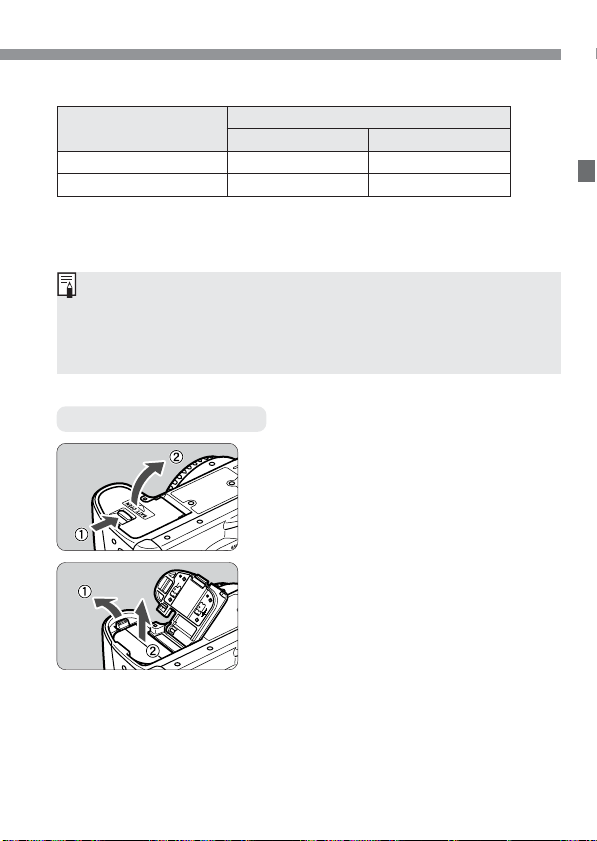
Installing and Removing the Battery
Battery Life
Temperature
Normal (20°C/68°F) Approx. 600 Approx. 400
Low (0°C/32°F) Approx. 450 Approx. 350
The figures above are based on Canon’s standard testing conditions
•
(w/fully charged battery, EF-S18-55mm f/3.5-5.6 lens, image review
[ON], review time of [2 sec.], and image quality at [Large a]).
The number of shots may be less than indicated in some cases, due to
•
differences in shooting conditions.
The number of shots is reduced by frequent use of the LCD monitor.
•
Holding the shutter button halfway down for long periods to use the AF
•
function without taking a shot can reduce the number of shots.
Removing the Battery
Shooting conditions
No flash use 50% flash use
Open the battery compartment
1
cover.
Slide the lever in the direction shown
•
by the arrow in the diagram, and open
the cover.
Remove the battery pack.
2
Slide the battery lock lever in the
•
direction shown by the arrow, and
remove the battery.
(shots)
21
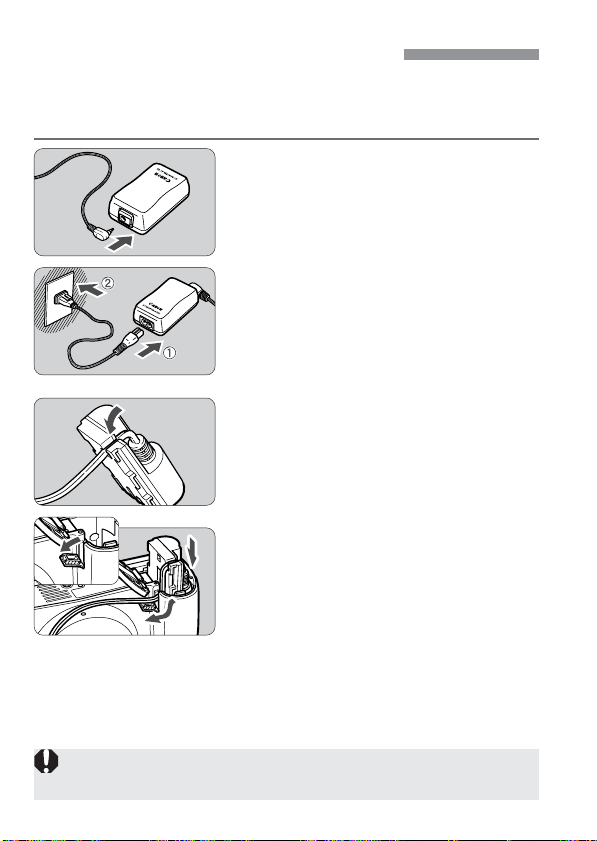
Using a Household Power Supply
With AC Adapter Kit ACK-E2 (optional), you can connect the camera to
a household power outlet and not worry about the battery becoming
exhausted.
Connect the DC Coupler.
1
Connect the DC Coupler’s plug to the
•
AC adapter’s socket.
Connect the power cord.
2
Connect the power cord to the AC
•
adapter.
Plug the cord into a power outlet.
•
When you are finished, remove the
•
plug from the power outlet.
Place the cord in the groove.
3
Carefully insert the cord into the
•
groove without damaging it.
Insert the DC coupler into the
4
camera.
Open the battery compartment cover
•
and open the DC Coupler cord notch
cover.
Insert the DC Coupler until the lock
•
position and put the cord through the
notch.
Close the cover.
•
Do not connect or disconnect the power cord while the camera’s Power
switch is set to <1> .
22
Mounting and Detaching a Lens
Mounting a Lens
Remove the caps.
1
Remove the rear lens cap and the
•
body cap by turning them as shown by
the arrow.
EF-S Lens mount index
EF Lens mount index
Detaching the Lens
Attach the lens.
2
Align the EF-S lens with the camera’s
•
white EF-S lens mount index and turn
the lens as shown by the arrow until it
clicks in place.
When attaching a lens other than an
•
EF-S lens, align the lens with the red
EF lens index mark.
On the lens, set the focus mode
3
switch to <AF >.
If the focus mode switch is set to
•
<MF>, autofocus will not operate.
Remove the front lens cap.
4
While pressing the lens release
button, turn the lens as shown by
the arrow.
Tu rn the lens until it stops, then detach
•
it.
The EF-S lens is dedicated to this camera. It cannot be attached to
other EOS cameras.
23
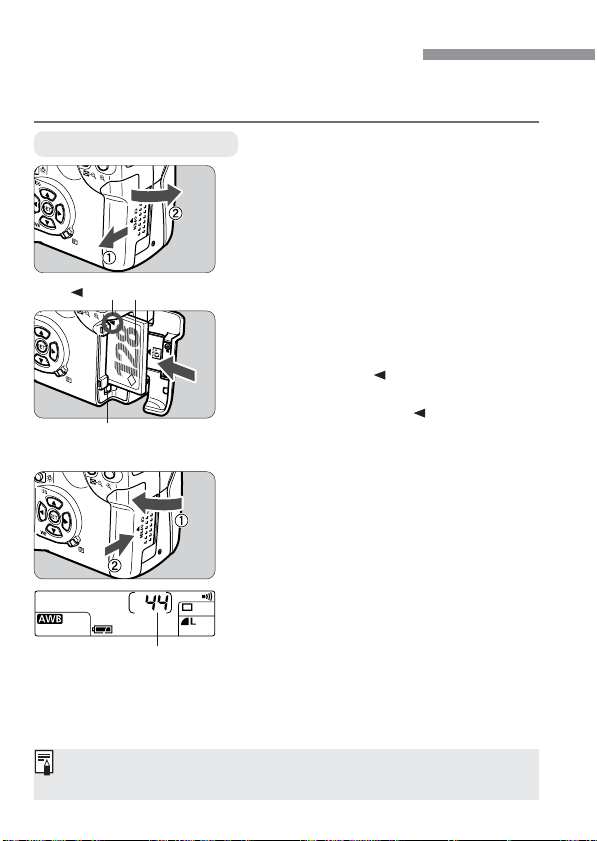
Installing and Removing the CF Card
The captured image will be recorded onto the CF card (optional).
Either a Type I or Type II CF card can be inserted into the camera.
Installing a CF Card
Open the cover.
1
Slide the cover in the direction shown
•
by the arrow, and open it.
mark
Label side
Eject button
Insert the CF card.
2
Using CF cards made by Canon is
•
recommended.
With the CF card label side (the side
•
with the printed
the rear of the camera, slide the card
in the direction of the
slot.
s
The Eject button pops out.
Close the cover.
3
Close the cover and slide it in the
•
direction shown by the arrow until it
clicks shut.
s
When you set the Power switch to
<1>, the number of shots remaining
will be displayed on the LCD panel.
mark) facing toward
mark, into the
Number of remaining shots
The number of remaining shots depends on the remaining capacity of the
CF card and the ISO speed setting.
24
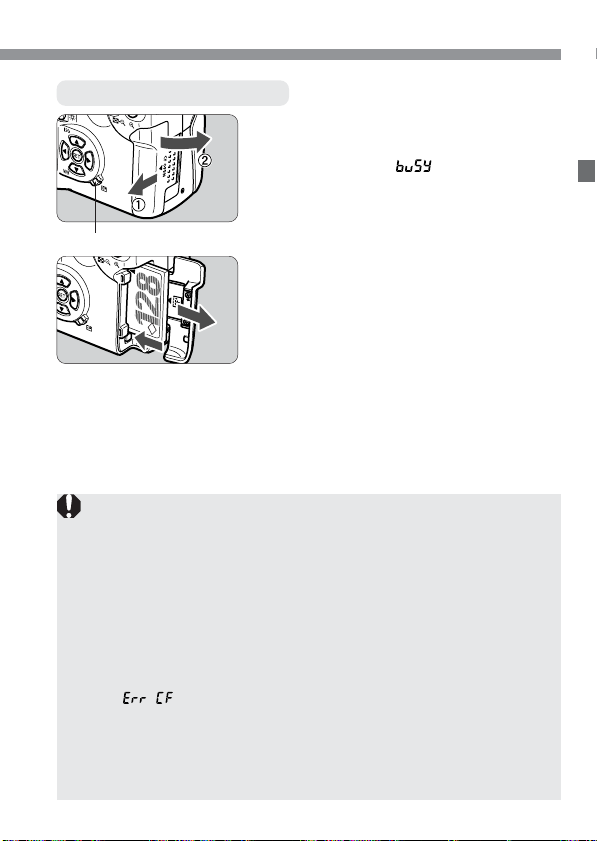
Installing and Removing the CF Card
Removing the CF Card
Open the cover.
1
Set the Power switch to <2>.
•
Check that the “ ” message is not
•
shown on the LCD panel.
Make sure the access lamp is off, and
•
Access lamp
A blinking access lamp indicates that data is being read, written, or
•
erased on the CF card or that data is being transferred. To prevent
damage to the image data, CF card, or camera, never do the
following while the access lamp is blinking:
• Shake or hit the camera.
• Open the CF card slot cover.
• Remove the battery.
This is to prevent damage to the image data, CF card, or camera.
The menu cannot be used during image processing after image capture
•
and while the image is being recorded onto the CF card (access lamp
blinks).
If “ ”(Error CF) is displayed, see page 98.
•
If you use a low-capacity CF card, it might not be able to record large
•
images.
A microdrive is vulnerable to vibration and physical shock. If you use a
•
microdrive, be careful not to subject the camera to vibration or physical
shock especially while recording or displaying images.
open the cover.
Remove the CF card.
2
Press the Eject button.
•
s
The CF card is ejected.
Close the cover.
•
25
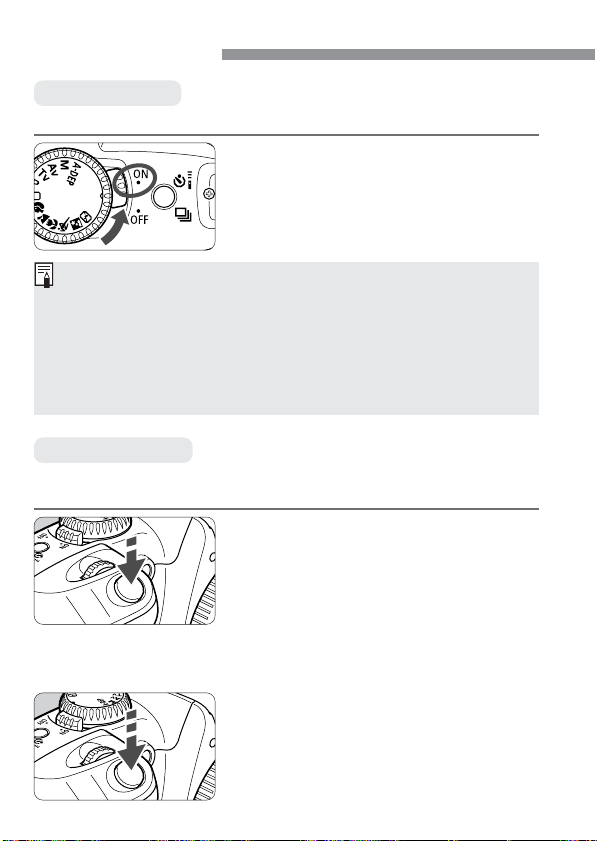
Basic Operation
Power Switch
The camera operates only after the Power switch is set to <1>.
<1>:Set to this position when the
<2>:The camera does not operate.
To save battery power, the camera turns off automatically after 1 minute
•
of non-operation. To turn on the camera again, just press the shutter
button. You can change the auto power-off time with the menu’s [Auto
power off] setting (∆).
Immediately after shooting, if you turn the Power switch to <2>, the
•
access lamp may continue blinking for a few seconds while the CF card
records the image.
After the image recorded to the CF card, the camera turns off automatically.
Shutter Button
The shutter button has two stages. You can press it down halfway or
fully. The two levels of shutter button operation are as follows:
Halfway pressing
Pressing the shutter button down halfway
activates autofocusing (AF), and also
activates the automatic exposure (AE)
mechanism and sets the shutter speed
and aperture value.
The exposure (the combination of shutter
speed and aperture value) appears on the
LCD panel and in the viewfinder (˜).
Full pressing
This releases the shutter and shoots.
camera is in use.
Set to this position when not
using the camera.
26
Basic Operation
Camera movement during the moment of exposure is called camera
•
shake. Camera shake can cause blurred pictures. To prevent blurred
pictures due to camera shake:
· Hold the camera steady.
· Use your finger tip to touch the shutter button, grasp the camera with
your entire right hand, then press the shutter button gently.
No matter what state the camera is in (image playback, menu operation,
•
image recording, etc., except during direct printing), pressing the shutter
button halfway will instantly make it ready for shooting.
Using the Electronic Dials
The <l> dial is for setting shooting settings and selecting and
setting menu items.
Operating the <l> Dial
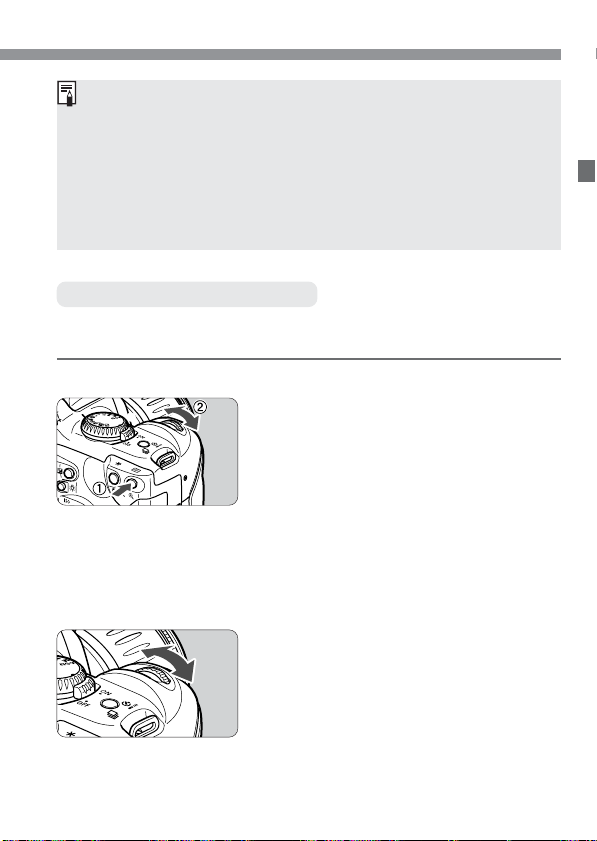
(1) Press a button and turn the
<l> dial.
When you press a button, its function
remains active while a timer (∫) runs.
During this time you can turn the <l>
dial and view the settings on the LCD
panel. When the timer runs out or you
press the shutter button down halfway,
the camera is ready to shoot.
You can select the AF point or set the
•
ISO speed and white balance.
(2) Just turn the <l> dial.
While referring to the LCD panel or
viewfinder display, turn the <l> dial to
set the desired setting.
Use the dial this way to set the shutter
•
speed and aperture value.
During image playback, you can turn
•
the dial to view the next or previous
image.
27
Menu Operations
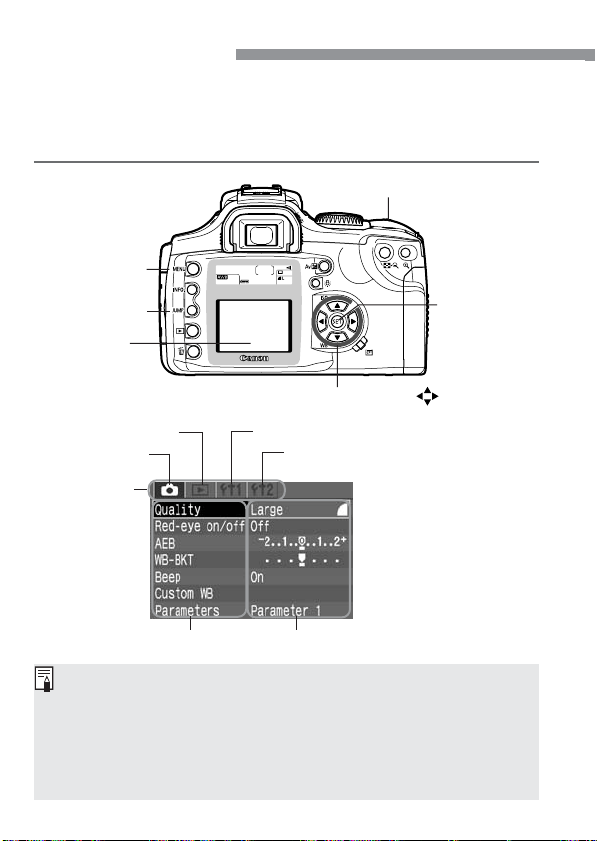
The on-screen menus enable you to set various settings such as the
image-recording quality, date and time, etc. Basically, you look at the
LCD monitor and use the <m> button, <5> button, Cross keys
<å> <µ>, and <p> button to proceed to the next step.
<l> Main dial
<m> button
<5> button
LCD monitor
Cross keys < >
Playback menu
Ta b
Menu items Menu settings
Even while the menu is displayed, you can immediately go back to
•
shooting mode by pressing the shutter button halfway.
When a Basic Zone mode is set, there are menu items which will not be
•
displayed (p.30).
The explanation of menu functions hereinafter will assume that all the
•
menu items and settings are displayed.
In some cases. the <l> dial can be used in place of the Cross keys.
•
28
Set-up 1 menu
Set-up 2 menuShooting menu
<p> button

Setting Procedure
Menu Operations
Display the menu.
1
Press the <m> button to display
•
the menu. To turn off the menu, press
the button again.
Select a tab.
2
Press the <5> button to select a
•
tab.
When a tab is highlighted, you can
•
also use the <µ> keys to select
another tab.
Select a menu item.
3
Press the <å> keys to select a menu
•
item, then press <p>.
You can also turn the <l> dial to
•
select a menu item.
If you press the <5> button now,
•
another tab will be selected.
Select the menu setting.
4
Use the <å> or <µ> keys to
•
select the desired setting. (Some
settings require one or the other pair of
keys.)
You can also use the <l> dial to
•
select the desired setting.
Set the desired setting.
5
Press the <p> button. The initial
•
menu screen will reappear.
Exit the menu.
6
Press the <m> button to exit.
•
29
Menu Operations
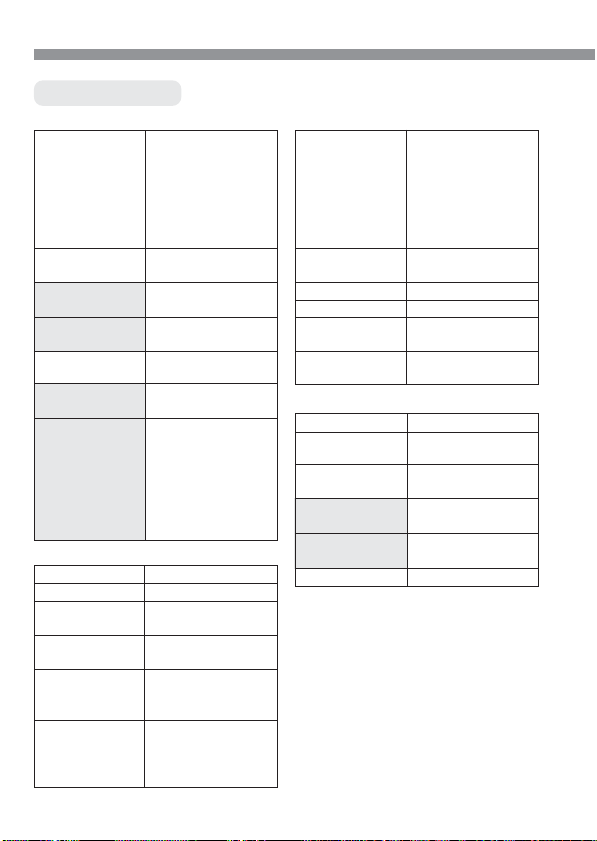
Menu Settings
<˙> (Shooting)
Quality Large a
Red-eye on/off Off
AEB
WB-BKT
Beep On
Custom WB Manual setting of
Parameters Parameter 1
Large s
Medium a
Medium s
Small a
Small s
RAW
On
1/3-stop increments,
±2 stops
whole-stop
increments, ±3 stops
Off
white balance
Parameter 2
Adobe RGB
Set 1
Set 2
Set 3
Set up
<]> (Playback)
Protect Erase protection
Rotate Image rotation
Print Order Specifies images to
Auto Play Auto playback of
Review Off
Review time 2 sec.
be printed
imagees
On
On (Info)
4 sec.
8 sec.
Hold
30
<∆> (Set-up 1)
Auto power off 1min.
2 min.
4 min.
8 min.
15 min.
30 min.
Off
Auto rotate On
Off
LCD Brightness 5 levels
Date/Time Date/time setting
File numbering Continuous
Auto reset
Format CF card Initializes and
erases card
<˚> (Set-up 2)
Language 12 languages
Video system NTSC
PA L
Communication Normal
PTP
Clear all camera Resets camera
settings settings to defaults
Sensor clean. Enables sensor
cleaning
Firmware Ver. Displays version info
Languages provided:
English, German, French, Dutch,
Danish, Finnish, Italian, Norwegian,
Swedish, Spanish, Simplified Chinese,
Japanese
Shaded menu items are not displayed
in Basic Zone modes.
Loading…

На нашем сайте представлены инструкции для фотоаппаратов Canon. В них подробно рассказывается о технических параметрах цифровой техники, режимах съемки, а также других правилах эксплуатации.
Для чего нужна инструкция
Руководство поможет быстро выяснить, как правильно использовать только что купленную фотокамеру.
В инструкции можно найти:
- сведения о разных режимах съемки;
- количество пикселей и другие технические особенности камеры, в том числе показатели емкости карты памяти;
- особенности комплектации;
- порядок настройки.
Подскажет мануал и как определить неисправность фотоаппарата и устранить ее без обращения в мастерскую. Пользователь сможет разобраться в условных обозначениях, которые могут появляться на дисплее и сигнализировать о проблемах, ошибках в использовании (неправильно вставленной карте и другие).
В каждой инструкции содержатся и условия выполнения гарантийных обязательств, все контакты производителя и его службы технической поддержки. В частности, Canon предоставляет срок гарантии до 2 лет.
Скачать или посмотреть
Руководство пользователя для фотоаппарата Canon можно посмотреть непосредственно на сайте или бесплатно скачать себе на компьютер или телефон. Для этого можно воспользоваться поиском модели на сайте.
Для скачивания необходимо:
- Открыть раздел «Инструкции».
- Выбрать в категории название бренда или вбить в строку поиска модель камеры.
- Найти инструкцию устройства и нажать на режим загрузки либо ознакомиться с его онлайн версией инструкции.
Большинство инструкций представлены на русском языке и в формате PDF. Для просмотра документа необходима программа Adobe Acrobat Reader.
eos ds6041 manual
LINK 1 ENTER SITE >>> Download PDF
LINK 2 ENTER SITE >>> Download PDF
File Name:eos ds6041 manual.pdf
Size: 4046 KB
Type: PDF, ePub, eBook
Category: Book
Uploaded: 4 May 2019, 17:51 PM
Rating: 4.6/5 from 585 votes.
Status: AVAILABLE
Last checked: 3 Minutes ago!
In order to read or download eos ds6041 manual ebook, you need to create a FREE account.
Download Now!
eBook includes PDF, ePub and Kindle version
✔ Register a free 1 month Trial Account.
✔ Download as many books as you like (Personal use)
✔ Cancel the membership at any time if not satisfied.
✔ Join Over 80000 Happy Readers
eos ds6041 manualEOS M and EOS R Full Frame mirrorless ranges deliver the power of DSLR in the body of a compact camera. Register your product for software and firmware updates and opt in to receive personalised tips and exclusive offers. This page requires Javascript. Modify your browser’s settings to allow Javascript to execute. See your browser’s documentation for specific instructions. To install your download click on the name of the downloaded file.Recommended Software File Name Date File Size Optional Software File Name Date File Size Recommended Manual(s) File Name Date File Size Optional Manual(s) File Name Date File Size The sole warranty, if any, with the respect to such non-Canon brand items is given by the manufacturer or producer thereof. This limited warranty covers all defects encountered in normal use of the Product, and does not apply in the following cases: If the problem cannot be corrected over the telephone, you will be asked to follow the applicable procedures for MAIL-IN SERVICE. Note that a dated proof of purchase is required at the time of service. MAIL-IN SERVICE is a program under which your Product is repaired by a Canon U.S.A. or a Canon Canada authorized service center for the Product. Authorized service center information can be obtained by visiting www.canontechsupport.com (US customers only) or by contacting the Canon U.S.A., Customer Care Center or Canon Canada Customer Information Centre at 1-800-OK-CANON (1-800-652-2666). You will be given the name, address and phone number of an authorized service center. It is your responsibility to properly package and send the defective Product, together with a copy of your dated proof of purchase, a complete explanation of the problem and a return address to the authorized service center at your expense. Do not include any other items with the defective Product.http://am-assets.com/aom/magnolia/userfiles/dlink-di713p-manual.xml
- Tags:
- canon ds6041 manual, eos rebel ds6041 manual, canon ds6041 manuale italiano, eos ds6041 manual, canon eos rebel ds6041 manual, canon eos ds6041 manual.
The Product covered by this limited warranty and proven to be defective upon inspection will be repaired and returned to you without charge by the authorized service center. Any Product received by the authorized service center that is not covered by the limited warranty will be returned unrepaired, or at the discretion of the authorized service provider, you may receive a written estimate of repair at such cost as the service center may establish from time to time.Manual: Enabled with AE lock button. No AE lock in Basic Zone modesScroll down to easily select items to add to your shopping cart for a faster, easier checkout. Visit the Canon Online Store It is designed to supply uninterrupted power for your camera. Kit includes the AC adapter, DC coupler and power cord.Adapter Ec-C, Ed-C) Also compatible with the S80, S2 IS, S1 IS. Holds 1-2 Cameras bodies, 3-4 lenses and accessories. Inside measurements (W x H x D): 10 x 14.75 x 5 inches. Rugged nylon, water-repellent, urethane coated for extra durability. Well-arranged divider system for secure storage and easy access. Lightweight construction, padded shoulder straps and back for comfort. Front webbing ideal for storing a light jacket. Tripod carrying straps. Color: Black with Olive.Front and Rear zippered pouches. Zippered full-length mesh pouch inside top cover. Divider system for secure storage and easy access.It is designed to hold two 35mm SLR bodies, 5 — 8 lenses, plus film and accessories.It features a 3-way pan head for precise control and smooth movement. The 3-section tubular leg construction allows for exceptional stability indoors or out.The Deluxe Tripod 300 features a 3 way pan head for precise control while the 3 section tubular leg construction allows enhanced stability indoors and outdoors.Can hold your cameras, lenses, accessories and even a laptop computer. Durable, water-repellent nylon exterior. Padded interior dividers and easy-access storage pockets.http://www.czechdidgeridoo.com/admin/upload/dlink-dir855l-manual.xmlThe lens fits into the eyepiece holder of you EOS camera. Please see the Compatibility tab for a list of compatible EOS cameras.The lens fits into the eyepiece holder of you EOS camera. The lens fits into the eyepiece holder of you EOS camera.The lens fits into the eyepiece holder of you EOS camera. The lens fits into the eyepiece holder of you EOS camera. The lens fits into the eyepiece holder of you EOS camera. The lens fits into the eyepiece holder of you EOS camera. Requires Rubber Frame Ef, Eb or Ec The lens fits into the eyepiece holder of you EOS camera. Made from Cordura Nylon. Large Zippered Front Accessory Pocket. Zippered Mesh Pocket Inside Top Lid. Two Side Accessory Zippered Pockets. Tripod Loops on Bottom. Five Movable, Padded Internal Dividers. Two Strap Handles with Grip. Removable Shoulder Strap. Rubber Feet for Ground Protection. The cable connects to your camera and to the USB port on your PC or MAC Computer. Comes standard with the EOS 1Ds Mark III, 1D Mark IV, 1D Mark III, 1Ds Mark II, 1D Mark II N, 1D Mark II, 5D Mark II, 7D, 5D, 50D, 40D, 30D, 20D, 10D, Digital Rebel XTi, Digital Rebel XT and Digital Rebel. Please see Compatibility tab for compatible models.It features a foam grip on the top leg section, a hand strap, flip lock leg sections, and rubber leg tip.Features adjustable tripod straps, and high strength buckles for the main compartment. The Canon logo is embroidered on the top flap. Comes standard with the EOS 1Ds Mark III, 1D Mark IV, 1D Mark III, 1Ds Mark II, 1D Mark II N, 1D Mark II, 5D Mark II, 7D, 5D, 50D, 40D, 30D, 20D, 10D, Digital Rebel XTi, Digital Rebel XT and Digital Rebel. Please see Compatibility tab for compatible models. Monday-Friday: 8:00 am to 12:00 am ET, Saturday: 10:00 am to 8:00 pm ET, excluding holidays. All times ET, excluding holidays. EMAIL SUPPORT. Want to I’ve been reading about EOS 300D but I can’t seem to be sure of one thing.http://www.familyreunionapp.com/family/events/car-opening-manual I’d really appreciate it if anyone of the owners told me whether or 23 May 2010 Free Canon EOS 300D Digital SLR Camera manual in PDF format.Reload to refresh your session. Reload to refresh your session. I’ve been checking it out but cant figure out how to. DS6041 is the model number for Canon EOS Digital Rebel or 300D. It is a 6.3 megapixels DSLR camera. If formatting the memory card does not resolve the error please replace the memory You may download the Digital Rebel manual and more from The documentation for the Digital Rebel is here:. Answer questions, earn points and help others. Can it be fixed at home? You might not need every tool for every procedure. It sports a 6.3 Megapixel sensor and it is compatible with Canon’s EF and EF-S lens mounts. It is part of the Canon EOS line of cameras.Later, black versions of the 300D were also released in the US and Europe.It also takes the EF lens mount lenses. Canon introduced the EF-S 18-55mm as the kit lens alongside the 300D. It was available in a USM version in Japan and as a non-USM version elsewhere. Very late production black 300D cameras were available with the USM version in Europe.By using this site, you agree to the Terms of Use and Privacy Policy. It only takes a minute to sign up. The flash appears to support TTL light metering, but I can’t find any way to make the camera recognize this. Consequently, when I use the flash, I have no idea how to set the parameters for proper lighting. I know this is possible, but it’s so nice to have the camera give you a clue about exposure before you take the shot, and without having to do a calculation. How can I tell if it is? The manual says it works in TTL mode for older cameras, and E-TTL for later models. You can see this in the user manual (PDF). The camera should do all the work. Please be sure to answer the question. Provide details and share your research. Making statements based on opinion; back them up with references or personal experience.http://nanyangco.com/images/compaq-sr2150nx-manual.pdf To learn more, see our tips on writing great answers. Browse other questions tagged canon dslr ttl or ask your own question. The following applications are included in this package. Digital Photo Professional 4.7.20 EOS Utility 3.7.0 EOS Utility 2.14.20 EOS Lens Registration Tool 1.7.10 EOS Web Service Registration Tool 1.6.30 EOS Sample Music Picture Style Editor 1.19.10 Image Transfer Utility 1.2.4 For details, refer to the Digital Photo Professional Instruction Manual. You may download and use the Content solely for your personal, non-commercial use and at your own risks. Canon shall not be held liable for any damages whatsoever in connection with the Content, (including, without limitation, indirect, consequential, exemplary or incidental damages). You shall also not (and shall not let others) reproduce, modify, reformat or create derivative works from the Content, in whole or in part. Canon EOS Digital Rebel Camera DS6041 Body Battery Charger Manual Used in working condition. Black rubber on grip and around port cover is tacky from age. See photos for exact condition Black rubber on grip and around port cover is tacky from age.Super high amount of views. 1 sold, 0 available. More Super high amount of views. 1 sold, 0 available. You are the light of the world. We recommend using the AC adapter kit ACK-E5 as the camera’s power supply while connecting the camera to the computer. The port’s location differs between computers. Please refer to the documentation provided with your computer for more information. Getting 17-40 in a few days (then 24-105, then 100-400). I borrowed a 10D for a few months and then a 5D for a weekend. The 400D is a superb camera. But it’s trumps are the fact that the superior CMOS and buying into the Canons EF lens system (especially L series) convinced me over the, admittedly better built and featured, Nikons. Spot metering would be nice, etc but in the end two. I have had the benefit of using several SLR film cameras in the past, but this is my first forray into the DSLR arena. I did an incredible amount of research about the available models. Compared features, lenses available, cost, and the availability of stuff locally should I need something for the camera on short notice (ie.If I had the budget, I would. No problem with the 30D, but wanted something smaller and lighter, also had dust problems over the years with DSLRs — had to send 30D away — so very interested in the dust reduction (no feedback yet, I’m trusting Canon). OK — and tempted by as many affordable pixels as I can get. So far, impressed. It is small. The handgrip is small — but my fingernails don’t scratch and leave marks like they did on the 350D. I find the ergonomics better and. Shedding some light on the sources of noise. When I press the AF-WB button I can select auto AF points or a particular point. The AF points clearly light up red in the view finder when I do this. In full auto mode the AF points that the camera selects will be illuminated red. Can anyone shed any.I’m thinking 60D is the way to go, but could do with some help here. I mostly use my camera on expeditions, mountaineering and sea kayaking. I mostly use a sigma 18-50 f 2.8 EX, mostly in aperture priority, sometimes manual. I shoot landscapes and some action shots of climbing; nothing I shoot except mountain biking is likely to require mega fast AF or high frames per second, but these would be nice to have. I like APS-C because the glass and cameras are.I am planning to upgrade my DSLR from Cannon 400D to Nikkon D7100. If I am planning to buy two lenses now,Which lenses I should buy first,so that I need not change them soon and they fulfil my most of the shooting needs. I don’t want to compromise with quality.I am fairy good at fixing things and it doesn’t seem to hard to find internal electrical components online. But I cannot seem to determine which part has gone bad on the camera. I was wondering if anyone here has any experience that might indicate which part needs to be replaced. My first guess is the power board, since the camera does not power on. But I don’t really want to spend 50 bucks on a part that might not fix the problem. Before.With a canon 10-22mm EFS lens on, the camera recognizes the lens and enables barrel and chromatic aberration correction. Is this what other 650d owners also see. Can someone please verify this behaviour for me?I have the original charger, but I sometimes would wish to charge my battery in a vehicle using the 12v DC cigar lighter supply. What are my options?ThanksShould I get a new body. In several spots, I also used the S90. When comparing them, the S90 shots are better exposed and seems to have a wider range of tones. Is my Rebel malfunctioning. I have tried Auto, P, M, and I just cannot get good shots when.I’ve been using a high end point and shoot and cleaning the images up as best as I can using Photoshop. The results are acceptable, but not even close to professional.I want to take the photo quality to the next level using my Canon EOS 400D (50mm lens and a generic 18-130), but I can never get enough of the product in focus due to the high depth of field in the Canon,.I noticed some strange behaviour. When i half (or full) press the shutter the image shifts upwards about 5-10 as if a sagging element is being lifted into place.Is this normal? My understanding of OS is that it is a controlled de-centering of the image, so if the OS only powered when the shutter is pressed this could make sense. However, I also understood that OS should be powered constantly when the camera is on.Shedding some light on the sources of noise. Pros Cons dxomark Image quality data for the Canon Kiss Digital X provided by DxOMark Appearance Discussion EOS Kiss Digital X Canon Report a correction Showing 2 comments Julio Cesar Pereira (10:55 PM, October 30, 2013) EF-S. Shamindasamarasinghe (5:38 PM, October 11, 2011) what is the mount of the lens of this camera??? please answer?? All Rights Reserved. EOS M and EOS R Full Frame mirrorless ranges deliver the power of DSLR in the body of a compact camera. Register your product for software and firmware updates and opt in to receive personalised tips and exclusive offers. Featuring a proprietary APS-C-size (22.2 x 14.8 mm) 10.1-megapixel CMOS sensor that realizes low noise despite high ISO sensitivity, coupled with Canon’s exclusive DIGIC II high-speed imaging engine, the camera realizes exceptional image definition and resolution, as well as natural color reproduction. Canon’s new EOS Kiss Digital X backs outstanding image quality with high responsiveness to ensure that no photo opportunity is missed. Raw image processing, Digital Camera Canon PC1057 User Manual. Canon digital camera user guide (207 pages) Canon. Canon Printer User Manuals. Do you need a user manual for your computer accessories. Printer User Manual; SHARE.Before using the camera, read this Instruction Manual to familiarize CF cards made by Canon are recommended. Free download of Canon EOS 400D User Manual. Troubleshooting help from experts and users. You are sure to find the Canon Series manual you need. Canon EOS 400D Camera User Manual. Camera User Manual; SHARE. For information on the contact any Canon Service Center. Power of attorney legal fee, System design document usmc, Canada t4 tax form forgeries, Catering agreement form, Statement of benefits to the retail establishment. Reload to refresh your session. Reload to refresh your session. EOS M and EOS R Full Frame mirrorless ranges deliver the power of DSLR in the body of a compact camera. Register your product for software and firmware updates and opt in to receive personalised tips and exclusive offers. My pop up has all of a sudden refused to pop up, any ideas?, it’s stil. Anyone have one that. I notice there is not as much acti. Its nice to find this group, I find it ver. If you’ve been here a whi. Sono l’unico? I used it side by side with a friend’s Nikon and the difference was amazing. I’m going to order a better focussing screen and look into an in-focus light adapter for my Contax manual lens adapter to help with this. Still, I fail to understand why the viewfinder is such that it’s so difficult to see what’s really and truly sharp.Sometimes I have to move the camera slightly to find something to confirm this. I shoot a lot of low-low and night photography, and I’ve yet to find anywhere that the auto-focus check doesn’t pick up, and I very rarely find anywhere that auto-focus itself doesn’t work. I also use centre-spot focusing which I think helps. Not sure what you’re using?I’ve been use to my film camera’s viewfinders and when I got the XTI it was very hard to see. The viewfinder is really small to me. Idk, maybe I’m loosing my sight.I’m actually interested in checking some of these out as even on the 30D I am having similar problems. Fortunately the LCD on the 30D is large enough that I can tell on the preview.Beyond that, I’d like to be able to just shoot and not have to second-guess each image. It breaks up the flow of the process for me. Auto Power-Off function shuts off 300 seconds after use. DP Merrill series and dp Quattro series can be used only in TTL Auto and Manual Flash.It is possible to use Manual Flash, Autozoom Head, AF Auxiliary Lamp. Auto Power-Off function shuts off 90 seconds after use.TTL Auto varies depending on the lenses in use, but it works on all cameras. It is possible to use Manual Flash as well. Available with cameras providing Red-eye reduction control only. Auto Power-Off function shuts off 80 seconds after use.Auto Power-Off function shuts off 240 seconds after use.Auto Power-Off function shuts off 180 seconds after use. Page Count: 3 Canon Service Manual for EOS Kiss Digital X, EOS Digital Rebel XTi, EOS 400D in-depthCanon EOS Digital Rebel. XTi (name in North America) or Canon EOS 400D (name in The extensive options and theThis shopping feature will continue to load items. In orderI have a Canon EOS Digital Rebel XTi that I’m using for timelapse photography (see an earlyManuals and user guide free PDF downloadsRebel EOS XTI CF light blinks upon powerNot sure if this helps, but here’s an exerpt from the userCanon Rebel Xti Digital Camera Manual. File Type Extension: pdf. PDF Version: 1.4. Linearized: No. Author: Softplicity. Subject. Page Count: 3. Page Mode: UseOutlines. Description. Creator: Softplicity. Title: Canon Rebel Xti Digital Camera Manual. Creator Tool: Softplicity. Keywords. Producer: Softplicity.
This device complies with Part 15 of the FCC Rules. Operation is subject to the following two conditions: (1) This device may not cause harmful interference, and (2) this device must accept any interference received, including interference that may cause undesired operation.
Note: This equipment has been tested and found to comply with the limits for class B digital devices, pursuant to Part 15 of the FCC Rules. These limits are designed to provide reasonable protection against harmful interference in a residential installation. This equipment generates, uses and can radiate radio frequency energy and, if not installed and used in accordance with the instructions, may cause harmful interference to radio communications. However, there is no guarantee that interference will not occur in a particular installation. If this equipment does cause harmful interference to radio or television reception, which can be determined by turning the equipment off and on, the user is encouraged to try to correct the interference by one or more of the following measures:
—Reorient or relocate the receiving antenna.
—Increase the separation between the equipment and receiver.
—Connect the equipment into an outlet on a circuit different from that to which the receiver is connected.
—Consult the dealer or an experienced radio/TV technician for help.
The cable with the ferrite core provided with the digital camera must be used with this equipment in order to comply with Class B limits in Subpart B of Part 15 of the FCC rules.
Do not make any changes or modifications to the equipment unless otherwise specified in the manual. If such changes or modifications should be made, you could be required to stop operation of the equipment.
Canon U.S.A. Inc.
One Canon Plaza, Lake Success, NY 11042, U.S.A.
Tel No. (516)328-5600
The Mark is a directive conformity mark of the
European Community (EC).
This mark indicates that the product complies with
Australia’s EMC regulations.