
Introducing Rose
Rose is a group management bot built to help group admins protect their Telegram chats.
She features multiple handy features, such as:
- locks
- blocklist
- welcome messages
- CAPTCHA
- notes
- filters
- … And many more! (See the sidebar on the right for the full list)
Setting Rose up properly isn’t difficult. However, to save yourself any trouble later on, we highly recommend that you
put in the proper amount of time and effort into setting her up.
Happy chatting!
Adding Rose
Adding Rose to your Telegram group is incredibly easy!
Instructions
- Open up your Telegram client of choice
- Do a user search for user @MissRose_bot (see note below)
- View Rose’s profile, and click the 3-button menu in the top right corner and select the «Add to group» option, then
choose your group. - Congratulations! You’ve added Miss Rose to your group
Note
During Step #2, you may see other bots or users with similar names or usernames. Make sure you only add the
bot
with the username @MissRose_bot, others are imposters!
Alternative Instructions
- Use the following link: https://t.me/MissRose_bot?startgroup=botstart
- If you’re on your mobile device, the link should open your Telegram client to select the chat you wish to add Rose
to. - If you’re on a PC, you need to have Telegram Desktop installed. When the link opens in your browser, Telegram will
ask you to allow it to open the link. Select allow, and when Telegram opens, you should get a prompt to choose which
group you’d like to add Rose to.
Granting Rose Admin
Once you have added Rose to your group, there’s still more you need to do in order to unlock her full potential!
Remember, Rose can’t actually moderate or administrate your groups until you grant her admin! Without admin, she won’t
be very useful. Thankfully, granting admin is very simple to do!
- Click the banner at the top of your group to view your group’s information
- Click the pencil icon to edit your group’s settings
- Click «Administrators», and then «Add Administrator»
- Select Rose from the list of users
- Grant her all the admin rights available, and click the checkmark icon to confirm
Congratulations, you’ve now unlocked Rose’s full potential!

Telegram is a cloud-based instant messaging app with great features, and it allows for groups of up to 200,000 persons. To manage groups of this magnitude, you may need the help of a bot.
This gives your group a professional look. The Rose bot is one of the most popular bots used on Telegram for managing groups. So, how do you add Rose to your Telegram group?
Search for the ‘miss rose bot’ on Telegram. Open the profile and click on ‘Start.’ Add Rose to the group of your choice and press ‘Add Bot as Admin.’ Finally, set up the bot by using the required commands.
This article details how to add and remove Rose from your Telegram group. It also outlines the common commands needed to properly set up the Rose bot.
- What Is the Rose Bot on Telegram?
- How To Add Rose Bot on Telegram?
- Basic Rose Bot Commands
- How To Remove Rose Bot From Telegram Group?
- In Conclusion
- FAQs
What Is the Rose Bot on Telegram?
The Rose bot is a group managing bot that helps maintain and moderate the group’s activities. It also keeps out spammers and other activities you don’t want in the group.
You control the bot’s activities by programming the commands for what you need. You can set up a Rose bot to send a welcome message to new group members or censor the words allowed on the group.
Rose bot is an effective way to manage a Telegram group regardless of size. To activate the Rose bot in your group, you need to add it.
Here is how to add a Rose bot to your Telegram group:
- Open your Telegram app.

- Search for “miss rose bot”.
- Click “Start”.
- Click on “Add me to your chat”.
- Select the group.
- Click on “Add Bot as Admin”.
- Click “Add as Admin” to confirm.
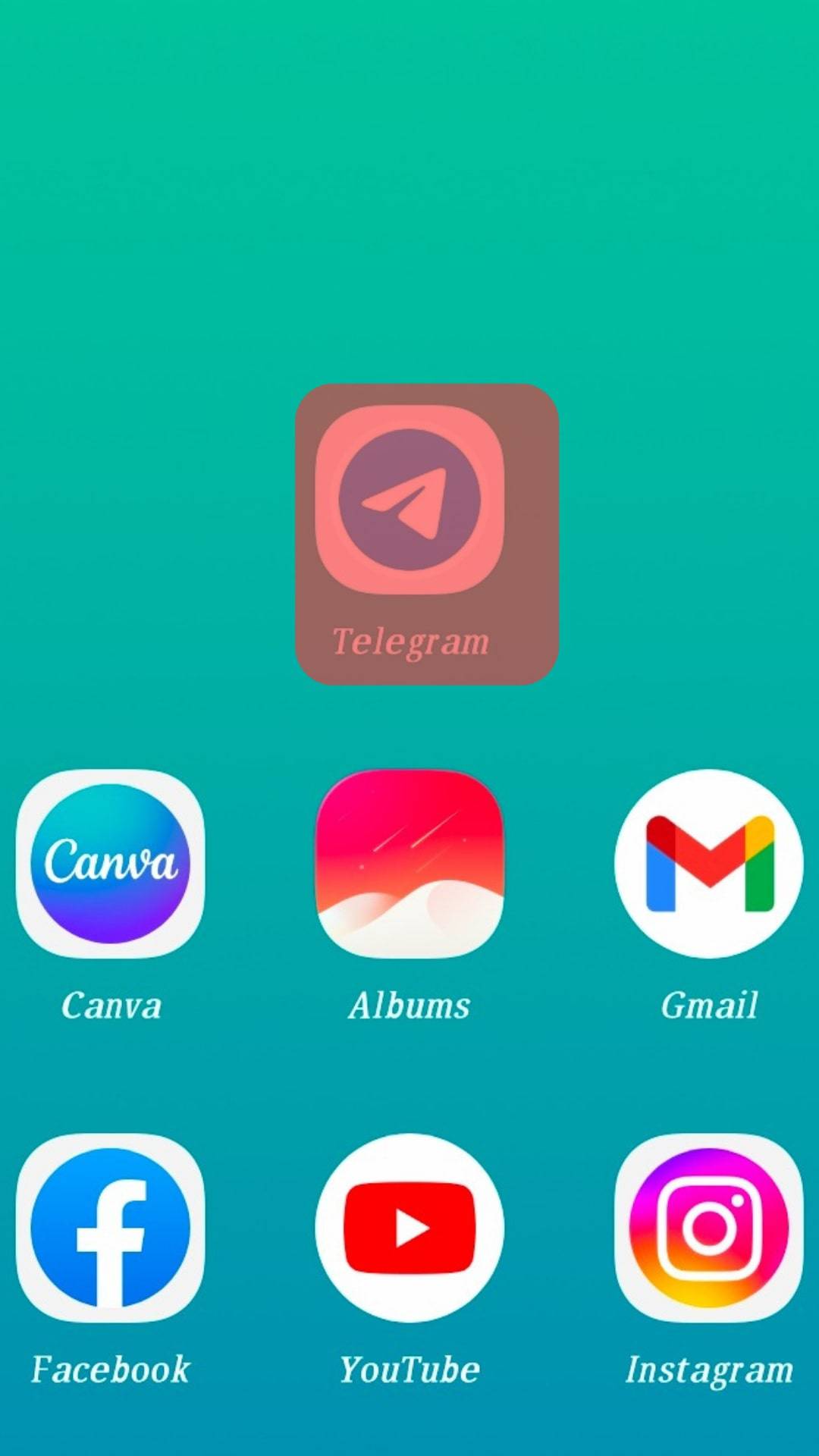
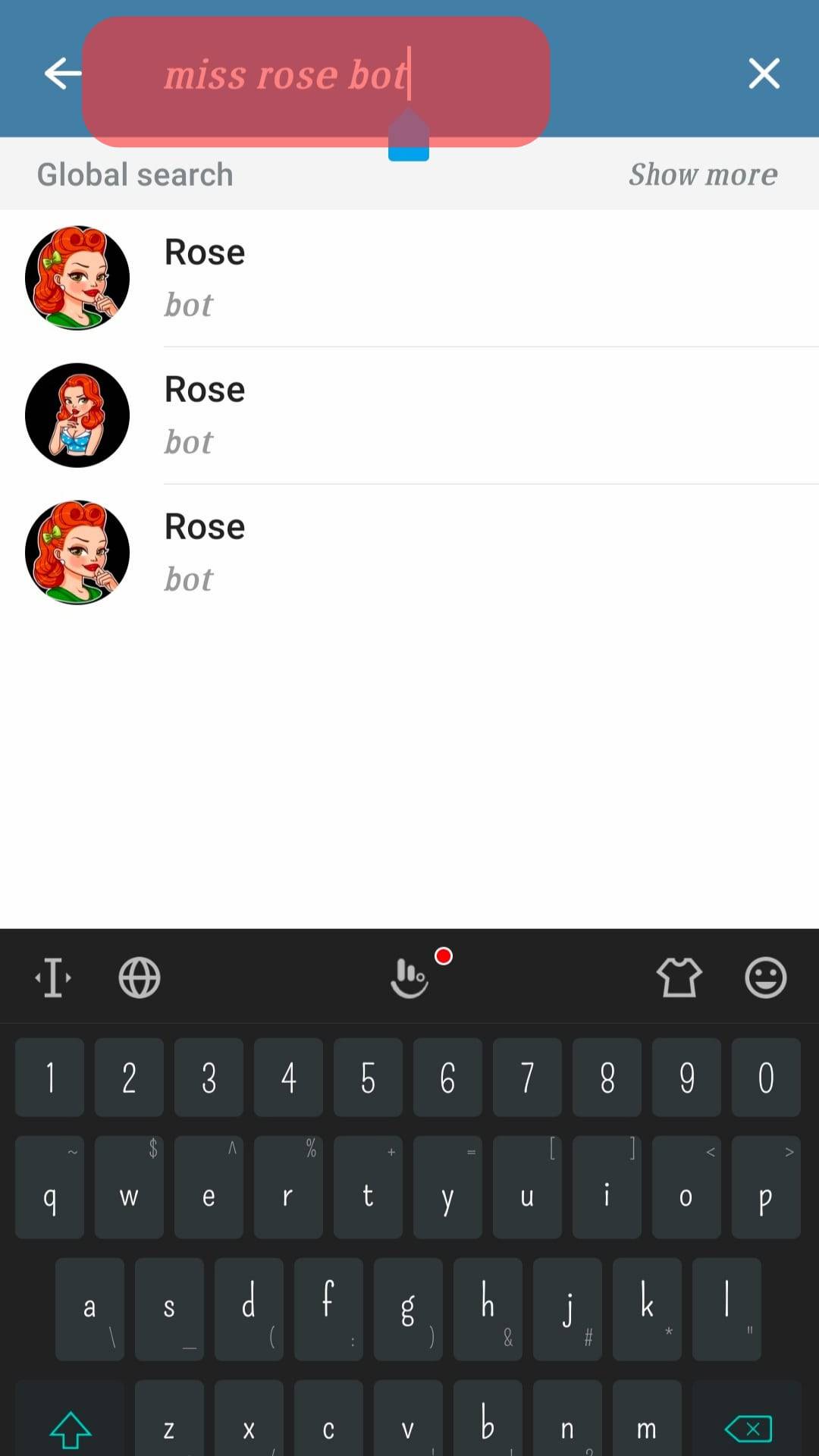
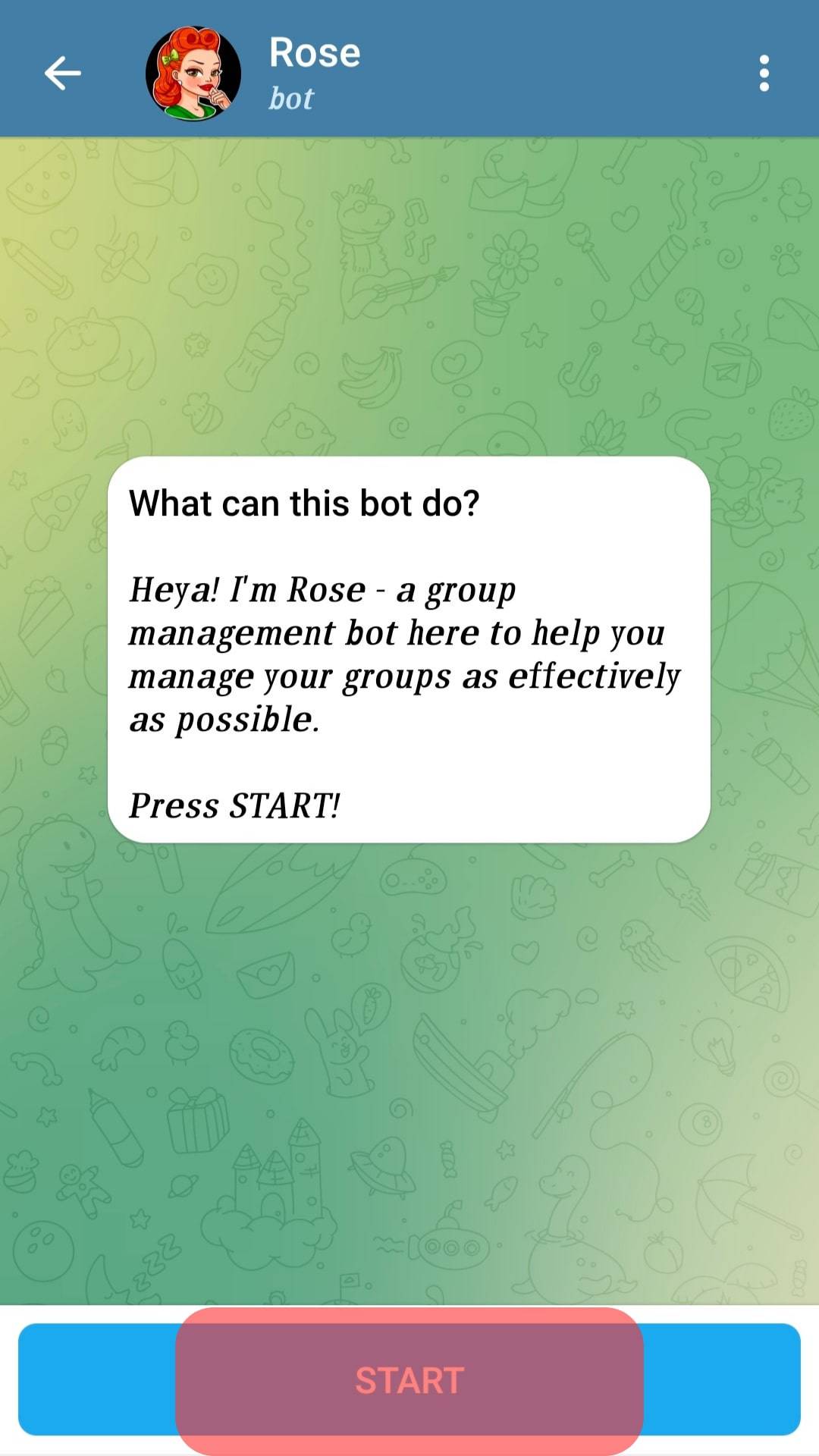
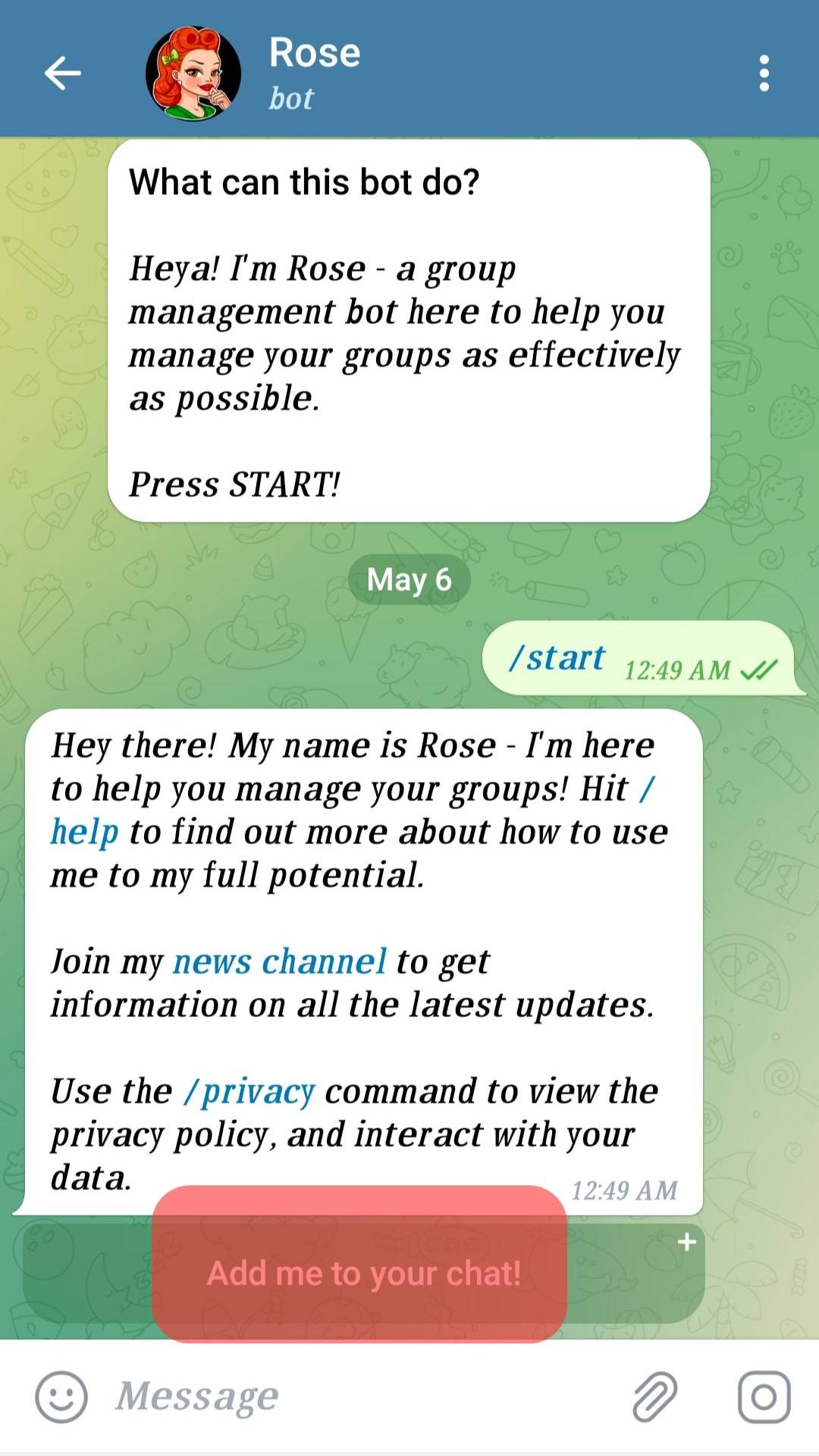

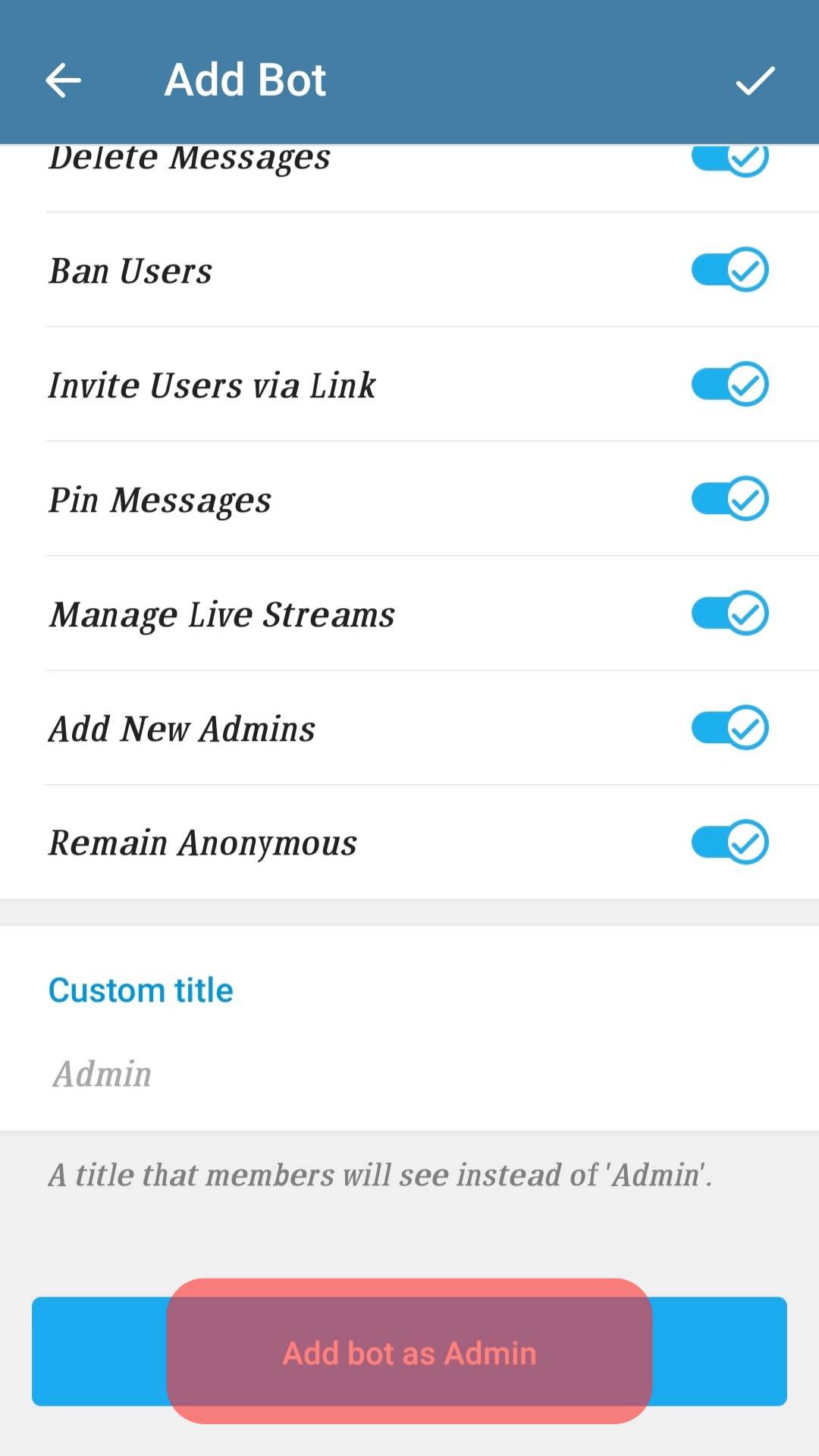
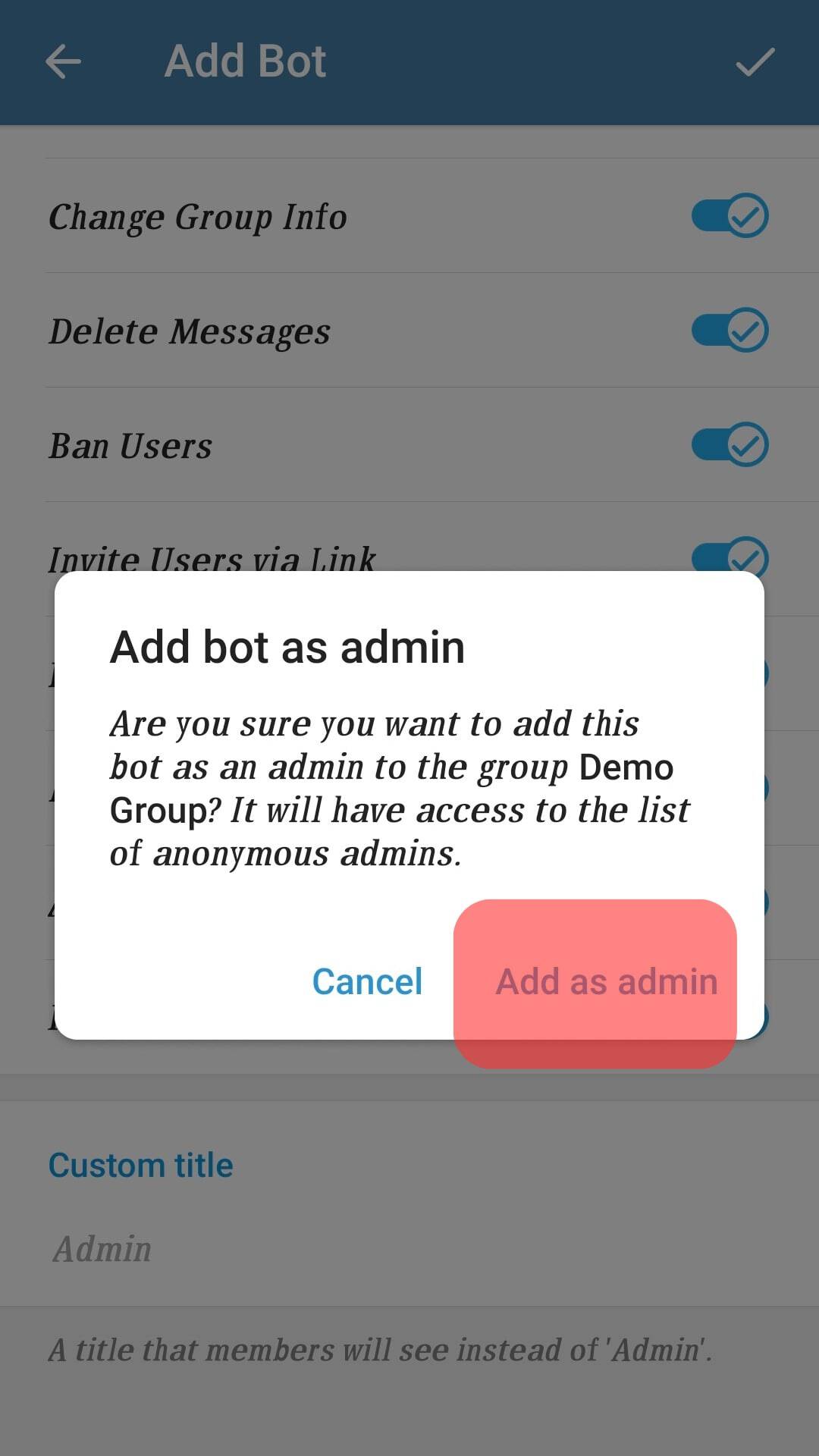
When adding the Rose bot to your group chat, ensure that you add the correct bot to avoid privacy challenges. After adding the app, you must program the exact activities using the proper commands.
Basic Rose Bot Commands
After adding the Rose bot app to your group and making it admin, you need to set it up. Setting up the Rose dictates the activities you expect the bot to perform in your group.
As stated earlier, the Rose bot is programmed with commands depending on your goal. To program these commands, send the code as a chat to the Rose bot profile.
Here is a list of frequently used commands you may need:
- Enter
/setlangto set the language, you want the bot to operate in. Rose Bot can service you in about 25 different languages. - Enter
/setfloodto set a spamming limit for a group member. After this limit, Rose will mute such a member. - Enter
/set floodmodeto decide what action the bot should take in case of spam. - Enter
/allowlistto define the type of content allowed in the group. - Enter
/rmallowlistto remove the content type from the allowed list. - Enter
/addblocklistto censor a particular word. - Enter
/unblocklistto remove a word from the censor list. - Enter
/unblocklistallto clear out the list of censored words. - Enter
/setwelcometo preset a welcome message when a member joins the group. - Enter
/captchato set up a captcha verification for new members. This prevents spam bots from accessing your group. - Enter
/exportto export the configurations from one group. - Enter
/importto import those settings from an external group.
Once these commands have been configured, the Rose bot executes the instructions without oversight. Rose bot automatically sends goodbye messages to people who have left the group.
This is displayed in the group for all to see.
How To Remove Rose Bot From Telegram Group?
Removing the Rose bot from your group is relatively straightforward. This may be due to ineffectiveness, the bot, or your distrust.
Here is how to remove the Rose bot from your Telegram group:
- Open Telegram on your PC.

- Navigate to the group from which you want to remove the Rose bot.

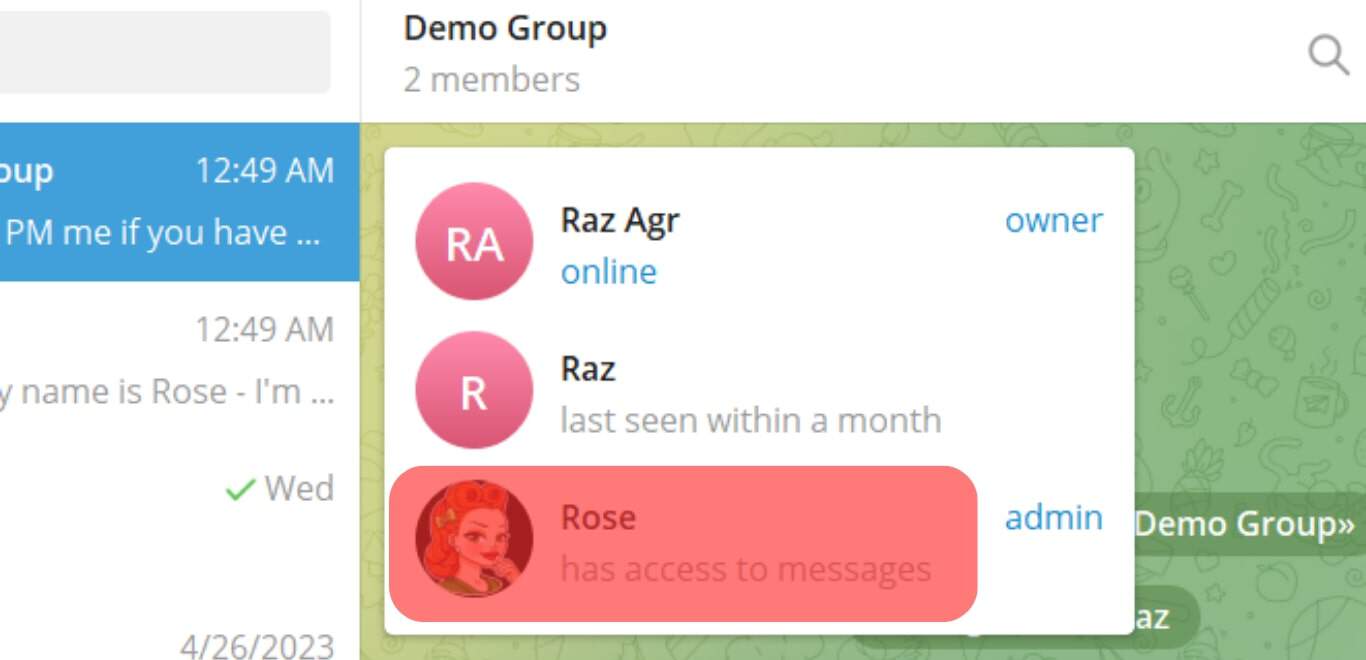
- Hover over the “members” label at the top.

- Click on the Rose bot profile.

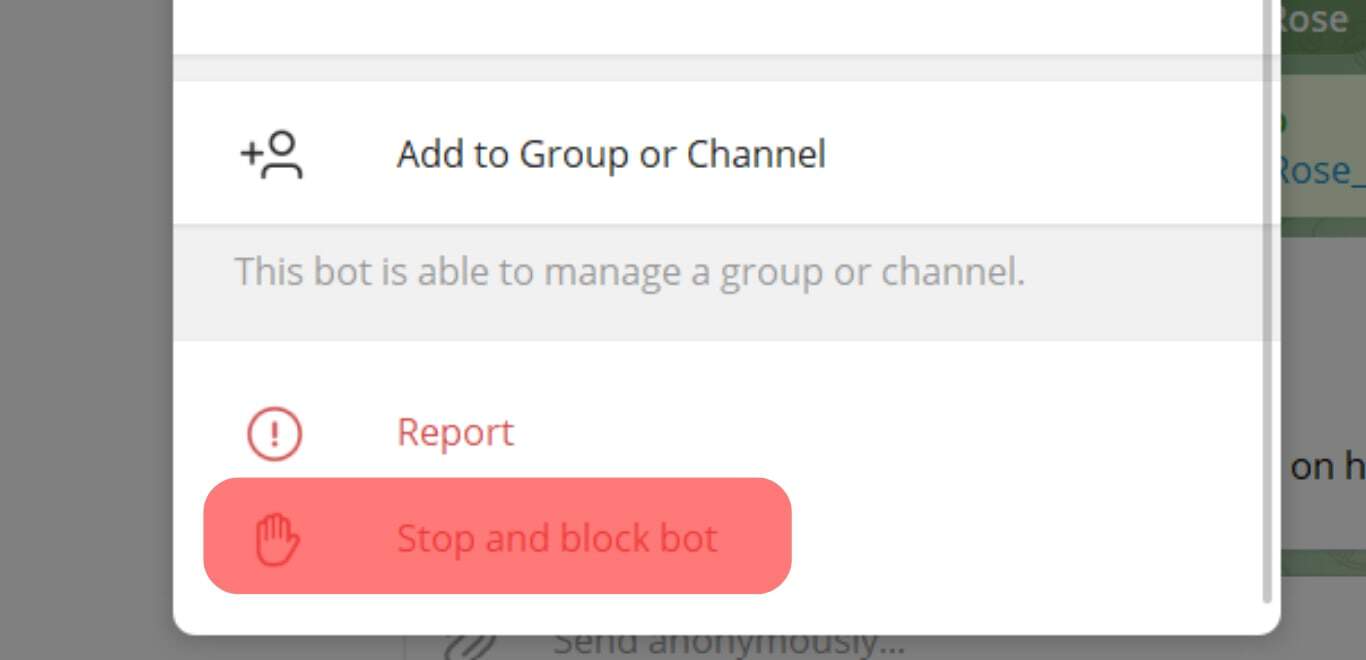
- Tap on “Stop and Block Bot”.
- Close the modal and hover over the “members” area again.
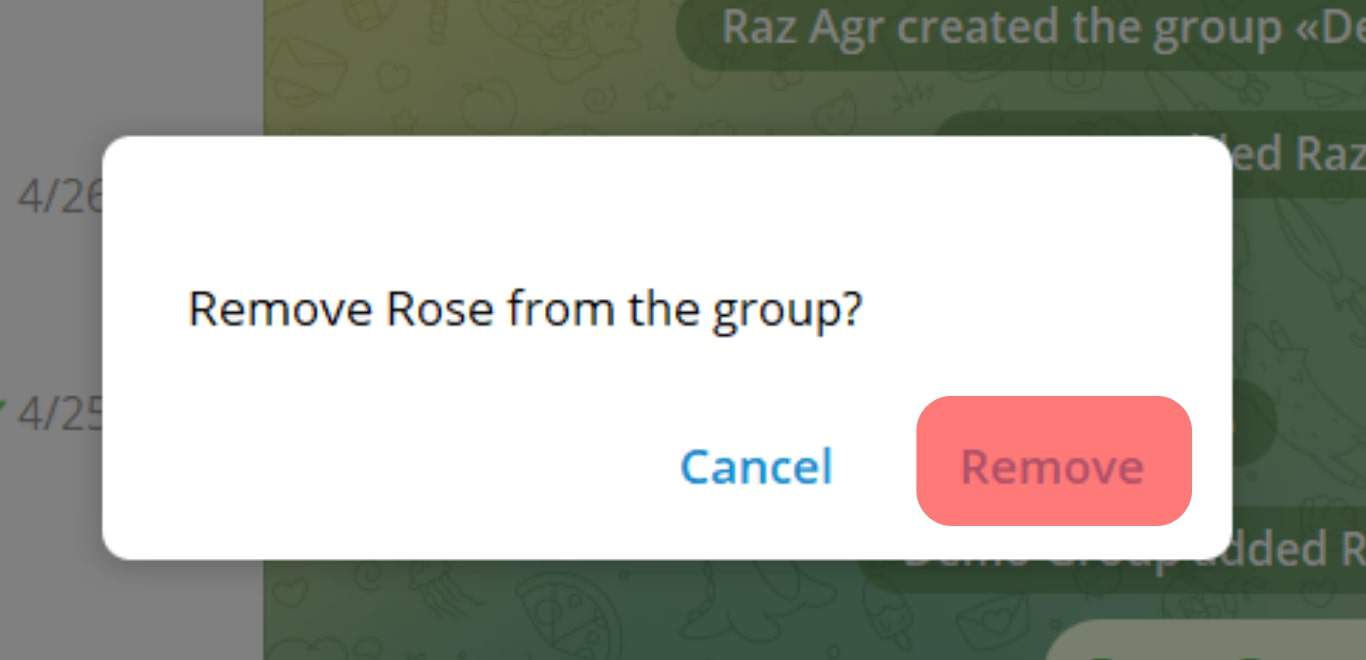
- Hover over Rose and select “Remove”.
- Click “Remove” to confirm the action.

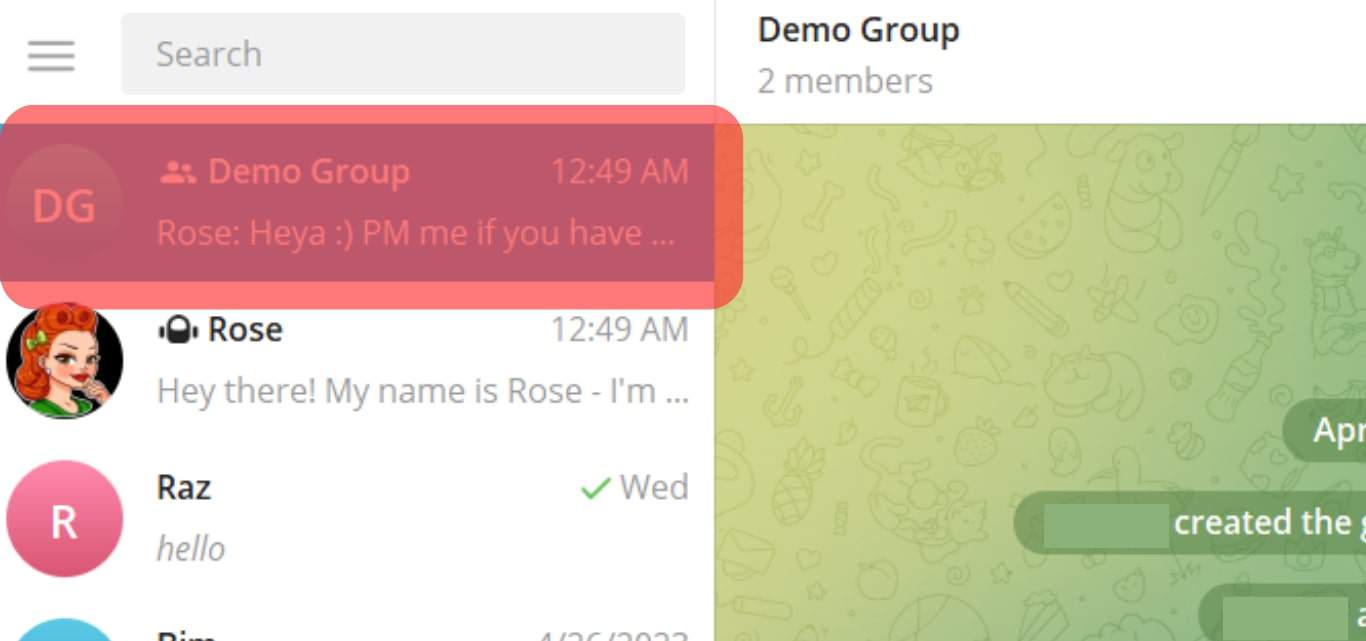
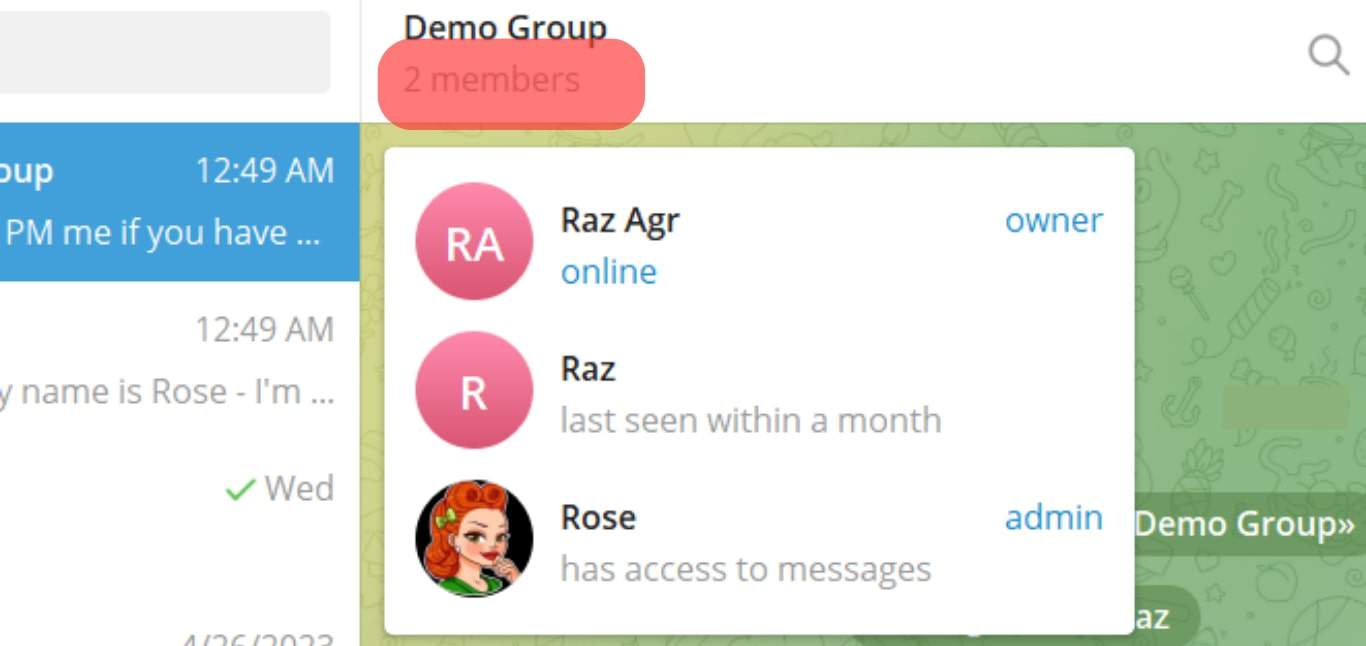

Once you delete the bot, it will automatically stop working on the group.
In Conclusion
Telegram is an excellent app for people to converge into large groups. Acting as admin in a group of up to 200,000 persons isn’t straightforward. This is where Rose Bot comes in.
Activating the Rose bot ensures you have an admin constantly regulating the group. The process to add and set up Rose is outlined above.
FAQs
Yes. Rose bot is relatively safe to use. As long as they are correctly programmed, bots operate autonomously.
В этой статье мы рассмотрим различия ChatKeeperBot и Rose. Инструменты предназначены для администрирования групп в Telegram, однако наборы функций у ботов разные.
Базовый функционал
Персонализировать Rose нельзя: вы не сможете создать собственного клона и наделить его функционалом бота-модератора. Это не всегда удобно при решении бизнес-задач или при работе над серьёзными проектами.
Администраторов можно назначать в обоих ботах, однако в Rose не реализована возможность наделять их разными наборами полномочий.
У Rose есть особенность — “Федерации”. Это такое объединение чатов с общими командами, запретами, администраторами и бан-листами. Такой федерации можно назначить имя, передать управление или присоединить чат к существующей федерации.
Модерация
Важно своевременно контролировать активность новых пользователей в чате, поэтому в ChatKeeperBot реализована группа настроек для модерации сообщений от новеньких. Подобных решений у Rose нет.
Администраторы часто создают себе собственные команды в боте для того, чтобы оперативно и комфортно модерировать комментарии. Однако в Rose не предусмотрено такой функции: использовать можно только стандартные команды.
Антиспам и антифлуд
Как упоминалось в предыдущем разделе, контроль новичков в чате — сильная сторона ChatKeeperBot. Антиспам-решений по работе с новыми подписчиками у Rose нет.
Что касается настроек антифлуда, то у ChatKeeperBot есть следующие возможности в отличие от Rose:
- установка минимального времени между отправляемыми пользователями сообщениями;
- установка количества отправляемых сообщений за единицу времени, которое будет считаться флудом;
- бан юзера, если он отправил /// дублирующихся сообщений подряд;
- установка времени работы фильтра.
Система фильтров
Системы фильтров ChetKeeperBot и Rose сильно различаются. Все отличия перечислять нет смысла (материала хватило бы на ещё одну статью). Укажем только количественные различия: в Rose фильтров 18, в ChatKeeperBot — 47.
Триггеры
Триггеры ChatKeeperBot учитывают все потребности пользователей и включают в себя профессиональный функционал с условиями и действиями триггеров. Это не просто автоответы, это комплекс автоматических действий, которые по максимуму упрощают работу администраторам и держат чат под контролем.
Rose умеет только отслеживать комментарии по ключевым словам (частичное совпадение текста). Других триггеров у бота нет.
Аналитика и статистика
В ChatKeeperBot есть 3 типа статистики: общая, по пользователям и по рефералам. С помощью данных из статистики можно определить активность аудитории: например, в какие дни недели и в какое время пользователи более общительные, какие темы оживляют чат, какие пользователи участвуют в развитии группы, самых активных и многое другое.
В Rose модуля статистики нет.
Итоги
Функционал Rose по ряду важных для администратора параметров уступает ChatKeeperBot. Rose подойдет для администрирования небольшого сообщества по интересам, однако этот продукт не сможет решить основные бизнес-задачи пользователя. Техподдержки на русском языке у Rose нет.
Протестировать полный функционал ChatKeeperBot вы можете бесплатно по промокоду «TESTDRIVE_TOP» (действует 14 дней с момента активации). Базовый функционал нашего бота доступен бесплатно и навсегда в рамках тарифа “Free”. Попробуйте!
Do you know How to set welcome message in Telegram Rose bot? If not then let’s learn How to set up the Rose bot in Telegram Group and automate your most of activities. Telegram group with lots of members is difficult to handle, so many users use telegram group bot set up and start using it. Like set welcome, set goodbye message, URL blocking, spam protection, lock user, buttons, and many more.
Among many other best telegram group bots Miss rose bot is very popular and widely also simple to use for everyone. Because using this Rose bot we can do many amazing things like rose bot telegram welcome message and easy to manage your group members and subscribers.
Also, learn to remove rose bot from telegram group in this article, I will be sharing a telegram group bot tutorial and steps to use and set rose bot on telegram.

|
| how to use set up rose bot telegram group set welcome message |
First, let me tell you some basic features and advantages of the rose bot also will answer basic questions related to it.
You may like: Social Media PNG for PicsArt Download
What is the rose bot in telegram?
Telegram Bots is used to manage groups effectively by its automated system. You can set up a rose bot in telegram and define rose bot commands and the rest part will be automatically managed. For example, commands to reduce spamming, block users, disable link sharing options, prevent flooding of the group with messages, set welcome messages in telegram, and many other features are endless as there are many bots out there doing a lot of different things.
Rose is among the most popular so we will learn to use the rose bot in telegram.
According to Official Miss Rose bot —
Rose is fast. Like, really fast. With over 33 million active users and counting, Rose is built with scalability in mind. Whether your group has 5000 users or 50000, our efficiency ensures Rose is always ready to help you in 25 different languages.
And it is 100% true.
How to Add and Use Rose bot on Telegram
To set up a rose bot in a telegram group, you just need to follow simple steps on your public group.
Also read: Make Fact Post For Instagram
Adding Rose Bot To Telegram Group
While adding the telegram group bot and miss rose bot set welcome message in the telegram group, you need to check the below points to add the Rose bot to your Telegram Group.
- Make sure you add the correct rose bot to your group.
- After adding don’t forget to make an admin.
If you want to know from the Official visit: Missrose.org
- First Open Telegram Group where you want to add group bot
- Add @missrose_bot to the group by searching for @missrose_bot and adding the Rose bot to the group.
- Give Admin permissions to the Rose bot after adding it to the group.
- Send /connect in Telegram group: After giving admin permissions, send /connect command in Telegram group or you can send in personal rose bot chat and select your group.
- Set CommAfter adding and making the Rose bot as admin, we have to send the command » /settings » ( without quotation marks ) in the group or personally to the Rose bot.
- Connect Rose bot to Chat: After sending /connect command in Telegram group chat. Rose will ask you to tap on the “Connect to Chat” button. Tap on the button to connect the Rose bot to the Telegram group.
- By this, you finished adding a rose bot in the telegram group.
Now you can use all its features and commands to set rules and the rose bot telegram welcome message.
Rose bot telegram welcome message
To set welcome message in telegram group using rose bot we can use set welcome command in chat and welcome message next to it.
To get started, you’ll want to actually enable your welcomes. In order to enable welcomes, you will need to issue either of the following commands
/welcome on
/welcome yes
/setwelcome <message>
Any text you enter after the command will become part of your welcome message. Markdown and Buttons are supported in this message, as well as the below variables:
| Variable | Description |
|---|---|
| {first} | User’s first name |
| {last} | User’s last name |
| {fullname} | User’s full name |
| {username} | The user’s username (If none is available, Rose will revert to using {mention} |
| {mention} | @mentions the user, using their first name |
| {id} | The user’s ID |
| {chatname} | The name of the group chat |
| {rules} | Adds a link to your group chat’s rules |
So, for example, if you wanted to have a message that says “Hey there John! Welcome to Rose Support!», you enter the command like below:
/setwelcome Hey there {first}! Welcome to {chatname}!
Similarly, you can use many more commands to protect your group from spammers and make it professional.
Remove rose bot from telegram group
To remove rose bot from a telegram group, disable admin right and remove the bot from the group which was added earlier. That’s it just remove it from your group and the rose bot will be removed.
Rose bot telegram commands list
Use of rose bot in Telegram from many rose bot commands list some of the most used commands are listed as:
- /setlang – It is used to set language of Rose bot
- /setflood – set spam message limit after which a member will be muted
- /setfloodmode – set what action to take on flooding
- /allowlist – defines type of media or messages allowed in Telegram group
- /rmallowlist – remove types from allowlist
- /addblocklist – censor a particular word
- /unblocklist – remove from censored list
- /unblocklistall – remove everything from blocklist
- /setwelcome – Let’s you set a message that displays when a new member joins
- /captcha – adds a captcha for new members to prevent bot access and spam
- /export – export configs from one group
- /import – import the exported config
- /lock : lock the usage of «item». Now, only admins will be able to use this type!
- /unlock : unlock «item». Everyone can use them again.
- /locks: list the lock status in the chat.
- /lockwarns : whether or not warn users sending locked messages.
- /locktypes: gets a list of all things that can be locked. (have a look at this!)
- and many more.
Also learn: Install Custom fonts in Pixellab tutorial
You can find all commands with examples on the official website: Missrose.org
Final words,
In conclusion of How to Set Rose Bot in Telegram Group
I hope you learn to use and set welcome messages in the telegram group using the miss rose bot. Rose bot is best and easy to use, you can try many commands and let us know if you want more such tutorials.
See you in the new tutorial/article.
Thanks for visiting!
Read More
PixelLab Fonts Pack Download Zip
Marathi Calligraphy Fonts Download
Telegram Rose bot commands, Command list 2024, Rose bot command list, Command list telegram group, telegram bot commands list, how to use Rose bot, rose bot welcome message, welcome reply rose bot, rose bot commands list, Telegram Rose bot & Marie Bot commands, Updated Rose Bot Commands, Rose Bot Tutorial, Telegram bot Rose, how to manage rose bot in telegram, rose bot telegram welcome message, rose bot alternative, telegram bot commands list.
Hello Visitor,
How are you? Well, in this blog post I have Mentioned all the Rose Bot Commands 2024 which you can Set/Send to you Telegram Group. You can read all the commands also I have mentioned short meaning for each command, this will help you in better understanding.
What is Telegram?
Free cloud-based instant messaging application called Telegram is accessible on a variety of mobile and desktop operating systems, including Android, iOS, Windows, MacOS, and Linux. Pavel Durov, a businessman from Russia, invented the multi-platform messaging service, which features several levels of encryption for improved security and privacy. Telegram has no file size restrictions and delivers messages more quickly than any other software. Additionally, groups can contain up to 200,000 members, it has an open API, and the source code is available to everyone.
«To live a creative life, we must lose our fear of being wrong.» — Anonymous
Note: This post covers only Rose Bot Command List (Telegram). For other Telegram Post’s read other Posts.
Telegram Rose Bot Commands list 2024
- /setwelcome
- /setlang
- /setflood
- /setfloodmode
- /allowlist
- /rmallowlist
- /addblocklist
- /unblocklist
- /unblocklistall
- /captcha
- /export
- /import
- /setrules
- /setgoodbye
- /lockall
- /unlockall
- /ban
- /warn
- /filter
- /stop
- /stop all
- /flood
- /welcomemute
- /locks
- /filters
- /adminlists
- /info
- /warns
- /rules
- /whitelist
- /unwhitelist
- /reports
- /welcome
- /goodbye
- /privatenotes
- /resetwarns
- /logchannel
| Commands | Description |
|---|---|
| /setwelcome | This Command is used to set welcome message for new users |
| /setlang | To set language |
| /setflood | Used to set spam messages limit after which user will be muted |
| /setfloodmode | Set message flood action to take like Ban/ Mute etc |
| /allowlist | Type of Media you want to allow in your Telegram Group |
| /rmallowlist | Remove Types form Allow list |
| /addblocklist | Catch specific word and remove instantly. |
| /unblocklist | Remove from Specific Group |
| /unblocklistall | Remove everything from Blocklist |
| /captcha | To set captcha for new users |
| /export | Export Configuration from one group to another |
| /import | Import the Exported Configuration |
| /setrules | To set Group Rules |
| /setgoodbye | To set Goodbye message |
| /lockall | To lock all Commands |
| /unlockall | Used to reopen Telegram Group |
| /ban | To ban users |
| /warn | To warn Users/Members |
| /filter | To set word filter/ Specific Reply |
| /stop | To stop specific command |
| /stopall | To stop All filter |
| /flood | To see Flood Command Action |
| /welcomemute | To mute Welcome message |
| /locks | To see Group Locks |
| /filters | To see Filters |
| /adminlists | To see admin list |
| /info | Info of users like Joining time, Message Counter |
| /warns | To see users warns |
| /rules | To see rules of Group |
| /reports | Used to see reported messages by users |
| /welcome | To see Welcome Message |
| /goodbye | To see Goodbye Message |
| /resetwarns | To reset Members/Users Warns |
| /privatenotes | To create private note |
Rose Bot Commands With their Meanings
1. /setwelcome — This Command is used to set welcome message for new users.
2. /setlang — To set language
3. /setflood — Used to set spam messages limit after which user will be muted.
4. /setfloodmode — Set message flood action to take like Ban/ Mute etc.
5. /allowlist — Type of Media you want to allow in your Telegram Group.
6. /rmallowlist — Remove Types form Allow list.
7. /addblocklist — Catch specific word & remove instantly.
8. /unblocklist — Remove from Specific Group.
9. /unblocklistall — Remove everything from Blocklist.
10. /captcha — To set captcha for new users
11. /export — Export Configuration from one group to another.
12. /import — Import the Exported Configuration.
13. /setrules — To set Group Rules
14. /setgoodbye — To set Goodbye message
15. /lockall — To lock all Commands
16. /unlockall — Used to reopen Telegram Group
17. /ban — To ban users
18. /warn — To warn Users/Members
19. /filter — To set word filter/ Specific Reply
20. /stop — To stop specific command
21. /stopall — To stop All filter
22. /flood — To see Flood Command Action
23. /welcomemute — To mute Welcome message
24. /locks — To see Group Locks
25. /filters — To see Filters
26. /adminlists — To see admin list
27. /info — Info of users like Joining time, Message Counter
28. /warns — To see users warns
29. /rules — To see rules of Group
30. /whitelist — Used to whitelist Group/Channel. Means forwarding message will allow to share from whitelisted Channel/Group
31. /rmwhitelist — Used to remove Group/Channel from whitelist
32. /reports — Used to see reported messages by users
33. /welcome — To see Welcome Message
34. /goodbye — To see Goodbye Message
35. /privatenotes — To create private note.
36. /resetwarns — To reset Members/Users Warns.
37. /logchannel — By using this Command Owner/Admin can set a log channel.
That’s all the commands on How to Manage Telegram Group Using Rose Bot. Take Screenshot of above Commands for future use. Also, if you want to read more about Rose Bot or Telegram Group, visit here >> Click Me
If this post helps you then do share this post with your friends and on social media accounts OR got any problems/suggestions, then comment below.
Rose Bot Admin Commands Telegram Group
Telegram Rose Bot is a bot that can be added to a group chat on Telegram to help manage the group. Some of the commands that can be used with the Rose Bot in a Telegram group include:
- /start — Start the bot
- /help — Show the list of available commands
- /ping — Check if the bot is responsive
- /about — Show information about the bot
Group Management Commands for Rose Bot
- /setwelcome — Set a welcome message for new members
- /setgoodbye — Set a goodbye message for members who leave the group
- /setrules — Set the rules for the group
- /rules — Show the rules of the group
- /promote — Promote a member to an admin
- /demote — Demote an admin to a member
- /kick — Remove a member from the group
- /ban — Ban a member from the group
- /unban — Remove a ban from a member
What is Telegram Group Bot?
Telegram Group Bots are a great way to manage, moderate, and entertain large groups on the Telegram messaging platform. They can be customized to suit the specific needs of the group, providing automated messages, enforcing rules and restrictions, providing useful information, and responding to user queries.
These bots can help to keep the group organized and running smoothly, making sure that all members are following the rules and that no one is being left out. They can also provide entertainment and respond quickly to user queries, ensuring that the group experience is always enjoyable for everyone involved.
Overall, Telegram Group Bots are a great tool for maintaining order and providing an enjoyable chat experience for all members in a large group chat.
What is Rose Bot Telegram Commands?
Telegram Rose Bot is a bot designed for use in group chats on the Telegram Messaging App. The bot can be added to a group to perform various Commands and helps in managing the group.
Rose Bot Features include group management tools such as setting rules, welcoming new members, and promoting or demoting members to and from admin status.
Telegram Rose Bot is a very good tool that can help make group chats more organized, efficient, and enjoyable for all members. I have already mentioned full telegram Commands that you can use to command in your telegram group.
Important Links
Watch Telegram Rose Bot All Commands YouTube Video in Hindi
❤️ Thanks for visiting…
//Keywords
telegram rose bot commands, telegram rose bot, telegram bot, rose bot telegram commands, Telegram group bot, rose bot telegram group, telegram group owner, 2024 telegram commands, 2024 Rose bot Commands 2024, telegram tricks new.