
Skip to content

close-icon
Login
FLEETA
Dashcams
Accessories
Event
Blog
Video
Installation Video
Update
Customer Service
Contact Us
Firmware Download
Manual Download
COPYRIGHT ⓒ 2025 Pittasoft Co. Ltd. All RIGHTS RESERVED
FLEETA
BLACKVUE
Download Center
Dashcam Manuals
-
DR970X
-
DR770X
-
DR900X
-
DR750X
-
DR590X Plus
-
ACCESSORIES
-
APP
DR970X Series
DR970X-2CH LTE Series
DR970X-2CH LTE Plus Series
DR970X Plus Series
DR970X-2CH IR Plus
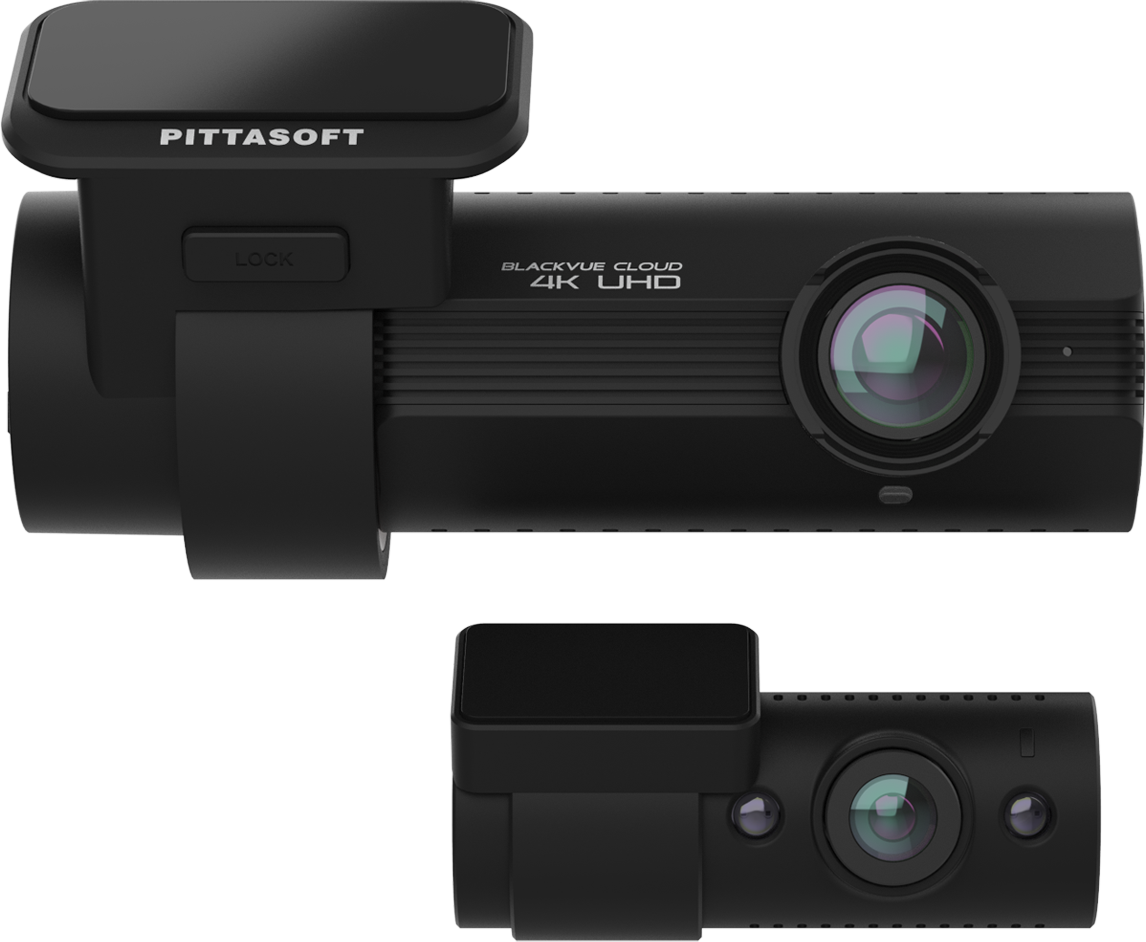
DR970X Box-2CH Plus Series
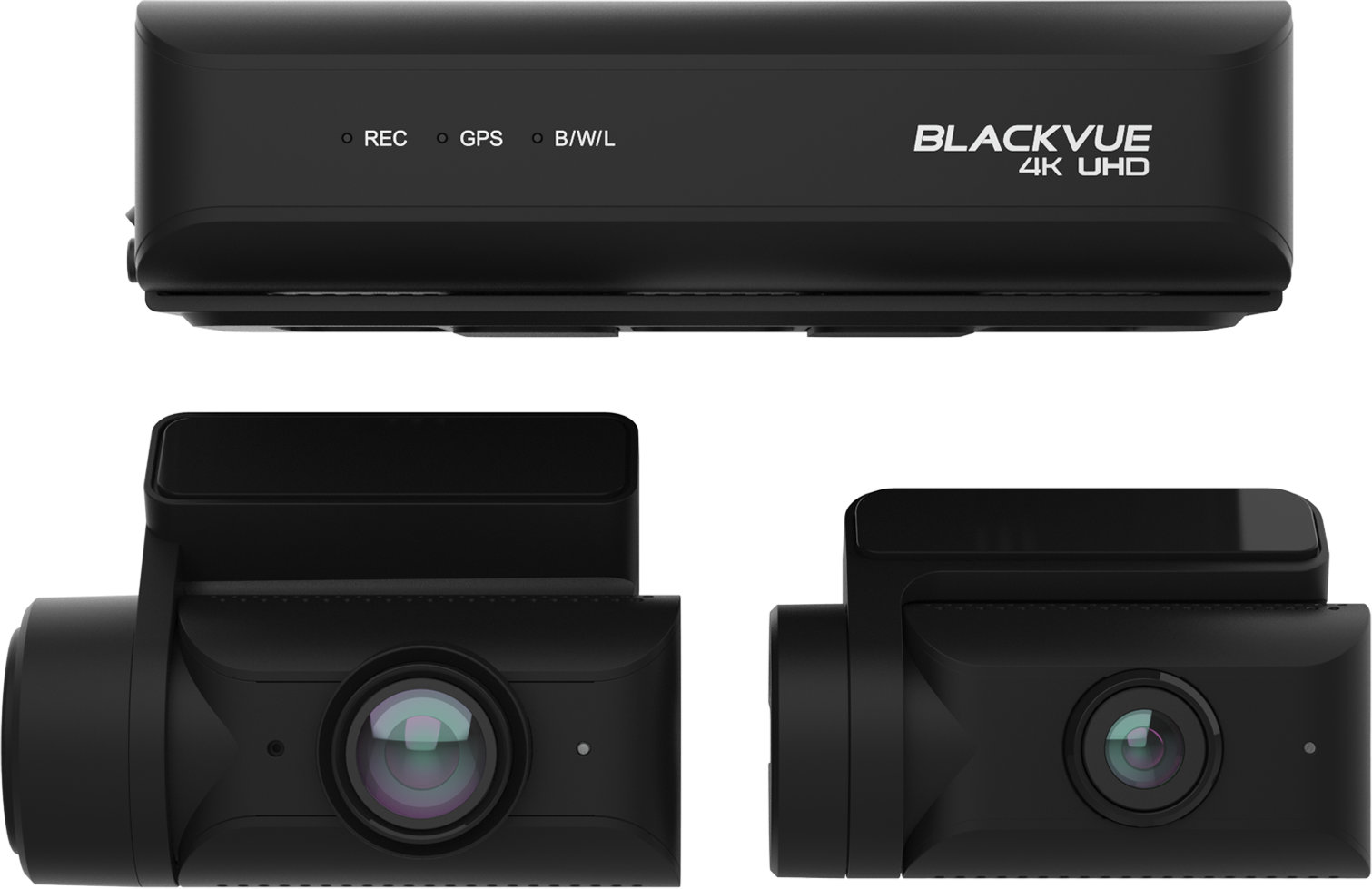
DR770X Series
DR770X-2CH LTE Series

DR770X Box Series

DR770X Box Pro
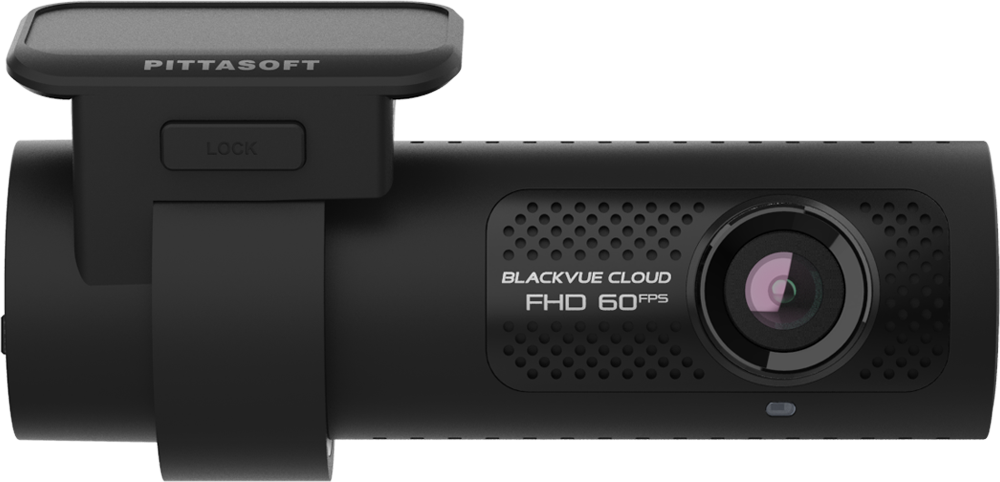
DR900X Plus Series
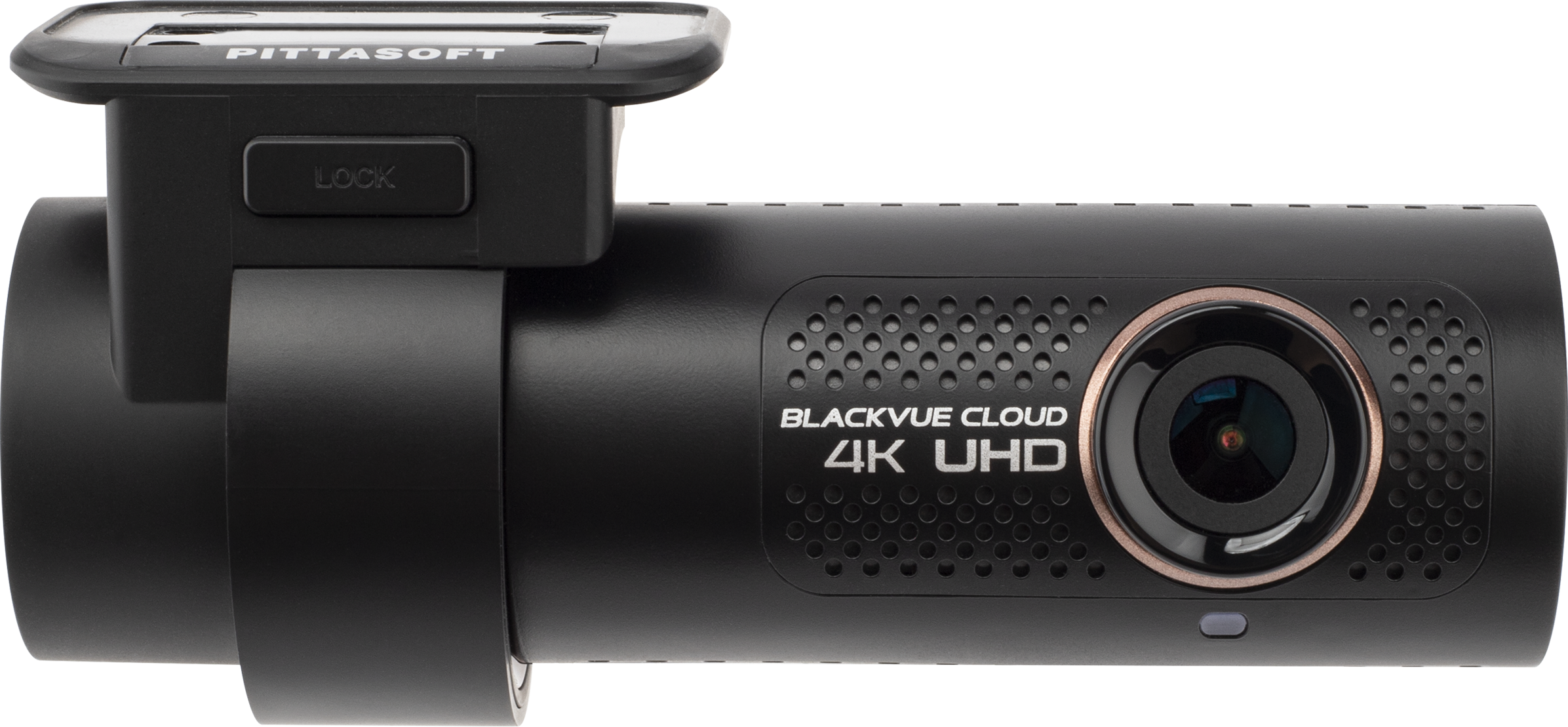
DR900X-1CH
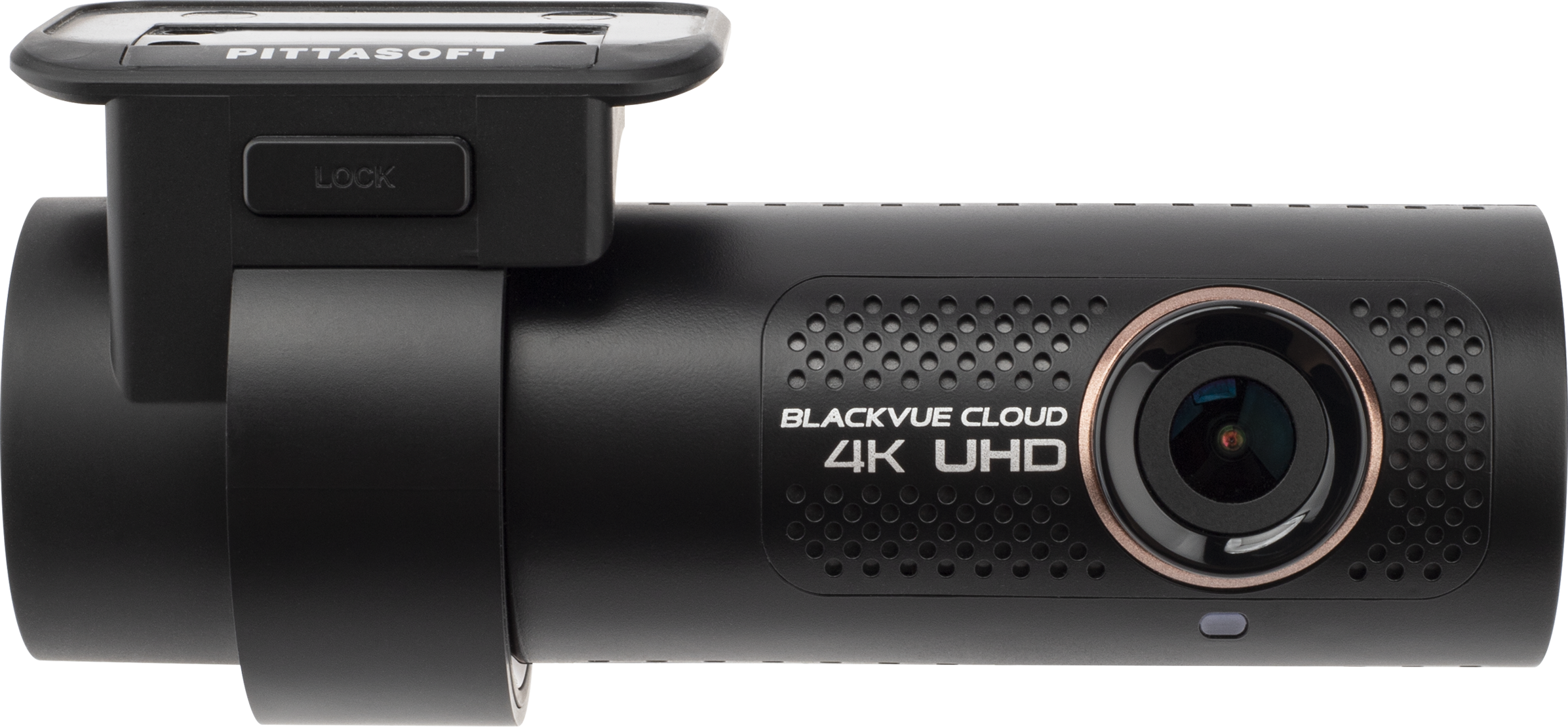
DR900X-2CH
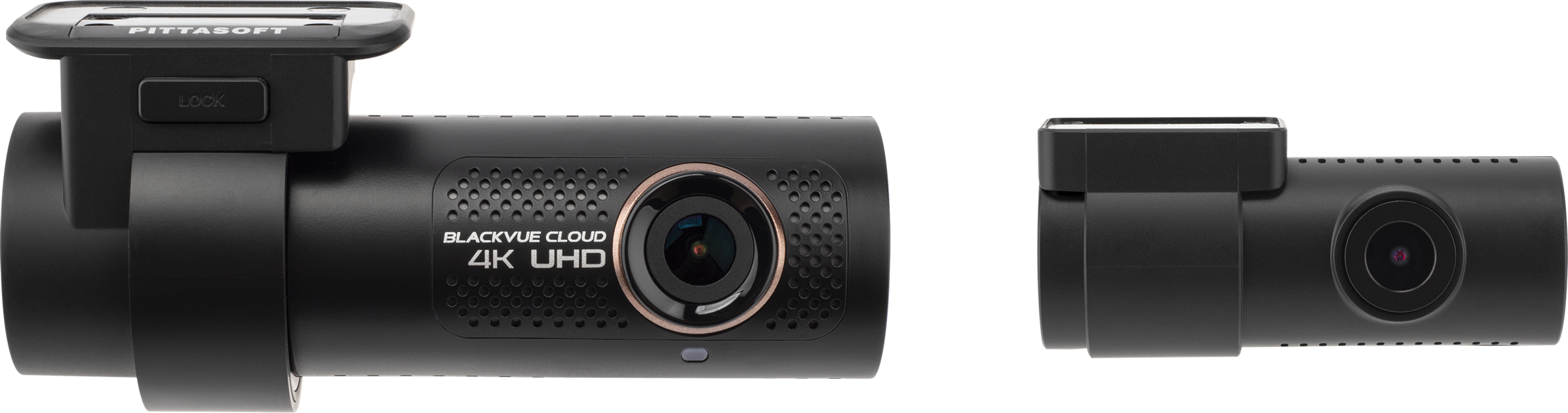
DR750X-3CH Plus Series
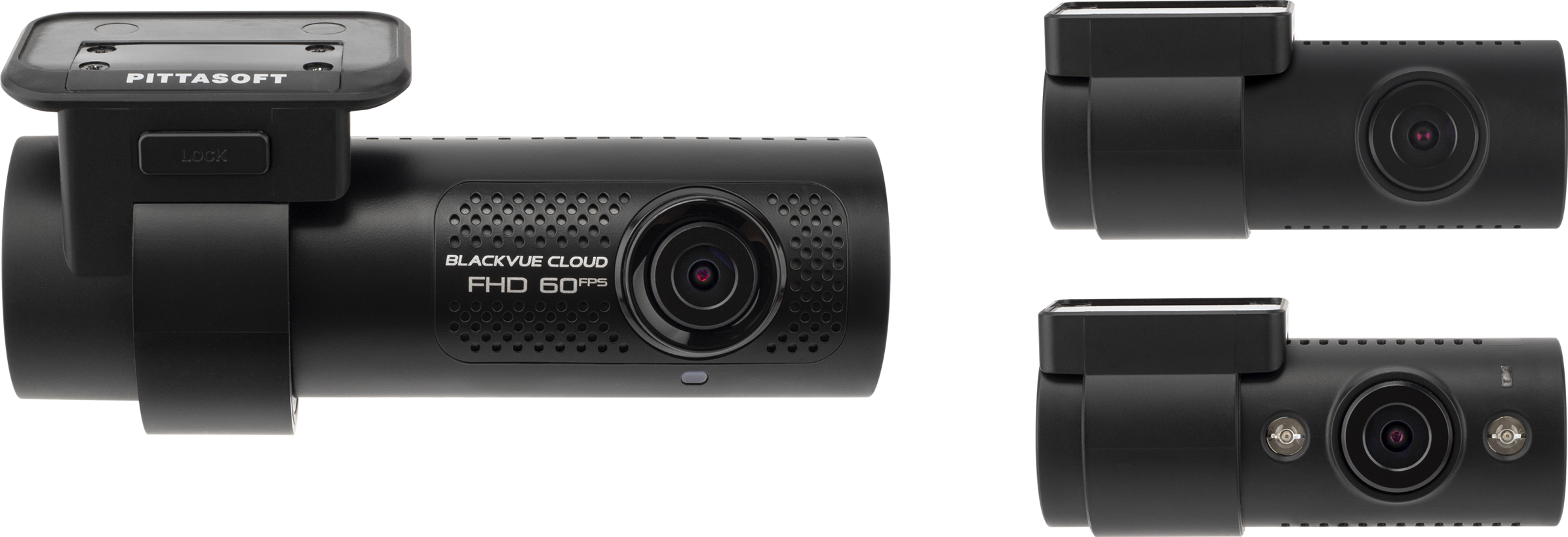
DR750X-2CH LTE Plus Series
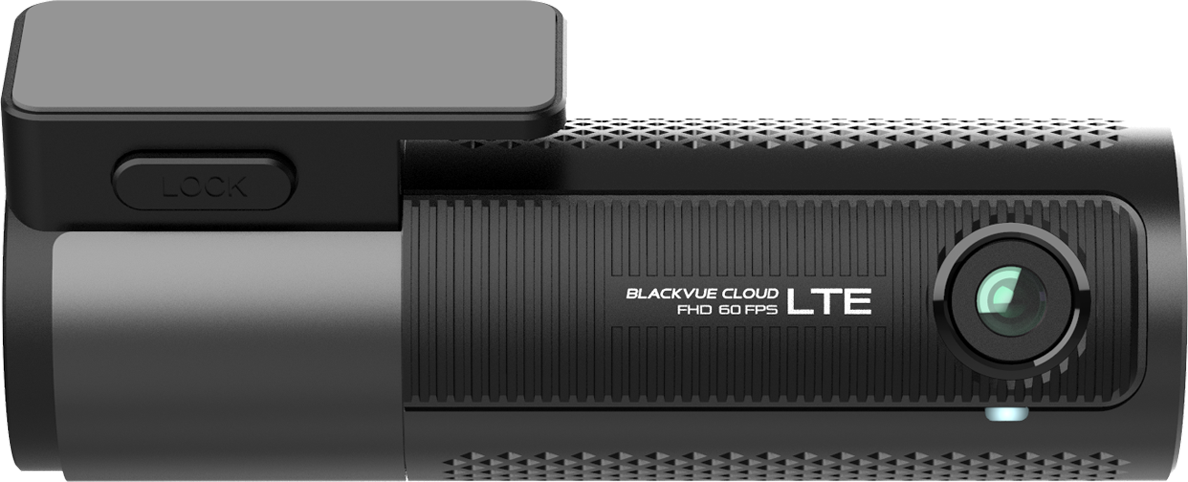
DR750X Plus Series
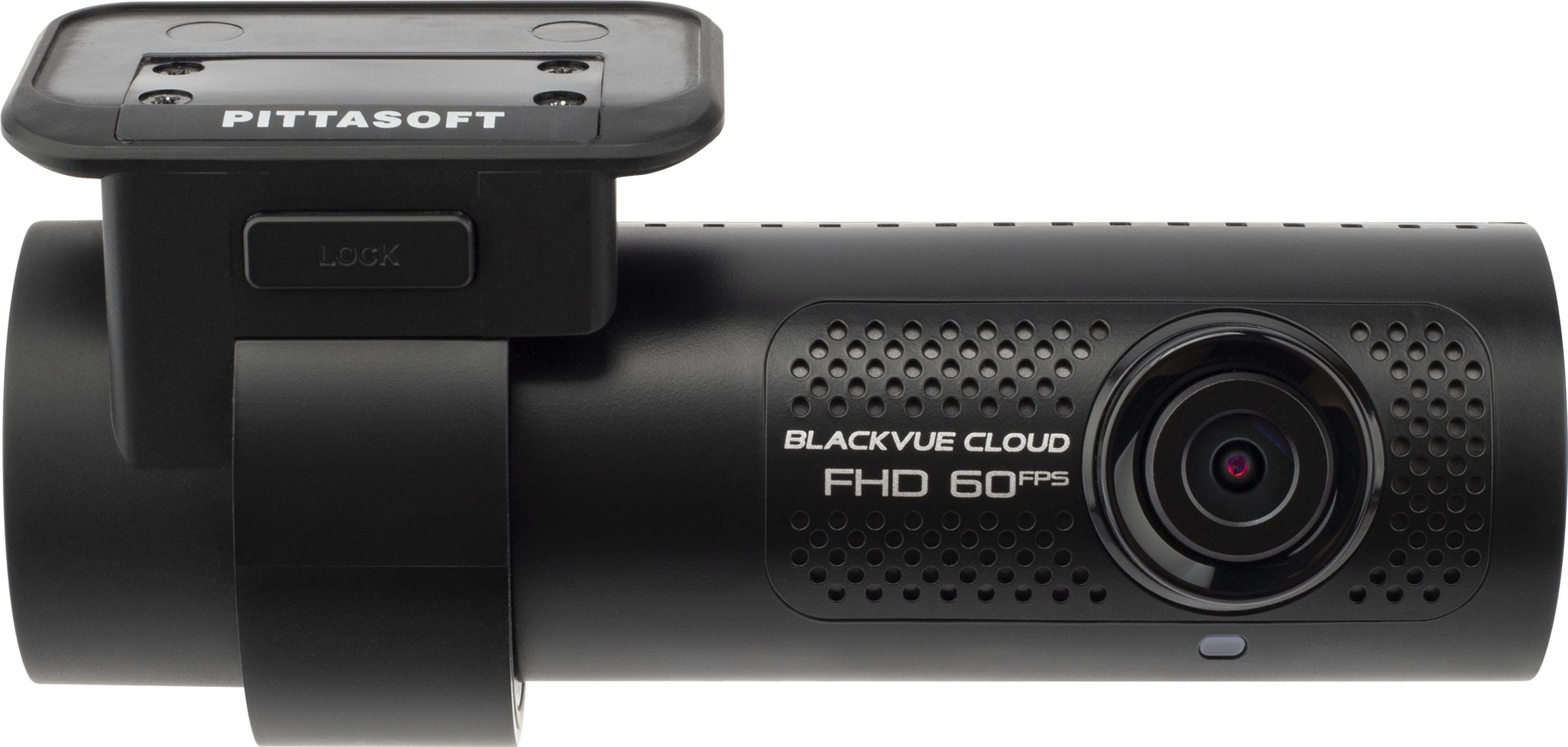
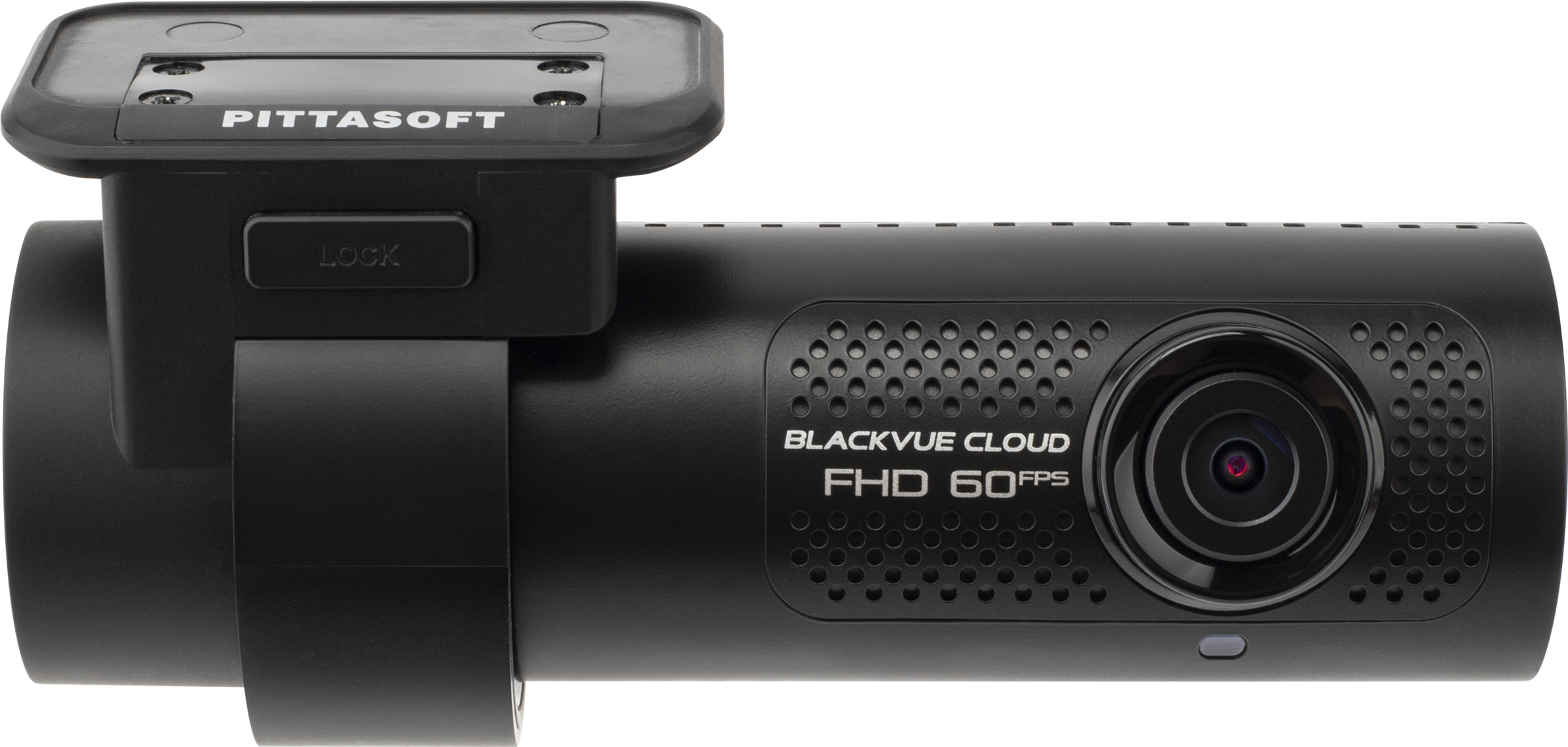
DR750X-1CH
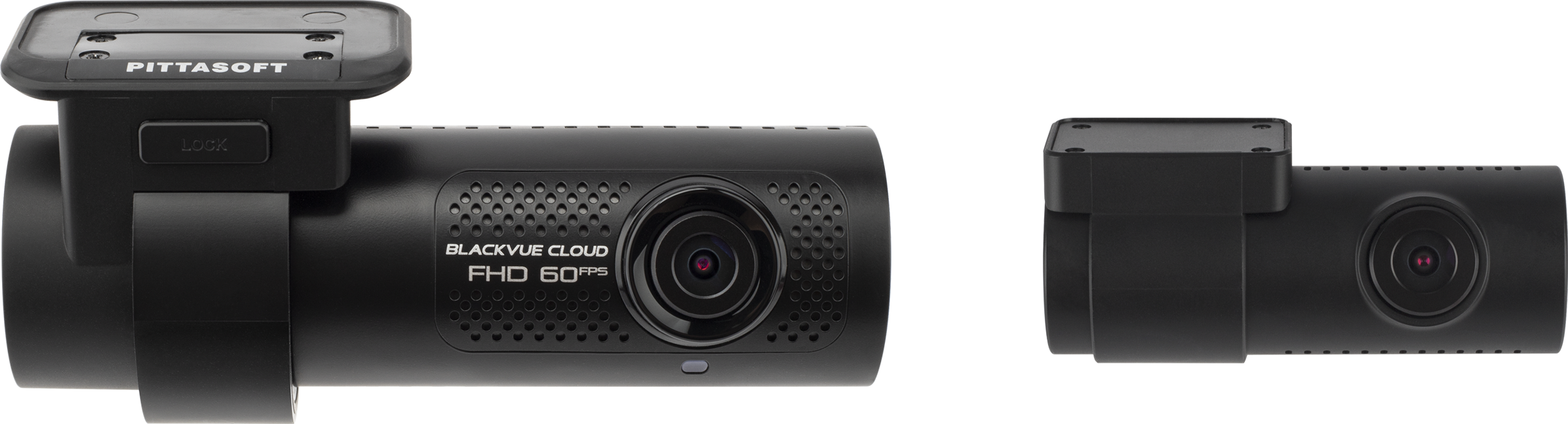
DR750X-2CH
DR590X-1CH / DR590X-1CH Plus
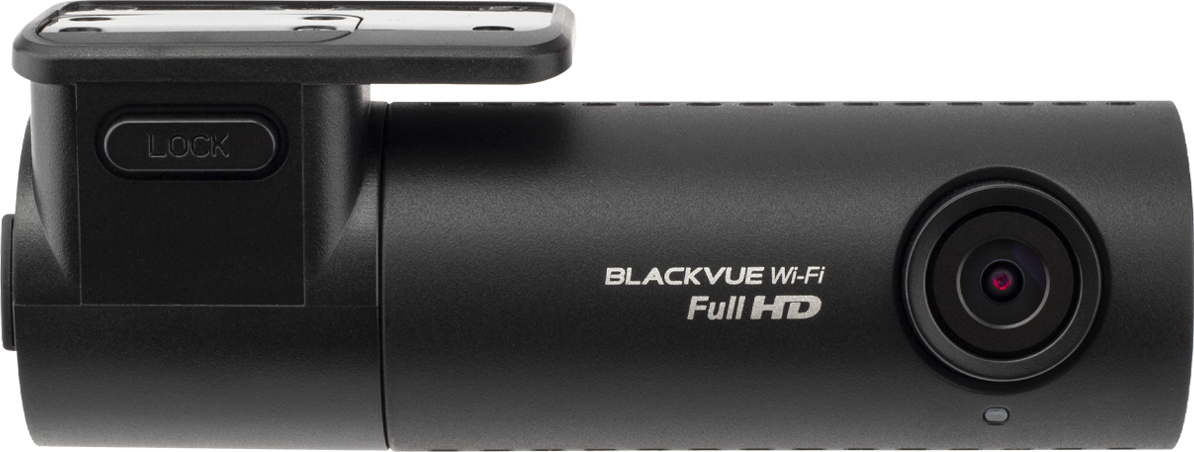
DR590X-2CH / DR590X-2CH Plus
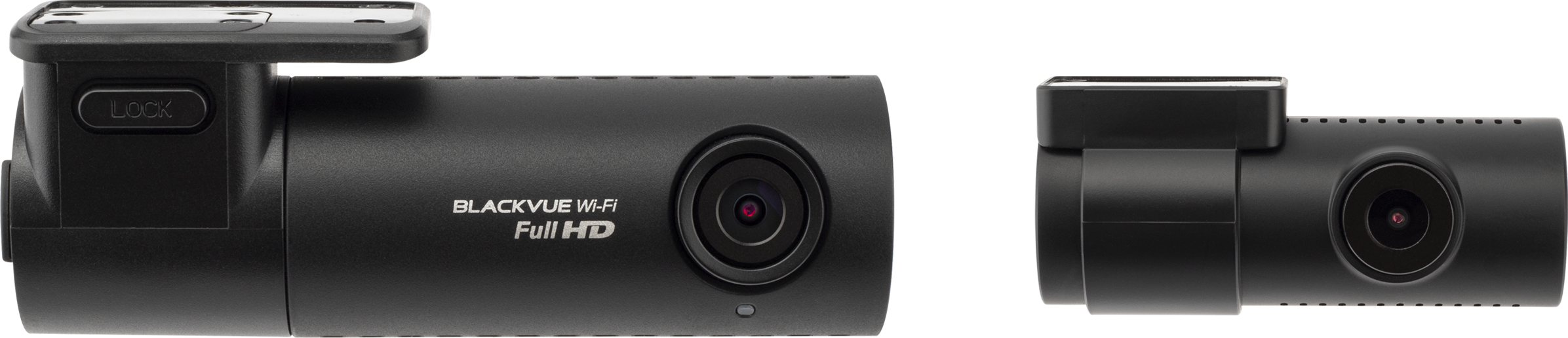
USB-C PD3.0 Power Cable
OBD II Power Cable
Manual Download
Search …
DR770X Box Pro
DR970X Plus Series
DR970X-2CH IR Plus
DR970X-2CH LTE Plus
DR970X Box-2CH Plus Series
DR970X Series
DR970X-2CH LTE
DR770X Series
DR770X-2CH LTE
DR770X Box
BlackVue X Plus Series
BlackVue DR900X, DR750X, DR590X Series
BlackVue DR750-2CH LTE
BlackVue DR900S-2CH
BlackVue DR900S-1CH
BlackVue DR750S-2CH
BlackVue DR750S-1CH
BlackVue DR650S-2CH
BlackVue DR650S-1CH
BlackVue DR590W-2CH
BlackVue DR590W-1CH
BlackVue DR590-2CH
BlackVue DR590-1CH
BlackVue DR490L-2CH
BlackVue DR490-2CH
BlackVue DR470-2CH
BlackVue DR450-1CH
BlackVue DR430-2CH
BlackVue DR650GW-2CH
BlackVue DR650GW-1CH
BlackVue DR750LW-2CH
BlackVue DR3500-FHD
BlackVue DR600GW-HD
BlackVue DR530W-2CH
BlackVue DR550GW-2CH
BlackVue DR500GW-HD
BlackVue DR500-HD
BlackVue DR300G
BlackVue DR350
K970X Plus User’s Manual
K770X User’s Manual
Power Magic EZ
Power Magic Pro
Power Magic Battery Pack
Power Magic Ultra Battery (B-124)
Power Magic Ultra Battery (B-124X)
Power Magic Ultra Battery (B-130X)
LTE Connectivity Module (CM100LTE)
| Version | 1.00 |
| Download | 411 |
| Total Files | 1 |
| Size | 8.63 MB |
| Create Date | 2018-03-19 |
| Last Updated | 2025-02-18 |
| Download link | Download |
Delivery

Manual Download
Support
Cloud Service
Cloud Plan
Forum
Firmware Download
Manual Download
RMA Request
About Us
Contact Us
Partner Area
Warranty
Sponsorship
Send us videos, win prizes!
CaughtOnBLACKVUE

-
Your Privacy Choices
-
Notice at Collection
-
Terms and Conditions
-
Privacy Policy
-
Cloud Terms and Conditions
- Copyright ⓒ 2025 Pittasoft Co. Ltd. All Rights Reserved.

DR590W-2CH
Manual
ENGLISH

Table of Contents
Introduction ………………………………………………………..5
Important safety information ………………………………6
Overview …………………………………………………………….9
In the box ………………………………………………………………………………………………………9
At a glance …………………………………………………………………………………………………..10
Front camera …………………………………………………………………………………………………………………..10
Removing and inserting the front camera ……………………………………………………………………. 11
Rear camera…………………………………………………………………………………………………………………….12
Removing and inserting the rear camera ……………………………………………………………………….12
Installation ………………………………………………………..13
Installing the BlackVue dashcam ………………………………………………………………..13
Playing and Managing Videos …………………………….17
Playing and managing video les using your smartphone
(Android/iOS) ……………………………………………………………….. 17
Opening video les ……………………………………………………………………………………..17
BLACKVUE WI-FI screen composition ………………………………………………………….19
Playing video ………………………………………………………………………………………………20
Playing back videos ……………………………………………………………………………………………………….. 20
Identify video les by recording type …………………………………………………………………………….20
Checking the displayed time & GPS data ………………………………………………………………………. 22
Real-time streaming video (Live View) ……………………………………………………….23
Playing and Managing Videos …………………………….28
Playing and managing video les using your computer
(Windows/Mac) ……………………………………………………………. 28
Removing the microSD card ……………………………………………………………………….28
Opening video les in BlackVue Viewer ……………………………………………………..29
Viewer screen composition …………………………………………………………………………30
Windows Viewer …………………………………………………………………………………………………………….. 30
Mac Viewer ……………………………………………………………………………………………………………………..31
Playing video ………………………………………………………………………………………………32
Playing back videos ……………………………………………………………………………………………………….. 32
Identify video les by recording type …………………………………………………………………………….32
Checking the displayed time …………………………………………………………………………………………. 34
Using BlackVue Viewer …………………………………………………………………………………………………… 34
Exploring the timeline and G-Sensor graph ………………………………………………………………….. 35
Zoom options …………………………………………………………………………………………………………………36
Checking the GPS data ……………………………………………………………………………………………………37
Managing videos…………………………………………………………………………………………38
Capturing or printing a still image from video ……………………………………………………………….38
Deleting videos ………………………………………………………………………………………………………………38
For Windows users ……………………………………………………………………………………………………………………………………… 38
For Mac users ……………………………………………………………………………………………………………………………………………… 39
Exporting videos ……………………………………………………………………………………………………………. 40
For Windows users ……………………………………………………………………………………………………………………………………… 40
Copying videos ………………………………………………………………………………………………………………. 41
For Windows users ……………………………………………………………………………………………………………………………………… 41
For Mac users ……………………………………………………………………………………………………………………………………………… 42
BLACKVUE
2
Managing videos ………………………………………………………………………………………..24
Managing videos in BLACKVUE WI-FI …………………………………………………………………………….24
Copy to Internal Memory …………………………………………………………………………………………………………………………… 24
Managing videos in INTERNAL MEMORY ………………………………………………………………………. 25
Deleting videos ………………………………………………………………………………………………………………………………………….. 26
Creating a new folder ………………………………………………………………………………………………………………………………… 26
Copying and pasting videos ……………………………………………………………………………………………………………………… 26
Moving videos …………………………………………………………………………………………………………………………………………… 27
Renaming a video ……………………………………………………………………………………………………………………………………… 27
Uploading, sharing or emailing a video ……………………………………………………………………………………………………. 27
Tips for optimal performance …………………………….43
Formatting the microSD card ………………………………………… 43
Formatting the card in the BlackVue …………………………………………………………..43
Format using BlackVue Viewer (Windows) ………………………………………………….43
Format using BlackVue Viewer (macOS) ……………………………………………………..44

ENGLISH
Upgrading the rmware ………………………………………………… 46
Upgrading the rmware using an iOS or Android device (Firmware Over The
Air)……………………………………………………………………………………………………………….46
Upgrading the rmware using a computer (Windows or Mac) …………………..49
Changing settings ……………………………………………..52
Changing settings using your smartphone (Android/iOS) .. 52
Basic settings ………………………………………………………………………………………………53
Time settings …………………………………………………………………………………………………………………..54
Video settings ………………………………………………………………………………………………………………… 56
Resolution ………………………………………………………………………………………………………………………………………………….. 56
Image quality ……………………………………………………………………………………………………………………………………………… 56
Night vision ………………………………………………………………………………………………………………………………………………… 57
Brightness (Front) ………………………………………………………………………………………………………………………………………. 57
Brightness (Rear) ………………………………………………………………………………………………………………………………………… 57
Recording settings …………………………………………………………………………………………………………. 58
Normal recording ……………………………………………………………………………………………………………………………………….. 58
Automatic parking mode …………………………………………………………………………………………………………………………… 58
Voice recording……………………………………………………………………………………………………………………………………………58
Date & time display …………………………………………………………………………………………………………………………………….. 59
Speed unit …………………………………………………………………………………………………………………………………………………. 59
Video segment length ………………………………………………………………………………………………………………………………… 59
Rear camera rotation ………………………………………………………………………………………………………………………………….. 59
Sensitivity settings ……………………………………………………………………………………..60
G-Sensor (Normal mode) / G-Sensor (Parking mode) ……………………………………………………. 61
Motion detection (Parking mode) …………………………………………………………………………………. 62
System settings …………………………………………………………………………………………..63
LED …………………………………………………………………………………………………………………………………. 63
Recording status ………………………………………………………………………………………………………………………………………… 63
Front security (Normal mode) ……………………………………………………………………………………………………………………. 63
Front security (Parking mode) ……………………………………………………………………………………………………………………. 63
Rear security ………………………………………………………………………………………………………………………………………………. 63
Voice guidance ……………………………………………………………………………………………………………….64
Impact detected in parking mode ……………………………………………………………………………………………………………… 64
Volume …………………………………………………………………………………………………………………………… 64
Scheduled Reboot…………………………………………………………………………………………………………..64
Speed alert …………………………………………………………………………………………………………………….. 64
User text overlay …………………………………………………………………………………………………………….64
Wi-Fi settings ………………………………………………………………………………………………65
Login credentials ……………………………………………………………………………………………………………. 65
Wi-Fi auto turn o …………………………………………………………………………………………………………..65
FW Language ………………………………………………………………………………………………66
Changing settings ……………………………………………..67
Changing settings using your computer (Windows/Mac) … 67
BlackVue Viewer settings…………………………………………………………………………….68
Select language ……………………………………………………………………………………………………………… 68
Speed unit on map………………………………………………………………………………………………………….68
Select map service …………………………………………………………………………………………………………. 68
Firmware settings ……………………………………………………………………………………….69
Basic settings …………………………………………………………………………………………………………………. 69
Time ……………………………………………………………………………………………………………………………………………………………. 70
Video settings …………………………………………………………………………………………………………………………………………….. 70
Recording settings ……………………………………………………………………………………………………………………………………… 71
Sensitivity settings ………………………………………………………………………………………………………… 73
G-Sensor (Normal mode) / G-Sensor (Parking mode) ………………………………………………………………………………… 73
Motion detection (Parking mode) ……………………………………………………………………………………………………………… 74
Advanced sensitivity settings for normal and parking mode ……………………………………………………………………. 74
System settings ………………………………………………………………………………………………………………76
LED ……………………………………………………………………………………………………………………………………………………………… 76
Voice guidance …………………………………………………………………………………………………………………………………………… 77
Impact detected in parking mode ……………………………………………………………………………………………………………… 77
Volume ……………………………………………………………………………………………………………………………………………………….. 77
Scheduled Reboot………………………………………………………………………………………………………………………………………. 77
Speed alert …………………………………………………………………………………………………………………………………………………. 77
User text overlay ………………………………………………………………………………………………………………………………………… 77
Wi-Fi settings ………………………………………………………………………………………………………………….78
Login credentials ………………………………………………………………………………………………………………………………………… 78
Wi-Fi auto turn o ………………………………………………………………………………………………………………………………………. 78
Applying the settings …………………………………………………………………………………………………….. 78
Optional accessories ………………………………………….79
GPS receiver (Optional) ……………………………………………………………………………….79
Parking mode hardwiring kit (Optional) …………………………………………………….80
Parking mode battery pack (Optional) ……………………………………………………….81
DR590W-2CH
3

Troubleshooting ………………………………………………..82
Changing / resetting direct Wi-Fi SSID and password ……… 82
On-device Wi-Fi SSID and password reset …………………………………………………..82
Change the Wi-Fi password using BlackVue Viewer (Windows or Mac) ……..83
Product specications ………………………………………..84
Recording time ………………………………………………….86
Disposal and recycling information …………………….87
BLACKVUE
4

Introduction
Thank you for purchasing this BlackVue dashcam made by Pittasoft Co., Ltd.
This instruction manual contains information on how to operate your dashcam.
Before using your dashcam, we recommend that you read through this manual to ensure correct usage.
To improve the performance of the product, the contents of this manual are subject to change without prior notice.
Note
yA microSD card is provided with the BlackVue dashcam when you purchase the product. After inserting the microSD card and
turning on the dashcam, the microSD card will be initialized.
ENGLISH
DR590W-2CH
5

Important safety information
For user safety and to avoid property damage, read through this manual and follow these safety instructions to use the product correctly.
DANGER
yDo not disassemble, repair, or modify the product yourself.
Doing so may cause re, electric shock, or malfunction. For internal inspection and repair, contact the service center.
yIf any foreign matter gets inside the product, detach the power cord immediately.
Contact the service center for repair.
yDo not adjust the product while driving.
Doing so may cause an accident. Stop or park your car in a safe place before installing and setting up the product.
yDo not install the product in a location where the product can interfere with the driver’s eld of vision.
Doing so may cause an accident.
yDo not use a damaged or modied power cord. Only use the cords provided by the manufacturer.
Damaged or modied power cords may cause an explosion, re, or malfunction.
Failure to observe the following directions could result in death or property damage:
yDo not operate the product with wet hands.
yDo not install the product in an environment with high humidity, or combustible gases or liquids.
BLACKVUE
6
Doing so may cause electric shock.
Doing so may cause an explosion and/or re.

WARNING
yDo not leave the product near infants, children, or pets.
There is a risk of them swallowing small components, and/or their saliva may get into the product, causing an explosion due to a short
circuit.
yDo not spray water or wax directly onto the product while cleaning the inside of the car.
Doing so may cause re, electric shock, or malfunction.
yIf smoke or an unusual smell is emitted from the power cord, detach the power cord immediately.
Contact the service center or your distributor.
yKeep the terminals of the power cord clean.
Failure to do so may cause excessive heat and re.
yUse the correct input voltage.
Failure to observe the following directions could result in death or serious injury:
ENGLISH
Failure to do so may cause explosion, re, or malfunction.
yPlug in the power cord rmly so that it cannot easily be disconnected.
Failure to do so may cause re.
yDo not cover the product with any material.
Doing so may cause external deformation of the product or re. Use the product and peripherals in a well-ventilated location.
DR590W-2CH
7

CAUTION
yDo not spray cleaning products directly onto the product.
Doing so may cause discoloration, cracks, or malfunction.
yIf the product is used outside the optimal temperature range (-20°C – 70°C/-4°F – 158°F), performance can decline or
malfunctions may occur.
yMake sure that the product is installed properly.
If installed incorrectly, vibrations may cause the product to fall, and may cause physical injury.
yWhen entering or exiting a tunnel, when directly facing into bright sunlight, or when recording at night without lighting the
quality of recorded video may deteriorate.
yIf the product is damaged or the power supply is cut due to an accident, video may not be recorded.
Failure to observe the following directions could result in injury or property damage:
yExcessively tinted windshield glass can distort the recorded video or cause recorded video to be indistinct.
yProlonged use of the product can increase the interior temperature and cause burns.
ymicroSD cards are consumables, so replace microSD cards after prolonged use.
microSD cards may not record video correctly after extended use, so check the microSD card’s recording capability periodically and
replace as necessary.
yClean the lens regularly.
Foreign material attached to the lens can aect the recording quality.
yDo not remove the microSD card while the microSD card is saving or reading data.
The data can be damaged or malfunctions may occur.
yIt is recommended that you install the software and rmware from the BlackVue downloads page (www.blackvue.com).
yIt is recommended that you remove the power cord if the product is not used for an extended period of time.
BLACKVUE
8

Overview
In the box
Check the box for each of the following items before installing the BlackVue dashcam.
Front camera Rear camera Power cord
ENGLISH
Rear camera
connection cable
Quick start guide Cable clips (5 EA)
Note
yThe illustrations in this manual may dier from the product.
yTo improve the performance of the product, the contents of this manual are subject to change without prior notice.
yFor more information about the package components and accessories, visit the BlackVue website (www.blackvue.com).
microSD Card microSD card adapter
External GPS
(Optional)
DR590W-2CH
9

At a glance
The following diagrams explain each part of the BlackVue dashcam.
Front camera
Lock button
42.6 mm
Mounting bracket
Camera lens
34 mm
111.8 mm
Front security LED
: Blinks slowly in normal and parking mode.
: Blinks quickly when an event is being
recorded (Impact detected) or motion is
detected in parking mode.
BLACKVUE
10
Wi-Fi LED
: Wi-Fi is on.
Speaker
GPS LED
: GPS is on.
Wi-Fi
Recording LED
: Blinks slowly in normal.
: Blinks quickly when an event is being recorded (impact
detected) or motion is detected in parking mode.
Angle indicator: You can easily set
up your preferred camera angle
using the white lines.

Rear (rear camera connection port)
GPS connection port
ENGLISH
Cover
Removing and inserting the front camera
Wi-Fi /
DC in (Power connector)
microSD card slot
Wi-Fi / Format Button
— Press once to turn on/o Wi-Fi.
— Self-format function: To format the microSD card press
the button for 10 seconds until the dashcam beeps.
Wi-Fi details label:
— Default Wi-Fi SSID
— Default Wi-Fi password
Serial number label
yTo remove the front camera from its bracket, press the LOCK button and pull the front camera out of the mounting bracket.
yTo insert the front camera into its bracket, push the front camera into the mounting bracket until it «clicks» in.
DR590W-2CH
11

Rear camera
Mounting bracket Camera lens
25 mm
31 mm
67.4 mm
V out (Front camera
connection port)
Rear security LED
: Stays on in all recordings modes
but can be turned o from rmware
settings.
Removing and inserting the rear camera
yTo remove the rear camera from its bracket, hold the mounting bracket and pull the rear camera out.
yTo insert the rear camera into its bracket, push the rear camera into the mounting bracket until it «clicks» in.
BLACKVUE
12

Installation
Installing the BlackVue dashcam
Install the front camera behind the rear view mirror. Install the rear camera at the top of the back windshield. Remove any foreign matter
and clean and dry the windshield before installation.
ENGLISH
1
Warning
yDo not install the product in a location where it can obstruct the driver’s eld of vision.
Turn o the engine. Open the cover of the microSD card slot, gently push the card into the slot until it locks into place and close the
cover.
DR590W-2CH
13

2
Peel o the plastic lm from the front camera and the rear camera. Peel o the protective lm from the double-sided tape and
attach the front camera to the windshield behind the rear-viewer mirror.
3
4
Optional GPS receiver: Plug in the GPS receiver and attach it in a corner of the windshield. Tuck the cable into the windshield trim
using the pry tool.
Adjust the angle of the lens by rotating the body of the front camera. We recommend pointing the lens slightly downwards (≈10°
below horizontal), so as to record video with a 6:4 road to background ratio.
BLACKVUE
14

5
Peel o the protective lm from the double-sided tape and attach the rear camera to the rear windshield. Adjust the angle of the
lens by rotating the body of the rear camera.
ENGLISH
6
7
Connect the front camera (‘Rear’ port) and the rear camera using the rear camera connection cable.
Use the pry tool to lift the edges of the rubber window sealing and molding and tuck in the rear camera connection cable.
Rear camera connection cable
8
Plug the power cord into the cigarette lighter socket and the front camera.
DR590W-2CH
15

9
Use the pry tool to lift the edges of the windshield trim/molding and tuck in the power cord.
10
Rear camera connection cable
Turn on the engine. The BlackVue dashcam will power up and start recording. Video les are stored on the microSD card. When the
microSD card lls up, the newest video les will start to replace the oldest video les (called loop recording) – so you will always
have the most recent video les.
Note
Power cord
yThere are 3recording modes: Normal, Event and Parking. The dashcam starts recording in normal mode, switches to event mode
when an impact is detected, and switches to parking mode if the vehicle is stationary for 5 minutes.
yWhen you run the dashcam for the rst time the rmware is automatically loaded onto the microSD card. After the rmware has
been loaded onto the microSD card you can customize settings using BlackVue Viewer on a computer.
BLACKVUE
16

Playing and Managing Videos
Playing and managing video les using your smartphone (Android/iOS)
Opening video les
ENGLISH
1
2
Search for the BlackVue app in the Google Play Store or Apple App Store and install it on your smartphone.
“Pair” your smartphone with the BlackVue dashcam via direct Wi-Fi:
a. Unplug the power cable and remove the front dashcam from its mount. With the label visible, plug in the power cable and wait for
the dashcam to start normal recording. Press the Wi-Fi button once to turn on Wi-Fi.
b. Go to your smartphone’s Settings then select Wi-Fi, and make sure Wi-Fi is turned on.
DR590W-2CH
17

c. Choose your BlackVue dashcam from the network list. The dashcam’s default SSID begins with its model number (e.g.
BlackVue****-******).
d. Enter the password and tap join.
* The default Wi-Fi SSID and password are printed on the dashcam’s label.
e. Open the BlackVue app and select BLACKVUE WI-FI.
BLACKVUE
18
Note
yDirect Wi-Fi lets you directly connect your smartphone to your dashcam via Wi-Fi within a range of 10m.
yThe BlackVue app is available for devices running Android 4.4.2 and higher, or iOS 9.0 and higher.
yYou can change the Wi-Fi SSID and password as described on page 83.

BLACKVUE WI-FI screen composition
ENGLISH
Copy to Internal Memory
BlackVue SSID
File type lter buttons
Refresh video list
Firmware settings
Video list
Video le pop-up menu
Live View
Note
yAll images shown are for illustration purposes only. Actual app may dier from images shown.
DR590W-2CH
19

Playing video
Playing back videos
Select the video le you want to play from the video list.
Press the refresh button
Identify video les by recording type
Normal The dashcam records in normal mode by default.
Event
Parking
to refresh the video list.
When the dashcam detects an impact while in normal or parking mode, it switches to event mode and
saves an event recording beginning 5 seconds before the event trigger. Exceeding the set speed limit
will also trigger an event recording.
In parking mode the dashcam continuously buers video. When motion is detected in the dashcam’s
eld of view, it saves a parking recording beginning 5 seconds before the motion detection.
Tap the car icon to load the thumbnail of a recording.
The car icon with an arrow pointing to the right indicates a front dashcam recording.
The car icon with an arrow pointing to the left indicates a rear dashcam recording.
BLACKVUE
20

Recording le names include the date, time, recording type and camera direction.
yRecording type: N: Normal
E: Event
P: Parking mode motion detection
yCamera direction: F: Front camera
R: Rear camera
yExample le name: 20170104_150838_NF.mp4
Date & time: 4th January 2017, 03:08:38 PM
Recording type: Normal
Camera direction: Front camera
Note
ENGLISH
yUse the , , , buttons to lter the video list by recording type (Normal, Event, Parking). The lter button
displays both E (Event) and I (Impact event while parked) recordings.
yThe dashcam requires a constant power source to record in parking mode. See «Optional accessories» on page 79 for more
information.
DR590W-2CH
21

Checking the displayed time & GPS data
The time the video was recorded is displayed in the lower left corner of the video in the playback screen. If the displayed time in the
recorded videos is incorrect please see «Time settings» on page 54 or 70.
Video le
Date, Time & Speed
Rear camera
The vehicle’s speed is displayed in the lower-left corner of the video.
Copy to Internal Memory
Model name
Portrait and landscape
display
Rotate your smartphone or press the rotate button
Press the rear button
BLACKVUE
22
to switch to the rear dashcam view.
to switch between portrait and landscape display modes.

Real-time streaming video (Live View)
You can view in real-time the video currently being recorded by connecting your smartphone to the dashcam via direct Wi-Fi.
ENGLISH
1
2
3
4
Go to your smartphone’s Settings > Wi-Fi and connect to your dashcam.
Open the BlackVue app. Select BLACKVUE WI-FI and tap the button.
Rotate your smartphone or press the rotate button to switch between portrait and landscape display modes.
Press the rear button to switch to the rear dashcam view.
Note
yWhen watching Live View via direct Wi-Fi, map data isn’t displayed because your smartphone can’t access the internet as long as it
is connected to the dashcam’s Wi-Fi.
DR590W-2CH
23

Managing videos
Managing videos in BLACKVUE WI-FI
You can manage the recorded videos using the BlackVue app.
Note
yWhen the microSD card lls up, the newest video les will start to replace the oldest video les (called loop recording) – so you
will always have the most recent video les.
Copy to Internal Memory
To copy individual les to your smartphone, tap next to the video you want to copy. Select Copy to Internal Memory.
To copy multiple les to your smartphone in one go tap
BLACKVUE
24
. Select which les to copy, or tap to select all les. Tap to begin copying.

Managing videos in INTERNAL MEMORY
Open the BlackVue app and select INTERNAL MEMORY.
ENGLISH
Tap to see le options. You can delete, copy or move les, change the name of les and share les.
DR590W-2CH
25

Deleting videos
To delete multiple les from your smartphone in one go, tap
to select all les. Tap to delete the selected les.
To delete individual les, tap
next to the video you want to delete. Select Delete.
at the top of the screen and select Delete. Select which les to delete, or tap
Creating a new folder
To create a new folder tap
Copying and pasting videos
To copy multiple les in one go, tap
Tap
to copy the selected les. Go to another folder and tap to paste the selected les there.
To copy individual les, tap
BLACKVUE
26
at the top of the screen and select New folder. Enter a new folder name and press OK.
at the top of the screen and select Copy. Select which les to copy, or tap to select all les.
next to the video you want to copy. Select Copy. Go to another folder and tap to paste the le there.

Moving videos
To move multiple les in one go, tap
ENGLISH
at the top of the screen and select Move. Select which les to move, or tap to select all les.
Tap
To move individual les, tap
To rename a video, tap
Tap
what apps you have installed on your smartphone.
and go to another folder and tap to move the selected les there.
next to the video you want to move. Select Move. Go to another folder and tap to move the le there.
Renaming a video
next to the video you want to rename. Select Change name. Enter a new name and tap OK.
Uploading, sharing or emailing a video
next to the video you want to share. Select Share le. Choose the app you want to share with. The available options will depend on
DR590W-2CH
27
Loading…
- Угол обзора (диагональ) — 139
- GPS — Нет
- Тип — Двухканальный
- Количество камер в комплекте — Две
- Наличие дисплея — Нет
- Wi-Fi — Есть
Все характеристики
Двухканальный видеорегистратор Blackvue DR 590W-2CH комплектуется двумя камерами: основная камера устанавливается на лобовом стекле и направлена по ходу движения автомобиля, а вторая снимает дорогу сзади него — таким образом обеспечивается максимальный охват происходящего на дороге.
И фронтальная, и дополнительная камеры осуществляют запись в качестве Full HD 1920×1080 со скоростью 30 кадров в секунду. Видеорегистратор хорошо подходит для установки как на легковые, так и на грузовые автомобили, т.к. поддерживает напряжение питания 12-24 В.
Blackvue DR 590W-2CH автоматически реагирует на любые изменения в погоде и условиях освещения и автоматически выбирает оптимальный режим съемки — водителю нет необходимости отвлекаться от дороги и менять настройки вручную, вдруг полил дождь, или из-за горизонта выглянуло солнце.
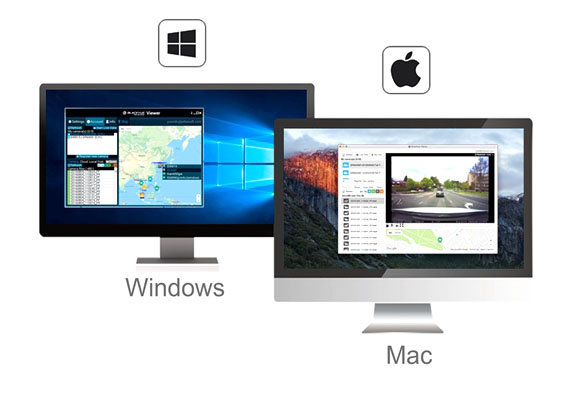
Для просмотра и редактирования видео, снятого на Blackvue DR 590W-2CH, разработана программа BlackVue для PC и Mac. Программой легко сможет пользоваться любой человек; для удобства восприятия сегменты на временной шкале подсвечены разными цветами в зависимости от режима съемки, использованного при записи.
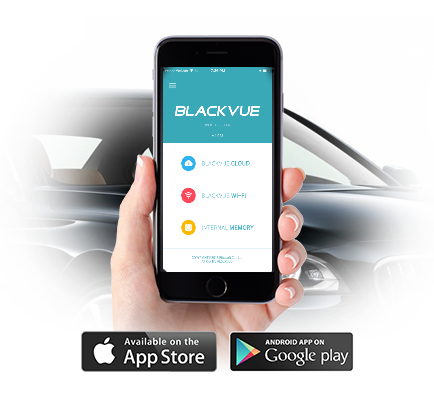
Однако, благодаря WiFi-модулю, вы можете просматривать записанные камерой видео прямо в автомобиле со своего телефона. Более того, мобильное приложение BlackVue для iOS и Android позволяет сразу же редактировать видеозаписи и выкладывать их на YouTube — вам даже не придется вытаскивать карту памяти из регистратора.
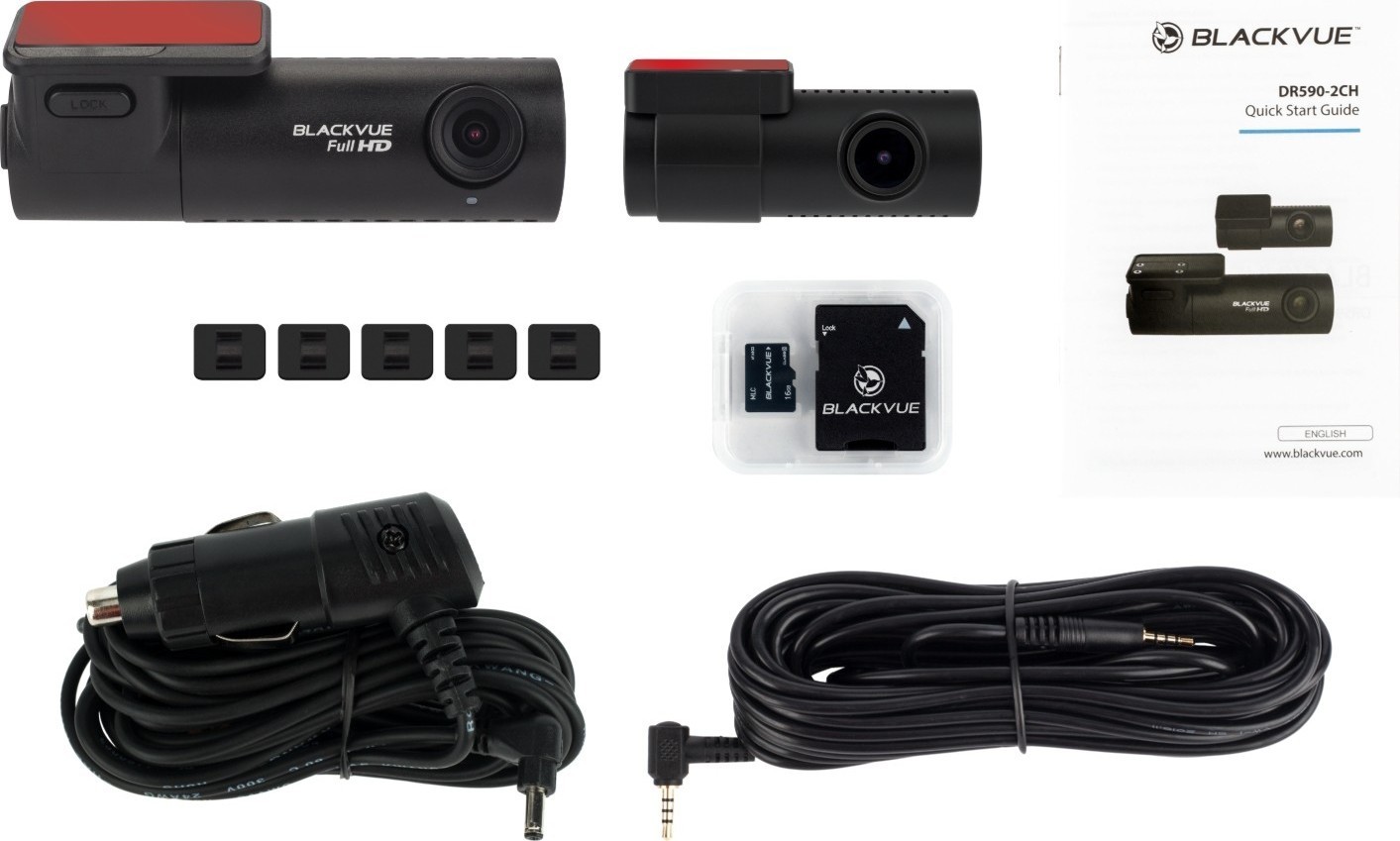
Комплектация:
- Видеорегистратор Blackvue DR590W-2CH;
- Вторая камера;
- Кабель для подключения второй камеры;
- Карта памяти 16 Гб;
- Картридер microSD — SD;
- Кабель питания от прикуривателя;
- Монтажные площадки для кабеля;
- Инструкция по эксплуатации на русском языке;
- Гарантийный талон (гарантия 1 год).
Технические характеристики:
| Передняя камера | Задняя камера | |
| Цвет/Размер/Вес | Матовый-черный | Матовый-черный |
| 111,8 мм x 34 мм / 63г. | 67 мм x 25 мм / 21г. | |
| Память | microSD card (16 Гб / 32 Гб / 64 Гб/128 Гб) 10 class | |
| Режимы записи | Стандартная запись + Событийная запись (Датчик воздействия), и Парковочный режим (Датчики движения и воздействия) | |
| Камера | Sony Starvis IMX291 (около 2,1 мегапикселя) | CMOS sensor (примерно 2 М пиксель) |
| Угол обзора | Диагональный 139° | Диагональный 140° |
| Горизонтальный 116° | Горизонтальный 116° | |
| Вертикальный 61° | Вертикальный 60° | |
| Разрешение | Передняя | Задняя |
| Full HD(1920×1080) 30 к/с | Full HD(1920×1080) 30 к/с | |
| Full HD(1920×1080) 15 к/с | Full HD(1920×1080) 15 к/с | |
| HD(1280×720) 30 к/с | HD (1280×720) 30 к/с | |
| HD(1280×720) 15 к/с | HD(1280×720) 15 к/с | |
| Сжатие видео | Video MP4 | |
| Wi-Fi | Встроенный (802.11b/g/n(2.4~2.4835GHz), Максимально 150Mbps, OFDM/CCK/16-QAM/64-QAM) | |
| GPS | Модуль приобретается отдельно | |
| Микрофон | Встроенный | |
| Динамик | Встроенный | |
| Светодиодный индикатор | Светодиодный индикатор записи, GPS LED, Wi-Fi LED, передний светодиодный индикатор безопасности | Задний светодиодный индикатор безопасности |
| Сенсор | 3-осевой датчик ускорения | |
| Управление | Wi-Fi вкл/выкл | |
| Запись голоса вкл/выкл | ||
| Резервная батарея | Built-in Super Capacitor (суперконденсатор) | |
| Входная мощность | Постоянный ток 12В — 24В | |
| Потребление электроэнергии | Максимально 4.2 Ватт | |
| Рабочие температуры | -20℃ ~ 70℃ | |
| Сертификаты | KC, CE, FCC, RoHS, Telec | KC, CE, FCC, RoHS |
| Приложения | BlackVue (Android, iOS) |
Технические храктеристикии и параметры Blackvue DR 590W-2CH
- Угол обзора (диагональ) — 139
- GPS — Нет
- Тип — Двухканальный
- Количество камер в комплекте — Две
- Наличие дисплея — Нет
- Wi-Fi — Есть
- Встроенный микрофон — Есть
- Максимальное разрешение видео — Full HD 1920×1080p
- Датчик удара (G-сенсор) — Есть
Программы и инструкции для Blackvue DR 590W-2CH
- Инструкция по эксплуатации.pdf
Вопросы и ответы по Blackvue DR 590W-2CH
В этом разделе мы помогаем Вам подобрать сигнализацию к Вашему автомобилю. Технические консультации в данном разделе не предоставляются. Для консультации по техническим вопросам обращайтесь в техподдержку по бесплатному номеру 8-800-700-17-18.
Часто задаваемые вопросы и полезные статьи:
- Что будет с гарантией на мой автомобиль?
- Зачем разбирать штатный ключ для подключения автозапуска?
- Будет ли бесключевой обход средствами Pandora, Pandora CLONE?
- Сколько денег уходит в месяц на GSM-связь с сигнализацией?
- В чем отличие между различными охранными системами Pandora?
Отзывы о Blackvue DR 590W-2CH
Русский
- Bedienungsanleitung BlackVue DR590W-2CH
- BlackVue DR590W-2CH User Manual
- Manual Usuario BlackVue DR590W-2CH
- Mode d’emploi BlackVue DR590W-2CH
- Istruzioni BlackVue DR590W-2CH
- инструкция BlackVue DR590W-2CH
- BlackVue DR590W-2CHの取扱説明書
- Handleiding BlackVue DR590W-2CH
- Manual de uso BlackVue DR590W-2CH
Вам нужна инструкция? Мы поможем Вам ее найти и сэкономить Ваше время.
- 89 stron
- 8.59 mb
Изделие BlackVue DR590W-2CH, а также другие, которыми Вы пользуетесь ежедневно, наверняка вы получили в комплекте с инструкцией обслуживания. Из опыта наших пользователей мы знаем, что большинство из Вас не уделили этому особого внимания. Большая часть инструкций, сразу же после покупки попадает в корзину для мусора вместе с коробкой — это ошибка. Ознакомьтесь с информацией, касающейся инструкции BlackVue DR590W-2CH, которая поможет Вам в будущем сэкономить нервы и избежать головной боли.
Важная подсказка — не забывайте хотя бы раз прочитать инструкцию BlackVue DR590W-2CH
Если вы не хотите каждый раз читать информационные брошюры, касающиеся, тех или BlackVue DR590W-2CH иных изделий, достаточно, прочитать их раз — сразу же после покупки устройства. Вы получите основное знания, касающиеся поддержания изделия BlackVue DR590W-2CH в хорошем эксплуатационном состоянии, так, чтобы без проблем достигнуть его планируемого цикла работы. Затем инструкцию можно отложить на полку и вернуться к ней только в случае, если вы не уверены, правильно ли проводится техобслуживание изделия. Правильный уход является необходимым элементом Вашего удовольствия BlackVue DR590W-2CH.
Раз в году пересмотрите шкафчик, в котором держите инструкции для всех устройств, — выбросите те, которыми вы уже не пользуетесься. Это поможет Вам сохранять порядок в своей домашней базе инструкций обслуживания.
Summary of Contents for BlackVue DR590W-2CH
Что находится в инструкции BlackVue DR590W-2CH? Почему стоит ее прочитать?
- Гарантия и подробности, касающиеся техобслуживания изделия
Хорошей идеей будет прикрепить чек к странице инструкции. Если что-то плохое случится во время использования BlackVue DR590W-2CH, у вас будет комплект документов, необходимый для гарантийного ремонта. В этой части инструкции вы найдете информацию об авторизованных сервисных центрахBlackVue DR590W-2CH а также, как самостоятельно правильно ухаживать за оборудованием — так, чтобы не потерять гарантийных прав. - Указания по монтажу и Setup
Не терять нервов и времени на самостоятельную попытку установки и первого запуска изделия. Воспользуйтесь рекомендациями производителя BlackVue DR590W-2CH чтобы правильно запустить изделие, без лишнего риска повреждения оборудования. - Информация, касающаяся дополнительных запчастей (входящих в комплект а также являющихся опцией)
Пересматривая эту часть документа вы сможете проверить, доставлен ли ваш BlackVue DR590W-2CH с полним комплектом аксессуаров. Вы также сможете узнать, какие дополнительные запчасти или аксессуары для BlackVue DR590W-2CH Вы сможете найти и докупить к своему устройству. - Troubleshooting
Самые частые проблемы, касающиеся BlackVue DR590W-2CH и методы их решения. Это очень полезная часть руководства по обслуживанию — она позволит Вам сэкономить много времени на поиск решений. 90% проблем с BlackVue DR590W-2CH повторяется у многих пользователей. - Требования, касающиеся питания и энергетический класс
Информация, касающаяся количества потребляемой энергии, а также рекомендации, касающиеся установки и питания BlackVue DR590W-2CH. Прочитайте, чтобы оптимально пользоваться BlackVue DR590W-2CH и не использовать большего количества ресурсов, нежели это необходимо для правильной работы изделия. - Специальные функции BlackVue DR590W-2CH
Здесь вы можешь узнать, как персонализировать изделие BlackVue DR590W-2CH. Вы узнаете, какие дополнительные функции могут помочь Вам удобно использовать продукт BlackVue DR590W-2CH а также, какие функции Вашего устройства оптимальны для выполнения конкретной деятельности.
Как видите в инструкции вы найдете информацию, которая реально поможет Вам в использовании Вашего изделия. Стоит с ней ознакомиться, чтобы избежать разочарований, возникающих из более короткого, нежели предусматривалось, периода исправности изделия BlackVue DR590W-2CH. Если все же вы не хотите копить инструкции в своем доме, наш сайт поможет Вам в этом — вы должны найти у нас руководство по обслуживанию большинства из своих устройств, а также BlackVue DR590W-2CH.
Комментарии (0)
Совместить высокое качество съемки и небольшие размеры, что обеспечивает малозаметность устройства, — это довольно сложная задача. Итальянская компания PittaSoft Ltd с блеском ее решила, выпустив на рынок видеорегистраторов целое семейство BlackVue.
По своим техническим возможностям они относятся к премиальным, что определило их цену. Сегодня мы представляем вам обзор наиболее доступной модели — BlackVue DR 590-2CH.
5%скидка
Для читателей нашего блога
скидка 5% на весь
ассортимент
Ваш промокод:BLOGСмотреть все видеорегистраторы
Она обеспечивает такое же качество съемки в любых условиях (не только днем, но и в сумерках, ночью), как и более продвинутые модели этого бренда.

Конструктивные особенности
Модель DR590-2CH — это видеорегистрирующее устройство с двумя камерами.
Как и все приборы бренда BlackVue, оно выполнено в цилиндрическом форм-факторе.

У него нет экрана. Это позволило уменьшить габариты и сделать его практически незаметным. Фронтальная камера имеет диаметр 34 мм, а тыловая — 25 мм.

В корпусе фронтальной камеры размещена вся электронная начинка, включая процессор, блок памяти (съемную карту microSD) и элементы управления. Поэтому она и длиннее тыловой.

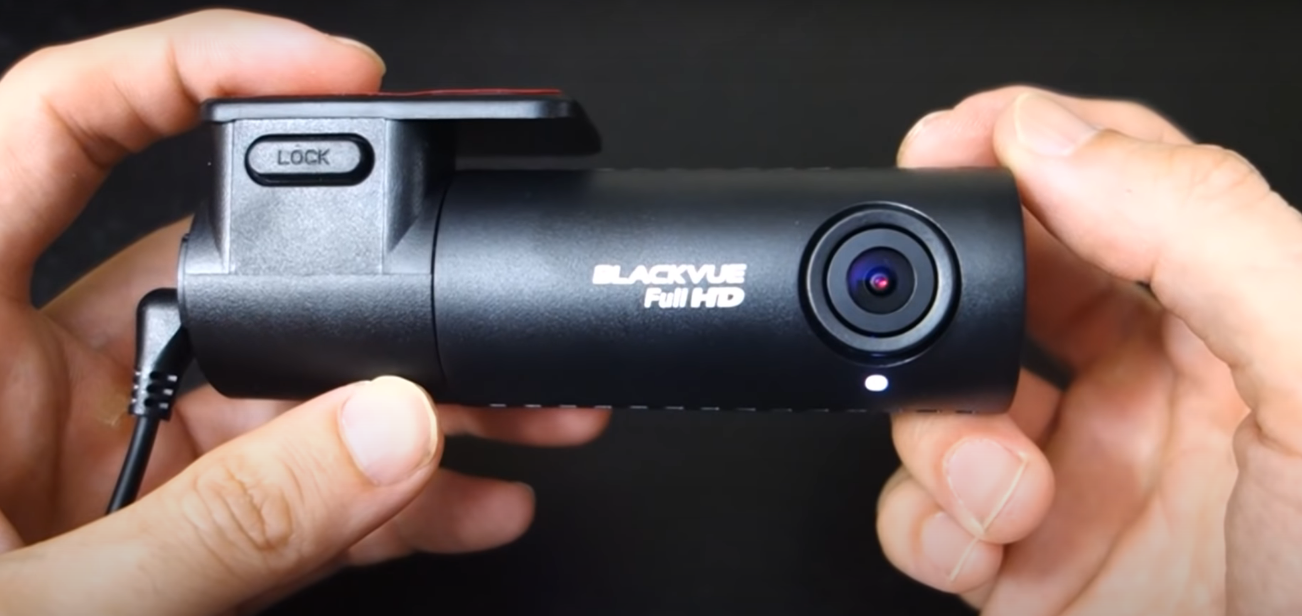
Крепление на лобовом и заднем стекле одинаковое — в трубчатом кронштейне, где оборудование можно повернуть по оси, изменив наклон объектива. Кронштейн крепится двусторонним скотчем (он есть в комплекте поставки) намертво. Так что при монтаже устройства стоит хорошо обдумать расположение, переделывать будет сложно.

Питается видеорегистратор от аккумуляторной батареи автомобиля через гнездо прикуривателя, соединение камер также по кабелю. Для стабильного включения в сильный мороз в составе оборудования есть конденсатор большой мощности. Он поддержит номинал питания на нужном уровне до выхода бортовой электросети в рабочий режим.

Кнопка управления находится с левого торца цилиндра (если смотреть из салона). Одним коротким нажатием вы включаете блок Wi-Fi, а длинным форматируете карту памяти.
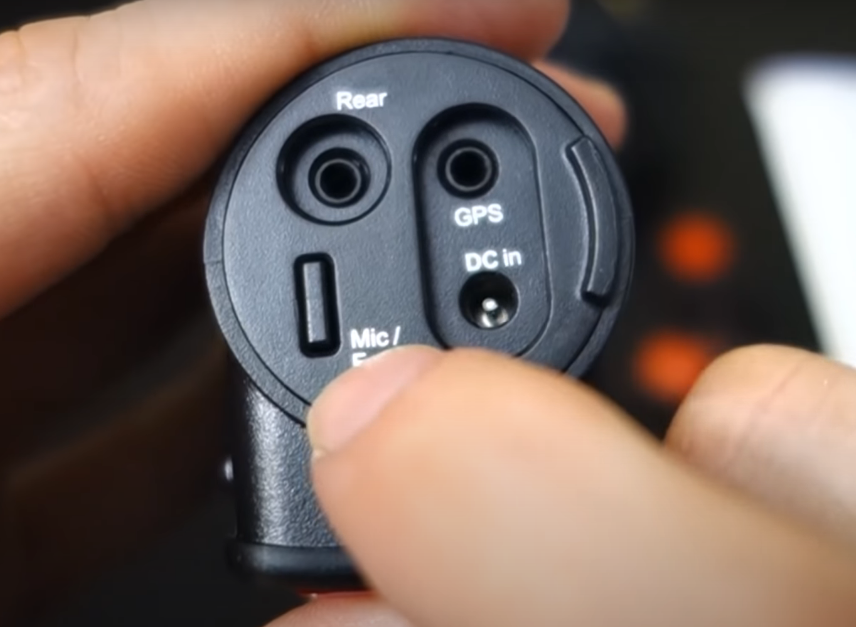
Рядом с ней находятся разъемы питания и подключения блока GPS. Все они закрыты крышкой таким образом, что карту памяти без обесточивания устройства вы не извлечете. Это дает гарантию, что в стрессовой ситуации нужный ролик не будет потерян — после отключения питания данные сохраняются автоматически.

Работа видеорегистратора DR590-2CH — процесс записи, включение Wi-Fi и работа блока GPS — сопровождается световой индикацией, а также речью. Приятный женский голос сообщит о том, что система загружается, что она начала запись, и о других параметрах.
Режимы работы
Модель DR590-2CH осуществляет съемку и на парковке, и в движении. В стояночный режим она переходит через пять минут после остановки. В этом случае видеофиксация ведется без записи на карту, с буферизацией в оперативной памяти.

Если в кадре появится движущийся объект или сработает малый G-сенсор, то сохранится файл, на котором зафиксированы кадры за 10 секунд до начала события.

Включение записи видео происходит в начале движения. Первые 50 роликов по 15 минут фиксируются на карте, а потом стираются один за другим, если не наступает аварийное событие, которое сопровождается срабатыванием большого G-сенсора.

В этом случае на кадре будет отмечена дата и время суток. А при наличии GPS-модуля — координаты и скорость движения.

Модуль GPS-позиционирования — выносной, он приобретается отдельно. При его наличии в кадре появляются дополнительные сведения, которые могут стать решающими при определении виновника ДТП.
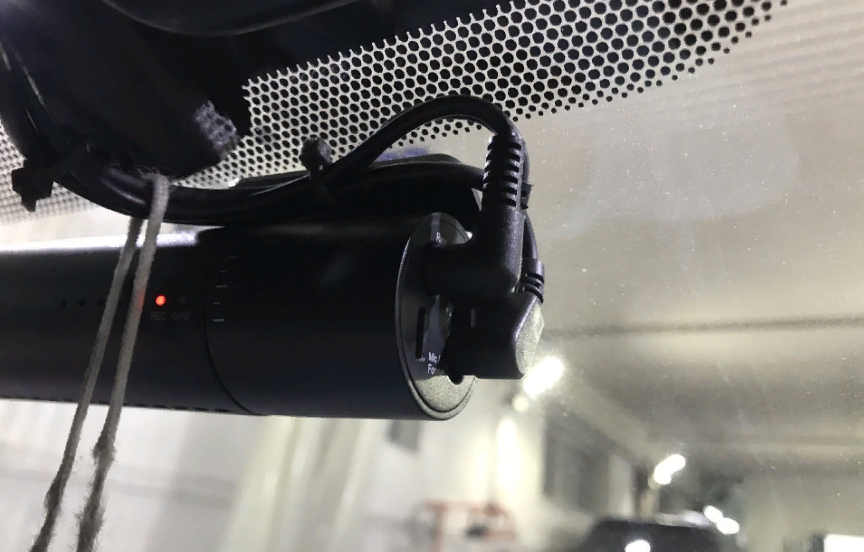
То, что он не встроен в блок фронтальной камеры, делает его менее подверженным помехам. Например, он может неточно определять координаты при наличии на стекле проводников обогревателя.
Управление регистратором
Настроить параметры видеорегистратора или провести онлайн-просмотр видеозаписи можно на любом устройстве, у которого есть блок Wi-Fi. Например, это может быть смартфон или ноутбук.

Более подробно о том, как подключить устройство к телефону, написано в инструкции по эксплуатации. Однако основным условием является установка приложения BlackVue.
Для смартфона оно скачивается бесплатно через Google Play, а если у вас айфон, то аналогичная программа есть в App Store. Такое же приложение существует и для Windows — от версии 7 Ultimate и выше.

Соединение смартфона и видеорегистратора происходит по стандартному алгоритму поиска нового устройства в сети.

Приложение BlackVue обладает следующими возможностями:
- экранной лупой (для чтения номеров);
- таймером с фиксацией даты и времени.
5%скидка
Для читателей нашего блога
скидка 5% на весь
ассортимент
Ваш промокод:BLOGСмотреть все видеорегистраторы
Также с его помощью вы можете выполнить следующие действия:
- установить дату и время, отображающееся в кадре;
- отрегулировать чувствительность G-сенсоров;
- изменить способ включения и выключения Wi-Fi;
- отсортировать сохраненные файлы, скачать их для себя или удалить.
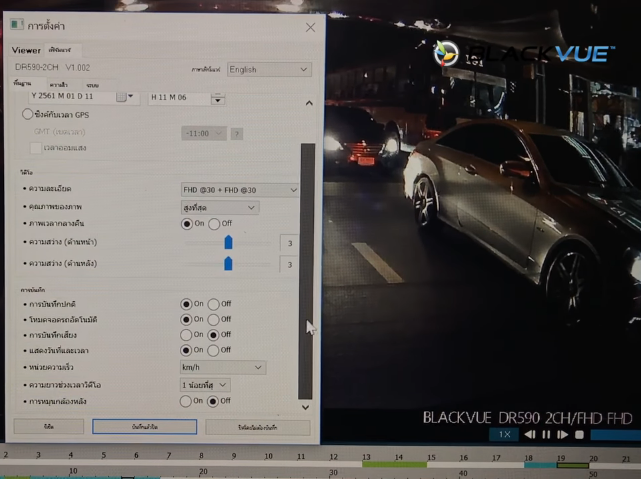
Качество видеозаписи
Оптика видеокамер регистратора BlackVue DR590-2CH выполнена из кварцевого стекла с полным многослойным осветлением. А в качестве чувствительной матрицы использована плата Sony STARVIS с 2,1 миллиона чувствительных точек (пикселей).
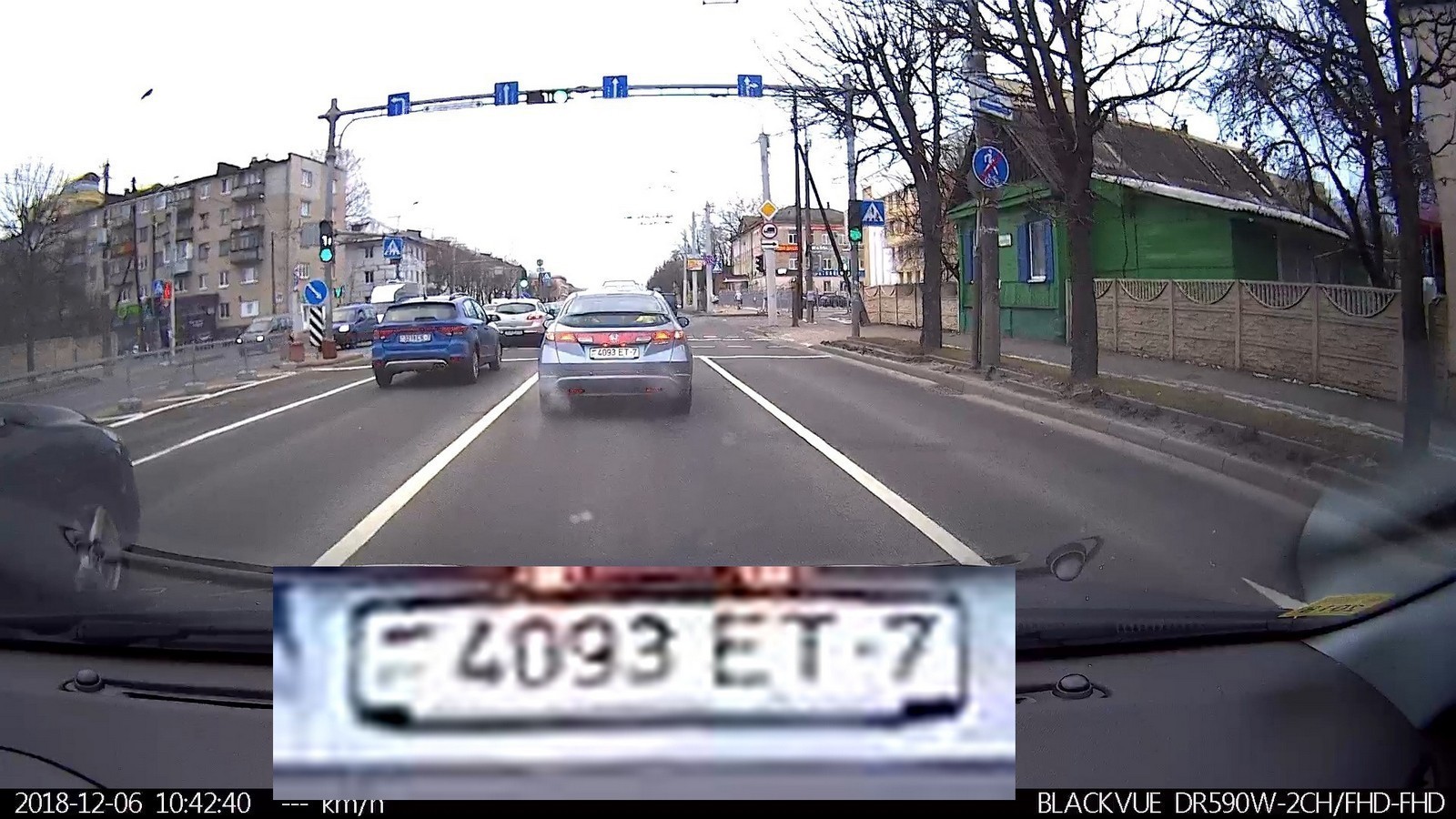
Угол обзора камер по диагонали 140 градусов, а скорость съемки 30 кадров в секунду. Изображение имеет разрешение 1920 на 1080 при прогрессивной развертке Full HD.

Поэтому качество съемки превосходное в любое время суток, а также в пасмурную дождливую погоду.
| Характеристики | Значение |
| Оптика камер | Кварцевое стекло с многослойным осветлением |
| Тип матрицы | Sony STARVIS на 2,1 Мп |
| Угол обзора по диагонали/горизонтали/вертикали (град.) | 140/116/61 |
| Тип развертки | FULL HD |
| Разрешение изображения (пикселей) | 1920 х 1080 |
| Тип записываемого файла | МР4 |

Видеорегистратор DR 590-2CH — это мощное устройство, предоставляющее пользователю много возможностей. Качество записи можно назвать студийным. Такой регистратор можно использовать в качестве дополнения к противоугонным системам.