
Contents
Index
1
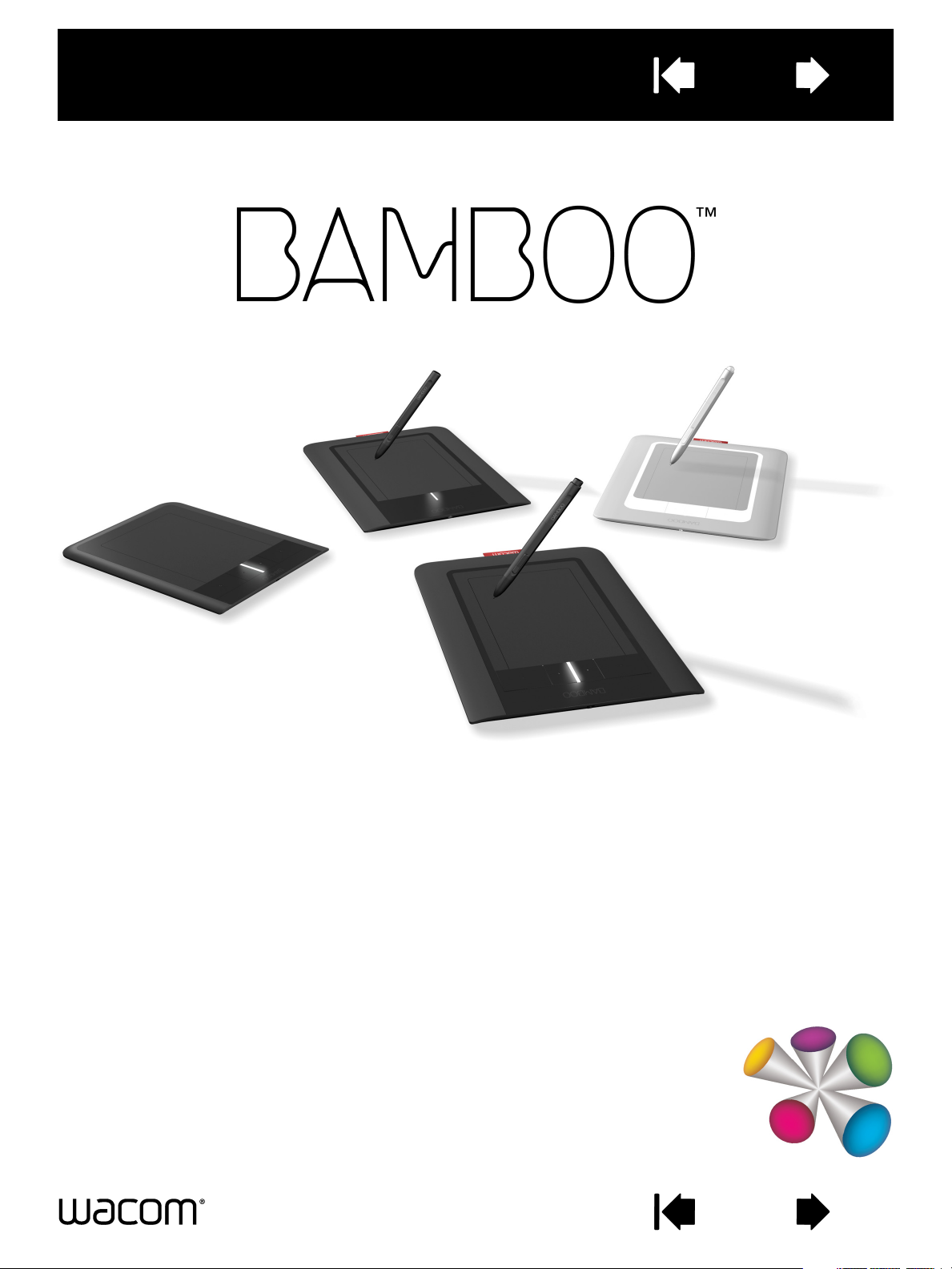
User’s manual for
®
®
Windows & Macintosh
Bamboo Touch (CTT-460)
Bamboo Pen (CTL-460)
Bamboo & Bamboo Fun (CTH-460, CTH-461, CTH-661)
Setting up
Navigate with touch
Customize touch
ExpressKeys
Use a pen
Customize a pen
Troubleshooting
Contents Index
1
Contents
Index
2
Bamboo
User’s Manual for Windows
Version 1.0, Rev E1209
Copyright © Wacom Co., Ltd., 2009
All rights reserved. No part of this manual may be reproduced except for your express personal use.
Wacom reserves the right to revise this publication without obligation to provide notification of such changes.
Wacom does its best to provide current and accurate information in this manual. However, Wacom reserves the right
to change any specifications and product configurations at its discretion, without prior notice and without obligation
to include such changes in this manual.
The above year indicates when this manual was prepared. However, the date of release to the users of the “manual”
is simultaneous with the introduction into the market of the applicable Wacom product.
®
& Macintosh®
Reuse, recycling, and recovery. You are urged to recycle this product when replacing it with a newer
product or when it has outlived its useful life by bringing it to an appropriate collection point for recyclable materials in
your community or region. By doing this, you can help improve the environment of your community as well as
minimize the potential negative effects created should any hazardous substance that may possibly be present within
waste material reach the environment during the disposal process.
Within the European Union, users are required not to dispose of Waste Electrical and Electronic Equipment (WEEE)
as unsorted municipal waste, according to the Directive 2002/96/EC of the European Parliament and of the Council of
27 January 2003, or the corresponding local laws of the Member States. Products for which this is applicable will be
marked with the WEEE symbol shown at the beginning of this note unless this is not feasible because of the size or
the function of the product. Wacom products are subject to the Directive 2002/96/EC and therefore you should
always collect them separately and bring them to the appropriate collection point in your community or region.
Wacom tablet products comply with the European Union RoHS Directive 2002/95/EC (RoHS Directive).
Bamboo is a trademark and Wacom is a registered trademark of Wacom Co., Ltd.
Adobe, Photoshop, and Reader are either registered trademarks or trademarks of Adobe Systems Incorporated in the
United States and/or other countries. Microsoft, Windows, and Vista are either registered trademarks or trademarks
of Microsoft Corporation in the United States and/or other countries. Apple, the Apple logo, and Macintosh are
registered trademarks of Apple Computer, Inc., registered in the U.S. and other countries. Any additional company
and product names mentioned in this documentation may be trademarked and/or registered as trademarks.
Mention of third-party products is for information purposes only and constitutes neither an endorsement nor a
recommendation. Wacom assumes no responsibility with regard to the performance or use of these products.
ExpressKey is a registered trademark of Ginsan Industries, Inc., and is used with permission.
Contents Index
2

Contents
Index
3
TABLE OF CONTENTS
About the manual 5
Navigating the manual 6
YOU R B AM BO O 7
Identify your tablet model 7
Bamboo Touch tablet 8
Bamboo & Bamboo Fun tablets 9
Bamboo Pen tablet 10
Pen 11
Pen holder 11
SETTING UP YOUR BAMBOO 12
Ergonomics 12
Configuring the tablet orientation 14
Understanding the tablet active area 15
Working with multiple monitors 17
Control panel basics 17
USING YOUR BAMBOO 18
The touch experience with Bamboo 18
Navigating with touch 19
Customizing touch 25
ExpressKey basics 26
Customizing the ExpressKeys 26
The pen experience with Bamboo 27
Holding the pen 27
Using the pen on the tablet 28
Positioning 28
Clicking 30
Dragging 30
Using the pen buttons 31
Writing and drawing with pressure sensitivity 32
Erasing 33
Eye-hand coordination exercise 34
Customizing pen input 34
CUSTOMIZING YOUR BAMBOO 35
Opening the control panel 35
Control panel overview 36
Customize your touch experience 37
Setting the touch speed 37
Setting the touch functions 38
Setting tablet and ExpressKey functions 39
Disabling touch 40
Customize your pen experience 41
Setting the tip and eraser feel,
and double-click distance 42
Setting the pen button functions 43
Setting the tablet mapping 44
Portion of screen area 46
Portion of tablet area 47
Setting the pen speed in mouse mode 48
Customizing the Pop-up Menu 49
Button functions 50
PROBLEMS WITH YOUR BAMBOO? 54
Testing your tablet 55
Testing a pen 56
Troubleshooting tables 57
General problems 57
Touch input problems 58
Pen input problems 59
Windows-specific problems 60
Mac-specific problems 61
Technical support options 63
Obtaining driver downloads 64
APPENDIX 65
Caring for Bamboo 66
Replacing the pen nib 66
Uninstalling the software 67
Pen and digital ink capabilities in Windows Vista 68
About the Windows Vista Tablet PC Input Panel 69
Product specifications 70
General specifications 70
Bamboo Touch tablet (model CTT-460) 70
Bamboo tablet (model CTH-460) 70
Contents Index
3

Contents
Index
4
Pen (model LP-160E), for Bamboo 71
Bamboo Fun small tablet (model CTH-461) 71
Bamboo Fun medium tablet (model CTH-661) 71
Pen (model LP-161E), for Bamboo Fun 71
Bamboo Pen tablet (model CTL-460) 72
Pen (model LP-160), for Bamboo Pen 72
Product information 73
Ordering parts and accessories 73
Radio and television interference 74
FCC notice 74
Industry Canada (Canada only) 75
CE declaration 75
Precautions 76
Warnings 76
Cautions 77
License and Warranties
(Worldwide, except for Europe,
Africa and Middle East) 78
Software License 78
Limited Warranty 78
Warranty Service in the U.S.A. and Canada 79
Warranty on Sales outside of
the U.S.A. and Canada 80
Licence warranty conditions
(Europe, Africa and Middle East) 81
Software Licence Agreement 81
Limited Warranty 82
GLOSSARY 84
INDEX 87
Contents Index
4

Contents
Index
5
ABOUT THE MANUAL
This manual provides quick access to information about Bamboo. The information is common to Windows
and Macintosh computers and Windows screen captures are shown, unless otherwise noted.
• Go directly to table of contents
• You r Ba mb oo
• Setting up your Bamboo
• Using your Bamboo
introduces you to the many features of the Bamboo tablet.
is a quick guide to understanding how the tablet works.
gives you the basics on working with your tablet. It describes how to use Bamboo,
and includes exercises for new users.
• Customizing your Bamboo
• Problems with your Bamboo?
answers to most common questions.
•The appendix
includes tips on product care, a how-to on uninstalling the software, your license and
warranty, and more. Also included is an overview of the pen and digital inking
Microsoft Windows Vista.
or index topics by clicking on them.
describes how to optimize Bamboo for the way you like to work.
Then check this section for test and troubleshooting guidelines, and find
capabilities found in
Note: This manual does not describe how to install your Wacom tablet. Please refer to your product Quick
Start Guide and to the automated software installer (located on the Bamboo Installation CD) for
details.
If you are new to electronic documentation, be sure to read navigating the manual
MALL CAPITAL LETTERS are used to identify the names of keyboard keys, dialog boxes, and control panel
•S
.
options.
• You can use your viewer zoom-in tool to increase the size of the manual on your display screen.
• The following information is not included with this product: information about your specific computer
hardware or operating system, or information about your application software. Your best source for this
information is the set of manuals and discs that came with your hardware, operating system, or
application.
• Pen-equipped models: In addition to the built-in inking support found within Microsoft Windows Vista,
many graphics applications also support pressure sensitivity and the pen eraser (when equipped).
You can find a listing of applications that support these features on Wacom’s web site (see product
information).
• For information on how best to use Bamboo features within a specific application, see the instructions
in that application’s manuals.
Wacom’s philosophy is to continually improve all of its products. As a result, engineering changes and
improvements are made from time to time. Therefore, some changes, modifications, and improvements
may not be covered in this manual.
Contents Index
5
Contents
Index
NAVIGATING THE MANUAL
Use the navigation controls to move through the manual:
Go to front page.
Go to table of contents.
Go to index.
Go back to previous view.
Page back, or page forward.
Go to topic.
6
Adobe
®
Reader® provides additional tools for using and printing the manual. See the Adobe Reader help
for more information.
Topic continued.
Contents Index
6

Contents
Index
7
YOUR BAMBOO
This section introduces you to Bamboo. The quickest way to learn about your Bamboo tablet is to become
familiar with its appearance and features.
• Not all product models are available in all regions.
• Your Bamboo tablet cannot be used with other Wacom pens or input devices, including those from a
previous version Bamboo tablet. Nor can a pen from your new Bamboo tablet be used with other
Wacom tablets or a previous version Bamboo tablet.
Identify your tablet model
Bamboo Touch tablet
Bamboo & Bamboo Fun tablets
Bamboo Pen tablet
Pen
Pen holder
IDENTIFY YOUR TABLET MODEL
Each tablet model within the Bamboo family has a specific feature set.
TABLET MODEL TOUCH INPUT PEN INPUT EXPRESSKEYS
Bamboo Touch
(model CTT-460)
Bamboo
(model CTH-460)
Bamboo Fun small
(model CTH-461)
Bamboo Fun medium
(model CTH-661)
Bamboo Pen
(model CTL-460)
Icons are located near some of the topic headings in this manual to help you quickly identify sections that
have information specific to touch or pen input.
• Touch input is identified by this icon:
• Pen input is identified by this icon:
XX
XXX
XXX
XXX
X
Icons do not appear in common sections that may apply to all Bamboo tablet models.
Model-specific notes may be used as necessary.
Contents Index
7
Contents
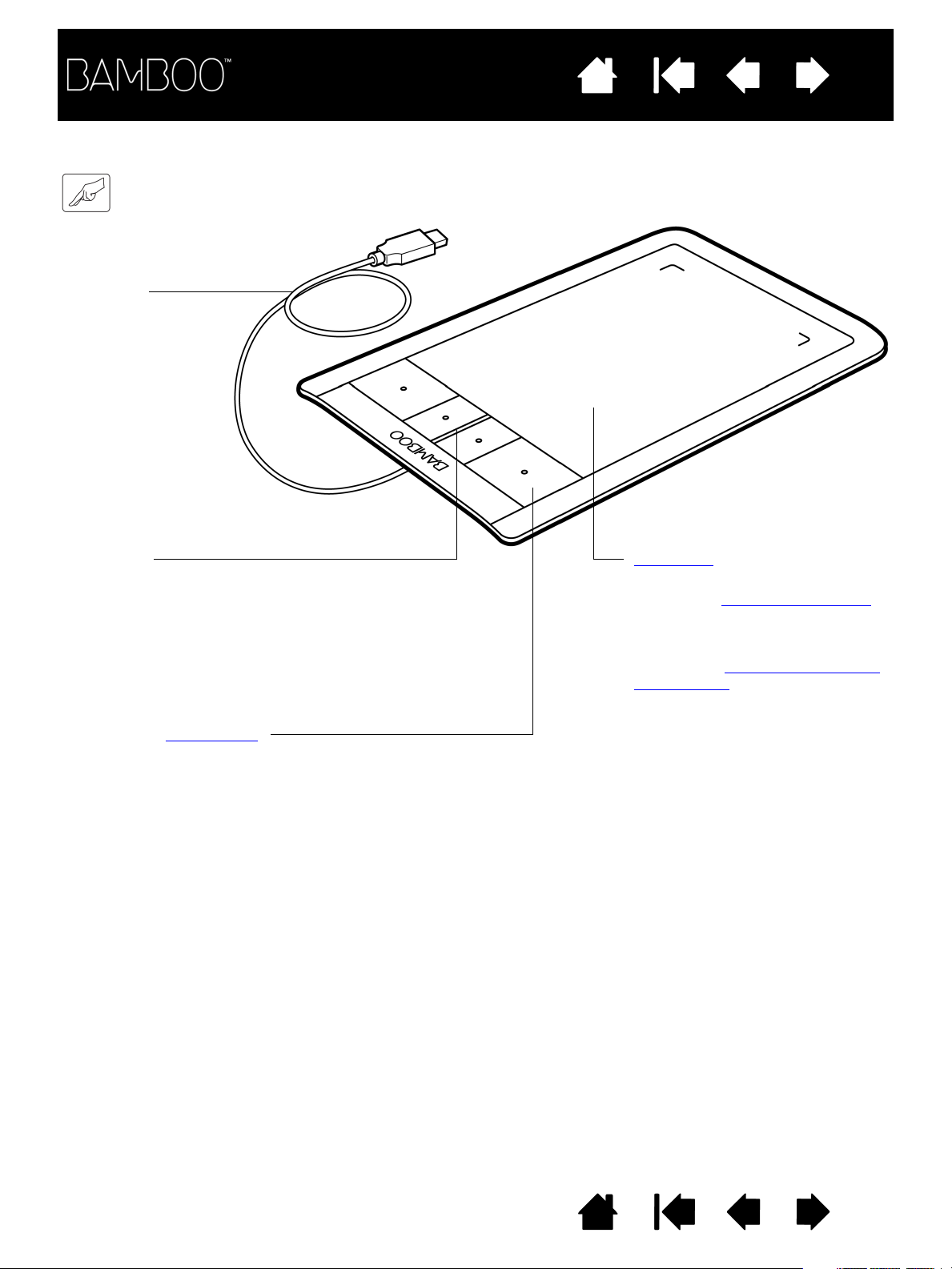
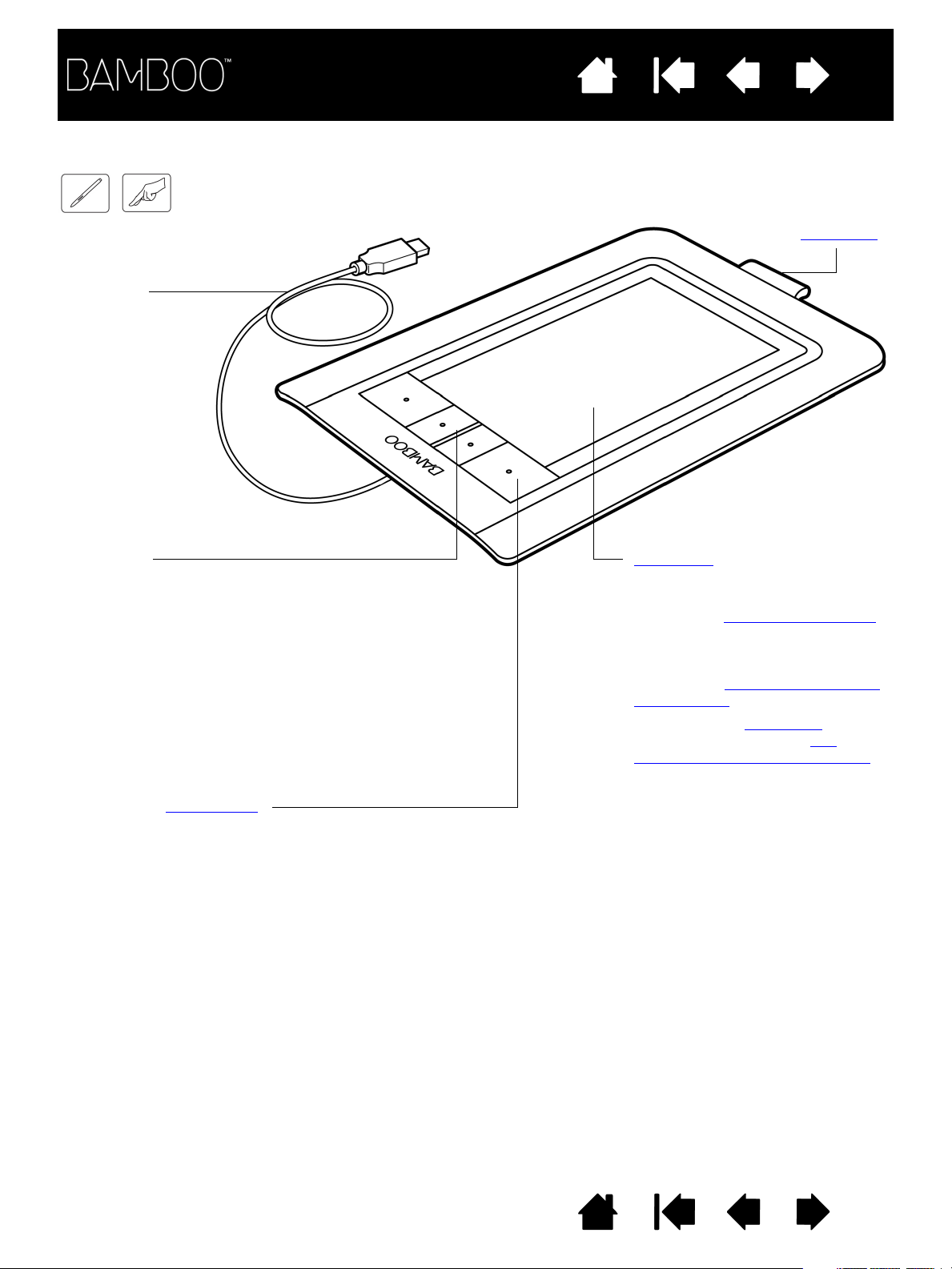
Active area
Use single- or two-finger input for
clicking and navigating with touch
.
Use two-finger input for gestures
that control other functions, such
as scrolling and zooming.
Learn about the touch experience
with Bamboo.
Customizable ExpressKeys
USB cable
Bamboo Touch
(model CTT-460) shown.
Status LED
Glows white when your Bamboo
tablet is connected to an active
USB port.
Brightens when you touch the
active area of the tablet or press an
ExpressKey.
BAMBOO TOUCH TABLET
Index
8
Contents Index
8
Contents
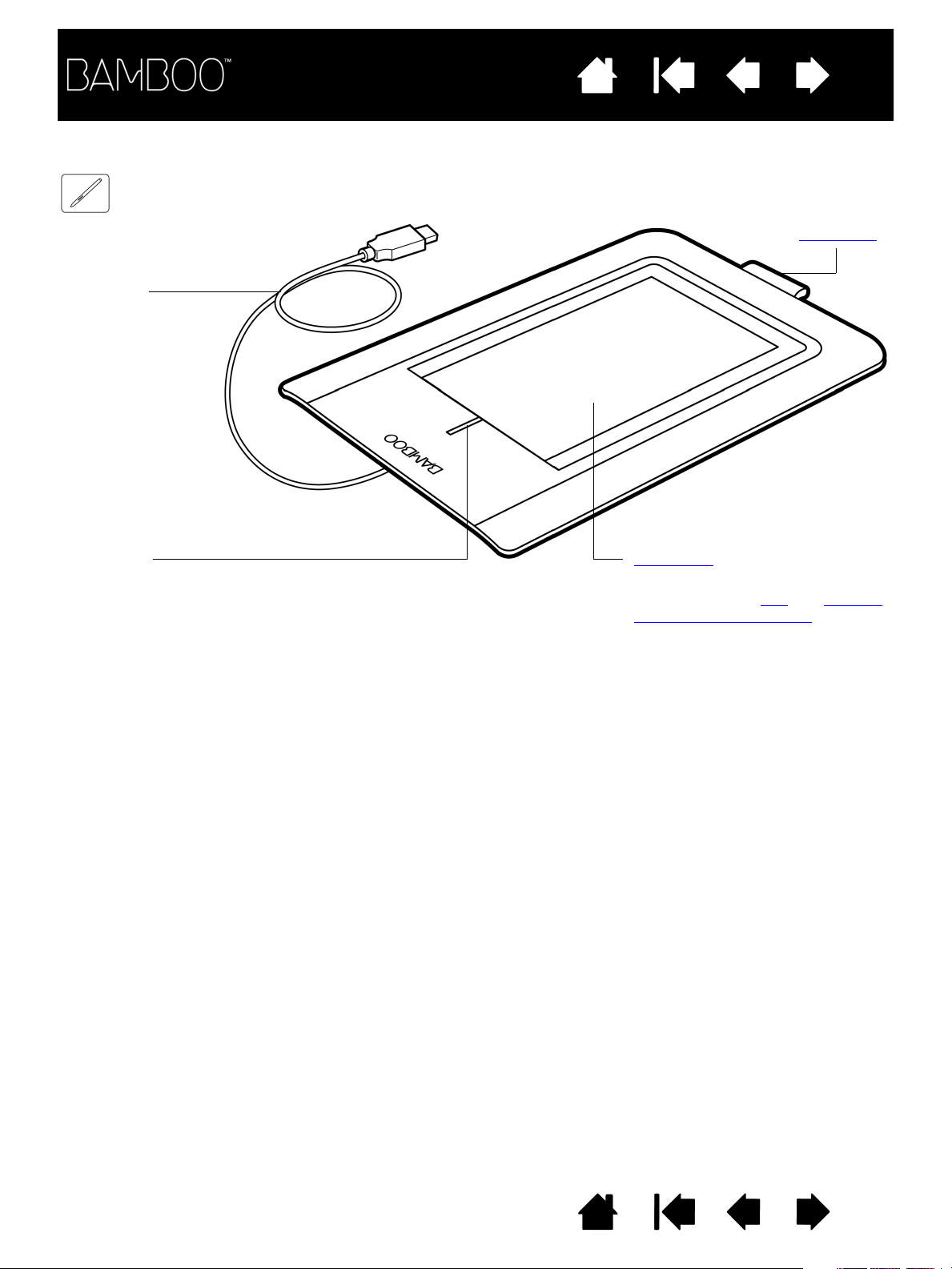
Active area
Includes the touch sensor.
Use single- or two-finger input for
clicking and navigating with touch
.
Use two-finger input for gestures
that control other functions, such
as scrolling and zooming.
Learn about the touch experience
with Bamboo.
This is also the active area
for pen
input. Learn about your pen
and
the pen experience with Bamboo
.
Customizable ExpressKeys
USB cable
Bamboo
(model CTH-460) shown.
Pen holder
Status LED
Glows white when your Bamboo
tablet is connected to an active
USB port. Brightens when you
touch the active area or press an
ExpressKey.
Glows amber when the pen is
active, and brightens when the pen
tip touches the tablet surface or
when you press a pen button.
Index
BAMBOO & BAMBOO FUN TABLETS
9
Contents Index
9
Contents
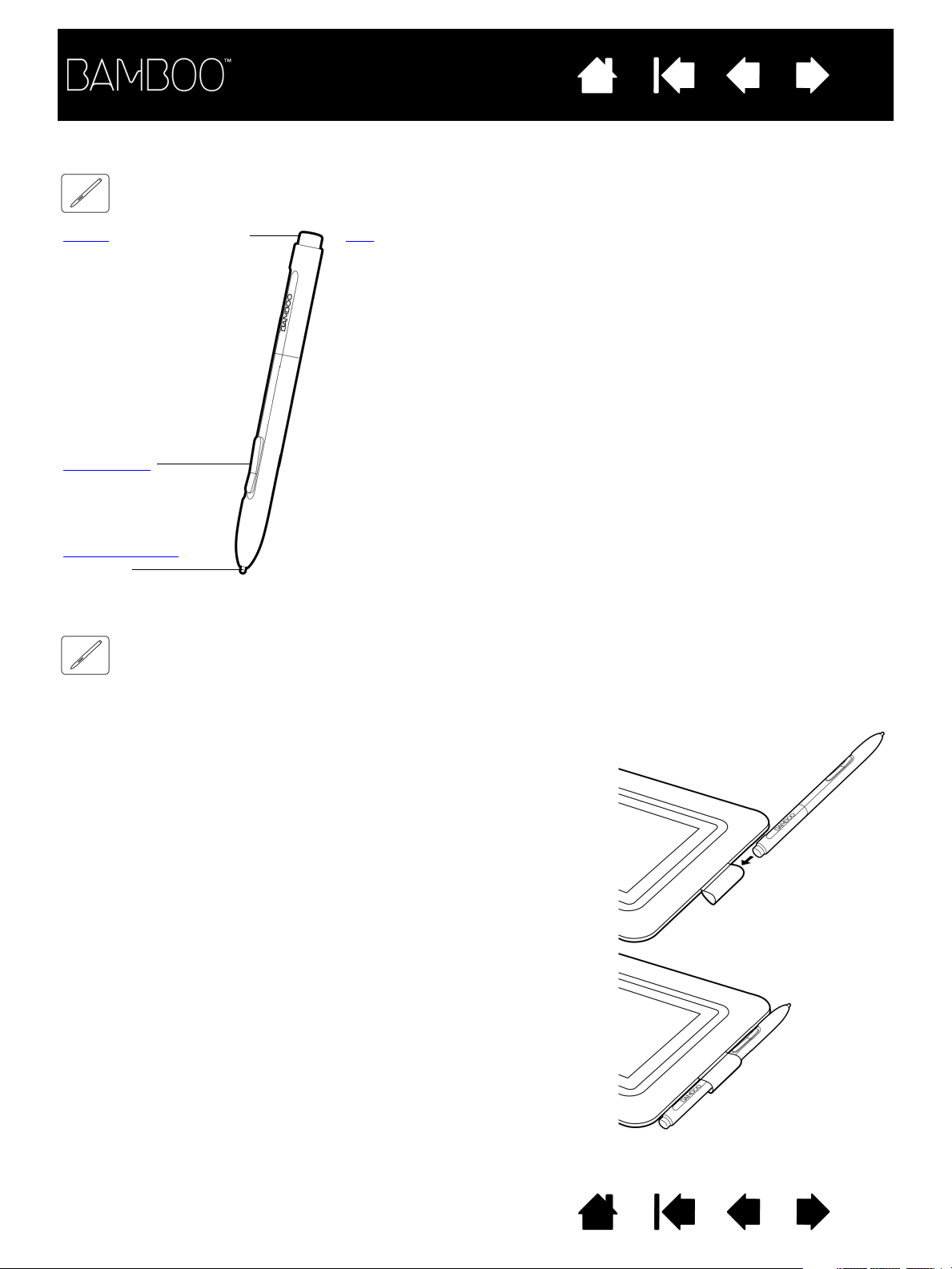
USB cable
Bamboo Pen
(model CTL-460) shown.
Status LED
Glows white when your Bamboo
tablet is connected to an active
USB port.
Brightens when the pen is active.
Pen holder
Active area
This is the active area for pen input.
Learn about your pen
and the pen
experience with Bamboo.
BAMBOO PEN TABLET
Index
10
Contents Index
10
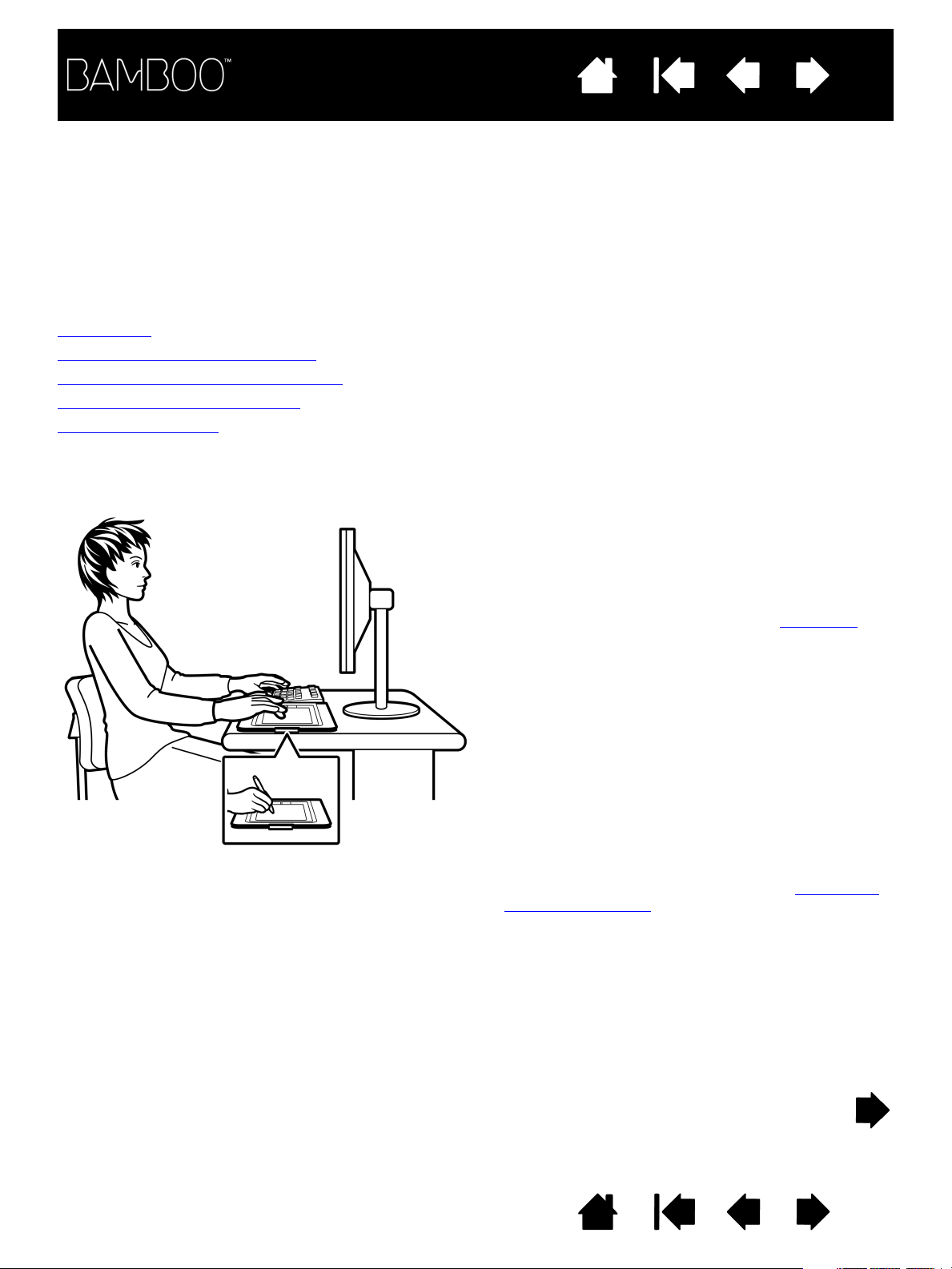
PEN
Eraser (when equipped)
Pen buttons
Replaceable nib
(pen tip)
Pen (when equipped)
A pressure-sensitive freehand tool for image editing and creating naturallooking pen strokes. It is also efficient for document annotation and taking
notes in applications that support handwriting recognition.
The pen is cordless and battery free. It is ideally suited to enhance your
workflow by enabling the pen and digital ink features found within Microsoft
Windows Vista and Office 2007. Take advantage of digital mark-up for
collaborative editing and use digital ink to take notes in applications that
support handwriting recognition.
Important: When not in use, place the pen into the pen holder or lay
it flat on your desk. The eraser end of the pen should be inserted
first into the loop. To maintain the sensitivity of your pen, do not
store the pen in a container where it will rest on the tip or eraser.
Leaving the pen on the tablet may interfere with screen cursor
positioning when using other pointing devices, or may prevent your
computer from going to sleep.
Insert the pen into the pen holder as shown.
• The eraser end of the pen should be inserted first into the loop.
• Do not wedge the pen buttons inside the loop, otherwise they may
be continually depressed and possibly fail.
Important: You can also lay the pen flat on your desk.
Leaving the pen on the tablet may interfere with screen cursor
positioning when using other pointing devices, or may prevent
your computer from going to sleep.
Wacom recommends that you do not store the pen in a stand or
holder other than the one provided with your Bamboo tablet.
The pen may be damaged if it falls out of an unsuitable stand.
The sensitivity of your pen may be affected if the pen is stored in
a container where it rests on the tip or eraser.
Contents
Index
11
PEN HOLDER
Use the pen holder (when equipped) to store the pen when it is not in use. The pen holder does not apply
to Bamboo Touch.
Contents Index
11
Contents
• Take short breaks between tasks to stretch and relax
your muscles.
• Use a gentle grip when working with the pen.
• When not actively working with touch, you can rest
your fingers and palm on the tablet. Touch data will
not be sent when you touch the tablet active area
with more than two fingers.
• Alternate tasks and tools throughout the day.
• Maintain a good posture at all times.
Minimize awkward postures and repetitive
movements that cause discomfort.
• Change your position if you feel any discomfort due
to your work position.
• For right-handed use, position the tablet so the input
(active) area is located to the right of the
ExpressKeys. If using the tablet as a primary
pointing device and mouse replacement, consider
placing it to the right of your keyboard.
• For left-handed use, position the tablet with the input
area to the left of the ExpressKeys. See configuring
the tablet orientation for details. If using the tablet as
a primary pointing device and mouse replacement,
consider placing it to the left of your keyboard.
• If using the tablet primarily as a creative tool,
consider placing the tablet below the keyboard,
centered with respect to your monitor.
Index
12
SETTING UP YOUR BAMBOO
To minimize fatigue, comfortably organize your work area. Position your tablet, pen (if equipped), and
keyboard for easy access without unnecessary reaching. Adjust your monitor so you can view it
comfortably with a minimum of eyestrain. For best results, position the tablet so the screen cursor follows
the same direction as your hand movements on the tablet.
Ergonomics
Configuring the tablet orientation
Understanding the tablet active area
Working with multiple monitors
Control panel basics
ERGONOMICS
Note regarding RSI: Wacom makes no representation, promise or guarantee that Wacom products will cure or
prevent, in whole or in part, mouse-induced repetitive stress symptoms, injuries or conditions.
Individual results may vary. Always obtain competent medical advice to determine the most appropriate
treatment for your specific situation.
Contents Index
12

Contents
Annotation
Simplify document reviews by using the
pen (when equipped) to digitally mark-up
and annotate documents.
Presentation
Quickly swipe (flick) two fingers across the tablet surface to
quickly move between slides in a presentation.
Photo editing
Use the pressure-sensitive pen (when equipped)
to edit images within a photo or image editing
application.
Visual browsing
Use two fingers on the tablet surface to
scroll through and navigate visual media
within an application.
Index
As you work, you will discover many ways of interacting with your Bamboo tablet. For example:
13
For details on these and other ways to work with your tablet, see the touch experience with Bamboo
pen experience with Bamboo.
Contents Index
or the
13
Contents
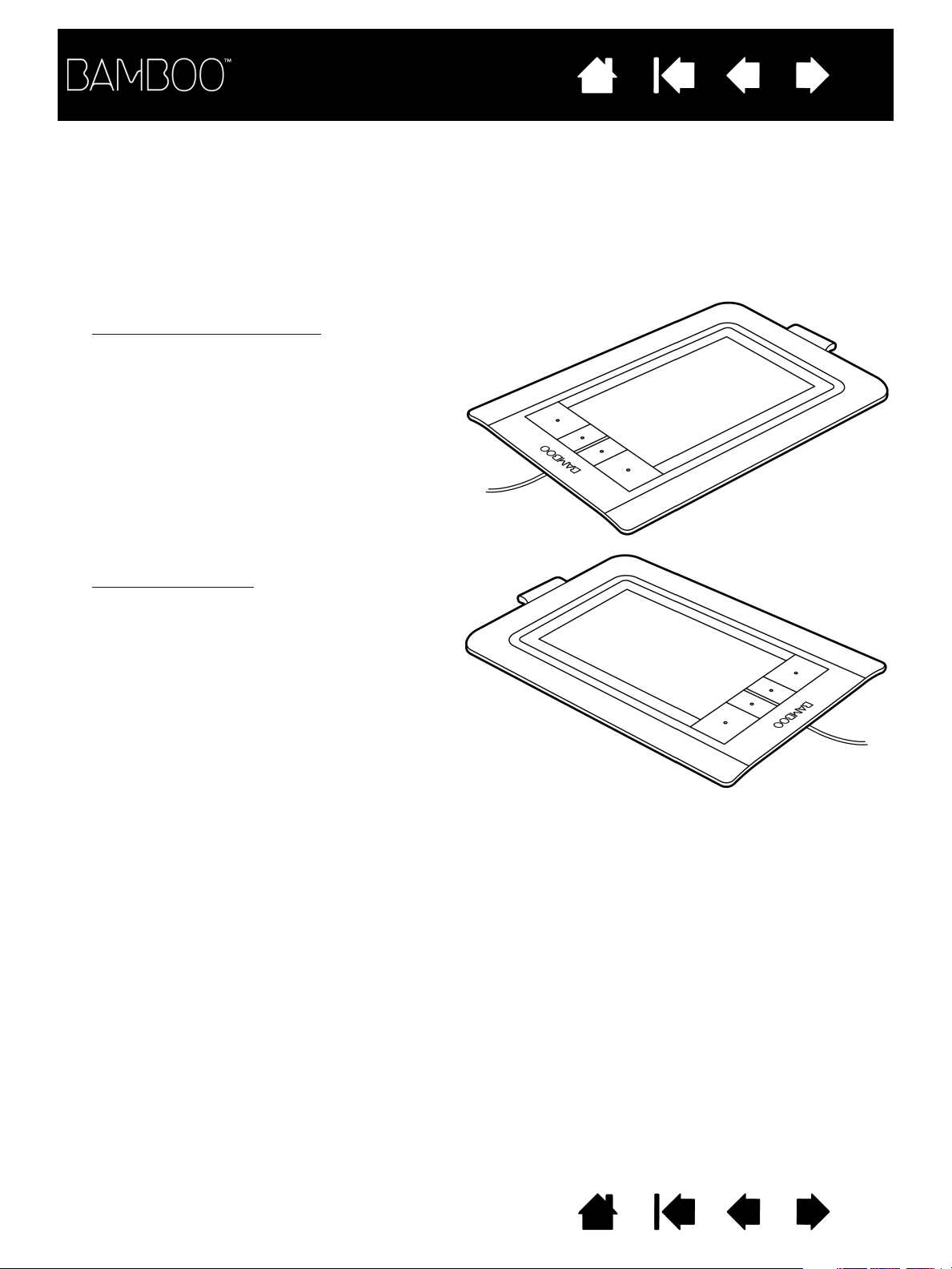
To set up your Bamboo for right-handed operation:
• Open the Bamboo control panel
and select the
T
ABLET tab. Choose the RIGHT HANDED option.
The tablet driver automatically configures all
aspects of the tablet for correct right-handed use.
• Next, physically rotate your tablet so the tablet
ExpressKeys are positioned to the left.
To set up your Bamboo for left-handed operation:
• Open the control panel
and select the TABLET tab.
Choose the L
EFT HANDED option. The tablet driver
automatically configures all aspects of the tablet
for correct left-handed use.
• Next, physically rotate your tablet so the tablet
ExpressKeys are positioned to the right.
Index
14
CONFIGURING THE TABLET ORIENTATION
You are prompted to choose a default tablet orientation during the initial installation process using the
Bamboo Installation CD. At the log-in and user switching screens, the tablet orientation will use the default
orientation that was selected when the driver was installed. To change the default orientation, reinstall the
driver using the Bamboo Installation CD and when prompted select a new default orientation.
You can also change how your tablet is oriented using the following procedure. However, the default
orientation used at the log-in screen will not be affected.
Contents Index
14
Contents
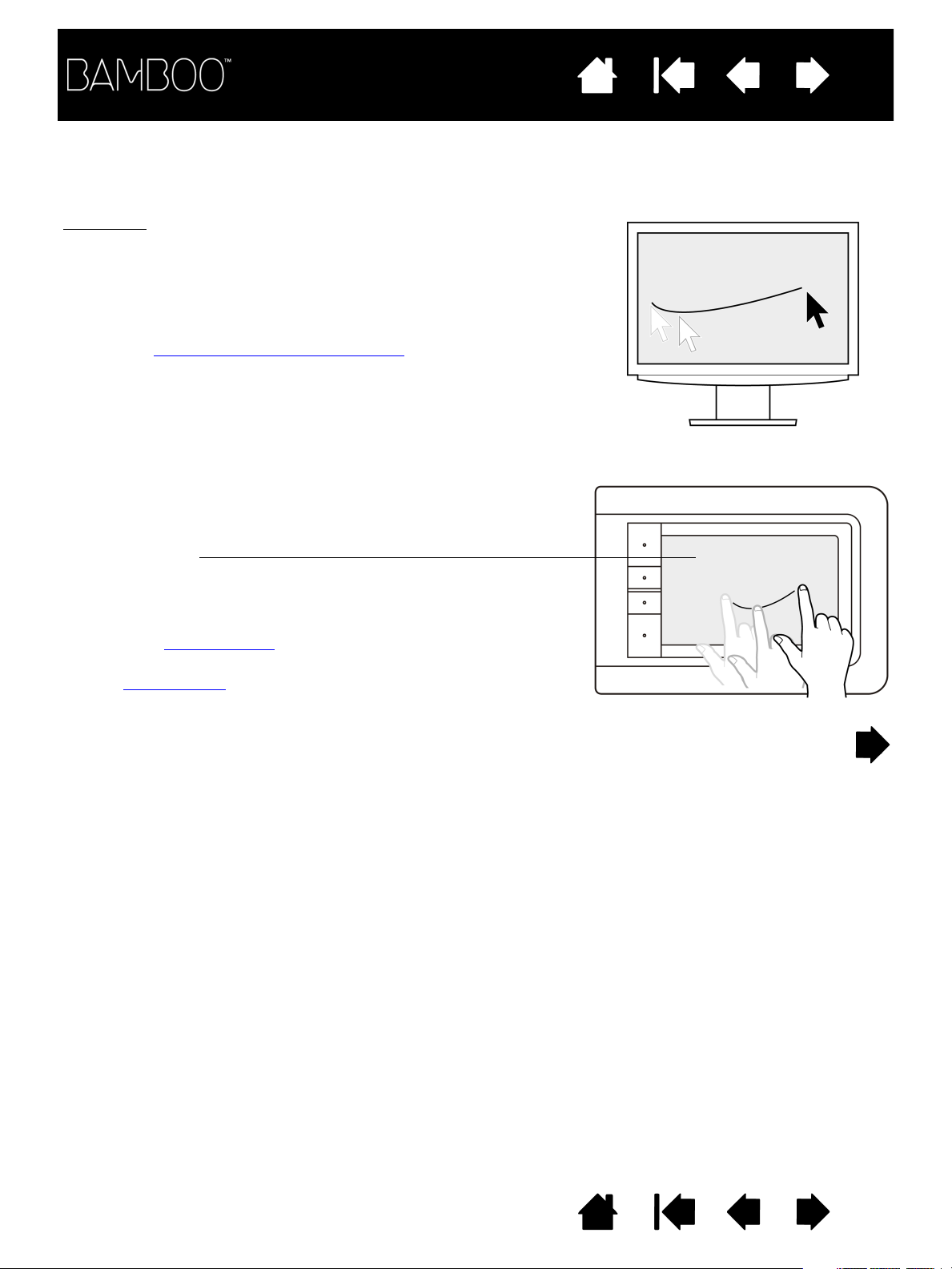
Tou ch inp ut
On touch-sensitive tablet models, slide your finger across the active
area to position the screen pointer.
Use single- or two-finger input for clicking and navigating.
Use two-finger input for gestures that control other functions, such as
scrolling and zooming.
Learn about the touch experience with Bamboo
.
Tablet active area
The area of your Bamboo tablet that senses touch or pen input.
For tablet models that support both pen and touch input:
• Touch input is disengaged whenever the pen tip or eraser is within
the tablet proximity range
. Lift the pen and your hand away from
the tablet active area to re-enable touch input.
•The pen input area
is slightly larger than the touch sensor area.
Index
15
UNDERSTANDING THE TABLET ACTIVE AREA
Depending on your tablet model, Bamboo can accept touch input, pen input, or both. Note, however, that
pen and touch input cannot be used at the same time.
Contents Index
15
Contents
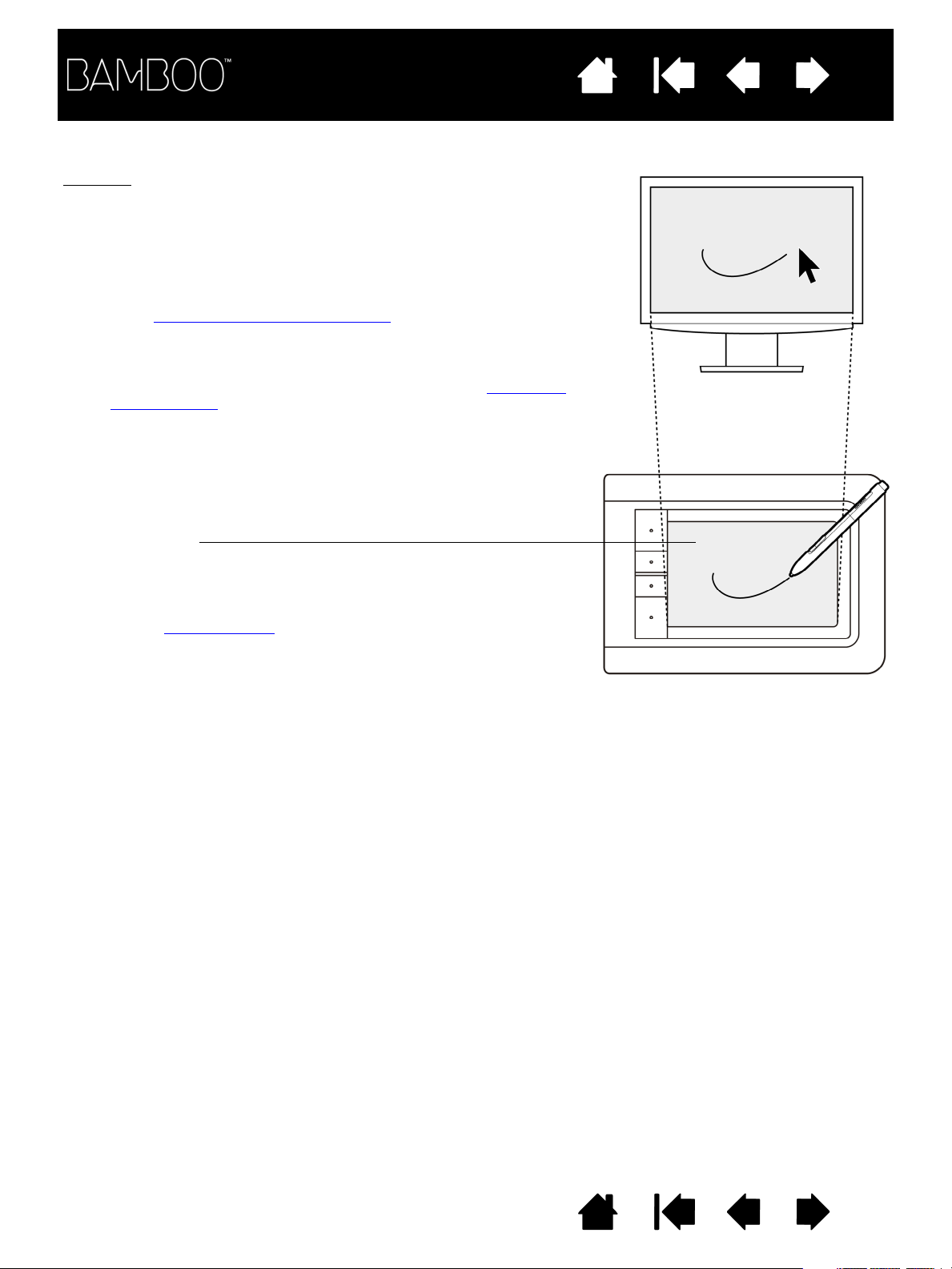
Tablet active area
The area of your Bamboo tablet that senses touch or pen input.
For tablet models that support both pen and touch input:
• Touch input is disengaged whenever the pen tip or eraser is within
the tablet proximity range
. Lift the pen and your hand away from
the tablet active area to re-enable touch input.
• The pen input area is slightly larger than the touch sensor area.
Pen input
The pen works only on the active area of tablet models that support pen
input.
Wherever you place the pen on the tablet, the screen pointer will jump to
the corresponding point on the screen. The screen pointer indicates
pen position, and follows the movement of the pen across the tablet
surface.
Learn about the pen experience with Bamboo
.
Note: For tablets that support pen input, the active area is a mapped
representation of your computer screen(s). By default it uses the
entire screen or all screens if you have multiple displays. You can
customize the mapping relationship for pen input by setting the
tablet mapping.
Index
16
Contents Index
16
Contents
Index
17
WORKING WITH MULTIPLE MONITORS
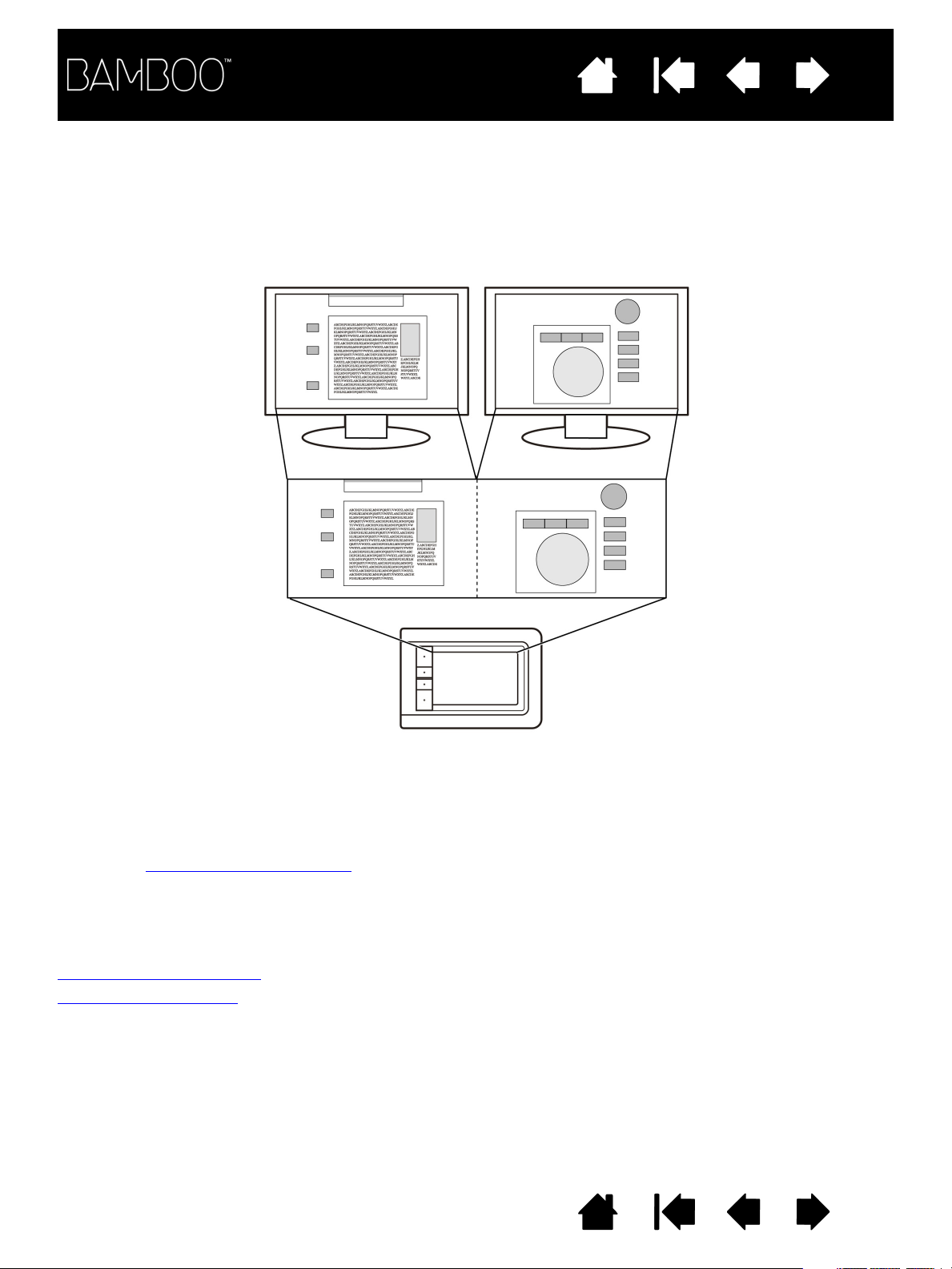
If your computer is equipped with more than one monitor, Bamboo will map to your monitors based upon
how they are configured in the display properties control panel.
• If more than one monitor is in use and you are in extended monitor mode, the tablet maps to all
monitors as if they were one large display. The below image illustrates a tablet mapping to the entire
system desktop, which is displayed on the two monitors.
• If your monitors are in mirror mode (both monitors display the same content), the tablet maps to the
entire space on each monitor and the screen cursor is displayed on each monitor simultaneously.
See your hardware and operating system documentation for details on configuring your computer and
operating system for use with multiple monitors.
Note: The pen can also be customized to map to a single monitor, or to a portion of the monitor area.
See setting the tablet mapping
.
CONTROL PANEL BASICS
After mastering the basics of using your Bamboo tablet, you may want to customize the way touch or pen
input works. The Bamboo control panel is where you customize your Bamboo tablet settings.
Opening the control panel
Control panel overview
Contents Index
17

Contents
Index
18
USING YOUR BAMBOO
If you are new to using Bamboo, read the following sections.
The touch experience with Bamboo
The pen experience with Bamboo
THE TOUCH EXPERIENCE WITH BAMBOO
Bamboo is designed to enhance the way you work. Touch input enables you to interact with a computer
using only your fingertips on the Bamboo tablet.
First learn the basic actions to navigate and perform typical mouse operations. Then learn the gestural
movements to control other functions such as scrolling, zooming, and rotating.
Touch input is activated whenever you touch the tablet’s active area
• One- and two-finger input only is recognized by the tablet. When not actively working with touch, you
can rest your fingers and palm on the tablet. Touch data will not be sent when you touch the tablet
active area with more than two fingers.
• When using two-finger input methods, you can generally position your fingers as far apart as you find
comfortable. However, be aware that touching the tablet with your fingers set too closely together may
be interpreted as coming from a single finger, or confused with which finger initiated or performed an
action or gesture.
• As you learn the different input methods, experiment with what works best for you. Take care to
prevent accidental touch input. For example, if your small finger or the palm of your hand touches the
active area of the tablet while you are navigating or performing a touch action, then your input may be
interrupted or you may trigger an unanticipated right-click.
.
Note: For tablet models that support both pen and touch input, the pen disengages touch input whenever
the pen tip or eraser is within the tablet proximity range
tablet active area to re-enable touch input.
Navigating with touch
Customizing touch
ExpressKey basics
Customizing the ExpressKeys
Contents Index
. Lift the pen and your hand away from the
18
Contents
Index
19
NAVIGATING WITH TOUCH
The touch input feature of your Bamboo tablet enables you to control a computer using only your fingertips
on the tablet surface. See understanding the tablet active area
Before learning how to control your computer with touch input, familiarize yourself with the following
concepts:
CONCEPT DESCRIPTION
Track Touch and move a single finger across the tablet surface.
Tap Touch and lift a single finger from the tablet.
Pan Touch the tablet surface with two fingers and move them in the same
direction.
Swipe Touch the tablet surface with two fingers and move them in the same
direction at a relatively high speed.
Pinch Touch the tablet with two fingers spaced slightly apart. While still
touching the tablet surface, move or ‘pinch’ your fingers together.
Expand Touch the tablet with two fingers spaced closely together. While still
touching the tablet surface, move your fingers apart.
Twist Touch the tablet with two fingers spaced slightly apart and move
(rotate) them in a circular fashion, or move them in opposing directions.
You can also hold one finger stationary and track your other finger
around the stationary finger.
.
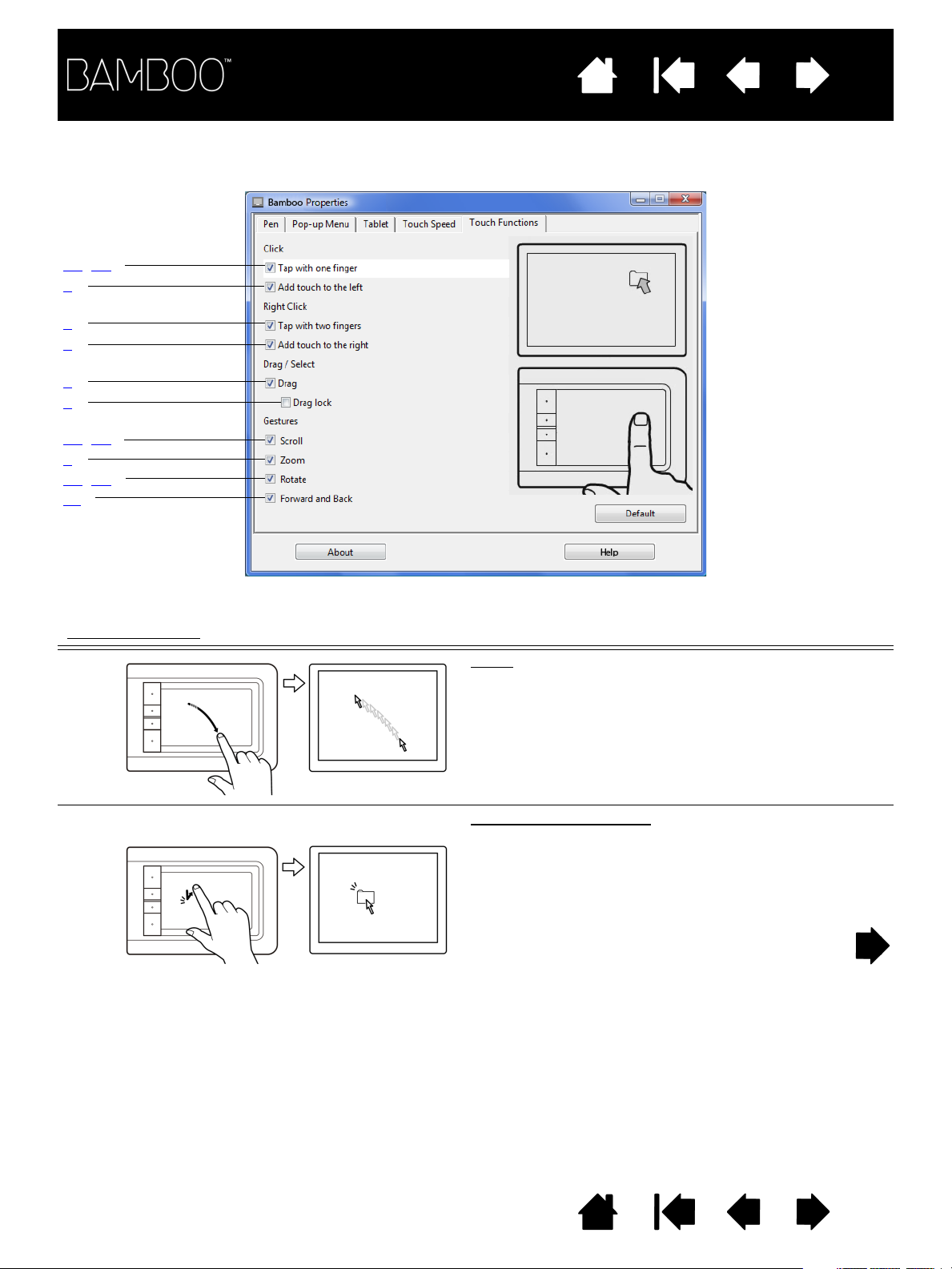
You can customize your touch experience
and also use the ExpressKeys to perform some touch functions.
Contents Index
19
Contents
1A, 1B
2
3
4
5
6
7A, 7B
8
9A, 9B
10
Index
20
Touch input options can be enabled or disabled within the Bamboo control panel and are dependent upon
application support. Touch actions and gestures are available when selected in the T
OUCH FUNCTIONS tab.
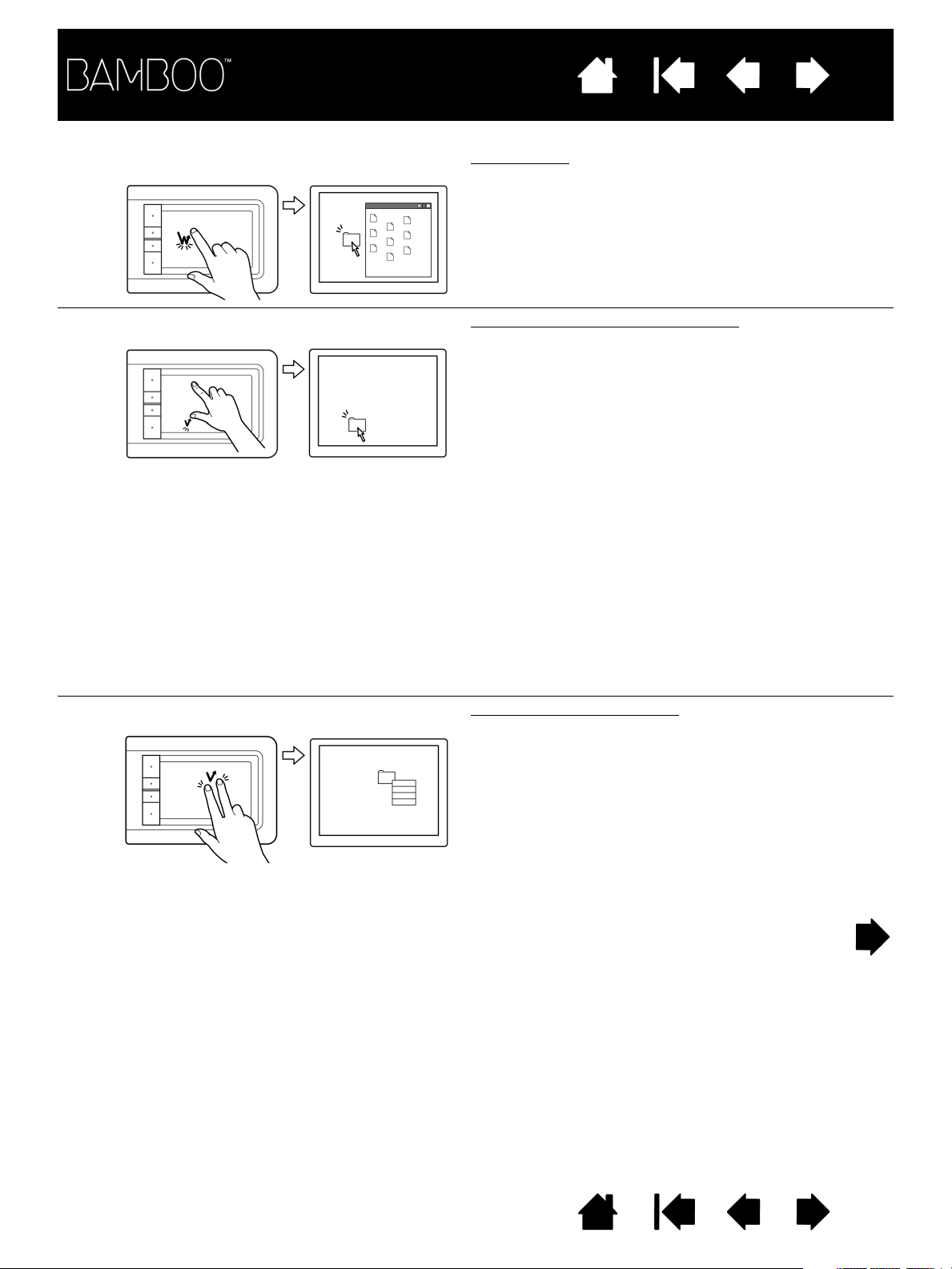
BASIC ACTIONS
1A T
AP WITH ONE FINGER Click (single-finger tap)
enable you to navigate and perform typical mouse operations.
Tra ck
Use a single finger to move the screen cursor.
Touch and slide your finger across the tablet surface.
Using a single finger, track to an item. Lift your finger
and tap to select.
Alternatively, you can track to an item and then press
an ExpressKey set to C
LICK.
Contents Index
20
Contents
Index
21
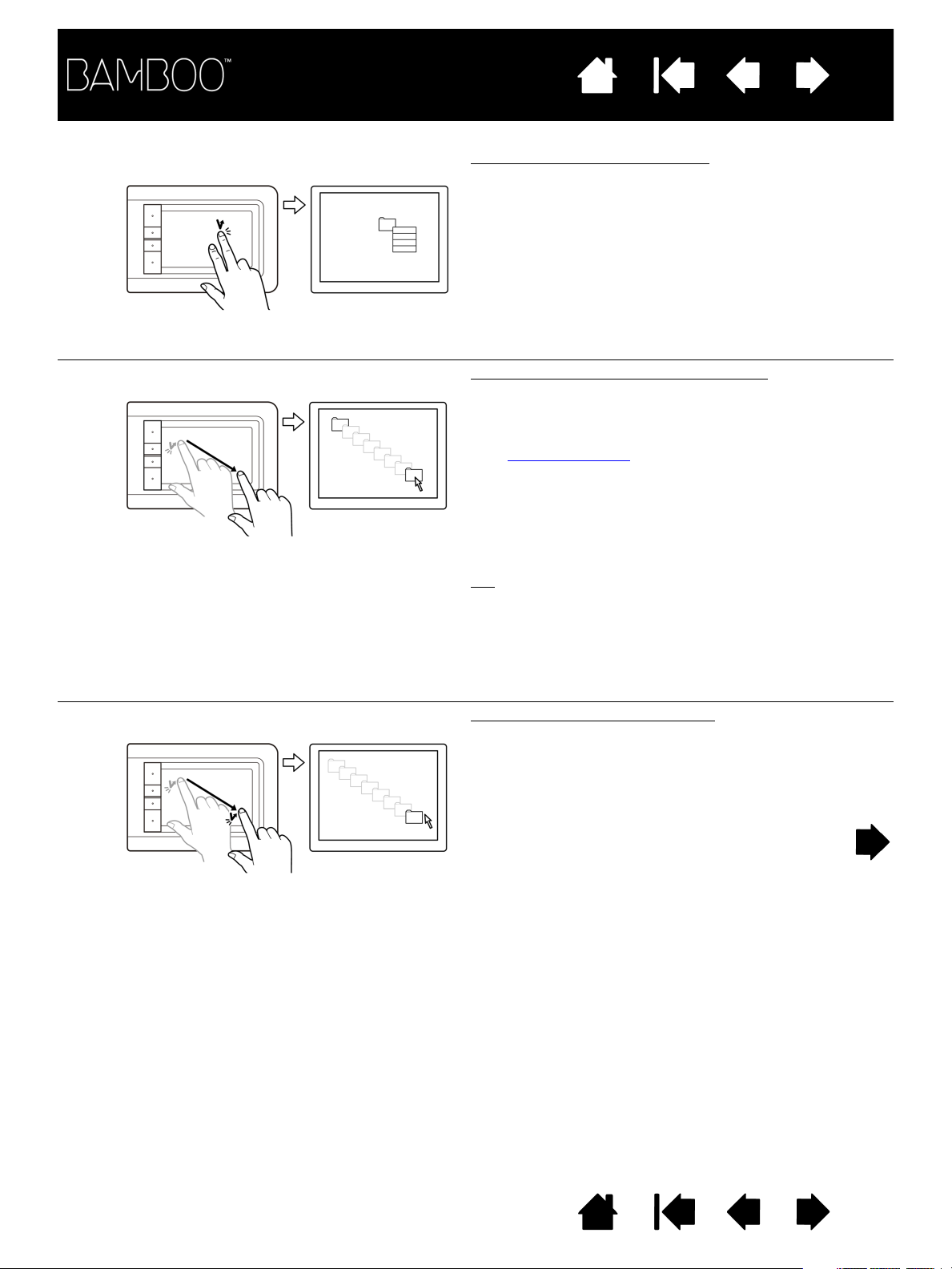
1B T
2A
AP WITH ONE FINGER Double-click
DD TOUCH TO THE LEFT Select and drag (add touch to left)
Using a single finger, track to an item. Lift your finger
and tap twice.
Using a single finger, track to an item. Select by
touching your thumb or a second finger to the left of
that finger. (If you will be dragging an item or
selecting blocks of text, we recommend using two
fingers instead of your finger and thumb).
• To move the selected item, continue moving both
fingers across the tablet.
• To highlight a text block, continue moving both
fingers across the tablet as you select text.
• You can also extend a drag without releasing the
selection. To do this, lift the first finger and move
your second finger to a new position. Then again
touch the first finger to the tablet and continue to
drag with both fingers.
3T
AP WITH TWO FINGERS Right-click (two-finger tap)
Lift your thumb or second finger to release.
Note: If the tablet is set for left-handed orientation,
touch to the right of the primary finger.
To right-click and bring up a context menu at the
screen cursor position, tap the tablet surface with
two fingers spaced slightly apart. Use a quick
tapping motion with both fingers at the same time.
You can then track to an option in the menu and
select it by tapping your finger.
Alternatively, you can open a context menu by
tracking to an item and then pressing an ExpressKey
set to R
IGHT CLICK.
Contents Index
21
Contents
Index
22
4A
5D
6D
DD TOUCH TO THE RIGHT Right-click (add touch to right)
RAG Select and drag (DRAG LOCK disabled)
RAG LOCK Drag lock (DRAG LOCK enabled)
Using a single finger, track to an item. Then with a
second finger touch and release to the right of that
finger. Releasing your finger issues a right-click and
brings up a context menu at the screen cursor
position.
You can then track to an option in the menu and
select it by tapping your finger.
Note: If the tablet is set for left-handed orientation,
touch to the left of the primary finger.
Using a single finger, tap on an item to select.
Then track (slide) your finger across the tablet to
drag. Lift your finger to release the item. You can
also select and drag
with two fingers.
Alternatively, you can drag by tracking to an item,
pressing an ExpressKey set to C
LICK, and then
continuing to move your finger across the tablet
surface. Release the ExpressKey to release the
item.
: You can select and drag multiple items on the
Tip
system desktop.
• For Windows, press the C
TRL or SHIFT key as you
tap to select multiple items.
• For Macintosh, press the S
HIFT or COMMAND key
as you tap to select multiple items.
Using a single finger, tap on an item to select.
Then track (slide) your finger across the tablet to
drag. Tap again to release the item.
Contents Index
22
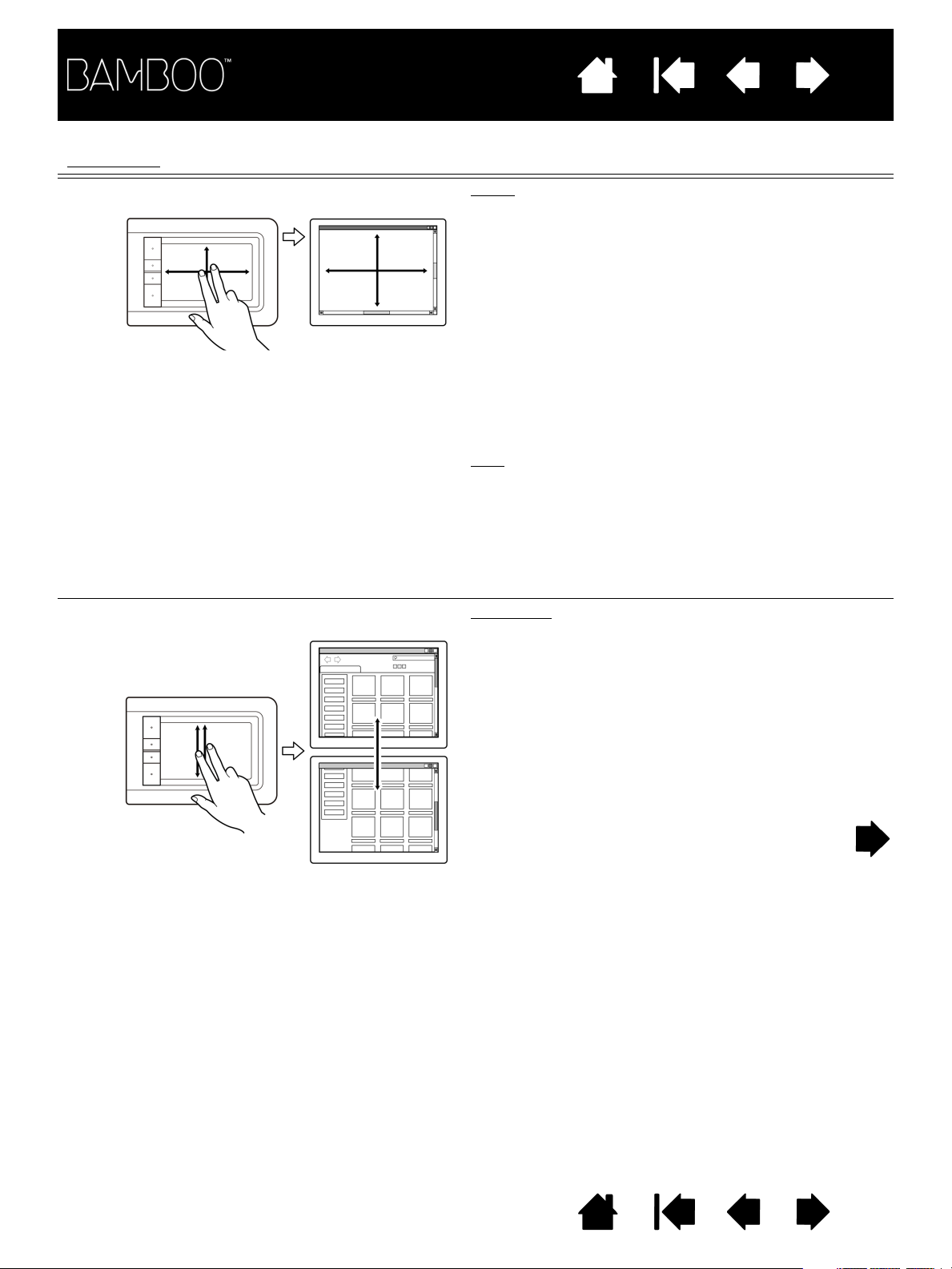
Contents
Index
23
GESTURES
7A G
7B G
ESTURES SCROLL Scroll
ESTURES SCROLL Fast scroll
enable you to control functions such as scroll, zoom, and rotation.
Place two fingers on the tablet surface. Using a
smooth motion, move your fingers together in
parallel.
• Scroll up by moving your fingers in an upward
motion.
• Scroll down by moving your fingers in a
downward motion.
• Scroll left by moving your fingers in a leftward
motion.
• Scroll right by moving your fingers in a rightward
motion.
:
Tips
Flick your fingers at the end of the gesture to
continue scrolling for a short time after your fingers
leave the tablet.
For windows that scroll vertically and horizontally,
move your fingers in any direction and the document
view will follow.
Quickly move (or flick) two fingers together, lifting
your fingers at the end of the motion.
• Fast scroll up by flicking your fingers in an
upward motion.
• Fast scroll down by flicking your fingers in a
downward motion.
Contents Index
Note: Fast scrolling works only for vertical scrolling.
23
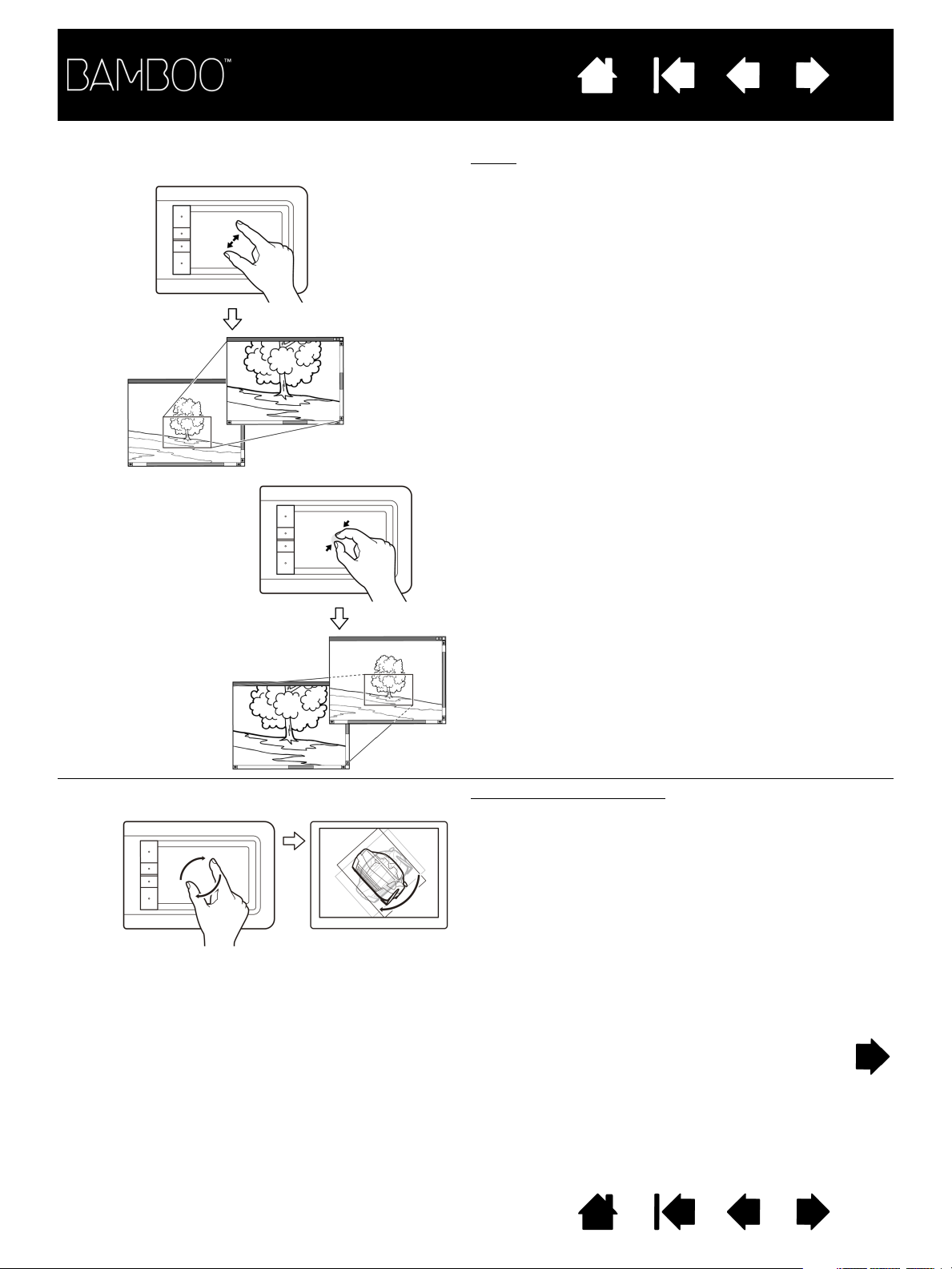
Contents
Index
24
8G
ESTURES ZOOM Zoom
First place two fingers on the tablet surface.
• Zoom-in by moving (expanding) your fingers
away from one another.
• Zoom-out by moving (pinching) your fingers
toward one another.
Note: If zoom functions do not operate correctly
®
within Adobe Photoshop
OOM WITH SCROLL WHEEL function is selected
Z
within the Photoshop P
, verify that the
REFERENCES options.
9A G
ESTURES ROTATE Rotate (two finger rotate)
Place two fingers diagonally on the tablet surface
and then rotate them clockwise or counterclockwise.
For best recognition of this gesture, start with your
fingers positioned diagonally on the tablet surface
and keep them at least 25 mm (1 inch) apart.
Note: The rotation gesture may work differently
depending on the application you are working
with. For example, rotation may work
smoothly, in 90-degree increments, or not at
all.
Contents Index
24
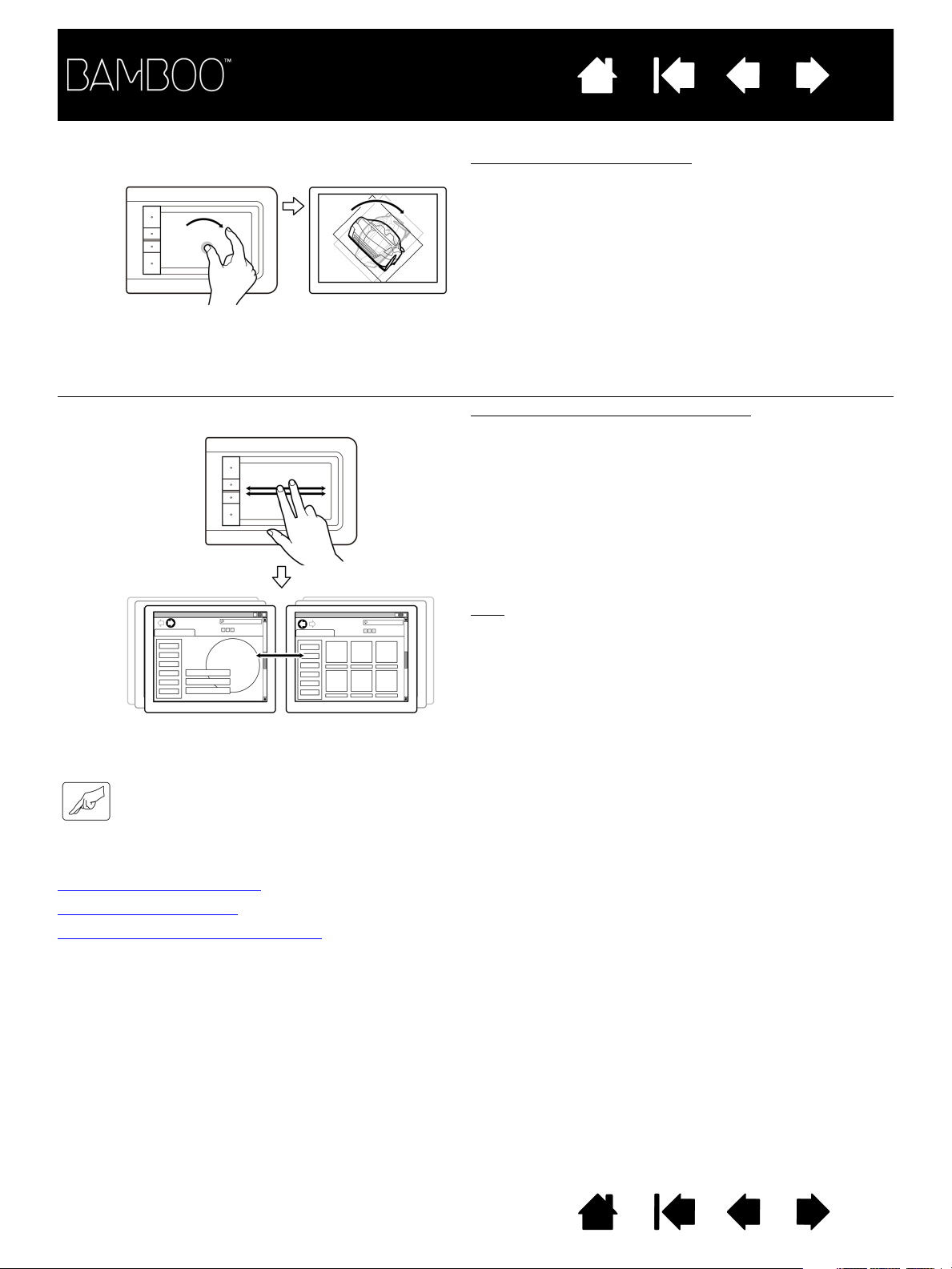
Contents
Index
9B GESTURES ROTATE Rotate (rotate around finger)
Place two fingers diagonally on the tablet surface.
Keep one finger stationary and move the other finger
around it.
For best recognition of this gesture, start with your
fingers positioned diagonally on the tablet surface
and keep them at least 25 mm (1 inch) apart.
Note: The rotation gesture may work differently
depending on the application you are working
with. For example, rotation may work
smoothly, in 90-degree increments, or not at
all.
10 G
ESTURES FORWARD & BACK Forward or Back (swipe right or left)
Quickly swipe (or flick) two fingers together, lifting
your fingers at the end of the motion.
• Send a ‘Forward’ command in most browsers
and picture viewers by flicking your fingers in a
generally rightward motion.
• Send a ‘Back’ command in most browsers and
picture viewers by flicking your fingers in a
generally leftward motion.
25
:
Tips
Swiping is similar to using the right and left arrow
keys in document viewers.
Use the swipe gestures to page forward or back in
most web browsers.
CUSTOMIZING TOUCH
Use the Bamboo control panel to customize the touch input options for the way you like to interact with
your tablet and computer.
Opening the control panel
Control panel overview
Customize your touch experience
Contents Index
25
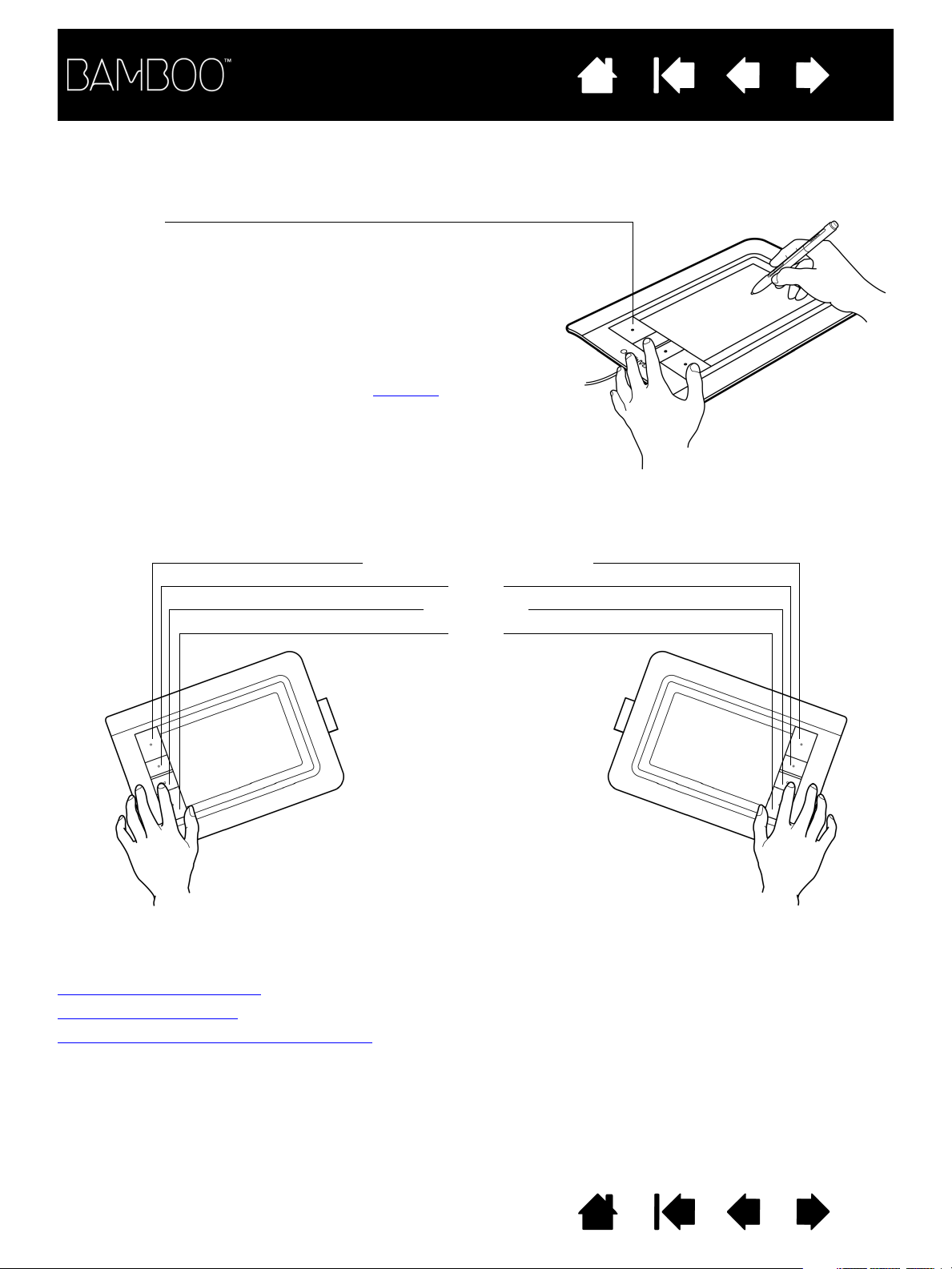
Contents
ExpressKeys
Press individual keys to perform frequently used functions or
keystrokes. ExpressKeys can also be used to modify touch or pen
input properties as you work.
Consider some of these alternate ways of using the keys:
• Set a key to a commonly used keyboard shortcut.
• Set a key to launch a commonly used file or application, such as
your email program.
• Choose from any of the other available functions
.
Note: The ExpressKeys can be operated in combination with one
another. For example, if you program one key to simulate the
C
TRL key and another to simulate an ALT keystroke, when you
press both keys at the same time a CTRL+ALT is simulated.
ExpressKey default settings:
T
OUCH TOGGLE
(F
ORWARD for Bamboo Touch)
B
ACK
RIGHT CLICK
CLICK
ExpressKeys configuration when
positioned on the right side of the
tablet (L
EFT HANDED orientation)
ExpressKeys configuration when
positioned on the left side of the
tablet (RIGHT HANDED orientation)
Index
26
EXPRESSKEY BASICS
Most Bamboo tablet models feature customizable ExpressKeys. Note that ExpressKeys are not available
for Bamboo Pen (model CTL-460).
CUSTOMIZING THE EXPRESSKEYS
Use the Bamboo control panel to customize the ExpressKey options.
Opening the control panel
Control panel overview
Setting tablet and ExpressKey functions
Contents Index
26
Contents
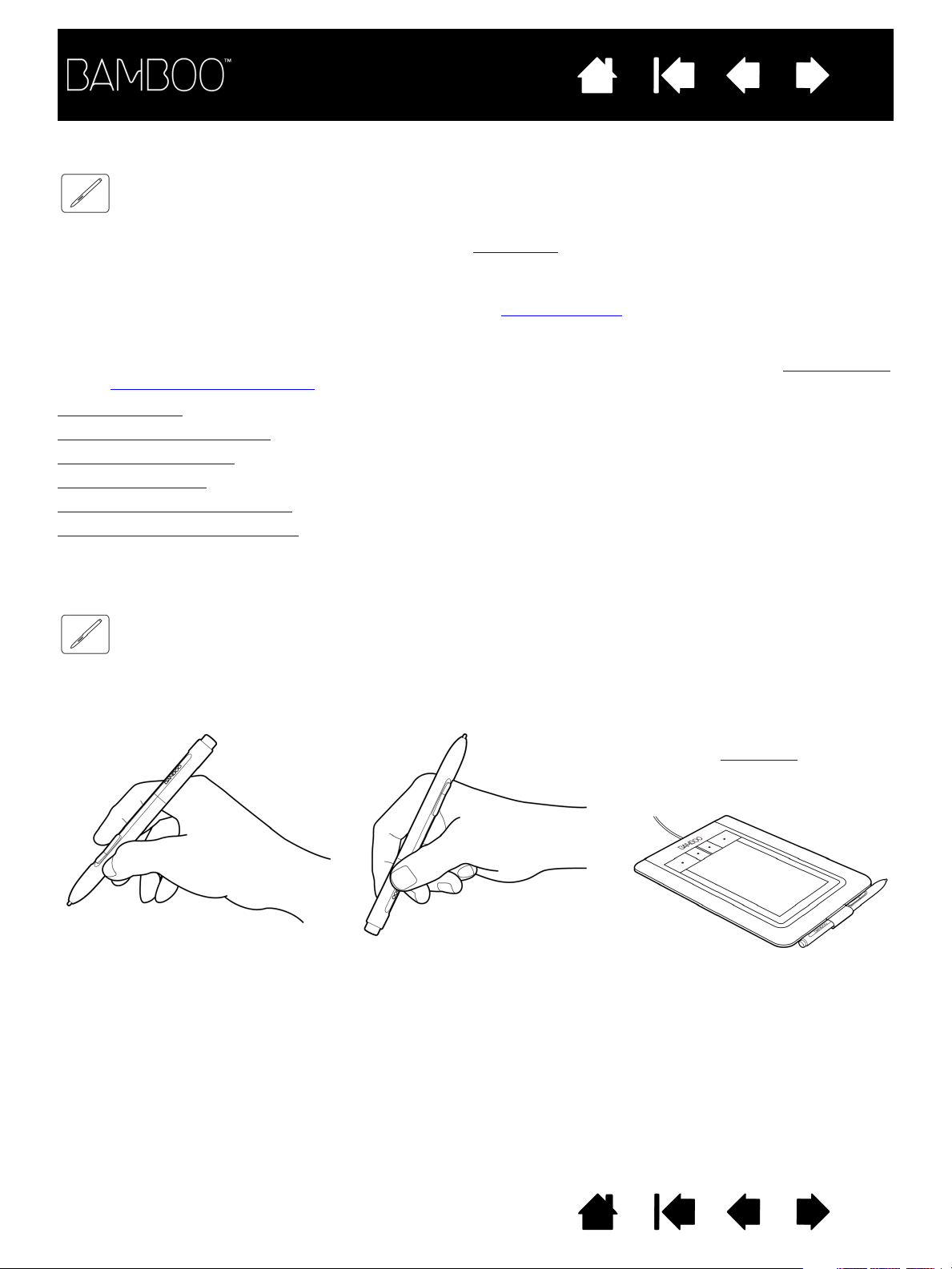
Position for drawing and navigation
Position for erasing
When you are not using the pen,
store it in the pen holder
. The eraser
end of the pen should be inserted
first into the loop.
Index
27
THE PEN EXPERIENCE WITH BAMBOO
Bamboo is designed to enhance the way you work. Bamboo tablet models equipped for pen input enable
you to interact with a computer using the pen on the active area
free, and pressure-sensitive.
Note: For Bamboo tablets that support both pen and touch input, the pen disengages touch input
whenever the pen tip or eraser is within the tablet proximity range
from the tablet active area to re-enable touch input. If you experience unintended touch input from
your hand, manually disable touch by pressing an Expresskey set to Touch Toggle. After you are
done working with the pen, press the ExpressKey again to re-enable touch. See also setting tablet
and ExpressKey functions.
Holding the pen
Using the pen on the tablet
Customizing pen input
ExpressKey basics
Customizing the ExpressKeys
Customizing the Pop-up Menu
of the tablet. The pen is cordless, battery
. Lift the pen and your hand away
HOLDING THE PEN
Hold the pen like you would hold a normal pen or pencil. Make sure the pen buttons are in a convenient
location where you can toggle them with your thumb or forefinger, but not accidently press them while
drawing or positioning with the pen. Tilt the pen in any way that feels most comfortable.
Important: When not in use, place the pen in the pen holder or lay it flat on your desk. To maintain
the sensitivity of your pen, do not store the pen in a container where it will rest on the tip or eraser
(when equipped). Leaving the pen on the tablet may interfere with screen cursor positioning when
using other pointing devices, or may prevent your computer from going to sleep.
Contents Index
27
Loading…
Type: Operation & user’s manual
Category: Graphics Tablet
Pages: 79
Size:
PDF Document Online Viewing:
Download Bamboo CTH-460 PDF Manual (79 pages)
The Bamboo brand offers a range of high-quality models designed to enhance user experience across various operational needs. This overview focuses on three key models: CTH-461, CTH-661, and CTH-460. Each of these devices represents a unique approach to digital interaction, catering to different user preferences and requirements.
CTH-461 is a versatile graphics tablet tailored for artists and designers. With a sleek design and an array of advanced features, it is ideal for both beginners and professionals alike. The tablet offers a responsive surface that accurately captures strokes, providing a natural drawing experience. Users can quickly navigate through various software applications due to the customizable buttons that enhance workflow efficiency.
CTH-661 models a higher-end graphics tablet noted for its large active area which enables greater creativity and freedom of movement. It also includes multi-utilization features, making it perfect for photo editing, illustration, and animation. Like its counterpart, it is equipped with pressure sensitivity allowing finer control over weight and opacity of brush strokes. Furthermore, it supports multi-touch gestures that enhance multitasking capabilities, empowering creators to work seamlessly across various platforms.
CTH-460 is a compact model designed for users seeking portability without sacrificing functionality. This tablet is best suited for students and professionals who are frequently on the go. It offers a simplified interface and essential features that ensure ease of use while still delivering a robust performance. The CTH-460 supports wireless capabilities, allowing for a clutter-free workspace and enabling artists to connect easily with multiple devices.
Each model under the Bamboo brand serves its purpose with distinct types of devices tailored for different user needs:
- Creative Professionals: CTH-461 and CTH-661 cater primarily to artists, illustrators, and graphic designers with their advanced functionality and larger active areas.
- General Users: CTH-460 targets users who prioritize mobility and simplicity, making it an excellent choice for students or those who often travel for work.
- Multi-purpose Use: CTH-661 stands out for its versatility, accommodating various tasks from animation to photo editing with ease.
In terms of operation and user manuals, Bamboo ensures that each model comes equipped with comprehensive guides that walk users through setup and troubleshooting processes. The user manuals provide essential information on installation, driver updates, and maintenance tips. They also typically include illustrations and detailed instructions on how to optimize the tablet’s features, enhancing the overall user experience.
Additionally, the manuals popularize best practices for utilizing pressure sensitivity settings, customizing button functions, and leveraging the multi-touch capabilities found in the higher-end models. This focus on usability underscores Bamboo’s commitment to providing users with the necessary resources to maximize their device’s potential.
In conclusion, Bamboo’s CTH-461, CTH-661, and CTH-460 models present an array of features that cater to diverse user needs. Their thoughtful design and functional specifications serve to promote creativity and efficiency, making them the ideal tools for artists, students, and professionals. With accessible operation manuals, users can easily navigate their devices and make the most out of their technology.
Related Bamboo CTH-460 User Manual Manuals and Guides
Type: Instructions
Brand: O.S. engine
Category: Engine
Pages: 5
Type: Instruction manual
Brand: Clatronic
Category: Coffee Maker
Pages: 38
Type: Operation & user’s manual
Brand: Barco
Category: Monitor
Pages: 38
Type: Operation & user’s manual
Brand: Pixsys
Category: Switch
Pages: 88
Type: Operation & user’s manual
Brand: Toshiba
Category: Laptop
Pages: 171
FAQ: Types of Manuals and Their Contents
Bamboo CTH-460 Manuals come in various types, each serving a specific purpose to help users effectively operate and maintain their devices. Here are the common types of Bamboo CTH-460 User Guides and the information they typically include:
- User Manuals: Provide comprehensive instructions on how to use the device, including setup, features, and operation. They often include troubleshooting tips, safety information, and maintenance guidelines.
- Service Instructions: Designed for technicians and repair professionals, these manuals offer detailed information on diagnosing and repairing issues with the device. They include schematics, parts lists, and step-by-step repair procedures.
- Installation Guides: Focus on the installation process of the device, providing detailed instructions and diagrams for proper setup. They are essential for ensuring the device is installed correctly and safely.
- Maintenance Manuals: Provide guidance on routine maintenance tasks to keep the device in optimal condition. They cover cleaning procedures, part replacements, and regular servicing tips.
- Quick Start Guides: Offer a concise overview of the essential steps needed to get the device up and running quickly. They are ideal for users who need immediate assistance with basic setup and operation.
Each type of Bamboo CTH-460 instruction is designed to address specific needs, ensuring users have the necessary information to use, maintain, and repair their devices effectively.
Related Instructions for Bamboo CTH-460:
9
MTE-450
Quick start manual Bamboo MTE-450 User Guide (Quick start manual), @127WRS
18
1037
198
Graphics Tablet Devices by Other Brands:
|
Wacom DTK-2400 Operation & User’s Manual DTK-2400 (Monitor ePDF Manual, #52Z4B8) User’s manual 31 Oct 2024 | 113 |
|
|
Samsung ATIV Smart PC Pro 5 Operation & User’s Manual ATIV Smart PC Pro 5 (LED TV ePDF User Manual, #29UC62) Connections 09 Oct 2024 | 2 |
|
|
XP-PEN Artist 22E Pro Manual Graphics Tablet #71EFK9 www.xp-pen.com 30 Dec 2024 | 12 |
|
|
Wacom CTL-460 Operation & User’s Manual #89XUFQ: CTL-460 Graphics Tablet Operation & user’s manual User’s manual for 09 May 2025 | 90 |
Categories:
Tablet
Graphics Tablet
Kitchen Appliances
Calculator
Bamboo CTH-460 Graphics Tablet PDF User Guides and Manuals for Free Download: Found (1) Manuals for Bamboo CTH-460 Device Model (Operation & User’s Manual)
Bamboo CTH-460 Operation & User’s Manual
Details:
- Manufacturer: Bamboo
- Product Name/ID: Bamboo CTH-460 / #2046339
- Category: Graphics Tablet
- File Path: bamboo/cth-460_2046339.pdf
- Last Updated: 20 May 2025
- Description: This manual for Bamboo CTH-460 is your ultimate guide, offering clear instructions on setup, customization options, and routine maintenance to ensure your device operates efficiently.
- Document Type: User Manual
- Pages: 79
Download PDF
Read Online
The Bamboo CTH-460 is a versatile graphics tablet that has garnered attention from both professional artists and hobbyists alike. Designed by Wacom, a leader in digital drawing technology, this tablet combines functionality with user-friendly features, making it a compelling option for those looking to digitize their creativity. In this review, we’ll explore various aspects of the product, including its design, performance, and overall value.
One of the most striking features of the Bamboo CTH-460 is its sleek and portable design. Weighing only a fraction of a pound, this tablet fits comfortably in your backpack, making it easy to travel with. The surface area is large enough for freehand drawing, while maintaining a compact size that won’t take up much desk space. Additionally, the tablet comes with an attractive and minimalistic aesthetic that complements any workspace.
In terms of performance, the Bamboo CTH-460 shines with its pressure-sensitive pen. Featuring 1024 levels of pressure sensitivity, artists can create a wide range of line thicknesses and opacity levels, mimicking traditional drawing techniques. This feature is particularly beneficial for detailed illustrations as it allows for greater precision and control over the artwork. The pen does not require batteries, which means less hassle in maintaining it.
Another noteworthy aspect of the Bamboo CTH-460 is its compatibility with various operating systems and software. Whether you’re using Windows or macOS, setting up the tablet is a breeze. The tablet also works seamlessly with popular design programs such as Adobe Photoshop, CorelDRAW, and various sketching applications. This versatility makes it an excellent, all-in-one tool for artists and designers.
In terms of user experience, the Bamboo CTH-460 excels with its easy setup and intuitive interface. The tablet comes with customizable shortcut keys that can be programmed for different functions. This allows users to optimize their workflow and access their favorite tools quickly. The included software bundle also provides additional resources and opportunities for creativity, making it suitable for both beginners and seasoned professionals.
However, like any product, the Bamboo CTH-460 is not without its drawbacks. While it excels in many areas, some users may find the touch functionality to be a bit sensitive, leading to unintentional inputs while drawing. Furthermore, users looking for a larger drawing area may feel constrained by the tablet’s specific size. That said, these drawbacks are minimal compared to the overall performance and features offered.
In summary, the Bamboo CTH-460 is an excellent graphics tablet for anyone looking to elevate their digital art experience. Its blend of lightweight design, strong performance, compatibility with various software, and customizable features makes it a worthy investment. Whether you’re a student dipping your toes into digital art or a professional looking for a reliable tool, the Bamboo CTH-460 stands out as a recommended choice in the market.
Key Highlights:
- Sleek and portable design
- 1024 levels of pressure sensitivity for precision drawing
- Compatible with multiple operating systems and software
- Customizable shortcut keys for enhanced workflow
With its affordable price point and impressive features, it is no wonder that the Bamboo CTH-460 has become a popular choice among digital artists. This tablet not only facilitates the creative process but also inspires innovation and artistic expression. For anyone serious about their craft, this tablet is undoubtedly worth considering.