
Скачать
Avaya 1408 and 1416 Telephones —
connected to Integral 5 — User Guide
16-603588
Issue 1
May 2010

IP Office Release 6.0
1408, 1416, 1608 and 1616 Phone
Guide
15-601040 Issue 03g — (19 November 2010)

© 2010 AVAYA All Rights Reserved.
Notices
While reasonable efforts have been made to ensure that the information in
this document is complete and accurate at the time of printing, Avaya
assumes no liability for any errors. Avaya reserves the right to make changes
and corrections to the information in this document without the obligation to
notify any person or organization of such changes.
Documentation disclaimer
Avaya shall not be responsible for any modifications, additions, or deletions
to the original published version of this documentation unless such
modifications, additions, or deletions were performed by Avaya.
End User agree to indemnify and hold harmless Avaya, Avaya’s agents,
servants and employees against all claims, lawsuits, demands and judgments
arising out of, or in connection with, subsequent modifications, additions or
deletions to this documentation, to the extent made by End User.
Link disclaimer
Avaya is not responsible for the contents or reliability of any linked Web sites
referenced within this site or documentation(s) provided by Avaya. Avaya is
not responsible for the accuracy of any information, statement or content
provided on these sites and does not necessarily endorse the products,
services, or information described or offered within them. Avaya does not
guarantee that these links will work all the time and has no control over the
availability of the linked pages.
Warranty
Avaya provides a limited warranty on this product. Refer to your sales
agreement to establish the terms of the limited warranty. In addition, Avaya’s
standard warranty language, as well as information regarding support for this
product, while under warranty, is available to Avaya customers and other
parties through the Avaya Support Web site: http://www.avaya.com/support.
Please note that if you acquired the product from an authorized Avaya reseller
outside of the United States and Canada, the warranty is provided to you by
said Avaya reseller and not by Avaya.
Licenses
THE SOFTWARE LICENSE TERMS AVAILABLE ON THE AVAYA WEBSITE,
HTTP://SUPPORT.AVAYA.COM/LICENSEINFO/ ARE APPLICABLE TO ANYONE
WHO DOWNLOADS, USES AND/OR INSTALLS AVAYA SOFTWARE,
PURCHASED FROM AVAYA INC., ANY AVAYA AFFILIATE, OR AN AUTHORIZED
AVAYA RESELLER (AS APPLICABLE) UNDER A COMMERCIAL AGREEMENT
WITH AVAYA OR AN AUTHORIZED AVAYA RESELLER. UNLESS OTHERWISE
AGREED TO BY AVAYA IN WRITING, AVAYA DOES NOT EXTEND THIS
LICENSE IF THE SOFTWARE WAS OBTAINED FROM ANYONE OTHER THAN
AVAYA, AN AVAYA AFFILIATE OR AN AVAYA AUTHORIZED RESELLER, AND
AVAYA RESERVES THE RIGHT TO TAKE LEGAL ACTION AGAINST YOU AND
ANYONE ELSE USING OR SELLING THE SOFTWARE WITHOUT A LICENSE. BY
INSTALLING, DOWNLOADING OR USING THE SOFTWARE, OR AUTHORIZING
OTHERS TO DO SO, YOU, ON BEHALF OF YOURSELF AND THE ENTITY FOR
WHOM YOU ARE INSTALLING, DOWNLOADING OR USING THE SOFTWARE
(HEREINAFTER REFERRED TO INTERCHANGEABLY AS “YOU” AND “END
USER”), AGREE TO THESE TERMS AND CONDITIONS AND CREATE A
BINDING CONTRACT BETWEEN YOU AND AVAYA INC. OR THE APPLICABLE
AVAYA AFFILIATE (“AVAYA”).
Avaya grants End User a license within the scope of the license types
described below. The applicable number of licenses and units of capacity for
which the license is granted will be one (1), unless a different number of
licenses or units of capacity is specified in the Documentation or other
materials available to End User. «Designated Processor» means a single
stand-alone computing device. «Server» means a Designated Processor that
hosts a software application to be accessed by multiple users. «Software»
means the computer programs in object code, originally licensed by Avaya
and ultimately utilized by End User, whether as stand-alone products or
pre-installed on Hardware. «Hardware» means the standard hardware
originally sold by Avaya and ultimately utilized by End User.
License types
Designated System(s) License (DS). End User may install and use each copy
of the Software on only one Designated Processor, unless a different number
of Designated Processors is indicated in the Documentation or other materials
available to End User. Avaya may require the Designated Processor(s) to be
identified by type, serial number, feature key, location or other specific
designation, or to be provided by End User to Avaya through electronic means
established by Avaya specifically for this purpose.
Copyright
Except where expressly stated otherwise, no use should be made of materials
on this site, the Documentation(s) and Product(s) provided by Avaya. All
content on this site, the documentation(s) and the product(s) provided by
Avaya including the selection, arrangement and design of the content is
owned either by Avaya or its licensors and is protected by copyright and other
intellectual property laws including the sui generis rights relating to the
protection of databases. You may not modify, copy, reproduce, republish,
upload, post, transmit or distribute in any way any content, in whole or in
part, including any code and software. Unauthorized reproduction,
transmission, dissemination, storage, and or use without the express written
consent of Avaya can be a criminal, as well as a civil, offense under the
applicable law.
Third Party Components
Certain software programs or portions thereof included in the Product may
contain software distributed under third party agreements («Third Party
Components»), which may contain terms that expand or limit rights to use
certain portions of the Product («Third Party Terms»). Information regarding
distributed Linux OS source code (for those Products that have distributed the
Linux OS source code), and identifying the copyright holders of the Third
Party Components and the Third Party Terms that apply to them is available
on the Avaya Support Web site: http://support.avaya.com/Copyright.
Preventing toll fraud
«Toll fraud» is the unauthorized use of your telecommunications system by an
unauthorized party (for example, a person who is not a corporate employee,
agent, subcontractor, or is not working on your company’s behalf). Be aware
that there can be a risk of toll fraud associated with your system and that, if
toll fraud occurs, it can result in substantial additional charges for your
telecommunications services.
Avaya fraud intervention
If you suspect that you are being victimized by toll fraud and you need
technical assistance or support, call Technical Service Center Toll Fraud
Intervention Hotline at +1-800-643-2353 for the United States and Canada.
For additional support telephone numbers, see the Avaya Support Web site:
http://support.avaya.com
Suspected security vulnerabilities with Avaya products should be reported to
Avaya by sending mail to: securityalerts@avaya.com.
Trademarks
Avaya and Aura are trademarks of Avaya, Inc.
The trademarks, logos and service marks (“Marks”) displayed in this site, the
documentation(s) and product(s) provided by Avaya are the registered or
unregistered Marks of Avaya, its affiliates, or other third parties. Users are
not permitted to use such Marks without prior written consent from Avaya or
such third party which may own the Mark. Nothing contained in this site, the
documentation(s) and product(s) should be construed as granting, by
implication, estoppel, or otherwise, any license or right in and to the Marks
without the express written permission of Avaya or the applicable third party.
Avaya is a registered trademark of Avaya Inc. All non-Avaya trademarks are
the property of their respective owners.
Downloading documents
For the most current versions of documentation, see the Avaya Support Web
site: http://www.avaya.com/support
Contact Avaya Support
Avaya provides a telephone number for you to use to report problems or to
ask questions about your product. The support telephone number is
1-800-242-2121 in the United States. For additional support telephone
numbers, see the Avaya Web site: http://www.avaya.com/support
1408, 1416, 1608 and 1616 Phone Guide Page 2
15-601040 Issue 03g (19 November 2010)IP Office Release 6.0

Contents
Contents
Introduction1.
……………………..……………………………………. 91.1 Important Safety Information
……………….………………………………………….. 101.2 1408 and 1608 Phones
……………….………………………………………….. 111.3 1416 and 1616 Phones
…….…………………………………………………….. 121.4 Button Modules
..…………………………………………………………. 131.5 Phone Keys
……….………………………………………………….. 141.6 The Phone Stand
…………………………………………………………… 151.7 Labels
………………………………….……………………….. 151.8 IP Phone Features (1608 and 1616)
………………..…………………………………………. 161.9 The Main Phone Menus
…..………………………………………………………. 181.10 Other Menus
…………………………………………………………… 191.11 Appearance Buttons/Menu
………………………………………..……………………….. 201.11.1 Using the Appearance Menu
……………………………..………………………………….. 201.11.2 Phone Status Letters
…………………………………………………………………. 211.11.3 Call Apperance Buttons
………………………………………..……………………….. 231.11.4 Bridged Appearance Buttons
……………………………….………………………………… 251.11.5 Call Coverage Buttons
…………………………………..…………………………….. 271.11.6 Line Appearance Buttons
Making Calls2.
…….…………………………………………………….. 312.1 En-Bloc Dialing
…………….…………………………………………….. 322.2 Call Soft Key Options
…………………………………………………………… 332.3 Calling a Person from the Contacts List
……………………………….………………………….. 342.4 Calling a Person from the Call Log
…………………………………………………………… 352.5 Redialling a Previous Number
………….……………………………………………….. 362.6 Making a Page Call
…………………..………………………………………. 372.7 Withholding Your Number
……………….………………………………………….. 382.8 Adjust the Call Volume
…………………………………………………………… 382.9 Muting a Call
….……………………………………………………….. 382.10 Ending Calls
Transferring Calls6.
…………….…………………………………………….. 616.1 Transfer to Voicemail
………………..…………………………………………. 616.2 Transferring a Held Call
Account Codes7.
……………………..……………………………………. 647.1 Forced Account Code Entry
…………………………………………………………… 657.2 Manual Account Code Entry
Conference Calls8.
……………..……………………………………………. 688.1 Starting a Conference
…………………………………………………………… 688.2 Adding a Call to a Conference
……………………..……………………………………. 698.3 Viewing Conference Details
………………………………….……………………….. 698.4 Dropping Parties from a Conference
…………………………………………………………… 708.5 Holding a Conference Call
………………………………….……………………….. 708.6 Transferring Calls Using Conference
Headset Operation9.
…………………………………………………………… 729.1 Headset Volume
…………………………………………………………… 739.2 Default Handsfree Audio Path
Handsfree Speaker Operation10.
………..…………………………………………………. 7610.1 Speaker Volume
…………………………..………………………………. 7710.2 Default Handsfree Audio Path
Contacts/Directory11.
…………………………………………………………… 8111.1 Viewing Contacts Details
…………………………………………………………… 8211.2 Make a Call from the Directory
……………………………………….………………….. 8311.3 Using the Directory for Other Functions
………………..…………………………………………. 8411.4 Adding a New Contact
…………………………………………….…………………… 8511.4.1 Add a Contact from the Call Log
………………………………………………..……………….. 8611.4.2 Add a Contact from the Redial List
…………………………………………………………… 8711.5 Editing a Contact
…………..………………………………………………. 8811.6 Deleting a Contact
Answering Calls3.
………………….……………………………………….. 413.1 Divert a Call to Voicemail
………………..…………………………………………. 413.2 Ignore an Incoming Call
…………………………………………………………… 423.3 Answering a Page Call
…………………………………………………………… 433.4 Auto Answer
…………………………………………………………… 443.5 Call Pickup
Redialling4.
…………………..………………………………………. 464.1 Redial a Call (One Mode)
………………….……………………………………….. 464.2 Redial a Call (List Mode)
…………………………………………………………… 474.3 Selecting Your Redial Mode
…………………………………………………………… 484.4 View Call Details
…………………………………………………………… 494.5 Add a Call to Your Contacts
Holding and Parking Calls5.
…………………………………………………………… 535.1 Holding Calls
………………….……………………………………………… 535.1.1 Holding a Call
…………………………….…………………………………… 535.1.2 Taking a Call Off Hold
………………………………..……………………………….. 545.1.3 Switching Between Calls
………………………….……………………………………… 545.1.4 Transfer a Held Call
…………………………………………………………… 555.2 Parking Calls
…………………………………………………………………. 565.2.1 Park Using the Menu
………………………………..……………………………….. 575.2.2 Unpark (Features Menu)
…………………………….…………………………………… 575.2.3 Unpark (Status Menu)
Call Log12.
…………..………………………………………………. 9112.1 Using the Call Log
…………………………….…………………………….. 9112.2 Making a Call from the Call Log
…………….…………………………………………….. 9212.3 Viewing Call Details
………….……………………………………………….. 9312.4 Deleting a Record
……………..……………………………………………. 9312.5 Deleting All Records
…………………………………………………………… 9412.6 Adding a Record to Your Contacts
Voicemail13.
……………………….………………………………….. 9613.1 Message Waiting Indication
……………..……………………………………………. 9713.2 Checking Messages
…………….…………………………………………….. 9813.3 Sending a Message
………..…………………………………………………. 9913.4 Mailbox Greeting
…..………………………………………………………. 10013.5 Email Mode
…………………………………………………………… 10113.6 Changing Your Voicemail Code
………….……………………………………………….. 10213.7 Voicemail On/Off
………………..…………………………………………. 10313.8 Transfer to Voicemail
…………………….…………………………………….. 10313.9 Send a Call to Voicemail
……..……………………………………………………. 10413.10 Visual Voice
Logging In/Out14.
…………………………………………………………… 10714.1 Logging In
……………………………………………………….………… 10814.1.1 Logging In on a Phone Already in Use
…………………………………………………………………. 10914.1.2 Logging In on a Not Logged In Phone
…………………………………………………………………. 11014.1.3 Logging In on an Unregistered Phone
1408, 1416, 1608 and 1616 Phone Guide Page 3
15-601040 Issue 03g (19 November 2010)IP Office Release 6.0

…………………………………………………………… 11114.2 Logout
…………………………………………………………… 11214.3 Lock
..…………………………………………………………. 11314.4 Auto Lock
…………………………………………………………… 11414.5 Unlock
………………………..…………………………………. 11514.6 Changing Your Login Code
……..……………………………………………………. 11614.7 Unregistering
………………………..……………………………………….. 15317.2.20 Self-Administer
…………………………………………………………………. 15317.2.21 Send All Calls
…………………………………………….…………………… 15417.2.22 Set Hunt Group Night Service
…………………….…………………………………………… 15417.2.23 Time of Day
…………..…………………………………………………….. 15417.2.24 Timer
………….……………………………………………………… 15517.2.25 User
Redirecting Calls15.
…………………………………………………………… 11915.1 Follow Me
…………………………………………….…………………… 12015.1.1 Follow Me To (Features Menu)
…………………………………….…………………………… 12115.1.2 Follow Me (Status Menu)
………………………………………………..……………….. 12215.1.3 Follow Me Here (Features Menu)
………….……………………………………………….. 12315.2 Forwarding Calls
…………………………………………………………………. 12515.2.1 Forward Unconditional (Status Menu)
………………………………………………………….……… 12615.2.2 Forward Unconditional (Features Menu)
……………………………………………………….………… 12815.2.3 Forward On No Answer (Status Menu)
……………………………………………….………………… 12915.2.4 Forward On Busy (Status Menu)
15.2.5 Forward On Busy/No Answer (Features
..……………………………………………………………….. 130
Menu)
……….………………………………………………….. 13215.3 Do Not Disturb
…………………………………………..…………………….. 13315.3.1 DND On/Off (Features Menu)
………………………………….……………………………… 13315.3.2 DND Off (Status Menu)
…………………………………………………………………. 13415.3.3 Do Not Disturb Exceptions
.………………………………………………………….. 13515.4 Twinning
…………………………………………………………………. 13615.4.1 Mobile Twinning Control
Groups16.
……………..……………………………………………. 13916.1 Group Membership
…………………………………………………………………. 13916.1.1 Group Membership On/Off (Status Menu)
……………………………………………………………….… 14016.1.2 Group Membership On/Off (Features Menu)
…………………………………………………………… 14116.2 Group Service Status and Fallback
16.2.1 Changing the Group Service Status
……………….………………………………………………… 142
(Features Menu)
16.2.2 Changing the Group Service Status (Status
..……………………………………………………………….. 144
Menu)
…………………………………………..…………………….. 14516.2.3 Changing the Group Fallback
Button Features17.
………………….……………………………………….. 14817.1 Programming a Button
…………………………………………………………… 15017.2 Features
…………………………………………………………………. 15117.2.1 Abbreviated Dial
……………………………………..………………………….. 15117.2.2 Abbreviated Dial Program
……………………………..………………………………….. 15117.2.3 Account Code Entry
…………………………………………………………………. 15117.2.4 AD Suppress
…………………………….…………………………………… 15117.2.5 Automatic Callback
…………………………………………………………………. 15117.2.6 Breakout
…………………………………………………………………. 15117.2.7 Call Forwarding All
…………………………………………………………………. 15217.2.8 Call Park
………………………………..……………………………….. 15217.2.9 Call Park to Other Ext
…………………..…………………………………………….. 15217.2.10 Call Pickup
……………………………….………………………………… 15217.2.11 Directed Call Pickup
………………..……………………………………………….. 15217.2.12 Directory
………….……………………………………………………… 15217.2.13 Drop
…………………..…………………………………………….. 15217.2.14 Flash Hook
…………………………………………………………………. 15317.2.15 Group
…………………………………………………………………. 15317.2.16 Group Paging
………………………….……………………………………… 15317.2.17 Headset Toggle
………………………………..……………………………….. 15317.2.18 Internal Auto Answer
………………….……………………………………………… 15317.2.19 Ringer Off
Phone Settings18.
…………………………………………………………… 15918.1 Mobile Twinning
…………..………………………………………………. 16018.2 Withhold Number
…………………………………………………………… 16118.3 Redial Mode
………..…………………………………………………. 16218.4 En-Bloc Dialing
…………………………………………………………… 16318.5 Erase Options
..…………………………………………………………. 16418.6 Auto Lock
………..…………………………………………………. 16518.7 Ringer Controls
……………………………..………………………………….. 16618.7.1 Disabling the Ringer
……………………..………………………………………….. 16718.7.2 Visual Alerting
……………………….………………………………………… 16818.7.3 Audible Alerting
…………………………………………………………………. 16918.7.4 Coverage Ring
………………….……………………………………………… 17018.7.5 Ring Sound
…………………………………………………………………. 17118.7.6 Ringer Volume
…………………………………………………………………. 17118.7.7 Internal Auto Answer
…………………………………………………………… 17218.8 Display Controls
…………………………………………………………………. 17218.8.1 Display Brightness
………………………..……………………………………….. 17318.8.2 Display Contrast
…………………………..…………………………………….. 17418.8.3 Call Timer Display
…………………………..…………………………………….. 17618.8.4 Display Language
…………………….…………………………………………… 17718.8.5 Display Name
………………………….……………………………………… 17818.8.6 A-Menu Auto Exit
…………………………..…………………………………….. 17918.8.7 Show Call Waiting
…………………………………………..…………………….. 18018.8.8 Inactivity Timer (Auto Return)
……………..……………………………………………. 18118.9 Volume and Sound
…………………………………………………………………. 18218.9.1 Button Clicks
………………….……………………………………………… 18218.9.2 Error Tones
…………………………………………………………………. 18318.9.3 Ringer Volume
…………………………………………………………………. 18318.9.4 Handset Volume
…………………………………………………………………. 18318.9.5 Headset Volume
…………………………………………………………………. 18318.9.6 Speaker Volume
………………………………….……………………………… 18418.9.7 Automatic Gain Control
…………………………………………………………………. 18518.9.8 Default Handsfree Audio Path
…………..………………………………………………. 18618.10 Backup/Restore
……………..………………………………………………….. 18618.10.1 Backup
…………………………………………………………………. 18718.10.2 Restore
………………..…………………………………………. 18818.11 Viewing Information
Status Menu19.
……….………………………………………………….. 19319.1 Do Not Disturb
……..……………………………………………………. 19319.2 Follow Me To
………..…………………………………………………. 19419.3 Follow Me Here
…………..………………………………………………. 19519.4 Forward On Busy
…………………………………………………………… 19619.5 Forward On No Answer
………………….……………………………………….. 19719.6 Forward Unconditional
…………………………………………………………… 19819.7 Forwarded Here
……………..……………………………………………. 19919.8 Group Membership
………………..…………………………………………. 19919.9 Group Service Status
…………..………………………………………………. 20019.10 Mobile Twinning
…………………………………………………………… 20019.11 Parked Calls
…………………………………………………………… 20119.12 System Alarms
1408, 1416, 1608 and 1616 Phone Guide Page 4
15-601040 Issue 03g (19 November 2010)IP Office Release 6.0

Contents
Short Codes20.
…………………………………………………………… 24323.33 Twinning
…………………………………………………………………….245Index
System Administration21.
……………………………………………….………….. 20921.1 Checking the System and Software Version
…………………………………………………………… 21021.2 Setting the Date
…………………………………………………………… 21221.3 Setting the Time
…………………..………………………………………. 21421.4 Setting the Time Offset
…………………………………………………………… 21621.5 Checking the Time Server Status
…………………………………………………………… 21721.6 System Shutdown
…………………………………………………………… 21921.7 Memory Card Management
……….………………………………………………….. 22121.8 System Alarms
The Phone Menus22.
……….………………………………………………….. 22522.1 Features Menu
…………………………………………………………… 22722.2 Self-Administer Menu
…………….…………………………………………….. 22822.3 Visual Voice Menu
…………………………………………………………… 22922.4 Status Menu
……….………………………………………………….. 23022.5 Phone A-Menu
…………………………………………………………… 23222.6 Call Log Menu
……….………………………………………………….. 23322.7 Contacts Menu
…………………………………………………………… 23422.8 Redial Menu
……………….………………………………………….. 23522.9 Phone Locked Menu
…………………………………………………………… 23622.10 System Admin Menu
……….………………………………………………….. 23722.11 Error Screens
Glossary23.
…………..………………………………………………. 24023.1 Abbreviated Ring
……………..……………………………………………. 24023.2 Appearance Button
…………………………………………………………… 24023.3 Attention Ring
..…………………………………………………………. 24023.4 Auto Hold
…………………………………………………………… 24023.5 Bridged Appearance Button
…………………………………………………………… 24023.6 Call Appearance Button
………………..…………………………………………. 24023.7 Call Coverage Button
……….………………………………………………….. 24023.8 Coverage Ring
……….………………………………………………….. 24023.9 Do Not Disturb
…………………………………………………………… 24123.10 Do Not Disturb Exceptions
…..………………………………………………………. 24123.11 Follow Me
………….……………………………………………….. 24123.12 Follow Me Here
……….………………………………………………….. 24123.13 Follow Me To
…………………………………………………………… 24123.14 Forward on Busy
…………………….…………………………………….. 24123.15 Forward on No Answer
…………………………………………………………… 24123.16 Forward Unconditional
…………………………………………………………… 24223.17 Group
………………..…………………………………………. 24223.18 Idle Line Preference
…………………………………………………………… 24223.19 Internal Twinning
…………………………………………………………… 24223.20 Line Appearance Button
…….…………………………………………………….. 24223.21 Logged Out
…….…………………………………………………….. 24223.22 Login Code
…….…………………………………………………….. 24223.23 Missed Call
…………………………………………………………… 24223.24 Missed Group Call
…………..………………………………………………. 24223.25 Mobile Twinning
…………………………………………………………… 24323.26 Park Call
……………..……………………………………………. 24323.27 Park Slot Number
…………………………………………………………… 24323.28 Ringing Line Preference
……..……………………………………………………. 24323.29 Short Codes
…………………………………………………………… 24323.30 Small Community Network
………………….……………………………………….. 24323.31 System Administrator
………………..…………………………………………. 24323.32 System Phone User
1408, 1416, 1608 and 1616 Phone Guide Page 5
15-601040 Issue 03g (19 November 2010)IP Office Release 6.0


Chapter 1.
Introduction
1408, 1416, 1608 and 1616 Phone Guide Page 7
15-601040 Issue 03g (19 November 2010)IP Office Release 6.0

Introduction:
1. Introduction
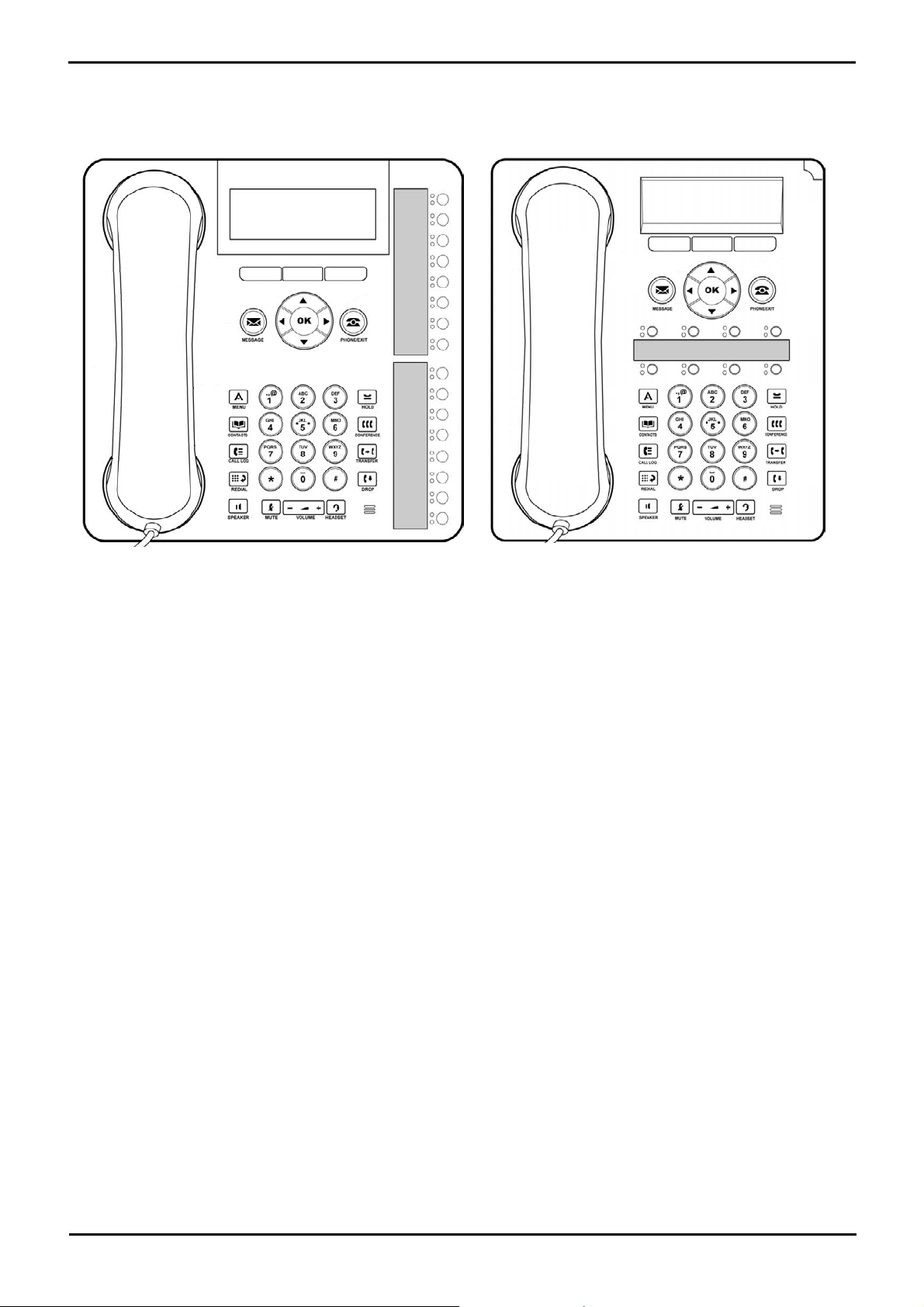
This guide is for 1408, 1608, 1416 and 1616 phones when being used on an IP Office telephone system running IP Office
Release 6.0 software.
1.1 Important Safety Information
· ! Warning: This handset may pickup small metal objects such as metal pins or staples.
· During a power surge, EFT or ESD, calls may be dropped. After a power surge, EFT or ESD, it is normal for the
phone to restart.
· Using a cell phone, mobile phone, GSM phone or two-way radio in close proximity to an Avaya telephone might
cause interference.
· The phone should not be connected directly to the outdoor telecommunication network.
1408, 1416, 1608 and 1616 Phone Guide Page 9
15-601040 Issue 03g (19 November 2010)IP Office Release 6.0
1.2 1408 and 1608 Phones
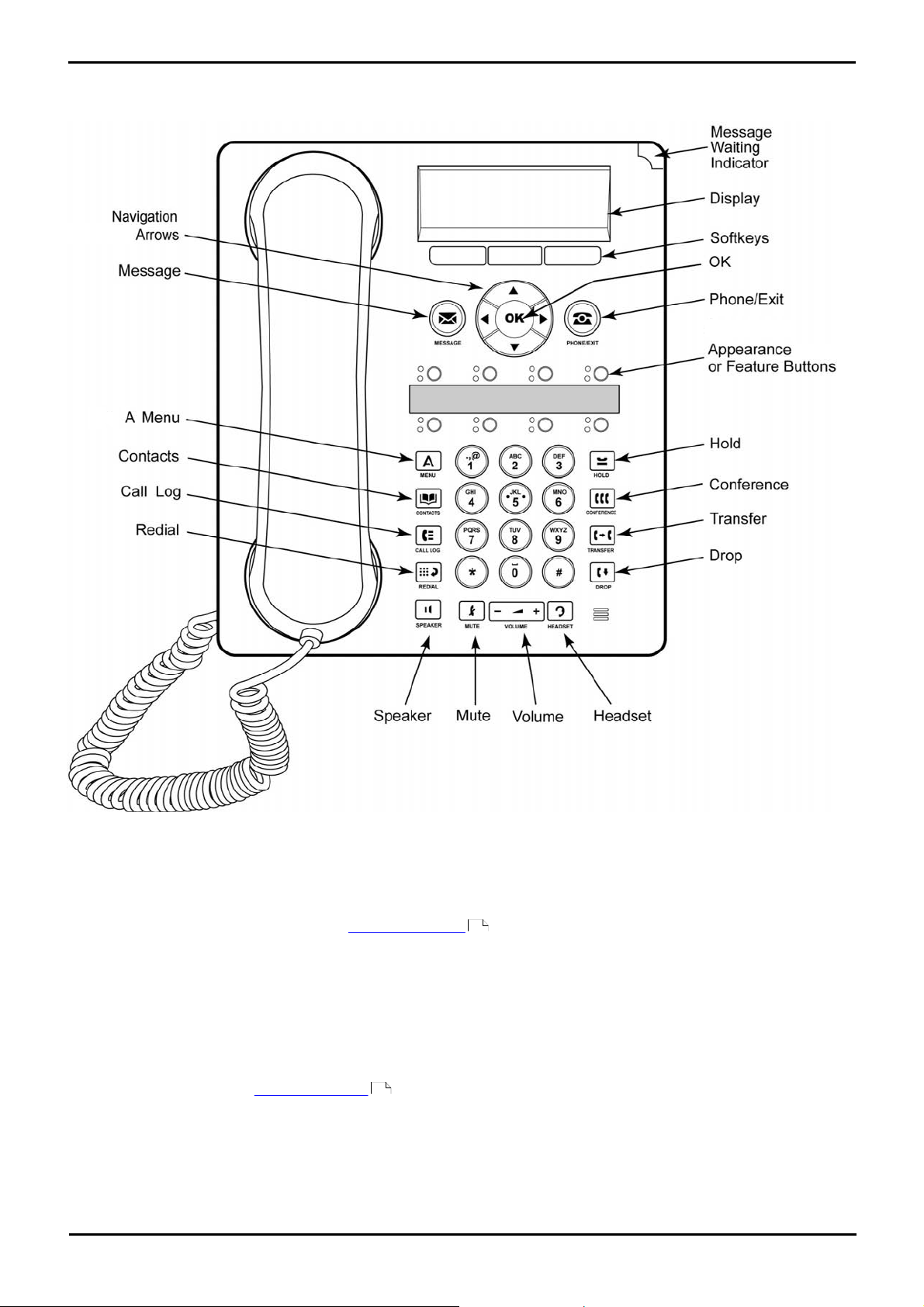
The diagram below shows the main features of a 1408 or 1608 phone.
· This phone has 8 programmable buttons.
· By default the first 3 buttons are used as appearance buttons for calls you make and receive. Your system
administrator can configure additional appearance buttons.
· Any button not configured as appearance buttons can be configured for a range of telephone system features.
These are called feature buttons. Your system administrator can do this or, for a limited number of functions,
you can do this using the phones self-administration menu.
· The phone includes an integral stand that can be flipped to either of two positions without needing any tools. When
used in the upright position, a plastic peg in the earpiece rest area for the handset can be reversed if a more secure
grip on the handset when not in use is required.
· The phone includes a handsfree speaker and microphone for operation as a handsfree speakerphone. The speaker
is located under the handset. The microphone is located at the bottom right of the keypad.
· The phone includes a headset socket for connection of phone headsets.
· The 1608 and 1616 phones are connect to the telephone system via the IP data network and so have some
additional options, see IP Phone Features .
15
148
1408, 1416, 1608 and 1616 Phone Guide Page 10
15-601040 Issue 03g (19 November 2010)IP Office Release 6.0
1.3 1416 and 1616 Phones
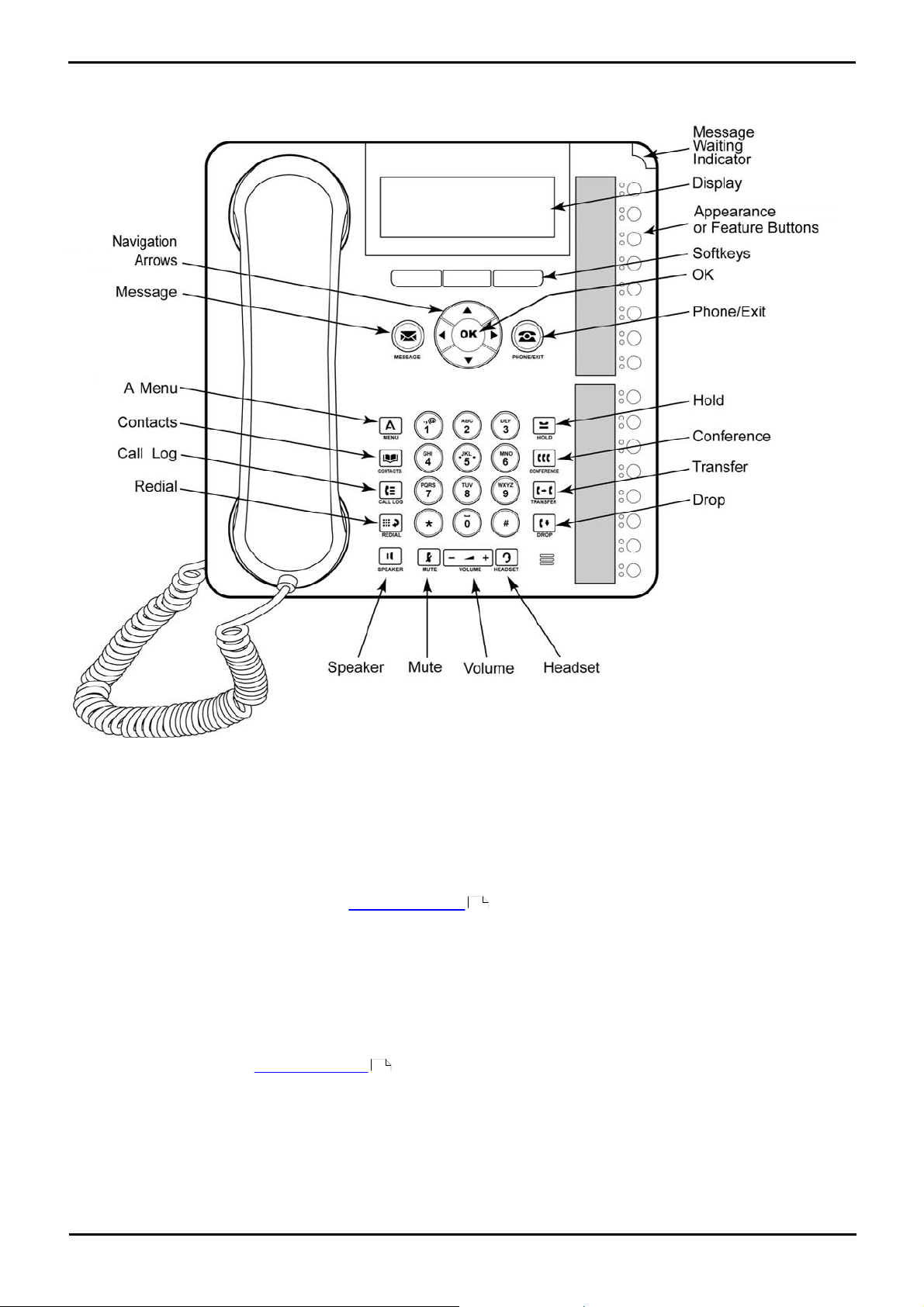
The diagram below shows the main features of a 1416 or 1616 phone.
Introduction: 1408 and 1608 Phones
· The display angle can be adjusted for optimal viewing.
· This phone has 16 programmable buttons.
· The phone also supports up to 3 add-on BM32 button modules, each providing an addition 32 buttons.
· By default the first 3 buttons are used as appearance buttons for calls you make and receive. Your system
administrator can configure additional appearance buttons.
· Any button not configured as appearance buttons can be configured for a range of telephone system features.
These are called feature buttons. Your system administrator can do this or, for a limited number of functions,
you can do this using the phones self-administration menu.
· The phone includes an integral stand that can be flipped to either of two positions without needing any tools. When
used in the upright position, a plastic peg in the earpiece rest area for the handset can be reversed if a more secure
grip on the handset when not in use is required.
· The phone includes a handsfree speaker and microphone for operation as a handsfree speakerphone. The speaker
is located under the handset. The microphone is located at the bottom right of the keypad.
· The phone includes a headset socket for connection of phone headsets.
· The 1608 and 1616 phones are connect to the telephone system via the IP data network and so have some
additional options, see IP Phone Features .
15
148
1408, 1416, 1608 and 1616 Phone Guide Page 11
15-601040 Issue 03g (19 November 2010)IP Office Release 6.0
1.4 Button Modules
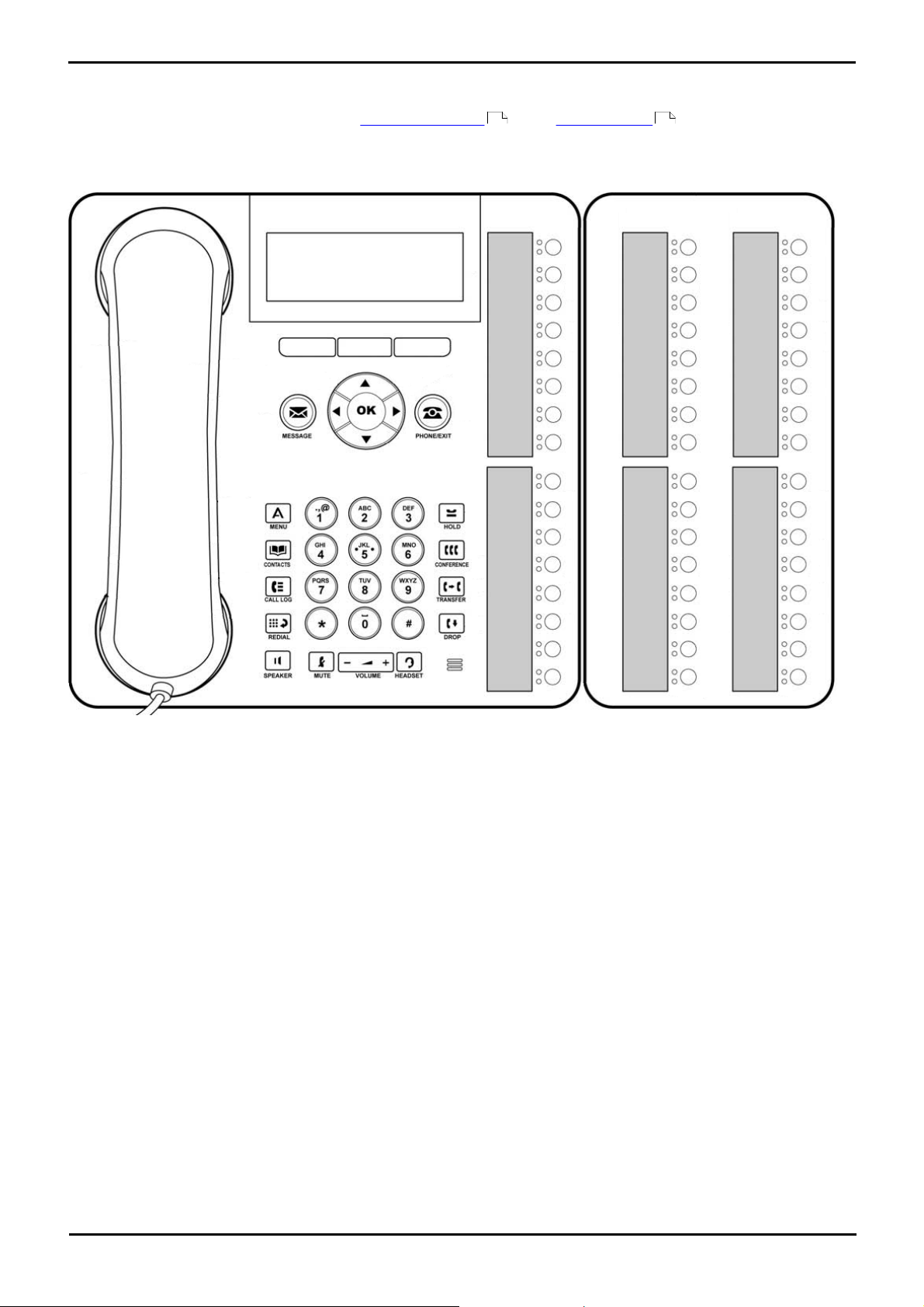
The 1416 and 1616 phones can support addition units called button modules. Each button module provides the phone with
an additional 32 buttons which can be used as appearance buttons and or feature buttons .
Up to 3 button modules can be attached to a 1416 or 1616 phone. However the number of button modules supported by
the telephone system may be limited by the total number of button modules attached to other phones on the telephone
system.
19 148
· Do not connect or disconnect a button module yourself. Your system administrator will arrange this if necessary.
Failure to connect and restart the equipment in the correct order may cause the phone to not function correctly.
· The button module used for 1416 phones is not interchangeable with that used for 1616 phones and vice versa.
1408, 1416, 1608 and 1616 Phone Guide Page 12
15-601040 Issue 03g (19 November 2010)IP Office Release 6.0
1.5 Phone Keys
Soft Keys — These 3 keys below the display have variable functions. When the key is active, its function is
indicated by the text label above it. The left hand key is usually linked to the OK key.
Message — This key is used to access your voicemail system. By default this uses a series of menus on
your phone’s display.
Navigation Keys — Press the up and down arrow keys to scroll through lists. The arrow icons
indicate where you are in a list. In some menus, you can also use the left and right arrow keys to
enter and exit different levels of the menu. A menu option that accesses a sub-menu is indicated by the …
dots (ellipsis) icon after its name.
In some menus, the and symbols in the display indicate a value that can be changed by pressing the
left and right arrow keys.
OK — The OK key normally matches the function offered by the left hand soft key below the screen.
PHONE/EXIT — This key is used to exit any menu you are in and return to the appearance buttons menu.
During a call it can also be used to toggle the options displayed on the appearance menu.
MENU — This key is used to access a menu for phone settings and information.
CONTACTS — This key is used to display the various directories (personal and shared) of names and
telephone numbers to which you have access.
CALL LOG — This key displays a record of you most recent answered, missed and outgoing calls. The
button is illuminated when you have new missed calls.
REDIAL — This key is used to either redial the last call you made or to show a list of the last calls you
made from which you can select the number to redial.
HOLD — This key is used to put the call you are currently talking to on hold.
CONFERENCE — This key is used to start a conference call and to add callers to an existing
conference.
TRANSFER — This key is used to transfer calls to another number.
DROP — Press the Drop key to drop the active call. It can also be used to redirect a ringing call to
voicemail. While on a conference call, you can press the Drop key to drop a person from the conference
call.
VOLUME — Press + plus or – minus on the Volume key to adjust the volume of the incoming call.
Separate volumes can be adjusted for the ringer, handset, headset and speaker.
HEADSET — This key is used to answer and end calls using a headset connected to the phones headset
socket. The button is lit when you are connected to a call using the headset.
MUTE — This key can be used to mute your speech to the currently connected call. The button is lit
while mute is active.
SPEAKER — This key is used to answer and end calls using the phone’s handsfree speaker and
microphone. The button is lit when you are connected to a call handsfree.
These keys have two roles:
· Appearance Keys These button represent calls that you can make or receive.
· Feature Buttons — Those key not configured as appearance keys can be used for other functions.
The following keys are found on the phone:
80
Introduction: Button Modules
90
46
53
68
60
38
182
72
38
76
19
148
1408, 1416, 1608 and 1616 Phone Guide Page 13
15-601040 Issue 03g (19 November 2010)IP Office Release 6.0
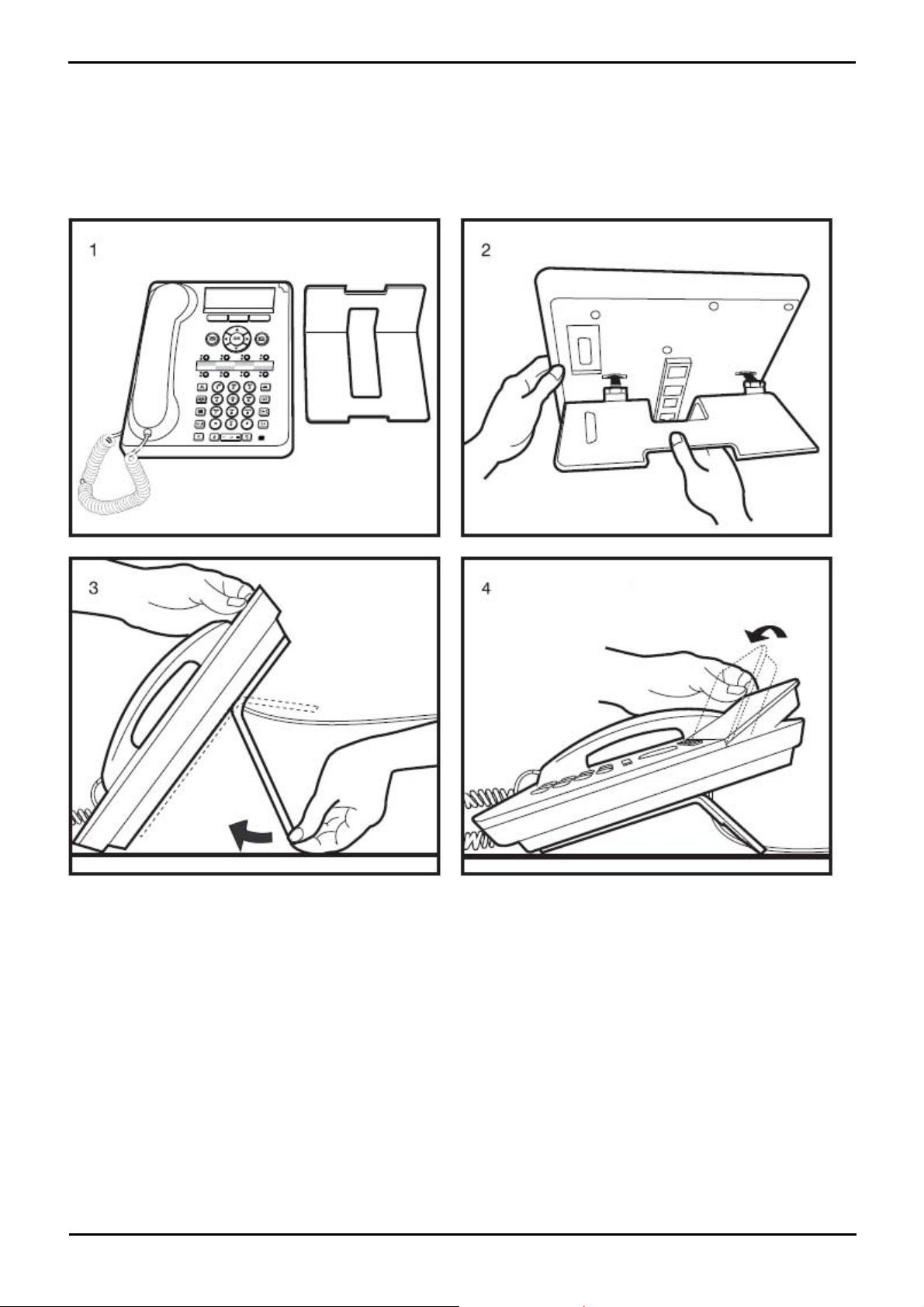
1.6 The Phone Stand
The phones all include a two-position stand that clips to the base of the phone as shown below. Once attached the stand
can be used in either position to change the angle of the phone.
When changing the position of the stand, be sure to check that the stand has locked into the chosen position. A small
plastic peg is located just under the phone’s handset. This peg can be reversed to more securely anchor the handset when
the stand places the phone in an upright position.
On the 1416 and 1616 phones, the angle of the phone display can also be adjusted as shown below.
1408, 1416, 1608 and 1616 Phone Guide Page 14
15-601040 Issue 03g (19 November 2010)IP Office Release 6.0

Introduction: The Phone Stand
1.7 Labels
Next to each call/line appearance button and feature button is a paper label. The label identifies the call/line appearance
number or the feature that has been programmed on the button by your system administrator. You can remove the labels
if you want to change a label or write on a blank one. Printed labels are also available for your telephone. See your system
administrator for more information.
1.8 IP Phone Features (1608 and 1616)
The 1608 and 1616 phones connect to the phone system using an IP connection and support a number of additional
features:
· The phone uses a 10/100 Ethernet connection to connect to the telephone system via the IP network.
· The phone includes a PC pass through 10/100 Ethernet port that can be used to also connect a computer to the
network through the same connection as the phone. Use of this port can be disabled by the system administrator if
not supported.
· The phone may be powered from the network if Power over Ethernet (PoE) is available. Otherwise the phone needs
its own power supply unit.
1408, 1416, 1608 and 1616 Phone Guide Page 15
15-601040 Issue 03g (19 November 2010)IP Office Release 6.0
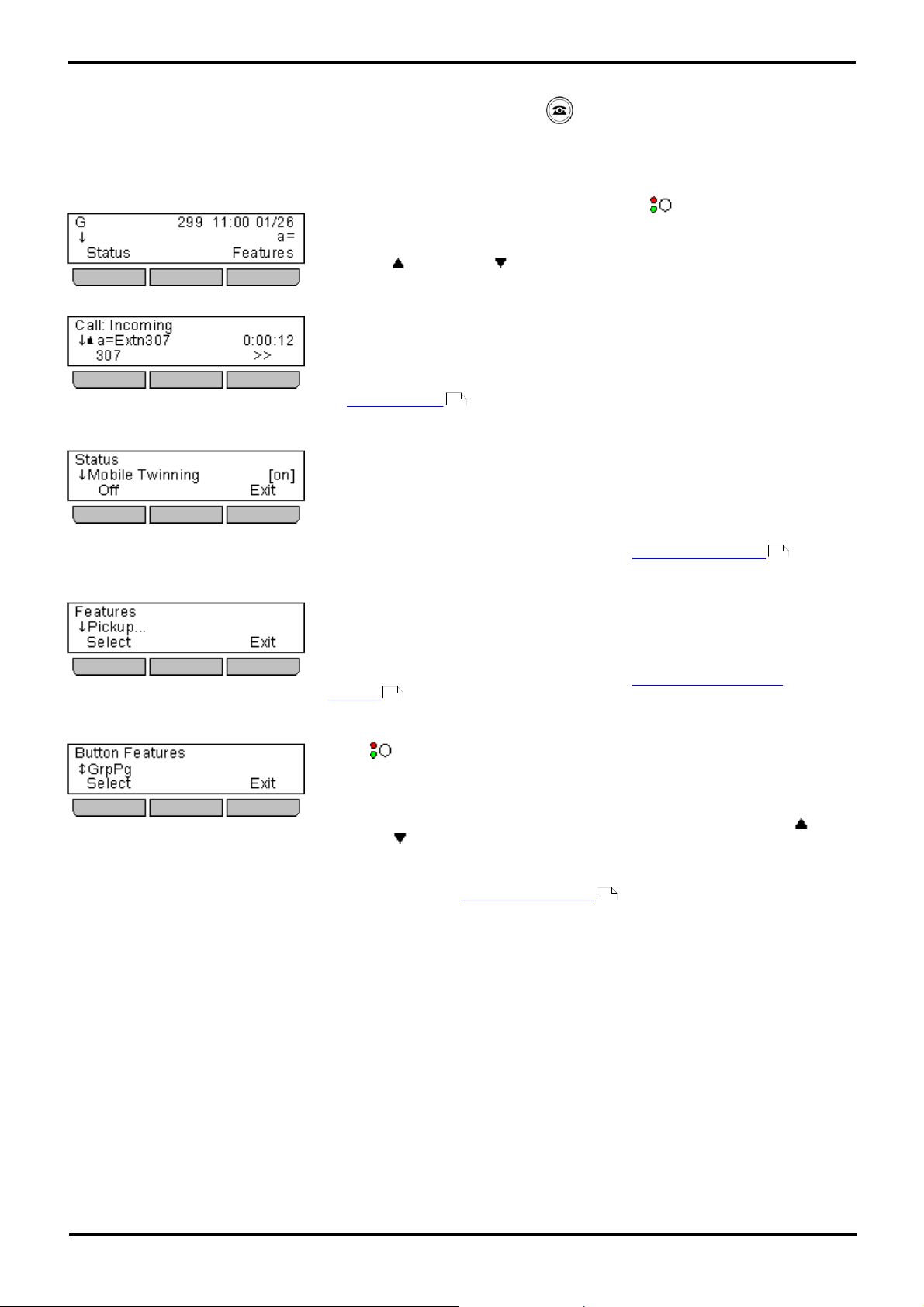
1.9 The Main Phone Menus
This menu is used to display information about the buttons that have been
configured for appearance functions. These will normally be the first 3 button on
the phone but the system administrator can configure additional buttons.
Using the up and down arrow keys you can scroll through the details of
each of the buttons.
The display for buttons that currently have a call in progress will show details of
the associated call.
The display for buttons that are idle will show the default label for the button
and also soft key labels for accessing the other main menus.
Those buttons that have not been configured as appearance buttons can be used
as feature buttons .
The Status menu is not always visible. It is shown when you have any special
call routing features active. For example do not disturb switched on.
It is also shown if the system administrator has given you the rights to change
the status of your hunt group memberships or to change the service status of
the hunt groups.
A summary of the menu options is shown in the Status Menu diagram .
The Features menu is used to access and configure range of your user settings.
The system administrator can control some of the options that will be available
to you within the menu. Typically these are settings stored by the telephone
system which will be applicable even if you login at another phone.
A summary of the menu options is shown in the IP Office Features menu
diagram .
Those buttons not configured by the system administrators as appearance
buttons can be used for other special features.
The button feature can be accessed by pressing the appropriate button. However
they can also be accessed through the Button Features section of the Features
menu (press the Features soft key and selecting Button Features). The up
and down arrow keys can then be used to scroll through the programmed
buttons. The associated button will briefly flash its red lamp.
The action of each button is normally set by the system administrator. However
you can also use the self-administer menu
to select and assign actions to the
buttons.
The main menus are detailed below. You can move between them using the PHONE key. You can do this even during
a call including when a call is alerting. In addition the menus are accessible from the call appearance menu by pressing
the Status and Features soft keys when they are displayed.
The Appearance Menu
148
The Status Menu
The Features Menu
The Button Features Menu
229
225
148
1408, 1416, 1608 and 1616 Phone Guide Page 16
15-601040 Issue 03g (19 November 2010)IP Office Release 6.0
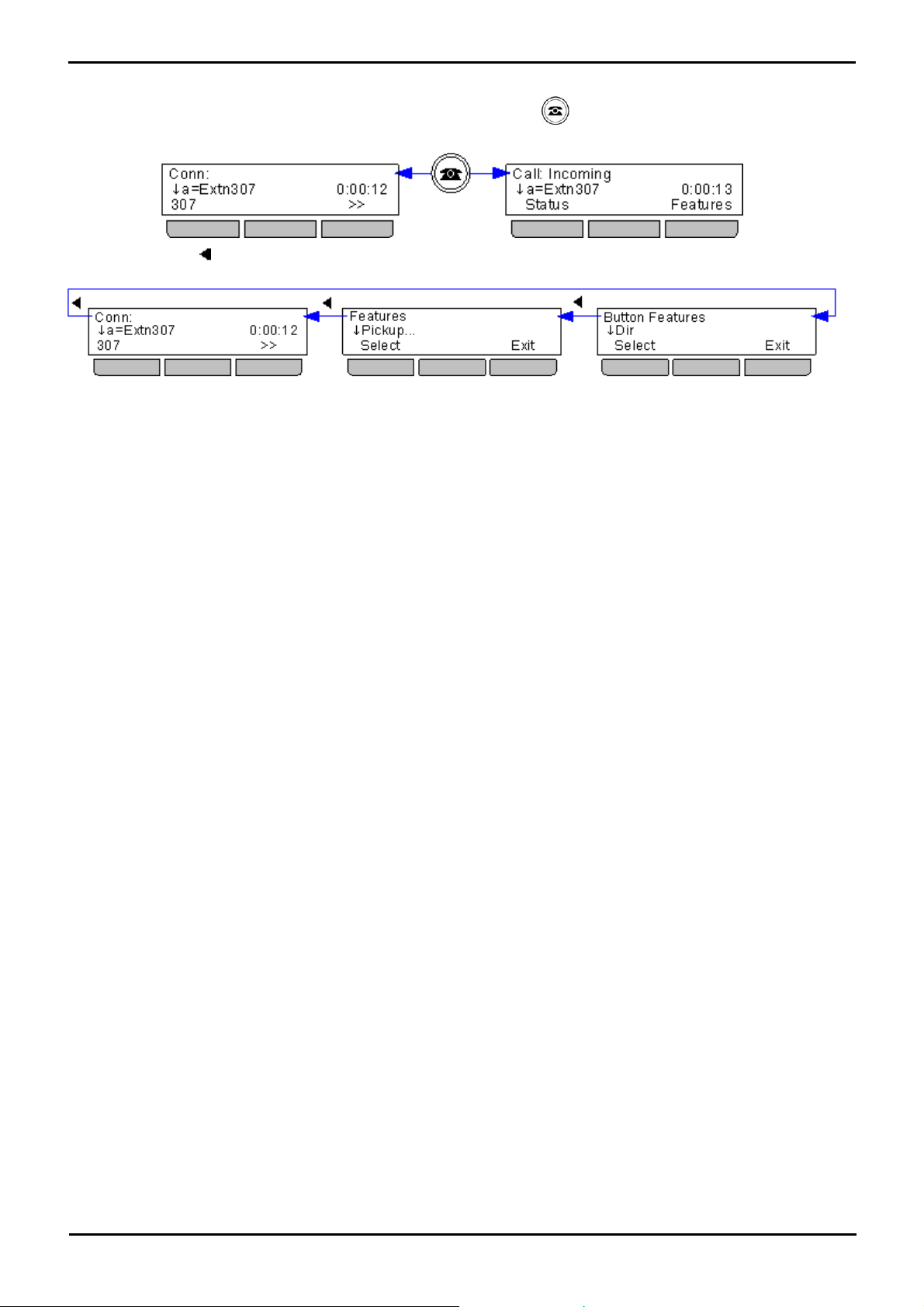
Introduction: The Main Phone Menus
Switching Menus
With a call connected, you can still access the other main menus. Press the PHONE key to toggle between the
normal appearance menu or one that lists the other menus accessible.
You can also use the left arrow key to switch between the Appearance menu , Features menu and Button Features
menu.
1408, 1416, 1608 and 1616 Phone Guide Page 17
15-601040 Issue 03g (19 November 2010)IP Office Release 6.0
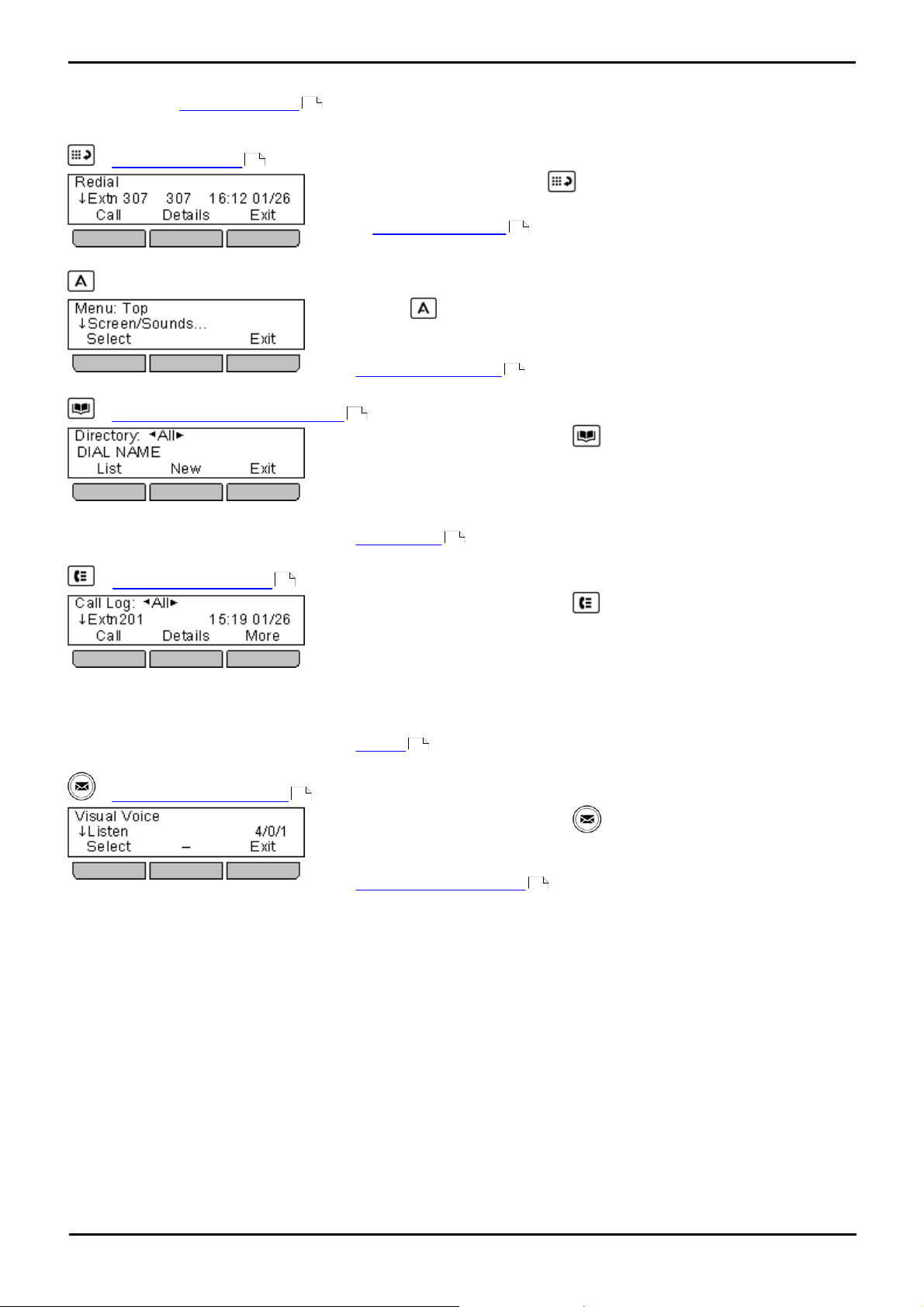
1.10 Other Menus
This menu accesses by pressing the key. It shows a list of up to the 10 last
outgoing calls that you have made.
You can configure your phone
to simply redial the last number dialed in which
case the menu is not shown.
Pressing the MENU key accesses a menu that can be used to control
various phone settings. These are mainly settings stored by the phone rather
than user settings that move with you.
The Phone A-Menu diagram shows a summary of the menu options.
This menu is accessed by pressing the key. It is used to display names and
numbers that you can then use for making calls.
The directory includes names stored for use by all users, names stored for use
by just you and the name and numbers of all the other users and groups on the
phone system.
The Contact Menu diagram shows a summary of the menu options.
This menu is accessed by pressing the key. The call log you see is a call log
stored on the telephone system. If you login at another 1408, 1416, 1608 or
1616 phone, your call log moves with you.
Your call log contains your 10 most recent answered calls, 10 most recent calls
you made and 10 most recent missed calls.
If configured by the system administrator, it can also include calls missed by
hunt groups of which you are a member.
The Call Log
menu diagram shows a summary of the menu options.
This menu is accessed by pressing the key. It is used to access the
voicemail system and to then play messages in your voicemail mailbox, record
and send messages to other users and to change various mailbox settings.
The Visual Voice menu diagram
shows a summary of the menu options.
In addition to the main phone menus , there are a number of additional menus which are accessed by pressing specific
keys.
16
— The Redial Menu
46
— The A Menu
— The Contacts/Directory Menu
— The Call Log Menu
90
47
230
80
233
232
— The Visual Voice Menu
96
1408, 1416, 1608 and 1616 Phone Guide Page 18
228
15-601040 Issue 03g (19 November 2010)IP Office Release 6.0
Introduction: Other Menus
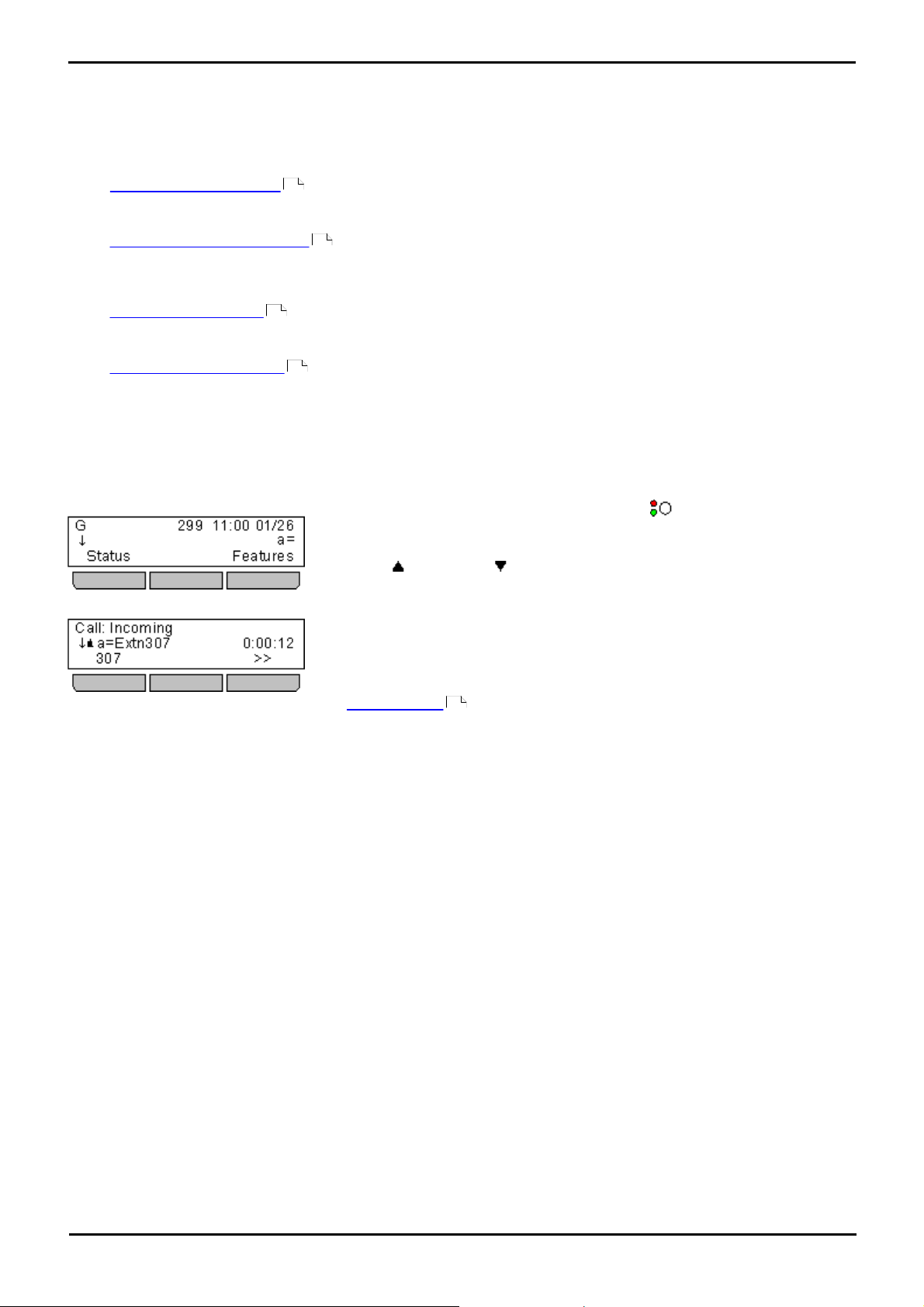
This menu is used to display information about the buttons that have been
configured for appearance functions. These will normally be the first 3 button on
the phone but the system administrator can configure additional buttons.
Using the up and down arrow keys you can scroll through the details of
each of the buttons.
The display for buttons that currently have a call in progress will show details of
the associated call.
The display for buttons that are idle will show the default label for the button
and also soft key labels for accessing the other main menus.
Those buttons that have not been configured as appearance buttons can be used
as feature buttons
.
1.11 Appearance Buttons/Menu
Appearance buttons are used to represent calls made and received by you and other users on the telephone system. They
are configured by your system administrator. Normally your first 3 buttons are call appearance buttons but additional
buttons can be configured as appearance buttons.
There are 4 different types of appearance keys that your system administrator can configure:
· Call Appearance Buttons
These represent ordinary phone calls. Each call appearance that you have can be used to make and or receive calls.
By default you normally have 3 call appearance keys and no other appearance keys.
· Bridged Appearance Buttons
These appearance keys each match a specific call appearance key of another user. They allow you to answer the
other user’s calls on the matching call appearance or to make a call that the other user can then pickup using their
matched call appearance.
· Call Coverage Buttons
These appearance keys represent another user. When that other user has any calls alerting unanswered, the call
coverage key for that user will start alerting and can be used to answer the call.
· Line Appearance Buttons
These represent specific phone lines connected to the telephone system. You can use the button to make calls using
that line or to answer calls on that line. Several users can have line appearance keys that represent the same line.
Your phone’s display and the key lamps will indicate when the line is being used by other users as well as by
yourself.
Appearance Button Display/Menu
21
23
25
27
148
1408, 1416, 1608 and 1616 Phone Guide Page 19
15-601040 Issue 03g (19 November 2010)IP Office Release 6.0
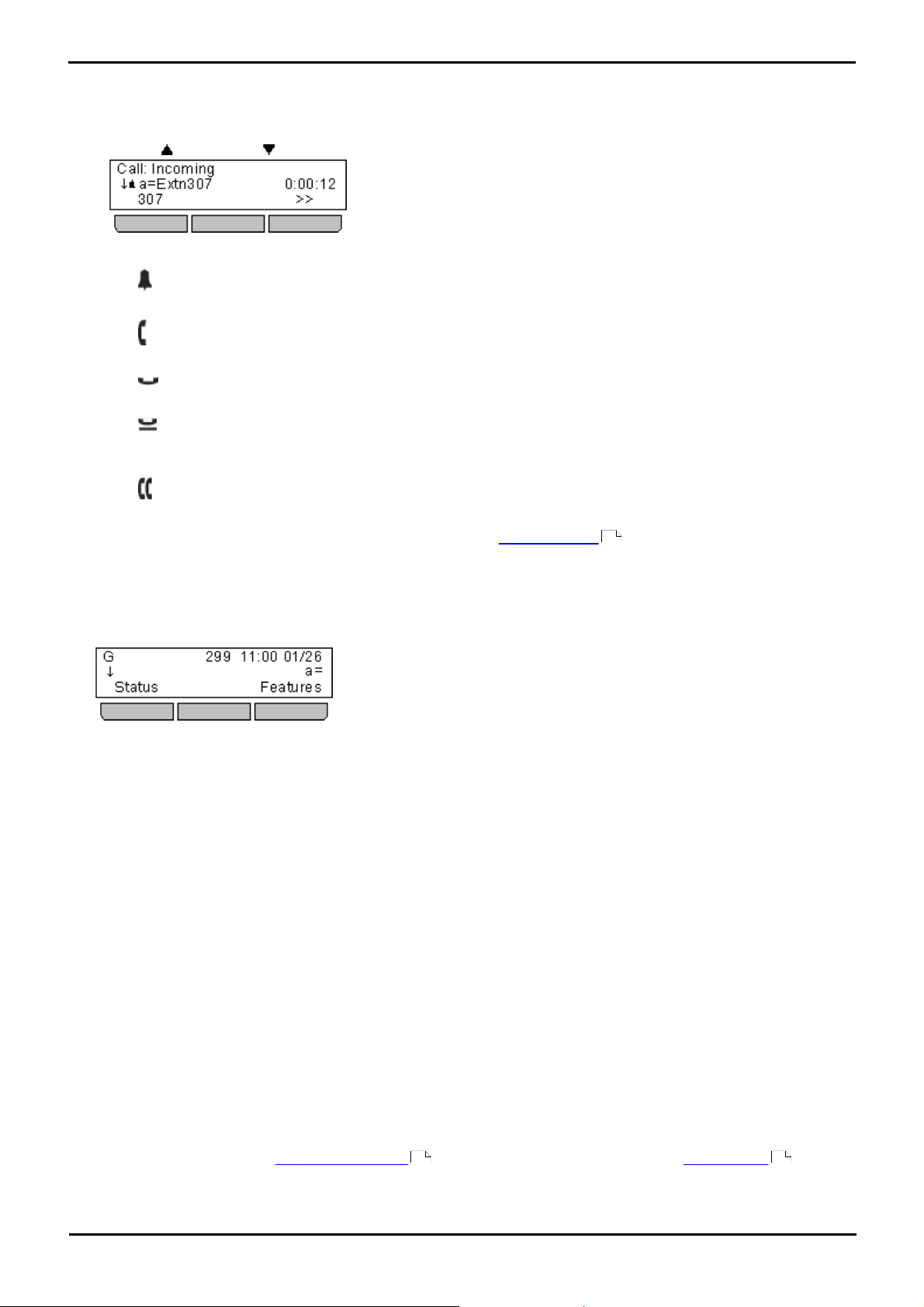
1.11.1 Using the Appearance Menu
These icons are shown to indicate the status of the call on the currently displayed appearance button:
Use the up and down arrow keys to scroll through details of the current call on each appearance button.
1.
If there is currently a call on the appearance button, an icon will be displayed indicating the status of the call.
2.
· Alerting
The call is alerting your phone.
· Connected
The call is the currently connected call to which you are talking.
· On Hold
The call is on hold.
· Held Elsewhere
The call has been put on hold by someone else who answered the call using an appearance button on their
phone.
· Conference
The call is a conference call.
A >> double-arrow at the bottom left indicates that there are soft key options available that could be applied to
3.
the call. To access these, press the >> double-arrow soft key and select the required function.
32
1.11.2 Phone Status Letters
The series of letters that appear in the top left of the display are used to indicate the status of various features.
· B = Barred
A B is shown on your phone’s display when the system administrator has set you to outgoing call barred status.
You will only be able to make internal calls while this is applied.
· D = Diverting (Forwarding) Calls
A D is shown on your phone’s display when you have forward unconditional enabled.
· G = Group Member (In Group)
A G is shown on your phone’s display when have been configured as a member of a hunt group and your
membership is enabled. While this is the case, you may receive calls targeted to the hunt group.
· N = No Calls (Do Not Disturb)
An N is shown on your phone’s display when you have do not disturb enabled.
· O = Out of Service
An O is shown on your phone’s display when any of the groups of which you are enabled as a member is set to
night service mode. In that mode calls to that group are diverted to its fallback if set or otherwise to voicemail if
available.
· T = Twinned
A T is shown on a phone’s display if it is internally twinned with your phone. Calls to you will alert on both phones
and can be answered by you at either phone.
· R = Resilience
An R is shown on your phone’s display your phone is working in resilience mode. This is used when there may have
been a problem with the telephone system to which your phone was registered and another IP Office system is
currently providing support for your phone. In this mode, some features may not be available and calls may be
routed differently.
· S = System Alarm
If you are configured as a system administrator , an S in the phone’s display indicates a system alarm .
(IP500 V2 only)
208 221
1408, 1416, 1608 and 1616 Phone Guide Page 20
15-601040 Issue 03g (19 November 2010)IP Office Release 6.0
Introduction: Appearance Buttons/Menu
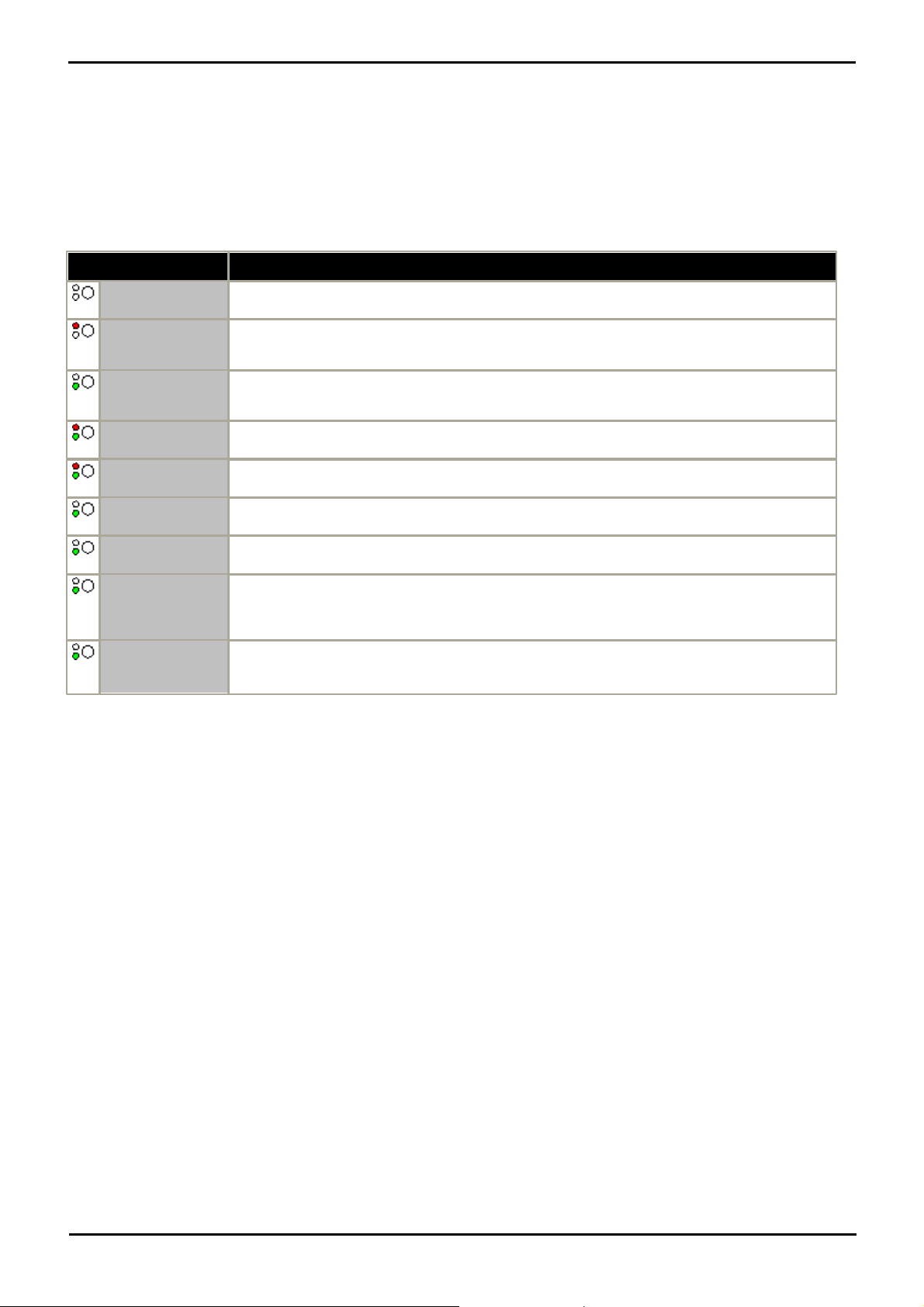
Idle
The call appearance is not in use and is not currently selected.
Idle + Selected
The call appearance is not in use but is the current selected button that will be used if the user
goes off hook.
Red off.
Green slow flash.
Alerting
The matching call appearance is alerting for an incoming call. This is accompanied by ringing. If
the user is already on a call, only a single ring is given.
Red on.
Green slow flash.
Alerting + Selected
As above but Ringing Line Preference has made this the user’s current selected button.
In Use Here
The user has a call connected on the call appearance or is dialing.
In Use Elsewhere
The call appearance button is in use on a bridged appearance.
Red off.
Green fast flash.
On Hold Here
The call has been put on hold by this user.
On Hold Elsewhere
A call on a bridged appearance button matched to the call appearance has been put on hold.
Calls on a call appearance that are put on hold by another user will continue to show connected
lamp status, though the phone display will indicate a held call.
Red off.
Green broken
flash.
Inaccessible
The button pressed is not accessible. The call is still dialing, ringing or cannot be bridged into.
1.11.3 Call Apperance Buttons
Call appearance buttons are used to display calls to and from your phone. By having several call appearance buttons, you
are able to answer and make several calls, switch between calls and perform other actions.
When all your call appearance buttons are in use, any further calls to your number follow your forward on busy setting if
set or otherwise go to voicemail if available.
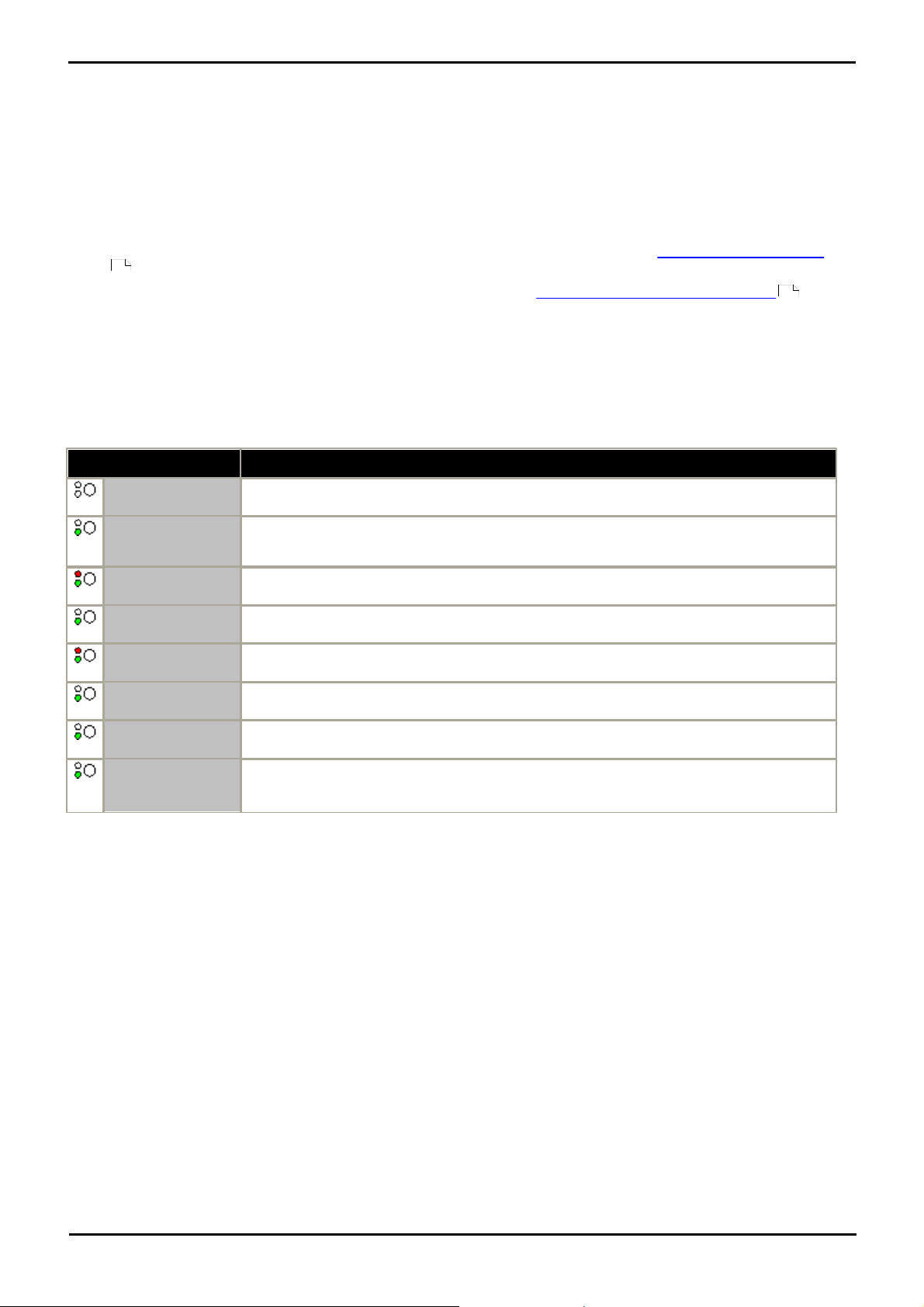
Call Appearance Button Lamps
The following lamp states are used by appearance buttons configured to be call appearance buttons.
1408, 1416, 1608 and 1616 Phone Guide Page 21
15-601040 Issue 03g (19 November 2010)IP Office Release 6.0

Call Appearance Button Display
Idle
Indicates that the call appearance is available to be used to make a call or to
receive an incoming call.
Alerting
This call appearance is alerting with an incoming call. You can press the >>
double-arrow soft key to select the Ignore or ToVm soft key options.
Outgoing Call
You have made a call with the appearance but it is not yet connected.
Connected
The appearance is the one with which you are currently talking.
Held
The call that you made or received on the call appearance has been put on hold by
the other party.
Holding
You have put the call on hold.
1408, 1416, 1608 and 1616 Phone Guide Page 22
15-601040 Issue 03g (19 November 2010)IP Office Release 6.0
Introduction: Appearance Buttons/Menu
Bridge Appearance Button State
Idle
The bridged appearance is not in use.
Red off.
Green slow flash.
Alerting
The matching call appearance is alerting for an incoming call. This is accompanied by ringing.
If the user is already on a call, only a single ring is given.
Red on.
Green slow flash.
Alerting + Selected
As above but Ringing Line Preference has made this the user’s current selected button.
In Use Elsewhere
The matching call appearance button is in use.
In Use Here
The user has made a call or answered a call on the bridged appearance, or bridged into it.
Red off.
Green fast flash.
On Hold Here
The call has been put on hold by this user.
On Hold Elsewhere
The call on that call appearance has been put on hold by another user.
Red off.
Green broken
flash.
Inaccessible
The button pressed is not useable. The call is still dialing, ringing or cannot be bridged into.
1.11.4 Bridged Appearance Buttons
A bridged appearance button shows the state of one of another user’s call appearance buttons. It can be used to answer
or join calls on that other user’s call appearance button. It can also be used to make a call that the call appearance user
can then join or retrieve from hold.
· When the user’s call appearance button alerts, your matching bridged appearance button also alerts. The bridged
appearance button can be used to answer the call on the call appearance button user’s behalf.
· When the call appearance button user answers or makes a call using that call appearance, your matching bridged
appearance button show the status of that call, for example connected, on hold, etc. The bridged appearance button
can be used to retrieve the call if on hold or to join the call if active.
· Bridged appearance buttons are not supported between users on different systems in a Small Community Network
243
.
If you have any bridged appearance and or call coverage buttons, you can set the type of ringing (coverage ring) that
should be used when a call alerts on any of those buttons. The options are to use normal ringing, a single non-repeated
ring (abbreviated ring) or no ring. The coverage ring setting is only used if you do not already have a connected call. If
you already have a connected call in progress, the shorter of your coverage ring and the system administrator set
attention ring settings is used.
Bridged Appearance Button Lamps
The following lamp states are used by appearance buttons configured to be bridged appearance buttons.
169
1408, 1416, 1608 and 1616 Phone Guide Page 23
15-601040 Issue 03g (19 November 2010)IP Office Release 6.0
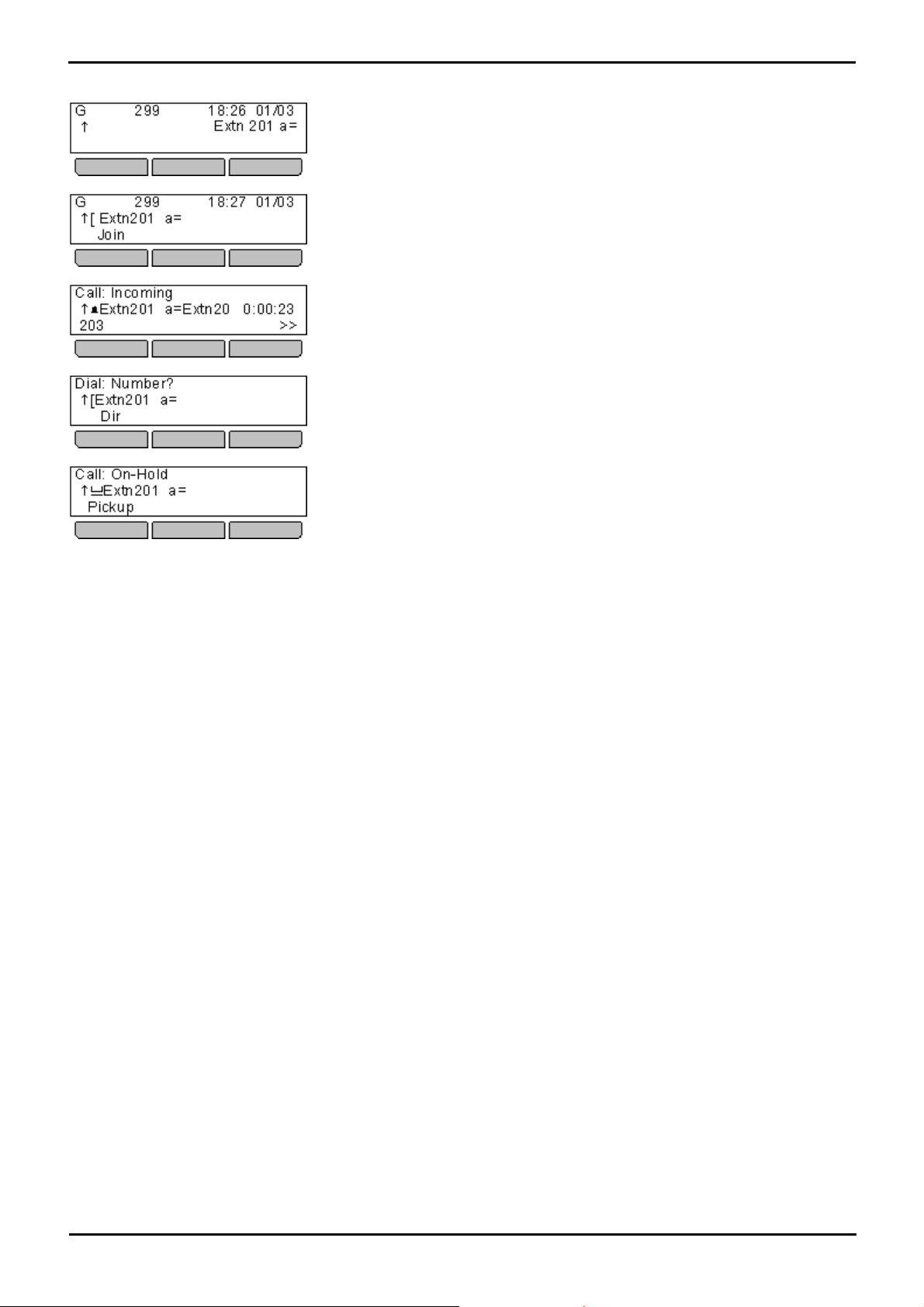
Bridged Appearance Button Display
Idle
By default, a bridged appearance is labeled with the name of the user and the label
of their call appearance button that your bridged appearance matches.
In Use
The bridged appearance will show when the matching call appearance is in use on
a call. The Join soft key, if displayed, indicates that you can intrude into the call to
make it a conference call by pressing the soft key or the bridged appearance
button.
Ringing
The bridged appearance will shown when the matching call appearance is being
presented a call to answer. Typically just a single ring is given on your phone,
however that can be changed by the system administrator. You can answer the call
by pressing the bridged appearance button.
Making a Call
If idle (see above), you can press the bridged appearance to make a call. The
matching call appearance will indicate that it is in use and the other user can join
the call by pressing that call appearance.
Held Call
If the other user puts their call on the matching call appearance on hold, your
bridged appearance will indicate the held call. You can retrieve the held call by
pressing the Pickup soft key or pressing the bridged appearance button.
1408, 1416, 1608 and 1616 Phone Guide Page 24
15-601040 Issue 03g (19 November 2010)IP Office Release 6.0
Introduction: Appearance Buttons/Menu
Call Coverage Button State
Idle
The button is not in use.
Red off.
Green slow flash.
Alerting
The call coverage is alerting for an unanswered call at the covered user’s phone. This is
accompanied by ringing. If the user is already on a call, only a single ring is given.
Red on.
Green slow flash.
Alerting + Selected
As above but Ringing Line Preference has made this the user’s current selected button.
In Use Here
The user has answered the call requiring coverage.
Red off.
Green fast flash.
On Hold Here
The covered call has been put on hold by the call coverage button user.
1.11.5 Call Coverage Buttons
Each call coverage button is associated with another user on your telephone system. The button allows you to be alerted
when that user has an unanswered call still ringing. You can view the details of the call and answer it if required.
The settings of the user being covered control how long it rings at their phone before it also starts alerting on your call
coverage button for that user. Call coverage appearance buttons are not supported between users on different systems in
a Small Community Network.
If you have any bridged appearance and or call coverage buttons, you can set the type of ringing (coverage ring) that
should be used when a call alerts on any of those buttons. The options are to use normal ringing, a single non-repeated
ring (abbreviated ring) or no ring. The coverage ring setting is only used if you do not already have a connected call. If
you already have a connected call in progress, the shorter of your coverage ring and the system administrator set
attention ring settings is used.
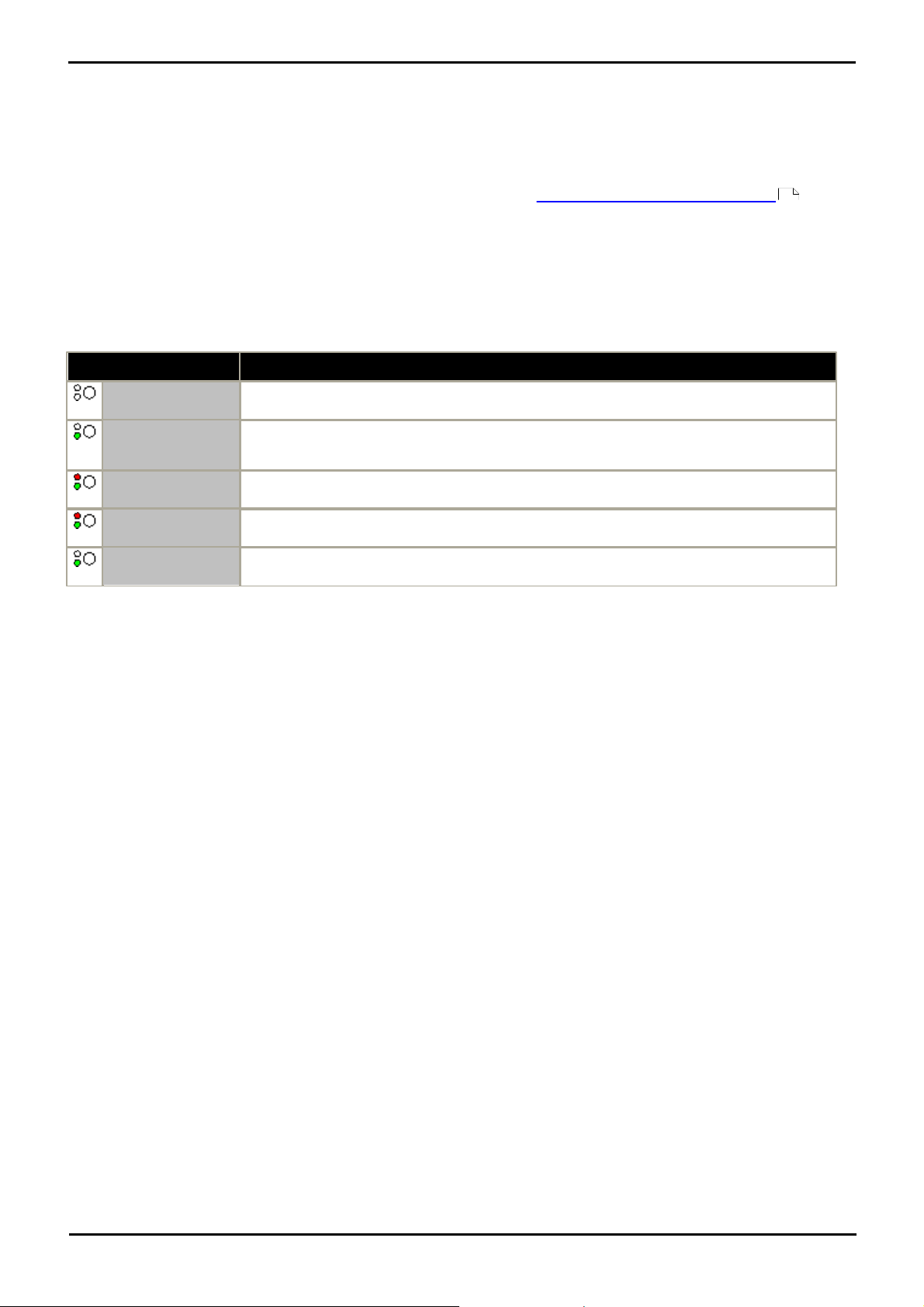
Call Coverage Button Lamps
The following lamp states are used by appearance buttons configured to be call coverage buttons.
169
1408, 1416, 1608 and 1616 Phone Guide Page 25
15-601040 Issue 03g (19 November 2010)IP Office Release 6.0
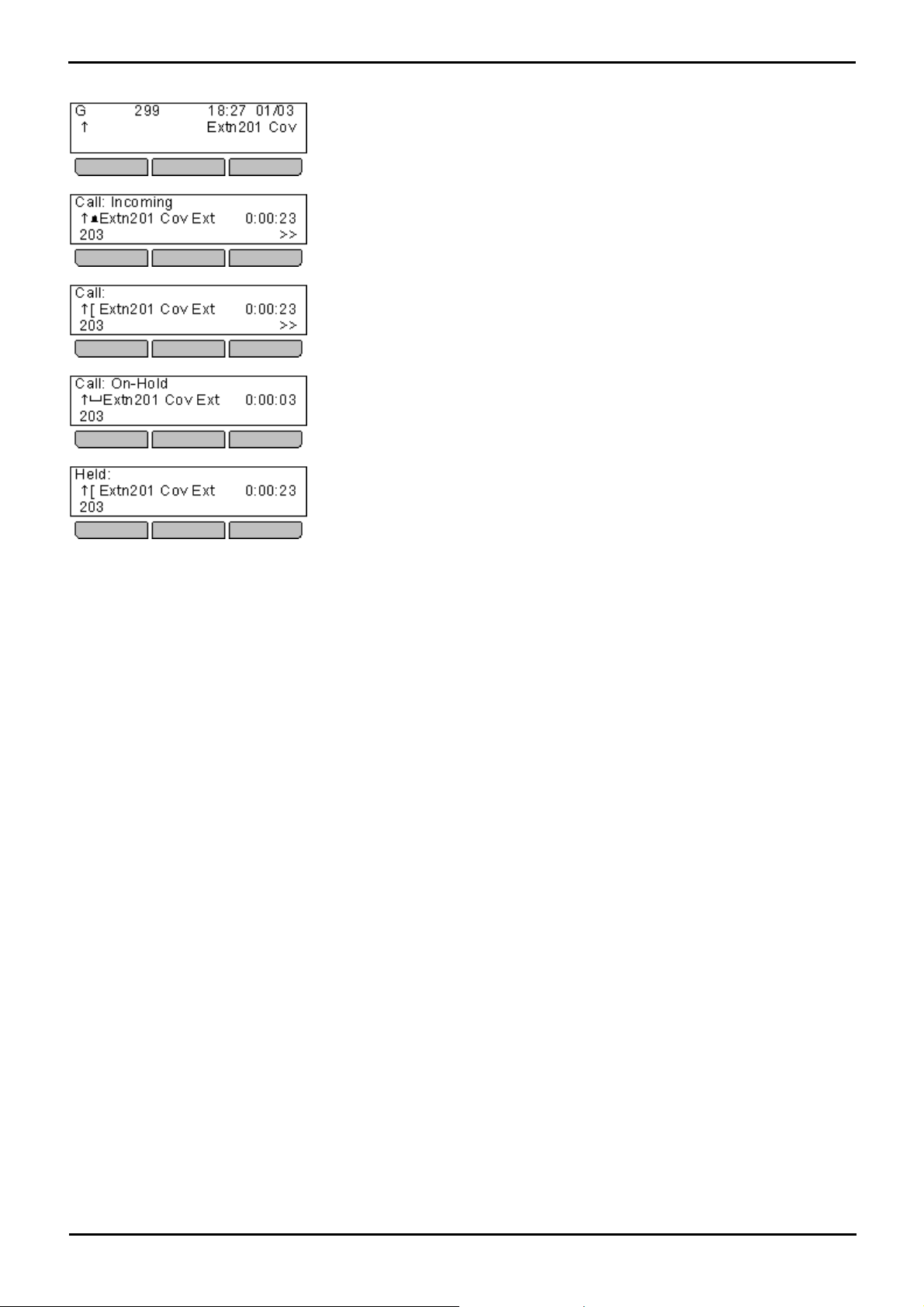
Call Coverage Button Display
Idle
By default the display shows the name of the user being covered and Cov. In this
state the button cannot be used to make calls or perform other actions.
Alerting
If the covered user has any alerting call, when their call coverage time is reached
the call will also being alerting on your call coverage button for that user. You can
answer the call by pressing the button.
Connected
When you use the call coverage button to answer the call, it becomes your call.
On Hold
When you put the call on hold, the
Held
If the call is from another internal user and they put the call on hold, the held state
is indicated. You can retrieve the call from hold by pressing the call coverage
button again.
1408, 1416, 1608 and 1616 Phone Guide Page 26
15-601040 Issue 03g (19 November 2010)IP Office Release 6.0
Introduction: Appearance Buttons/Menu
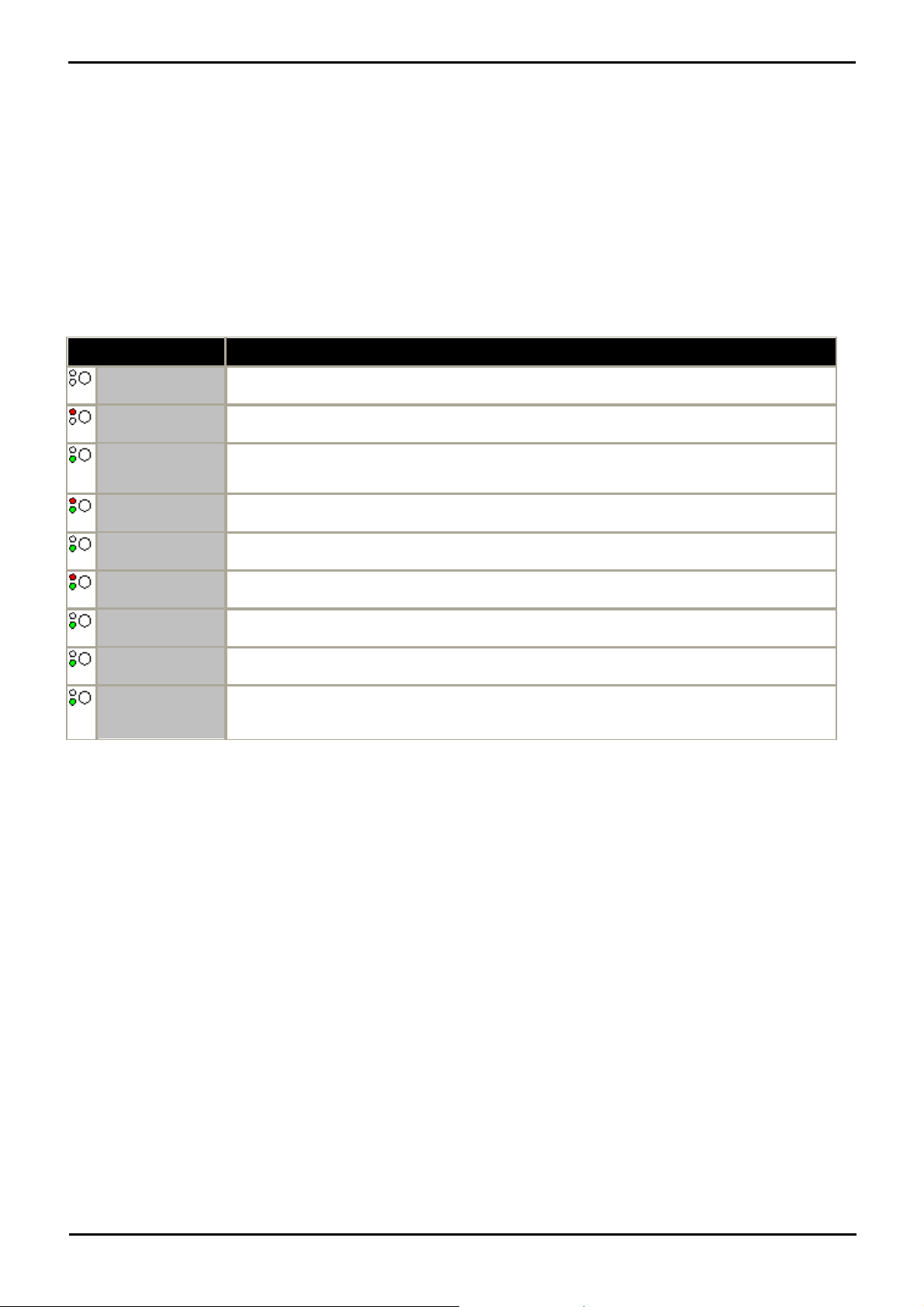
Line Appearance Button State
Idle
The associated line is not in use.
Idle + Selected
The associated line is not in use but the button is the user currently selected button.
Red off.
Green slow flash.
Alerting
The line is ringing at it incoming call route destination. This is accompanied by ringing. If the
user is already on a call, only a single ring is given.
Red on.
Green slow flash.
Alerting + Selected
As above but Ringing Line Preference has made this the user’s current selected button.
In Use Elsewhere
The line is in use.
In Use Here
The user has answered the line, made a call on it or bridged into the call on the line.
Red off.
Green fast flash.
On Hold Here
The call on the line has been put on hold by this user.
On Hold Elsewhere
The call on the line has been put on hold by another appearance button user.
Red off.
Green broken
flash.
Inaccessible
The button pressed is not accessible. The call is still dialing, ringing, routing or cannot be
bridged into.
1.11.6 Line Appearance Buttons
Line appearance buttons allow you to make and receive calls on a specific telephone line connected to your telephone
system. The button also allows you to see when the line is in use by other users.
For incoming calls, the telephone system still determines the destination for the call. That may be a user or group.
However, if you have a line appearance button for the line, you will see that there is a call alerting and can answer it if
required.
· Private Lines
Special behaviour is applied to calls where the user has both a line appearance for the line involved and is also the
Incoming Call Route destination of that call. Such calls will alert only on the Line Appearance button and not on any
other buttons. These calls will also not follow any forwarding.
Line Appearance Button Lamps
The following lamp states are used by appearance buttons configured to be line appearance buttons.
1408, 1416, 1608 and 1616 Phone Guide Page 27
15-601040 Issue 03g (19 November 2010)IP Office Release 6.0


Chapter 2.
Making Calls
1408, 1416, 1608 and 1616 Phone Guide Page 29
15-601040 Issue 03g (19 November 2010)IP Office Release 6.0
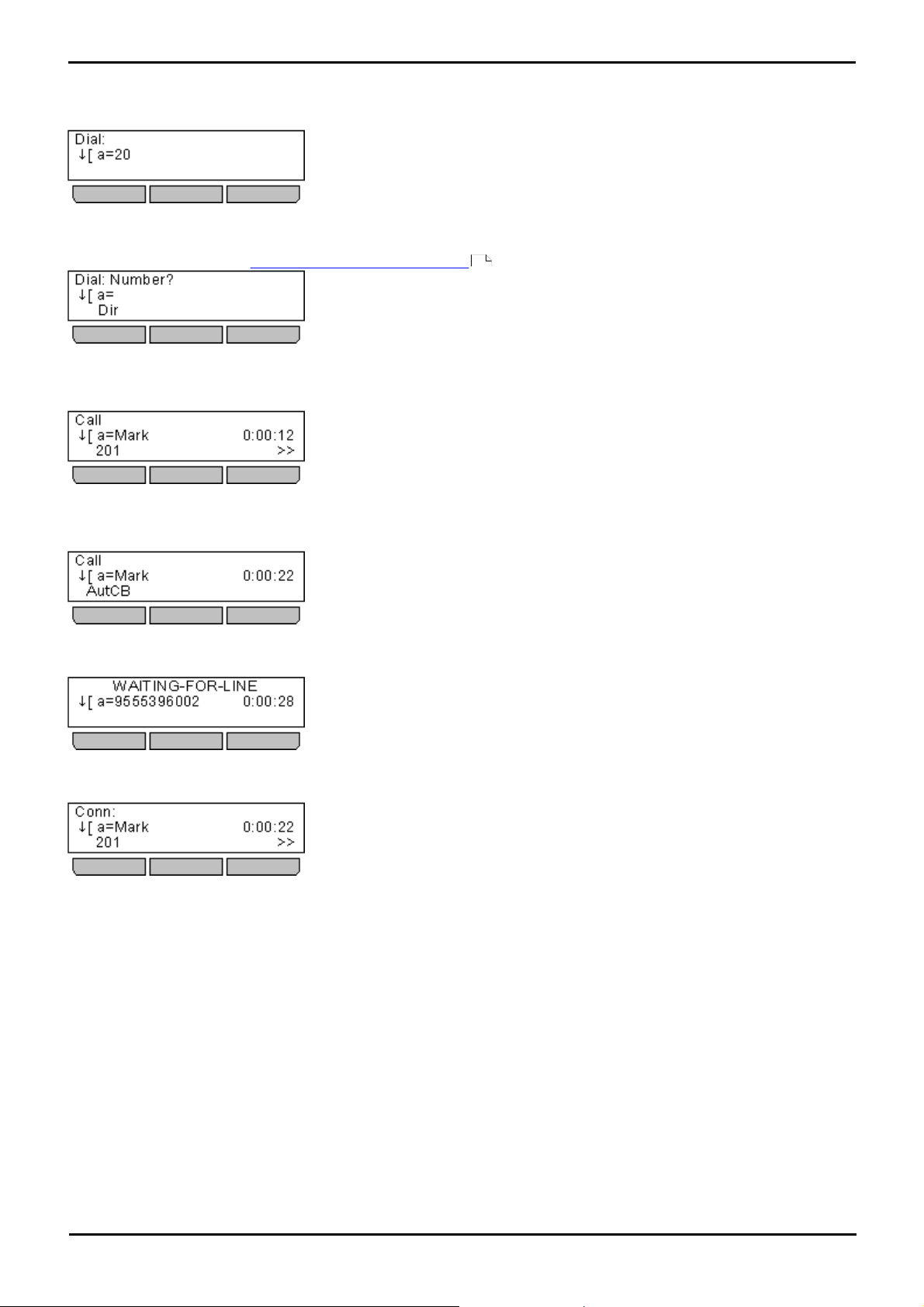
2. Making Calls
If you are not already on a call, then you can just dial the number. The currently selected appearance button, shown by a
red lamp, will be used for the call.
Alternatively, you can press a specific appearance button in order to make a call using that button. Using this method you
can press the Dir soft key to select a number from the directory .
If the number you dial matches a user or group on the telephone system, the directory name of the user or group is
shown and the call starts altering the target.
If the call is to a user, and they do not answer, press the >> double-arrow soft key to access additional options. For
example, to set a callback, press the AutCB soft key.
If the call is external and no external line is currently available, the message WAITING FOR LINE is displayed.
83
The display will indicate when the call is connected to the destination or to an outgoing line.
1408, 1416, 1608 and 1616 Phone Guide Page 30
15-601040 Issue 03g (19 November 2010)IP Office Release 6.0
Loading…
- June 15, 2024
- Avaya
Table of Contents
- AVAYA 1416 IP Office Telephone
- Product Information
- Product Usage Instructions
- OVERVIEW
- Contacts
- Avaya Menu
- For More Information
- LEDs
- Answering and Making a Call
- Conference Calls
- Advanced Telephone Features
- Call Log
- References
- Read User Manual Online (PDF format)
- Download This Manual (PDF format)
AVAYA 1416 IP Office Telephone
Product Information
- Specifications
- Product Name: IP Office 1416
- Model: 1416
- Type: Deskphone
- Edition: Avaya one-X Deskphone Value Edition
Product Usage Instructions
- Contacts
- Calling a person from the contacts list:
- Press the CONTACTS button.
- Scroll up or down to select the person or number you want to call.
- Press the OK button or the call soft key.
- Editing a contact:
- Press the CONTACTS button.
- Scroll to the contact you want to edit.
- Press the Details soft key.
- Press the Edit soft key.
- Scroll up or down to choose the field you want to edit.
- Use the dial pad and soft keys to make changes to the contact information.
- Press the Save soft key or the OK button to save your changes.
- Avaya Menu
- You can use the Avaya Menu to adjust and customize phone settings, select the display language, view network settings, and log out. The Avaya Menu has six sub-menus: Changing the language:
- Press the A button.
- Scroll to Advanced Options. Press the Select soft key or the OK button.
- Select Language. Press the Select soft key or the OK button.
- Scroll up or down to select a display language.
- Press the Select soft key or the OK button to change to the selected language.
- Press the OK button to confirm selection.
- Scrolling and Navigation
- Answering and Making a Call Making a Call:
- Dial the number you want to call.
- When answered, either lift the handset or continue on speakerphone.
- Putting a Call on Hold:
- While connected to the call, press HOLD.
- To resume the call, press the call appearance for the held call (fast flashing green lamp).
- Transferring a Call:
- While connected to the call you want to transfer, press TRANSFER.
- Dial the telephone number.
- Press TRANSFER again to complete the transfer.
- Conference Calls
- Making a conference call:
- While active on a call, press the CONFERENCE button. The call is put on hold.
- Call the person you want to add to a conference.
- When they answer, if they want to join the conference press the CONFERENCE button again. If they do not want to join the conference, press the DROP button. Then press the fast flashing green button.
- Advanced Telephone Features
- The features that are available to you depend on what your administrator has assigned to your telephone. A few of the most commonly administered features are explained below. For more information about all the features that are available for your extension, contact your system administrator.
- FAQ
- Where can I find more information and support?
- For more information, including user guide, administrator guide, installation and maintenance guide, interactive document, and software downloads, please visit www.avaya.com/support.
OVERVIEW
Avaya one-X™ Deskphone Value Edition

Contacts
Calling a person from the contacts list
- Press the CONTACTS button.
- Scroll up or down to select the person or number you want to call.
- Press the OK button or the call soft key.
Adding a new contact
- Press the CONTACTS button.
- Press the More soft key.
- Press the New soft key.
- Enter the name using the dial pad. To enter characters using the dial pad:
- a. Repeatedly press the number key that corresponds to the letter or number you want to enter until the letter or number is displayed.
- b. Pause before entering the next characters if the characters are on the same key.
- c. To enter a space, press 0.
- d. Enter remaining letters or numbers.
- e. Press the Bksp soft key to delete the last character.
- Press the OK button or the OK soft key.
- Enter the telephone number.
- Press the Save soft key or the OK button.
Editing a contact
- Press the CONTACTS button.
- Scroll to the contact you want to edit.
- Press the Details soft key.
- Press the Edit soft key.
- Scroll up or down to choose the field you want to edit.
- Use the dial pad and soft keys to make changes to the contact information.
- Press the Save soft key or the OK button to save your changes.
You can use the Avaya Menu to adjust and customize phone settings, select the
display language, view network settings, and log out. The Avaya Menu has six
sub-menus:
- Screen/Sound – lets you adjust the display brightness and contrast, select your ringing pattern, turn button click sounds on and off, and turn error tones on and off.
- Call Settings – This lets you turn the call timer display, visual alerting, and show incoming calls on or off; set the redial option; and set the audio path to speakerphone or headset.
- Applications – This lets you turn call logging on and off as well as turn to log of bridged calls, line calls, and line calls answered by others on and off.
Changing the language
- Press the A button.
- Scroll to Advanced Options. Press the Select soft key or the OK button.
- Select Language. Press the Select soft key or the OK button.
- Scroll up or down to select a display language.
- Press the Select soft key or the OK button to change to the selected language.
- Press the OK button to confirm the selection.
For More Information
Go to www.avaya.com/support. for the latest
support information, including user guide, administrator guide, installation
and maintenance guide, interactive document, and software downloads.
LEDs
Call Appearance Button LEDs
Steady green| Call appearance connected/in use.
Slow blinking green| The call appearance is ringing/alerting.
Fast blinking green| The call appearance is on hold.
Steady red| Call appearance in use or is selected and will be used when
you go off-hook.
Off| Call appearance free/not in use.
Feature Button LEDs
Steady green| The feature is active.
Blinking green| The feature is pending (the request is being processed
and is not immediately available).
Blinking red| The feature is shown on the phone display.
Off| The feature is not available
Scrolling and Navigation
A navigation icon appears in the phone display to indicate that you can scroll
to more options or information. Use the up and down navigation arrows to
scroll up or down through lists. Use the right and left navigation arrows to
go to other screens or to move the cursor right or left when entering text.
When you scroll to a line on the display, that line is selected. The soft key
labels will change according to the options available for the selected line.
The OK button is a shortcut for the default action. For example, when you
select an entry in your contacts list, pressing the OK button places a call to
that person.
Answering and Making a Call
Answering a Call
- If you are not already on a call, lift the handset. If you are already on a call, press the alerting call appearance button (slow flashing green lamp) put the existing call on hold, and answer the alerting call.
- To answer the call on speakerphone, press the SPEAKER button.
- To answer the call using a headset, press the HEADSET button.
Making a Call
- Dial the number you want to call.
- When answered, either lift the handset or continue on speakerphone.
Putting a Call on Hold
- While connected to the call, press HOLD.
- To resume the call, press the call appearance for the held call (fast flashing green lamp).
Transferring a Call
- While connected to the call you want to transfer, press TRANSFER.
- Dial the telephone number.
- Press TRANSFER again to complete the transfer.
Conference Calls
Making a conference call
- While active on a call, press the CONFERENCE button. The call is put on hold.
- Call the person you want to add to a conference.
- When they answer, if they want to join the conference press the CONFERENCE button again. If they do not want to join the conference, press the DROP button. Then press the fast flashing green button.
Adding a person to a conference call
- Press the HOLD button to put the conference on hold.
- Call the person you want to add to a conference.
- When they answer, if they want to join the conference press the CONFERENCE button again.
- If they do not want to join the conference, press the DROP button. Then press the fast flashing green button to rejoin the conference.
Advanced Telephone Features
The features that are available to you depend on what your administrator has
assigned to your telephone. A few of the most commonly administered features
are explained below. For more information about all the features that are
available for your extension, contact your system administrator.
Forwarding a call
- Press the CFrwd feature button. You hear a dial tone prompting you to dial the forwarding number.
- Dial the number you want to forward your calls to. After you dial the number, you hear a confirmation tone.
- To turn call forwarding off, press the CFwrd feature button.
Send all calls
- Press the SAC feature button to send all calls to coverage.
- To turn the feature off, press the SAC feature button.
Call Log
Calling a person from the call log
- Press the CALL LOG button.
- Scroll to the left or right to view a separate list of all, missed, answered, or outgoing calls.
- Scroll up or down to select the person or number you want to call.
- Press the OK button or the Call soft key.
Adding an entry from the call log to your contacts list
- Press the CALL LOG button.
- Scroll to the number that you want to add to your contacts list.
- Press the Details soft key.
- Press the +Contact soft key.
- To edit the name or number, scroll up or down and edit as appropriate.
- Press the Save soft key or the OK button.
Issue 2 (8th March 2010) Issue 2 (8th March 2010) IP Office 1416 Telephone
Quick Reference Guide IP Office 1416 Quick Reference Guide
References
- avaya.com/support
Read User Manual Online (PDF format)
Read User Manual Online (PDF format) >>
Download This Manual (PDF format)
Download this manual >>
Avaya IP Office 1416 — IP Telephone Quick Reference Guide
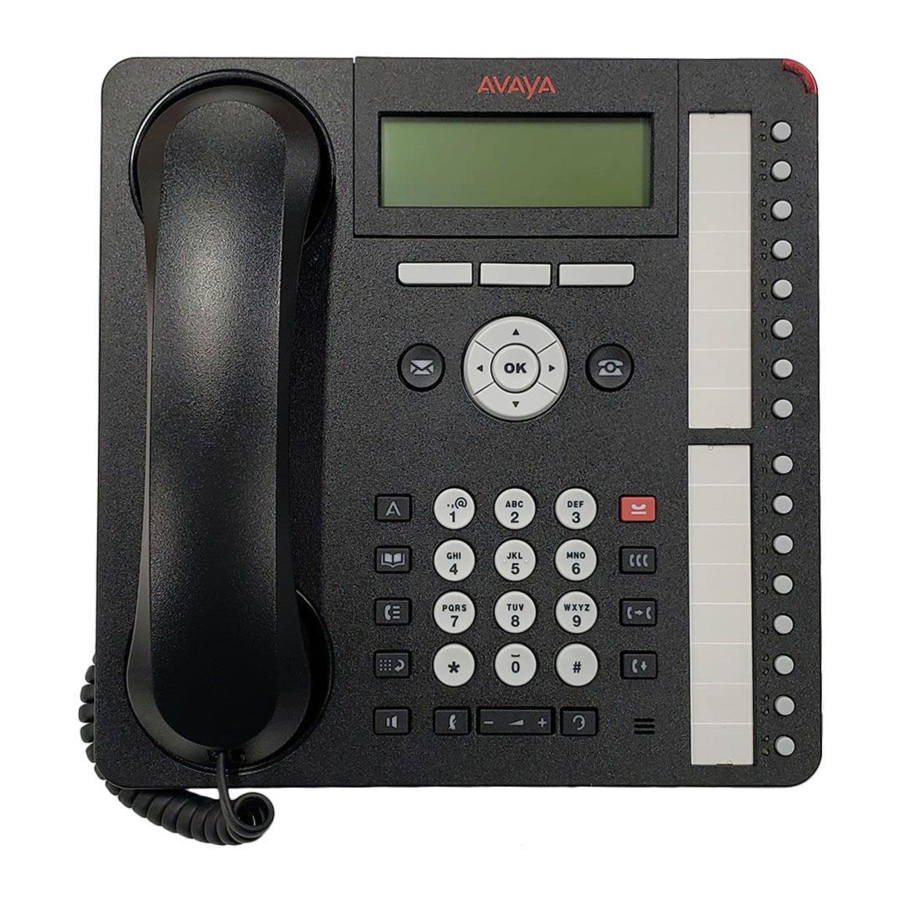
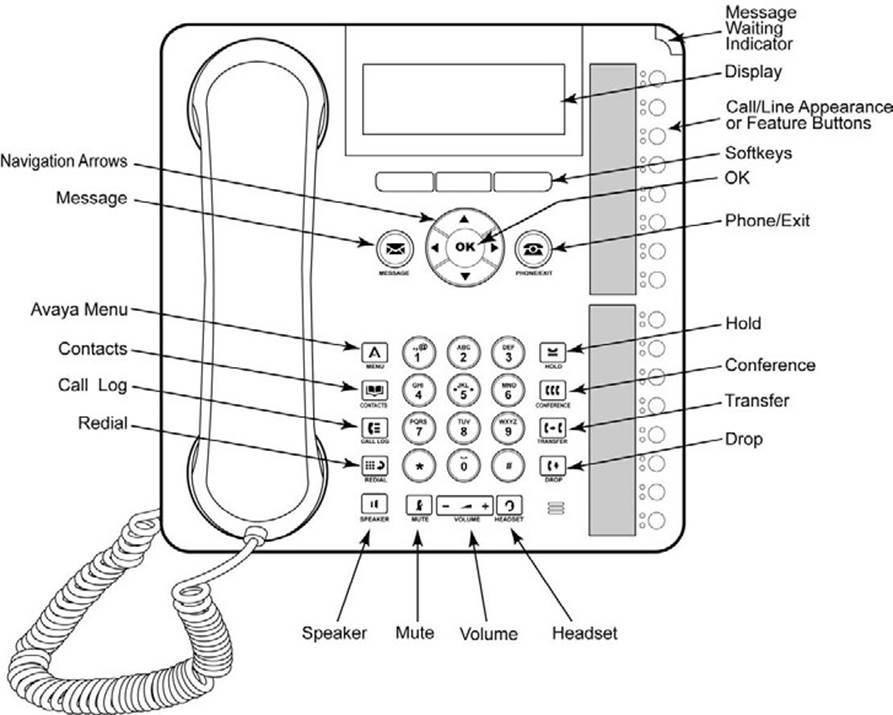
Device Оverview
LEDs
| Call Appearance Button LEDs | |
| Steady green | Call appearance connected/in use. |
| Slow blinking green | Call appearance is ringing/alerting. |
| Fast blinking green | Call appearance is on hold. |
| Steady red | Call appearance in use or is selected and will be used when you go offhook. |
| Off | Call appearance free/not in use. |
| Feature Button LEDs | |
| Steady green | Feature is active. |
| Blinking green | Feature is pending (request is being processed and not immediately available). |
| Blinking red | Feature is shown on the phone display. |
| Off | Feature is not available |
A navigation icon appears in the phone display to indicate that you can scroll to more options or information. Use the up and down navigation arrows to scroll up or down through lists. Use the right and left navigation arrows to go to other screens or to move the cursor right or left when entering text. When you scroll to a line on the display, that line is selected.
The soft key labels will change according to the options available for the selected line. The OK button is a shortcut for the default action. For example, when you select an entry in your contacts list, pressing the OK button places a call to that person.
Answering and Making a Call
Answering a Call
- If you are not already on a call, lift the handset. If you are already on a call, press the alerting call appearance button (slow flashing green lamp) puts the existing call on hold and answers the alerting call.
- To answer the call on speakerphone, press the SPEAKER button.
- To answer the call using a headset, press the HEADSET button.
Making a Call
- Dial the number you want to call.
- When answered, either lift the handset or continue on speakerphone.
Putting a Call on Hold
- While connected to the call, press HOLD.
- To resume the call, press the call appearance for the held call (fast flashing green lamp).
Transferring a Call
- While connected to the call you want to transfer, press TRANSFER.
- Dial the telephone number.
- Press TRANSFER again to complete the transfer.
Conference Calls
Making a conference call
- While active on a call, press the CONFERENCE button. The call is put on hold.
- Call the person you want to add to a conference.
- When they answer, if they want to join the conference press the CONFERENCE button again. If they do not want to join the conference, press the DROP button. Then press the fast flashing green button.
Adding a person to a conference call
- Press the HOLD button to put the conference on hold.
- Call the person you want to add to a conference.
- When they answer, if they want to join the conference press the CONFERENCE button again.
- If they do not want to join the conference, press the DROP button. Then press the fast flashing green button to rejoin the conference.
Advanced Telephone Features
The features that are available to you depend on what your administrator has assigned to your telephone. A few of the most commonly administered features are explained below. For more information about all the features that are available for your extension, contact your system administrator.
Forwarding a call
- Press the CFrwd feature button. You hear a dial tone prompting you to dial the forwarding number.
- Dial the number you want to forward your calls to. After you dial the number, you hear a confirmation tone.
- To turn call forwarding off, press the CFwrd feature button.
Send all calls
- Press the SAC feature button to send all calls to coverage.
- To turn the feature off, press the SAC feature button.
Call Log
Calling a person from the call log
- Press the CALL LOG button.
- Scroll to the left or right to view a separate list of all, missed, answered, or outgoing calls.
- Scroll up or down to select the person or number you want to call.
- Press the OK button or the Call soft key.
Adding an entry from the call log to your contacts list
- Press the CALL LOG button.
- Scroll to the number that you want to add to your contacts list.
- Press the Details soft key.
- Press the +Contact soft key.
- To edit the name or number, scroll up or down and edit as appropriate.
- Press the Save soft key or the OK button.
IP Office 1416 IP Quick Reference Guide
Calling a person from the contacts list
- Press the CONTACTS button.
- Scroll up or down to select the person or number you want to call.
- Press the OK button or the call soft key.
Adding a new contact
- Press the CONTACTS button.
- Press the More soft key.
- Press the New soft key.
- Enter the name using the dial pad. To enter characters using the dial pad:
- Repeatedly press the number key that corresponds to the letter or number you want to enter until the letter or number is displayed.
- Pause before entering the next characters if the characters are on the same key.
- To enter a space, press 0.
- Enter remaining letters or numbers.
- Press the Bksp soft key to delete the last character.
- Press the OK button or the OK soft key.
- Enter the telephone number.
- Press the Save soft key or the OK button.
Editing a contact
- Press the CONTACTS button.
- Scroll to the contact you want to edit.
- Press the Details soft key.
- Press the Edit soft key.
- Scroll up or down to choose the field you want to edit.
- Use the dial pad and soft keys to make changes to the contact information.
- Press the Save soft key or the OK button to save your changes.
You can use the Avaya Menu to adjust and customize phone settings, select the display language, view network settings, and log out. The Avaya Menu has six sub-menus:
- Screen/Sound — lets you adjust the display brightness and contrast, select your ringing pattern, turn button click sounds on and off, and turn error tones on and off.
- Call Settings — Lets you turn the call timer display, visual alerting, and show incoming calls on or off; set the redial option; and set the audio path to speakerphone or headset.
- Applications — Lets you turn call logging on and off as well as turn logging of bridged calls, line calls, and line calls answered by others on and off.
Changing the language
- Press the A button.
- Scroll to Advanced Options. Press the Select soft key or the OK button.
- Select Language. Press the Select soft key or the OK button.
- Scroll up or down to select a display language.
- Press the Select soft key or the OK button to change to the selected language.
- Press the OK button to confirm selection.
For More Information
Go to www.avaya.com/support for latest support information.
Documents / Resources
References
- http://www.avaya.com/support
Download manual
Here you can download full pdf version of manual, it may contain additional safety instructions, warranty information, FCC rules, etc.
Download Avaya IP Office 1416 — IP Telephone Quick Reference Guide