

Motherboard
PRIME H270-PLUS

ii
E12007
First Edition
September 2016
Copyright © 2016 ASUSTeK COMPUTER INC. All Rights Reserved.
No part of this manual, including the products and software described in it, may be reproduced,
transmitted, transcribed, stored in a retrieval system, or translated into any language in any form or by any
means, except documentation kept by the purchaser for backup purposes, without the express written
permission of ASUSTeK COMPUTER INC. (“ASUS”).
Product warranty or service will not be extended if: (1) the product is repaired, modied or altered, unless
such repair, modication of alteration is authorized in writing by ASUS; or (2) the serial number of the
product is defaced or missing.
ASUS PROVIDES THIS MANUAL “AS IS” WITHOUT WARRANTY OF ANY KIND, EITHER EXPRESS
OR IMPLIED, INCLUDING BUT NOT LIMITED TO THE IMPLIED WARRANTIES OR CONDITIONS OF
MERCHANTABILITY OR FITNESS FOR A PARTICULAR PURPOSE. IN NO EVENT SHALL ASUS, ITS
DIRECTORS, OFFICERS, EMPLOYEES OR AGENTS BE LIABLE FOR ANY INDIRECT, SPECIAL,
INCIDENTAL, OR CONSEQUENTIAL DAMAGES (INCLUDING DAMAGES FOR LOSS OF PROFITS,
LOSS OF BUSINESS, LOSS OF USE OR DATA, INTERRUPTION OF BUSINESS AND THE LIKE),
EVEN IF ASUS HAS BEEN ADVISED OF THE POSSIBILITY OF SUCH DAMAGES ARISING FROM ANY
DEFECT OR ERROR IN THIS MANUAL OR PRODUCT.
SPECIFICATIONS AND INFORMATION CONTAINED IN THIS MANUAL ARE FURNISHED FOR
INFORMATIONAL USE ONLY, AND ARE SUBJECT TO CHANGE AT ANY TIME WITHOUT NOTICE,
AND SHOULD NOT BE CONSTRUED AS A COMMITMENT BY ASUS. ASUS ASSUMES NO
RESPONSIBILITY OR LIABILITY FOR ANY ERRORS OR INACCURACIES THAT MAY APPEAR IN THIS
MANUAL, INCLUDING THE PRODUCTS AND SOFTWARE DESCRIBED IN IT.
Products and corporate names appearing in this manual may or may not be registered trademarks or
copyrights of their respective companies, and are used only for identication or explanation and to the
owners’ benet, without intent to infringe.
Offer to Provide Source Code of Certain Software
This product contains copyrighted software that is licensed under the General Public License (“GPL”),
under the Lesser General Public License Version (“LGPL”) and/or other Free Open Source Software
Licenses. Such software in this product is distributed without any warranty to the extent permitted by the
applicable law. Copies of these licenses are included in this product.
Where the applicable license entitles you to the source code of such software and/or other additional data,
you may obtain it for a period of three years after our last shipment of the product, either
(1) for free by downloading it from http://support.asus.com/download
or
(2) for the cost of reproduction and shipment, which is dependent on the preferred carrier and the location
where you want to have it shipped to, by sending a request to:
ASUSTeK Computer Inc.
Legal Compliance Dept.
15 Li Te Rd.,
Beitou, Taipei 112
Taiwan
In your request please provide the name, model number and version, as stated in the About Box of the
product for which you wish to obtain the corresponding source code and your contact details so that we
can coordinate the terms and cost of shipment with you.
The source code will be distributed WITHOUT ANY WARRANTY and licensed under the same license as
the corresponding binary/object code.
This offer is valid to anyone in receipt of this information.
ASUSTeK is eager to duly provide complete source code as required under various Free Open Source
Software licenses. If however you encounter any problems in obtaining the full corresponding source
code we would be much obliged if you give us a notication to the email address gpl@asus.com, stating
the product and describing the problem (please DO NOT send large attachments such as source code
archives, etc. to this email address).

iii
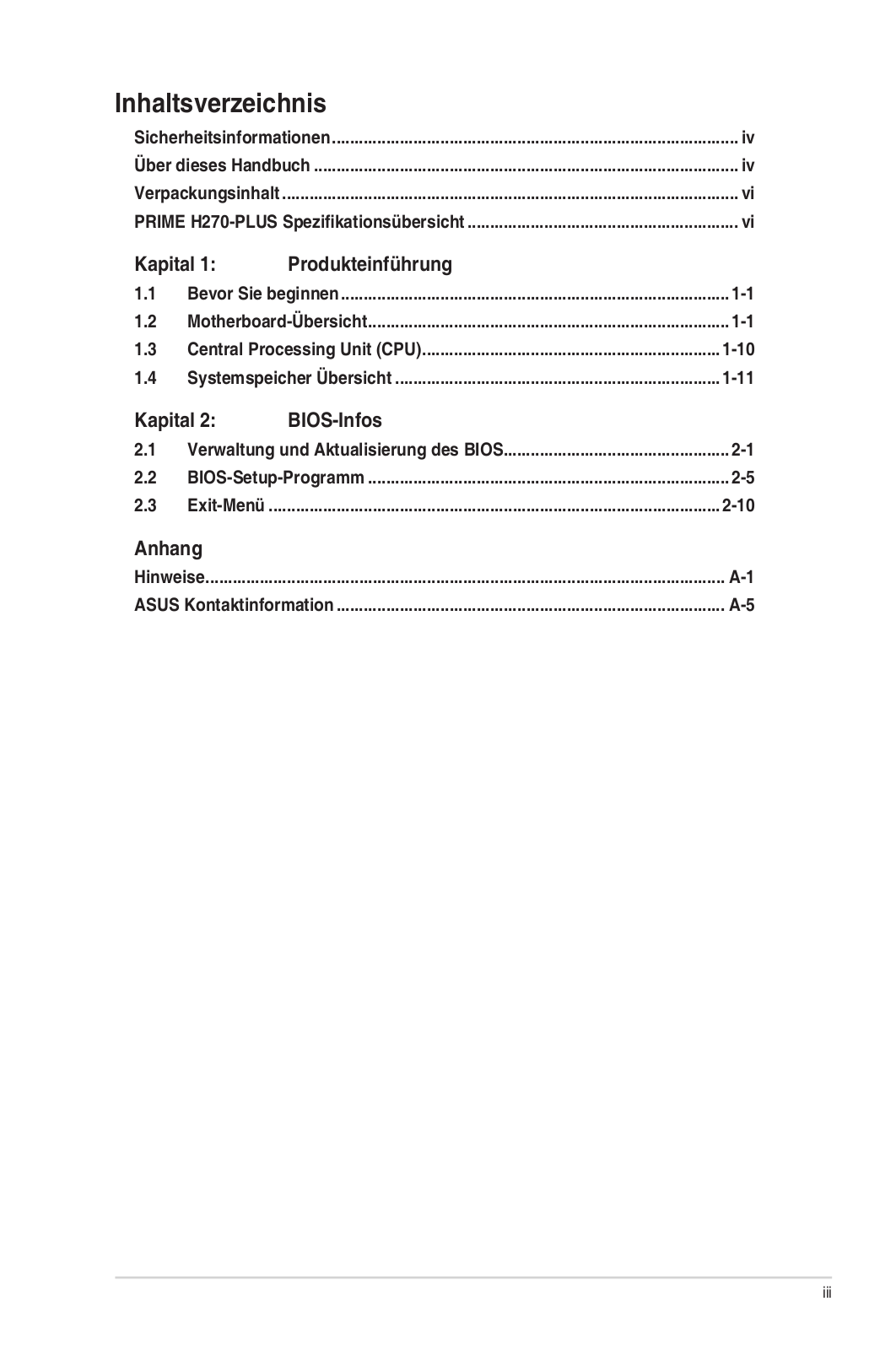
Contents
Safety information ………………………………………………………………………………………… iv
About this guide …………………………………………………………………………………………… iv
Package contents …………………………………………………………………………………………. vi
PRIME H270-PLUS specications summary ………………………………………………….. vi
Chapter 1: Product introduction
1.1 Before you proceed ………………………………………………………………………….. 1-1
1.2 Motherboard overview ……………………………………………………………………… 1-1
1.3 Central Processing Unit (CPU) ………………………………………………………… 1-10
1.4 System memory ……………………………………………………………………………… 1-11
Chapter 2: BIOS information
2.1 Managing and updating your BIOS ……………………………………………………. 2-1
2.2 BIOS setup program …………………………………………………………………………. 2-5
2.3 Exit menu ………………………………………………………………………………………. 2-10
Appendix
Notices ……………………………………………………………………………………………………… A-1
ASUS contact information ………………………………………………………………………….. A-4

iv
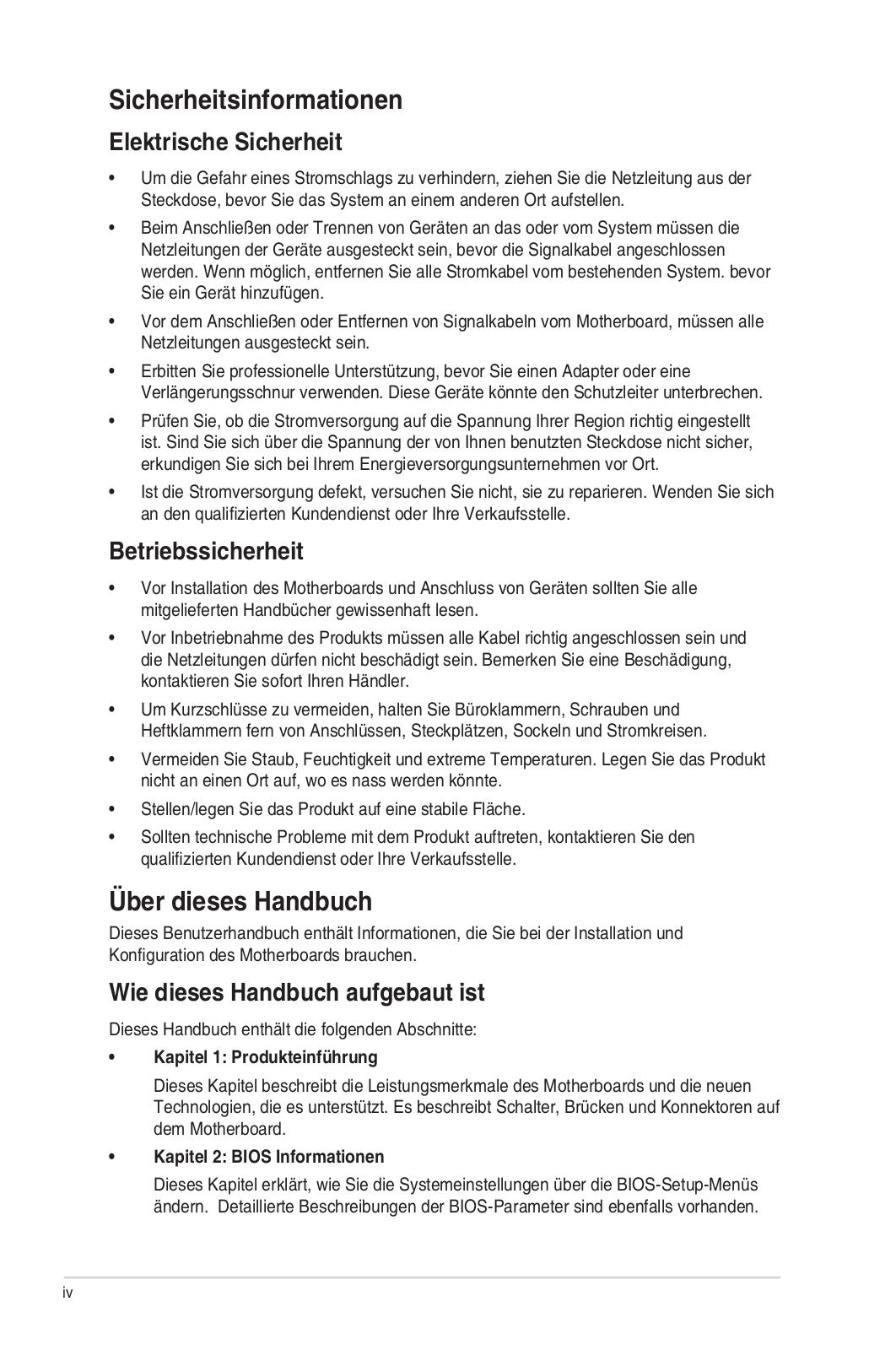
Safety information
Electrical safety
• To prevent electrical shock hazard, disconnect the power cable from the electrical outlet
before relocating the system.
• When adding or removing devices to or from the system, ensure that the power cables
for the devices are unplugged before the signal cables are connected. If possible,
disconnect all power cables from the existing system before you add a device.
• Before connecting or removing signal cables from the motherboard, ensure that all power
cables are unplugged.
• Seek professional assistance before using an adapter or extension cord. These devices
could interrupt the grounding circuit.
• Ensure that your power supply is set to the correct voltage in your area. If you are not
sure about the voltage of the electrical outlet you are using, contact your local power
company.
• If the power supply is broken, do not try to x it by yourself. Contact a qualied service
technician or your retailer.
Operation safety
• Before installing the motherboard and adding components, carefully read all the manuals
that came with the package.
• Before using the product, ensure all cables are correctly connected and the power cables
are not damaged. If you detect any damage, contact your dealer immediately.
• To avoid short circuits, keep paper clips, screws, and staples away from connectors,
slots, sockets and circuitry.
• Avoid dust, humidity, and temperature extremes. Do not place the product in any area
where it may be exposed to moisture.
• Place the product on a stable surface.
• If you encounter technical problems with the product, contact a qualied service
technician or your retailer.
About this guide
This user guide contains the information you need when installing and conguring the
motherboard.
How this guide is organized
This guide contains the following parts:
• Chapter 1: Product introduction
This chapter describes the features of the motherboard and the new technology it
supports. It includes descriptions of the switches, jumpers, and connectors on the
motherboard.
• Chapter 2: BIOS information
This chapter discusses changing system settings through the BIOS Setup menus.
Detailed descriptions for the BIOS parameters are also provided.
v
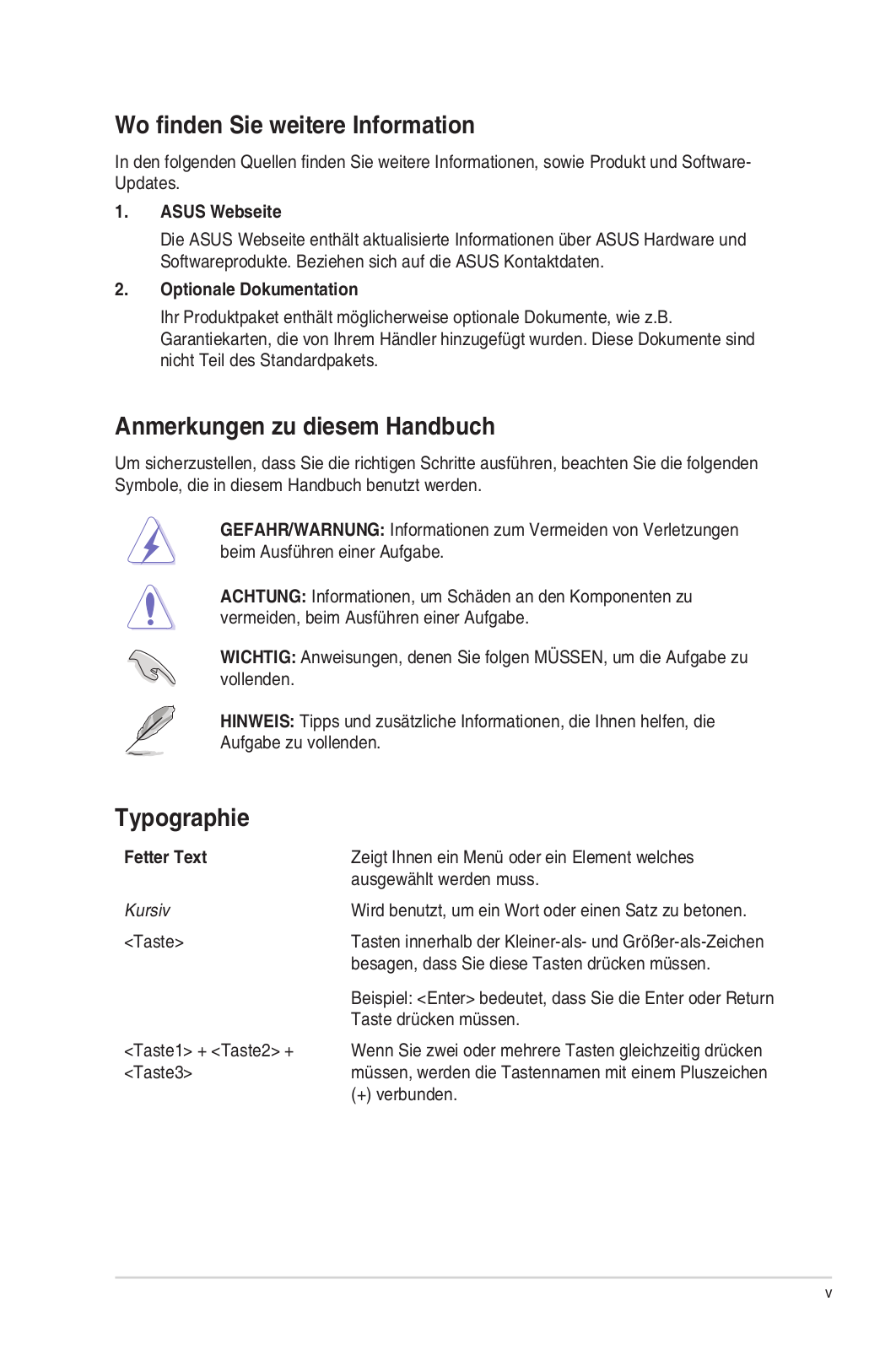
Where to nd more information
Refer to the following sources for additional information and for product and software
updates.
1. ASUS websites
The ASUS website provides updated information on ASUS hardware and software
products. Refer to the ASUS contact information.
2. Optional documentation
Your product package may include optional documentation, such as warranty yers,
that may have been added by your dealer. These documents are not part of the
standard package.
Conventions used in this guide
To ensure that you perform certain tasks properly, take note of the following symbols used
throughout this manual.
DANGER/WARNING: Information to prevent injury to yourself when
completing a task.
CAUTION: Information to prevent damage to the components when
completing a task
IMPORTANT: Instructions that you MUST follow to complete a
task.
NOTE: Tips and additional information to help you complete a task.
Typography
Bold text Indicates a menu or an item to select.
Italics
Used to emphasize a word or a phrase.
<Key> Keys enclosed in the less-than and greater-than sign
means that you must press the enclosed key.
Example: <Enter> means that you must press the Enter or
Return key.
<Key1> + <Key2> + <Key3> If you must press two or more keys simultaneously, the key
names are linked with a plus sign (+).

vi
(continued on the next page)
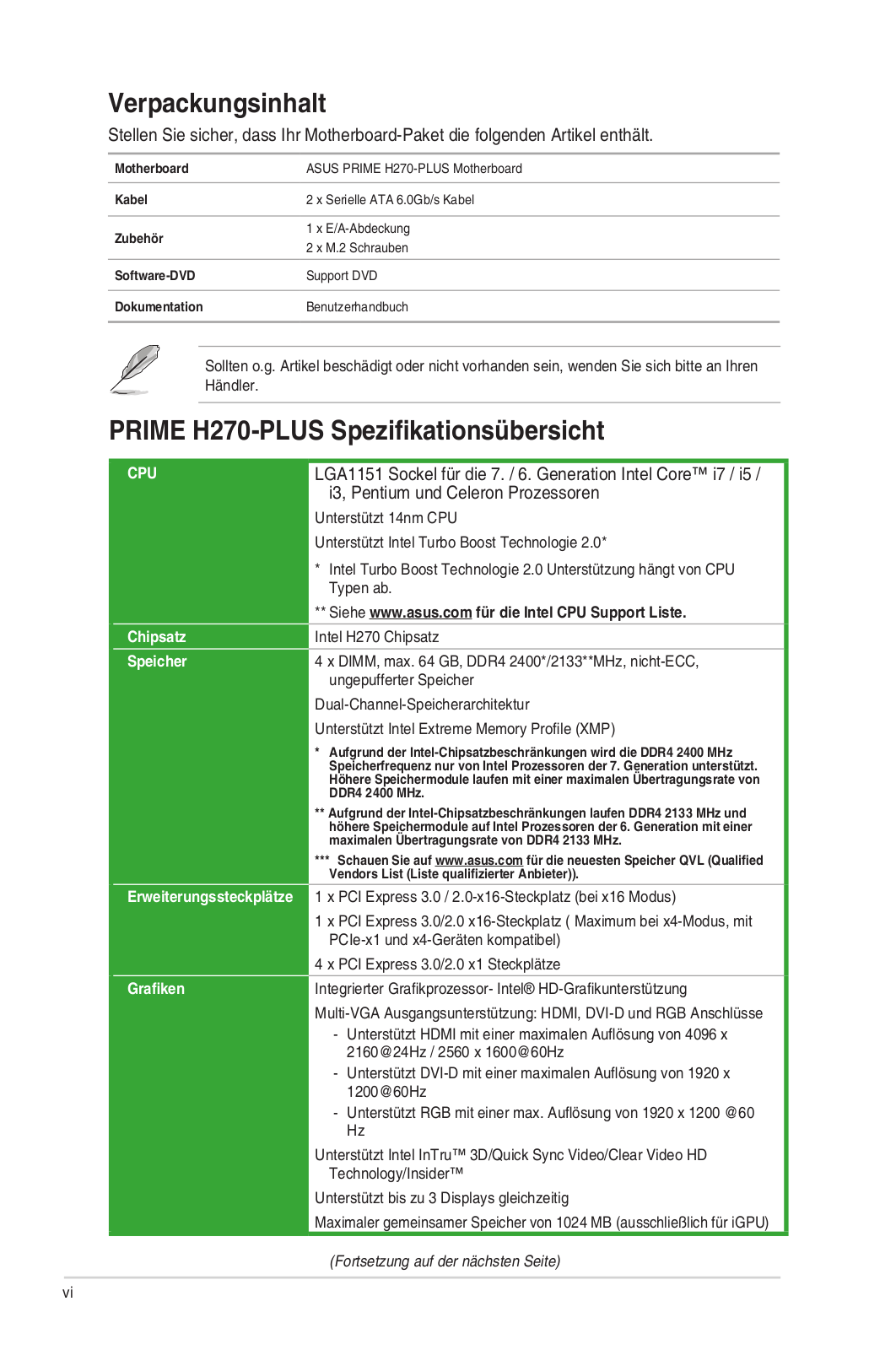
PRIME H270-PLUS specications summary
CPU LGA1151 socket for 7th/6th Generation Intel® Core™ i7/ i5/ i3
Pentium® and Celeron® processors
Supports 14nm CPU
Supports Intel® Turbo Boost Technology 2.0*
* Intel® Turbo Boost Technology 2.0 support depends on the CPU types.
** Refer to www.asus.com for Intel® CPU support list.
Chipset Intel® H270 Chipset
Memory 4 x DIMM, maximum 64 GB, DDR4 2400*/ 2133**MHz, non-ECC, un-
buffered memory
Dual-channel memory architecture
Supports Intel® Extreme Memory Prole (XMP)
* Due to Intel® chipset limitation, DDR4 2400MHz memory frequency is only
supported by 7th Generation Intel® processors. Higher memory modules will
run at the maximum transfer rate of DDR4 2400MHz.
** Due to Intel® chipset limitation, DDR4 2133MHz and higher memory modules
on 6th Generation Intel® processors will run at the maximum transfer rate of
DDR4 2133MHz.
*** Refer to www.asus.com for the latest Memory QVL (Qualied Vendors List).
Expansion slots 1 x PCI Express 3.0/2.0 x16 slot (at x16 mode)
1 x PCI Express 3.0/2.0 x16 slot (max. at x4 mode, compatible with PCIe x1
and x4 devices)
4 x PCI Express 3.0/2.0 x1 slots
Graphics Integrated graphics processor — Intel® HD Graphics support
Multi-VGA output support:HDMI,DVI-D, and RGB ports
— Supports HDMI 1.4b with max. resolution 4096 x 2160@24Hz / 2560 x
1600@60Hz
— Supports DVI-D with max. resolution of 1920 x 1200@60Hz
— Supports RGB with max. resolution 1920 x 1200@60Hz
Supports Intel® InTru™ 3D/Quick Sync Video/Clear Video HD Technology/
Insider™
Supports up to 3 displays simultaneously
Maximum shared memory of 1024MB(for iGPU exclusively)
Package contents
Check your motherboard package for the following items.
Motherboard ASUS PRIME H270-PLUS motherboard
Cables 2 x Serial ATA 6.0 Gb/s cables
Accessories 1 x I/O Shield
2 x M.2 Screws
Application DVD Support DVD
Documentation User Guide
If any of the above items is damaged or missing, contact your retailer.

vii
PRIME H270-PLUS specications summary
(continued on the next page)
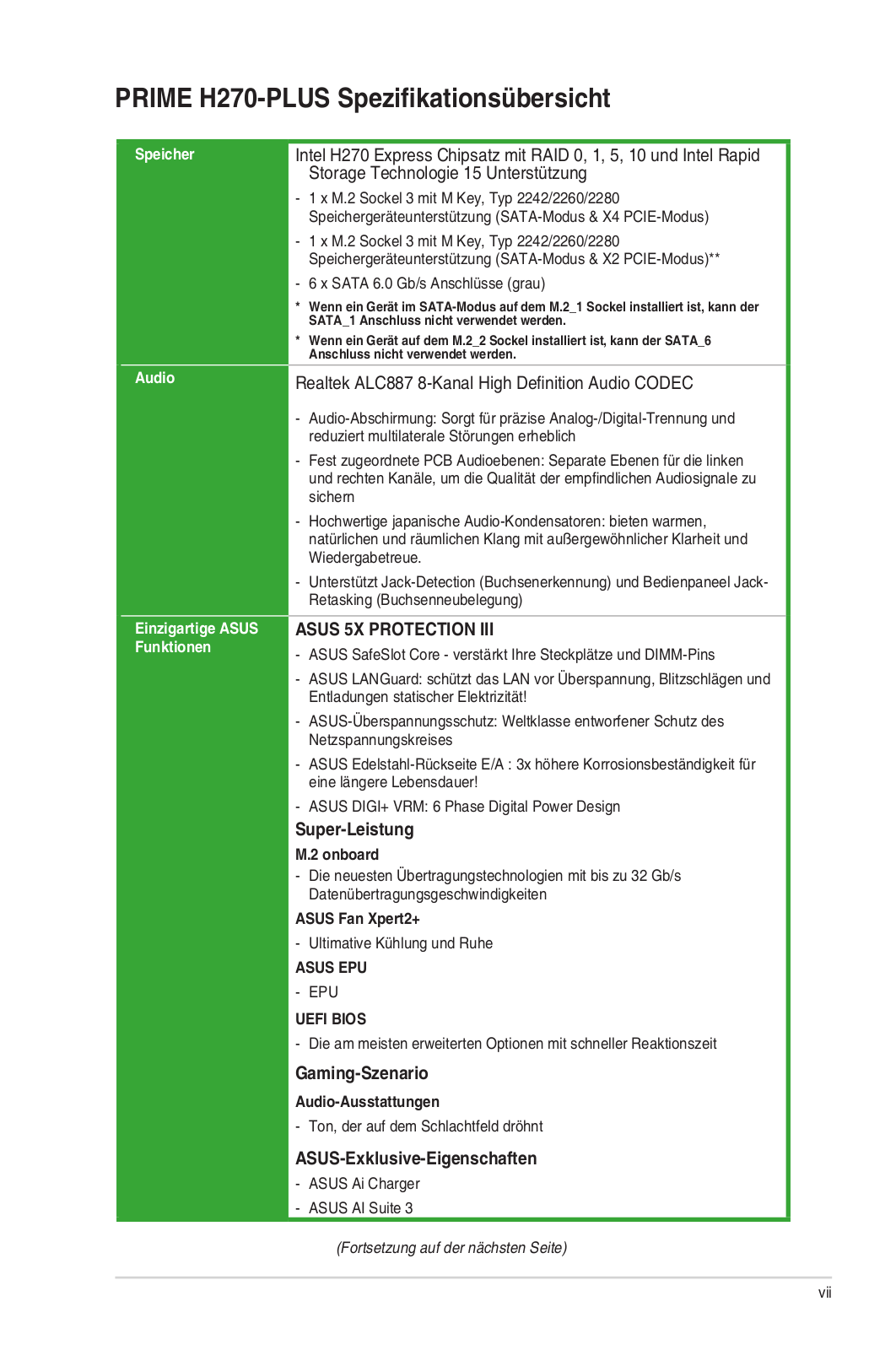
Storage Intel® H270 Express Chipset with RAID 0, 1, 5, 10 and Intel Rapid
Storage Technology 15 support
— 1 x M.2 Socket 3 with M Key, type 2242/2260/2280 storage devices support
(SATA mode & X4 PCIE mode)*
— 1 x M.2 Socket 3 with M Key, type 2242/2260/2280 storage devices support
(SATA mode & X2 PCIE mode)**
— 6 x SATA 6.0 Gb/s ports (gray)
— Ready for Intel® Optane memory***
* When a device in SATA mode is installed on the M.2_1 socket, SATA_1 port cannot
be used.
** When a device in SATA mode is installed on the M.2_2 socket, SATA_6 port cannot
be used.
*** Only M.2_1 socket can support Intel® Optane Memory. Intel® Optane Technology
is only supported when using 7th Generation Intel® processors. Before using Intel®
Optane memory modules, ensure that you have updated your motherboard drivers
and BIOS to the latest version from ASUS support website.
Audio Realtek® ALC887 8-channel high denition audio CODEC
— Audio Shielding: Ensures precision analog/digital separation and greatly
reduces multi-lateral interference
— Dedicated audio PCB layers: Separate layers for left and right channels to
guard the quality of the sensitive audio signals
— Premium Japanese audio capacitors: Provide warm, natural and immersive
sound with exceptional clarity and delity.
— Supports jack-detection and front panel jack-retasking
* Choose the chassis with HD audio module in front panel to support 8-channel audio
output.
ASUS unique
features
ASUS 5X PROTECTION III
— ASUS SafeSlot Core: Fortied PCIe Slot prevents damage
— ASUS LANGuard: Protects against LAN surges, lightning strikes and static-
electricity discharges!
— ASUS Overvoltage Protection: World-class circuit-protecting power design
— ASUS Stainless-Steel Back I/O: 3X corrosion-resistance for greater durability!
— ASUS DIGI+ VRM: 6 Phase digital power design
Superb Performance
M.2 onboard
— The latest transfer technologies with up to 32Gb/s data transfer speeds
ASUS Fan Xpert 2+
— Ultimate cooling and quietness
ASUS EPU
— EPU
UEFI BIOS
— Most advanced options with fast response time
Gaming Scenario
Audio Features
— Audio that roars on the battleeld

viii
ASUS unique
features
ASUS Exclusive Features
— ASUS Ai Charger
— ASUS AI Suite 3
EZ DIY
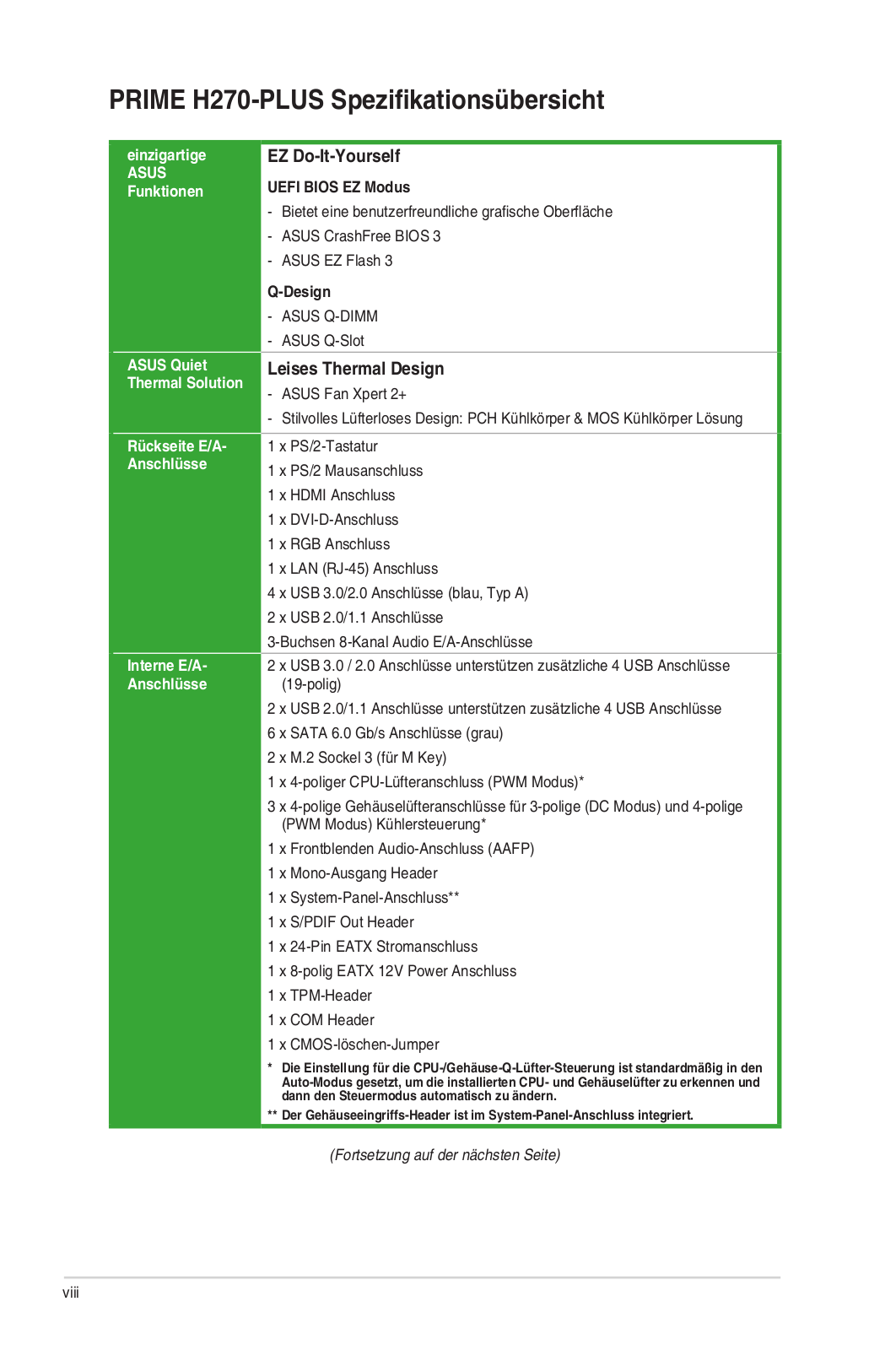
UEFI BIOS EZ Mode
— Featuring friendly graphics user interface
— ASUS CrashFree BIOS 3
— ASUS EZ Flash 3
Q-Design
— ASUS Q-DIMM
— ASUS Q-Slot
ASUS Quiet
Thermal Solution Quiet Thermal Design
— ASUS ASUS Fan Xpert 2+
— Stylish Fanless Design: PCH Heat-sink & MOS Heat-sink solution
Back Panel I/O
ports
1 x PS/2 keyboard
1 x PS/2 mouse port
1 x HDMI port
1 x DVI-D port
1 x RGB port
1 x LAN (RJ45) ports
4 x USB 3.0/2.0 ports ( blue, Type A)
2 x USB 2.0/1.1 ports
3-Jack 8-Channel Audio I/O ports
Internal I/O
connectors
2 x USB 3.0/2.0 connectors support additional 4 USB ports (19-pin)
2 x USB 2.0/1.1 connectors support additional 4 USB ports
6 x SATA 6.0 Gb/s connectors (gray)
2 x M.2 Socket 3 (for M Key)
1 x 4-pin CPU Fan connector (PWM mode)*
3 x 4-pin Chassis Fan connectors for 3-pin (DC mode) and 4-pin (PWM mode)
coolers control*
1 x Front panel audio connector (AAFP)
1 x Mono Out header
1 x System panel connector**
1 x S/PDIF out header
1 x 24-pin EATX Power connector
1 x 8-pin EATX 12V Power connector
1 x TPM header
1 x COM header
1 x Clear CMOS jumper
* By default, the CPU/Chassis Q-Fan control setting is set to Auto mode, which
detects the CPU and chassis fans installed and changes the control mode
automatically.
** Chassis intrusion header is built in the system panel connector.
PRIME H270-PLUS specications summary
(continued on the next page)
ix
Specications are subject to change without notice.
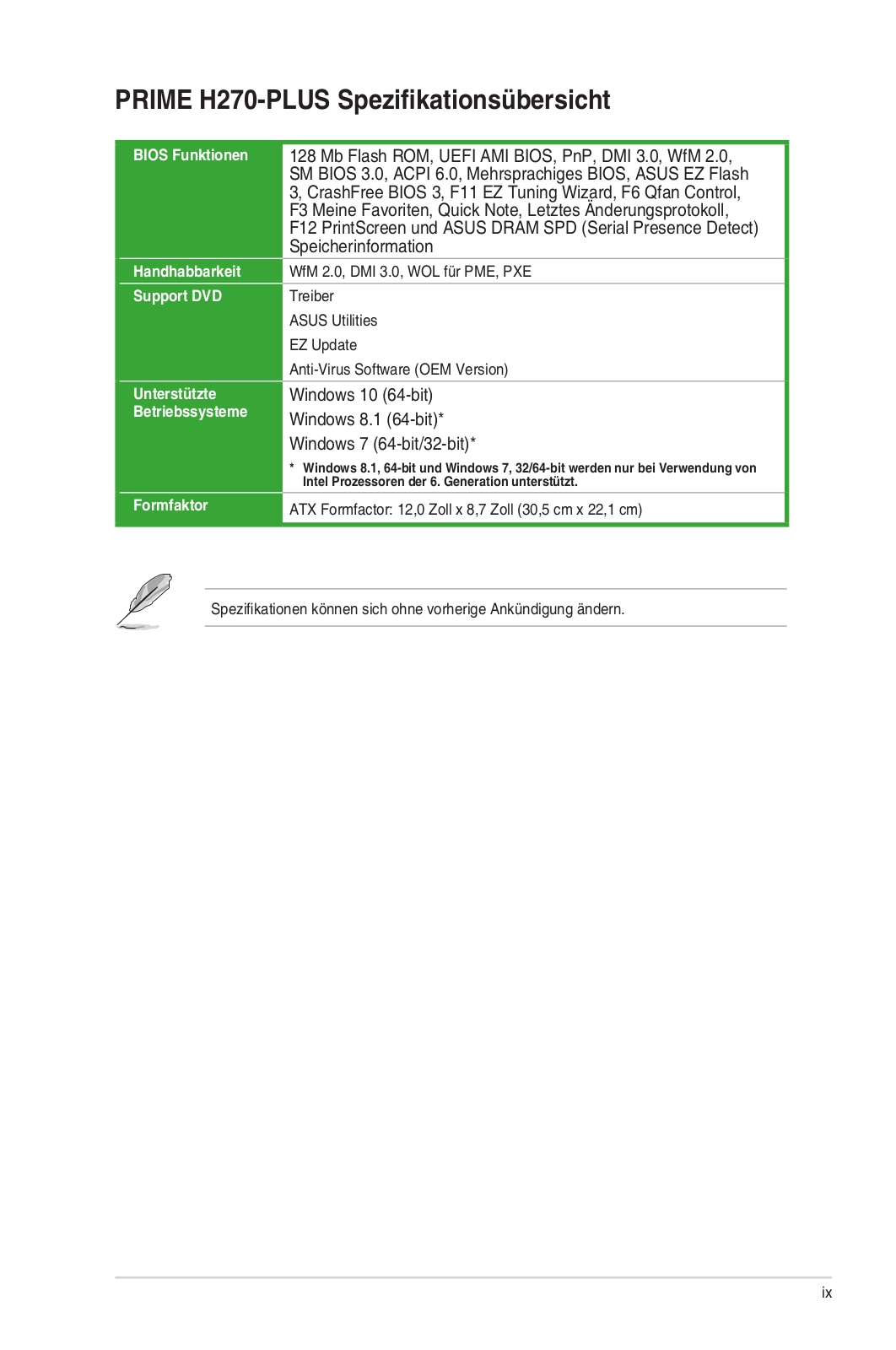
BIOS features 128 Mb Flash ROM, UEFI AMI BIOS, PnP, DMI3.0, WfM2.0, SM
BIOS 3.0, ACPI 6.0, Multi-language BIOS, ASUS EZ Flash 3,
CrashFree BIOS 3, F11 EZ Tuning Wizard, F6 Qfan Control, F3
My Favorites, Last Modied log, F12 PrintScreen, and ASUS
DRAM SPD (Serial Presence Detect) memory information
Manageability WfM 2.0, DMI 3.0, WOL by PME, PXE
Support DVD Drivers
ASUS utilities
EZ Update
Anti-virus software (OEM version)
Operating System
Support
Windows® 10 (64-bit)
Windows® 8.1 (64-bit)*
Windows® 7 (64-bit/32-bit)*
* Windows® 8.1 64-bit and Windows® 7 32/64-bit are only supported when using
6th Generation Intel® processors.
Form factor ATX form factor: 12.0 in. x 8.7 in. (30.5 cm x 22.1cm)
PRIME H270-PLUS specications summary
ASUS PRIME H270-PLUS
1-1
Product introduction
1
1.1 Before you proceed
Take note of the following precautions before you install motherboard components or change
any motherboard settings.
• Unplugthepowercordfromthewallsocketbeforetouchinganycomponent.
• Beforehandlingcomponents,useagroundedwriststraportouchasafelygrounded
objectorametalobject,suchasthepowersupplycase,toavoiddamagingthemdue
to static electricity.
• Beforeyouinstallorremoveanycomponent,ensurethattheATXpowersupplyis
switched off or the power cord is detached from the power supply. Failure to do so
maycauseseveredamagetothemotherboard,peripherals,orcomponents.
Unplugthepowercordbeforeinstallingorremovingthemotherboard.Failuretodosocan
cause you physical injury and damage motherboard components.
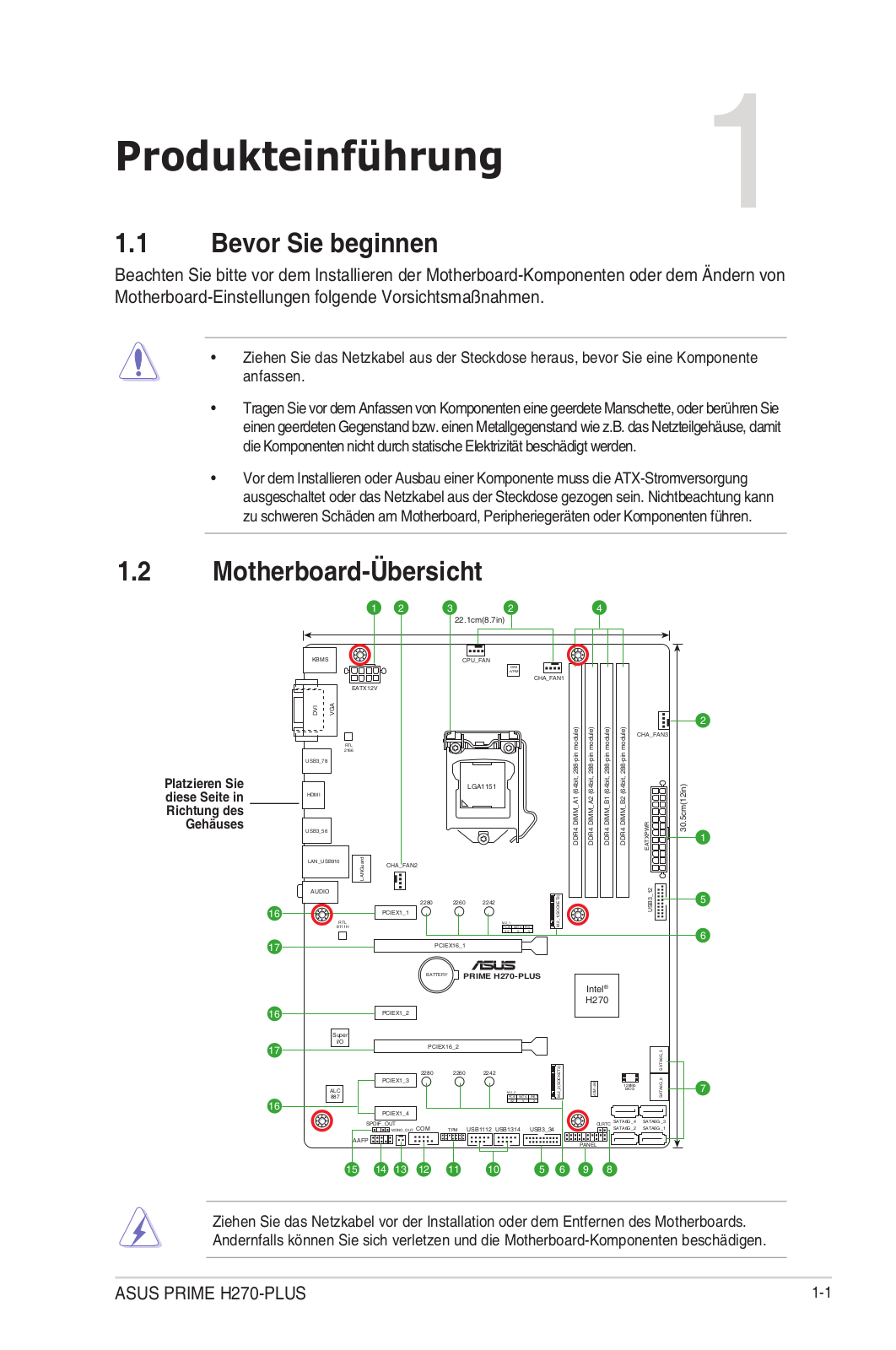
1.2 Motherboard overview
Place this
side towards
the rear of the
chassis
PRIME H270-PLUS
PCIEX16_1
PCIEX16_2
PCIEX1_3
PCIEX1_2
PCIEX1_1
PCIEX1_4
ALC
887
M.2_1(SOCKET3)
M.2_2(SOCKET3)
RTL
8111H
RTL
2166
USB1112 USB1314
AAFP
SPDIF_OUT CLRTC
EATXPWR
BATTERY
Super
I/O
2280 2260 2242
2280 2260 2242
KBMS
DVI
VGA
22.1cm(8.7in)
DDR4 DIMM_A1 (64bit, 288-pin module)
DDR4 DIMM_A2 (64bit, 288-pin module)
DDR4 DIMM_B1 (64bit, 288-pin module)
DDR4 DIMM_B2 (64bit, 288-pin module)
SATA6G_6 SATA6G_5
LAN_USB910
USB3_78
USB3_56
HDMI
CHA_FAN2
CPU_FAN
CHA_FAN1
CHA_FAN3
30.5cm(12in)
LGA1151
DIGI
+VRM
COM
MONO_OUT
EATX12V
USB3_12
USB3_34
Intel®
H270
128Mb
BIOS
ASM1480
PANEL
AUDIO
SATA6G_2 SATA6G_1
SATA6G_4 SATA6G_3
LANGuard
PCIE SATA
M.2_2
IRST
X2 V X
PCIE SATA
M.2_1
IRST
X4 V V
TPM
21 3 42
1
2
5
6
7
17
16
17
16
16
1-2
Chapter 1: Product introduction
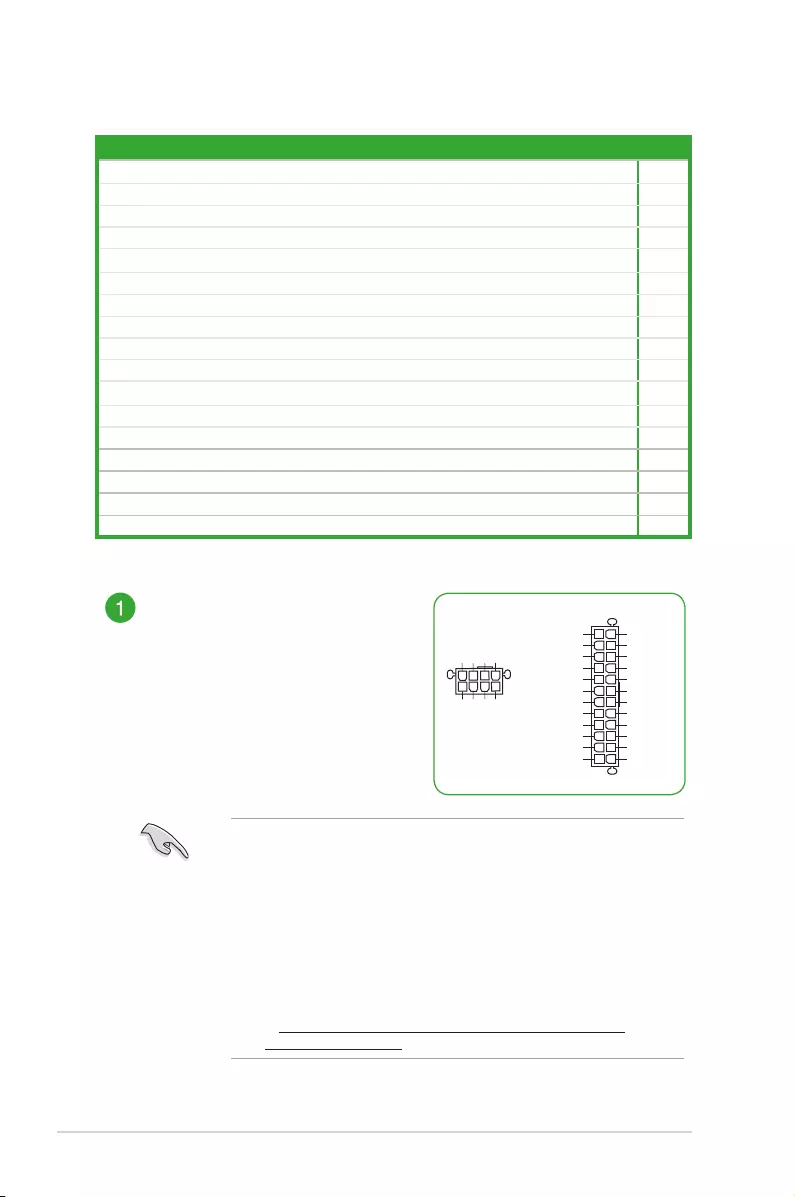
1.2.1 Layout contents
Connectors/Jumpers/Slots/LED Page
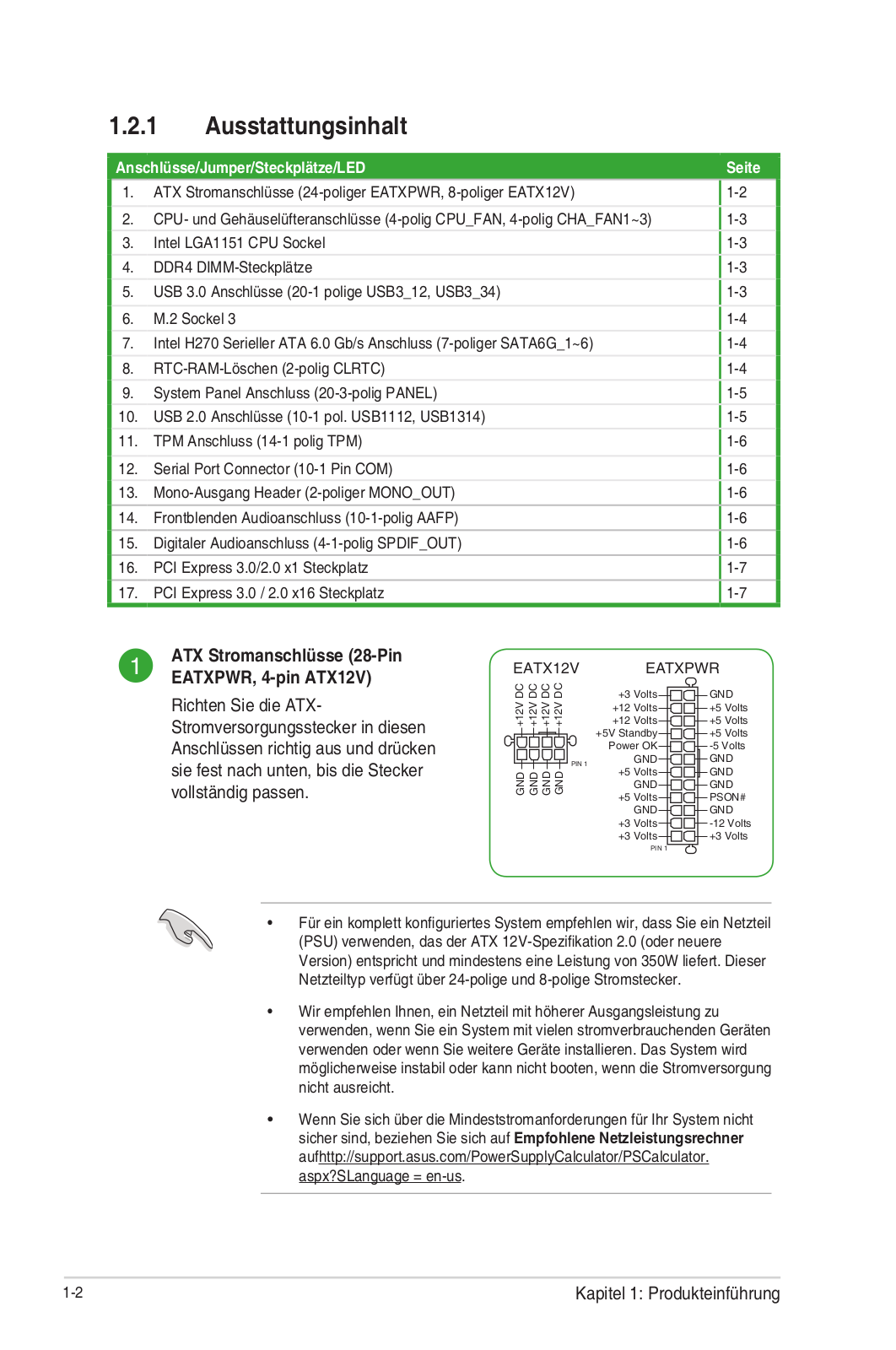
1. ATXpowerconnectors(24-pinEATXPWR,8-pinEATX12V) 1-2
2. CPUandchassisfanconnectors(4-pinCPU_FAN,4-pinCHA_FAN1~3) 1-3
3. Intel®LGA1151CPUsocket 1-3
4. DDR4DIMMslots 1-3
5. USB3.0connectors(20-1pinUSB3_12,USB3_34) 1-3
6. M.2Socket3 1-4
7. Intel®H270SerialATA6.0Gb/sconnector(7-pinSATA6G_1~6) 1-4
8. ClearRTCRAM(2-pinCLRTC) 1-4
9. Systempanelconnector(20-3pinPANEL) 1-5
10. USB2.0connectors(10-1pinUSB1112,USB1314) 1-5
11. TPMconnector(14-1pinTPM) 1-6
12. Serialportconnectors(10-1pinCOM) 1-6
13. Monooutheader(2-pinMONO_OUT) 1-6
14. Frontpanelaudioconnector(10-1pinAAFP) 1-6
15. Digitalaudioconnector(4-1pinSPDIF_OUT) 1-6
16. PCIExpress3.0/2.0x1slots 1-7
17. PCIExpress3.0/2.0x16slots 1-7
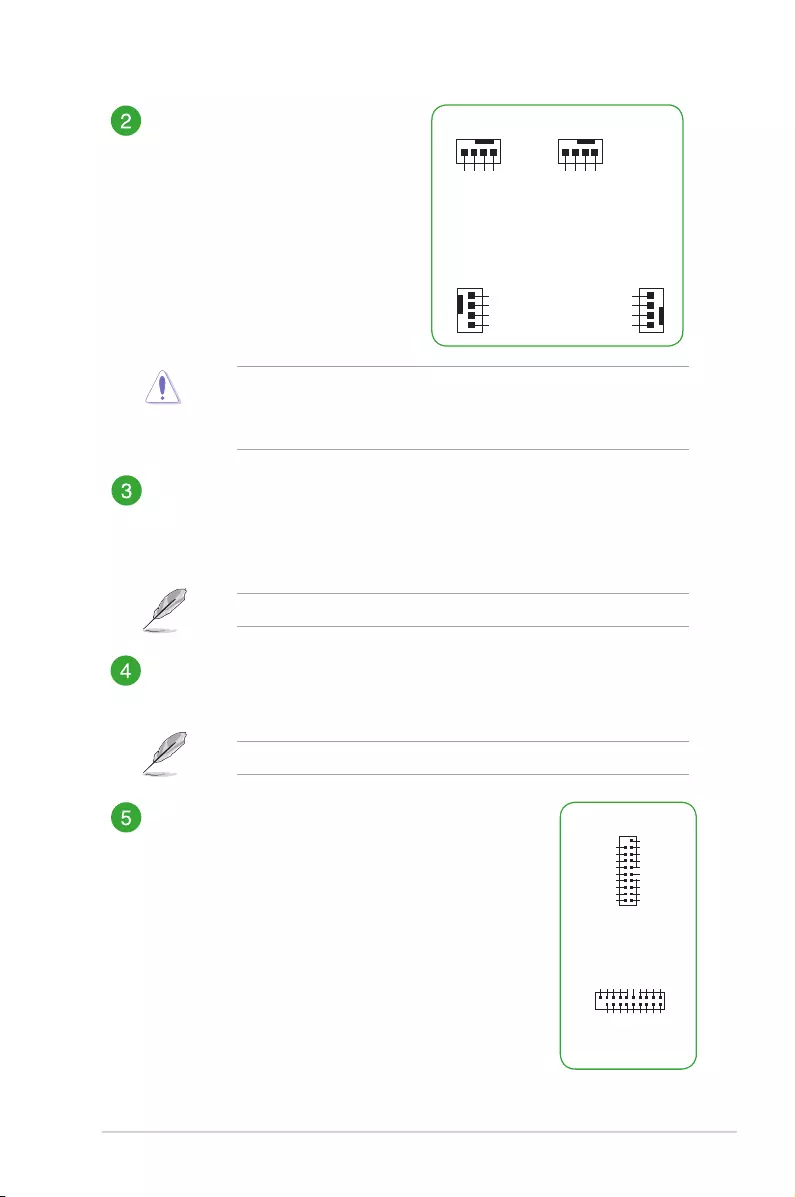
ATX power connectors (24-pin
EATXPWR, 8-pin ATX12V)
CorrectlyorienttheATXpowersupply
plugs into these connectors and
pushdownrmlyuntiltheconnectors
completelyt.
EATX12V
+12V DC
+12V DC
+12V DC
+12V DC
GND
GND
GND
GND
EATXPWR
PIN 1
PIN 1
GND
+5 Volts
+5 Volts
+5 Volts
-5 Volts
GND
GND
GND
PSON#
GND
-12 Volts
+3 Volts
+3 Volts
+12 Volts
+12 Volts
+5V Standby
Power OK
GND
+5 Volts
GND
+5 Volts
GND
+3 Volts
+3 Volts
• Forafullyconguredsystem,werecommendthatyouuseapowersupply
unit(PSU)thatcomplieswithATX12VSpecication2.0(orlaterversion)
andprovidesaminimumpowerof350W.ThisPSUtypehas24-pinand
8-pinpowerplugs.
• WerecommendthatyouuseaPSUwithhigherpoweroutputwhen
conguringasystemwithmorepower-consumingdevicesorwhenyou
intendtoinstalladditionaldevices.Thesystemmaybecomeunstableor
may not boot up if the power is inadequate.
•
If you are uncertain about the minimum power supply requirement for your
system,refertotheRecommendedPowerSupplyWattageCalculator
at http://support.asus.com/PowerSupplyCalculator/PSCalculator.
aspx?SLanguage=en-us for details.
ASUS PRIME H270-PLUS
1-3
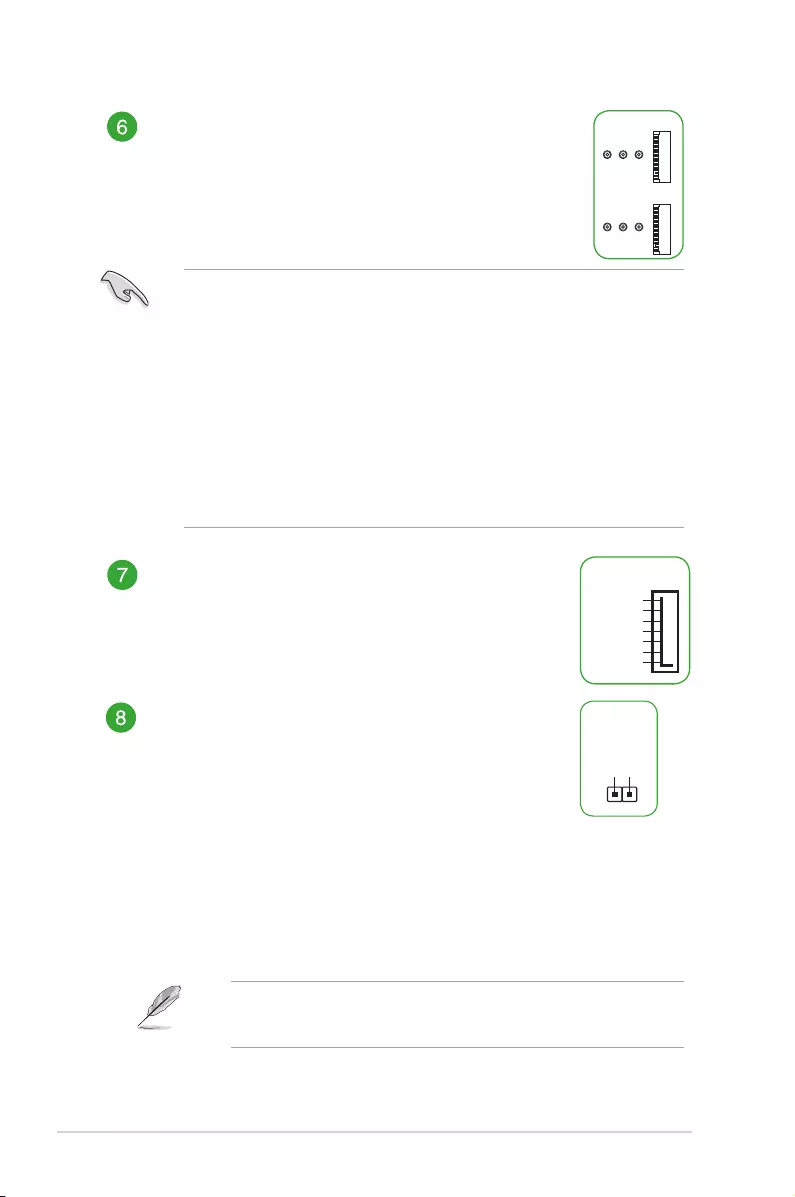
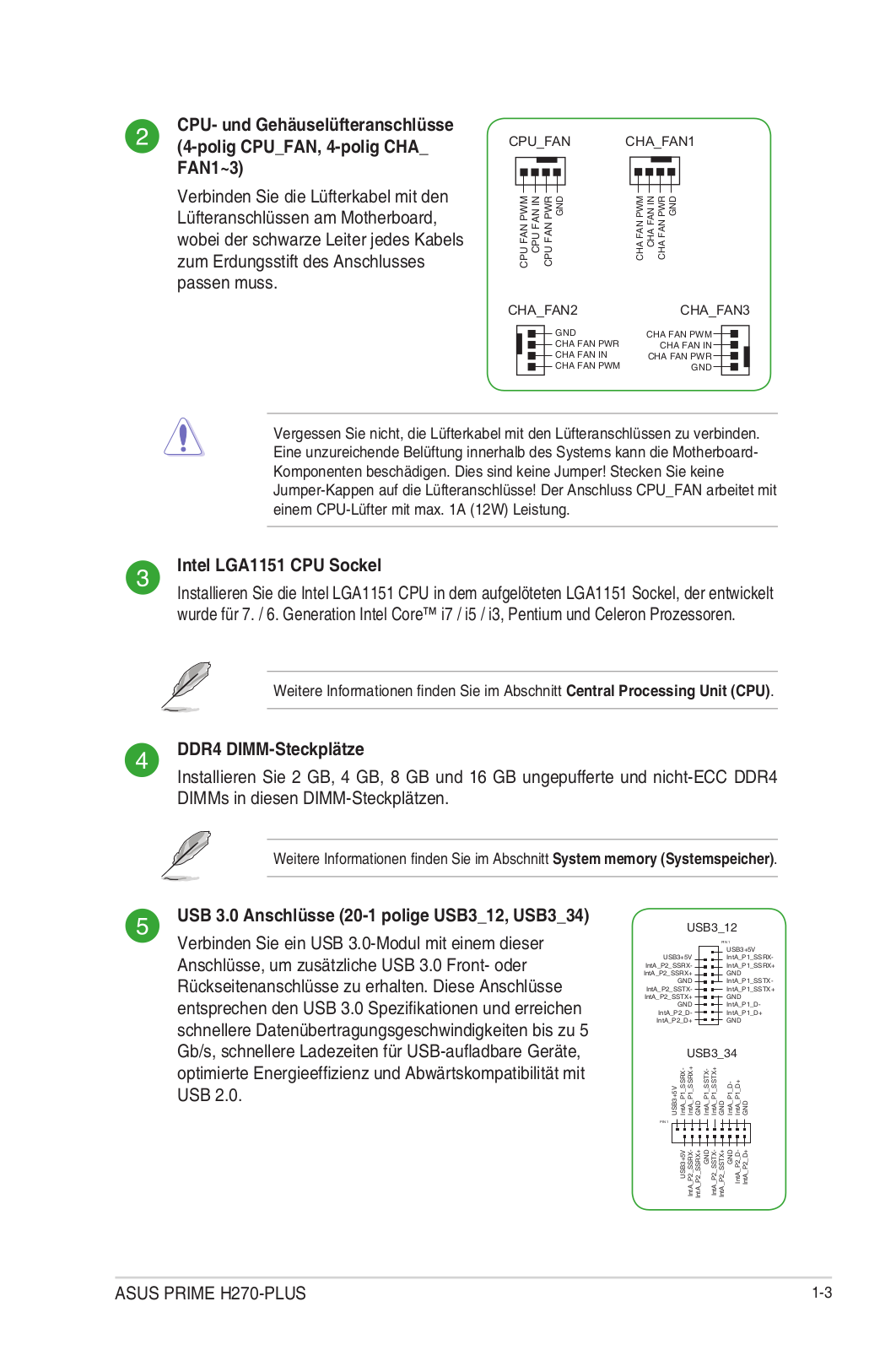
CPU and chassis fan connectors (4-
pin CPU_FAN, 4-pin CHA_FAN1~3)
Connect the fan cables to the fan
connectorsonthemotherboard,
ensuring that the black wire of each
cable matches the ground pin of the
connector.
CHA FAN PWM
CHA FAN IN
CHA FAN PWR
GND
CPU_FAN CHA_FAN1
CPU FAN PWM
CPU FAN IN
CPU FAN PWR
GND
CHA_FAN3
CHA FAN PWM
CHA FAN IN
CHA FAN PWR
GND
CHA_FAN2
GND
CHA FAN PWR
CHA FAN IN
CHA FAN PWM
Donotforgettoconnectthefancablestothefanconnectors.Insufcientair
owinsidethesystemmaydamagethemotherboardcomponents.Theseare
notjumpers!Donotplacejumpercapsonthefanconnectors!TheCPU_FAN
connectorsupportsaCPUfanofmaximum1A(12W)fanpower.
Intel® LGA1151 CPU socket
Install Intel®LGA1151CPUintothissurfacemountLGA1151socket,whichis
designedfor7th/6th Generation Intel®Core™i7/i5/i3,Pentium®,andCeleron®
processors.
Formoredetails,refertoCentral Processing Unit (CPU).
DDR4 DIMM slots
Install2GB,4GB,8GB,and16GBunbufferednon-ECCDDR4DIMMsintothese
DIMMsockets.
Formoredetails,refertoSystem memory.
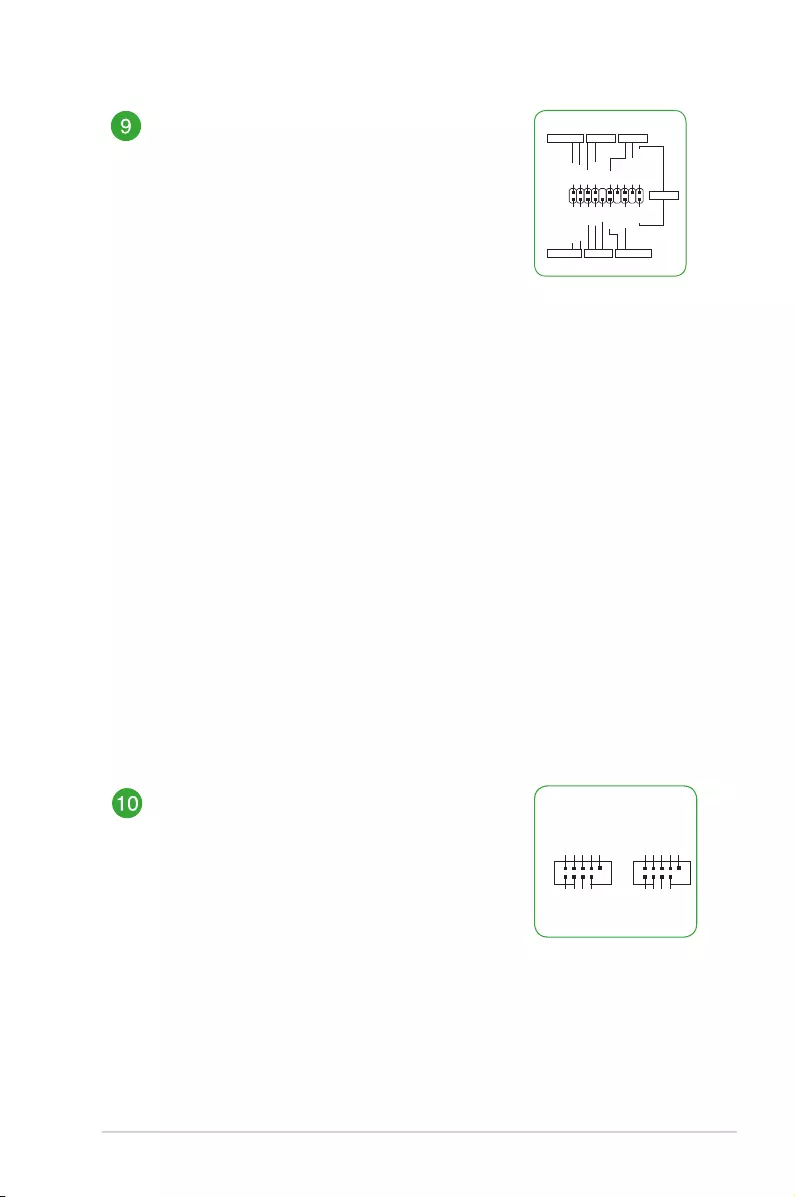
USB 3.0 connectors (20-1 pin USB3_12, USB3_34)
ConnectaUSB3.0moduletoanyoftheseconnectors
foradditionalUSB3.0frontorrearpanelports.These
connectorscomplywithUSB3.0specicationsand
providesfasterdatatransferspeedsofupto5Gbps,faster
chargingtimeforUSB-chargeabledevices,optimizedpower
efciency,andbackwardcompatibilitywithUSB2.0
USB3_12
USB3+5V
IntA_P1_SSRX-
IntA_P1_SSRX+
GND
IntA_P1_SSTX-
IntA_P1_SSTX+
GND
IntA_P1_D-
IntA_P1_D+
GND
PIN 1
USB3+5V
IntA_P2_SSRX-
IntA_P2_SSRX+
GND
IntA_P2_SSTX-
IntA_P2_SSTX+
GND
IntA_P2_D-
IntA_P2_D+
USB3_34
USB3+5V
IntA_P1_SSRX-
IntA_P1_SSRX+
GND
IntA_P1_SSTX-
IntA_P1_SSTX+
GND
IntA_P1_D-
IntA_P1_D+
GND
PIN 1
USB3+5V
IntA_P2_SSRX-
IntA_P2_SSRX+
GND
IntA_P2_SSTX-
IntA_P2_SSTX+
GND
IntA_P2_D-
IntA_P2_D+
1-4
Chapter 1: Product introduction
M.2 socket 3
These sockets allow you to install M.2(NGFF)SSDmodules.
M.2_2(SOCKET3)
2280 2260 2242
M.2_1(SOCKET3)
2280 2260 2242
PRIME Z270-P M.2(SOCKET3)s
PRIME Z270-P
• M.2_1/2Socket3supportMKeyandtype2242/2260/2280storagedevices.
• TheM.2_1socketsupportsdatatransferspeedupto32Gb/s.
• TheM.2_2socketsupportsdatatransferspeedupto16Gb/s.
• WhenadeviceinSATAmodeisinstalledontheM.2_1socket,SATA_1is
disabled.
• WhenadeviceinSATAmodeisinstalledontheM.2_2socket,SATA_6port
cannot be used.
• OnlyM.2_1cansupportIntel®OptaneMemory.Intel®OptaneTechnologyisonly
supported when using 7th Generation Intel®processors.BeforeusingIntel®Optane
memorymodules,ensurethatyouhaveupdatedyourmotherboarddriversand
BIOStothelatestversionfromASUSsupportwebsite.
Intel® H270 Serial ATA 6.0Gb/s connectors (7-pin
SATA6G_1~6)
TheseconnectorsconnecttoSerialATA6.0Gb/sharddisk
drivesviaSerialATA6.0Gb/ssignalcables.
GND
RSATA_TXP
RSATA_TXN
GND
RSATA_RXN
RSATA_RXP
GND
SATA6G
Clear RTC RAM (2-pin CLRTC)
ThisheaderallowsyoutocleartheCMOSRTCRAMdataof
thesystemsetupinformationsuchasdate,time,andsystem
passwords.
To erase the RTC RAM:
1. TurnOFFthecomputerandunplugthepowercord.
2. Useametalobjectsuchasascrewdrivertoshortthetwo
pins.
3. PlugthepowercordandturnONthecomputer.
4. Holddownthe<Del> key during the boot process and
enterBIOSsetuptore-enterdata.
CLRTC
+3V_BAT
GND
Ifthestepsabovedonothelp,removetheonboardbatteryandshortthe
twopinsagaintocleartheCMOSRTCRAMdata.AfterclearingtheCMOS,
reinstall the battery.
ASUS PRIME H270-PLUS
1-5
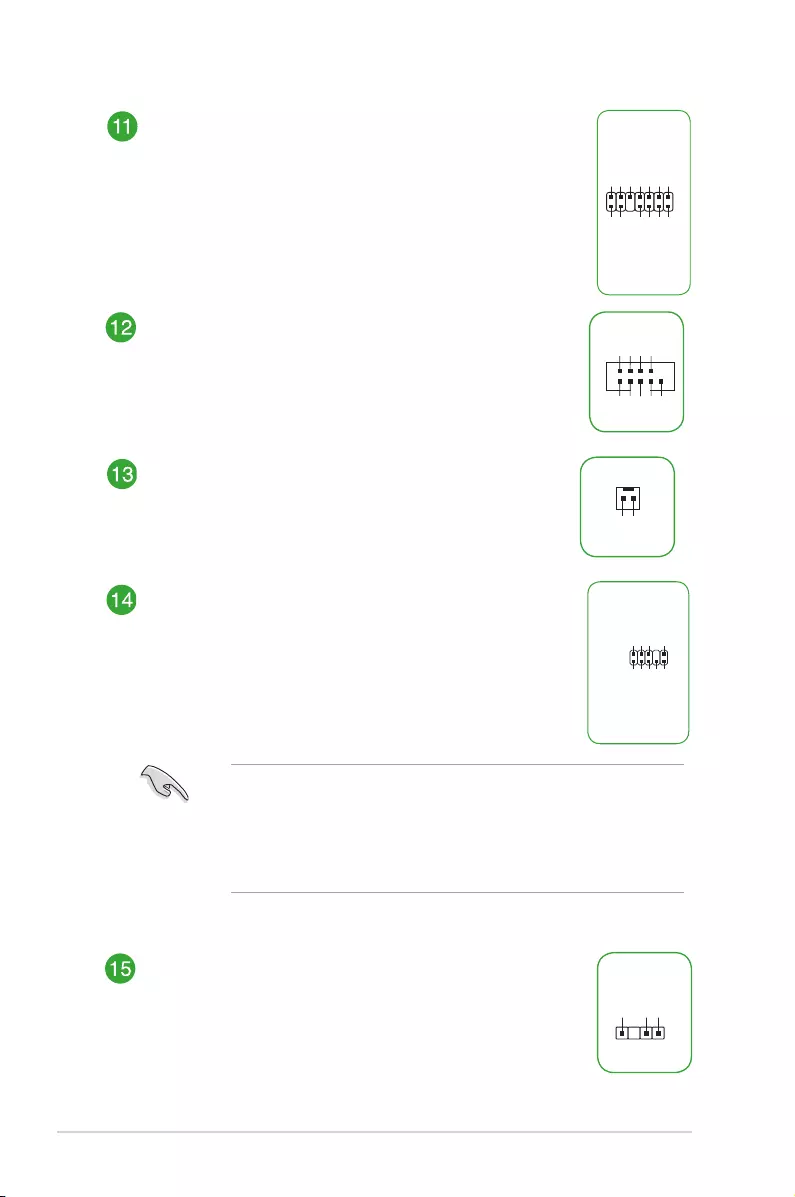
System panel connector (20-3 pin F_PANEL)
Thisconnectorsupportsseveralchassis-mounted
functions.
• System power LED (4-pin +PWR_LED-)
This4-pinconnectorisforthesystempowerLED.
ConnectthechassispowerLEDcabletothis
connector.ThesystempowerLEDlightsupwhen
youturnonthesystempower,andblinkswhen
the system is in sleep mode.
PLED+
PLED-
PWR
Ground
+5V
Ground
Ground
Speaker
CASEOPEN
HDD_LED+
HDD_LED-
GND
Reset
+5V
PLED+
PLED-
GND
PIN 1
+PWR_LED-
+PWR_LED-
SPEAKER
PANEL
+HDD_LED-
PWR_SW
RESET
* Requires an ATX power supply
CHASSIS
• Hard disk drive activity LED (2-pin +HDD_LED-)
This2-pinconnectorisfortheHDDActivityLED.ConnecttheHDDActivity
LEDcabletothisconnector.TheHDDLEDlightsuporasheswhendatais
readfromorwrittentotheHDD.
• System warning speaker (4-pin SPEAKER)
This4-pinconnectorisforthechassis-mountedsystemwarningspeaker.
The speaker allows you to hear system beeps and warnings.
• ATX power button/soft-off button (2-pin PWR_SW)
Thisconnectorisforthesystempowerbutton.Pressingthepowerbutton
turns the system on or puts the system in sleep or soft-off mode depending
ontheoperatingsystemsettings.Pressingthepowerswitchformorethan
foursecondswhilethesystemisONturnsthesystemOFF.
• Reset button (2-pin RESET)
This 2-pin connector is for the chassis-mounted reset button for system
reboot without turning off the system power.
• Chassis intrusion header (2-pin CHASSIS)
This connector is for a chassis-mounted intrusion detection sensor or switch.
Connect one end of the chassis intrusion sensor or switch cable to this
connector.Thechassisintrusionsensororswitchsendsahigh-levelsignalto
thisconnectorwhenachassiscomponentisremovedorreplaced.Thesignal
isthengeneratedasachassisintrusionevent.
USB 2.0 connectors (10-1 pin USB1112, USB1314)
ConnectaUSBmodulecabletoanyofthese
connectors,theninstallthemoduletoaslotopeningat
thebackofthesystemchassis.TheseUSBconnectors
complywithUSB2.0specicationsandsupportsupto
480Mbpsconnectionspeed.
USB+5V
USB_P11-
USB_P11+
GND
NC
USB+5V
USB_P12-
USB_P12+
GND
USB1112
PIN 1
USB+5V
USB_P13-
USB_P13+
GND
NC
USB+5V
USB_P14-
USB_P14+
GND
USB1314
PIN 1
1-6
Chapter 1: Product introduction
TPM connector (14-1 pin TPM)
ThisconnectorsupportsaTrustedPlatformModule(TPM)system,
whichcansecurelystorekeys,digitalcerticates,passwords,and
data.ATPMsystemalsohelpsenhancenetworksecurity,protects
digitalidentities,andensuresplatformintegrity.
TPM
PIN 1
+3VSB
S_PCIRST#_TBD
GND
C_PCICLK_TPM
+3V
+3V
TPM_PD#
F_SERIRQ
F_FRAME#
F_LAD3
F_LAD2
F_LAD1
F_LAD0
Serial port connector (10-1 pin COM)
Thisconnectorisforaserial(COM)port.Connecttheserialport
modulecabletothisconnector,theninstallthemoduletoaslot
opening at the back of the system chassis.
PIN 1
COM
DCD
TXD
GND
RTS
RI
RXD
DTR
DSR
CTS
Mono out header (2-pin MONO_OUT)
Thisinternalmonooutheaderallowsconnectiontoaninternal,
low power speaker for basic system sound capability. The
subsystemiscapableofdrivingaspeakerloadof4Ohmsat2
Watts(rms).
R_OUT-
R_OUT+
PIN 1
Front panel audio connector (10-1 pin AAFP)
Thisconnectorisforachassis-mountedfrontpanelaudioI/O
modulethatsupportsHDaudiostandard.Connectoneendofthe
frontpanelaudioI/Omodulecabletothisconnector.
AAFP
AGND
NC
SENSE1_RETUR
SENSE2_RETUR
PORT1 L
PORT1 R
PORT2 R
SENSE_SEND
PORT2 L
HD-audio-compliant
• Werecommendthatyouconnectahigh-denitionfrontpanelaudio
moduletothisconnectortoavailofthemotherboard’shigh-denitionaudio
capability.
• Ifyouwanttoconnectahigh-denitionfrontpanelaudiomoduletothis
connector,settheFrontPanelTypeitemintheBIOSsetupto[HDAudio].
Bydefault,thisconnectorissetto[HDAudio].
Digital audio connector (4-1 pin SPDIF_OUT)
ThisconnectorisforanadditionalSony/PhilipsDigitalInterface
(S/PDIF)port.ConnecttheS/PDIFOutmodulecabletothis
connector,theninstallthemoduletoaslotopeningatthebackof
the system chassis.
SPDIF_OUT
+5V
SPDIFOUT
GND
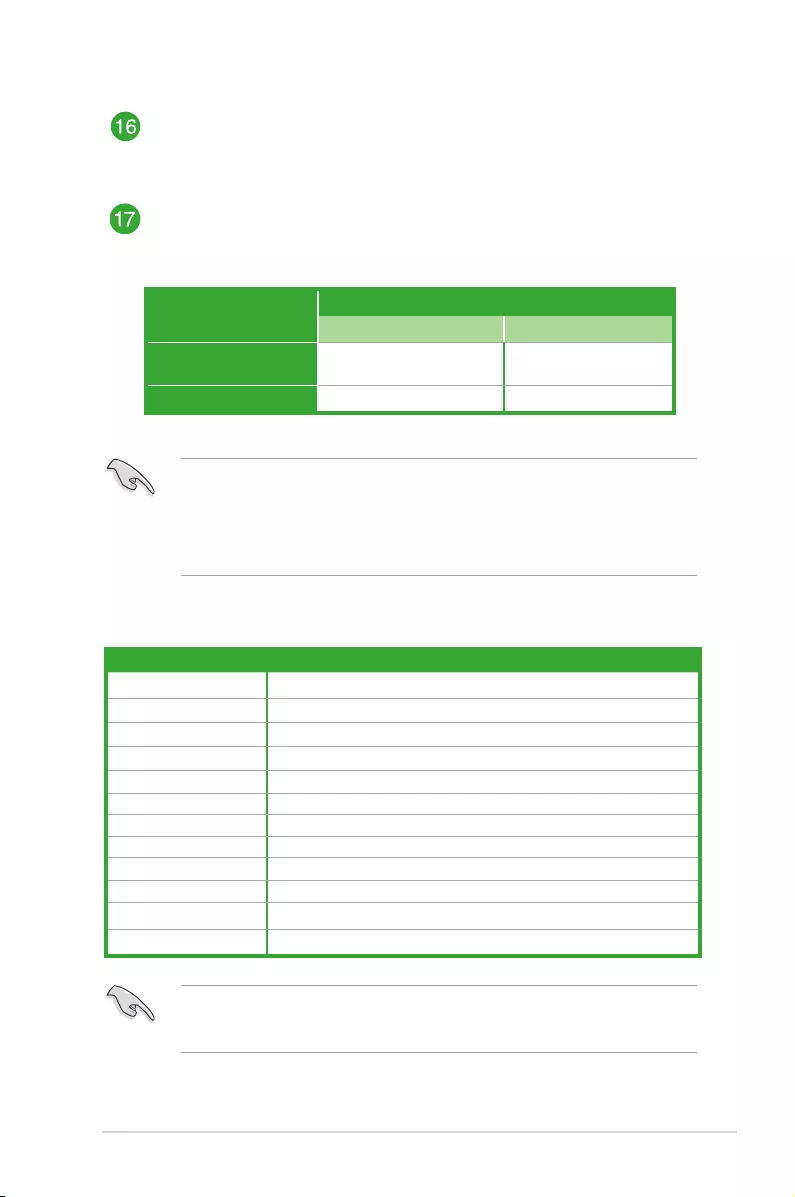
ASUS PRIME H270-PLUS
1-7
• InsingleVGAcardmode,usethePCIe3.0x16_1slot(gray)foraPCIExpressx16
graphics card to get better performance.
• WerecommendthatyouprovidesufcientpowerwhenrunningCrossFireX™mode.
• ConnectachassisfantothemotherboardconnectorlabeledCHA_FAN1/2/3when
usingmultiplegraphicscardsforbetterthermalenvironment.
VGA conguration
PCI Express operating mode
PCIe 3.0 x16_1 (gray) PCIe 3.0 x16_2
Single VGA/PCIe card x16(Recommendedforsingle
VGAcard) N/A
Dual VGA/PCIe cards x16 x4
PCI Express 3.0/2.0 x1 slots
ThismotherboardhasfourPCIExpress3.0/2.0x1slotsthatsupportPCIExpress
x1networkcards,SCSIcards,andothercardsthatcomplywiththePCIExpress
specications.
PCI Express 3.0/2.0 x16 slots
ThismotherboardsupportstwoPCIExpress3.0/2.0x16graphiccardsthatcomply
withthePCIExpressspecications.
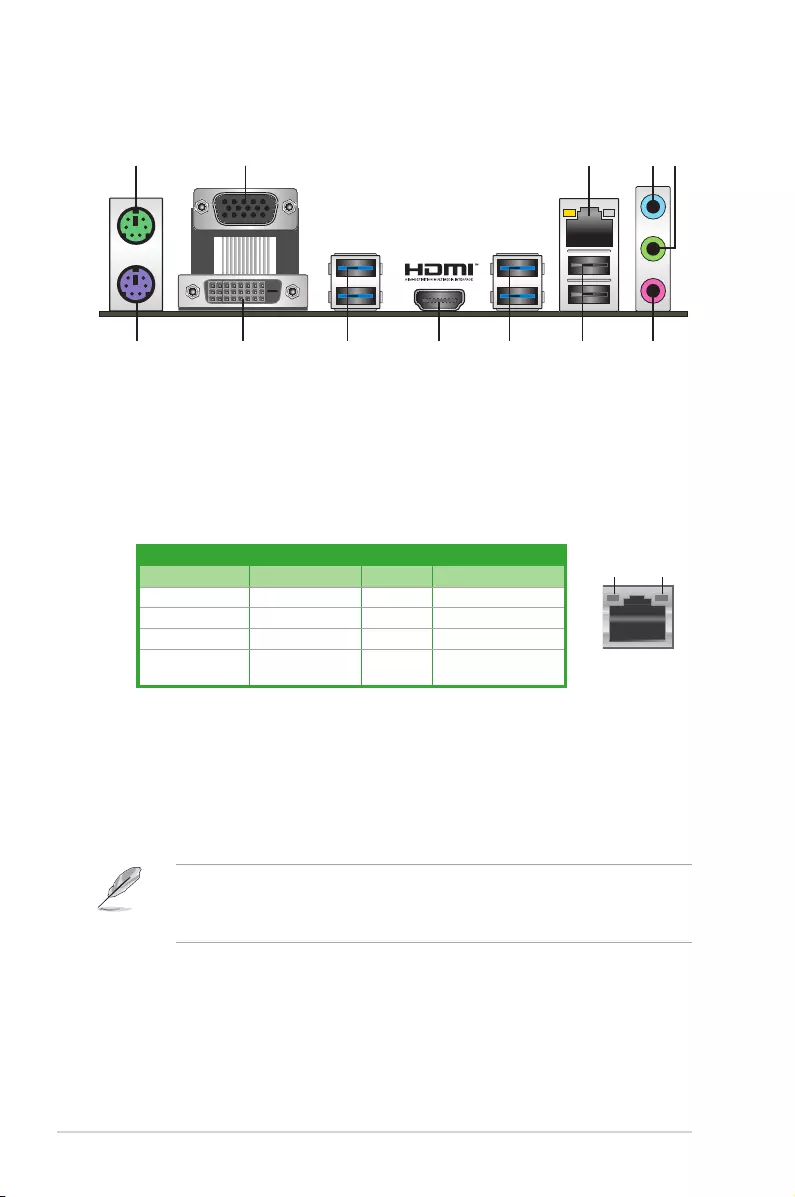
IRQ assignments for this motherboard
WhenusingPCIcardsonsharedslots,ensurethatthedriverssupport“ShareIRQ”orthat
thecardsdonotneedIRQassignments.Otherwise,conictswillarisebetweenthetwoPCI
groups,makingthesystemunstableandthecardinoperable.
A B C D
HDAudioController shared – – –
XHCI shared – – –
SATAController shared – – –
LANController shared – – –
PCIEx1_1 – – – shared
PCIEx1_2 shared – – –
PCIEx1_3 – shared – –
PCIEx1_4 – – shared –
PCIEx16_1 shared – – –
PCIEx16_2 shared – – –
M.2_1 shared – – –
M.2_2 shared – – –
1-8
Chapter 1: Product introduction
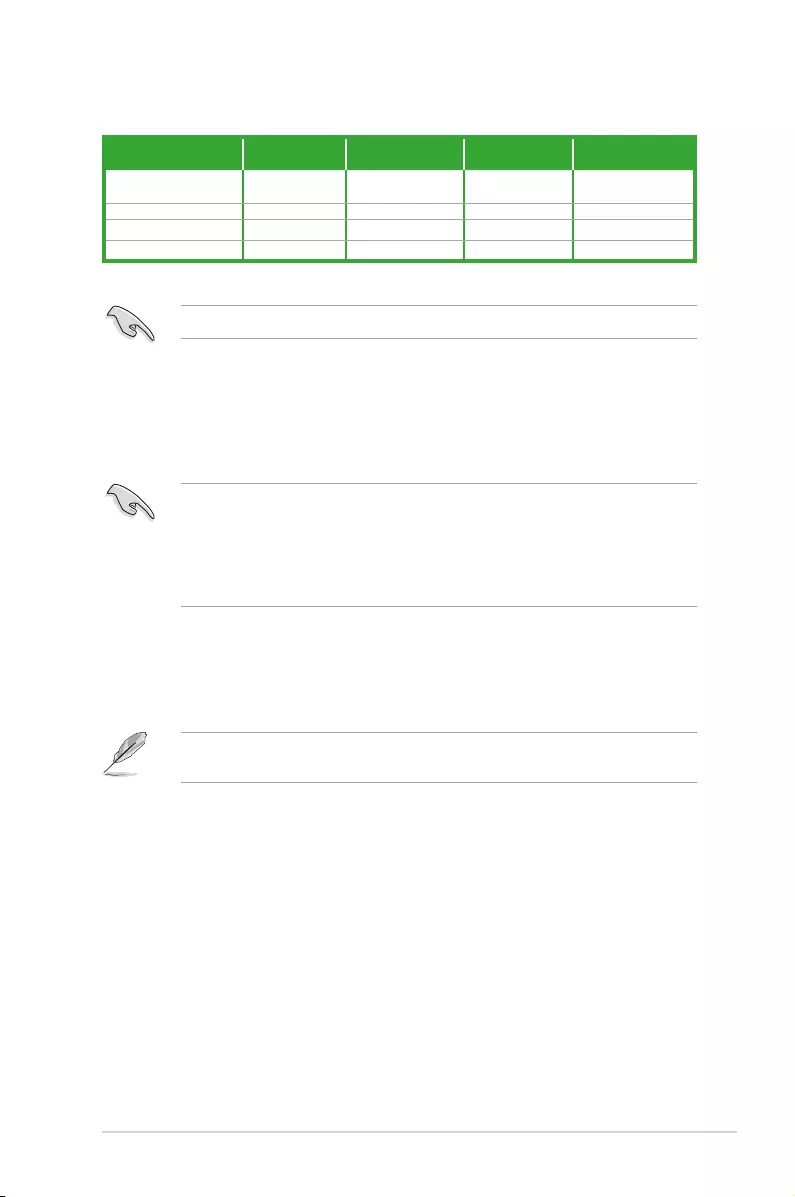
1.2.2 Rear panel connectors
4. Line In port (light blue).Thisportconnectsthetape,CD,DVDplayer,orotheraudio
sources.
5. Line Out port (lime).Thisportconnectsaheadphoneoraspeaker.In4.1-channel,
5.1-channel,and7.1-channelcongurations,thefunctionofthisportbecomesFront
SpeakerOut.
6. Microphone port (pink). This port connects a microphone.
To congure a 7.1-channel audio output:
UseachassiswithHDaudiomoduleinthefrontpaneltosupporta7.1-channelaudio
output.
LAN port
Speed
LED
Activity Link
LED
Activity/Link LED Speed LED
Status Description Status Description
Off Nolink OFF 10Mbpsconnection
Orange Linked ORANGE 100Mbpsconnection
Orange(Blinking) Dataactivity GREEN 1Gbps connection
Orange(Blinking
thensteady)
Readytowake
upfromS5mode
10 68 7
2 4 53
8
1
11 9
1. PS/2 Mouse port (green).ThisportisforaPS/2mouse.
2. Video Graphics Adapter (VGA) port.This15-pinportisforaVGAmonitororother
VGA-compatibledevices.
3. LAN (RJ-45) port.ThisportallowsGigabitconnectiontoaLocalAreaNetwork(LAN)
throughanetworkhub.RefertothetablebelowfortheLANportLEDindications.
LAN port LED indications
ASUS PRIME H270-PLUS
1-9
Audio 2.1, 4.1, 5.1 or 7.1-channel conguration
Port Headset
2.1-channel 4.1-channel 5.1-channel 7.1-channel
LightBlue
(Rearpanel) Line In RearSpeakerOut RearSpeakerOut RearSpeakerOut
Lime(Rearpanel) LineOut FrontSpeakerOut FrontSpeakerOut FrontSpeakerOut
Pink(Rearpanel) MicIn MicIn Bass/Center Bass/Center
Lime(Frontpanel) — — — SideSpeakerOut
Fora7.1-channelspeakersetup,refertothe7.1-channelcongurationinthetable.
7. USB 2.0 portsThesefour4-pinUniversalSerialBus(USB)portsareforUSB2.0/1.1
devices.
8. USB 3.0 ports.Thesefour9-pinUniversalSerialBus(USB)portsconnecttoUSB
3.0/2.0devices.
• DuetoUSB3.0controllerlimitations,USB3.0devicescanonlybeusedundera
Windows®OSenvironmentandafterUSB3.0driverinstallation.
• USB3.0devicescanonlybeusedfordatastorage.
• WestronglyrecommendthatyouconnectUSB3.0devicestoUSB3.0portsforfaster
andbetterperformancefromyourUSB3.0devices.
9. HDMI port.ThisportisforaHigh-DenitionMultimediaInterface(HDMI)connector,
andisHDCPcompliantallowingplaybackofHDDVD,Blu-ray,andotherprotected
content.
10. DVI-D port.ThisportisforanyDVI-Dcompatibledevice.
DVI-DcannotbeconvertedtooutputfromRGBSignaltoCRTandisnotcompatiblewith
DVI-I.
11. PS/2 keyboard port (purple).ThisportisforaPS/2keyboard.
1-10
Chapter 1: Product introduction
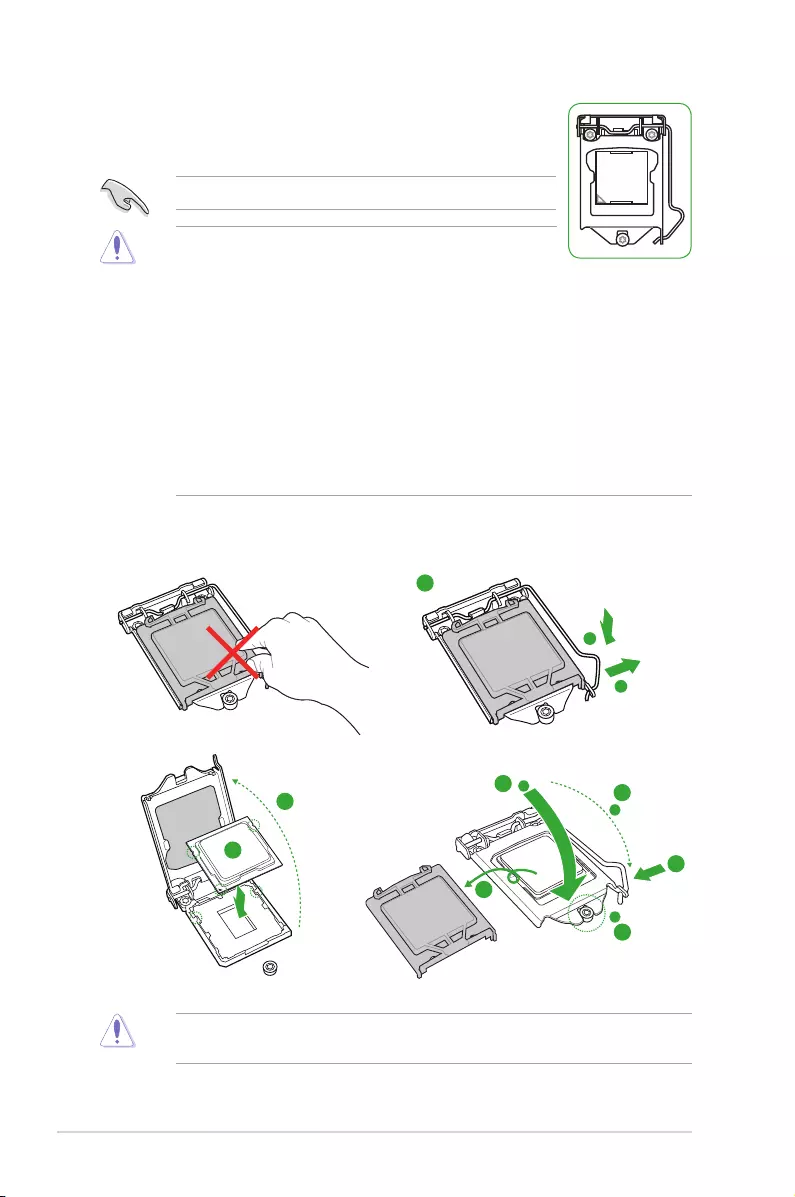
1.3 Central Processing Unit (CPU)
ThismotherboardcomeswithasurfacemountLGA1151socket
designedforthe7th/6thGenerationIntel®Core™i7/Core™i5/
Core™i3,Pentium®andCeleron®processors.
UnplugallpowercablesbeforeinstallingtheCPU.
• EnsurethatyouinstallthecorrectCPUdesignedforthe
LGA1151socketonly.DONOTinstallaCPUdesignedfor
LGA1150,LGA1155andLGA1156socketsontheLGA1151socket.
• Uponpurchaseofthemotherboard,ensurethatthePnPcapisonthesocketand
thesocketcontactsarenotbent.ContactyourretailerimmediatelyifthePnPcap
ismissing,orifyouseeanydamagetothePnPcap/socketcontacts/motherboard
components.
• Keepthecapafterinstallingthemotherboard.ASUSwillprocessReturnMerchandise
Authorization(RMA)requestsonlyifthemotherboardcomeswiththecaponthe
LGA1151socket.
• Theproductwarrantydoesnotcoverdamagetothesocketcontactsresultingfrom
incorrectCPUinstallation/removal,ormisplacement/loss/incorrectremovalofthePnP
cap.
Installing the CPU
1
4
ApplytheThermalInterfaceMaterialtotheCPUheatsinkandCPUbeforeyouinstallthe
heatsink and fan if necessary.
2
3
A
B
A
B
C
D
5
4
4
5
ASUS PRIME H270-PLUS
1-11
1.4 System memory
Overview
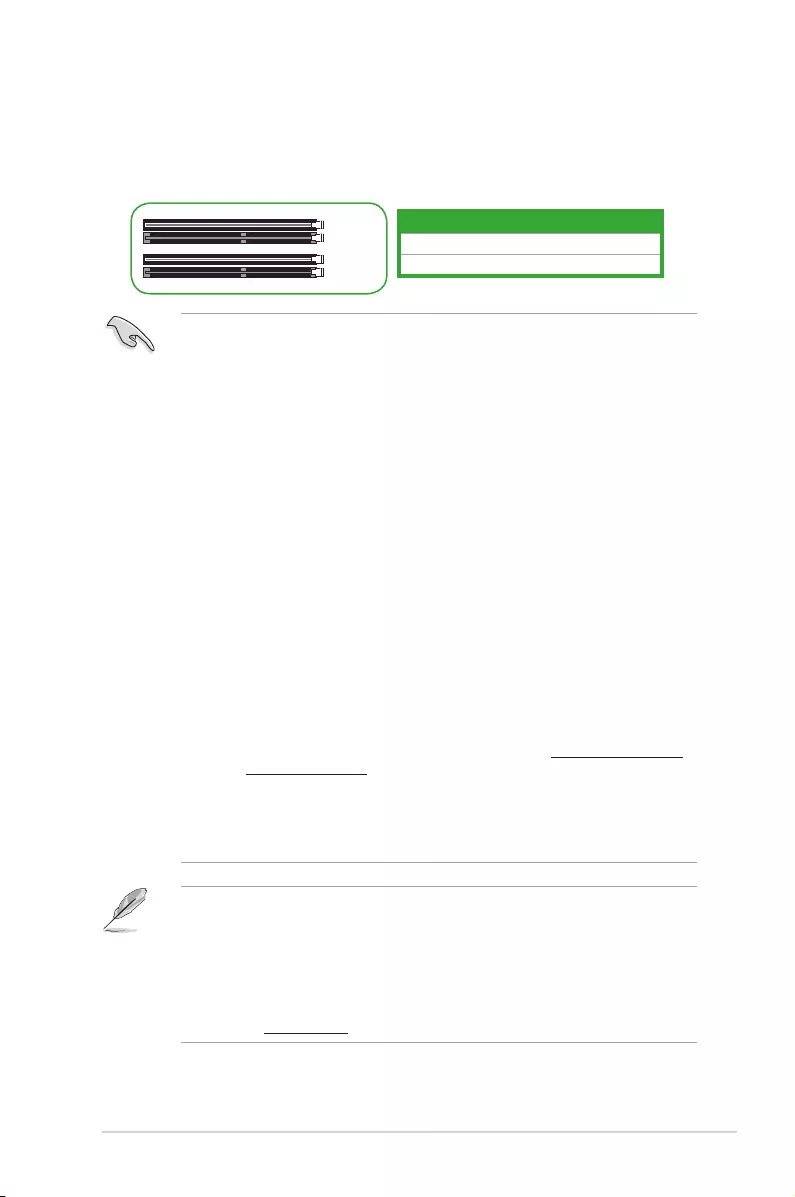
ThismotherboardcomeswithfourDoubleDataRate4(DDR4)DualInlineMemoryModule
(DIMM)sockets.ThegureillustratesthelocationoftheDDR4DIMMsockets:
Channel Sockets
ChannelA DIMM_A1&DIMM_A2
ChannelB DIMM_B1&DIMM_B2
• YoumayinstallvaryingmemorysizesinChannelAandChannelB.Thesystem
mapsthetotalsizeofthelower-sizedchannelforthedual-channelconguration.Any
excessmemoryfromthehigher-sizedchannelisthenmappedforsingle-channel
operation.
• AlwaysinstallDIMMswiththesameCASlatency.Foroptimalcompatibility,we
recommendthatyouinstallmemorymodulesofthesameversionordatecode(D/C)
fromthesamevendor.Checkwiththeretailertogetthecorrectmemorymodules.
• DuetoIntel®chipsetlimitation,DDR42133MHzandhighermemorymoduleson6th
Generation Intel®processorswillrunatthemaximumtransferrateofDDR42133MHz
• DuetoIntel®chipsetlimitation,DDR42400MHzmemoryfrequencyisonlysupported
by 7th Generation Intel®processors.Highermemorymoduleswillrunatthemaximum
transferrateofDDR42400MHz.
• AccordingtoIntel®CPUspec,DIMMvoltagebelow1.35Visrecommendedtoprotect
theCPU.
• Duetothememoryaddresslimitationon32-bitWindows®OS,whenyouinstall4GB
ormorememoryonthemotherboard,theactualusablememoryfortheOScanbe
about3GBorless.Foreffectiveuseofmemory,werecommendthatyoudoanyofthe
following:
— Useamaximumof3GBsystemmemoryifyouareusinga32-bitWindows®OS.
- Installa64-bitWindows®OSifyouwanttoinstall4GBormoreonthe
motherboard.
- Formoredetails,refertotheMicrosoft® support site at http://support.microsoft.
com/kb/929605/en-us.
• Memorymoduleswithmemoryfrequencyhigherthan2133MHzanditscorresponding
timingortheloadedX.M.P.ProleisnottheJEDECmemorystandard.Thestability
andcompatibilityofthesememorymodulesdependontheCPU’scapabilitiesand
otherinstalleddevices.
• ThedefaultmemoryoperationfrequencyisdependentonitsSerialPresenceDetect
(SPD),whichisthestandardwayofaccessinginformationfromamemorymodule.
Underthedefaultstate,somememorymodulesforoverclockingmayoperateata
lowerfrequencythanthevendor-markedvalue.
• Forsystemstability,useamoreefcientmemorycoolingsystemtosupportafull
memoryload(4DIMMs).
• Refertowww.asus.comforthelatestMemoryQVL(QualiedVendorsList)
DIMM_A1
DIMM_A2
DIMM_B1
DIMM_B2
1-12
Chapter 1: Product introduction
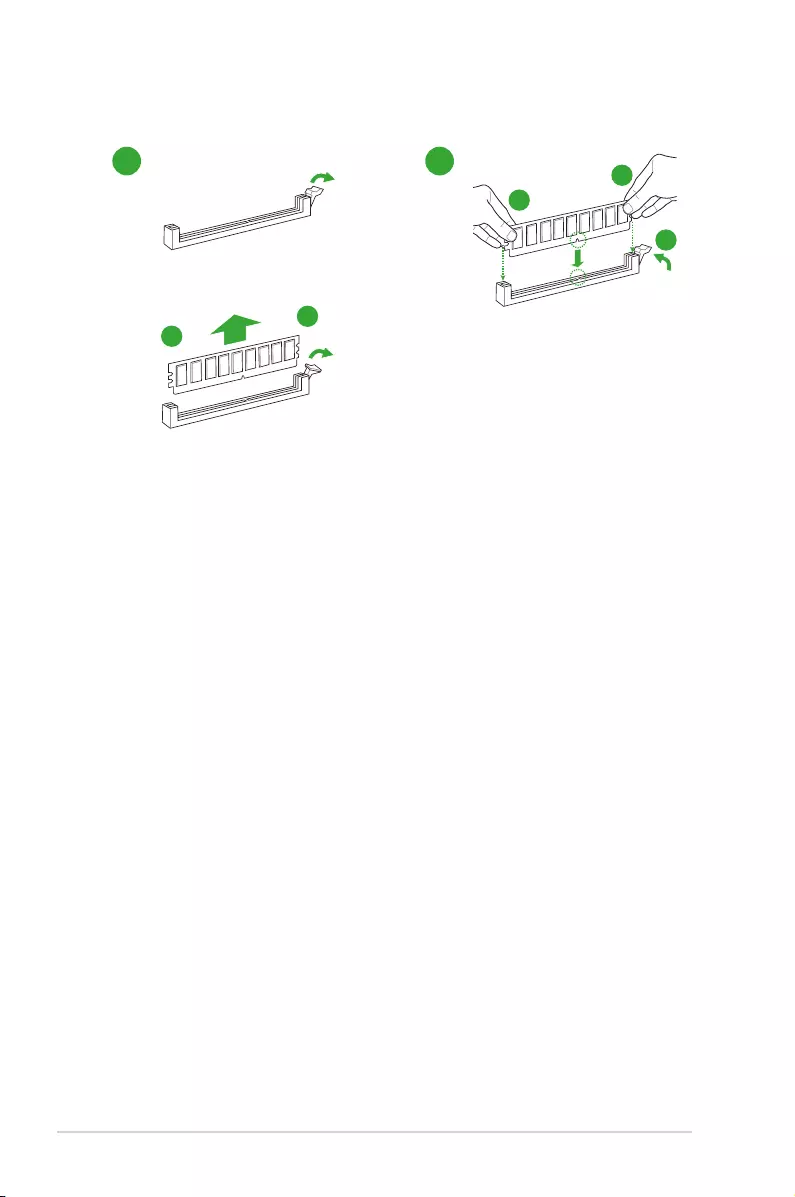
Installing a DIMM
12
To remove a DIMM
B
A
B
A
A
ASUS PRIME H270-PLUS2-1
2.1 Managing and updating your BIOS
Save a copy of the original motherboard BIOS le to a USB ash disk in case you need
to restore the BIOS in the future. Copy the original motherboard BIOS using the ASUS
Update utility.
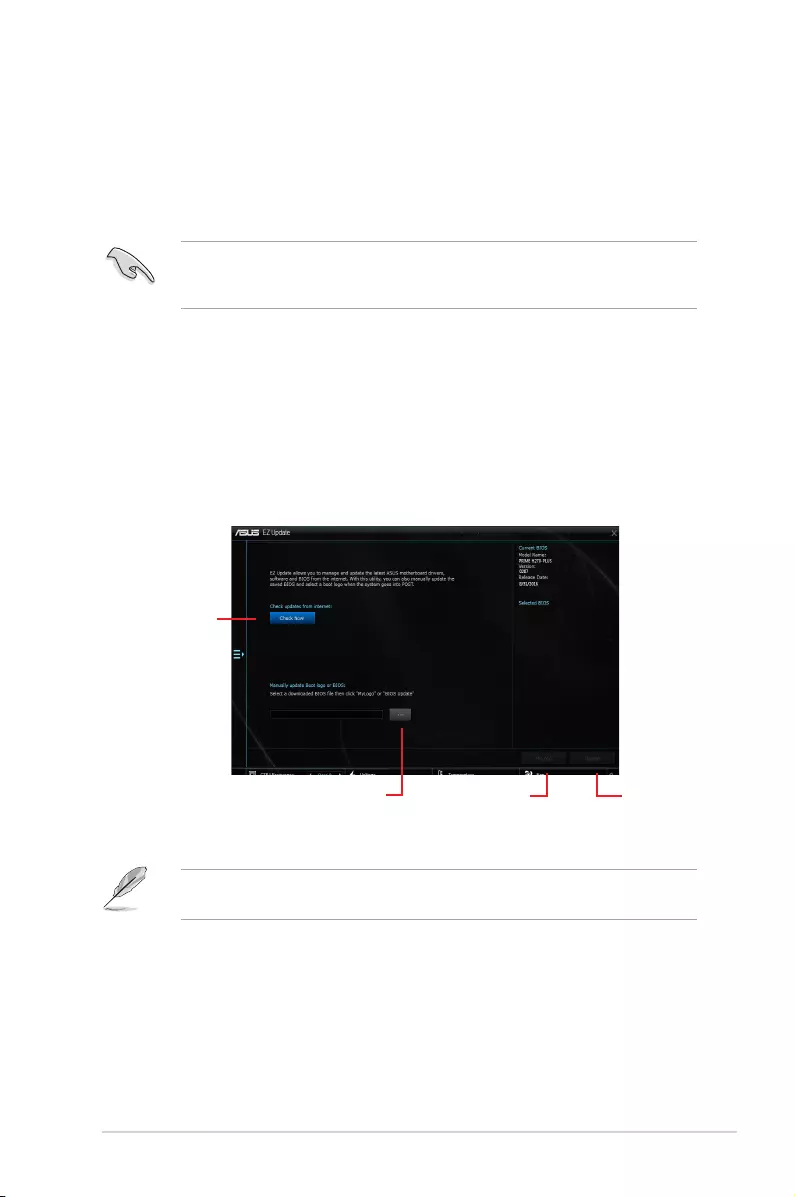
2.1.1 EZ Update
EZ Update is a utility that allows you to automatically update your motherboard’s softwares,
drivers and the BIOS version easily. With this utlity, you can also manually update the saved
BIOS and select a boot logo when the system goes into POST.
To launch EZ Update, click EZ Update on the AI Suite 3 main menu bar.
BIOS information
2
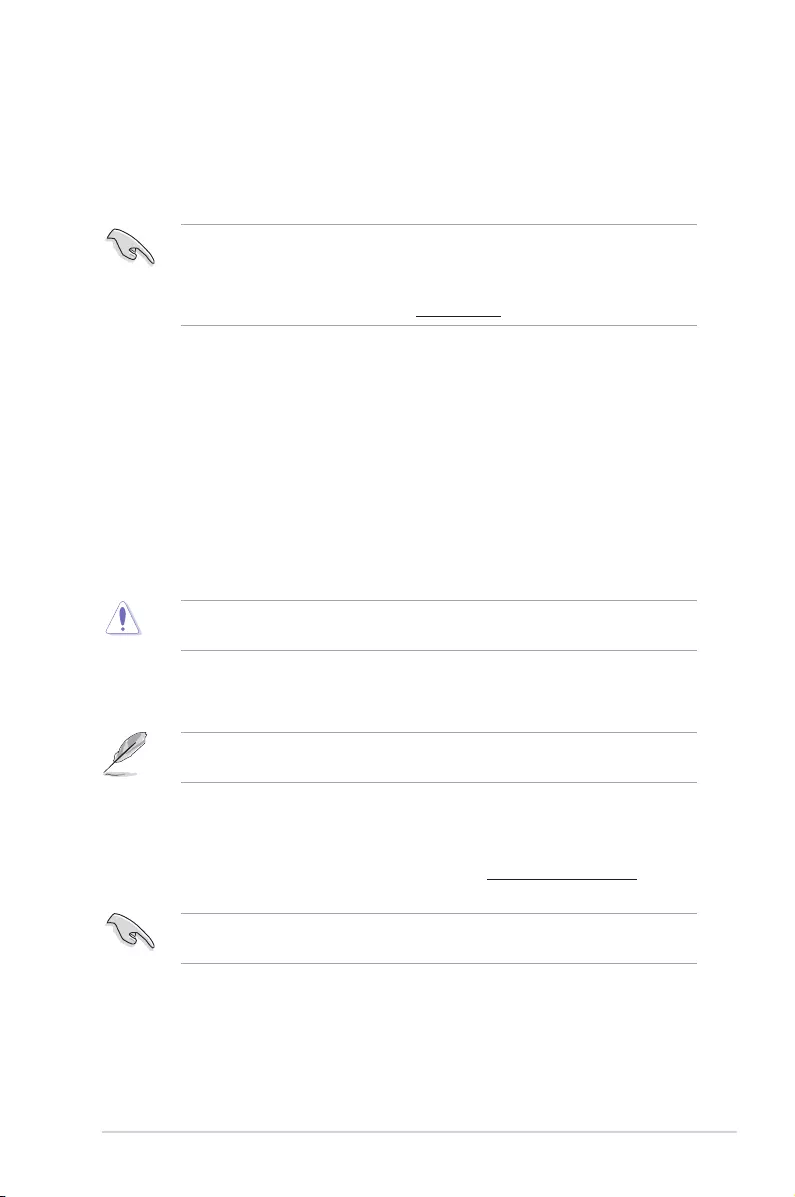
Click to automatically
update your
motherboard’s
driver, software and
rmware
Click to nd and
select the BIOS
from le
Click to select a
boot logo
Click to update
the BIOS
EZ Update requires an Internet connection either through a network or an ISP (Internet
Service Provider).
2-2
Chapter 2: BIOS information
2.1.2 ASUS EZ Flash 3
The ASUS EZ Flash 3 feature allows you to update the BIOS without using an OS‑based
utility.
• Ensure that you load the BIOS default settings to ensure system compatibility and
stability. Select the Load Optimized Defaults item under the Exit menu. See section
2.3 Exit Menu for details.
• Check your Internet connection before updating the BIOS via the Internet.
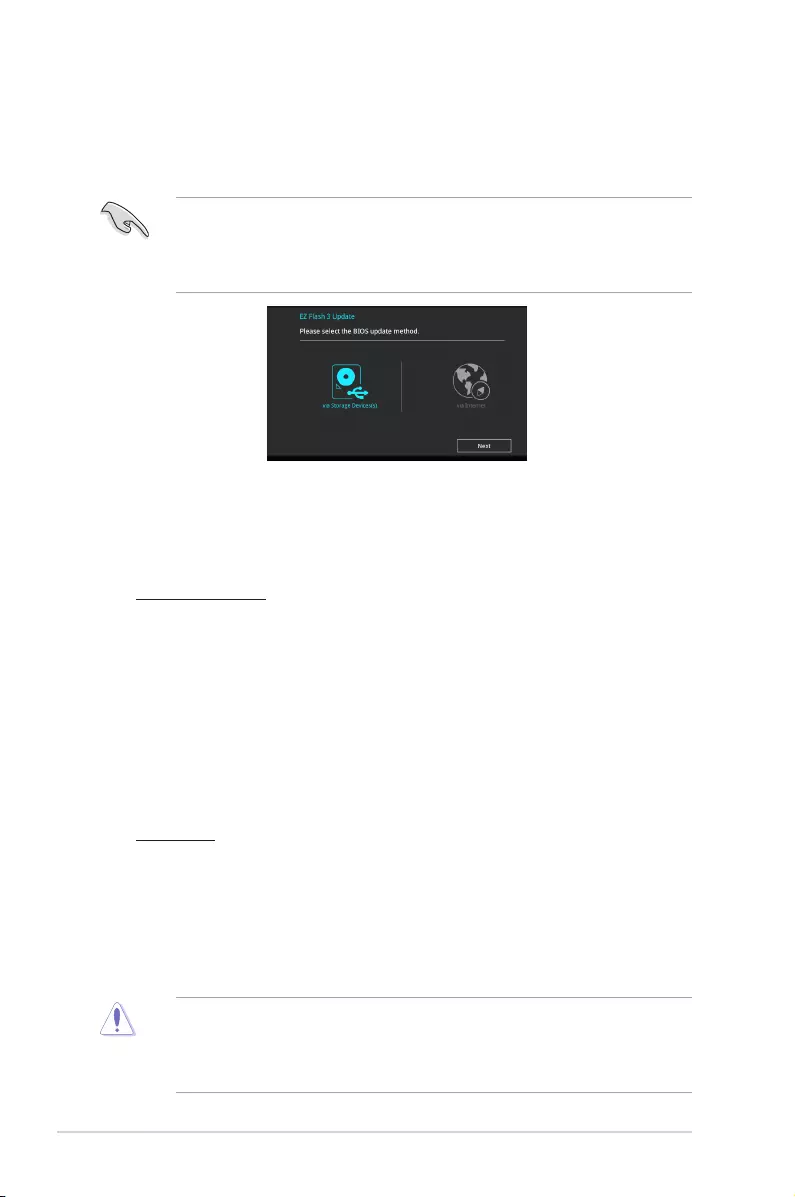
To update the BIOS using EZ Flash 3:
1. Enter the Advanced Mode of the BIOS setup program. Go to the Tool menu to select
ASUS EZ Flash 3 Utility and press <Enter> to enable it.
2. Follow the steps below to update the BIOS via a storage device or Internet.
Via Storage Device
a) Insert the USB ash disk that contains the latest BIOS le to the USB port, then
select via Storage Device.
b) Press <Tab> to switch to the Drive eld.
c) Press the Up/Down arrow keys to nd the USB ash disk that contains the latest
BIOS, and then press <Enter>.
d) Press <Tab> to switch to the Folder Info eld.
e) Press the Up/Down arrow keys to nd the BIOS le, and then press <Enter> to
perform the BIOS update process.
Via Internet
a) Select via Internet.
b) Press the Left/Right arrow keys to select an Internet connection method, and then
press <Enter>.
c) Follow the onscreen instructions to complete the update.
3. Reboot the system when the update process is done.
• ASUS EZ Flash 3 supports USB devices, such as a USB ash disk, with FAT 32/16
format and single partition only.
• DO NOT shut down or reset the system while updating the BIOS to prevent system
boot failure!
ASUS PRIME H270-PLUS2‑3
2.1.3 ASUS CrashFree BIOS 3 utility
The ASUS CrashFree BIOS 3 is an auto recovery tool that allows you to restore the BIOS le
when it fails or gets corrupted during the updating process. You can restore a corrupted BIOS
le using the motherboard support DVD or a USB ash drive that contains the updated BIOS
le.
• Before using this utility, rename the BIOS le in the removable device into
PH270P.CAP.
• The BIOS le in the support DVD may not be the latest version. Download the latest
BIOS le from the ASUS website at www.asus.com.
Recovering the BIOS
To recover the BIOS:
1. Turn on the system.
2. Insert the support DVD to the optical drive or the USB ash drive that contains the
BIOS le to the USB port.
3. The utility automatically checks the devices for the BIOS le. When found, the utility
reads the BIOS le and enters ASUS EZ Flash 3 utility automatically.
4. The system requires you to enter BIOS Setup to recover BIOS settings. To ensure
system compatibility and stability, we recommend that you press <F5> to load default
BIOS values.
DO NOT shut down or reset the system while updating the BIOS! Doing so can cause
system boot failure!
2.1.4 ASUS BIOS Updater
ASUS BIOS Updater allows you to update the BIOS in DOS environment.
The screen captures used in this section are for reference only and may not be exactly the
same as actually shown on your computer screen.
Before updating BIOS
• Prepare the motherboard support DVD and a USB ash drive.
• Download the latest BIOS le and BIOS Updater from http://support.asus.com and
save them in your USB ash drive.
NTFS is not supported under FreeDOS environment. Ensure that your USB ash drive is in
single partition and in FAT32/16 format.
• Turn off the computer.
• Ensure that your computer has a DVD optical drive.
2-4
Chapter 2: BIOS information
Booting the system in DOS environment
To boot the system in DOS:
1. Insert the USB ash drive with the latest BIOS le and BIOS Updater to the USB port.
2. Boot your computer then press <F8> to launch the select boot device screen.
3. When the select boot device screen appears, insert the Support DVD into the optical
drive then select the optical drive as the boot device.
4. When the booting message appears, press <Enter> within ve (5) seconds to enter
FreeDOS prompt.
5. On the FreeDOS prompt, type d: then press <Enter> to switch the disk from Drive C
(optical drive) to Drive D (USB ash drive).
Updating the BIOS le
To update the BIOS le:
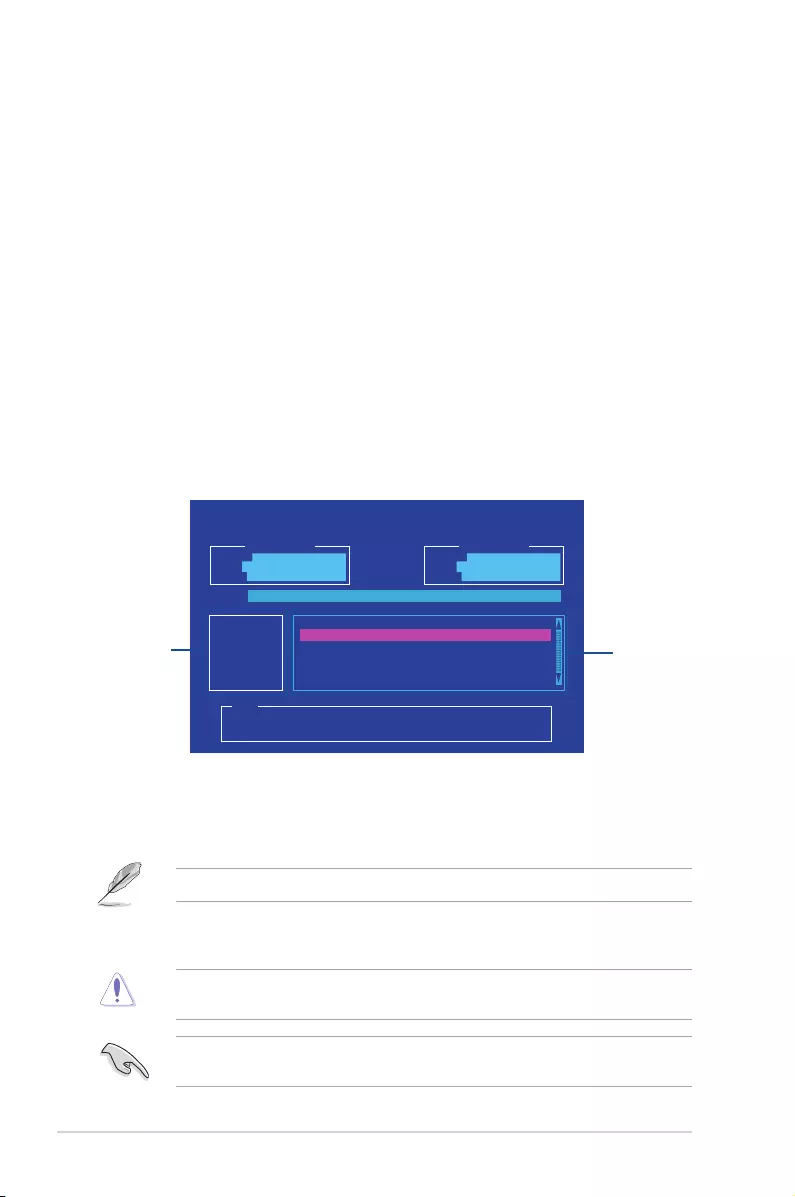
1. On the FreeDOS prompt, type bupdater /g and press <Enter>.
2. On the BIOS Updater screen, press <Tab> to switch from Files panel to Drives panel
then select D:.
3. Press <Tab> to switch from Drives panel to Files panel then press <Up/Down or Home/
End> keys to select the BIOS le and press <Enter>.
4. After the BIOS Updater checks the selected BIOS le, select Yes to conrm the BIOS
update.
The BIOS Backup feature is not supported due to security regulations.
5 Press any key to reboot the system to automatically launch EZ Flash 3. Wait until the
BIOS update is completed.
DO NOT shut down or reset the system while updating the BIOS to prevent system boot
failure.
Ensure to load the BIOS default settings to ensure system compatibility and stability. Select
the Load Optimized Defaults item under the Exit BIOS menu.
ASUSTeK BIOS Updater for DOS V1.31 [2014/01/01]
Current ROM
BOARD: PRIME H270-PLUS
VER: 0207 (H :00 B :00)
DATE: 08/25/2016
Update ROM
BOARD: Unknown
VER: Unknown
DATE: Unknown
PATH: C:\
C:
D:
FORMAN~1 <DIR>
PH270P.CAP 16779264 2015-06-04 21:14:34
Note
[Enter] Select or Load [Tab] Switch [V] Drive Info
[Up/Down/Home/End] Move [Esc] Exit
Drives
panel Files panel
ASUS PRIME H270-PLUS2‑5
2.2 BIOS setup program
Use the BIOS Setup program to update the BIOS or congure its parameters. The BIOS
screens include navigation keys and brief online help to guide you in using the BIOS Setup
program.
Entering BIOS Setup at startup
To enter BIOS Setup at startup:
• Press <Delete> or <F2> during the Power‑On Self Test (POST). If you do not press
<Delete> or <F2>, POST continues with its routines.
Entering BIOS Setup after POST
To enter BIOS Setup after POST:
• Press <Ctrl>+<Alt>+<Del> simultaneously.
• Press the reset button on the system chassis.
• Press the power button to turn the system off then back on. Do this option only if you
failed to enter BIOS Setup using the rst two options.
Using the power button, reset button, or the <Ctrl>+<Alt>+<Del> keys to force reset from a
running operating system can cause damage to your data or system. We recommend you
always shut down the system properly from the operating system.
• The BIOS setup screens shown in this section are for reference purposes only, and
may not exactly match what you see on your screen.
• Visit the ASUS website at www.asus.com to download the latest BIOS le for this
motherboard.
• Ensure that a USB mouse is connected to your motherboard if you want to use the
mouse to control the BIOS setup program.
• If the system becomes unstable after changing any BIOS setting, load the default
settings to ensure system compatibility and stability. Select the Load Optimized
Defaults item under the Exit menu or press hotkey <F5>.
• If the system fails to boot after changing any BIOS setting, try to clear the CMOS and
reset the motherboard to the default value. See section 1.2.1 Layout contents for
information on how to erase the RTC RAM
BIOS menu screen
The BIOS setup program can be used under two modes: EZ Mode and Advanced Mode.
You can change modes from the Exit menu or from the Exit/Advanced Mode button in the EZ
Mode/Advanced Mode screen.
2‑6
Chapter 2: BIOS information
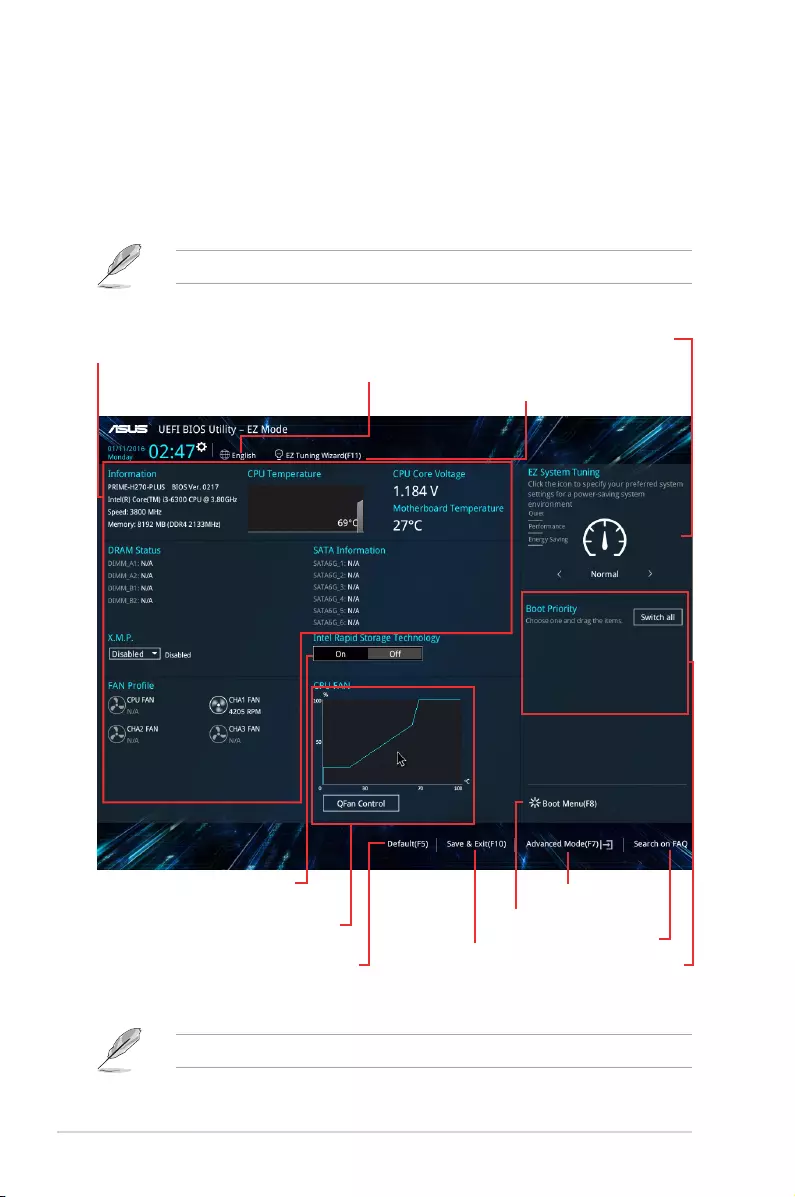
The boot device options vary depending on the devices you installed to the system.
2.2.1 EZ Mode
By default, the EZ Mode screen appears when you enter the BIOS setup program. The EZ
Mode provides you an overview of the basic system information, and allows you to select
the display language, system performance mode and boot device priority. To access the
Advanced Mode, click Advanced Mode or press <F7> for the advanced BIOS settings.
The default screen for entering the BIOS setup program can be changed.
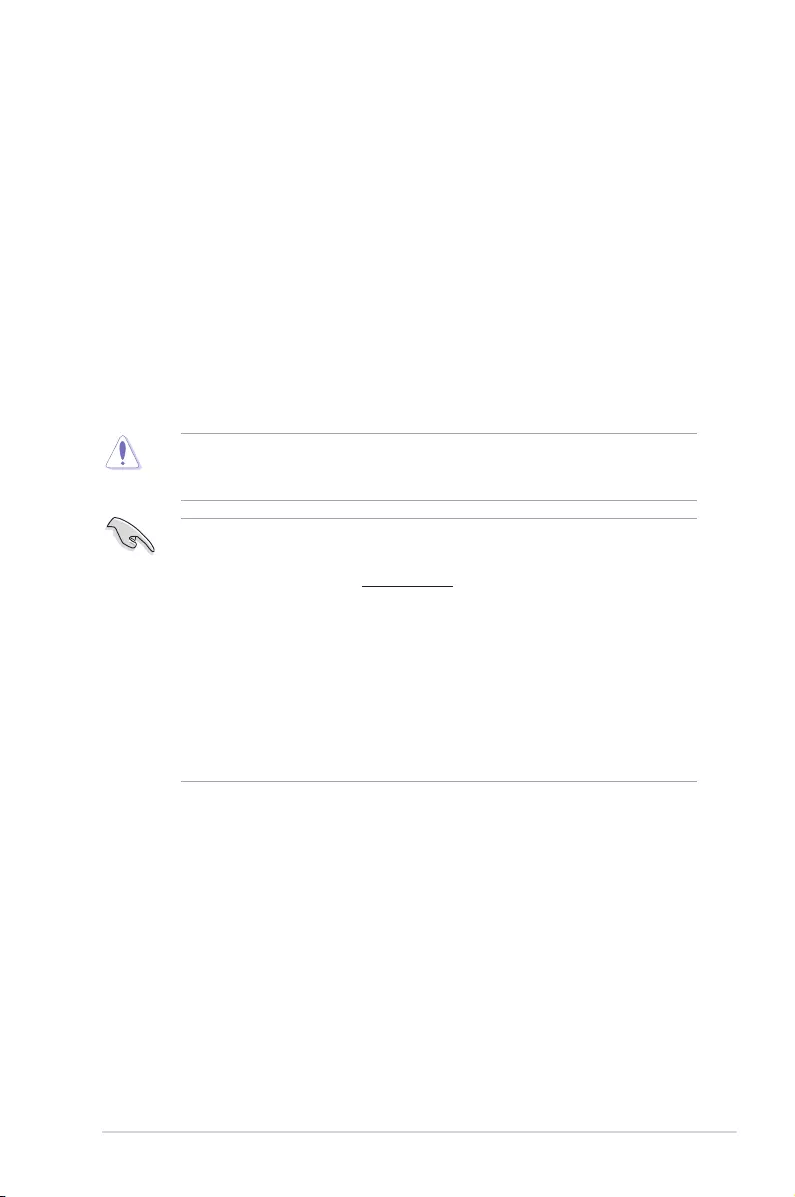
Displays the CPU/motherboard
temperature, CPU voltage output,
CPU/chassis fan speed, and
SATA information Selects the display
language of the BIOS
setup program
Creates storage RAID
Displays the system properties of the
selected mode. Click <Enter> to switch
EZ System Tuning modes
Saves the
changes and
resets the system
Displays the
Advanced mode
menus
Selects the boot
device priority
Loads optimized
default settings
Shows the
bootable
devices
Displays the CPU Fan’s
speed. Click the button to
manually tune the fans
Enables or disables the Intel
Rapid Storage Technology
Search on FAQs
ASUS PRIME H270-PLUS2-7
Menu bar
Menu items Pop-up window
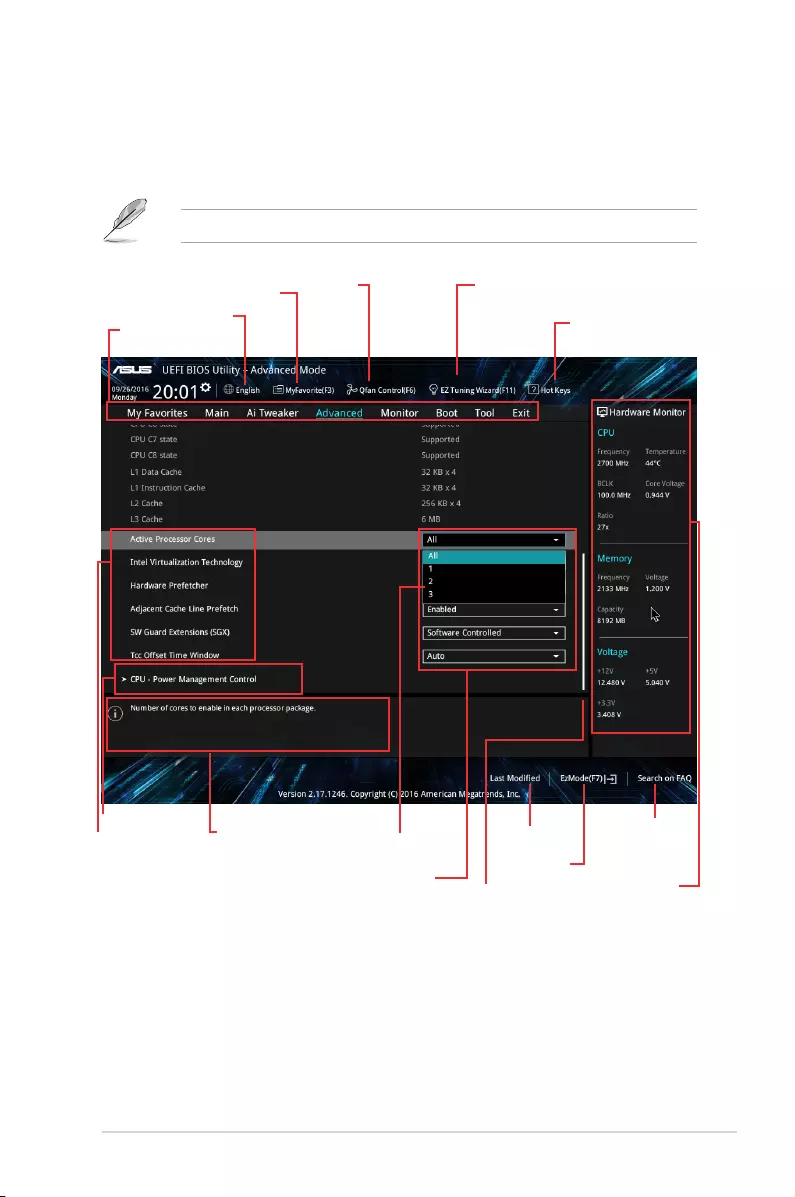
2.2.2 Advanced Mode
The Advanced Mode provides advanced options for experienced end‑users to congure the
BIOS settings. The gure below shows an example of the Advanced Mode.
To access the EZ Mode, click EZ Mode(F7) or press <F7>.
Goes back
to EZ Mode
Language
MyFavorite Q-Fan control EZ Tuning Wizard
Hot Keys
Displays the CPU
temperature, CPU
and memory voltage
output
Sub-menu item General help
Conguration elds
Scroll bar
Last modied
settings
Search on FAQs

2‑8
Chapter 2: BIOS information
Menu items
The highlighted item on the menu bar displays the specic items for that menu. For example,
selecting Main shows the Main menu items.
The other items (My Favorites, Ai Tweaker, Advanced, Monitor, Boot, Tool, and Exit) on the
menu bar have their respective menu items.
Submenu items
A greater than sign (>) before each item on any menu screen means that the item has a
submenu. To display the submenu, select the item and press <Enter>.
Language
This button above the menu bar contains the languages that you can select for your BIOS.
Click this button to select the language that you want to display in your BIOS screen.
MyFavorites (F3)
This button above the menu bar shows all BIOS items in a Tree Map setup. Select frequently‑
used BIOS settings and save it to MyFavorites menu.
Q-Fan Control (F6)
This button above the menu bar displays the current settings of your fans. Use this button to
manually tweak the fans to your desired settings.
EZ Tuning Wizard (F11)
This button above the menu bar allows you to view and tweak the overclocking settings of
your system. It also allows you to change the motherboard’s SATA mode from AHCI to RAID
mode.
Hot keys
This button above the menu bar contains the navigation keys for the BIOS setup program.
Use the navigation keys to select items in the menu and change the settings.
Menu bar
The menu bar on top of the screen has the following main items:
My Favorites For saving the frequently‑used system settings and conguration
Main For changing the basic system conguration
Ai Tweaker For changing the overclocking settings
Advanced For changing the advanced system settings
Monitor For displaying the system temperature, power status, and changing the
fan settings
Boot For changing the system boot conguration
Tool For conguring options for special functions
Exit For selecting the exit options and loading default settings

ASUS PRIME H270-PLUS2-9
Search on FAQ
Move your mouse over this button to show a QR code. Scan this QR code with your mobile
device to connect to the ASUS BIOS FAQ web page. You can also scan the QR code below.
Scroll bar
A scroll bar appears on the right side of a menu screen when there are items that do not t
on the screen. Press the Up/Down arrow keys or <Page Up> / <Page Down> keys to display
the other items on the screen.
General help
At the bottom left corner of the menu screen is a brief description of the selected item. Use
<F12> key to capture the BIOS screen and save it to the removable storage device.
Conguration elds
These elds show the values for the menu items. If an item is user‑congurable, you can
change the value of the eld opposite the item. You cannot select an item that is not
user‑congurable.
A congurable eld is highlighted when selected. To change the value of a eld, select it and
press <Enter> to display a list of options.
Last Modied button
This button shows the items that you last modied and saved in BIOS Setup.
2-10
Chapter 2: BIOS information
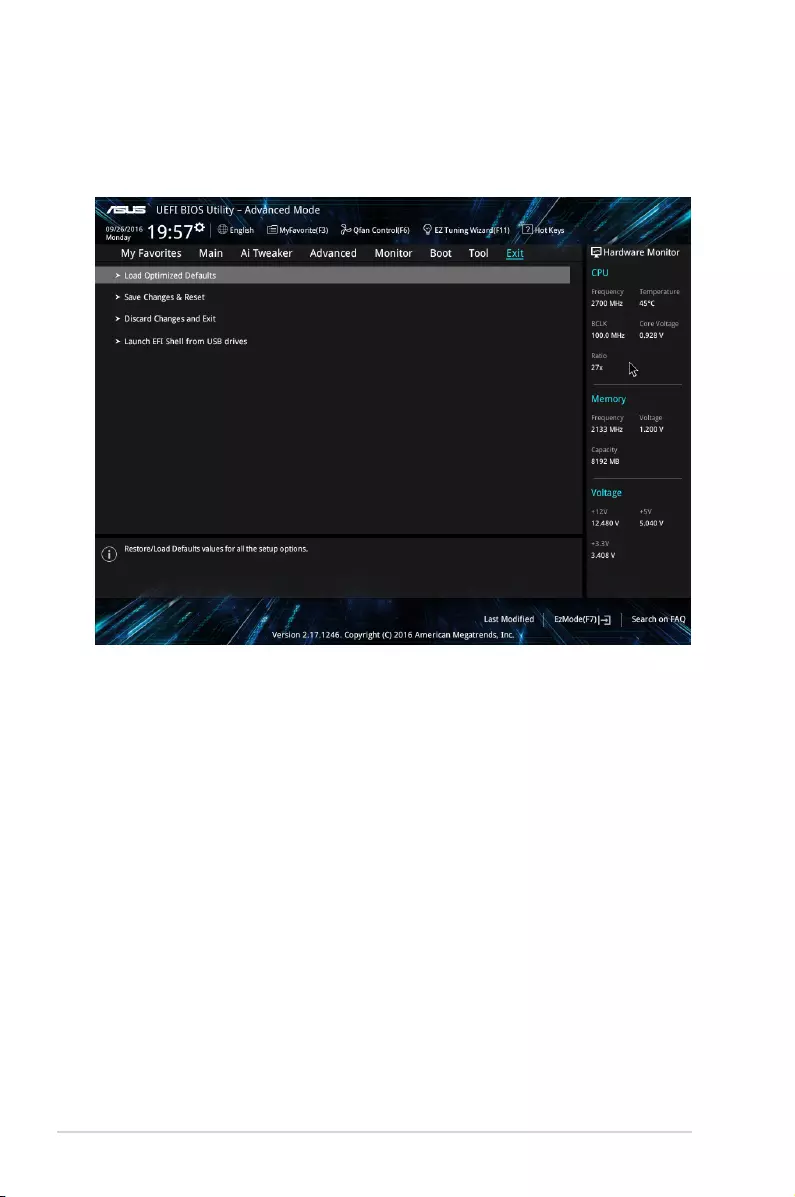
2.3 Exit menu
The Exit menu items allow you to load the optimal default values for the BIOS items, and
save or discard your changes to the BIOS items. You can access the EZ Mode from the Exit
menu.
Load Optimized Defaults
This option allows you to load the default values for each of the parameters on the Setup
menus. When you select this option or if you press <F5>, a conrmation window appears.
Select OK to load the default values.
Save Changes & Reset
Once you are nished making your selections, choose this option from the Exit menu to
ensure the values you selected are saved. When you select this option or if you press <F10>,
a conrmation window appears. Select OK to save changes and exit.
Discard Changes and Exit
This option allows you to exit the Setup program without saving your changes. When you
select this option or if you press <Esc>, a conrmation window appears. Select OK to discard
changes and exit.
Launch EFI Shell from USB drives
This option allows you to attempt to launch the EFI Shell application (shellx64.e) from one of
the available USB devices.

Appendix
Notices
Federal Communications Commission Statement
This device complies with Part 15 of the FCC Rules. Operation is subject to the following two
conditions:
• This device may not cause harmful interference.
• This device must accept any interference received including interference that may cause
undesired operation.
This equipment has been tested and found to comply with the limits for a Class B digital
device, pursuant to Part 15 of the FCC Rules. These limits are designed to provide
reasonable protection against harmful interference in a residential installation. This
equipment generates, uses and can radiate radio frequency energy and, if not installed
and used in accordance with manufacturer’s instructions, may cause harmful interference
to radio communications. However, there is no guarantee that interference will not occur
in a particular installation. If this equipment does cause harmful interference to radio or
television reception, which can be determined by turning the equipment off and on, the user
is encouraged to try to correct the interference by one or more of the following measures:
• Reorient or relocate the receiving antenna.
• Increase the separation between the equipment and receiver.
• Connect the equipment to an outlet on a circuit different from that to which the receiver
is connected.
• Consult the dealer or an experienced radio/TV technician for help.
The use of shielded cables for connection of the monitor to the graphics card is required
toassurecompliancewithFCCregulations.Changesormodicationstothisunitnot
expressly approved by the party responsible for compliance could void the user’s authority
to operate this equipment.
IC: Canadian Compliance Statement
ComplieswiththeCanadianICES-003ClassBspecications.ThisdevicecomplieswithRSS
210 of Industry Canada. This Class B device meets all the requirements of the Canadian
interference-causing equipment regulations.
This device complies with Industry Canada license exempt RSS standard(s). Operation is
subject to the following two conditions: (1) this device may not cause interference, and (2)
this device must accept any interference, including interference that may cause undesired
operation of the device.
Cut appareil numérique de la Classe B est conforme à la norme NMB-003 du Canada.
Cet appareil numérique de la Classe B respecte toutes les exigences du Règlement sur le
matériel brouilleur du Canada.
Cet appareil est conforme aux normes CNR exemptes de licence d’Industrie Canada. Le
fonctionnement est soumis aux deux conditions suivantes :
(1) cet appareil ne doit pas provoquer d’interférences et
(2) cet appareil doit accepter toute interférence, y compris celles susceptibles de provoquer
un fonctionnement non souhaité de l’appareil.
ASUS PRIME H270-PLUS
A-1
Canadian Department of Communications Statement
This digital apparatus does not exceed the Class B limits for radio noise emissions from
digital apparatus set out in the Radio Interference Regulations of the Canadian Department
of Communications.
This class B digital apparatus complies with Canadian ICES-003.
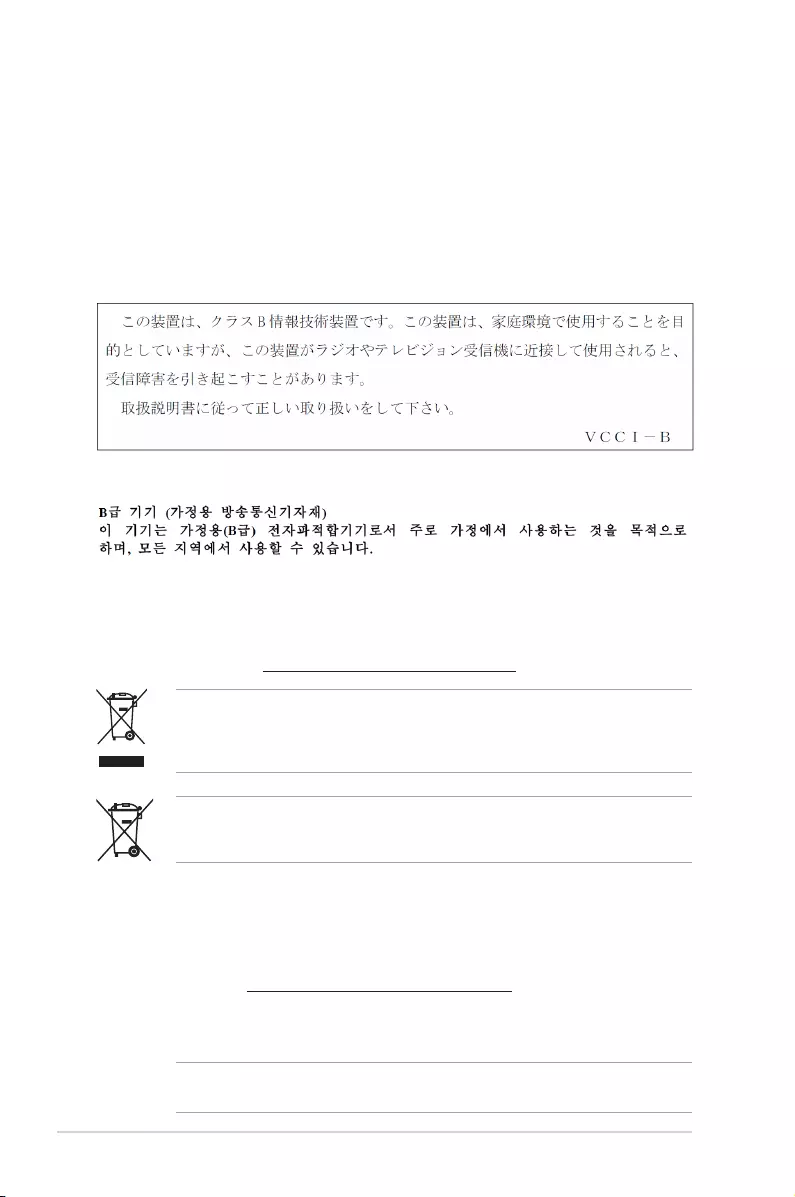
VCCI: Japan Compliance Statement
Class B ITE
KC: Korea Warning Statement
REACH
Complying with the REACH (Registration, Evaluation, Authorisation, and Restriction of
Chemicals) regulatory framework, we published the chemical substances in our products at
ASUS REACH website at http://csr.asus.com/english/REACH.htm.
DO NOT throw the motherboard in municipal waste. This product has been designed to
enable proper reuse of parts and recycling. This symbol of the crossed out wheeled bin
indicates that the product (electrical and electronic equipment) should not be placed in
municipal waste. Check local regulations for disposal of electronic products.
DO NOT throw the mercury-containing button cell battery in municipal waste. This symbol
of the crossed out wheeled bin indicates that the battery should not be placed in municipal
waste.
ASUS Recycling/Takeback Services
ASUS recycling and takeback programs come from our commitment to the highest standards
for protecting our environment. We believe in providing solutions for you to be able to
responsibly recycle our products, batteries, other components as well as the packaging
materials. Please go to http://csr.asus.com/english/Takeback.htm for detailed recycling
information in different regions.
Regional notice for California
WARNING: This product may contain chemicals known to the State of California to cause
cancer, birth defects or other reproductive harm. Wash hands after handling.
A-2
Appendices

Google™ License Terms
Copyright© 2016 Google Inc. All Rights Reserved.
LicensedundertheApacheLicense,Version2.0(the“License”);youmaynotusethisle
except in compliance with the License. You may obtain a copy of the License at:
http://www.apache.org/licenses/LICENSE-2.0
Unless required by applicable law or agreed to in writing, software distributed under the
License is distributed on an “AS IS” BASIS, WITHOUT WARRANTIES OR CONDITIONS OF
ANY KIND, either express or implied.
SeetheLicenseforthespeciclanguagegoverningpermissionsandlimitationsunderthe
License.
Latviski ASUSTeK Computer Inc. ar šo paziņo, ka šī ierīce atbilst saistīto
Direktīvu būtiskajām prasībām un citiem citiem saistošajiem nosacījumiem.
Pilns ES atbilstības paziņojuma teksts pieejams šeit: www.asus.com/support
Lietuvių „ASUSTeK Computer Inc.“ šiuo tvirtina, kad šis įrenginys atitinka
pagrindinius reikalavimus ir kitas svarbias susijusių direktyvų nuostatas. Visą
ES atitikties deklaracijos tekstą galima rasti: www.asus.com/support
Norsk ASUSTeK Computer Inc. erklærer herved at denne enheten er i
samsvar med hovedsaklige krav og andre relevante forskrifter i relaterte
direktiver. Fullstendig tekst for EU-samsvarserklæringen nnes på:
www.asus.com/support
Polski Firma ASUSTeK Computer Inc. niniejszym oświadcza, że
urządzenie to jest zgodne z zasadniczymi wymogami i innymi właściwymi
postanowieniami powiązanych dyrektyw. Pełny tekst deklaracji zgodności UE
jest dostępny pod adresem: www.asus.com/support
Português A ASUSTeK Computer Inc. declara que este dispositivo está em
conformidade com os requisitos essenciais e outras disposições relevantes
das Diretivas relacionadas. Texto integral da declaração da UE disponível em:
www.asus.com/support
Română ASUSTeK Computer Inc. declară că acest dispozitiv se conformează
cerinţelor esenţiale şi altor prevederi relevante ale directivelor conexe. Textul
complet al declaraţiei de conformitate a Uniunii Europene se găseşte la:
www.asus.com/support
Srpski ASUSTeK Computer Inc. ovim izjavljuje da je ovaj uređaj u saglasnosti
sa osnovnim zahtevima i drugim relevantnim odredbama povezanih
Direktiva. Pun tekst EU deklaracije o usaglašenosti je dostupan da adresi:
www.asus.com/support
Slovensky Spoločnosť ASUSTeK Computer Inc. týmto vyhlasuje, že toto
zariadenie vyhovuje základným požiadavkám a ostatým príslušným
ustanoveniam príslušných smerníc. Celý text vyhlásenia o zhode pre štáty EÚ
je dostupný na adrese: www.asus.com/support
Slovenščina ASUSTeK Computer Inc. izjavlja, da je ta naprava skladna z
bistvenimi zahtevami in drugimi ustreznimi določbami povezanih direktiv.
Celotno besedilo EU-izjave o skladnosti je na voljo na spletnem mestu:
www.asus.com/support
Español Por la presente, ASUSTeK Computer Inc. declara que este dispositivo
cumple los requisitos básicos y otras disposiciones pertinentes de las
directivas relacionadas. El texto completo de la declaración de la UE de
conformidad está disponible en: www.asus.com/support
Svenska ASUSTeK Computer Inc. förklarar härmed att denna
enhet överensstämmer med de grundläggande kraven och andra
relevanta föreskrifter i relaterade direktiv. Fulltext av EU-försäkran om
överensstämmelse nns på: www.asus.com/support
Українська ASUSTeK Computer Inc. заявляє, що цей пристрій відповідає
основним вимогам та іншим відповідним положенням відповідних
Директив. Повний текст декларації відповідності стандартам ЄС
доступний на: www.asus.com/support
Türkçe AsusTek Computer Inc., bu aygıtın temel gereksinimlerle ve ilişkili
Yönergelerin diğer ilgili koşullarıyla uyumlu olduğunu beyan eder. AB
uygunluk bildiriminin tam metni şu adreste bulunabilir:
www.asus.com/support
Bosanski ASUSTeK Computer Inc. ovim izjavljuje da je ovaj uređaj usklađen
sa bitnim zahtjevima i ostalim odgovarajućim odredbama vezanih direktiva.
Cijeli tekst EU izjave o usklađenosti dostupan je na: www.asus.com/support
English ASUSTeK Computer Inc. hereby declares that this device is in
compliance with the essential requirements and other relevant provisions
of related Directives 1999/5/EC. Full text of EU declaration of conformity is
available at: www.asus.com/support
Français AsusTek Computer Inc. déclare par la présente que cet appareil est
conforme aux critères essentiels et autres clauses pertinentes des directives
concernées. La déclaration de conformité de l’UE peut être téléchargée à
partir du site Internet suivant : www.asus.com/support.
Deutsch ASUSTeK Computer Inc. erklärt hiermit, dass dieses Gerät mit
den wesentlichen Anforderungen und anderen relevanten Bestimmungen
der zugehörigen Richtlinien übereinstimmt. Der gesamte Text der EU-
Konformitätserklärung ist verfügbar unter: www.asus.com/support
Italiano ASUSTeK Computer Inc. con la presente dichiara che questo
dispositivo è conforme ai requisiti essenziali e alle altre disposizioni pertinenti
con le direttive correlate. Il testo completo della dichiarazione di conformità
UE è disponibile all’indirizzo: www.asus.com/support
Русский Компания ASUS заявляет, что это устройство соответствует
основным требованиям и другим соответствующим условиям
соответствующих директив. Подробную информацию, пожалуйста,
смотрите на www.asus.com/support
Български С настоящото ASUSTeK Computer Inc. декларира, че това
устройство е в съответствие със съществените изисквания и другите
приложими постановления на свързаните директиви. Пълният текст на
декларацията за съответствие на ЕС е достъпна на адрес:
www.asus.com/support
Hrvatski ASUSTeK Computer Inc. ovim izjavljuje da je ovaj uređaj sukladan
s bitnim zahtjevima i ostalim odgovarajućim odredbama vezanih direktiva.
Cijeli tekst EU izjave o sukladnosti dostupan je na: www.asus.com/support
Čeština Společnost ASUSTeK Computer Inc. tímto prohlašuje, že toto
zařízení splňuje základní požadavky a další příslušná ustanovení souvisejících
směrnic. Plné znění prohlášení o shodě EU je k dispozici na adrese:
www.asus.com/support
Dansk ASUSTeK Computer Inc. erklærer hermed, at denne enhed er i
overensstemmelse med hovedkravene og andre relevante bestemmelser i de
relaterede direktiver. Hele EU-overensstemmelseserklæringen kan ndes på:
www.asus.com/support
Nederlands ASUSTeK Computer Inc. verklaart hierbij dat dit apparaat
voldoet aan de essentiële vereisten en andere relevante bepalingen van
de verwante richtlijnen. De volledige tekst van de EU-verklaring van
conformiteit is beschikbaar op: www.asus.com/support
Eesti Käesolevaga kinnitab ASUSTeK Computer Inc, et see seade vastab
asjakohaste direktiivide oluliste nõuetele ja teistele asjassepuutuvatele
sätetele. EL vastavusdeklaratsiooni täielik tekst on saadaval järgmisel
aadressil: www.asus.com/support
Suomi ASUSTeK Computer Inc. ilmoittaa täten, että tämä laite on
asiaankuuluvien direktiivien olennaisten vaatimusten ja muiden tätä
koskevien säädösten mukainen. EU-yhdenmukaisuusilmoituksen koko teksti
on luettavissa osoitteessa: www.asus.com/support
Ελληνικά Με το παρόν, η AsusTek Computer Inc. δηλώνει ότι αυτή η
συσκευή συμμορφώνεται με τις θεμελιώδεις απαιτήσεις και άλλες σχετικές
διατάξεις των Οδηγιών της ΕΕ. Το πλήρες κείμενο της δήλωσης συμβατότητας
είναι διαθέσιμο στη διεύθυνση: www.asus.com/support
Magyar Az ASUSTeK Computer Inc. ezennel kijelenti, hogy ez az eszköz
megfelel a kapcsolódó Irányelvek lényeges követelményeinek és egyéb
vonatkozó rendelkezéseinek. Az EU megfelelőségi nyilatkozat teljes szövege
innen letölthető: www.asus.com/support
ASUS PRIME H270-PLUS
A-3

ASUS contact information
ASUSTeK COMPUTER INC.
Address 4F, No. 150, Li-Te Road, Peitou, Taipei 112, Taiwan
Telephone +886-2-2894-3447
Fax +886-2-2890-7798
Web site www.asus.com
Technical Support
Telephone +86-21-38429911
Fax +86-21-5866-8722, ext. 9101#
Online support http://qr.asus.com/techserv
ASUS COMPUTER INTERNATIONAL (America)
Address 800 Corporate Way, Fremont, CA 94539, USA
Telephone +1-510-739-3777
Fax +1-510-608-4555
Web site http://www.asus.com/us/
Technical Support
Support fax +1-812-284-0883
Telephone +1-812-282-2787
Online support http://qr.asus.com/techserv
ASUS COMPUTER GmbH (Germany and Austria)
Address Harkort Str. 21-23, 40880 Ratingen, Germany
Fax +49-2102-959931
Web site http://www.asus.com/de
Online contact http://eu-rma.asus.com/sales
Technical Support
Telephone +49-2102-5789555
Support Fax +49-2102-959911
Online support http://qr.asus.com/techserv
A-4
Appendices

DECLARATION OF CONFORMITY
Per FCC Part 2 Section 2. 1077(a)
Responsible Party Name: Asus Computer International
Address: 800 Corporate Way, Fremont, CA 94539.
Phone/Fax No: (510)739-3777/(510)608-4555
hereby declares that the product
Product Name : Motherboard
Model Number : PRIME H270-PLUS
Conforms to the following specifications:
FCC Part 15, Subpart B, Unintentional Radiators
Supplementary Information:
This device complies with part 15 of the FCC Rules. Operation is subject to the
following two conditions: (1) This device may not cause harmful interference,
and (2) this device must accept any interference received, including interference
that may cause undesired operation.
Representative Person’s Name : Steve Chang / President
Signature :
Ver. 140331
ASUS PRIME H270-PLUS
A-5
Manufacturer:ASUS
Category:Computers & Peripherals
Device:ASUS PRIME H270-PLUS
Name:T11133_mb_pin_definition_manual(Traditional Chinese)
Language:中文(繁體)
Pages:18
Size:1.73 MB
Manufacturer:ASUS
Category:Computers & Peripherals
Device:ASUS PRIME H270-PLUS
Name:J11133_MB_Pin_Definition Manual(Japanese)
Language:日本語
Pages:18
Size:1.59 MB
Manufacturer:ASUS
Category:Computers & Peripherals
Device:ASUS PRIME H270-PLUS
Name:C11133_MB_PIN_DEFINITION Manual(Simplified Chinese)
Language:中文(简体)
Pages:18
Size:1.68 MB
Manufacturer:ASUS
Category:Computers & Peripherals
Device:ASUS PRIME H270-PLUS
Name:DT172_200_Series_Ai_Suite_3_Manual
Pages:16
Size:2.35 MB
Manufacturer:ASUS
Category:Computers & Peripherals
Device:ASUS PRIME H270-PLUS
Name:DR172_200_Series_Ai_Suite_3_Guide
Pages:16
Size:1.26 MB
Manufacturer:ASUS
Category:Computers & Peripherals
Device:ASUS PRIME H270-PLUS
Name:DS172_200_Series_Ai_Suite_3_Guide
Pages:16
Size:1.35 MB
Manufacturer:ASUS
Category:Computers & Peripherals
Device:ASUS PRIME H270-PLUS
Name:DF172_200_Series_Ai_Suite_3_Guide
Pages:16
Size:1.21 MB
Manufacturer:ASUS
Category:Computers & Peripherals
Device:ASUS PRIME H270-PLUS
Name:DG172_200_Series_Ai_Suite_3_Guide
Pages:16
Size:1.22 MB
Manufacturer:ASUS
Category:Computers & Peripherals
Device:ASUS PRIME H270-PLUS
Name:DJ172_200_Series_AI_Suite_3_Guide
Pages:16
Size:848.10 KB
Manufacturer:ASUS
Category:Computers & Peripherals
Device:ASUS PRIME H270-PLUS
Name:DK172_200_Series_Ai_Suite_3_Guide
Pages:16
Size:1.46 MB
Manufacturer:ASUS
Category:Computers & Peripherals
Device:ASUS PRIME H270-PLUS
Name:DC172_200_Series_Ai_Suite_3_Manual
Pages:16
Size:2.16 MB
Manufacturer:ASUS
Category:Computers & Peripherals
Device:ASUS PRIME H270-PLUS
Name:DE172_200_Series_AI_Suite_3_Guide
Pages:16
Size:1.78 MB
Manufacturer:ASUS
Category:Computers & Peripherals
Device:ASUS PRIME H270-PLUS
Name:User’s manual (Traditional Chinese)
Language:中文(繁體)
Pages:34
Size:3.30 MB
Manufacturer:ASUS
Category:Computers & Peripherals
Device:ASUS PRIME H270-PLUS
Name:PRIME_H270-PLUS_MemoryQVL
Language:Multilingual
Pages:9
Size:943.78 KB
Manufacturer:ASUS
Category:Computers & Peripherals
Device:ASUS PRIME H270-PLUS
Name:PRIME_H270-PLUS_Devices_report
Language:Multilingual
Pages:19
Size:316.59 KB
Manufacturer:ASUS
Category:Computers & Peripherals
Device:ASUS PRIME H270-PLUS
Name:Quick Start Guide
Language:Multilingual
Pages:2
Size:1.07 MB
Manufacturer:ASUS
Category:Computers & Peripherals
Device:ASUS PRIME H270-PLUS
Name:User’s manual (ENGLISH)
Language:English
Pages:36
Size:2.53 MB
Manufacturer:ASUS
Category:Computers & Peripherals
Device:ASUS PRIME H270-PLUS
Name:User’s manual (FRENCH)
Language:Français
Pages:37
Size:2.09 MB
Manufacturer:ASUS
Category:Computers & Peripherals
Device:ASUS PRIME H270-PLUS
Name:User’s manual (GERMAN)
Language:Deutsch
Pages:37
Size:2.10 MB
Manufacturer:ASUS
Category:Computers & Peripherals
Device:ASUS PRIME H270-PLUS
Name:User’s manual (JAPANESE)
Language:日本語
Pages:40
Size:2.26 MB
Manufacturer:ASUS
Category:Computers & Peripherals
Device:ASUS PRIME H270-PLUS
Name:User’s manual (Simplified Chinese)
Language:中文(简体)
Pages:6
Size:2.25 MB
Manufacturer:ASUS
Category:Computers & Peripherals
Device:ASUS PRIME H270-PLUS
Name:DE170_Windows_7_Setup_Guide
Pages:6
Size:1.20 MB
Manufacturer:ASUS
Category:Computers & Peripherals
Device:ASUS PRIME H270-PLUS
Name:DT170_Windows_7_Setup_Guide
Pages:6
Size:1.22 MB
Manufacturer:ASUS
Category:Computers & Peripherals
Device:ASUS PRIME H270-PLUS
Name:DC170_Windows_7_Setup_Guide
Pages:6
Size:1.20 MB
Manufacturer:ASUS
Category:Computers & Peripherals
Device:ASUS PRIME H270-PLUS
Name:DG170_Windows_7_Setup_Guide
Pages:6
Size:460.30 KB
Manufacturer:ASUS
Category:Computers & Peripherals
Device:ASUS PRIME H270-PLUS
Name:DJ170_Windows_7_Setup_Guide
Language:日本語
Pages:8
Size:342.45 KB
Manufacturer:ASUS
Category:Computers & Peripherals
Device:ASUS PRIME H270-PLUS
Name:E11133_MB_Pin_Definition Manual(English)
Language:English
Pages:18
Size:1.55 MB
Manufacturer:ASUS
Category:Computers & Peripherals
Device:ASUS PRIME H270-PLUS
Name:BIOS_Update_E-Manual(Japanese)
Language:日本語
Pages:11
Size:1.13 MB
Manufacturer:ASUS
Category:Computers & Peripherals
Device:ASUS PRIME H270-PLUS
Name:BIOS_Update_E-Manual(English)
Language:English
Pages:11
Size:1.60 MB
Manufacturer:ASUS
Category:Computers & Peripherals
Device:ASUS PRIME H270-PLUS
Name:BIOS_Update_E-Manual(Traditional Chinese)
Language:中文(繁體)
Pages:11
Size:1.72 MB
Manufacturer:ASUS
Category:Computers & Peripherals
Device:ASUS PRIME H270-PLUS
Name:BIOS_Update_E-manual(Simplified Chinese)
Language:中文(简体)
Pages:11
Size:1.68 MB
Manufacturer:ASUS
Category:Computers & Peripherals
Device:ASUS PRIME H270-PLUS
Name:Windows_7_Setup_Guide_DVD
Size:15.18 MB
DescriptionASUS PRIME H270-PLUS Windows_7_Setup_Guide_DVD
ASUS
Loading…
P
- PR-DLS5332
- PR-DLSR
- PR-DLSR533
- PR-DLSW
- Prime A320I-K2
- Prime A320M-A3
- Prime A320M-C R2.0
- Prime A320M-E2
- Prime A320M-K2
- PRIME A320M-K/BR
- Prime A320M-R2
- Prime A520M-A2
- Prime A520M-E3
- Prime A520M-K3
- PRIME B250
- PRIME B250-A
- Prime B250M-C2
- PRIME B250M-D4
- PRIME B250M-PLUS/BR6
- PRIME B350M-A
- Prime B350M-E2
- Prime B350M-K
- Prime B350 plus4
- PRIME B360M-A3
- Prime B360M-C
- Prime B360-Plus2
- Prime B365M-A2
- Prime B365M-C
- Prime B365M-CCSM
- Prime B365M-K
- PRIME B365-PLUS2
- Prime B450M-A3
- Prime B450M-A II3
- Prime B450M-K3
- Prime B450M-K II3
- Prime B450-Plus3
- Prime B460-I Plus2
- Prime B460M-A2
- PRIME B460M-AJ2
- Prime B460M-K2
- Prime B460-Plus2
- Prime B550M-A3
- Prime B550M-A [WI-FI]3
- Prime B550M-K3
- Prime B550-Plus3
- Prime B660M-A D4
- Prime B660M-A WiFi D4
- Prime B660M-K
- Prime B660 Plus
- PRIME H270
- PRIME H270M-PLUS/CSM5
- Prime H270-Plus2
- Prime H310I-Plus
- Prime H310I-Plus R2.02
- PRIME H310M2 R2.0/FPT II
- Prime H310M-A R2.02
- Prime H310M-C
- Prime H310M-C R2.0
- Prime H310M-D2
- Prime H310M-D R2.0
- Prime H310M-E2
- PRIME H310M-E/BR
- Prime H310M-E R2.02
- PRIME H310M-E R2.0/BR
- Prime H310M-K R2.02
- PRIME H310M-R R2.02
- Prime H310-Plus R2.0
- Prime H310T
- Prime H370M-Plus2
- Prime H370-Plus
- Prime H410I-Plus
- Prime H410M-A3
- Prime H410M-D2
- Prime H410M-E2
- Prime H410M-K2
- Prime H410M-K R2.0
- PRIME H410M-R2
- Prime H470M-Plus2
- Prime H470-Plus2
- Prime H510M-A
- Prime H510M-D
- Prime H510M-K
- Prime H670 Plus D4
- PRIME J3355I-C
- Prime J4005I-C
- PRIME J4005I-C/BR
- PRIME TRX40-PRO
- Prime TRX40-Pro S2
- Prime X299-A
- Prime X299-A II
- Prime X299-Deluxe2
- Prime X299-Deluxe II2
- Prime X299 Edition 30
- prime x370-a
- Prime X370-Pro
- Prime X399-A
- PRIME X470-PRO
- Prime X570-P2
- Prime X570-Pro2
- PRIME Z270-A
Loading…
Loading…
Nothing found
Prime H270-Plus
operation manual [de]
37 pgs2.2 Mb0
Service Manual
36 pgs2.65 Mb0
Table of contents
Loading…
…
ASUS operation manual [de]
Download
Specifications and Main Features
Frequently Asked Questions
User Manual

Loading…
+ 25 hidden pages
You need points to download manuals.
1 point = 1 manual.
You can buy points or you can get point for every manual you upload.
Buy points
Upload your manuals
FAQ: Types of Manuals and Their Contents
Asus Prime H270-Plus Manuals come in various types, each serving a specific purpose to help users effectively operate and maintain their devices. Here are the common types of Asus Prime H270-Plus User Guides and the information they typically include:
- User Manuals: Provide comprehensive instructions on how to use the device, including setup, features, and operation. They often include troubleshooting tips, safety information, and maintenance guidelines.
- Service Instructions: Designed for technicians and repair professionals, these manuals offer detailed information on diagnosing and repairing issues with the device. They include schematics, parts lists, and step-by-step repair procedures.
- Installation Guides: Focus on the installation process of the device, providing detailed instructions and diagrams for proper setup. They are essential for ensuring the device is installed correctly and safely.
- Maintenance Manuals: Provide guidance on routine maintenance tasks to keep the device in optimal condition. They cover cleaning procedures, part replacements, and regular servicing tips.
- Quick Start Guides: Offer a concise overview of the essential steps needed to get the device up and running quickly. They are ideal for users who need immediate assistance with basic setup and operation.
Each type of Asus Prime H270-Plus instruction is designed to address specific needs, ensuring users have the necessary information to use, maintain, and repair their devices effectively.
Related Instructions for Asus Prime H270-Plus:
1
P2 Series E9719
E-manual PDF Guide (@63NGCM), Asus P2 Series E9719 Projector (Thu 11.2024)
64
423
85
3
Rampage IV Extreme
172
929
177
6
Cerberus
Quick start manual Asus Keyboard Quick start manual (File: asus-cerberus-quick-start-manual-47, 24.12.2024)
47
1207
242
7
P5Q PRO — Motherboard — ATX
124
831
167
8
RX3081
Manual Asus RX3081 Guide (Manual ), @HV9C15
301
569
126
9
P8Z68-M PRO
Quick start manual Asus Motherboard Quick start manual (File: asus-p8z68-m-pro-motherboard-12, Mon 01.2025)
12
227
44
Motherboard Devices by Other Brands:
|
Supermicro 6013P-T Hardware Specifications Supermicro 6013P-T User Manual (Hardware specifications), @43HV72 2 Gigabit LAN ports 28 Feb 2025 | 1 |
|
|
GE AZ45E09DABW1 Part Install Instructions #593324: AZ45E09DABW1 Motherboard Part install instructions GE Appliances 12 Mar 2025 | 2 |
|
|
ASROCK CONROE1333-GLAN Installation Manual PDF User Guide (@7AF681), ASROCK CONROE1333-GLAN Motherboard (Tue 05.2025) 11111 13 May 2025 | 126 |
|
|
SeeedStudio Base Shield V2 Quick Start Manual SeeedStudio Base Shield V2 Guide (Quick start manual), @N4T397 Base Shield V2 16 Jan 2025 | 4 |
Categories:
Microphone
Indoor Furnishing
Security Sensors
Notebooks
Phone
Led projector
-
Драйверы
33
-
Инструкции по эксплуатации
11
Языки:
ASUS PRIME H270-PLUS инструкция по эксплуатации
(18 страниц)
- Языки:Английский
-
Тип:
PDF -
Размер:
1.55 MB -
Описание:
E11133_MB_Pin_Definition Manual(English)
Просмотр
ASUS PRIME H270-PLUS инструкция по эксплуатации
(11 страниц)
- Языки:Английский
-
Тип:
PDF -
Размер:
1.6 MB -
Описание:
BIOS_Update_E-Manual(English)
Просмотр
ASUS PRIME H270-PLUS инструкция по эксплуатации
(37 страниц)
- Языки:Французский
-
Тип:
PDF -
Размер:
2.09 MB -
Описание:
PRIME H270-PLUS User’s manual ( FRENCH )
PRIME H270-PLUS User’s manual ( FRENCH )
Просмотр
ASUS PRIME H270-PLUS инструкция по эксплуатации
(40 страниц)
- Языки:Японский
-
Тип:
PDF -
Размер:
2.26 MB -
Описание:
PRIME H270-PLUS User’s manual ( JAPANESE )
PRIME H270-PLUS User’s manual ( JAPANESE )
Просмотр
ASUS PRIME H270-PLUS инструкция по эксплуатации
(37 страниц)
- Языки:Немецкий
-
Тип:
PDF -
Размер:
2.1 MB -
Описание:
PRIME H270-PLUS User’s manual ( GERMAN )
PRIME H270-PLUS User’s manual ( GERMAN )
Просмотр
ASUS PRIME H270-PLUS инструкция по эксплуатации
(18 страниц)
- Языки:Китайский
-
Тип:
PDF -
Размер:
1.68 MB -
Описание:
C11133_MB_PIN_DEFINITION Manual(Simplified Chinese)
Просмотр
ASUS PRIME H270-PLUS инструкция по эксплуатации
(18 страниц)
- Языки:Японский
-
Тип:
PDF -
Размер:
1.59 MB -
Описание:
J11133_MB_Pin_Definition Manual(Japanese)
Просмотр
ASUS PRIME H270-PLUS инструкция по эксплуатации
(18 страниц)
- Языки:Китайский
-
Тип:
PDF -
Размер:
1.73 MB -
Описание:
T11133_mb_pin_definition_manual(Traditional Chinese)
Просмотр
ASUS PRIME H270-PLUS инструкция по эксплуатации
(11 страниц)
- Языки:Японский
-
Тип:
PDF -
Размер:
1.13 MB -
Описание:
BIOS_Update_E-Manual(Japanese)
Просмотр
ASUS PRIME H270-PLUS инструкция по эксплуатации
(11 страниц)
- Языки:Китайский
-
Тип:
PDF -
Размер:
1.72 MB -
Описание:
BIOS_Update_E-Manual(Traditional Chinese)
Просмотр
ASUS PRIME H270-PLUS инструкция по эксплуатации
(16 страниц)
-
Тип:
PDF -
Размер:
1.21 MB -
Описание:
DF172_200_Series_Ai_Suite_3_Guide
Просмотр
На NoDevice можно скачать инструкцию по эксплуатации для ASUS PRIME H270-PLUS. Руководство пользователя необходимо для ознакомления с правилами установки и эксплуатации ASUS PRIME H270-PLUS. Инструкции по использованию помогут правильно настроить ASUS PRIME H270-PLUS, исправить ошибки и выявить неполадки.