
Manual
Version G4988
5.71 MB
2011/02/12
P7P55D PRO User’s Manual (Germany)
Version F4988
5.89 MB
2011/01/17
P7P55D PRO User’s manual (French)
Version D072
383.69 KB
2010/10/11
Turbo Unlocker (TurboV EVO) Instruction
Version IE5413
175.64 KB
2010/03/25
P55/H55/H57/Q57 FAQ Insert page
Version T4988
9.15 MB
2009/08/27
P7P55D PRO user’s manual (Traditional Chinese)
Version C4988
9.19 MB
2009/08/27
P7P55D PRO user’s manual (Simplified Chinese)
Version E4988
5.7 MB
2009/08/27
P7P55D PRO user’s manual (English)
Version E4764
5.6 MB
2009/08/21
P7P55D PRO user’s manual (English)
Version —
174.89 KB
2009/08/18
ASUS T.Probe manual (English)
Version T4764
9.2 MB
2009/08/14
P7P55D PRO user’s manual (Traditional Chinese)
ASUS T.Probe
The onboard T.Probe microchip detects and balances power phase loading
and temperature in real-time. This feature optimizes the power phase functions,
allowing components to run at lower temperatures and extending their lifespan.
You can monitor the power phase loading and temperature in the Windows®
environment with the bundled T.Probe application
Installing ASUS T.Probe
To install ASUS T.Probe on your computer
1. Place the support DVD to the optical drive. The Drivers installation tab
appears if your computer has an enabled Autorun feature.
2. Click the Utilities tab, and then click ASUS T.Probe.
3. Follow the screen instructions to complete installation.
Before using ASUS T.Probe
You have to congure BIOS settings before using ASUS T.Probe.
1. Press <Del> during the Power-On Self Test (POST) to enter the Setup utility.
2. Set the T.Probe item in the Advanced menu to [Enabled]
3. Save BIOS settings and restart the computer.
Refer to Chapter 3 of the motherboard user manual for detailed instructions of
BIOS settings
Using ASUS T.Probe
Click the T.Probe icon in the Windows® notication area
to launch the T.Probe application.
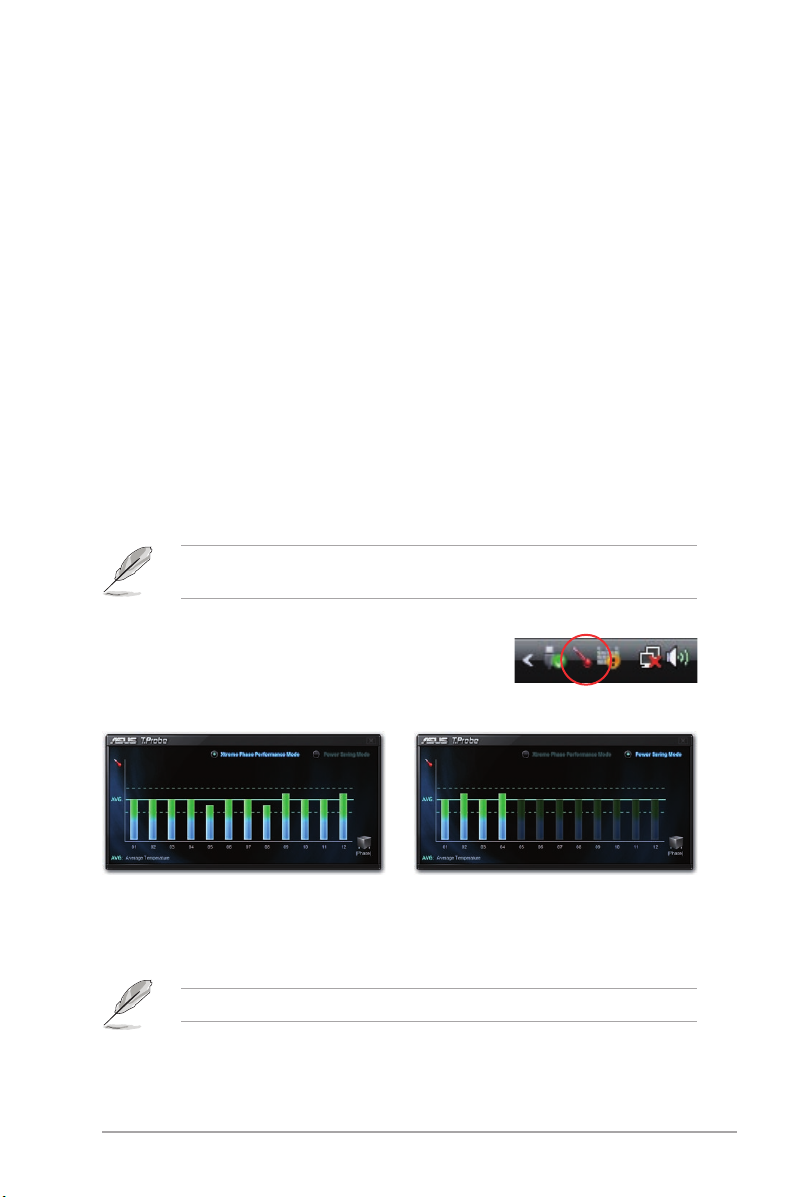
With T.Probe enabled, the temperature of the
power phase gradually levels to the center AVG
(average) area.
The number of the phase bars varies depending on motherboard model.
ASUS T.Probe 1
With T.Probe enabled, select “Power Saving
Mode” on the top-right corner to switch to four
phase mode. The temperature of the power
phase gradually levels to the center AVG
(average) area.
Loading…
Manuals.eu
- Manuals.eu
- ASUS
- Computers & Peripherals
- Motherboards
- LGA1156
- P7P55D PRO
- User’s manual (English)
×
1
2
3
4
5
6
7
8
9
10
11
12
13
14
15
16
17
18
19
20
21
22
23
24
25
26
27
28
29
30
31
32
33
34
35
36
37
38
39
40
41
42
43
44
45
46
47
48
49
50
51
52
53
54
55
56
57
58
59
60
61
62
63
64
65
66
67
68
69
70
71
72
73
74
75
76
77
78
79
80
81
82
83
84
85
86
87
88
89
90
91
92
93
94
95
96
97
98
99
100
101
102
103
104
105
106
107
108
109
110
111
112
113
114
115
116
117
118
119
120
121
122
123
124
125
126
127
128
⟨
⟩
Copyright © Manuals.eu
Agreement
Privacy Policy
Contact us
ASUS P7P55D PRO Motherboard Specification
The ASUS P7P55D PRO motherboard is designed to deliver optimized performance for users requiring robust computing capabilities. It supports Intel’s Socket 1156 processors, including the Intel Core i7, Core i5, and Core i3 series, integrating the Intel P55 Express chipset to harness efficient data processing and multitasking. The motherboard supports dual-channel DDR3 memory architecture with a maximum capacity of 16GB, operating at speeds of 2200(O.C.), 1600, 1333, and 1066 MHz, facilitating high-speed data transfer and system responsiveness.
For graphics, the ASUS P7P55D PRO provides the flexibility of ATI CrossFireX and NVIDIA SLI multi-GPU configurations, enhancing the system’s graphical capabilities for demanding applications. Connectivity features include multiple SATA connectors supporting RAID 0, 1, 5, and 10 configurations, delivering a balance of performance and data protection. Additionally, the motherboard offers Gigabit LAN for high-speed network connections, ensuring seamless internet and intranet communication.
The motherboard includes a rich array of I/O ports, such as USB 2.0, IEEE 1394a, and eSATA, offering extensive peripheral connectivity options. It integrates ASUS’s exclusive features, such as TurboV and Turbo Key, enabling dynamic overclocking and performance tuning for users seeking enhanced computing power. The MemOK! feature provides memory compatibility assurance, while ASUS’s EPU (Energy Processing Unit) optimizes power consumption, contributing to energy efficiency.
With its robust feature set and reliable performance, the ASUS P7P55D PRO motherboard caters to enthusiasts and professionals who demand versatility and efficiency from their computing platforms. It combines advanced technology and user-centric innovations to deliver a seamless and powerful computing experience.
ASUS P7P55D PRO Motherboard F.A.Q.
To update the BIOS, download the latest BIOS file from the ASUS support website, save it to a USB drive, and use the ASUS EZ Flash 2 utility in the BIOS setup to update.
Ensure that the RAM is seated properly, check if the RAM is compatible with the motherboard, and update the BIOS to the latest version.
Enter the BIOS setup during boot by pressing Delete, then navigate to the Exit tab and select ‘Load Setup Defaults’. Save and exit the BIOS.
The ASUS P7P55D PRO motherboard supports a maximum of 16GB of DDR3 RAM.
Check the power connections, ensure the graphics card is properly seated, verify the monitor is connected correctly, and reset the BIOS.
The ASUS P7P55D PRO does not have an M.2 slot. You would need a PCIe adapter to use an M.2 SSD.
Ensure proper airflow by using quality case fans, clean dust from components regularly, and consider upgrading to a more efficient CPU cooler.
Yes, the motherboard supports overclocking. Use the BIOS to adjust CPU multiplier and voltage settings carefully.
Ensure USB ports are enabled in BIOS, check for driver updates, and verify connections on the motherboard.
Refer to the motherboard manual for the front panel header layout. Connect power, reset, HDD LED, and power LED cables accordingly.
FAQ: Types of Manuals and Their Contents
Asus P7P55D PRO Manuals come in various types, each serving a specific purpose to help users effectively operate and maintain their devices. Here are the common types of Asus P7P55D PRO User Guides and the information they typically include:
- User Manuals: Provide comprehensive instructions on how to use the device, including setup, features, and operation. They often include troubleshooting tips, safety information, and maintenance guidelines.
- Service Instructions: Designed for technicians and repair professionals, these manuals offer detailed information on diagnosing and repairing issues with the device. They include schematics, parts lists, and step-by-step repair procedures.
- Installation Guides: Focus on the installation process of the device, providing detailed instructions and diagrams for proper setup. They are essential for ensuring the device is installed correctly and safely.
- Maintenance Manuals: Provide guidance on routine maintenance tasks to keep the device in optimal condition. They cover cleaning procedures, part replacements, and regular servicing tips.
- Quick Start Guides: Offer a concise overview of the essential steps needed to get the device up and running quickly. They are ideal for users who need immediate assistance with basic setup and operation.
Each type of Asus P7P55D PRO instruction is designed to address specific needs, ensuring users have the necessary information to use, maintain, and repair their devices effectively.
Related Instructions for Asus P7P55D PRO:
1
RS500A-X6 PS4
146
868
165
3
AP1600-R-E2
150
761
115
4
RS920A-E6/RS8
162
79
12
6
E3M-PLUS V5
46
1314
303
7
Terminator C3
94
1352
230
10
Vintage2-AE1
56
1320
212
Motherboard Devices by Other Brands:
|
ST ST25RU3993-EVAL Operation & User’s Manual Motherboard #5U5NR6 Introduction 19 Jan 2025 | 48 |
|
|
Albatron kx600s Instruction Manual kx600s (Motherboard ePDF User Manual, #4X2238) ALBATRON KX600S PRO/KX600S motherboard Manual�� 15 Feb 2025 | 61 |
|
|
Gigabyte GA-945P-S3 Operation & User’s Manual Motherboard #J81217 GA-945P-S3 22 Dec 2024 | 80 |
|
|
A-Trend ATC-2000 Manual PDF Manual (@392VGP), A-Trend ATC-2000 Motherboard (17.05.2025) Table of Contents 17 May 2025 | 36 |
Categories:
Telephone Accessories
Firewall
Adsl router
All-in-one pcs
Security Sensors
Smartphones