
Artillery Sidewinder X1
Arllery 3D Printer
List 1 — Main Modules
List 2 — Tools & Spares
M4x45 (5pcs)
Step 1
M4x45 (4pcs)
Fix the XZ gantry to the base with 4pcs of M4x45
screws as shown in the picture below.
Step 2
Fix the spool holder to the top of the printer, adjust
the width to fit the size of your filament spool. Make
sure the filament sensor is facing forward.
Step 3
Connect the filament runout sensor as shown in
pictures below:
Step 4
Connect the Z endstop to the cable.
Step 5
Connect the Z Stepper Motors as shown in the
pictures below:
Front
30pin (1pc)
20pin (1pc)
Manual
View the manual for the Artillery Sidewinder X1 here, for free. This manual comes under the category 3D printers and has been rated by 1 people with an average of a 7.5.
This manual is available in the following languages: English. Do you have a question about the Artillery Sidewinder X1 or do you need help?
Ask your question here
Product Images (2)


Artillery Sidewinder X1 specifications
Below you will find the product specifications and the manual specifications of the Artillery Sidewinder X1.
The Artillery Sidewinder X1 is a 3D printer that is designed to be easy to use while delivering high quality prints. It boasts a large build volume of 300 x 300 x 400mm, giving users the ability to print large objects with ease. The printer features a direct drive extruder system that allows for faster print speeds and more consistent extrusion. It also has a filament runout sensor that stops printing when the filament runs out, preventing failed prints due to lack of material.
The Sidewinder X1 is constructed with high quality materials for durability and longevity. It has a sturdy aluminum frame that provides stability during printing and a glass bed for improved adhesion and smooth printing surfaces. The printer comes partially assembled, which makes setup fast and easy. Additionally, the printer’s user-friendly interface and touchscreen display allow for easy navigation and customization of print settings.
The Artillery Sidewinder X1 also has a range of connectivity options including USB, SD card, and Wi-Fi, giving users flexibility in how they send prints to the printer. It supports an array of filament types, including PLA, ABS, and TPU, among others, and can print at a maximum speed of 150 mm/s. All in all, the Artillery Sidewinder X1 3D printer is a reliable, high-performance option for any user looking to create large and complex prints.
General
Frequently Asked Questions
Can’t find the answer to your question in the manual? You may find the answer to your question in the FAQs about the Artillery Sidewinder X1 below.
How can I properly level the print bed on my Artillery Sidewinder X1?
To level the print bed, start by loosening the bed leveling knobs and using a piece of paper or feeler gauge to adjust the distance between the nozzle and the bed. Tighten the knobs gradually until you feel slight resistance when sliding the paper between the nozzle and bed. Repeat this process for all four corners of the bed.
What is the recommended printing temperature for different filament types on my Artillery Sidewinder X1?
The optimal printing temperature varies depending on the type of filament. For PLA, a temperature range of 190-220 degrees Celsius is usually suitable. ABS typically requires a higher temperature around 220-250 degrees Celsius. Other filaments like PETG or TPU may have their specific temperature ranges, so it’s crucial to consult the filament manufacturer’s recommendations for the best results.
How do I troubleshoot under-extrusion issues with my Artillery Sidewinder X1?
Under-extrusion can be caused by various factors, such as a clogged nozzle or improper filament tension. Start by checking the nozzle for any debris or filament build-up and clean it if needed. Ensure that the filament is loaded correctly and that the extruder gears grip it firmly. Also, verify that the filament diameter in your slicer settings matches the actual filament diameter to avoid any inconsistencies.
What steps should I follow to calibrate the steps/mm for my Artillery Sidewinder X1’s extruder?
To calibrate the extruder steps/mm, ensure the filament is unloaded, then mark a point on the filament about 100mm above the extruder. Use your printer’s control panel to extrude 100mm of filament. Measure the remaining length of filament between the mark and the extruder. Calculate the difference from the desired 100mm and adjust the steps/mm value in your printer’s firmware accordingly until it consistently extrudes the correct length.
How can I prevent or resolve bed adhesion issues with my Artillery Sidewinder X1?
To improve bed adhesion, start by ensuring the print bed is clean and free from any residue. Applying a suitable adhesive, such as hairspray or a specialized bed adhesive, can help promote adhesion. Additionally, adjusting the print bed temperature can make a difference; for example, increasing it to around 60 degrees Celsius for better adhesion with ABS. Lastly, consider using a brim or raft in your slicing software to provide better stability for the print.
Is the manual of the Artillery Sidewinder X1 available in English?
Yes, the manual of the Artillery Sidewinder X1 is available in English .
Is your question not listed? Ask your question here
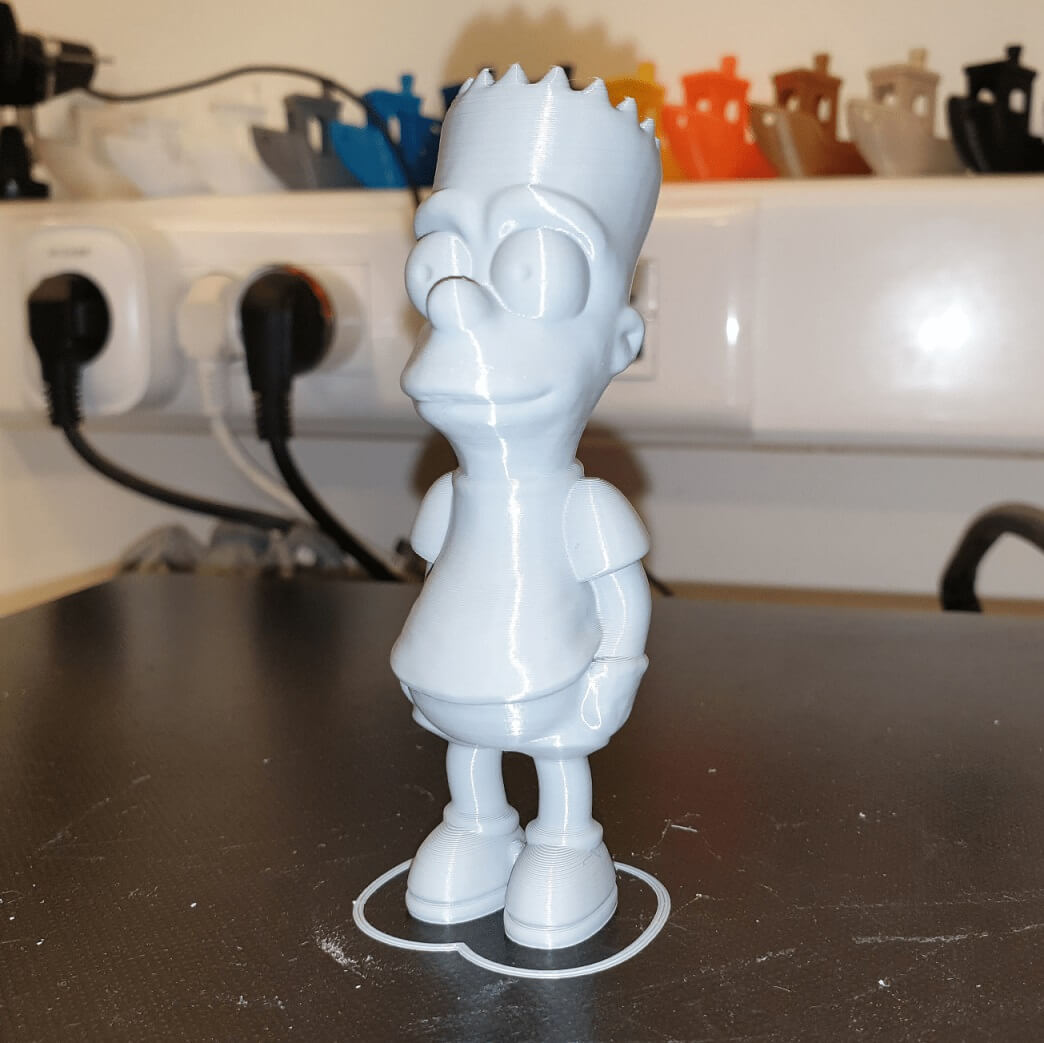
I noticed that there are a lot of people who experience Z banding, inconsistent extrusion or other issues in their prints. In my Sidewinder X1 review I went over some first checks a user should do when receiving and installing the printer for the first time.
In the following Sidewinder X1 calibration guide I will try to go over some of the tweaks I did to get consistent results and nice finish on my prints.
Calibration checklist
Extruder screw is too tight / too much pressure on the filament
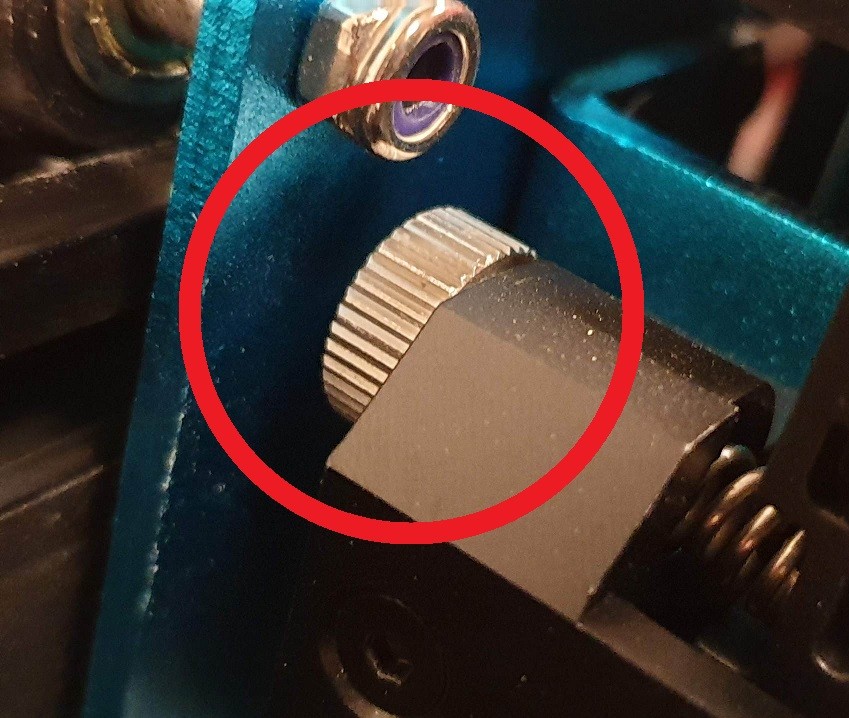
A common issue I noticed on the Sidewinder X1 is the amount of pressure the idler lever puts on the filament. This is also the cause for a lot of broken extruder idler levers I see online.
The screw from the extruder should be tightened just enough so the filament does not slip from the gear.
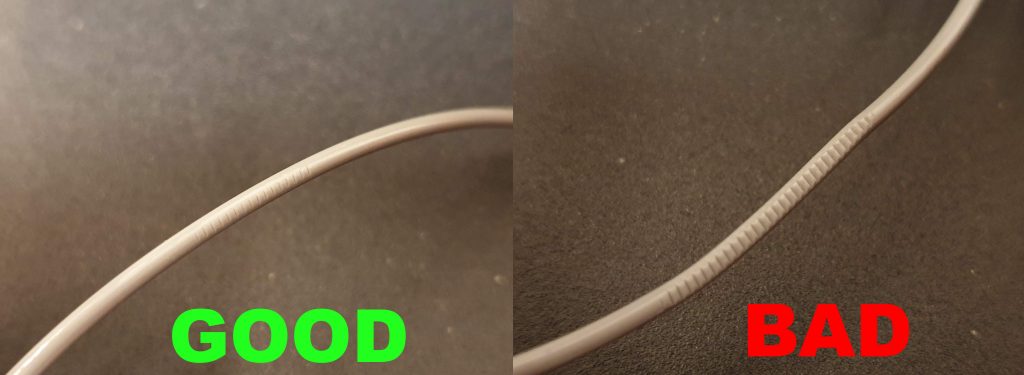
A good indication that the extruder has enough pressure for the filament is when you try to pull it out without pushing the lever. If the extruder gear is also spinning, then it’s good enough. The gear marks caused by the compression on the filament should be barely visible.
It is important to check the idler lever screw before performing the extruder calibration as this can have an effect on your results.
I would also recommend printing the Extruder Lever Brace from Thingiverse. I noticed my lever is not really stable when printing. It was not causing issues, but after printing this fix, the lever is a lot more stable.
Extruder calibration
Another important step in the Sidewinder X1 calibration is the extruder. I wrote a complete guide on Extruder Calibration, which you should follow. It includes an easy to use Extruder Calibration Calculator, and some extra information on how to complete the calibration successfully.
The original firmware has EEPROM save disabled, but this value can be set at slicer level in the start G-Code.
I use this value for the extruder: M92 E445.18
Flow rate calibration
Next thing on the list is calibrating the flow rate. This operation further calibrates the extrusion amount and contributes to having good dimensional accuracy of the prints. I did an extensive guide on how to easily calibrate flow rate and get accurate prints. It includes an easy to use calculator that determines the correct flow rate to use with your Sidewinder X1.
It is important to use the same settings for the flow rate calibration, just as you would when printing other items. That way you get a consistent result.
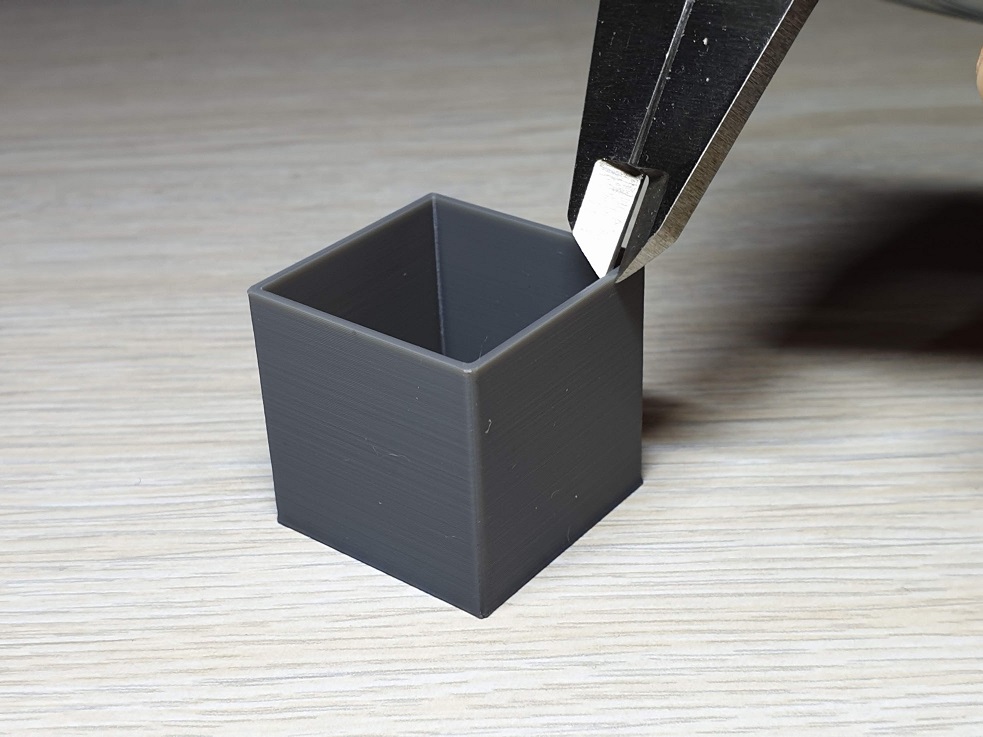
I also recommend measuring the cube walls twice and entering the values in the calculator. That way, you get more accurate results by minimizing measuring errors.
On my profile, I use 0.5 line size and after calibration the flow rate I get is 0.97 and I set it in my slicer.
Check for binding or bent Z rods
For quality prints and good layer lines the Z rods need to move freely. This can be achieved by having them properly lubricated and making sure there is no binding in their movement. On each of my printers, lubricating the rails is one of the first things I do.
I take some lubricant on a piece of filament or tooth pick and carefully put some on the Z rods.
With the X gantry homed, I apply lubricant on both rails then raise the gantry to the top of the machine. Then, I apply some lubricant again and lower it.
To make sure everything is greased properly I perform this movement a few times. Please note that the lubrication is done only on the first movement. The rest of the lubrication movements are done without adding more.
After this process is finished, I disable the motors and manually spin the Z rods. You can easily feel if there’s any binding if you spin the rods slowly.
If after the lubrication you can feel a bit of binding, I recommend you remove the Z rods from the printer and visually inspect them to make sure they are straight. You can also take the rods and try to roll them on a flat surface (like a glass table). If the rods are not rolling freely it means that there’s a bow in them and you can try to straighten them.
The X axis is not parallel to the bed
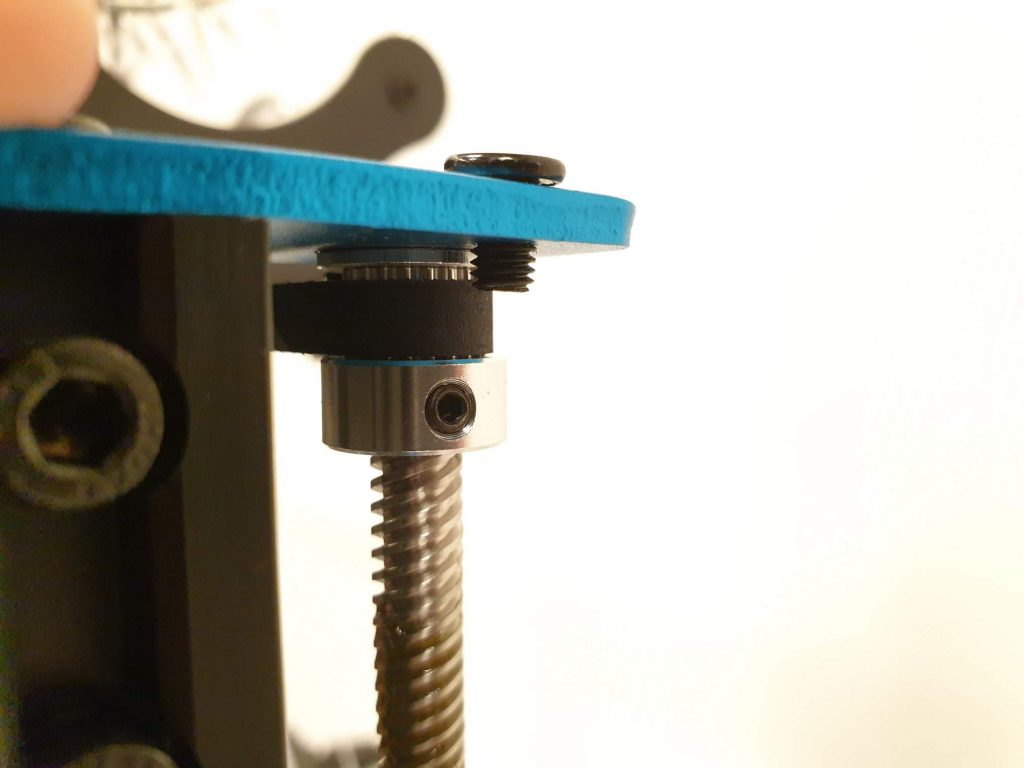
Inconsistent layer lines can be also caused by the X axis not being parallel to the print bed. If the Z nuts are not installed at the same height on both ends of the gantry, the X axis will not be level.
In order to fix this, and make sure the X axis is level, I used the Z-Height Blocks I printed for my CR-10s PRO.
First, the screws from the synchronization belt pulleys should be loosened in order for the Z rod to spin freely.
Next, the Z-height blocks need to be seated on both ends of the X gantry making sure they touch the bottom part of the extrusion. It is recommended to place the block next to the bed, on top of the metal base.
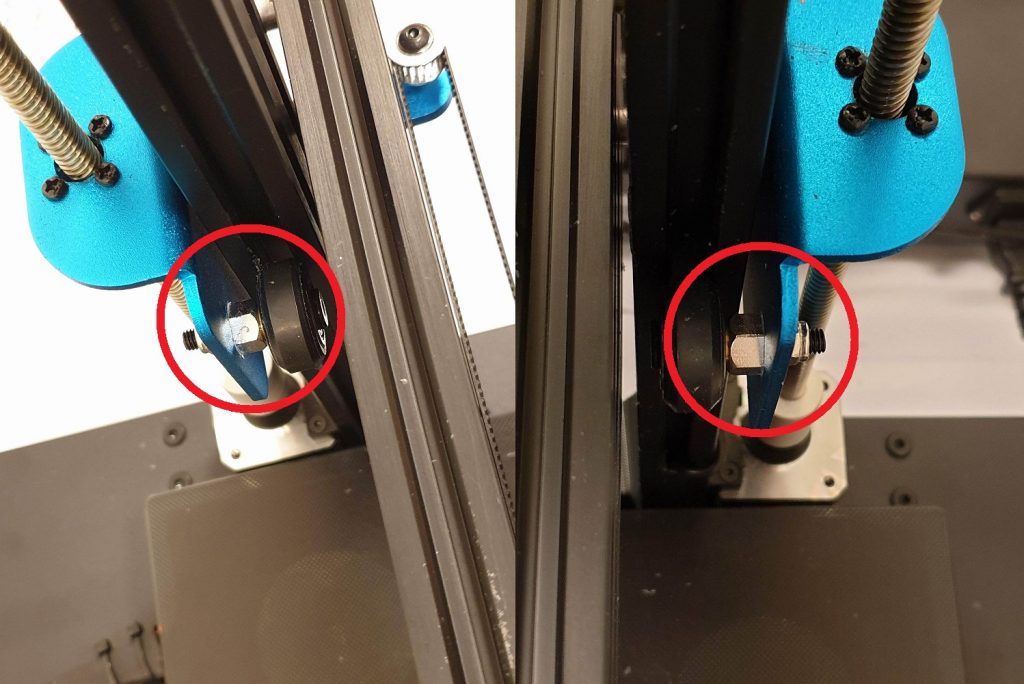
If the gantry is not flush with the blocks, then you need to adjust the eccentric nuts. Make sure you don’t over-tighten the wheel on the extrusion. The wheel should put pressure on the extrusion just enough so you can hardly spin it with your fingers.
This applies to all of the wheels installed on the printer. Finally, when everything is level, re-tighten the belt pulleys and level the bed.
The stepper motor couplers are not installed properly
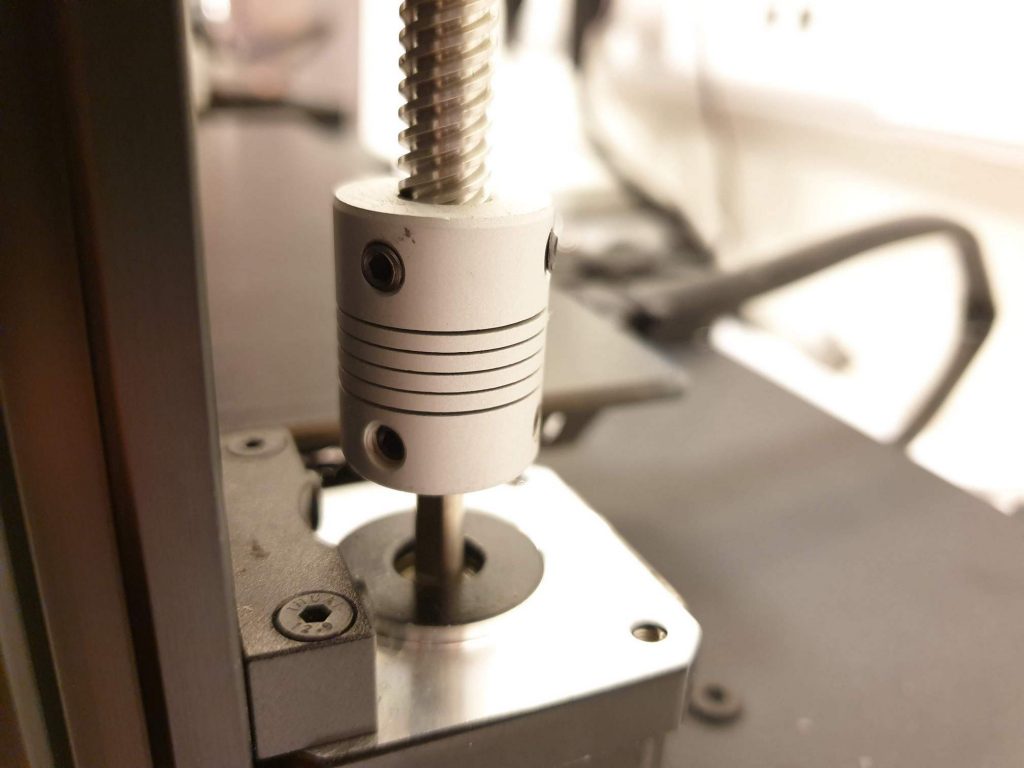
When I received my Sidewinder X1 I noticed that the stepper motor couplers were not installed correctly from the factory. The flexible couplers are designed to allow some deviation between the motor shaft and the Z rod and compensate for the misalignment of the two.
On my printer, the Z rod and the motor shaft were touching and the couplers were not doing their job.
In order to fix this issue, you need to loosen the screws from the couplers and manually raise the Z rods for about 0.5 mm, then tighten the screws again.
If the operation is done correctly, you should be able to manually compress the coupler and see some movement.
This is an important step on making sure that the Z rods are properly installed and the stepper motor vibration or misalignment is not translated directly into the Z axis.
Temperature variations caused by improper PID tuning
If all of the previous steps were checked, a PID tuning needs to be performed. I covered this topic in a previous article where I covered the hotend and heatbed PID tuning process.
The end result should be a constant temperature of the hotend nozzle and bed. Variations in these temperatures can lead to having layer lines that look different.
The values I use for the hotend: M301 P14.74 I0.99 D54.66
The values I use for the heatbed: M304 P244.21 I45.87 D325.08
Printing temperature is not set properly
The Sidewinder X1 comes with a Volcano hotend. This improves performance when printing fast with a large nozzle size. But when printing PLA, the Volcano can be a bit too much.
The added length of the nozzle can melt filament better, so you may be surprised that your filament can print better if you lower the temperature a bit.
On my other printers, I print Devil Design PLA at around 200C-205C depending on the speed. On the Sidewinder X1 I noticed that I can get better results when printing at 185C-190C.
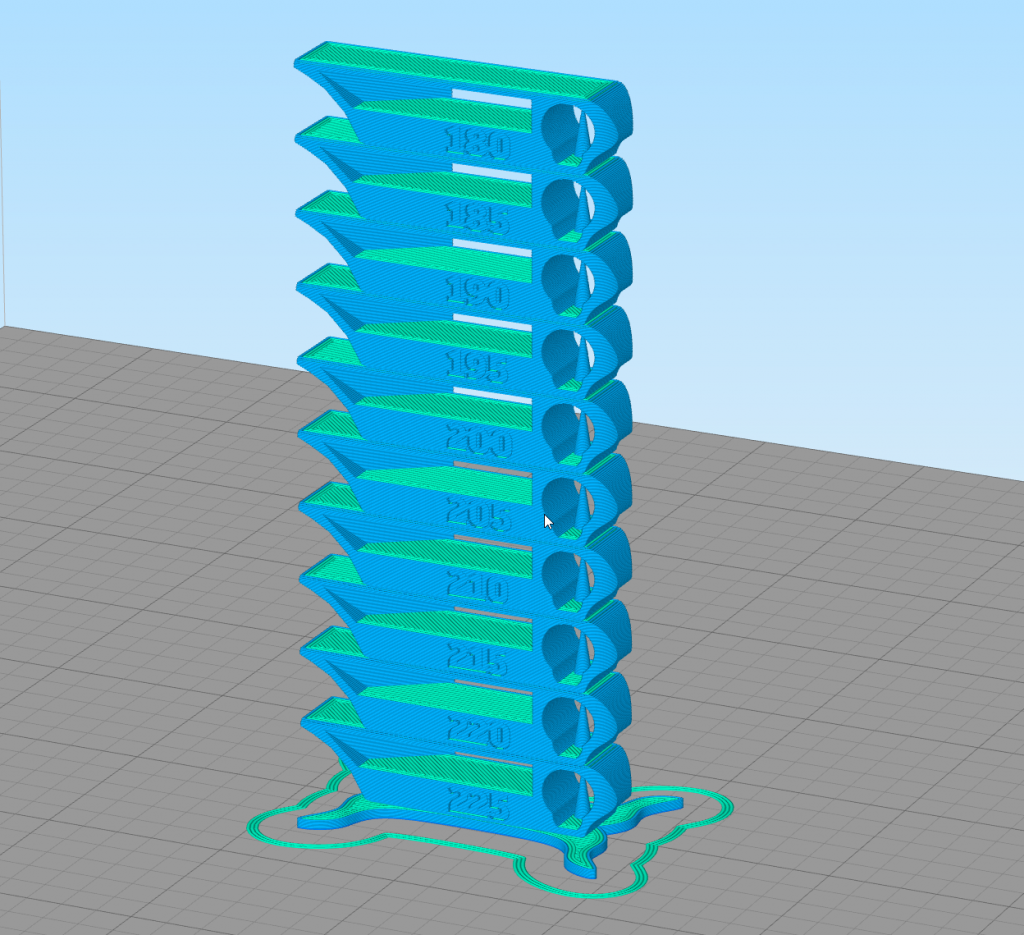
In order to get the best possible results, you need to print a temperature tower and choose the best temperature according to the print quality.
I prepared a G-Code file that can be printed directly from the Sidewinder X1. The temperature will change gradually from 180C to 220C.
When the print is finished, choose the temperature with best surface finish, overhang and bridging.
To get the most accurate results, you should print this temperature tower after calibrating extruder and flow.
Feed rate and Acceleration are set too high in the firmware
Setting the feed rate and acceleration settings properly is another important step in the Sidewinder X1 calibration process. The default values that come from the factory are a bit too much, and I lowered them a bit.
The values I use for the feed rate: M203 X200.00 Y200.00 Z20.00 E40.00
The values I use for the acceleration: M204 P1000.00 R10000.00 T2000.00
Setting a proper Linear Advance Value
Linear Advance is a feature from Marlin firmware that improves extrusion quality and eliminates over-extrusion at the end of a layer line. It also allows faster printing with maintaining good quality.
Unfortunately, this option is not enabled in the stock firmware and in order to use it, a custom firmware needs to be installed.
Teaching Tech made a really nice video covering Linear Advance so I recommend you watch it to properly calibrate this feature.
I found out that a value of 0.13 works best for me. This can be added in the start G-Code of your slicer with the M900 K0.13 command.
Replace the nozzle with a better one
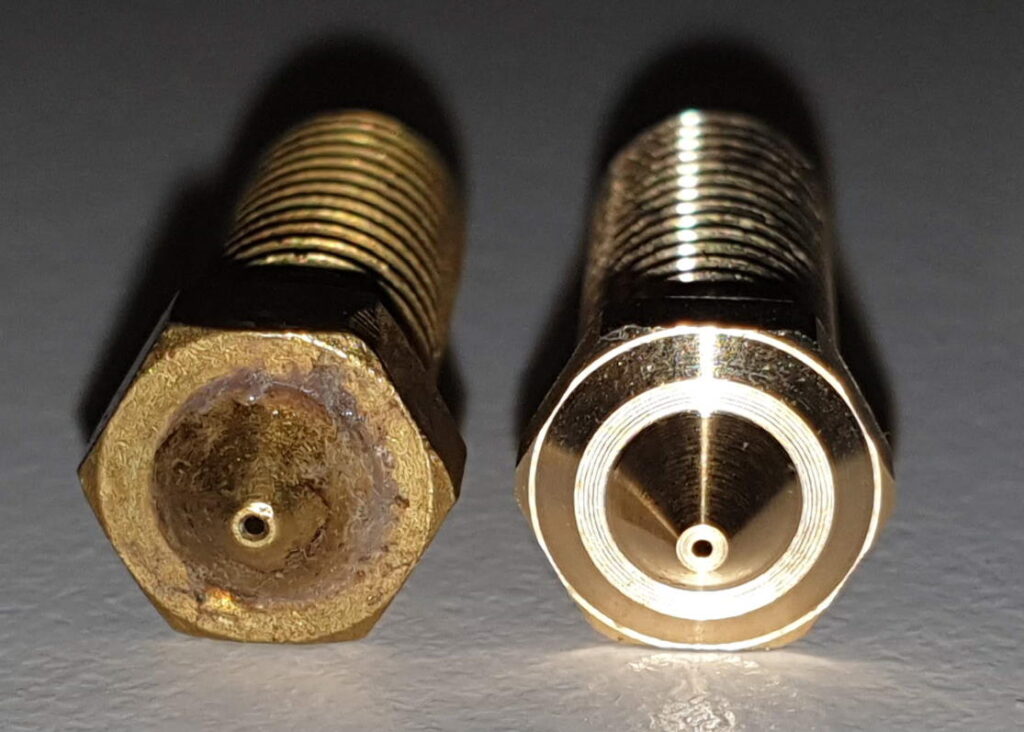
The stock nozzle you get with the Sidewinder X1 is not that great and I recommend buying a better Volcano nozzle like the NF-V6 Sharp Volcano from Mellow. For less than 3$, the nozzle hole is more accurately cut and this can bring an improvement in your prints. You can clearly see in the photo attached the difference in the machining.
On the left, the stock nozzle. On the right, the NF-V6 Sharp nozzle from Mellow. Of course, the original nozzle is not brand new, but this is how it looks after just 24 hours of printing.
For a bit more money you can also get the T- Volcano Plated Copper Nozzle from Trianglelab, which has better thermal conductivity and a non-stick coating.
If you need nozzles faster, then you can order the Micro Swiss plated nozzle or an E3D Volcano brass nozzle.
The Nozzle-X from E3D is one of the best nozzles you can buy currently, if you don’t mind spending a bit more money.
If you want to learn more about the quality differences between nozzles, make sure you check my Ultimate 3D Printer Nozzle Comparison.
Sidewinder X1 Custom Marlin Firmware
Most of my recommendations and calibration tips involve modifying values in the EEPROM. Unfortunately, the Sidewinder X1 arrived with EEPROM disabled and this makes things a bit harder to setting the machine properly.
You can check the Sidewinder X1 Firmware with Marlin 2.0.5.3 article where I uploaded the latest version of Marlin Firmware for the stock X1 printer configuration/
Please note that installing a custom firmware involves removing the printer cover, so a bit more experience is needed. Besides that, warranty will be void if you open the cover.
Printing after Sidewinder X1 calibration
After you complete the Sidewinder X1 calibration, your printer should work much better and be more accurate. Here’s a video of my Sidewinder X1 printing Phil-A-Ment from Matterhackers at 50mm/s, at 0.15mm layer height in Devil Design Grey PLA (190c).
Sidewinder X1 Upgrades – Paid and Free
Now that you calibrated your Sidewinder X1, you may want to look for upgrades you can do to it. I put together an article with the upgrades I did to mine.
You can check it out here: Sidewinder X1 Upgrades – Paid and Free
Before adding any upgrade, you should consider what benefits it brings to your printer, and if you really need it. If you want to go all in, then ignore me.
But note that printer upgrades can become an addiction. Look at me 😀
3D printer calibration with IdeaMaker
If you find the whole process of calibrating your printer a bit daunting, then check my 3D Printer Calibration Guide with IdeaMaker where you can learn how to calibrate your Sidewinder X1 directly from the slicer.
Slicer profiles for Sidewinder X1
My main slicers are Prusa Slicer and IdeaMaker. You can find the IdeaMaker profiles or Sidewinder X1 in this article. The Prusa Slicer profiles I shared for the Genius are compatible with the X1. Just edit the bed size configuration.
You can also join the 3DPrintBeginner Forum where there’s a dedicated category for Artillery 3D printers.
- June 7, 2024
- ARTILLERY HORNET
Table of Contents
- READ ME FIRST
- LEGAL
- LETTER FROM ARTILLERY
- ACCESSORY CHECKLIST
- ASSEMBLY
- LEVELING THE BUILD PLATE
- PREPARING SLICING SOFTWARE
- SPECIFICATIONS
- CONTACT
- References
- Read User Manual Online (PDF format)
- Download This Manual (PDF format)
ARTILLERY
HORNET
Installation Manual
ARTILLERY 3D PRINTER
READ ME FIRST
READ THIS MANUAL COMPLETELY BEFORE ASSEMBLING AND POWERING UP YOUR PRINTER!
HAZARDS AND WARNINGS
The Artillery Hornet 3D printer has motorized and heated parts. When the
printer is in operation, always be aware of possible
hazards.
ELECTRIC SHOCK HAZARD
Never open the electronics bay of the printer while the printer is powered on.
Before removing the access panel, always power
down the printer and unplug the AC power cord.
BURN HAZARD
Never touch the extruder nozzle, the heater block, or the heated bed without
first turning off the hot end and heated bed and allowing it to completely
cool down. The hotel and heated bed can take up to twenty minutes to
completely cool down. Also, never touch recently extruded filaments. The
filament can stick to your skin and cause a burn.
FIRE HAZARD
Never leave flammable materials or liquids on or near the printer when powered
on or in operation. Liquid acetone and vapors are extremely flammable.
PINCH HAZARD
When the printer is in operation, be careful never to put your fingers in the
moving parts, including the belts, pulleys, gears, wheels, or lead screws.
STATIC CHARGE
Make sure to ground yourself before touching the printer, especially the
electronics. Electrostatic charges can damage electronic components. To ground
yourself, touch a grounded source.
AGE WARNING
For users under the ages of 18, adult supervision is recommended. Beware of
choking hazards around children.
LEGAL
PRODUCT WARRANTY
The Artillery Hornet 3D Printer is covered by a limited warranty. For terms
and conditions, see https://desk.zoho.com/portal/evnovo/en/kb/articles
/evnovo-limited-warranty
OVERALL PROVISIONS
All information in this user manual (“Manual”) is subject to change at any
time without notice and is provided for convenience purposes only. Shenzhen
Yuntuchuangzhi Technology Co., Ltd. and our respective affiliates and
suppliers (“Artillery”) reserves the right to modify or revise this Manual in
its sole discretion and at any time and makes no commitment to provide any
such changes, updates, enhancements, or other additions to this Manual in a
timely manner or at all. You agree to be bound by any modifications and/or
revisions. Contact the Artillery Support Team for up-to-date information.
INTELLECTUAL PROPERTY
The design of this Manual and all text, graphics, information, content, and
other material are protected by copyright and other laws. The contents are
copyright 2020 Artillery. All rights reserved. Certain trademarks, trade
names, and logos (the “Marks”) used in this Manual are registered and
unregistered trademarks, trade names of Artillery and its affiliates. Nothing
contained in this Manual grants or should be constructed as granting, by
implication, estoppel, or otherwise, any license or right to use without the
written permission of Artillery. Any unauthorized use of any information,
materials, or Marks may violate copyright laws, trademark laws, laws of
privacy and publicity, and/or other laws and regulations.
DISCLAIMERS
Artillery does not warrant the accuracy or completeness of the information,
products, or services provided by or through this Manual and assumes no
responsibility for any typographical, technical, or other inaccuracies in this
Manual, which is provided “as is” and without any express or implied
warranties of any kind, including warranties of merchantability, fitness for a
particular purpose, or non-infringement of intellectual property. In
connection with your use of this Manual, Artillery shall not be liable to you
for any damages whatsoever, be they direct, economic, commercial, special,
consequential, incidental, exemplary, or indirect damages, even if Artillery
has been advised of the possibility of such damages, including without
limitation, loss of business revenue or earnings, lost data, or lost profits.
Artillery assumes no responsibility, nor will be liable, for any damages to,
or any viruses or malware that may infect, your computer, telecommunication
equipment, or other property caused by or arising from your downloading of any
information or materials related to this Manual. The foregoing exclusions do
not apply to the extent prohibited by law please refer to your local laws for
any such prohibitions.
LETTER FROM ARTILLERY
Dear Customer,
Thank you for choosing the Artillery Hornet 3D printer.
This guide will step you through the assembly and the first run of the
printer. If you have any problems during assembly, please contact our
customer service or visit our official Facebook group at:
https://www.facebook.com/groups/artilleryhornet/
For a detailed warranty policy, please visit
https://desk.zoho.com/portal/evnovo/kb/articles/evnovo-limitedwarranty
For support, please send an email to
support@artillery3d.com or visit our
ticketing page at https://desk.zoho.com/portal/evnovo/newticket Or you can
visit our Facebook group at https://www.facebook.com/artillery3d Regards,
Artillery
Shenzhen Yuntu Chuangzhi Technology Co., Ltd.
Last update date: 29 January 2021
This manual is updated to the date of printing, please refer to the electronic
version if in doubt.
ACCESSORY CHECKLIST

ASSEMBLY
STEP 1
Align the XZ gantry to the notch on the base, then fix the gantry to the base
with the 4pcs of M5x25 pre-installed on the base.

STEP 2
Slide the spool holder into the groove on the base as shown in the picture
below, and press it down to fix in place:

STEP 3
Connect the Z endstop cable, then connect the Z stepper motor, finally,
connect the main cable.

STEP 4
Install the hotend onto the carriage with the M3x6 screws (3pcs) supplied in
the tool bag.

STEP 5
Connect the extruder cable, tighten down the cable by turning the locking
mechanism.

STEP 6
Adjust the tension on the eccentric nuts with the spanner supplied when
needed.

LEVELING THE BUILD PLATE
To print good parts, the build plate needs to be leveled, and the nozzle needs
to be about 0.1mm from the build plate in all locations. This is about the
thickness of a single piece of A4 paper. You want to adjust the height of the
build plate so that you can barely slide the paper between the nozzle and the
build plate with only a little resistance.
- Select Temperature -> Preheat PLA -> Preheat PLA. This will heat up the bed and the nozzle t actual printing conditions, making the leveling more accurate. Wait for 1 minute after the machine reached the target temperature.
- Select Motion -> Level Corners. This will home the machine first, then move the nozzle to the first corner.
- Slide a piece of A4 paper between the nozzle and the build plate.
- Turn the leveling knob under the bed closest to the nozzle until the piece of paper slides, with just a bit of drag.
- Choose Next to move to the Next Point, and repeat step 4.
- Leveling is completed after all 4 points are leveled.
- You may want to repeat steps 5-6 for 2-3 times for better results, since adjusting one corner will affect other corners.
- You may need to make fine adjustments to the bed level when you start printing. The first layer of the print will show whether the distance between the nozzle and the build plate is correct. You want it to be pushed into the build surface slightly to maximize surface area contact while still allowing good extrusion flow.
• You can try to carefully adjust the leveling knob during the first layer of
the print while the plate is moving until the distance between the nozzle and
the build, the plate is producing smooth extruded lines.
• After you have fine-tuned the bed level during the first layer, you may want
to stop the print, clear the build plate, and restart the print.
PREPARING SLICING SOFTWARE
This printer works with most slicing software like Slic3r, Cura, Simplify3D,
etc. But we will go in detail for Cura software and tell you how to set it up
so that you can make your first print. First, we recommend you to install the
software on the memory card included, for other operating systems, please
download from their official site.
After installation and start the software, you should see the following
screen, continue until you see Add a printer page:


In the Add, a non-networked printer , scroll down to Custom and choose
C ustom FFF Printer, and type in A rtillery Hornet in Printer name.
Then click on the Next button.

Set X (Width) , Y (Depth) as 220, Z (Height) as 250. Make sure Heated
Bed is checked, then copy and replace the content of the Start G-code. txt and
End G-code.txt on the memory card to the respective fields.

Change Compatible material diameter to 1.75

From the toolbar, click on Preferences — > Configure Cura…

Click on Profiles then click on the Import button.

Browse to the memory card and import the profile files.

Profile successfully imported.

Click on Print settings and the floating window will pop up.

From the Profile dropdown, choose the imported profile.

Drag and drop the STL file (or another supported format) to the slicer or load
the model file with File — > Open File(s)… then click on the Slice button.

You can click on Save to Removable Drive (if the memory card is detected) or
Save to file button to save the sliced file to the memory card.

Save the file to the memory card for printing.
SPECIFICATIONS
PRINTING
| Print Technology: | Fused Deposition Modeling |
|---|---|
| Build Volume: | 220x220x250 mm (8.7×8.7×9.8 in) |
| Layer Resolution: | 100-300 microns |
| Filament: | 1.75 mm (0.069 in) |
| Nozzle Diameter: | 0.4 mm (0.015 in) |
| Print File Type: | Gcode |
| Material Compatibility: | PLA, PETG, TPU |
SIZE & WEIGHT
| Product Dimensions: | 470x410x450 mm (18.5×16.1×17.7 in) |
|---|---|
| Shipping Box: | 560x500x255 mm (22.0×19.7×10.0 in) |
| Printer Weight: | 8 kg (17.6 lbs) |
| Shipping Weight: | 9.8 kg (21.6 lbs) |
ELECTRICAL
| Power Requirements: | 110V/220V, 350W |
|---|---|
| Connectivity: | Memory Card, USB |
MECHANICAL
| Construction: | Aluminum, ABS |
|---|---|
| Build Surface: | Glass + Aluminum plate |
| Stepper Motors: | 1.8° step angle with 1/256 micro-stepping |
| XY Positioning Precision: | 10 microns |
| Z Positioning Precision: | 100 microns |
CONTACT
Support| desk.zoho.com/portal/evnovo/en/newticket At Artillery, we take
pride in offering expert, responsive, friendly customer support to customers
around the world. If you need help resolving an issue with your Artillery 3D
printer, visit the web address above to submit a ticket.
—|—
Sales| ytcz@artillery3d.com
To learn about other Artillery products, please email the address above.
Feedback| ytcz@artillery3d.com
For general questions, or to tell us what’s on your mind, send an email to the
address above.
We love to hear from you.
References
- desk.zoho.com/portal/evnovo/en/newticket
- Artillery Official Site Discover Our New 3D Printers Sidewinder X4 PRO – Artillery3d
- desk.zoho.com/portal/evnovo/
- desk.zoho.com/portal/evnovo/en/kb/articles/evnovo-
- desk.zoho.com/portal/evnovo/kb/articles/evnovo-limited-
- desk.zoho.com/portal/evnovo/newticket
- Artillery Hornet 3D Printer Owners Group [Official]
Read User Manual Online (PDF format)
Read User Manual Online (PDF format) >>
Download This Manual (PDF format)
Download this manual >>
Герой нашего сегодняшнего обзора — Artillery Sidewinder X1. И хотя этот принтер — не новинка этого года, он до сих пор не перестает восхищать пользователей. Большая область построения, традиционная картезианская кинематика и простое управление — все это делает 3D печать максимально комфортной.
О компании
Компания Artillery выпускает качественные 3D принтеры, работающие по принципу послойного наплавления пластиковой нити. В линейке производителя представлено не так много принтеров, однако каждый из них заслуживает особого внимания.
Все оборудование этого производителя отличается легкой сборкой и хорошими техническими характеристиками. Удобное управление, встроенный держатель для катушки — Artillery продумала все для того, чтобы сделать 3D печать пластиком максимально комфортной.
Технические характеристики

Этот FDM принтер с открытой модульной конструкцией — идеальное устройство для первого знакомства с 3D печатью. Легкая сборка и простое подключение позволяют быстро начать работу.
В комплекте поставки есть винты для сборки модулей, запасные шлейфы, флеш-карта, провод USB, запасные подшипники, сопло и подсветка. Также в наборе есть инструменты для сборки — рожковый ключ и шестигранники.
В этом принтере производитель постарался учесть все недостатки предыдущих моделей и создал надежный и стабильный агрегат для трехмерной печати. Artillery Sidewinder X1 отличается тихой работой, поэтому хорошо подойдет для дома — уровень шума позволяет спокойно отдыхать, пока принтер печатает.
| Технические характеристики | Artillery Sidewinder X1 |
|---|---|
| Тип печати | FDM/FFF |
| Область печати | 300х300х400 мм |
| Подогреваемый стол | Да |
| Плата | MKS Gen L |
| Корпус | Открытый |
| Конструкция | Модульная |
| Температура экструдера | 240⁰С |
| Температура стола | 130⁰С |
| Скорость построения | 60-150 мм/с |
| Точность печати | 50 мкм |
Внешний вид принтера
Производитель поставляет принтер предварительно собранным на заводе, поэтому в коробке вы не увидите мелких деталей. Для сборки модульной конструкции потребуется только объединить две части рамы, присоединить шлейфы и кабели для моторов. С задачей справится даже тот, кто видит принтер в первый раз.

Рама выполнена из надежного алюминия, что облегчает конструкцию и в то же время придает ей устойчивости. Каретка двигается по основному профилю 20х40, а для стола производитель выбрал широкий профиль 20х60, который обеспечивает стабильность печати.

Движение по оси Z синхронизировано приводными ремнями. На каждый из двух винтов приходится по два мотора, а также на всех осях установлены натяжители, что делает печать еще более точной. Оптические концевики позволяют сделать работу принтера еще более тихой.

Печатный стол 30х30 см сделан по типу платформ Anycubic. Покрытие, сравнимое с Ultrabase, позволяет легко отсоединять детали после остывания. Стол запитан напрямую от 220 В, что делает нагрев максимально быстрым. Всего через 1-2 минуты принтер полностью готов к печати. Кроме того, производитель поставляет стол с предварительно установленным утеплением, которое помогает поддерживать температуру и обеспечивает платформе равномерное медленное остывание.
Управление
Все процессы управляются надежной материнской платой MKS Gen L, которая хорошо зарекомендовала себя и в принтерах других производителей.
Меню Artillery Sidewinder X1 интуитивно понятное, здесь можно найти все основные настройки характерные для данных принтеров: калибровка стола, перемещение осей, выставление температуры стола и экструдера. Из особенностей принтера стоит отметить, что в нем есть не только слот для карт microSD, но также полноценный USB разъем, который упрощает использование принтера.

Экструдер
Принтер оборудован Direct экструдером что является большим плюсом, особенно если планируется печатать не только PLA и ABS пластиком. Рядом с печатающей головкой установлена подсветка, благодаря которой хорошо видна область печати. Цвет подсветки можно выбрать в настройках, что особенно понравится начинающим мейкерам.

Сопло Volcano позволяет быстро нагревать пластик — именно поэтому принтер отлично печатает даже на высоких скоростях.
Преимущества Artillery Sidewinder X1
Самое важное достоинство этого принтера — большая область печати. Такой объем построения позволяет делать все — от сувенирки до масштабных учебных проектов. При этом точность печати остаётся на высоком уровне.
Качественная сборка также является неоспоримым плюсом Artillery. Несмотря на то, что конструкция принтера модульная, после установки рамы ничего не люфтит, что опять же влияет как качество и точность печати.

Нельзя не отметить интересное решение по поводу крепления катушки. На верхней балке рамы установлены крепления с подшипниками для катушки. Это снижает трение при вращении, что является положительным фактором при подаче материала. Здесь же, на креплениях катушки, установлен датчик филамента.

Недостатки принтера
Из недостатков этого принтера можно назвать разве что странный пункт в меню с эмблемой производителя. При нажатии на иконку предлагается переключить Wi-Fi модуль, однако при этом на экран не выводятся ближайшие точки доступа и принтер не появляется видимым на других устройствах. Возможно, это встречается не во всех принтерах, однако, создаётся впечатление, что ошибка не была доработана.
Также недостатком принтера является открытый корпус. Отсутствие камеры со стабильной температурой может создавать проблемы во время печати ABS пластиком. Однако это можно решить, купив специальный клей или универсальный корпус для 3D принтера.
В целом, принтер прекрасно справляется с печатью изделий разного размера — если немного поиграть с настройками, то качество печати возрастает в разы. Это отличный принтер для первого знакомства с 3D печатью или для реализации крупномасштабных проектов. Кроме того, стоимость Artillery Sidewinder X1 не может не радовать — принтер относится к линейке бюджетного оборудования.
Купить этот надежный и точный принтер с доставкой по всей России можно в интернет-магазине Lider-3D. Следите за акциями и специальными предложениями, чтобы приобретать аддитивную технику и расходные материалы со скидкой!
Наши предыдущие статьи:
- Выбор 3D принтера в подарок на Новый год
- HARZ Labs — Российский производитель сертифицированных фотополимеров для стоматологии
- Обзор на интраоральный сканер Aoralscan от Shining 3D
Country/region
Payment methods
- American Express
- Apple Pay
- Google Pay
- Mastercard
- PayPal
- Shop Pay
- Union Pay
- Visa
© 2025, Artillery3dAll Rights Reserved