

ACTON II VOICE WITH AMAZON ALEXA
USER MANUAL

LEGAL & TRADEMARK NOTICE
• Design of device and packaging are intellectual properties of Zound Industries International AB and Marshall Amplication Plc. © All Rights
Reserved. Zound Industries International AB is hereinafter referred to as “Zound Industries” or “manufacturer”.
• MARSHALL, Marshall Amps, their respective logos, “Marshall” and “Marshall” trade dress are trademarks and intellectual property of Marshall
Amplication Plc and may not be used without permission. Permission granted to Zound Industries.
• Wi-Fi®, the Wi-Fi logo and the Wi-Fi CERTIFIED™ logo is a certication mark of Wi-Fi Alliance®.
• The Bluetooth® wordmark and logos are registered trademarks owned by the Bluetooth SIG, Inc. and any use of such marks by Zound
Industries is under license.
• Google, Google Play and their respective logos are trademarks of Google LLC.
• Apple and the Apple logo are trademarks of Apple Inc. registered in the U.S. and other countries. App Store is a service mark of Apple Inc.,
registered in the U.S. and other countries.
• Amazon, Alexa and all related logos are trademarks of Amazon.com, Inc. or its afliates.
• Spotify® and Spotify Connect logos™ are trademarks of the Spotify Group, registered in the U.S. and other countries. The Spotify Software is
subject to third party licenses found here: www.spotify.com/connect/third-party-licenses.
• All other trademarks are the property of their respective owners and may not be used without permission.
For more legal information related to this product and to its use in your specic region, and for more detailed information about Zound Industries
and partner & license information, please visit the website: www.marshallheadphones.com. The user is recommended to visit the website regularly
for up-to-date information.
Zound Industries International AB, Centralplan 15, 111 20 Stockholm, Sweden
DISCLAIMER
Please note that the availability of third party services, including but not limited to Spotify, Alexa, and this device’s compatibility with the same, is
subject to the respective rights holder’s consent, which may be withdrawn, and supply of such services, which may be terminated, resulting in this
device not being compatible with such third-party services, without any liabilities for Zound Industries.
The availability of third party services may need separate agreements between you and any third party and Zound Industries do not take
responsibility for the availability of such services.
002.

INDEX
ENGLISH
SECTIONS
PAGE
002. LEGAL & TRADEMARK NOTICE
004. BOX CONTENTS
005. GENERAL DESCRIPTION
007. PLUGGING IN THE ACTON II VOICE
008. SETTING UP THE ACTON II VOICE
009. USING AMAZON ALEXA
010. SELECTING AUDIO SOURCE
011. USING ACTON II VOICE WITH SPOTIFY CONNECT
012. CONNECTING VIA BLUETOOTH® (PAIRING)
013. CONNECTING VIA AUX INPUT
014. ADJUSTING THE VOLUME/BASS/TREBLE
®
015. PLAY/PAUSE CONTROL
016. MUTING/UNMUTING THE MICROPHONE
017. TECHNICAL INFORMATION
018. TROUBLESHOOTING
003.
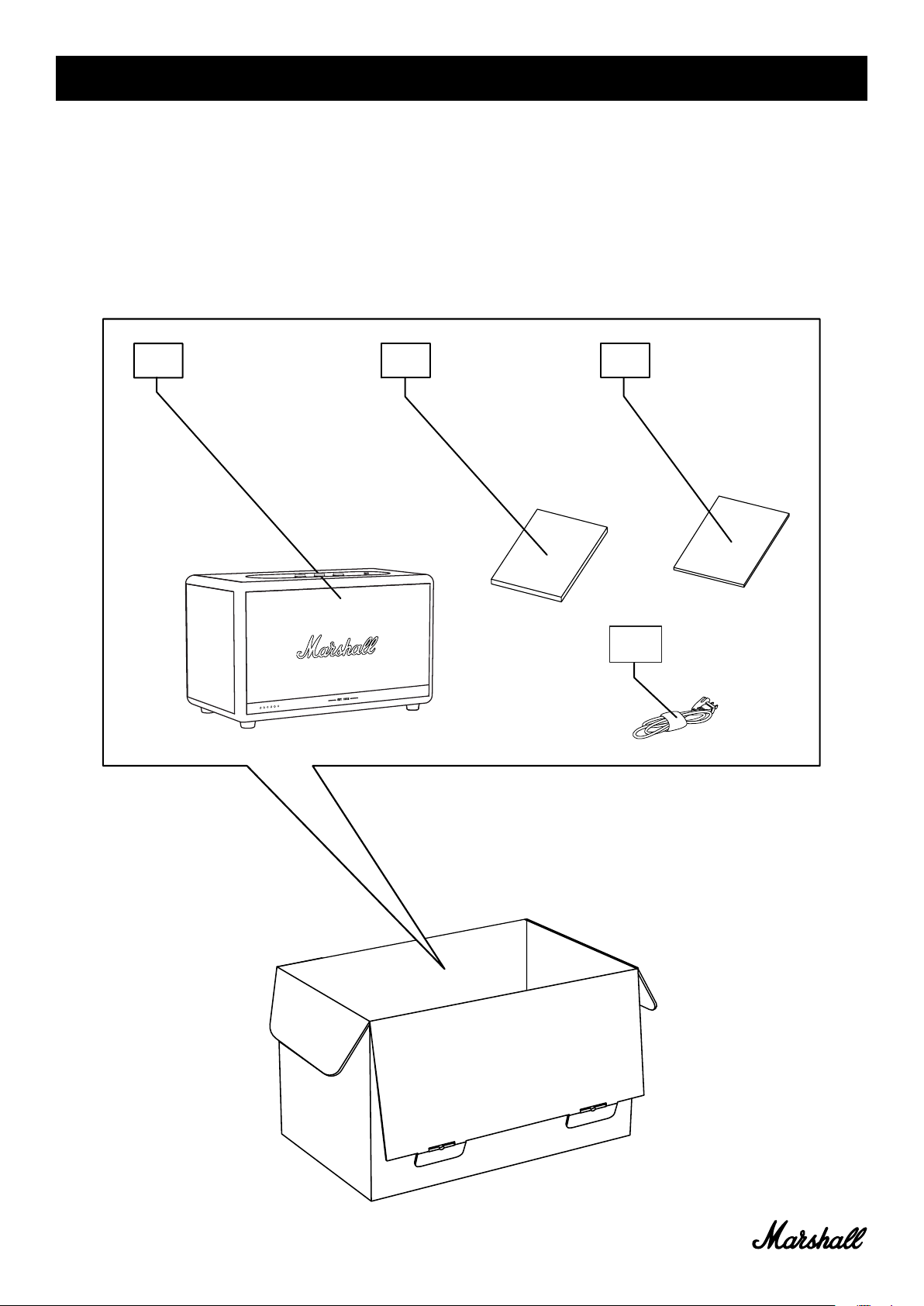
BOX CONTENTS
001. MARSHALL ACTON II VOICE WITH AMAZON ALEXA
002. QUICK START GUIDE
003. IMPORTANT SAFETY INSTRUCTIONS
004. MAINS LEAD
001.
002.
003.
004.
004.
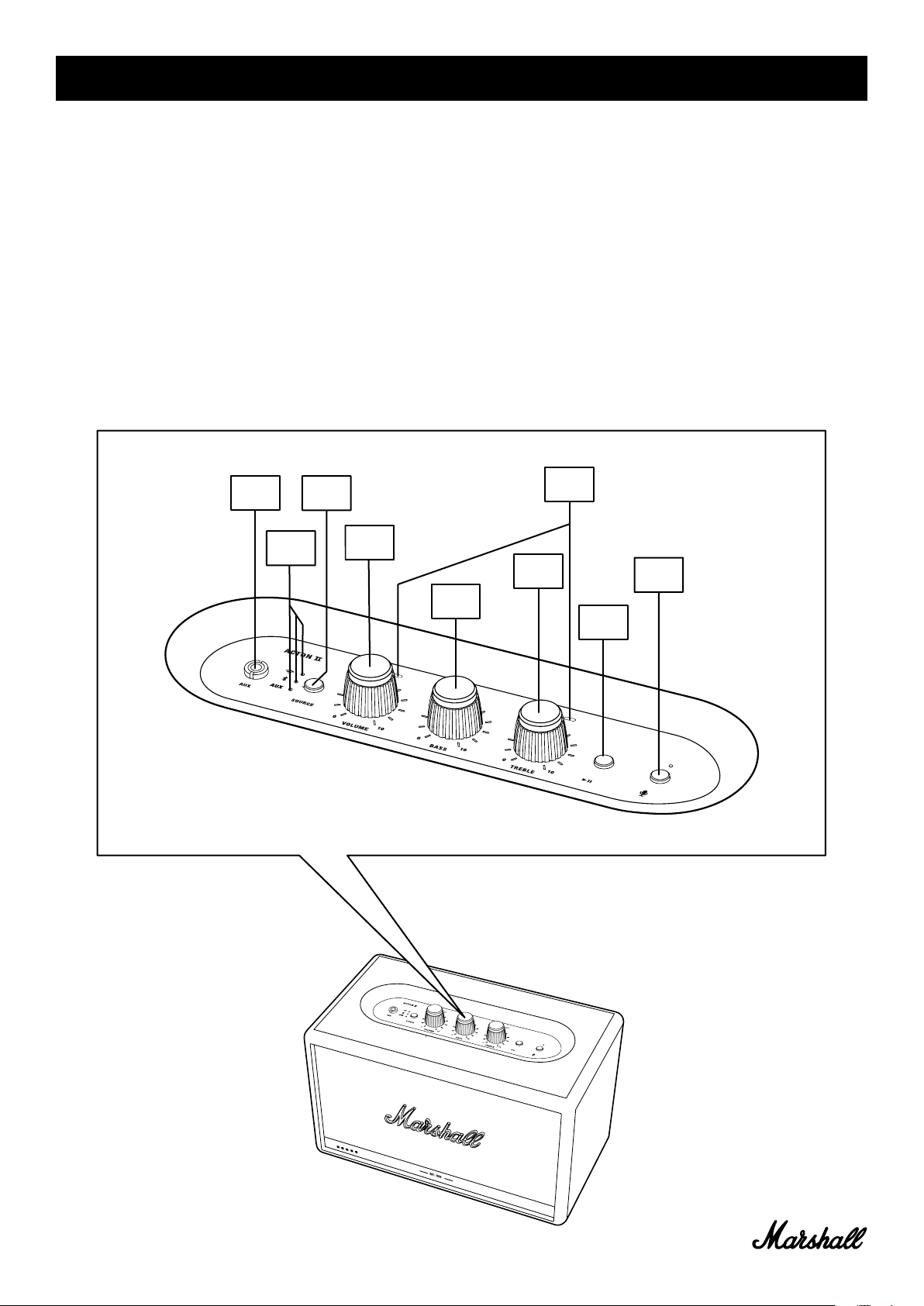
GENERAL DESCRIPTION
001. AUX INPUT FOR 3.5 mm JACK
002. SOURCE INDICATORS
003. SOURCE BUTTON
004. VOLUME KNOB
005. BASS KNOB
006. TREBLE KNOB
007. MICROPHONES
008. PLAY/PAUSE BUTTON
009. MICROPHONE BUTTON
001.
002.
003.
004.
005.
006.
007.
009.
008.
005.
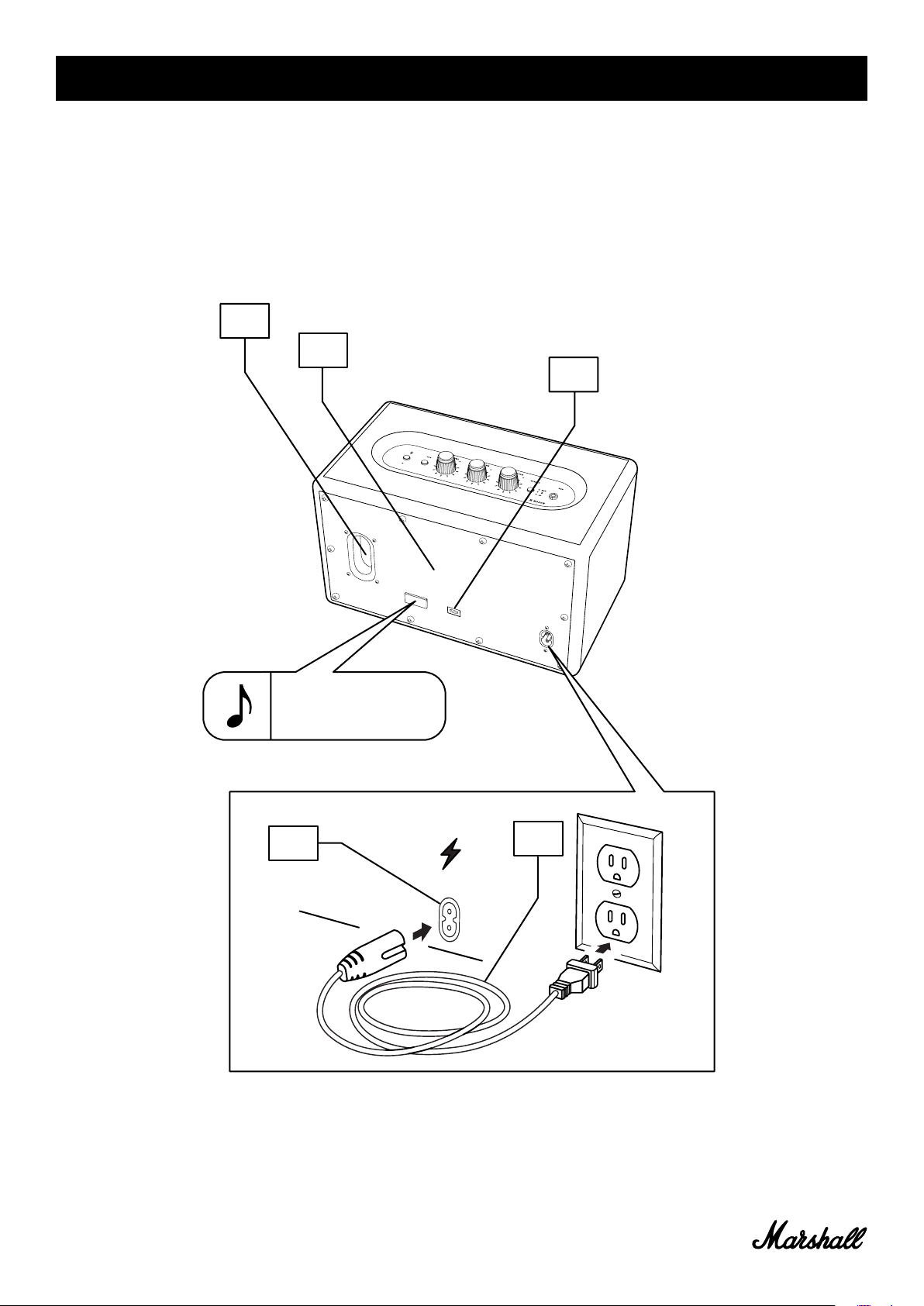
GENERAL DESCRIPTION CONTINUED
009. BASS PORT
010. BACKPLATE
011. USB (NOT USED)
012. MAINS INPUT
013. MAINS LEAD
009.
010.
011.
NOTE: DATE CODE
AND SERIAL NUMBER
STICKER LOCATED HERE.
012.
013.
006.
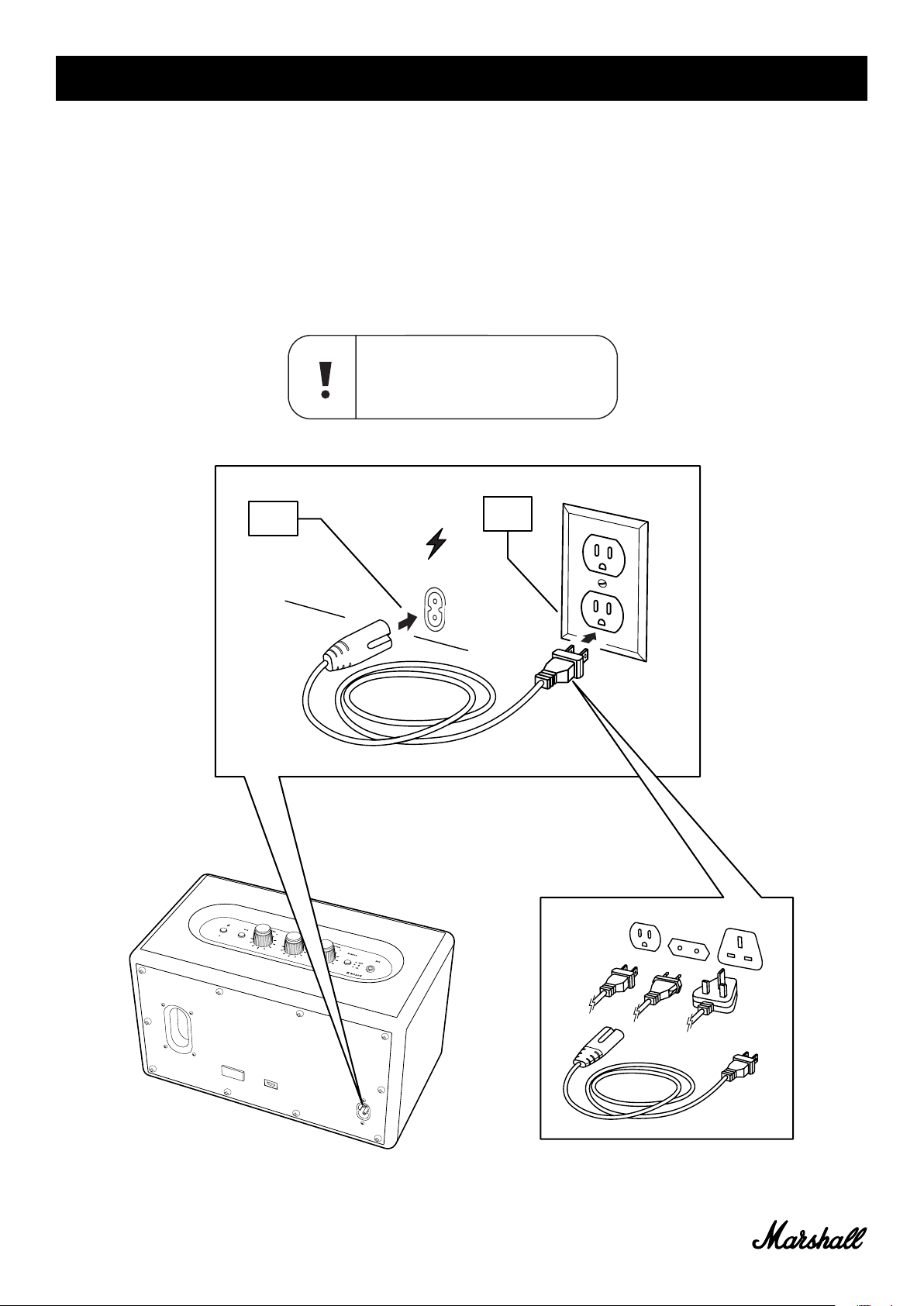
PLUGGING IN THE ACTON II VOICE
IMPORTANT: ALWAYS ENSURE THAT THE MAINS LEAD, POWER JACK AND
SPEAKER ARE COMPATIBLE WITH YOUR MAINS SUPPLY AND WALL SOCKET.
001. CONNECT THE MAINS LEAD INTO THE MAINS INPUT ON THE SPEAKER.
002. CONNECT THE POWER JACK TO THE WALL SOCKET.
CAUTION: ALWAYS UNPLUG THE MAINS
LEAD FROM THE WALL SOCKET BEFORE
DISCONNECTING IT FROM THE SPEAKER.
001.
002.
007.
Manual
View the manual for the Marshall Acton II here, for free. This manual comes under the category speakers and has been rated by 6 people with an average of a 7.4.
This manual is available in the following languages: English. Do you have a question about the Marshall Acton II or do you need help?
Ask your question here
Marshall Acton II specifications
Below you will find the product specifications and the manual specifications of the Marshall Acton II.
The Marshall Acton II speaker is a wired and wireless audio device that delivers a RMS rated power of 30 W. With its compact design, this speaker is suitable for various settings, whether it be at home or on the go.
The speaker is powered by an AC source and offers both wired and wireless connectivity options. It is equipped with Bluetooth version 5.0, allowing seamless wireless pairing with compatible devices. Additionally, it features a 3.5 mm connector for wired connections.
Measuring 260 mm in width, 160 mm in depth, and 150 mm in height, the Acton II speaker is relatively compact and easy to transport. It weighs approximately 2850 g, making it a portable option for those constantly on the move.
Featuring a sleek and modern design, the Acton II speaker combines style and functionality. Its black exterior adds a touch of sophistication to any environment.
Please note that the language used to describe the speaker is subjective. For a more objective tone, you may consider replacing it with phrases such as «The Marshall Acton II speaker features a modern and sleek design» or «With its compact and portable size, the speaker offers convenience for users.»
Audio output channels
— channels
Connectivity technology
Wired & Wireless
Product type
Stereo portable speaker
General
| Brand | Marshall |
| Model | Acton II | 1002482 |
| Product | speaker |
| Language | English |
| Filetype | User manual (PDF) |
Loudspeakers
| Audio output channels | — channels |
| Number of speakers | 1 |
Audio
| RMS rated power | 30 W |
| Frequency range | 50 — 20000 Hz |
Power
| Power source type | AC |
| AC adapter input voltage | 100 — 240 V |
| AC adapter frequency | 50/60 Hz |
Ports & interfaces
| Connectivity technology | Wired & Wireless |
| Wi-Fi | No |
| Bluetooth | Yes |
| Bluetooth version | 5.0 |
| 3.5 mm connector | Yes |
Weight & dimensions
| Width | 260 mm |
| Depth | 160 mm |
| Height | 150 mm |
| Weight | 2850 g |
Design
| Product type | Stereo portable speaker |
| Product color | White |
| Volume control | Rotary |
Performance
| Recommended usage | Universal |
| Bass reflex | Yes |
Amplifier
| Amplifier | Built-in |
| Amplifier class | D |
show more
Frequently Asked Questions
Can’t find the answer to your question in the manual? You may find the answer to your question in the FAQs about the Marshall Acton II below.
How do I connect my Marshall Acton II speaker to my phone via Bluetooth?
To connect your Marshall Acton II speaker to your phone via Bluetooth, simply turn on the speaker by pressing the power button and then enable the Bluetooth feature on your phone. Once Bluetooth is enabled, search for available devices and select the Marshall Acton II from the list. It should then establish a successful connection.
How can I adjust the volume on the Marshall Acton II speaker?
To adjust the volume on your Marshall Acton II speaker, you can either use the volume control knob located on the top panel of the speaker or use the volume buttons on your phone if connected via Bluetooth. Turning the knob clockwise will increase the volume, while turning it counterclockwise will decrease it.
How do I switch between different audio sources on the Marshall Acton II speaker?
To switch between different audio sources on the Marshall Acton II speaker, you can use the source selection button found on the top panel. Press the button repeatedly to cycle through the available sources, such as Bluetooth, AUX, or RCA connections, until you find the desired option.
What is the recommended wireless range for Bluetooth connectivity on the Marshall Acton II?
The recommended wireless range for Bluetooth connectivity on the Marshall Acton II is approximately 10 meters (or approximately 33 feet) in clear line-of-sight. Keep in mind that obstacles such as walls or other electronic devices may reduce the effective range.
How can I customize the sound settings on the Marshall Acton II speaker?
To customize the sound settings on your Marshall Acton II speaker, you can utilize the Marshall Bluetooth app, available for iOS and Android devices. By downloading and pairing your speaker with the app, you gain access to an equalizer where you can adjust the bass, midrange, and treble frequencies according to your preference.
Does the Marshall Acton II have Wi-Fi?
No, the Marshall Acton II does not have Wi-Fi. This means it cannot connect to a Wi-Fi network for streaming purposes. However, it does have Bluetooth connectivity for wireless audio streaming.
What is the RMS rated power of the Marshall Acton II?
The RMS rated power of the Marshall Acton II is 30 W. This indicates that it has a moderate power output, suitable for small to medium-sized rooms or personal use.
Is the Marshall Acton II compatible with both wired and wireless connections?
Yes, the Marshall Acton II is compatible with both wired and wireless connections. This versatility allows users to connect their devices through Bluetooth or utilize the 3.5 mm connector for wired connections.
What is the Bluetooth version of the Marshall Acton II?
The Marshall Acton II has Bluetooth version 5.0. This indicates that it has the latest Bluetooth technology, offering improved speed, range, and stability compared to previous versions.
Does the Marshall Acton II have bass reflex?
Yes, the Marshall Acton II has bass reflex. This feature enhances the low-frequency reproduction and improves the overall sound quality, providing a more immersive listening experience.
What is the weight of the Marshall Acton II?
The Marshall Acton II has a weight of 2850 g.
Can bluetooth devices of different brands be connected to each other?
Yes, bluetooth is a universal method that allows different devices equipped with bluetooth to connect to each other.
What is the height of the Marshall Acton II?
The Marshall Acton II has a height of 150 mm.
What is the width of the Marshall Acton II?
The Marshall Acton II has a width of 260 mm.
What is bluetooth?
Bluetooth is a way of exchanging data wirelessly between electronic devices via radio waves. The distance between the two devices that exchange data can in most cases be no more than ten metres.
What is the depth of the Marshall Acton II?
The Marshall Acton II has a depth of 160 mm.
When is my volume too loud?
A volume above 80 decibels can be harmful to hearing. When the volume exceeds 120 decibels, direct damage can even occur. The chance of hearing damage depends on the listening frequency and duration.
Wat is Dolby Atmos?
Dolby Atmos is a technology that ensures that the sound is reflected from the ceiling to where you are listening. This makes it possible to create a 5.1 effect with only 1 speaker.
Is the manual of the Marshall Acton II available in English?
Yes, the manual of the Marshall Acton II is available in English .
Is your question not listed? Ask your question here
Marshall Acton II Specification
The Marshall Acton II is a versatile and compact Bluetooth speaker designed to deliver powerful sound performance in a small form factor. Equipped with advanced components, it features dual 15-watt class D amplifiers powering its tweeters and a 30-watt class D amplifier for the woofer, providing a robust and well-balanced audio experience. The speaker supports Bluetooth 5.0 technology, enabling seamless wireless connectivity with a range of up to 30 feet, ensuring a stable connection with minimal latency for high-quality audio streaming from various devices.
In terms of design, the Acton II maintains the iconic Marshall aesthetic with a vinyl covering, a salt-and-pepper grille, and the classic Marshall script logo, making it a stylish addition to any room. It also includes a top panel with analog control knobs for bass, treble, and volume adjustments, allowing users to fine-tune their listening experience. Additionally, the speaker is equipped with a 3.5 mm input for wired connections to non-Bluetooth devices, providing versatility in how it can be used.
The Acton II is engineered to deliver a wide soundstage with crisp trebles, pronounced mids, and deep bass, making it suitable for various music genres. Its compact size does not compromise its acoustic performance, making it ideal for smaller spaces while still capable of filling larger rooms with sound. The speaker’s build quality reflects Marshall’s commitment to durability and longevity, ensuring it can withstand regular use. Overall, the Marshall Acton II combines classic design with modern technology, offering a powerful and flexible audio solution for music enthusiasts.
Marshall Acton II F.A.Q.
To connect your Marshall Acton II to a Bluetooth device, ensure the speaker is turned on. Press and hold the Bluetooth button until the indicator starts flashing. On your Bluetooth device, enable Bluetooth and search for available devices. Select «Marshall Acton II» from the list to pair and connect.
If your Marshall Acton II is not turning on, first check the power cable and ensure it is securely connected to both the speaker and the power outlet. Verify that the outlet is functioning by testing another device. If the problem persists, try using a different power cable. If the issue continues, contact Marshall customer support.
To reset your Marshall Acton II to factory settings, press and hold both the Source and the Volume knob down for 7 seconds. The speaker will power off and then reset. This will clear all paired Bluetooth devices and restore the default settings.
Yes, you can use the Marshall Acton II with a wired connection. Simply connect your device to the speaker using a 3.5mm audio cable. Insert one end into the AUX input on the speaker and the other end into the headphone jack of your device.
If there is no sound from your Marshall Acton II, check that the volume is turned up on both the speaker and the connected device. Ensure the correct source is selected and that the audio cable, if used, is properly connected. If using Bluetooth, verify that the device is paired and connected.
To update the firmware on your Marshall Acton II, download the Marshall Bluetooth app on your smartphone. Connect your speaker to the app, and if an update is available, a notification will appear. Follow the on-screen instructions to complete the firmware update.
To maintain your Marshall Acton II, keep it in a dry environment and avoid exposure to extreme temperatures. Clean it regularly with a dry cloth to remove dust. Avoid using abrasive cleaners or water. Regularly check for firmware updates to ensure optimal performance.
To switch between different input sources on the Marshall Acton II, press the Source button on the top of the speaker. Each press will cycle through the available sources: Bluetooth, AUX, and RCA. The LED indicator will show the current source.
The Marshall Acton II has a Bluetooth range of up to 30 feet (10 meters) in an open space. Obstacles such as walls and interference from other electronic devices might reduce the effective range.
To improve the sound quality of your Marshall Acton II, adjust the bass and treble knobs on the top panel to your preference. Ensure the speaker is placed on a stable surface, away from obstructions, for optimal sound dispersion.
7248
Привет! В этой статье я хочу подробно показать процесс подключения колонок Marshall к разным устройствам: iPhone, телефоны на Android, ноутбуки и ПК на Windows, MacBook, телевизоры. Подключать будем по Bluetooth и через кабель (AUX, RCA, HDMI).
Эта инструкция по подключению подойдет для всех колонок Marshall. Как для портативных моделей, так и для стационарных. Начиная от Marshall Willen, и заканчивая Marshall Woburn. Если у вас, например, Marshall Emberton, Marshall Tufton, Marshall Middleton, Marshall Kilburn, Marshall Stockwell, Marshall Acton, Marshall Stanmore и т. д., то вы сможете подключить ее по этой инструкции, или решить возможные проблемы с подключением (не видит Bluetooth, или не подключается). Так же у вас всегда есть возможность задать мне вопрос в комментариях.
Я буду показывать процесс подключения на примере Marshall Woburn III. У нее самый полный набор интерфейсов подключения. Включая HDMI, который появился в третьем поколении.
Подключение колонки Marshall по Bluetooth
Абсолютно все модели имеют поддержку Bluetooth. А это значит, что колонку можно подключить практически к любому устройству, включая телевизоры (если в них есть Bluetooth и возможность подключить беспроводной динамик), телефоны, ноутбуки, виниловые проигрыватели с поддержкой Bluetooth и т. д.
Шаг 1: включение, выбор источника звука, режим сопряжения
- Включите колонку тумблером, или кнопкой питания.
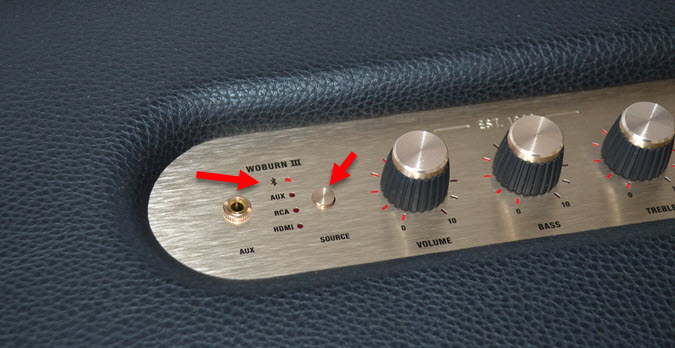
- Если у вас колонка Marshall с поддержкой разных источников ввода звука (например, модель Stanmore, Acton, Woburn), то на ней должна быть кнопка SOURCE. Нажатием на эту кнопку выбираем подключение по Bluetooth.

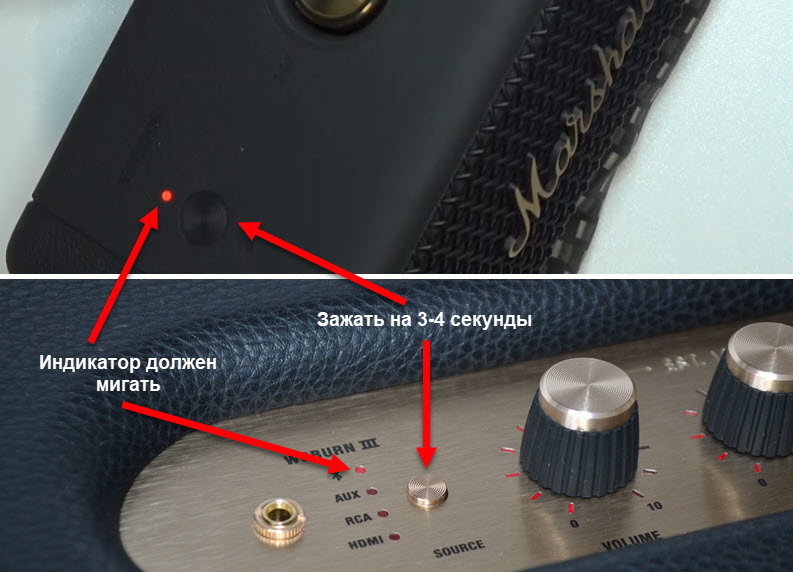
- Дальше нужно активировать режим подключения на колонке. Возможно, после включения она сама перейдет в режим подключения, но в этом нужно убедиться. Обычно, когда колонка Marshal готова к подключению, то индикатор возле значка Bluetooth мигает.
Если индикатор не мигает, или ваше устройство не видит колонку Marshal, то на 3-4 секунды зажмите кнопку с иконкой Bluetooth, или кнопку SOURCE.
После этого колонка станет доступна для подключения по Bluetooth. Прозвучит звуковой сигнал и начнет мигать индикатор.
Шаг 2: подключение к устройству
После того как мы включили нашу колонку и перевели ее в режим сопряжения, остается только включить Bluetooth на устройстве и выбрать нашу колонку в списке доступных устройств.
Подключение колонки Marshall к iPhone
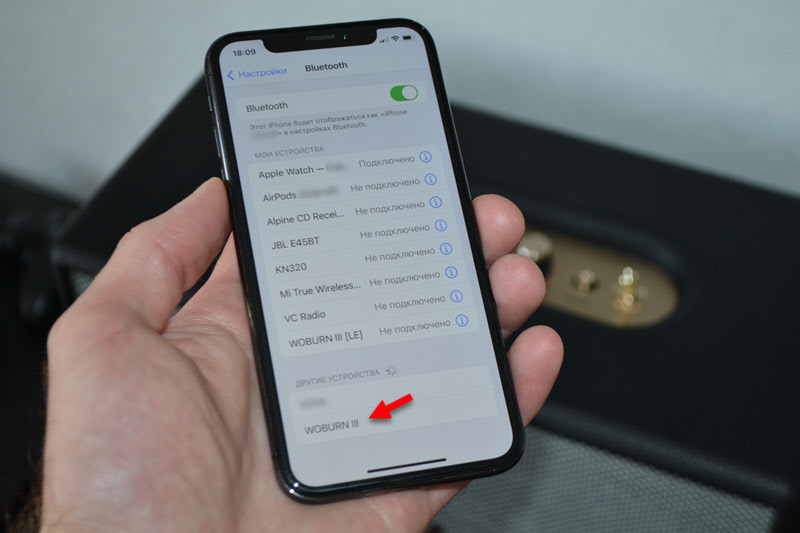
- На iPhone нужно зайти в настройки и открыть раздел Bluetooth. Убедитесь, что Bluetooth включен.
- В списке доступных устройств нужно нажать на нашу колонку. У меня это «Woburn III».

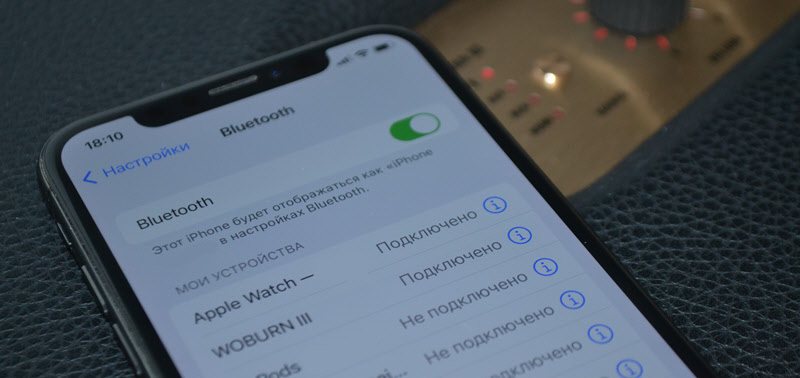
- Колонка будет подключена к iPhone и появится в списке «Мои устройства».

- Если iPhone не видит вашу колонку Marshall и она не появляется в списке доступных устройств, то обязательно убедитесь, что колонка в режиме сопряжения. Смотрите первый шаг в этой статье. И обратите внимание на индикатор Bluetooth, он должен мигать.
Подключение к телефону на Android
- Откройте настройки Bluetooth на своем телефоне. Включите его, если он выключен.
- Убедитесь, что колонка находится в режиме сопряжения (смотрите первый шаг в этой статье).
- Выберите колонку (в моем примере это Marshall Emberton) среди доступных устройств в настройках Bluetooth на Android.

- Подтвердите на телефоне сопряжение с колонкой и она будет подключена. Колонка появится в списке «Сопряженные устройства».
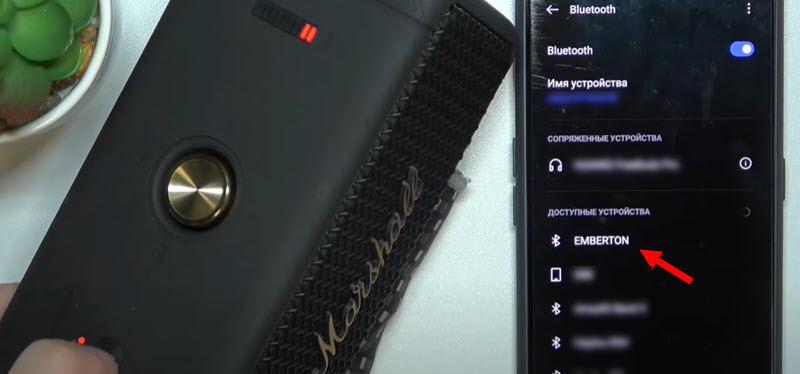
Меню и некоторые элементы могут немного отличаться. Это зависит от производителя телефона и версии Android.
Подключение колонки Marshall к ноутбуку или компьютеру
Так как на моем ноутбуке установлена Windows 11, то показывать буду на ее примере. В Windows 10 все примерно так же. Ниже оставлю ссылки на другие инструкции, которые могут пригодиться, если возникнут какие-то проблемы с подключением.
- Откройте Параметры (правая кнопка мыши по меню Пуск) и перейдите в раздел «Bluetooth и устройства». Нажмите на кнопку «Добавить устройство». Выберите «Bluetooth».

- Убедитесь, что колонка Marshall доступна для подключения. Индикатор Bluetooth должен мигать. Более подробно об этом я писал выше в статье.
- Windows должна обнаружить колонку. Нажмите на нее.
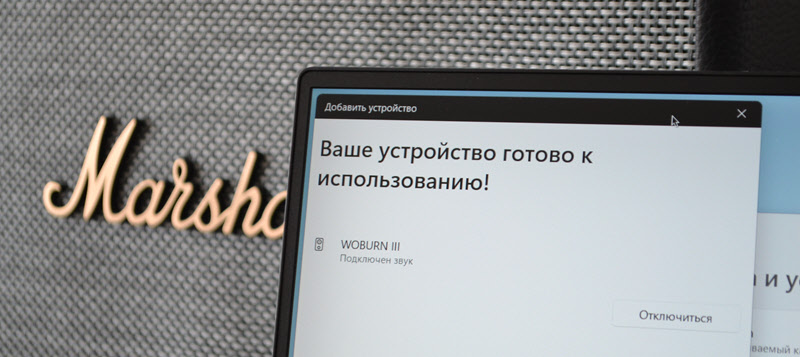
- Готово, наша колонка Marshall подключена к ноутбуку.

Теперь Windows будет выводить звук на колонку.
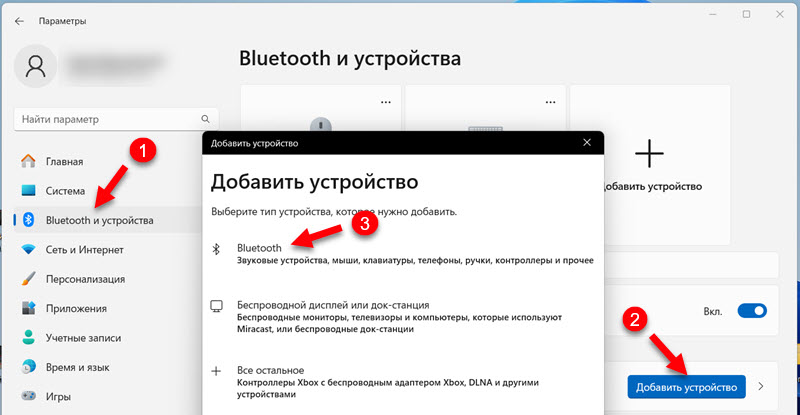
Статьи, которые могут пригодиться:
- Как подключить Bluetooth колонку к Windows 11
- Не работает Bluetooth в Windows 11 на ноутбуке или компьютере
- Нет звука в Bluetooth наушниках (колонке) в Windows 11. Не отображаются в звуковых устройствах
- Как подключить Bluetooth колонку к ноутбуку или компьютеру (на примере Windows 10 и Windows 7).
- Bluetooth наушники не воспроизводят звук с ноутбука. Не отображаются в устройствах воспроизведения Windows (если проблемы с выводом звука на колонку после подключения в Windows 10 и Windows 7).
На MacBook
Чтобы подключить беспроводную колонку Marshall к MacBook:
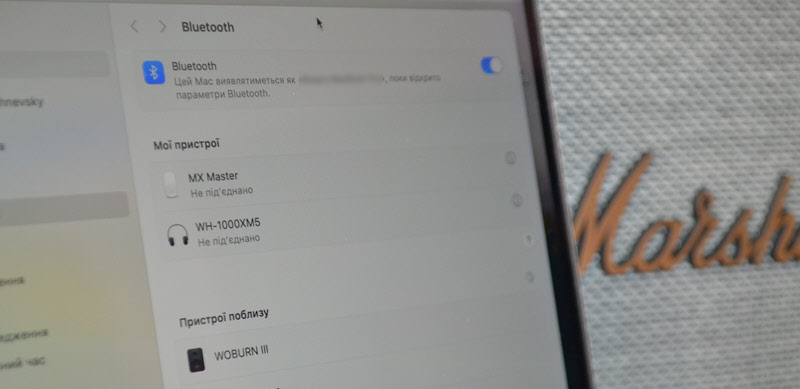
- Откройте настройки на MacBook и перейдите в раздел Bluetooth. Или откройте панель быстрого доступа, нажмите там на Bluetooth и перейдите в «Параметры Bluetooth».
- Если колонка включена и находится в режиме соображения (подробнее читайте выше в статье), то она появится в списке «Устройства поблизости». Нужно только навести курсор на колонку и напротив ее названия нажать на кнопку «Подключить».

- После подключения колонка появится в разделе «Мои устройства». Звук с MacBook будет транслироваться на колонку.
Беспроводное подключение колонки Marshall к телевизору
Если есть возможность, я бы советовал подключать колонку к телевизору с помощью кабеля. Идеальный вариант – HDMI. Но он есть только в модели Woburn III. Есть еще AUX (практически на всех моделях) и RCA (у модели Stanmore и Woburn).
Но если ваш телевизор с поддержкой Bluetooth и он позволяет подключать беспроводную акустику или наушники, то практически любую колонку Marshall можно без проблем подключить к телевизору по Bluetooth.
Тут очень сложно дать пошаговую инструкцию. У всех телевизоры разных производителей и с разными системами Smart TV, да еще и разных версий. Но последовательность такая же, как и в случае с другими устройствами:
- В настройках телевизора нужно найти Bluetooth, включить его и запустить поиск новых устройств.
- Перевести колонку в режим сопряжения. Как это сделать написано в начале статьи.
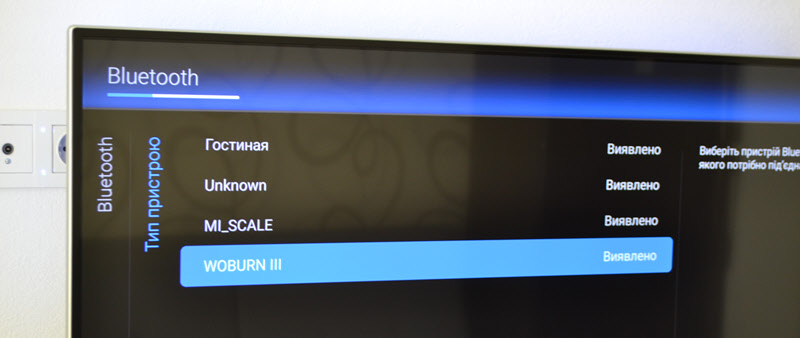
- Подождать, пока телевизор найдет колонку, после чего выбрать ее в настройках для сопряжения. На моем старом телевизоре Philips это выглядит так:

- Возможно, на вашем телевизоре будут дополнительные настройки, которые позволят настроить тип устройства и более тонко управлять выводом звука на колонку.
Подключение колонок Marshall по кабелю
Практически на всех моделях, кроме самых младших Willen и Emberton (если я не ошибаюсь), есть поддержка проводного соединения через AUX. Через кабель 3.5 мм — 3.5 мм.
В моделях Stanmore и Woburn есть еще поддержка RCA. Он же «тюльпан». И только в модели Woburn III есть поддержка HDMI.
Подключение по кабелю: нужно подключит кабель к источнику звука и выбрать на колонке нужный вход (зависит от модели).
AUX
С подключением через AUX на колонках Marshall все максимально просто. Нужно взять кабель 3.5 мм — 3.5 мм и соединить им колонку с телефоном, ноутбуком, телевизором, или другим устройством.
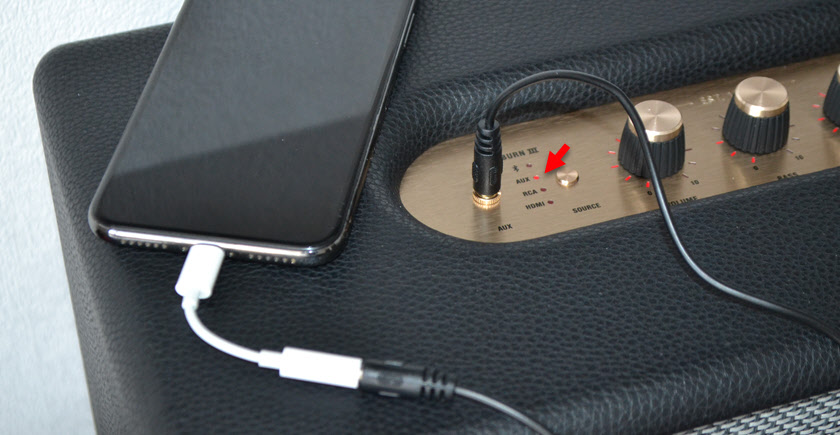
Если на колонке есть кнопка SOURCE для выбора режима, то необходимо выбрать AUX. На портативных моделях такого переключателя нет, там звук сразу выводится на колонку.
RCA
Можно использовать кабель RCA (тюльпан) — 3.5мм, или RCA — RCA. Для подключения к компьютерам, телевизорам, виниловым проигрывателям и другим устройствам. Удобство по сравнению с AUX в том, что вход RCA расположен сзади колонки. В данном случае речь идет о моделях Stanmore и Woburn. Так же, например, не на всех телевизорах есть выход 3.5мм, а вот RCA точно должен быть.
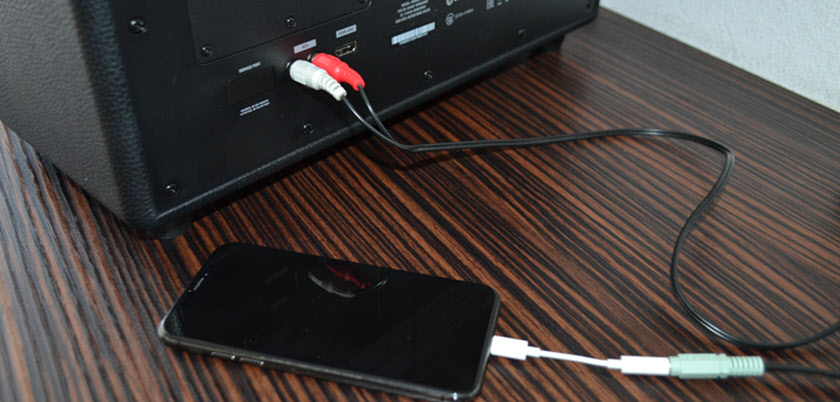
Не забудьте переключить вход на RCA кнопкой SOURCE на самой колонке.
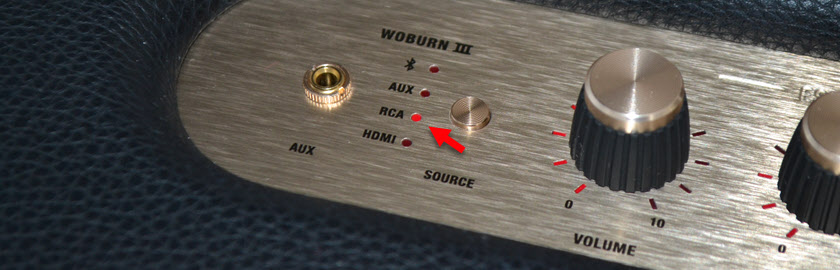
Я не нашел у себя кабель RCA — RCA, чтобы показать подключение например к телевизору, но зато нашел RCA — 3.5мм и подключил по кабелю Айфон. После подключения не забудьте выбрать на колонке Marshall режим RCA.
HDMI
Самый классный вариант подключения колонки Marshall к телевизору. У меня Marshall Woburn III подключена по HDMI к телевизору и используется в качестве саундбара. Вход HDMI ARC есть только в третей версии модели Woburn.
Подключите кабель HDMI к входу HDMI ARC на колонке и к выходу HDMI ARC на телевизоре. На телевизоре нужно подключать именно к выходу HDMI ARC.
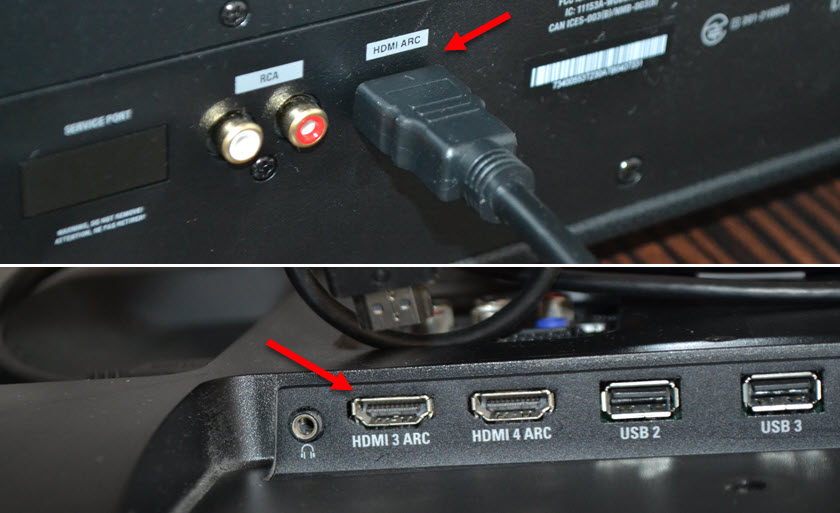
Дополнительно на своем телевизоре я ничего не настраивал. Но возможно в настройках понадобится сменить источник вывода звука на HDMI ARC. Колонка так же должна автоматически перейти в режим HDMI. Если нет, то сменить режим вручную.
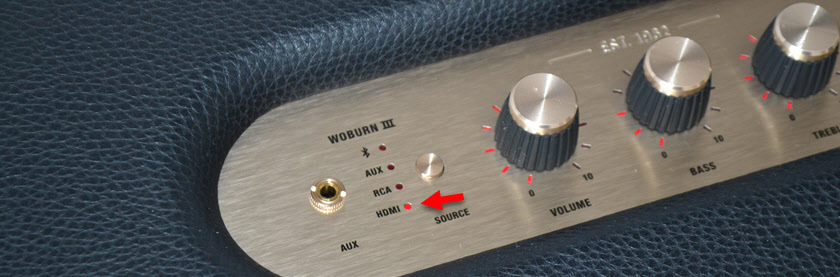
Колонка автоматически включается при включении телевизора и переходит в режим ожидания после его выключения. Это очень удобно.
Настройка и управление колонкой через приложение Marshall Bluetooth
У Marshall есть приложение, которое можно установить на iPhone c App Store, или на Android c Google Play. Называется оно «Marshall Bluetooth». Судя по списку поддерживаемых колонок, поддерживаются не все модели.
Колонкой можно пользоваться и без приложения. Но в приложении есть возможность обновлять прошивку колонки (если это поддерживается в вашей модели), есть эквалайзер, можно менять источник звука, или включать «Ночной режим», который приглушает громкие звуки при просмотре телевизора. Но судя по описанию функции в самом приложении, он работает только при подключении по HDMI. Так же есть возможность настройки расположения колонки (близко к краю, или близко к стене).
Вот несколько скриншотов из приложения «Marshall Bluetooth»:
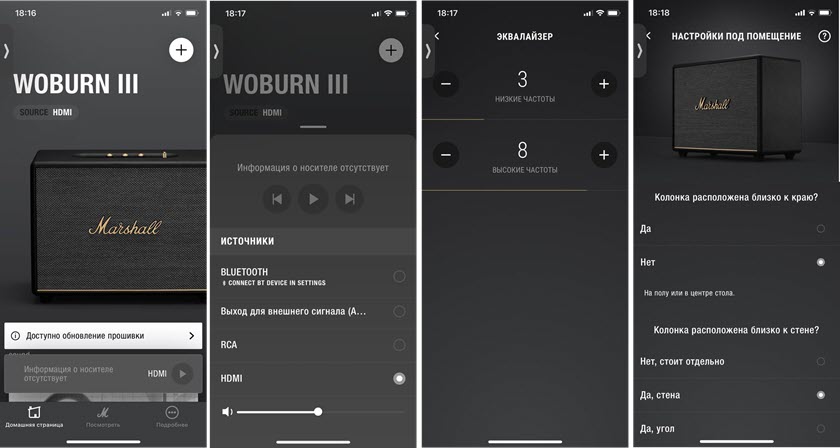
Интересно, что на iPhone это приложение почему-то называется просто «Bluetooth».
Само приложение соединится с колонкой через отдельное Bluetooth соединение (у меня в настройках появилось подключение «Woburn III [LE]»). Это значит, что даже если колонка не в режиме Bluetooth и не подключена к телефону, а подключена по HDMI, например, то соединение с колонкой в приложении работает.