
РУССКИЙ
В этом справочнике приведено краткое описание основных
возможностей. Подробные сведения обо всех доступных функциях
и возможностях приведены в соответствующих разделах
Руководства пользователя.
Полное Руководство пользователя доступно в электронном
формате на компакт -диске Enterprise Telephone Toolbox и по
адресу
http://www.ericsson.com/enterprise/library/manuals.shtml
Перемещение по меню (меню режима ожидания)
Dialog 4223 – для перехода пользуйтесь клавишами меню дисплея. Когда функция не показана на дисплее, несколько раз нажмите (more…),
пока функци я не появится.
n Missed CallList PhoneBook Absence Account Authority Lock LogOn/Off Timer Redial Program PhoneSet HideMenu
Глав ное меню Dialog 4225 – для перехода: служат клавиши перехода.
Program PhoneSet CallList PhoneBook Messages
Нижнее меню Dialog 4225 – для перехода пользуйтесь клавишами меню дисплея. Когда функция не показана на дисплее, несколько раз
нажмите (more…), пока фун кция не появится.
n Missed Absence Account Authority Lock LogOn/Off Timer Redial Hide/ShowMenu
í
1
#
í
Выбор рабочего места
Подключение: *11* Код доступа *
Отключение: #11#
Собственный номер
Ответ на вызовы
Ответ:
Громкая связь: Нажмите мигающую клавишу линии
На другом
аппарате
(подхват вызова):
Завершение
вызова:
u
u
Наберите номер телефона, на
который поступил вызов CallPickUp
d или
í
Вызов абонента
Внутренние
вызовы:
Внешние вызовы:
Громкая связь: Наберите номер
Личный номер
ускоренного
набора:
Набор по
функциональной
клавише:
Повторный набор
последнего
внешнего номера: Redial
u
Номер абонента
u
Код и номер абонента внешней
линии
**( 0– 9)
Нажмите запрограммированную
клавишу, например
Ô
офис
Центральный
Примечание: Некоторые функц ии меню могут быть доступны
только при наличии необходимых полномочий. Функция n Missed
будет показана только при наличии потерянных вызовов в списке
вызовов.
Набор по телефонной книге, например «Eva»:
Dialog 4223: PhoneBook
Dialog 4225: PhoneBook Select
Повторный
набор из списка
вызовов:
Запрос
Те к у щ и й разговор: Запрос Вызовите 3-его абонента
Возврат: Линия 1 или
Возврат к
первому
абоненту и
завершение
запроса:
Перевод вызова
Текущий
разговор:
Конференция
Текущий
разговор:
Ожидание вызова
Включение: CallWaiting (При сигнале «занято»)
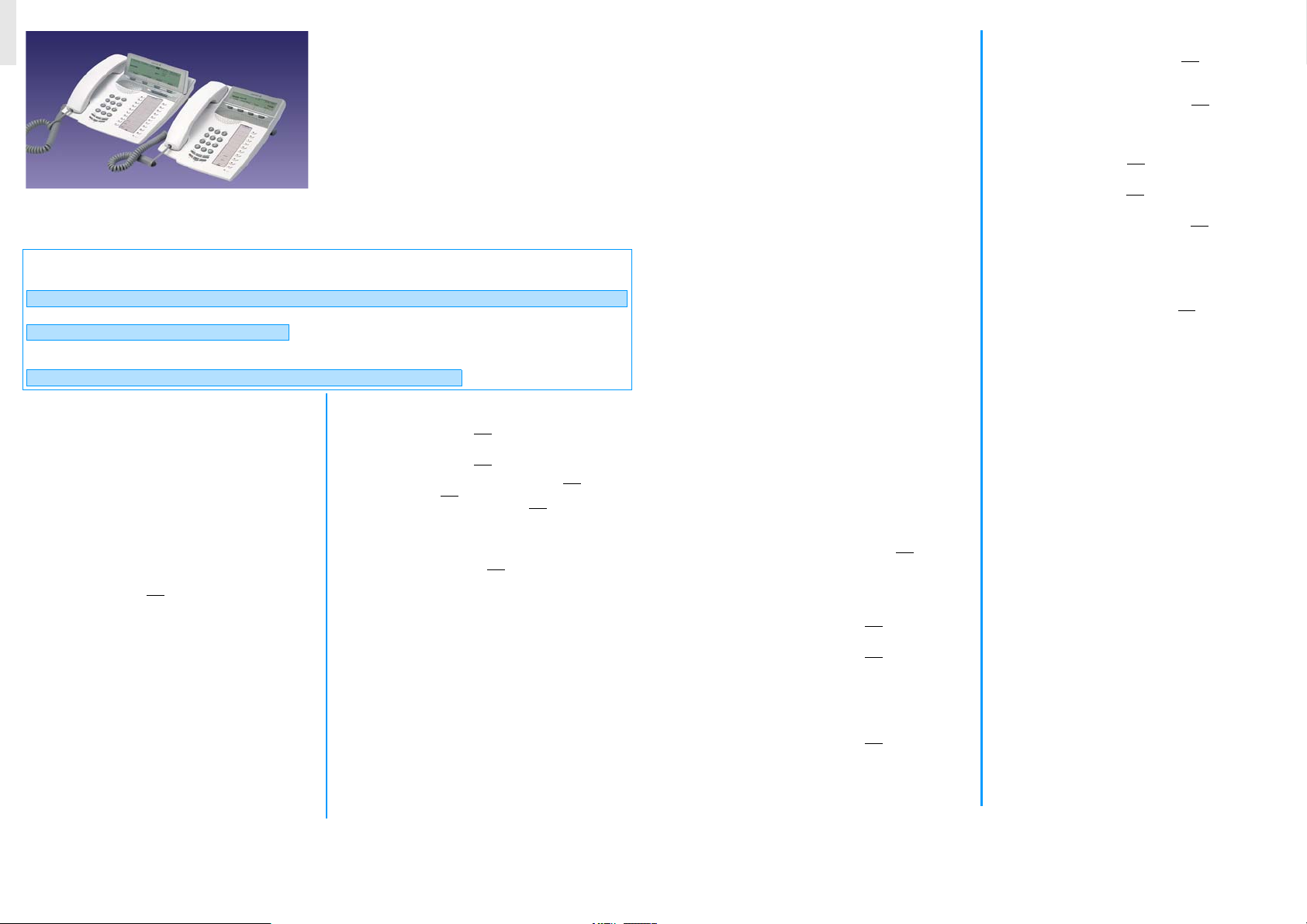
Dialog 4225 Vision
Системные телефоны для
систем связи Ericsson MX-ONE
Telephony System и Ericsson MD110
Краткий справочник
Down или
Down или
CallList Select Down или
или
n Missed Down или
í
Conf/Transf
Вызовите 3-его абонента
Transfer
Conf/Transf
Вызовите 3-его абонента
Conference
Ждите на линии
33 Find
Up Call
Up Call
Запрос
Линия 1
(До или после ответа)
(После ответа)
33 Find
Up Call
Up Call
Dialog 4223 Professional
™
Обратный вызов
Включение: CallBack d
Отмена одного
обратного
вызова:
Отмена всех
обратных
вызовов:
#37* Номер абонента #
#37#
í
Громкая связь
d
С трубки:
Переключиться
обратно на
трубку:
Â
u
Набор номера во время разговора
Перейдите на
тоны DTMF: Tones Наберите нужные цифры
Удержание
Индивидуальное: Линия d
Возобновлени
е разговора: Линия
Общее уде рж а н ие
вызова: CommonHold
Возобновлени
е разговора со
своего
аппарата: Линия
Возобновлени
е разговора с
другого
аппарата:
Личный номер
Включение: Absence Select Down или Up
Отмена: Absence Select Select
Наберите внутренний номер аппарата,
на котором удерживается вызов
CallPickUp
1
Select
d
Переадресация
Включение: Переадресация Ô или Absence
Отмена:
Down Activate
Переадресация ÕÔ или NoDiversion
Внутренняя функция «За мной»
Включение со
своей внутренней
линии:
Отмена:
Перенаправление
с отвечающей
позиции:
Отмена: #21* Собственный номер #
Absence Down Select
Новый номер Enter
Переадресация ÕÔ или NoDiversion
*21* Собственный номер *
Новый номер
#
í
Внешняя функция «Следуй за мной»
Включение: Absence Down или Up Select
Отмена:
Информация об отсутствии
Включение: Absence Down Select
С датой и
временем
возвращения:
Отмена:
Код выхода на внешнюю линию и
номер Enter
Переадресация ÕÔ или NoDiversion
1
Down или
Absence Down Select
Down или
Enter
Переадресация ÕÔ или NoDiversion
Up Select
Up Select Дата/время
Программирование
функциональных клавиш
Программирован
ие или
изменение:
Го л о с о в а я почта
Введите номер
почтового ящика:
Получено новое
сообщение:
Program Select
Нажмите функ циональн ую клавишу
Номер абонента или
Нажмите функ циональн ую клавишу
снова Exit
1
Наберите номер голосовой почты и
следуйте инструкциям
Сообщение ÕÔ Следуйте
инструкциям
Код
Код счета1
Новый внешний
вызов:
Текущий
внешний вызов:
Account Код счета Enter
Код и номер абонента внешней линии
Линия Account Код счета Enter
Линия
Язык1
Изменение
языка:
*08* Код языка ( 0 – 9 ) #
Общее отключение функций
Общая отмена
всех запрограммированных
функций:
#001#
í
Объяснения
n Число непринятых вызовов
1 Функция может быть опциональной
í
?
Ericsson Enterprise AB. Все права защищены. Данный текст
может быть изменен без предварительного уведомления. За
дополнительными сведениями обращайтесь к торговому
партнеру Ericsson Enterprise.
© Ericsson Enterprise AB 2006-02
RU часть LZV 103 007
Cover Page Graphic
Place the graphic directly on the page, do not care about
putting it in the text flow. Select Graphics > Properties
and make the following settings:
•
Width: 15,4 cm (Important!)
•
Height: 11,2 cm (May be smaller)
•
Top: 5,3 cm (Important!)
•
Left: -0,3 cm (Important!)
This text should then be hidden.
Dialog 4223 Professional/Dialog 4225 Vision
System Telephones for MX-ONE™ Telephony System and MD110
User Guide
Note: This guide covers only the two newest
telephone models available at UCSC. Some
features available for these telephone models are
currently unavailable on the UCSC Telephone
Switch. In some cases, pages referring to these
features have been removed from this document. In
other cases, unavailable features are indicated with
a note like this one.
-
Page 1: Aastra Telecom 4225
Cover Page Graphic Place the graphic directly on the page, do not care about putting it in th e text flow . Select Graphics > Properties and make the following settings: • Width: 15,4 cm (Important!) • Height: 11,2 cm (May be smaller) • T op: 5,3 cm (Important!) • Left: -0,3 cm (Important!) This text should then be hidd en. Dialog 4223 P[…]
-
Page 2: Aastra Telecom 4225
EN/LZT 103 68 R6A © Aastra T elecom Sweden AB 2008. All rights reserved.[…]
-
Page 3: Aastra Telecom 4225
3 Dialog 4223 Professional/Dialog 4225 Vision Ta b l e o f C o n t e n t s T able of Contents Wel come ………… ………………….. …………………. . 4 Important User Information ……………. …………… 6 Description ……………… …………………. …………… 7 Fre e Seating ……………. ………………[…]
-
Page 4: Aastra Telecom 4225
Welc ome Dialog 4223 Professional/Dialog 4225 Vision 4 We l c o m e Welcome to the user guide for the Dialog 4223 Professional and Dialog 4225 Vision . This guide describes th e available features of the telephones when th ey are connected to MX-ONE™ Te l e p h o n y S y s t e m or MD110 . The functions and features availa ble with these telephon[…]
-
Page 5: Aastra Telecom 4225
5 Dialog 4223 Professional/Dialog 4225 Vision Welc ome Copyright All rights reserved. No parts of th is publication ma y be reproduced, stored in retrieval systems, or tr ansmitted in any form or by any means, electronic, mechanical, photocopying, recor d ing or otherwise, without prior written pe rmission of the publisher exc ept in accordance wit[…]
-
Page 6: Aastra Telecom 4225
Important User Informati on Dialog 4223 Professional/Dialog 4225 Vision 6 Important User Information Safety instructions Save these instructions . Read these safety instructi ons before use! Note: When using your telephone or connected equipment, the following basi c safety precautions should always be followed to reduce risk of fire, electrical sh[…]
-
Page 7: Aastra Telecom 4225
7 Dialog 4223 Professional/Dialog 4225 Vision Description Description Dialog 4223 Professional 1D i s p l a y See section “ Display information ” on page 16. 2 Display menu keys The key functions depend on the traffic state. When you are requested “(see display)”, press the requir ed key to access the feature. 3C a l l b a c k Indicating/ac[…]
-
Page 8: Aastra Telecom 4225
Descriptio n Dialog 4223 Professional/Dialog 4225 Vision 8 4 Diversion ( Follow-me) Indicating/activating and deactivat ing Diversion (Follow-me). See section “ Call Forwarding ” on page 62. The feature can be r emoved or moved to another programmable function key by your system administrator . 5 Programmable function keys Program numbers or fe[…]
-
Page 9: Aastra Telecom 4225
9 Dialog 4223 Professional/Dialog 4225 Vision Description 14 Handset Supplied with hearing aid feature as standard. An extra handset can be connected, see section “ Accessories ” on page 117. Please note: The handset can at tract and trap small metal objects in the earcap region. 15 Pull-out leaf for ea sy guide (optiona l) See section “ Pull[…]
-
Page 10: Aastra Telecom 4225
Descriptio n Dialog 4223 Professional/Dialog 4225 Vision 10 Dialog 4225 Vision 1D i s p l a y See section “ Display information ” on page 16. 2 Display menu keys The key functions depend on the traffic state. When you are requested “(see display)”, press the requir ed key to access the feature. 3 Navigation key left Navigate one step to the[…]
-
Page 11: Aastra Telecom 4225
11 Dialog 4223 Professional/Dialog 4225 Vision Description 6C a l l b a c k Indicating/activating Callback. See section “ When you receive a busy tone ” on page 40. The feature can be removed or moved to another programmable function key by your system administrator . 7 Diversion ( Follow-me) Indicating/activating and deactivatin g Diversion (F[…]
-
Page 12: Aastra Telecom 4225
Descriptio n Dialog 4223 Professional/Dialog 4225 Vision 12 17 Handset Supplied with hearing aid feature as standard. An extra handset can be connected, see section “ Accessories ” on page 117. Please note: The handset can at tract and trap small metal objects in the earcap region. 18 Pull-out leaf for ea sy guide (optiona l) See section “ Pu[…]
-
Page 13: Aastra Telecom 4225
13 Dialog 4223 Professional/Dialog 4225 Vision Description Lamp indications Ô Extinguished lamp The feature is not active. Õ Ô Steady light The feature is active or the multiple repr esented line is busy . Ö Ô Slowly flashing lamp The line (o r feature) is put on hold. Ö Ô Rapidly flashing lamp An incoming call. Õ Ô Light with short br eak[…]
-
Page 14: Aastra Telecom 4225
Descriptio n Dialog 4223 Professional/Dialog 4225 Vision 14 T ones and signals The following different tones an d signals are sent fr om the exchange to your phone. T one characteristics The tones shown in this sectio n are the most used tones worldwide. Many markets use a differing tone for one or more situations. Dial tone Special dial tone Ringi[…]
-
Page 15: Aastra Telecom 4225
15 Dialog 4223 Professional/Dialog 4225 Vision Description Ring signals Three differ ent ring signals info rm yo u about the type o f the incoming call. The sign als shown in this section are the most used signals worldwide. Many markets use signals that are adapted for the local standards. If you get a signal that is not described or you cannot id[…]
-
Page 16: Aastra Telecom 4225
Descriptio n Dialog 4223 Professional/Dialog 4225 Vision 16 Display information The display gives you f eedback information such as time and date, traffic state and connected phon e numbers. The follo wing pages show examples of information di splays from differ ent telephone states. Notes: The order in which the date is stated is system dependent.[…]
-
Page 17: Aastra Telecom 4225
17 Dialog 4223 Professional/Dialog 4225 Vision Description T op menu (Dialog 4225 Vision) The top menu is in the black frame below . The following main text and symbol s can be shown in the display´s top menu (see also section “ Menu structure Dialog 4225 V ision ” on page 26.): Program Access the Program menu. See section “ Settings ” on […]
-
Page 18: Aastra Telecom 4225
Descriptio n Dialog 4223 Professional/Dialog 4225 Vision 18 Display symbols T raffic status is indicated by th e following symbols on the display: Dialog 4223 Professional: Dialog 4225 Vision: Forwar ded call. Indicates that the call is forwarded to another extension than the one dialed. See section “ Call Forwarding ” on page 62. > Prefix b[…]
-
Page 19: Aastra Telecom 4225
19 Dialog 4223 Professional/Dialog 4225 Vision Description The following symbols can be sh own in the top menus or other display lists (example of the CallList menu). Dialog 4223 Professional: Dialog 4225 Vision: Missed call . Indicates a missed but checked incoming call. Incoming call. Indicates an answer ed incoming call. Outgoing call. Indicates[…]
-
Page 20: Aastra Telecom 4225
Descriptio n Dialog 4223 Professional/Dialog 4225 Vision 20 Idle phone (idle mode ) Dialog 4223 Professional: When your phone is idle, the up per row shows general information and your extension number . The lower row pr esents lea d text for the display menu keys. In the example below , the extension number for James Brown is 2222 . Note: A long n[…]
-
Page 21: Aastra Telecom 4225
21 Dialog 4223 Professional/Dialog 4225 Vision Description Outgoing call Dialog 4223 Professional: When you make an outgoing call on your phone, traffic information and dialed name (if availa ble) and number are shown. If the called party ’s phone is dive rted, the forwar ded call icon, the answering extension name (number when name is not availa[…]
-
Page 22: Aastra Telecom 4225
Descriptio n Dialog 4223 Professional/Dialog 4225 Vision 22 Incoming call Dialog 4223 Professional: When you receive an incoming cal l, the calling party ’s extension number flashes (if the name is ava ilable, this is also shown). If the number for an external call is not a vailable, the display shows External instea d of the number (flashing). I[…]
-
Page 23: Aastra Telecom 4225
23 Dialog 4223 Professional/Dialog 4225 Vision Description Dialog 4225 Vision: When you receive an incoming call, the idle inform ation is shown. Below the top menu, the calli ng part y ’s extension number fl ashes (if the name is available, this is also shown). If th e number for a n external call is not available, the display shows External ins[…]
-
Page 24: Aastra Telecom 4225
Descriptio n Dialog 4223 Professional/Dialog 4225 Vision 24 Display menu keys The following text can be displa yed for the display menu keys: +/- Adjust display contrast HideMenu Hide menu key designations </> Move cursor when programming melodies Intrusion Intrusion Absence Handle Absence/Diversion Lock Lock the phone Account Account Code Lo[…]
-
Page 25: Aastra Telecom 4225
25 Dialog 4223 Professional/Dialog 4225 Vision Description Menu structure Dialog 4223 Professional Menu structure for each of the me nus that can be selected from the idle menu. When you are navigating the menus, a selected menu is marked with a black frame. n Missed* CallList PhoneBook more… Call List Unanswered calls Outgoing calls Incoming cal[…]
-
Page 26: Aastra Telecom 4225
Descriptio n Dialog 4223 Professional/Dialog 4225 Vision 26 Menu structure Dialog 4225 Vision Menu structure for each of the me nus that can be selected from the idle menu. When you are navigating the menus, a selected menu is marked with a black frame. Program PhoneSet CallList PhoneBook Messages Explanations * Only shown when ther e are missed ca[…]
-
Page 27: Aastra Telecom 4225
27 Dialog 4223 Professional/Dialog 4225 Vision Description Display language (optional) One of the following languages can be selected to display information on your phone. Note: By default 5-9 are programmed for English. These can be changed locally to other languages. T o select a language: *08* Dial. ( 0 — 9 ) Enter the language code. #í Pres […]
-
Page 28: Aastra Telecom 4225
29 Dialog 4223 Professional/Dialog 4225 Vision Incoming Ca lls Incoming Calls Answer calls A ring signal and a flashing lamp indicate an incoming call. Note: If the feature Parallel Ringin g is ac tivated, the cal l will ring on more than one phone, see section “ Parallel Ringing ” on page 33 . On Line 1 Normally you will receive calls on Line […]
-
Page 29: Aastra Telecom 4225
Incoming Calls Dialog 4223 Professional/Dialog 4225 Vision 30 On another extension Y ou can answer a call to another ext ension. uz Call the ringing extensio n. Busy tone. Note: The display images might differ f rom the above. CallPickUp Press to answer (see display). If CallPickUp is not shown, press more… until it appears. Notes: Y ou can also […]
-
Page 30: Aastra Telecom 4225
31 Dialog 4223 Professional/Dialog 4225 Vision Incoming Ca lls Answer a second call during an ongoing call If your phone is prepr ogrammed wi th a Free on 2nd key , you can receive another call, if this feature is activated. Free on 2nd Ô Press to activate/deactivate. When Free on 2nd is ac tive the lamp is on . Note: The function key is prepr ogr[…]
-
Page 31: Aastra Telecom 4225
35 Dialog 4223 Professional/Dialog 4225 Vision Outgoing Calls Outgoing Calls Make calls How to make intern al and external calls: u Lift the handset an d proceed depending on ca ll type: Internal calls z Dial the extension number . External calls 0 Press the digit or digits to get an ex ternal line. Dial tone. Note: The particular digit or digits u[…]
-
Page 32: Aastra Telecom 4225
Outgoing Calls Dialog 4223 Professional/Dialog 4225 Vision 36 Handsfree With the handset on hook: z Dial the number . Y ou are connected via the loudspeaker and microphone. í Press to terminate a handsfree call. Note: Y ou can dial your cal ls more quickly by using common Speed Dialing number s and by using your own programmed function keys. See s[…]
-
Page 33: Aastra Telecom 4225
37 Dialog 4223 Professional/Dialog 4225 Vision Outgoing Calls Individual External Line T o make a call on a specific external line: *0* Dial. z# Dial the Individual Externa l Line number and press. z Dial the digit or digits to get an exter nal line and the exter nal number . Redial calls from the Call list T o use the Call list, see section “ Ca[…]
-
Page 34: Aastra Telecom 4225
Outgoing Calls Dialog 4223 Professional/Dialog 4225 Vision 38 Dialog 4225 Vision Å Select CallLis t in the top menu (see display). Down or Up Press to fr ame the requested l ist (see display). Select Press (see display), The picture below is an example of how the displ ay looks when the complete Call list has been selected. or use the shortcut dir[…]
-
Page 35: Aastra Telecom 4225
39 Dialog 4223 Professional/Dialog 4225 Vision Outgoing Calls Last External Number Redial When you initiate an external call the system automat ically stores all the dialed digits, irrespective of whether the call was successful or not. u Lift the handset. Redial Press to repeat the stor ed number (see display). If Redial is not shown, press more..[…]
-
Page 36: Aastra Telecom 4225
Outgoing Calls Dialog 4223 Professional/Dialog 4225 Vision 40 When you receive a busy tone If you call an extension and receive a busy tone, or get no answer , or all external lines are busy , you can use any of the following methods: Callback If a called extension is busy or there is no answer: CallBack Press (see display). It can take several sec[…]
-
Page 37: Aastra Telecom 4225
41 Dialog 4223 Professional/Dialog 4225 Vision Outgoing Calls If all external lines are busy (after dialing the digit or digits to get a line): CallBack Press (see display). If CallBack is not shown, press more… until it appears. Notes: Y ou can also press 6 or Callback (The function key is programmed by you). France, Finland an d Sweden, press 5[…]
-
Page 38: Aastra Telecom 4225
Outgoing Calls Dialog 4223 Professional/Dialog 4225 Vision 44 Speed Dialing Common Speed Dialing numbers By using common Speed Dialing numbers, you ca n make calls simply by pressing a few keys. The common Speed Dialing nu mb e rs co n si st o f 1– 5 digits and are stored in the exchange (by your system a dministrator). uz Lift the handset and di[…]
-
Page 39: Aastra Telecom 4225
45 Dialog 4223 Professional/Dialog 4225 Vision Outgoing Calls T o erase one programmed number: #51* ( 0 — 9 ) Dial and press the sele cted digit. Note: Finland, dial # 5 1 * ( 1 — 9 ) #í Pres s. T o erase all programmed numbers: #51# Dial. í Pres s. Dial by a function key Both features and phone numbers can be programmed on a function key . T[…]
-
Page 40: Aastra Telecom 4225
During Calls Dialog 4223 Professional/Dialog 4225 Vision 52 During Calls Gr oup Listening (loudspeaking) This feature lets other people in your room listen to your phone conversation. Y ou speak in the handset while the other party´s voice is heard on the loudspeaker . During an ongoing conversation: Â Press to switch between loudspea ker and han[…]
-
Page 41: Aastra Telecom 4225
53 Dialog 4223 Professional/Dialog 4225 Vision During Calls Handsfree Âd Press and replace the handset. Handsfree conversation. í Press to end the call. From handsfree to handset u Lift the handset. Conversation via the handset. Mute É Press to switch the microphone on or off. When the lamp is on, the person on the line cannot hear what is being[…]
-
Page 42: Aastra Telecom 4225
During Calls Dialog 4223 Professional/Dialog 4225 Vision 54 Refer Back The Line key lamp flashes for the call put on hold. Line 1 Ö Ô Press to put thir d party on hold. First call is connected. Inquir y Ö Ô Press to put the first call on hold. Third part y is connected. Note: Y ou can also press Line 2 if you have initiated the Inquiry on Line […]
-
Page 43: Aastra Telecom 4225
55 Dialog 4223 Professional/Dialog 4225 Vision During Calls Confer ence With this procedur e you can include up t o seven parties in a conference. Only the conference leader (i.e. the person initiating the conference) can admit participants. During the conference a tone will be heard every 15 seconds. Note: The conference tone might be disabled for[…]
-
Page 44: Aastra Telecom 4225
During Calls Dialog 4223 Professional/Dialog 4225 Vision 56 Hold Y ou can temp orarily put the ongoing call on hold. Calls put on hold can be resumed on your own or on another phone. Individual Line Õ Ôd Pr ess the ongoing call Line key and r eplace the handset. The key lamp flashes slowly . Line Ö Ô Press the flashing Line key again to r esume[…]
-
Page 45: Aastra Telecom 4225
57 Dialog 4223 Professional/Dialog 4225 Vision During Calls T o resume the call on another extension: z Call the extension w here the call was put on hold. CallPickUp Press (see display). If CallPickUp is not shown, press more… until it appears. Notes: Y ou can also press 8 or Hold/Pick-up (The function key is programmed by you). If your number i[…]
-
Page 46: Aastra Telecom 4225
During Calls Dialog 4223 Professional/Dialog 4225 Vision 58 Dialing during a connected call When calling interactive teleservices, e.g. t elephone banks, you need to use Dual T one Multi Frequency (DTMF) signals. If your exchange has not been programmed to automatically convert your entered digits into DTMF signals, you need to activate the feature[…]
-
Page 47: Aastra Telecom 4225
59 Dialog 4223 Professional/Dialog 4225 Vision Call Metering Call Metering Cost information Cost information for your call can be shown in the lo cal currency in the display . CostInfo Press to display or hi de the cost indicatio n (see display ). If CostInfo is not shown, press more… until it appears. Note: The cost indication is auto matically […]
-
Page 48: Aastra Telecom 4225
Call Meterin g Dialog 4223 Professional/Dialog 4225 Vision 60 Call Duration (Timer) The elapsed time of your call can be measured, either manually (default) or automatically . T o chan ge to Automatic Timer , contact your system administrator . Manual T imer The timer can be activated when your phone is ready for dialing (internal dial tone is hear[…]
-
Page 49: Aastra Telecom 4225
61 Dialog 4223 Professional/Dialog 4225 Vision Call Metering Automatic Timer The timer automatically starts when the called person answers, and automatically stops when the call is finished. Both outgoing and incoming calls are measured. If you make inquiries, conferences, or put calls on hold, etc. during the call, the timer is not sto pped. I. e.[…]
-
Page 50: Aastra Telecom 4225
Call Forwar ding Dialog 4223 Professional/Dialog 4225 Vision 62 Call Forwar ding Diversion If you do not want to be disturb e d or will be out of the office, you can have all calls to your extension diverted to a preprogrammed answering position. During Divers ion you will hear a special dial tone and the Diversion lamp indicat es that your T riple[…]
-
Page 51: Aastra Telecom 4225
63 Dialog 4223 Professional/Dialog 4225 Vision Call Forwar ding Order Direct Diversion fr om your own extension The call can be diverted to an indivi dual position or up to three pre- determined common answering posi tions (depending on the type of the incoming call). Programmed by your system administrator . Note: Diversion can also be orde red an[…]
-
Page 52: Aastra Telecom 4225
Call Forwar ding Dialog 4223 Professional/Dialog 4225 Vision 64 Diversion when there is no answer Order: Absence Press (see display). If Absence is not shown, press more… until it appears. Down or Up Press to fr ame Div on no answer to nnnn: Not active (see displa y). (nnnn = number to the answerin g po sition, e.g. the operator). Activate Press […]
-
Page 53: Aastra Telecom 4225
65 Dialog 4223 Professional/Dialog 4225 Vision Call Forwar ding Diversion when caller receives a busy tone Order: Absence Press (see display). If Absence is not shown, press more… until it appears. Down or Up Press to fr ame Div on busy to nnnn: Not activ e (see displa y). (nnnn = number to the answerin g po sition, e.g. the operator). Activate P[…]
-
Page 54: Aastra Telecom 4225
Call Forwar ding Dialog 4223 Professional/Dialog 4225 Vision 66 Internal Fol low-me All calls to your extension are diverted to another extension of your choice (within the priva te networ k). The Follow-me lamp indicates that you have activated Follow-m e. During Follow-me, your phone can still be used for outgoing calls and you will hear a specia[…]
-
Page 55: Aastra Telecom 4225
67 Dialog 4223 Professional/Dialog 4225 Vision Call Forwar ding Cancel from your own extension Diversion Õ Ô Pres s, Note: The function key is prepr ogrammed by your system administrator . or NoDiversion press (se e display). Note: Y ou can also use the following procedure to cancel : dial # 2 1 # (U.K. # 2 # ) and press the Clear key . Redirect […]
-
Page 56: Aastra Telecom 4225
Call Forwar ding Dialog 4223 Professional/Dialog 4225 Vision 68 External Follow-me If external Follow-me is allowed yo u can have all calls to your extension diverted to an external number of your cho ice. The Follow-me lamp indicates that you have activate d Follow-me. During Follow-me, your phone can still be used for outgoing calls and you will […]
-
Page 57: Aastra Telecom 4225
69 Dialog 4223 Professional/Dialog 4225 Vision Call Forwar ding Personal Number With this feature you can be reach ed on your normal office phone number even if you are out of the office, at home, etc. Depending on the functi onality of your office exchange, yo u can have either one individual single search profile or you can choose between five in[…]
-
Page 58: Aastra Telecom 4225
Call Forwar ding Dialog 4223 Professional/Dialog 4225 Vision 70 T o activate or change to another profile from your office phone Absence Press (see display). If Absence is not shown, press more… until it appears. Down or Up Press to fr ame Select Profile (see displ ay). Select Press (see display). Down or Up Press to fr ame the requir ed profile […]
-
Page 59: Aastra Telecom 4225
71 Dialog 4223 Professional/Dialog 4225 Vision Call Forwar ding T o activate or change to another profile fr om an external phone The externa l phone must be of pu sh button type provided wi th pound key ( # ) and star key ( * ) or a mobile phone adapted for dial tone pulses (DTMF). z Call the DISA fe ature at your offi ce. Dial tone. *75* Dial. z*[…]
-
Page 60: Aastra Telecom 4225
Call Forwar ding Dialog 4223 Professional/Dialog 4225 Vision 72 T o cancel from an external pho ne The externa l phone must be of pu sh button type provided wi th pound key ( # ) and star key ( * ) or a mobile phone adapted for dial tone pulses (DTMF). z Call the DISA fe ature at your offi ce. Dial tone. *75* Dial. z* Dial the Authorizatio n Code a[…]
-
Page 61: Aastra Telecom 4225
73 Dialog 4223 Professional/Dialog 4225 Vision Call Forwar ding Important notes when design ing your search profiles: • Avoid ring times longer than 45 seconds for your profiles. Usually the caller hangs up after 3-6 ring signals. If you need a longer ring time, the maximum time is 60 sec. • Consider the time you need to react and answer on eac[…]
-
Page 62: Aastra Telecom 4225
Call Forwar ding Dialog 4223 Professional/Dialog 4225 Vision 74 Example: How to fill in your setting form for search profiles: Profile 1 In office * Examples: Desk, Cordless, Mobile, Exter nal, Voice Mail, Operator , etc. Profile 2 At home Search order T ype of telephone or Answering position* T elephone number Ring time (seconds) 1D e s k 1 2 3 4 […]
-
Page 63: Aastra Telecom 4225
75 Dialog 4223 Professional/Dialog 4225 Vision Call Forwar ding Setting form for search pr ofiles Name: Department: Te l e p h o n e N o : Account: Profile 1 …………………….. * Examples: Desk, Cordless, Mobile, External, Voice Mail, Operator , etc. Profile 2 …………………….. Profile 3 …………………….. Profile 4 …….[…]
-
Page 64: Aastra Telecom 4225
Absence Information Dialog 4223 Professional/Dialog 4225 Vision 76 Absence Information Absence Information is used to in form calle rs why you are absent and when you will retu rn. If you are authorized, you can also enter Absence Information for another extension from your extension. During Ab sence Informat ion, your phone can still be used for o[…]
-
Page 65: Aastra Telecom 4225
77 Dialog 4223 Professional/Dialog 4225 Vision Absence Information When a return time or date is requested: 0915 Enter the date (MMDD) or ti me (HHMM) of your r etur n. (Example shows “Back on September 15”). Note: The order in which the date is stated is system dependent. Enter Press (see display). The display shows the selected ab sence reaso[…]
-
Page 66: Aastra Telecom 4225
Messages Dialog 4223 Professional/Dialog 4225 Vision 82 V oice Mail (op tional) The V oice Mail application allows you to leave a voice messa ge to the caller when you are unable to answer calls, e.g. when out of office, in a meeting, etc. The ca ller ca n then leave a message in your mai lbox. When bac k in you r office you can enter your mailbox […]
-
Page 67: Aastra Telecom 4225
85 Dialog 4223 Professional/Dialog 4225 Vision Group featur es Gr oup features Gr oup Call-pick-up People working i n a team can ha ve thei r phones programmed by their system administrator to form Call Pick -up groups. In a Call Pick-up group, any memb er can answer any individual call to group members. GrpPickUp Press to answer (see display). If […]
-
Page 68: Aastra Telecom 4225
Group featur es Dialog 4223 Professional/Dialog 4225 Vision 86 Gr oup Hunting An internal Group Hunting number is a common directory number for a group of extensions. Calls to the group will be indicated at a free extension in the group. When you leave the group tempor arily , you make your phone unavailable for incoming calls. T o leave the group […]
-
Page 69: Aastra Telecom 4225
87 Dialog 4223 Professional/Dialog 4225 Vision Group featur es If you are authorized you can dive rt all calls to your group, to another extension or group: *24* Dial. z* Dial the number of the group to be diverted an d press. z Dial the extension number of the new anwering positi on. # í Pres s. T o cancel the Diversion: #24* Dial. z Dial the num[…]
-
Page 70: Aastra Telecom 4225
Other Useful featur es Dialog 4223 Professional/Dialog 4225 Vision 90 Immediate Speech Connection Y ou automatica lly answer a call without lifting the handset or pressing any keys. The feature can be permanently active or activated by use of a function ke y (preprogrammed by your system administrator). Permanently active Program the ringing option[…]
-
Page 71: Aastra Telecom 4225
91 Dialog 4223 Professional/Dialog 4225 Vision Other Useful featur es General Deactivation The following features can be simultaneously cancelled: • Callback (all Callbacks are cancelled). • Diversion/Internal and Exter nal Follow-me. • Manual Message Waiting/Message Diversion. • Do Not Disturb. Order #001# Dial. í Pres s. Night Service Wh[…]
-
Page 72: Aastra Telecom 4225
Other Useful featur es Dialog 4223 Professional/Dialog 4225 Vision 92 Hot Line This feature is programmed by your system administrator . Delayed Hot Line When the handset of the delayed Ho t Line phone is lifted or when the Line key is pressed, a timer is started. If no digit is pressed before time out, a call is auto ma tically generated to a spec[…]
-
Page 73: Aastra Telecom 4225
93 Dialog 4223 Professional/Dialog 4225 Vision Other Useful featur es Additional Directory Number Y ou can be assigned (preprogrammed by your system administrator) one or m ore A d di t io n al D ire c t ory Numbers (lines) on free function keys. T o answer , make calls and us e features on the additional directory lines, use the same procedure as […]
-
Page 74: Aastra Telecom 4225
Other Useful featur es Dialog 4223 Professional/Dialog 4225 Vision 94 Multiple Represented Dir ectory Number Y our extension numbe r can be programmed on a dedicated key on other system telephones, i.e. yo ur number is “represented” on these phones. Other extension nu mbers can of course also be “represented” on your phone. Note: This featu[…]
-
Page 75: Aastra Telecom 4225
Other Useful featur es Dialog 4223 Professional/Dialog 4225 Vision 96 Call list With this feature, calls to and fr om your phone will be logged. By use of the display menu keys be low the display , you can browse the Call list, make calls to number s in the list a nd delete numbers from the list. Y ou can choose to browse in the co mplete list of a[…]
-
Page 76: Aastra Telecom 4225
97 Dialog 4223 Professional/Dialog 4225 Vision Other Useful featur es Call list options Call Press to call the framed phone num ber (see displa y). Down or Up Press to fr ame a phone number in the list (see display). more… Press to show more options (se e display). Delete Press to del ete the framed call (see displ ay). Return Press to return to […]
-
Page 77: Aastra Telecom 4225
Settings Dialog 4223 Professional/Dialog 4225 Vision 98 Settings Programming of function keys Frequently used features and phone numbers can be programmed on the function keys for easy access. When you want t o use the feature, just pr ess the key . Certain features must be prepr ogrammed by your system administrator . Both phone numbers and featur[…]
-
Page 78: Aastra Telecom 4225
99 Dialog 4223 Professional/Dialog 4225 Vision Settings Program or change a f eature Ô Press the key to program or change. Notes: If the key is already programmed, the number or feature will be displayed. If you do not want to change the programmed feature, press Exit to leave the menu without saving the changes. T o erase a programmed feat ure, p[…]
-
Page 79: Aastra Telecom 4225
Settings Dialog 4223 Professional/Dialog 4225 Vision 100 Features and r equired data Feature T o be entered on the function key Dial by a function key Extension number or pr ocedure Feature code Most common Finland France Sweden Call pick up: Group 8 4 6 Individua l No. + 8 No . + 4 No. + 6 Call Waiting 56 6 4 Conference 3 Intrusion on busy extensi[…]
-
Page 80: Aastra Telecom 4225
101 Dialog 4223 Professional/Dialog 4225 Vision Settings Features that can only be programmed by your system administrator: *The feature can also be programmed by you. When the feature has been pr ogrammed by you , you will not get a toggle function. Instead you will ha ve one key for a ctivation and another key for deactivation. The key lamp will […]
-
Page 81: Aastra Telecom 4225
Settings Dialog 4223 Professional/Dialog 4225 Vision 102 Programming of ring signals Y ou have 6 programmable ring signal s on your phone. The different signals can be programmed on lines, additional lines and multiple represented lines. Enter programming mode Dialog 4223 Professional: Program Press (see display). If Program is not shown, press mor[…]
-
Page 82: Aastra Telecom 4225
103 Dialog 4223 Professional/Dialog 4225 Vision Settings Program or change a ring signal Line 1 Ô Pr ess the corresp onding Line key . A digit (0–6) is shown in the display . Note: If you do not want to change the programmed ring signal, press Exit to leave the menu wit hout saving the changes. ( 0 — 6 ) Select the ring sig nal you want to use[…]
-
Page 83: Aastra Telecom 4225
Settings Dialog 4223 Professional/Dialog 4225 Vision 104 Programming of ring signal tone character There are 10 different pr ogramma ble ring signal tone characters on your phone, each corresponding to a digit between 0 and 9. Note: If you use melodies to signal incoming calls, this will replace the tone character . See section “ Melody Ring ing […]
-
Page 84: Aastra Telecom 4225
105 Dialog 4223 Professional/Dialog 4225 Vision Settings Handset and loudspeaker volume Use the V olume keys to adjust th e volume of the ha ndset or loudspeaker during a call. Adjust the handset listening volume when the handset is of f hook. Adjust the loud speake r volume when dial tone is heard via the loudsp eaker , or during a handsfree call.[…]
-
Page 85: Aastra Telecom 4225
Settings Dialog 4223 Professional/Dialog 4225 Vision 106 Extra amplification of the handset/headset hearing volume level For people with impair ed hearing, the handset hearing volume level can be extra amplified. T o adjust the level: Note: A level change also effect s a headset connected to the headset outl et. Dialog 4223 Professional: PhoneSet P[…]
-
Page 86: Aastra Telecom 4225
107 Dialog 4223 Professional/Dialog 4225 Vision Settings Dialog 4225 Vision: Å Select PhoneSet in the top menu (see di splay). Down or Up Press to fr ame Set Hearing Level (see display ). Select Press (see display). A tone signal is heard, and the display shows the current setting. The Line 1 key lamp also indi cates the current setting; key lamp […]
-
Page 87: Aastra Telecom 4225
Settings Dialog 4223 Professional/Dialog 4225 Vision 108 Ring signal volume Use the V olume keys to adjust th e ring signal volume when the phone is in idl e mode or ringi n g. Adjusted volume is stored. ì Press to adjust the volume. Mute ring signal Y ou can suppress the ring signal for an incoming call. É Press to suppress the ring signal. The […]
-
Page 88: Aastra Telecom 4225
109 Dialog 4223 Professional/Dialog 4225 Vision Settings Melody Ringing If you want to replace the ring sign al with personal melodies when your phone rings, you can program on e melody to signal an inter nal call, a second melody for an exter nal call and a third melody to signal a Callback call. Dialog 4223 Professional: PhoneSet Press (see displ[…]
-
Page 89: Aastra Telecom 4225
Settings Dialog 4223 Professional/Dialog 4225 Vision 110 Program a new melody , edit or delete a current me lody Program Press (see display). The display shows Program Melody . The upper most function key lamp (for Dialog 4225 the upper most key to the left) is also switched on, indicating Program mode. Press the key for the requested type of c all[…]
-
Page 90: Aastra Telecom 4225
111 Dialog 4223 Professional/Dialog 4225 Vision Settings T o store the curr ent me lody: Line Ö Ô Press the flashing Line key (L ine 1 or Line 2 or Inquiry). If you do not want to continue to program or delete a melody for another line: Back Press to re tur n to the pr evious menu (see display). Note: The melody is not yet activated, see section […]
-
Page 91: Aastra Telecom 4225
Settings Dialog 4223 Professional/Dialog 4225 Vision 112 Activate or deactivate a stored melody A stored melody has to be activat ed in melody mode to be heard when you get an incoming call. T o activate (in melody mode): Line Ô Pr ess the key for the requeste d type of call (Line 1 or Line 2 or Inquiry). The corresp onding key lamp is switched on[…]
-
Page 92: Aastra Telecom 4225
113 Dialog 4223 Professional/Dialog 4225 Vision Settings To e n t e r n o t e s In melody mode, the key pad is used to enter notes, pauses, etc. A maximum of 40 notes can be programmed for incoming calls, and 20 notes for recalls. This is how the keys are used: Press to insert notes (1—9). Note: A short press gives a short note, a long press give[…]
-
Page 93: Aastra Telecom 4225
Settings Dialog 4223 Professional/Dialog 4225 Vision 114 When the first 19 positions are ente red, the display shows (only last entered 19 position s can be shown): When all the notes are entered, th e display shows (o nly last entered 19 positions are shown): Note: The flat A ( ## A) is shown as bA, i.e. b is used to show both the note b and the f[…]
-
Page 94: Aastra Telecom 4225
115 Dialog 4223 Professional/Dialog 4225 Vision Settings Display contrast Y ou can adjust the co ntrast for the display . Dialog 4223 Professional: PhoneSet Press (see display). If PhoneSet is not shown, press more… until it appears. Select Press (see display). Down or Up Press to fr ame Display Contrast (see display). Select Press (see display).[…]
-
Page 95: Aastra Telecom 4225
117 Dialog 4223 Professional/Dialog 4225 Vision Accessories Accessories Key panel Y our phone can be equipped with 1-4 additional key panels (type DBY 419 01). Each key panel offers 17 additional keys for storing of your most frequently used t elephone numbers a nd features, and for supervising extensions. T o install the key panel, see section “[…]
-
Page 96: Aastra Telecom 4225
Accessories Dialog 4223 Professional/Dialog 4225 Vision 118 Headset (optional) T o install the headset, see section “ Installation ” on page 124. The following headset features are available. Answer calls Í Press to answer . The Headset key lamp is tur ned on. Note: When the phone is set for Headset Preset, you ca n also press the flashing Lin[…]
-
Page 97: Aastra Telecom 4225
119 Dialog 4223 Professional/Dialog 4225 Vision Accessories Headset with Group Listening (loudspeaking)  Press to toggle between head set with or without Group Listening. When the Loudspeaker key lamp is on, the Group Listening is active. From headset to handsfree  Pres s. The Loudspeaker key lamp is turn ed on. Ï Í Pres s. From handsfree to […]
-
Page 98: Aastra Telecom 4225
Accessories Dialog 4223 Professional/Dialog 4225 Vision 120 T o activate Headset Preset: Í Press a nd hold for at least 4 seconds. A short acknowledgement tone sign al is heard, and the Headset Preset symbol is sh own in the display . Note: Y ou can also activate H eadset Preset, via the PhoneSet menu. T o cancel Headset Preset: Â Press a nd hold[…]
-
Page 99: Aastra Telecom 4225
121 Dialog 4223 Professional/Dialog 4225 Vision Accessories Extra handset (optional) The extra handset is u sed in parallel with the ordi nary hands et allowing another person to listen to an ongoing call. The extr a handset is connected to the head set outlet under the phone, see section “ Installation ” on page 124. It is possible to switch b[…]
-
Page 100: Aastra Telecom 4225
Installation Dialog 4223 Professional/Dialog 4225 Vision 124 Installation Install cables Y ou can put the cable to the handset into the notch underneat h the telephone. The cable to the exch ange has to b e plugged into “LINE” and the handset cab le has to be plugged into “HANDSET”. Change cables T o remove a cable, use a screwdriver to unl[…]
-
Page 101: Aastra Telecom 4225
125 Dialog 4223 Professional/Dialog 4225 Vision Installation Install stands and adapt telephone Position high Position low Tiltable displa y Adjustable angle Press to fasten stand Release to remove stand[…]
-
Page 102: Aastra Telecom 4225
Installation Dialog 4223 Professional/Dialog 4225 Vision 126 Install card Use the DCM (Designation Card Ma nager) to make and print your own designation cards. DCM is included on the Enterprise T elephone T oolbox CD or it can be downloaded from: http:// www .aastra.com For more information, please contact your Aastra Certified Sales Partner . Dial[…]
-
Page 103: Aastra Telecom 4225
127 Dialog 4223 Professional/Dialog 4225 Vision Installation Install key panels 1 Fasten th e connector in the bottom of the hole using a finger or a blunt tool. Make sur e the connector fits before pressing it down. 2 Press where the arrows are pointing, unti l you hear a “Click” sound. 3 Install the stands as shown in the p icture in section […]
-
Page 104: Aastra Telecom 4225
Installation Dialog 4223 Professional/Dialog 4225 Vision 128 Stand positioning (1-4 k ey panels) Install card Use the DCM (Designation Card Ma nager) to make and print your own key panel designation cards . DCM is included on the Enterprise T elephone T oolbox CD or it can be downloaded from: http://www .aastra.com For more information, please cont[…]
-
Page 105: Aastra Telecom 4225
129 Dialog 4223 Professional/Dialog 4225 Vision Installation Install pull-out leaf (optional) 1 Remove the pr otective film fr om the guiding rails. 2 Attach the guiding rails to the bottom of the phone, observing the dir ection of the “cut” corner . 3 Insert the pull-out leaf.[…]
-
Page 106: Aastra Telecom 4225
Installation Dialog 4223 Professional/Dialog 4225 Vision 130 W all mounting The phone can be wall mounted wi thout using a spec ial console. Useful for instance in conf erence rooms or public ar eas. 1 Use a screwdriver to re move the handset hook. 2 T urn the hook upside down and insert. 3 Use a screwdriver to remo ve the two plastic covers. 4 Dri[…]
-
Page 107: Aastra Telecom 4225
131 Dialog 4223 Professional/Dialog 4225 Vision Installation Placing the phone Do not expose your phone to dir e ct sunlight for long periods. Keep the phone away from excessive heat and moisture. Cleaning Clean your phone only with a sof t, water dampened clo th. Using soap or any other cleaning materi als may discolor or damage the phone.[…]
-
Page 108: Aastra Telecom 4225
Tr o u b l e s h o o t i n g Dialog 4223 Professional/Dialog 4225 Vision 132 T r oubleshooting If y o u r p h o n e is out of order , you can initia te a telephone self-test to check whether there is a fault in the phone or in the system. Y ou can also separately check the firm ware r evision state of your phone. T o initiate a telephone self — tes[…]
-
Page 109: Aastra Telecom 4225
133 Dialog 4223 Professional/Dialog 4225 Vision Tr o u b l e s h o o t i n g Dialog 4225 Vision: Å Select PhoneSet in the top menu (see di splay). Down or Up Press to frame Local Test Mode (see display). Selec t Press (see display). The display shows the firm ware revision state and Selfte st OK for a fe w seconds. If ther e is something wrong, a […]
-
Page 110: Aastra Telecom 4225
Tr o u b l e s h o o t i n g Dialog 4223 Professional/Dialog 4225 Vision 134 T o check the firmware re vision state When your system administrator asks for the firmware revision state of your phone: Dialog 4223 Professional: PhoneSet Press (see dis p lay). If PhoneSet is not shown, press more… until it appears. Selec t Press (see display). Down o[…]
-
Page 111: Aastra Telecom 4225
135 Dialog 4223 Professional/Dialog 4225 Vision Glossary Glossary Additional line s One or mor e additional e xtensio n numbers can be assigned to your phone, these are pr ogrammed o n free function keys. T raffic state The different states your phone is in; calling, ringi ng, diverted, etc. Exchange Switch. Y our telephone switching system. Idle m[…]
-
Page 112: Aastra Telecom 4225
Index Dialog 4223 Professional/Dialog 4225 Vision 136 Index A Accessories 117 Extra handset 121 Headset 118 Key panel 117 Option unit 122 Pull-out leaf 121 Account Code 89 Additional Directory Number 93 Answer calls 29 Authority 49 Authorizatio n Code, common 49 Authorizatio n Code, ind ividual 50 B Bypass 43 C Call Duration (Timer) 60 Call Forward[…]
-
Page 113: Aastra Telecom 4225
137 Dialog 4223 Professional/Dialog 4225 Vision Index F Features and requir ed data 100 Free on 2nd access 31 Free Seating 28 G General Deactivation 91 Glossary 135 Group Call-pic k-up 85 Group Do Not Disturb 88 Group featur es 85 Group Hunt ing 86 Group Listening (loudspeaking) 52 H Handset and loudspeaker volume 105 Handsfree 53 Headset 118 Hold […]
-
Page 114: Aastra Telecom 4225
Index Dialog 4223 Professional/Dialog 4225 Vision 138 Redial number 39 Refer Back 54 Ring signal volume 108 Ring signals 15 S Safety instructions 6 Save external number 39 Send Caller Identity Code at transfer 57 Setting form for search profiles 75 Settings 98 Display backlight 116 Display contrast 1 15 Features and requir ed data 100 Handset and l[…]
-
Page 115: Aastra Telecom 4225
Subject to alter ation without prior not ice. For questions r egarding the pr oduct, please contact your Aastra Certified Sales Partner . Also visit us on http://www .aastra.com © Aastra T elecom Sweden AB 2008. All rights reserved. EN/LZT 103 68 R6 A[…]

Description
Dialog 4223 Professional/Dialog 4225 Vision
10
Dialog 4225 Vision
1
Display
See section “
Display information
” on page 16.
2
Display menu keys
The key functions depend on the traffic state. When you are requested
“(see display)”, press the required key to access the feature.
3
Navigation key left
Navigate one step to the left in the top menu. See section “
Display
information
” on page 16.
4
Home
Return to home position (idle mode), when you are navigating the top
menu. See section “
Display information
” on page 16.
5
Navigation key right
Navigate one step to the right in the top menu. See section “
Display
information
” on page 16.
1
2
3
8
b
8
10
11
7
19
9
8
12
13
16
4
5
20
6
14
15
18
17
19
-
Страница 1
Cover Page Graphic Place the graphic directly on the page, do not care about putting it in th e text flow . Select Graphics > Properties and make the following settings: • Width: 15,4 cm (Important!) • Height: 11,2 cm (May be smaller) • T op: 5,3 cm (Important!) • Left: -0,3 cm (Important!) This text should then be hidd en. Dialog 4223 P[…]
-
Страница 2
EN/LZT 103 68 R6A © Aastra T elecom Sweden AB 2008. All rights reserved.[…]
-
Страница 3
3 Dialog 4223 Professional/Dialog 4225 Vision Ta b l e o f C o n t e n t s T able of Contents Wel come ………… ………………….. …………………. . 4 Important User Information ……………. …………… 6 Description ……………… …………………. …………… 7 Fre e Seating ……………. ………………[…]
-
Страница 4
Welc ome Dialog 4223 Professional/Dialog 4225 Vision 4 We l c o m e Welcome to the user guide for the Dialog 4223 Professional and Dialog 4225 Vision . This guide describes th e available features of the telephones when th ey are connected to MX-ONE™ Te l e p h o n y S y s t e m or MD110 . The functions and features availa ble with these telephon[…]
-
Страница 5
5 Dialog 4223 Professional/Dialog 4225 Vision Welc ome Copyright All rights reserved. No parts of th is publication ma y be reproduced, stored in retrieval systems, or tr ansmitted in any form or by any means, electronic, mechanical, photocopying, recor d ing or otherwise, without prior written pe rmission of the publisher exc ept in accordance wit[…]
-
Страница 6
Important User Informati on Dialog 4223 Professional/Dialog 4225 Vision 6 Important User Information Safety instructions Save these instructions . Read these safety instructi ons before use! Note: When using your telephone or connected equipment, the following basi c safety precautions should always be followed to reduce risk of fire, electrical sh[…]
-
Страница 7
7 Dialog 4223 Professional/Dialog 4225 Vision Description Description Dialog 4223 Professional 1D i s p l a y See section “ Display information ” on page 16. 2 Display menu keys The key functions depend on the traffic state. When you are requested “(see display)”, press the requir ed key to access the feature. 3C a l l b a c k Indicating/ac[…]
-
Страница 8
Descriptio n Dialog 4223 Professional/Dialog 4225 Vision 8 4 Diversion ( Follow-me) Indicating/activating and deactivat ing Diversion (Follow-me). See section “ Call Forwarding ” on page 62. The feature can be r emoved or moved to another programmable function key by your system administrator . 5 Programmable function keys Program numbers or fe[…]
-
Страница 9
9 Dialog 4223 Professional/Dialog 4225 Vision Description 14 Handset Supplied with hearing aid feature as standard. An extra handset can be connected, see section “ Accessories ” on page 117. Please note: The handset can at tract and trap small metal objects in the earcap region. 15 Pull-out leaf for ea sy guide (optiona l) See section “ Pull[…]
-
Страница 10
Descriptio n Dialog 4223 Professional/Dialog 4225 Vision 10 Dialog 4225 Vision 1D i s p l a y See section “ Display information ” on page 16. 2 Display menu keys The key functions depend on the traffic state. When you are requested “(see display)”, press the requir ed key to access the feature. 3 Navigation key left Navigate one step to the[…]
-
Страница 11
11 Dialog 4223 Professional/Dialog 4225 Vision Description 6C a l l b a c k Indicating/activating Callback. See section “ When you receive a busy tone ” on page 40. The feature can be removed or moved to another programmable function key by your system administrator . 7 Diversion ( Follow-me) Indicating/activating and deactivatin g Diversion (F[…]
-
Страница 12
Descriptio n Dialog 4223 Professional/Dialog 4225 Vision 12 17 Handset Supplied with hearing aid feature as standard. An extra handset can be connected, see section “ Accessories ” on page 117. Please note: The handset can at tract and trap small metal objects in the earcap region. 18 Pull-out leaf for ea sy guide (optiona l) See section “ Pu[…]
-
Страница 13
13 Dialog 4223 Professional/Dialog 4225 Vision Description Lamp indications Ô Extinguished lamp The feature is not active. Õ Ô Steady light The feature is active or the multiple repr esented line is busy . Ö Ô Slowly flashing lamp The line (o r feature) is put on hold. Ö Ô Rapidly flashing lamp An incoming call. Õ Ô Light with short br eak[…]
-
Страница 14
Descriptio n Dialog 4223 Professional/Dialog 4225 Vision 14 T ones and signals The following different tones an d signals are sent fr om the exchange to your phone. T one characteristics The tones shown in this sectio n are the most used tones worldwide. Many markets use a differing tone for one or more situations. Dial tone Special dial tone Ringi[…]
-
Страница 15
15 Dialog 4223 Professional/Dialog 4225 Vision Description Ring signals Three differ ent ring signals info rm yo u about the type o f the incoming call. The sign als shown in this section are the most used signals worldwide. Many markets use signals that are adapted for the local standards. If you get a signal that is not described or you cannot id[…]
-
Страница 16
Descriptio n Dialog 4223 Professional/Dialog 4225 Vision 16 Display information The display gives you f eedback information such as time and date, traffic state and connected phon e numbers. The follo wing pages show examples of information di splays from differ ent telephone states. Notes: The order in which the date is stated is system dependent.[…]
-
Страница 17
17 Dialog 4223 Professional/Dialog 4225 Vision Description T op menu (Dialog 4225 Vision) The top menu is in the black frame below . The following main text and symbol s can be shown in the display´s top menu (see also section “ Menu structure Dialog 4225 V ision ” on page 26.): Program Access the Program menu. See section “ Settings ” on […]
-
Страница 18
Descriptio n Dialog 4223 Professional/Dialog 4225 Vision 18 Display symbols T raffic status is indicated by th e following symbols on the display: Dialog 4223 Professional: Dialog 4225 Vision: Forwar ded call. Indicates that the call is forwarded to another extension than the one dialed. See section “ Call Forwarding ” on page 62. > Prefix b[…]
-
Страница 19
19 Dialog 4223 Professional/Dialog 4225 Vision Description The following symbols can be sh own in the top menus or other display lists (example of the CallList menu). Dialog 4223 Professional: Dialog 4225 Vision: Missed call . Indicates a missed but checked incoming call. Incoming call. Indicates an answer ed incoming call. Outgoing call. Indicates[…]
-
Страница 20
Descriptio n Dialog 4223 Professional/Dialog 4225 Vision 20 Idle phone (idle mode ) Dialog 4223 Professional: When your phone is idle, the up per row shows general information and your extension number . The lower row pr esents lea d text for the display menu keys. In the example below , the extension number for James Brown is 2222 . Note: A long n[…]
-
Страница 21
21 Dialog 4223 Professional/Dialog 4225 Vision Description Outgoing call Dialog 4223 Professional: When you make an outgoing call on your phone, traffic information and dialed name (if availa ble) and number are shown. If the called party ’s phone is dive rted, the forwar ded call icon, the answering extension name (number when name is not availa[…]
-
Страница 22
Descriptio n Dialog 4223 Professional/Dialog 4225 Vision 22 Incoming call Dialog 4223 Professional: When you receive an incoming cal l, the calling party ’s extension number flashes (if the name is ava ilable, this is also shown). If the number for an external call is not a vailable, the display shows External instea d of the number (flashing). I[…]
-
Страница 23
23 Dialog 4223 Professional/Dialog 4225 Vision Description Dialog 4225 Vision: When you receive an incoming call, the idle inform ation is shown. Below the top menu, the calli ng part y ’s extension number fl ashes (if the name is available, this is also shown). If th e number for a n external call is not available, the display shows External ins[…]
-
Страница 24
Descriptio n Dialog 4223 Professional/Dialog 4225 Vision 24 Display menu keys The following text can be displa yed for the display menu keys: +/- Adjust display contrast HideMenu Hide menu key designations </> Move cursor when programming melodies Intrusion Intrusion Absence Handle Absence/Diversion Lock Lock the phone Account Account Code Lo[…]
-
Страница 25
25 Dialog 4223 Professional/Dialog 4225 Vision Description Menu structure Dialog 4223 Professional Menu structure for each of the me nus that can be selected from the idle menu. When you are navigating the menus, a selected menu is marked with a black frame. n Missed* CallList PhoneBook more… Call List Unanswered calls Outgoing calls Incoming cal[…]
-
Страница 26
Descriptio n Dialog 4223 Professional/Dialog 4225 Vision 26 Menu structure Dialog 4225 Vision Menu structure for each of the me nus that can be selected from the idle menu. When you are navigating the menus, a selected menu is marked with a black frame. Program PhoneSet CallList PhoneBook Messages Explanations * Only shown when ther e are missed ca[…]
-
Страница 27
27 Dialog 4223 Professional/Dialog 4225 Vision Description Display language (optional) One of the following languages can be selected to display information on your phone. Note: By default 5-9 are programmed for English. These can be changed locally to other languages. T o select a language: *08* Dial. ( 0 — 9 ) Enter the language code. #í Pres […]
-
Страница 28
29 Dialog 4223 Professional/Dialog 4225 Vision Incoming Ca lls Incoming Calls Answer calls A ring signal and a flashing lamp indicate an incoming call. Note: If the feature Parallel Ringin g is ac tivated, the cal l will ring on more than one phone, see section “ Parallel Ringing ” on page 33 . On Line 1 Normally you will receive calls on Line […]
-
Страница 29
Incoming Calls Dialog 4223 Professional/Dialog 4225 Vision 30 On another extension Y ou can answer a call to another ext ension. uz Call the ringing extensio n. Busy tone. Note: The display images might differ f rom the above. CallPickUp Press to answer (see display). If CallPickUp is not shown, press more… until it appears. Notes: Y ou can also […]
-
Страница 30
31 Dialog 4223 Professional/Dialog 4225 Vision Incoming Ca lls Answer a second call during an ongoing call If your phone is prepr ogrammed wi th a Free on 2nd key , you can receive another call, if this feature is activated. Free on 2nd Ô Press to activate/deactivate. When Free on 2nd is ac tive the lamp is on . Note: The function key is prepr ogr[…]
-
Страница 31
35 Dialog 4223 Professional/Dialog 4225 Vision Outgoing Calls Outgoing Calls Make calls How to make intern al and external calls: u Lift the handset an d proceed depending on ca ll type: Internal calls z Dial the extension number . External calls 0 Press the digit or digits to get an ex ternal line. Dial tone. Note: The particular digit or digits u[…]
-
Страница 32
Outgoing Calls Dialog 4223 Professional/Dialog 4225 Vision 36 Handsfree With the handset on hook: z Dial the number . Y ou are connected via the loudspeaker and microphone. í Press to terminate a handsfree call. Note: Y ou can dial your cal ls more quickly by using common Speed Dialing number s and by using your own programmed function keys. See s[…]
-
Страница 33
37 Dialog 4223 Professional/Dialog 4225 Vision Outgoing Calls Individual External Line T o make a call on a specific external line: *0* Dial. z# Dial the Individual Externa l Line number and press. z Dial the digit or digits to get an exter nal line and the exter nal number . Redial calls from the Call list T o use the Call list, see section “ Ca[…]
-
Страница 34
Outgoing Calls Dialog 4223 Professional/Dialog 4225 Vision 38 Dialog 4225 Vision Å Select CallLis t in the top menu (see display). Down or Up Press to fr ame the requested l ist (see display). Select Press (see display), The picture below is an example of how the displ ay looks when the complete Call list has been selected. or use the shortcut dir[…]
-
Страница 35
39 Dialog 4223 Professional/Dialog 4225 Vision Outgoing Calls Last External Number Redial When you initiate an external call the system automat ically stores all the dialed digits, irrespective of whether the call was successful or not. u Lift the handset. Redial Press to repeat the stor ed number (see display). If Redial is not shown, press more..[…]
-
Страница 36
Outgoing Calls Dialog 4223 Professional/Dialog 4225 Vision 40 When you receive a busy tone If you call an extension and receive a busy tone, or get no answer , or all external lines are busy , you can use any of the following methods: Callback If a called extension is busy or there is no answer: CallBack Press (see display). It can take several sec[…]
-
Страница 37
41 Dialog 4223 Professional/Dialog 4225 Vision Outgoing Calls If all external lines are busy (after dialing the digit or digits to get a line): CallBack Press (see display). If CallBack is not shown, press more… until it appears. Notes: Y ou can also press 6 or Callback (The function key is programmed by you). France, Finland an d Sweden, press 5[…]
-
Страница 38
Outgoing Calls Dialog 4223 Professional/Dialog 4225 Vision 44 Speed Dialing Common Speed Dialing numbers By using common Speed Dialing numbers, you ca n make calls simply by pressing a few keys. The common Speed Dialing nu mb e rs co n si st o f 1– 5 digits and are stored in the exchange (by your system a dministrator). uz Lift the handset and di[…]
-
Страница 39
45 Dialog 4223 Professional/Dialog 4225 Vision Outgoing Calls T o erase one programmed number: #51* ( 0 — 9 ) Dial and press the sele cted digit. Note: Finland, dial # 5 1 * ( 1 — 9 ) #í Pres s. T o erase all programmed numbers: #51# Dial. í Pres s. Dial by a function key Both features and phone numbers can be programmed on a function key . T[…]
-
Страница 40
During Calls Dialog 4223 Professional/Dialog 4225 Vision 52 During Calls Gr oup Listening (loudspeaking) This feature lets other people in your room listen to your phone conversation. Y ou speak in the handset while the other party´s voice is heard on the loudspeaker . During an ongoing conversation: Â Press to switch between loudspea ker and han[…]
-
Страница 41
53 Dialog 4223 Professional/Dialog 4225 Vision During Calls Handsfree Âd Press and replace the handset. Handsfree conversation. í Press to end the call. From handsfree to handset u Lift the handset. Conversation via the handset. Mute É Press to switch the microphone on or off. When the lamp is on, the person on the line cannot hear what is being[…]
-
Страница 42
During Calls Dialog 4223 Professional/Dialog 4225 Vision 54 Refer Back The Line key lamp flashes for the call put on hold. Line 1 Ö Ô Press to put thir d party on hold. First call is connected. Inquir y Ö Ô Press to put the first call on hold. Third part y is connected. Note: Y ou can also press Line 2 if you have initiated the Inquiry on Line […]
-
Страница 43
55 Dialog 4223 Professional/Dialog 4225 Vision During Calls Confer ence With this procedur e you can include up t o seven parties in a conference. Only the conference leader (i.e. the person initiating the conference) can admit participants. During the conference a tone will be heard every 15 seconds. Note: The conference tone might be disabled for[…]
-
Страница 44
During Calls Dialog 4223 Professional/Dialog 4225 Vision 56 Hold Y ou can temp orarily put the ongoing call on hold. Calls put on hold can be resumed on your own or on another phone. Individual Line Õ Ôd Pr ess the ongoing call Line key and r eplace the handset. The key lamp flashes slowly . Line Ö Ô Press the flashing Line key again to r esume[…]
-
Страница 45
57 Dialog 4223 Professional/Dialog 4225 Vision During Calls T o resume the call on another extension: z Call the extension w here the call was put on hold. CallPickUp Press (see display). If CallPickUp is not shown, press more… until it appears. Notes: Y ou can also press 8 or Hold/Pick-up (The function key is programmed by you). If your number i[…]
-
Страница 46
During Calls Dialog 4223 Professional/Dialog 4225 Vision 58 Dialing during a connected call When calling interactive teleservices, e.g. t elephone banks, you need to use Dual T one Multi Frequency (DTMF) signals. If your exchange has not been programmed to automatically convert your entered digits into DTMF signals, you need to activate the feature[…]
-
Страница 47
59 Dialog 4223 Professional/Dialog 4225 Vision Call Metering Call Metering Cost information Cost information for your call can be shown in the lo cal currency in the display . CostInfo Press to display or hi de the cost indicatio n (see display ). If CostInfo is not shown, press more… until it appears. Note: The cost indication is auto matically […]
-
Страница 48
Call Meterin g Dialog 4223 Professional/Dialog 4225 Vision 60 Call Duration (Timer) The elapsed time of your call can be measured, either manually (default) or automatically . T o chan ge to Automatic Timer , contact your system administrator . Manual T imer The timer can be activated when your phone is ready for dialing (internal dial tone is hear[…]
-
Страница 49
61 Dialog 4223 Professional/Dialog 4225 Vision Call Metering Automatic Timer The timer automatically starts when the called person answers, and automatically stops when the call is finished. Both outgoing and incoming calls are measured. If you make inquiries, conferences, or put calls on hold, etc. during the call, the timer is not sto pped. I. e.[…]
-
Страница 50
Call Forwar ding Dialog 4223 Professional/Dialog 4225 Vision 62 Call Forwar ding Diversion If you do not want to be disturb e d or will be out of the office, you can have all calls to your extension diverted to a preprogrammed answering position. During Divers ion you will hear a special dial tone and the Diversion lamp indicat es that your T riple[…]
-
Страница 51
63 Dialog 4223 Professional/Dialog 4225 Vision Call Forwar ding Order Direct Diversion fr om your own extension The call can be diverted to an indivi dual position or up to three pre- determined common answering posi tions (depending on the type of the incoming call). Programmed by your system administrator . Note: Diversion can also be orde red an[…]
-
Страница 52
Call Forwar ding Dialog 4223 Professional/Dialog 4225 Vision 64 Diversion when there is no answer Order: Absence Press (see display). If Absence is not shown, press more… until it appears. Down or Up Press to fr ame Div on no answer to nnnn: Not active (see displa y). (nnnn = number to the answerin g po sition, e.g. the operator). Activate Press […]
-
Страница 53
65 Dialog 4223 Professional/Dialog 4225 Vision Call Forwar ding Diversion when caller receives a busy tone Order: Absence Press (see display). If Absence is not shown, press more… until it appears. Down or Up Press to fr ame Div on busy to nnnn: Not activ e (see displa y). (nnnn = number to the answerin g po sition, e.g. the operator). Activate P[…]
-
Страница 54
Call Forwar ding Dialog 4223 Professional/Dialog 4225 Vision 66 Internal Fol low-me All calls to your extension are diverted to another extension of your choice (within the priva te networ k). The Follow-me lamp indicates that you have activated Follow-m e. During Follow-me, your phone can still be used for outgoing calls and you will hear a specia[…]
-
Страница 55
67 Dialog 4223 Professional/Dialog 4225 Vision Call Forwar ding Cancel from your own extension Diversion Õ Ô Pres s, Note: The function key is prepr ogrammed by your system administrator . or NoDiversion press (se e display). Note: Y ou can also use the following procedure to cancel : dial # 2 1 # (U.K. # 2 # ) and press the Clear key . Redirect […]
-
Страница 56
Call Forwar ding Dialog 4223 Professional/Dialog 4225 Vision 68 External Follow-me If external Follow-me is allowed yo u can have all calls to your extension diverted to an external number of your cho ice. The Follow-me lamp indicates that you have activate d Follow-me. During Follow-me, your phone can still be used for outgoing calls and you will […]
-
Страница 57
69 Dialog 4223 Professional/Dialog 4225 Vision Call Forwar ding Personal Number With this feature you can be reach ed on your normal office phone number even if you are out of the office, at home, etc. Depending on the functi onality of your office exchange, yo u can have either one individual single search profile or you can choose between five in[…]
-
Страница 58
Call Forwar ding Dialog 4223 Professional/Dialog 4225 Vision 70 T o activate or change to another profile from your office phone Absence Press (see display). If Absence is not shown, press more… until it appears. Down or Up Press to fr ame Select Profile (see displ ay). Select Press (see display). Down or Up Press to fr ame the requir ed profile […]
-
Страница 59
71 Dialog 4223 Professional/Dialog 4225 Vision Call Forwar ding T o activate or change to another profile fr om an external phone The externa l phone must be of pu sh button type provided wi th pound key ( # ) and star key ( * ) or a mobile phone adapted for dial tone pulses (DTMF). z Call the DISA fe ature at your offi ce. Dial tone. *75* Dial. z*[…]
-
Страница 60
Call Forwar ding Dialog 4223 Professional/Dialog 4225 Vision 72 T o cancel from an external pho ne The externa l phone must be of pu sh button type provided wi th pound key ( # ) and star key ( * ) or a mobile phone adapted for dial tone pulses (DTMF). z Call the DISA fe ature at your offi ce. Dial tone. *75* Dial. z* Dial the Authorizatio n Code a[…]
-
Страница 61
73 Dialog 4223 Professional/Dialog 4225 Vision Call Forwar ding Important notes when design ing your search profiles: • Avoid ring times longer than 45 seconds for your profiles. Usually the caller hangs up after 3-6 ring signals. If you need a longer ring time, the maximum time is 60 sec. • Consider the time you need to react and answer on eac[…]
-
Страница 62
Call Forwar ding Dialog 4223 Professional/Dialog 4225 Vision 74 Example: How to fill in your setting form for search profiles: Profile 1 In office * Examples: Desk, Cordless, Mobile, Exter nal, Voice Mail, Operator , etc. Profile 2 At home Search order T ype of telephone or Answering position* T elephone number Ring time (seconds) 1D e s k 1 2 3 4 […]
-
Страница 63
75 Dialog 4223 Professional/Dialog 4225 Vision Call Forwar ding Setting form for search pr ofiles Name: Department: Te l e p h o n e N o : Account: Profile 1 …………………….. * Examples: Desk, Cordless, Mobile, External, Voice Mail, Operator , etc. Profile 2 …………………….. Profile 3 …………………….. Profile 4 …….[…]
-
Страница 64
Absence Information Dialog 4223 Professional/Dialog 4225 Vision 76 Absence Information Absence Information is used to in form calle rs why you are absent and when you will retu rn. If you are authorized, you can also enter Absence Information for another extension from your extension. During Ab sence Informat ion, your phone can still be used for o[…]
-
Страница 65
77 Dialog 4223 Professional/Dialog 4225 Vision Absence Information When a return time or date is requested: 0915 Enter the date (MMDD) or ti me (HHMM) of your r etur n. (Example shows “Back on September 15”). Note: The order in which the date is stated is system dependent. Enter Press (see display). The display shows the selected ab sence reaso[…]
-
Страница 66
Messages Dialog 4223 Professional/Dialog 4225 Vision 82 V oice Mail (op tional) The V oice Mail application allows you to leave a voice messa ge to the caller when you are unable to answer calls, e.g. when out of office, in a meeting, etc. The ca ller ca n then leave a message in your mai lbox. When bac k in you r office you can enter your mailbox […]
-
Страница 67
85 Dialog 4223 Professional/Dialog 4225 Vision Group featur es Gr oup features Gr oup Call-pick-up People working i n a team can ha ve thei r phones programmed by their system administrator to form Call Pick -up groups. In a Call Pick-up group, any memb er can answer any individual call to group members. GrpPickUp Press to answer (see display). If […]
-
Страница 68
Group featur es Dialog 4223 Professional/Dialog 4225 Vision 86 Gr oup Hunting An internal Group Hunting number is a common directory number for a group of extensions. Calls to the group will be indicated at a free extension in the group. When you leave the group tempor arily , you make your phone unavailable for incoming calls. T o leave the group […]
-
Страница 69
87 Dialog 4223 Professional/Dialog 4225 Vision Group featur es If you are authorized you can dive rt all calls to your group, to another extension or group: *24* Dial. z* Dial the number of the group to be diverted an d press. z Dial the extension number of the new anwering positi on. # í Pres s. T o cancel the Diversion: #24* Dial. z Dial the num[…]
-
Страница 70
Other Useful featur es Dialog 4223 Professional/Dialog 4225 Vision 90 Immediate Speech Connection Y ou automatica lly answer a call without lifting the handset or pressing any keys. The feature can be permanently active or activated by use of a function ke y (preprogrammed by your system administrator). Permanently active Program the ringing option[…]
-
Страница 71
91 Dialog 4223 Professional/Dialog 4225 Vision Other Useful featur es General Deactivation The following features can be simultaneously cancelled: • Callback (all Callbacks are cancelled). • Diversion/Internal and Exter nal Follow-me. • Manual Message Waiting/Message Diversion. • Do Not Disturb. Order #001# Dial. í Pres s. Night Service Wh[…]
-
Страница 72
Other Useful featur es Dialog 4223 Professional/Dialog 4225 Vision 92 Hot Line This feature is programmed by your system administrator . Delayed Hot Line When the handset of the delayed Ho t Line phone is lifted or when the Line key is pressed, a timer is started. If no digit is pressed before time out, a call is auto ma tically generated to a spec[…]
-
Страница 73
93 Dialog 4223 Professional/Dialog 4225 Vision Other Useful featur es Additional Directory Number Y ou can be assigned (preprogrammed by your system administrator) one or m ore A d di t io n al D ire c t ory Numbers (lines) on free function keys. T o answer , make calls and us e features on the additional directory lines, use the same procedure as […]
-
Страница 74
Other Useful featur es Dialog 4223 Professional/Dialog 4225 Vision 94 Multiple Represented Dir ectory Number Y our extension numbe r can be programmed on a dedicated key on other system telephones, i.e. yo ur number is “represented” on these phones. Other extension nu mbers can of course also be “represented” on your phone. Note: This featu[…]
-
Страница 75
Other Useful featur es Dialog 4223 Professional/Dialog 4225 Vision 96 Call list With this feature, calls to and fr om your phone will be logged. By use of the display menu keys be low the display , you can browse the Call list, make calls to number s in the list a nd delete numbers from the list. Y ou can choose to browse in the co mplete list of a[…]
-
Страница 76
97 Dialog 4223 Professional/Dialog 4225 Vision Other Useful featur es Call list options Call Press to call the framed phone num ber (see displa y). Down or Up Press to fr ame a phone number in the list (see display). more… Press to show more options (se e display). Delete Press to del ete the framed call (see displ ay). Return Press to return to […]
-
Страница 77
Settings Dialog 4223 Professional/Dialog 4225 Vision 98 Settings Programming of function keys Frequently used features and phone numbers can be programmed on the function keys for easy access. When you want t o use the feature, just pr ess the key . Certain features must be prepr ogrammed by your system administrator . Both phone numbers and featur[…]
-
Страница 78
99 Dialog 4223 Professional/Dialog 4225 Vision Settings Program or change a f eature Ô Press the key to program or change. Notes: If the key is already programmed, the number or feature will be displayed. If you do not want to change the programmed feature, press Exit to leave the menu without saving the changes. T o erase a programmed feat ure, p[…]
-
Страница 79
Settings Dialog 4223 Professional/Dialog 4225 Vision 100 Features and r equired data Feature T o be entered on the function key Dial by a function key Extension number or pr ocedure Feature code Most common Finland France Sweden Call pick up: Group 8 4 6 Individua l No. + 8 No . + 4 No. + 6 Call Waiting 56 6 4 Conference 3 Intrusion on busy extensi[…]
-
Страница 80
101 Dialog 4223 Professional/Dialog 4225 Vision Settings Features that can only be programmed by your system administrator: *The feature can also be programmed by you. When the feature has been pr ogrammed by you , you will not get a toggle function. Instead you will ha ve one key for a ctivation and another key for deactivation. The key lamp will […]
-
Страница 81
Settings Dialog 4223 Professional/Dialog 4225 Vision 102 Programming of ring signals Y ou have 6 programmable ring signal s on your phone. The different signals can be programmed on lines, additional lines and multiple represented lines. Enter programming mode Dialog 4223 Professional: Program Press (see display). If Program is not shown, press mor[…]
-
Страница 82
103 Dialog 4223 Professional/Dialog 4225 Vision Settings Program or change a ring signal Line 1 Ô Pr ess the corresp onding Line key . A digit (0–6) is shown in the display . Note: If you do not want to change the programmed ring signal, press Exit to leave the menu wit hout saving the changes. ( 0 — 6 ) Select the ring sig nal you want to use[…]
-
Страница 83
Settings Dialog 4223 Professional/Dialog 4225 Vision 104 Programming of ring signal tone character There are 10 different pr ogramma ble ring signal tone characters on your phone, each corresponding to a digit between 0 and 9. Note: If you use melodies to signal incoming calls, this will replace the tone character . See section “ Melody Ring ing […]
-
Страница 84
105 Dialog 4223 Professional/Dialog 4225 Vision Settings Handset and loudspeaker volume Use the V olume keys to adjust th e volume of the ha ndset or loudspeaker during a call. Adjust the handset listening volume when the handset is of f hook. Adjust the loud speake r volume when dial tone is heard via the loudsp eaker , or during a handsfree call.[…]
-
Страница 85
Settings Dialog 4223 Professional/Dialog 4225 Vision 106 Extra amplification of the handset/headset hearing volume level For people with impair ed hearing, the handset hearing volume level can be extra amplified. T o adjust the level: Note: A level change also effect s a headset connected to the headset outl et. Dialog 4223 Professional: PhoneSet P[…]
-
Страница 86
107 Dialog 4223 Professional/Dialog 4225 Vision Settings Dialog 4225 Vision: Å Select PhoneSet in the top menu (see di splay). Down or Up Press to fr ame Set Hearing Level (see display ). Select Press (see display). A tone signal is heard, and the display shows the current setting. The Line 1 key lamp also indi cates the current setting; key lamp […]
-
Страница 87
Settings Dialog 4223 Professional/Dialog 4225 Vision 108 Ring signal volume Use the V olume keys to adjust th e ring signal volume when the phone is in idl e mode or ringi n g. Adjusted volume is stored. ì Press to adjust the volume. Mute ring signal Y ou can suppress the ring signal for an incoming call. É Press to suppress the ring signal. The […]
-
Страница 88
109 Dialog 4223 Professional/Dialog 4225 Vision Settings Melody Ringing If you want to replace the ring sign al with personal melodies when your phone rings, you can program on e melody to signal an inter nal call, a second melody for an exter nal call and a third melody to signal a Callback call. Dialog 4223 Professional: PhoneSet Press (see displ[…]
-
Страница 89
Settings Dialog 4223 Professional/Dialog 4225 Vision 110 Program a new melody , edit or delete a current me lody Program Press (see display). The display shows Program Melody . The upper most function key lamp (for Dialog 4225 the upper most key to the left) is also switched on, indicating Program mode. Press the key for the requested type of c all[…]
-
Страница 90
111 Dialog 4223 Professional/Dialog 4225 Vision Settings T o store the curr ent me lody: Line Ö Ô Press the flashing Line key (L ine 1 or Line 2 or Inquiry). If you do not want to continue to program or delete a melody for another line: Back Press to re tur n to the pr evious menu (see display). Note: The melody is not yet activated, see section […]
-
Страница 91
Settings Dialog 4223 Professional/Dialog 4225 Vision 112 Activate or deactivate a stored melody A stored melody has to be activat ed in melody mode to be heard when you get an incoming call. T o activate (in melody mode): Line Ô Pr ess the key for the requeste d type of call (Line 1 or Line 2 or Inquiry). The corresp onding key lamp is switched on[…]
-
Страница 92
113 Dialog 4223 Professional/Dialog 4225 Vision Settings To e n t e r n o t e s In melody mode, the key pad is used to enter notes, pauses, etc. A maximum of 40 notes can be programmed for incoming calls, and 20 notes for recalls. This is how the keys are used: Press to insert notes (1—9). Note: A short press gives a short note, a long press give[…]
-
Страница 93
Settings Dialog 4223 Professional/Dialog 4225 Vision 114 When the first 19 positions are ente red, the display shows (only last entered 19 position s can be shown): When all the notes are entered, th e display shows (o nly last entered 19 positions are shown): Note: The flat A ( ## A) is shown as bA, i.e. b is used to show both the note b and the f[…]
-
Страница 94
115 Dialog 4223 Professional/Dialog 4225 Vision Settings Display contrast Y ou can adjust the co ntrast for the display . Dialog 4223 Professional: PhoneSet Press (see display). If PhoneSet is not shown, press more… until it appears. Select Press (see display). Down or Up Press to fr ame Display Contrast (see display). Select Press (see display).[…]
-
Страница 95
117 Dialog 4223 Professional/Dialog 4225 Vision Accessories Accessories Key panel Y our phone can be equipped with 1-4 additional key panels (type DBY 419 01). Each key panel offers 17 additional keys for storing of your most frequently used t elephone numbers a nd features, and for supervising extensions. T o install the key panel, see section “[…]
-
Страница 96
Accessories Dialog 4223 Professional/Dialog 4225 Vision 118 Headset (optional) T o install the headset, see section “ Installation ” on page 124. The following headset features are available. Answer calls Í Press to answer . The Headset key lamp is tur ned on. Note: When the phone is set for Headset Preset, you ca n also press the flashing Lin[…]
-
Страница 97
119 Dialog 4223 Professional/Dialog 4225 Vision Accessories Headset with Group Listening (loudspeaking)  Press to toggle between head set with or without Group Listening. When the Loudspeaker key lamp is on, the Group Listening is active. From headset to handsfree  Pres s. The Loudspeaker key lamp is turn ed on. Ï Í Pres s. From handsfree to […]
-
Страница 98
Accessories Dialog 4223 Professional/Dialog 4225 Vision 120 T o activate Headset Preset: Í Press a nd hold for at least 4 seconds. A short acknowledgement tone sign al is heard, and the Headset Preset symbol is sh own in the display . Note: Y ou can also activate H eadset Preset, via the PhoneSet menu. T o cancel Headset Preset: Â Press a nd hold[…]
-
Страница 99
121 Dialog 4223 Professional/Dialog 4225 Vision Accessories Extra handset (optional) The extra handset is u sed in parallel with the ordi nary hands et allowing another person to listen to an ongoing call. The extr a handset is connected to the head set outlet under the phone, see section “ Installation ” on page 124. It is possible to switch b[…]
-
Страница 100
Installation Dialog 4223 Professional/Dialog 4225 Vision 124 Installation Install cables Y ou can put the cable to the handset into the notch underneat h the telephone. The cable to the exch ange has to b e plugged into “LINE” and the handset cab le has to be plugged into “HANDSET”. Change cables T o remove a cable, use a screwdriver to unl[…]
-
Страница 101
125 Dialog 4223 Professional/Dialog 4225 Vision Installation Install stands and adapt telephone Position high Position low Tiltable displa y Adjustable angle Press to fasten stand Release to remove stand[…]
-
Страница 102
Installation Dialog 4223 Professional/Dialog 4225 Vision 126 Install card Use the DCM (Designation Card Ma nager) to make and print your own designation cards. DCM is included on the Enterprise T elephone T oolbox CD or it can be downloaded from: http:// www .aastra.com For more information, please contact your Aastra Certified Sales Partner . Dial[…]
-
Страница 103
127 Dialog 4223 Professional/Dialog 4225 Vision Installation Install key panels 1 Fasten th e connector in the bottom of the hole using a finger or a blunt tool. Make sur e the connector fits before pressing it down. 2 Press where the arrows are pointing, unti l you hear a “Click” sound. 3 Install the stands as shown in the p icture in section […]
-
Страница 104
Installation Dialog 4223 Professional/Dialog 4225 Vision 128 Stand positioning (1-4 k ey panels) Install card Use the DCM (Designation Card Ma nager) to make and print your own key panel designation cards . DCM is included on the Enterprise T elephone T oolbox CD or it can be downloaded from: http://www .aastra.com For more information, please cont[…]
-
Страница 105
129 Dialog 4223 Professional/Dialog 4225 Vision Installation Install pull-out leaf (optional) 1 Remove the pr otective film fr om the guiding rails. 2 Attach the guiding rails to the bottom of the phone, observing the dir ection of the “cut” corner . 3 Insert the pull-out leaf.[…]
-
Страница 106
Installation Dialog 4223 Professional/Dialog 4225 Vision 130 W all mounting The phone can be wall mounted wi thout using a spec ial console. Useful for instance in conf erence rooms or public ar eas. 1 Use a screwdriver to re move the handset hook. 2 T urn the hook upside down and insert. 3 Use a screwdriver to remo ve the two plastic covers. 4 Dri[…]
-
Страница 107
131 Dialog 4223 Professional/Dialog 4225 Vision Installation Placing the phone Do not expose your phone to dir e ct sunlight for long periods. Keep the phone away from excessive heat and moisture. Cleaning Clean your phone only with a sof t, water dampened clo th. Using soap or any other cleaning materi als may discolor or damage the phone.[…]
-
Страница 108
Tr o u b l e s h o o t i n g Dialog 4223 Professional/Dialog 4225 Vision 132 T r oubleshooting If y o u r p h o n e is out of order , you can initia te a telephone self-test to check whether there is a fault in the phone or in the system. Y ou can also separately check the firm ware r evision state of your phone. T o initiate a telephone self — tes[…]
-
Страница 109
133 Dialog 4223 Professional/Dialog 4225 Vision Tr o u b l e s h o o t i n g Dialog 4225 Vision: Å Select PhoneSet in the top menu (see di splay). Down or Up Press to frame Local Test Mode (see display). Selec t Press (see display). The display shows the firm ware revision state and Selfte st OK for a fe w seconds. If ther e is something wrong, a […]
-
Страница 110
Tr o u b l e s h o o t i n g Dialog 4223 Professional/Dialog 4225 Vision 134 T o check the firmware re vision state When your system administrator asks for the firmware revision state of your phone: Dialog 4223 Professional: PhoneSet Press (see dis p lay). If PhoneSet is not shown, press more… until it appears. Selec t Press (see display). Down o[…]
-
Страница 111
135 Dialog 4223 Professional/Dialog 4225 Vision Glossary Glossary Additional line s One or mor e additional e xtensio n numbers can be assigned to your phone, these are pr ogrammed o n free function keys. T raffic state The different states your phone is in; calling, ringi ng, diverted, etc. Exchange Switch. Y our telephone switching system. Idle m[…]
-
Страница 112
Index Dialog 4223 Professional/Dialog 4225 Vision 136 Index A Accessories 117 Extra handset 121 Headset 118 Key panel 117 Option unit 122 Pull-out leaf 121 Account Code 89 Additional Directory Number 93 Answer calls 29 Authority 49 Authorizatio n Code, common 49 Authorizatio n Code, ind ividual 50 B Bypass 43 C Call Duration (Timer) 60 Call Forward[…]
-
Страница 113
137 Dialog 4223 Professional/Dialog 4225 Vision Index F Features and requir ed data 100 Free on 2nd access 31 Free Seating 28 G General Deactivation 91 Glossary 135 Group Call-pic k-up 85 Group Do Not Disturb 88 Group featur es 85 Group Hunt ing 86 Group Listening (loudspeaking) 52 H Handset and loudspeaker volume 105 Handsfree 53 Headset 118 Hold […]
-
Страница 114
Index Dialog 4223 Professional/Dialog 4225 Vision 138 Redial number 39 Refer Back 54 Ring signal volume 108 Ring signals 15 S Safety instructions 6 Save external number 39 Send Caller Identity Code at transfer 57 Setting form for search profiles 75 Settings 98 Display backlight 116 Display contrast 1 15 Features and requir ed data 100 Handset and l[…]
-
Страница 115
Subject to alter ation without prior not ice. For questions r egarding the pr oduct, please contact your Aastra Certified Sales Partner . Also visit us on http://www .aastra.com © Aastra T elecom Sweden AB 2008. All rights reserved. EN/LZT 103 68 R6 A[…]