
The 8BitDo M30 Bluetooth Gamepad Instruction Manual is a comprehensive guide on how to connect and pair the gamepad with various devices. The manual provides step-by-step instructions for connecting the gamepad to a Switch, Android, Windows, and macOS devices. Users can easily turn on and off the controller by pressing the start button for three seconds or force turn off by holding the start button for eight seconds. The manual also includes information on the turbo function, battery status, and power-saving mode. The built-in 480 mAh Li-on battery provides up to 18 hours of playtime and can be recharged via USB-C cable with a charging time of 1-2 hours. Additionally, the manual offers support for users who need further information or assistance. Overall, the 8BitDo M30 Bluetooth Gamepad Instruction Manual is a valuable resource for anyone who wants to use the gamepad with different devices.
M30 Bluetooth gamepad — instruction manual
- Press start to turn on the controller
- press & hold start for 3 seconds to turn off the controller
- press & hold start for 8 seconds to force turn off the controller
Switch
- press & hold Y & start to turn on the controller, LEDs start to rotate from left to right
- press & hold pair for 2 seconds to enter pairing mode, LEDs pause fort second then start to rotate again
- go to your Switch Home Page to click on Controllers, then click on Change Grip/Order. LEDs become solid when the connection is successful
- the controller will auto-reconnect to your Switch with the press of start once it has been paired
• when connected to your Switch, star button = Switch ScreenShot button
• home button = Switch HOME button
Android (D – input)
- press & hold B & start to turn on the controller, LED 1 blink
- press & hold pair for 2 seconds to enter pairing mode, LED 1 pause for a second then starts to rotate again
- go to your Android device’s Bluetooth setting, pair with [8BitDo M30 gamepad]. LED becomes solid when the connection is successful
- the controller will auto-reconnect to your Android device with the press of start once it has been paired
• USB connection: connect the controller to your Android device via USB cable after step 1
Windows (X – input)
- press & hold X & start to turn on the controller, LEDs 1 & 2 blink
- press & hold pair for 2 seconds to enter pairing mode, LEDs pause fort second then start to rotate again
- go to your Windows device’s Bluetooth setting, pair with [8BitDo M30 gamepad]. LEDs become solid when the connection is successful
- the controller will auto-reconnect to your Windows with the press of start once it has been paired
•USB connection: connect the controller to your Windows device via USB cable after step 1
macOS
- press & hold A & start to turn on the controller, LEDs 1, 2&3 blink
- press & hold pair for 2 seconds to enter pairing mode, LEDs pause fort second then start to rotate again
- go to your macOS device’s Bluetooth setting, pair with [Wireless Controller]. LEDs become solid when the connection is successful
- the controller will auto-reconnect to your macOS device with the press of start once it has been paired
•USB connection: connect the controller to your macOS device via USB cable after step 1
1- hold the button you would like to set turbo functionality to and then press the start button to activate/deactivate its turbo functionality
- d-pad and analog sticks are not included
- this does not apply to Switch
Battery
| status – | LED indicator- |
| low battery mode | red LED blinks |
| battery charging | red LED stays solid |
| battery fully charged | LED turns off |
- built-in 480 mAh Li-on with 18 hours of playtime
- rechargable via USB-C cable with 1- 2 hour charging time
Power saving
- Sleep mode -1 minute with no Bluetooth connection
- Sleep mode -15 minutes with Bluetooth connection but no use
- Press start to wake up your controller
- controller stays on and connected to wired USB connection
support
- please visit 8bitdo.com for further information & additional support
SPECIFICATION
| Product Specifications | Description |
|---|---|
| Controller Compatibility | Switch, Android, Windows, macOS |
| Controller On/Off | Press start button for 3 seconds to turn on/off; hold start button for 8 seconds to force turn off |
| Pairing | Press and hold pair button for 2 seconds to enter pairing mode |
| Battery Life | Built-in 480 mAh Li-on battery with up to 18 hours of playtime |
| Battery Charging | Rechargeable via USB-C cable with 1-2 hour charging time |
| Turbo Function | Hold button and press start button to activate/deactivate turbo functionality |
| Power Saving Mode | Sleep mode after 1 minute with no Bluetooth connection or 15 minutes with Bluetooth connection but no use; press start button to wake up controller |
| Support | Visit 8bitdo.com for further information and additional support |
FAQS
How do I turn on the 8BitDo M30 Bluetooth Gamepad?
Press the start button to turn on the controller.
How do I turn off the 8BitDo M30 Bluetooth Gamepad?
Press and hold the start button for three seconds to turn off the controller. Hold the start button for eight seconds to force turn off the controller.
How do I connect the 8BitDo M30 Bluetooth Gamepad to my Switch?
Press and hold Y and start to turn on the controller. Press and hold the pair button for two seconds to enter pairing mode. Go to your Switch Home Page to click on Controllers, then click on Change Grip/Order. LEDs become solid when the connection is successful.
How do I connect the 8BitDo M30 Bluetooth Gamepad to my Android device?
Press and hold B and start to turn on the controller. Press and hold the pair button for two seconds to enter pairing mode. Go to your Android device’s Bluetooth setting, pair with [8BitDo M30 gamepad]. LED becomes solid when the connection is successful.
How do I connect the 8BitDo M30 Bluetooth Gamepad to my Windows device?
How do I connect the 8BitDo M30 Bluetooth Gamepad to my macOS device?
How do I connect the 8BitDo M30 Bluetooth Gamepad to my macOS device?
Press and hold A and start to turn on the controller. Press and hold the pair button for two seconds to enter pairing mode. Go to your macOS device’s Bluetooth setting, pair with [Wireless Controller]. LEDs become solid when the connection is successful.
How do I activate/deactivate the turbo function on the 8BitDo M30 Bluetooth Gamepad?
Hold the button you would like to set turbo functionality to and then press the start button to activate/deactivate its turbo functionality.
How long does the battery last on the 8BitDo M30 Bluetooth Gamepad?
The built-in 480 mAh Li-on battery provides up to 18 hours of playtime.
How do I recharge the battery on the 8BitDo M30 Bluetooth Gamepad?
The battery can be recharged via USB-C cable with a charging time of 1-2 hours.
How does the power-saving mode work on the 8BitDo M30 Bluetooth Gamepad?
The controller goes into sleep mode after 1 minute with no Bluetooth connection or 15 minutes with Bluetooth connection but no use. Press start to wake up your controller. The controller stays on and connected to wired USB connection.
Where can I find additional support for the 8BitDo M30 Bluetooth Gamepad?
Visit 8bitdo.com for further information and additional support.
8bitdo.com
- June 15, 2024
- 8Bitdo
Table of Contents
- Xbox Series XIS or Xbox One
- Windows 10 / Windows 11
- Volume Control
- Ultimate Software
- Support
- Read User Manual Online (PDF format)
- Download This Manual (PDF format)
8BitDo M30 Wired Controller Instruction Manual


Xbox Series XIS or Xbox One
- The latest firmware version of your Xbox console is required.
Connect the controller to your Xbox console via its USB cable, and wait till
the status LED becomes solid to play.

Windows 10 / Windows 11
- System requirement: Windows 10(1903) or above.
Connect the controller to your Windows device via its USB cable, and wait till
the status LED becomes solid to play.

Volume Control
- Emits a beep when adjusted to maximum, middle, or minimum value.
- Press and hold profile+ up/down to turn up/down in-game volume.

Ultimate Software
- Press the profile button to activate/deactivate the custom profile. The profile indicator will not light up when using the default setting.
- Please visit app.8bitdo.com for8BitDo Ultimate Software X, which gives you elite control over every piece of your controller.
Support
Please visit support.Bbitdo.com for further
information & additional support.
Read User Manual Online (PDF format)
Read User Manual Online (PDF format) >>
Download This Manual (PDF format)
Download this manual >>
View the manual for the 8BitDo M30 here, for free. This manual comes under the category controllers and has been rated by 1 people with an average of a 7.8. This manual is available in the following languages: English. Do you have a question about the 8BitDo M30 or do you need help?
Ask your question here
Frequently Asked Questions
Can’t find the answer to your question in the manual? You may find the answer to your question in the FAQs about the 8BitDo M30 below.
A battery in my controller has started to corrode. Is the device still safe to use?
The product can still be used safely after proper cleaning. Remove the battery with gloves and clean the battery compartment with a toothbrush and vinegar. After drying, new batteries can be inserted into the device.
Is the manual of the 8BitDo M30 available in English?
Yes, the manual of the 8BitDo M30 is available in English .
Is your question not listed? Ask your question here
View the manual for the 8BitDo M30 2.4G here, for free. This user manual comes under the category controllers and has been rated by 1 people with an average of a 7.6. This manual is available in the following languages: English. Do you have a question about the 8BitDo M30 2.4G?
Ask your question here
Frequently asked questions
Can’t find the answer to your question in the manual? You may find the answer to your question in the FAQs about the 8BitDo M30 2.4G below.
What is the weight of the 8BitDo M30 2.4G?
The 8BitDo M30 2.4G has a weight of 114 g.
What is the height of the 8BitDo M30 2.4G?
The 8BitDo M30 2.4G has a height of 31 mm.
What is the width of the 8BitDo M30 2.4G?
The 8BitDo M30 2.4G has a width of 147 mm.
What is the depth of the 8BitDo M30 2.4G?
The 8BitDo M30 2.4G has a depth of 74 mm.
A battery in my controller has started to corrode. Is the device still safe to use?
The product can still be used safely after proper cleaning. Remove the battery with gloves and clean the battery compartment with a toothbrush and vinegar. After drying, new batteries can be inserted into the device.
What type of USB connection does the 8BitDo M30 2.4G have?
The 8BitDo M30 2.4G has a Micro-USB connection.
Is the manual of the 8BitDo M30 2.4G available in English?
Yes, the manual of the 8BitDo M30 2.4G is available in English .
Is your question not listed? Ask your question here
M30 Bluetooth gamepad — instruction manual
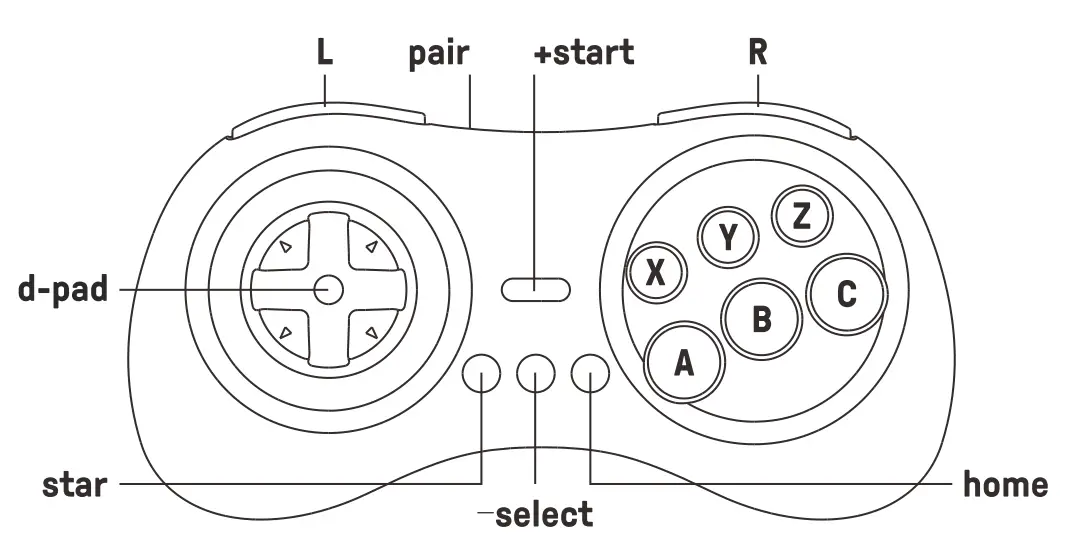
- Press start to turn on the controller
- press & hold start for 3 seconds to turn off the controller
- press & hold start for 8 seconds to force turn off the controller
Switch
- press & hold Y & start to turn on the controller, LEDs start to rotate from left to right
- press & hold pair for 2 seconds to enter pairing mode, LEDs pause fort second then start to rotate again
- go to your Switch Home Page to click on Controllers, then click on Change Grip/Order. LEDs become solid when the connection is successful
- the controller will auto-reconnect to your Switch with the press of start once it has been paired• when connected to your Switch, star button = Switch ScreenShot button• home button = Switch HOME button
Android (D – input)
- press & hold B & start to turn on the controller, LED 1 blink
- press & hold pair for 2 seconds to enter pairing mode, LED 1 pause for a second then starts to rotate again
- go to your Android device’s Bluetooth setting, pair with [8BitDo M30 gamepad]. LED becomes solid when the connection is successful
- the controller will auto-reconnect to your Android device with the press of start once it has been paired• USB connection: connect the controller to your Android device via USB cable after step 1
Windows (X – input)
- press & hold X & start to turn on the controller, LEDs 1 & 2 blink
- press & hold pair for 2 seconds to enter pairing mode, LEDs pause fort second then start to rotate again
- go to your Windows device’s Bluetooth setting, pair with [8BitDo M30 gamepad]. LEDs become solid when the connection is successful
- the controller will auto-reconnect to your Windows with the press of start once it has been paired•USB connection: connect the controller to your Windows device via USB cable after step 1
macOS
- press & hold A & start to turn on the controller, LEDs 1, 2&3 blink
- press & hold pair for 2 seconds to enter pairing mode, LEDs pause fort second then start to rotate again
- go to your macOS device’s Bluetooth setting, pair with [Wireless Controller]. LEDs become solid when the connection is successful
- the controller will auto-reconnect to your macOS device with the press of start once it has been paired•USB connection: connect the controller to your macOS device via USB cable after step 1
Turbo function
report this ad
1- hold the button you would like to set turbo functionality to and then press the start button to activate/deactivate its turbo functionality
- d-pad and analog sticks are not included
- this does not apply to Switch
Battery
|
status – |
LED indicator- |
| low battery mode | red LED blinks |
| battery charging | red LED stays solid |
| battery fully charged | LED turns off |
- built-in 480 mAh Li-on with 18 hours of playtime
- rechargable via USB-C cable with 1- 2 hour charging time
Power saving
- Sleep mode -1 minute with no Bluetooth connection
- Sleep mode -15 minutes with Bluetooth connection but no use
- Press start to wake up your controller
- controller stays on and connected to wired USB connection
support
- please visit 8bitdo.com for further information & additional support
8bitdo.com
[xyz-ips snippet=”download-snippet”]